
What does this screen do?
The Publishing settings page of a host decides which server a visitor's request goes to and how it gets there. Changes take effect a few seconds after you save them.
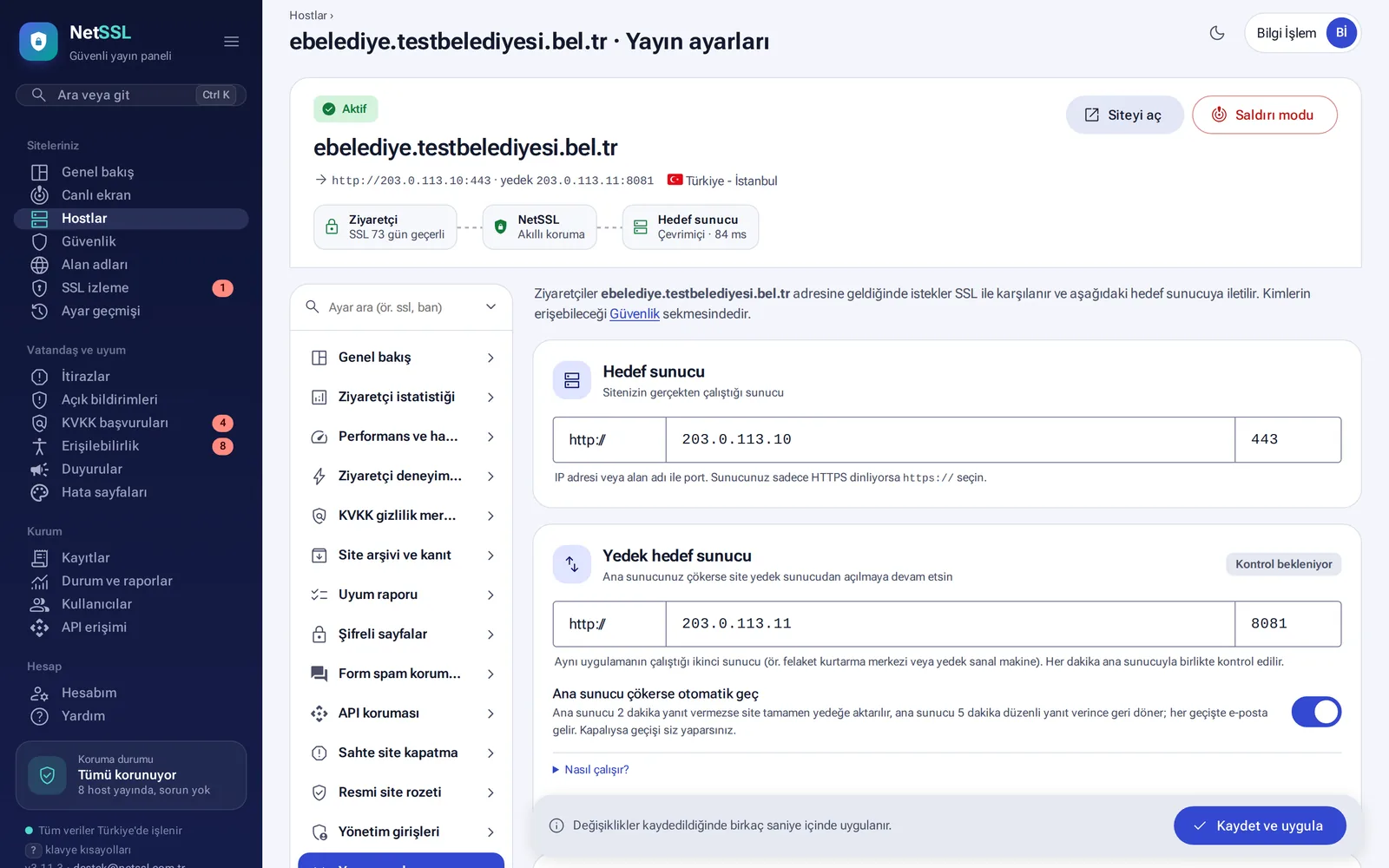
If your server goes down
- Backup server and automatic failover: if the main server does not respond for 2 minutes, traffic switches to the backup. Traffic switches back once the main server has responded steadily for 5 minutes. You get an email at every switch. If you prefer, you can switch manually.
- Always on: if your server does not respond, visitors see the last saved copy of the pages. A banner saying “the site is not responding right now” appears at the top of the page. Copies are kept for at most 7 days. Personalized pages and pages behind a login are not stored.
- Information page: if the server cannot be reached, visitors see a clear information page instead of “502 Bad Gateway”. The page refreshes itself every 30 seconds.
Load balancing
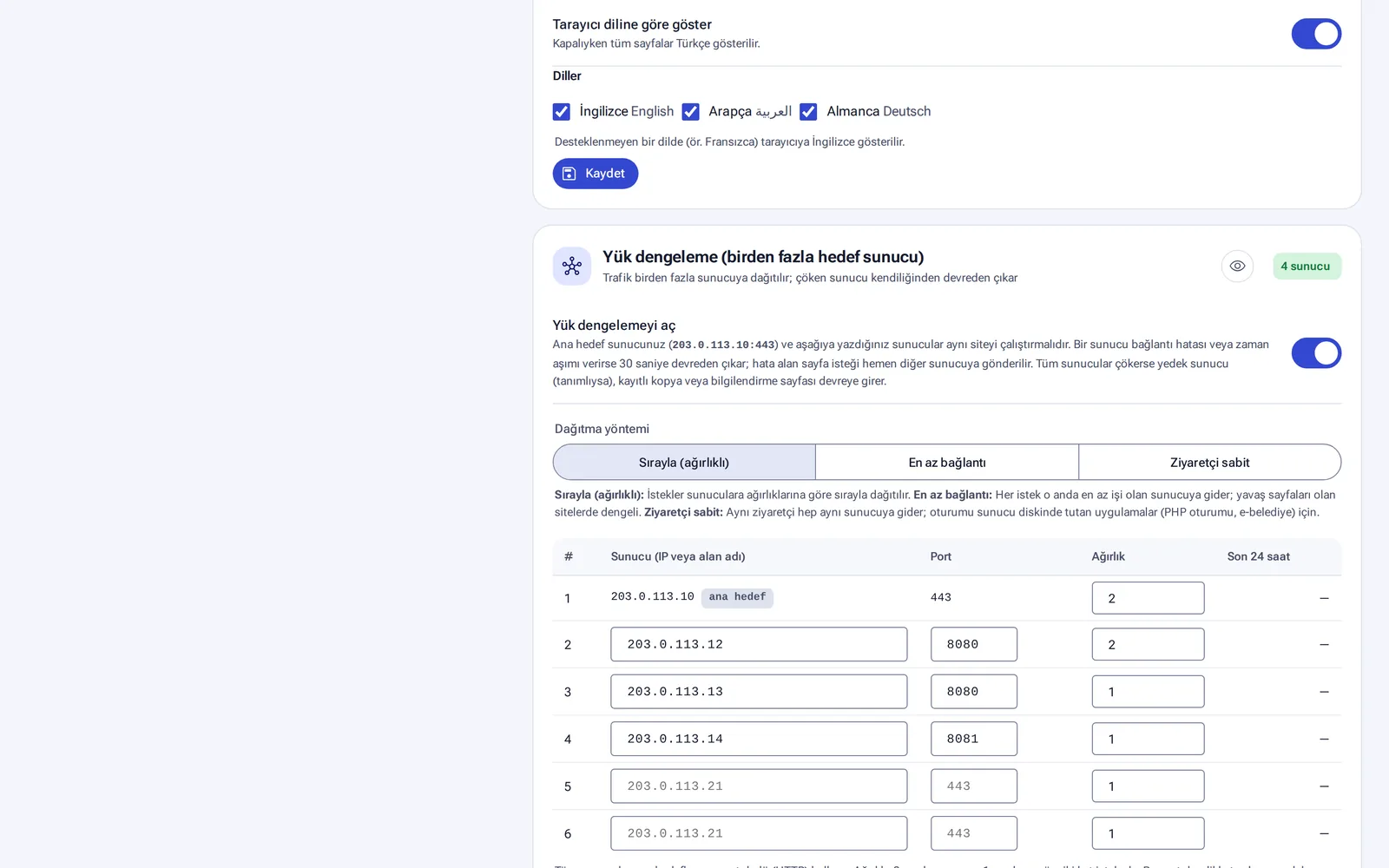
You can spread traffic across up to 8 servers. A server that returns errors is taken out of rotation for 30 seconds. The request that got the error is sent to another server immediately.
| Method | When? |
|---|---|
| Round robin (weighted) | When the servers are equal. A server with weight 2 receives twice as many requests. |
| Least connections | When some requests take a long time |
| Sticky sessions | Applications that use PHP sessions, and sites with logins such as e-municipality services |
Performance and compatibility
- HTTP/2 and WebSocket (for real-time apps such as live notifications and chat)
- Static file cache: images, CSS, JavaScript and fonts are served from the cache. Pages, forms, APIs, PDFs and videos are not cached. The Clear cache button is in the same place.
- Compression: if your server already compresses content, it is not compressed again.
- Security headers and HSTS (1 year)
- Hide server information: traces of software such as the PHP version, ASP.NET, Plesk, Exchange, SharePoint and WordPress are hidden from visitors.
- Hide email addresses: email addresses on your pages are shown in a form that spam bots cannot read.
- Advanced settings: timeout (60 seconds by default) and maximum file upload size (100 MB by default)
Address rules
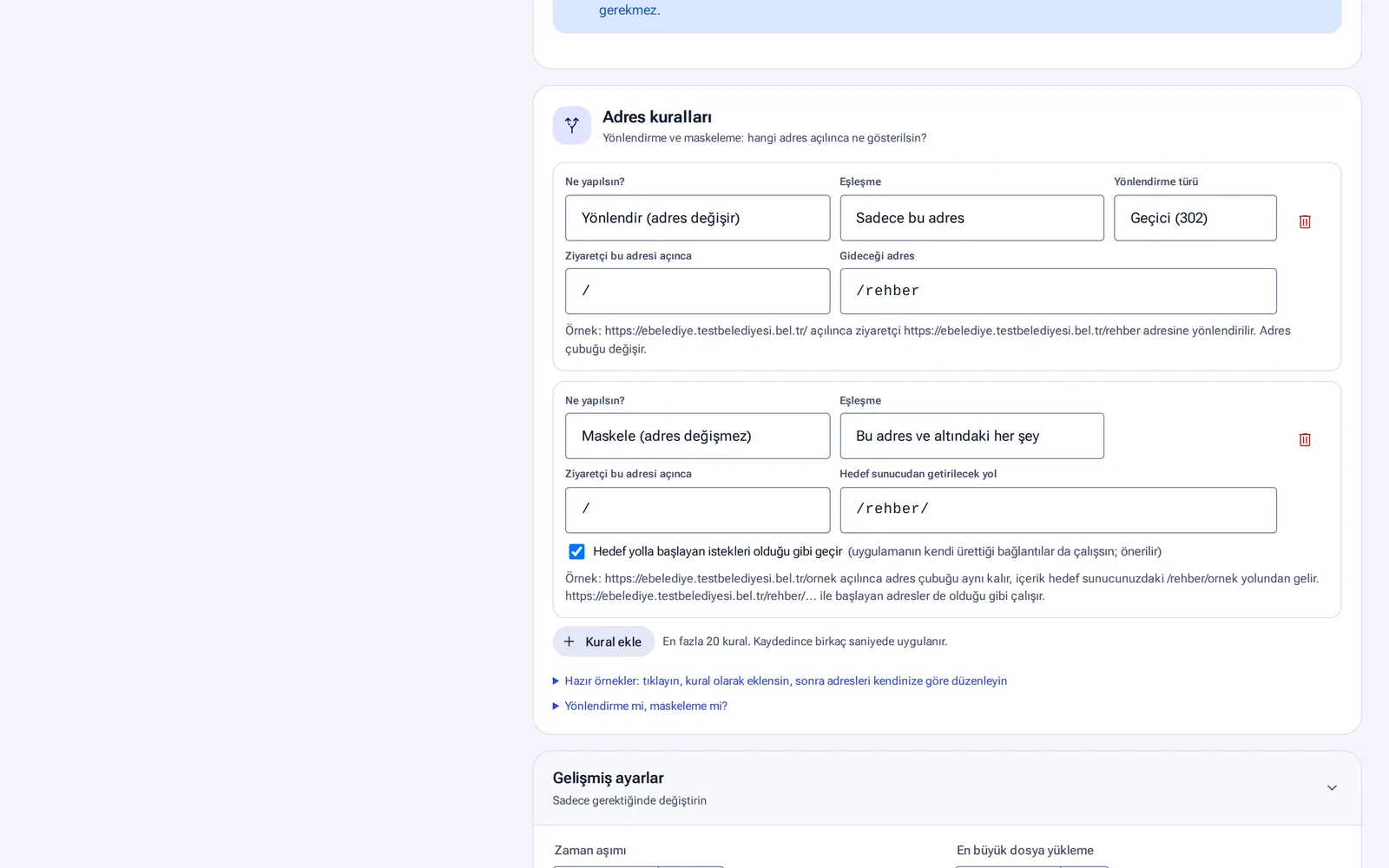
You can redirect an address to another address (the address bar changes) or mask it (the address stays the same, but the content comes from somewhere else). A rule can apply to a single address or to everything under it. You can define up to 20 rules. Ready-made examples and an explanation of “redirect or mask?” are in the same section.
Language of visitor pages
Block, verification, maintenance and waiting pages are shown in Turkish, English, Arabic or German, based on the visitor's browser language. For other languages, the pages appear in English. Visitors can change the language at the bottom of the page.
During sudden surges such as exam results, the Peak traffic cache keeps a copy of pages for a few seconds. Your server then gets only one request per page. Logged-in users, forms and payment pages are not affected. Details are in the Maintenance and Peak Days guide.
Frequently asked questions
Our server only runs over HTTPS. Is that a problem?
No. Just set the target server to https://.
Do visitors notice anything when traffic switches to the backup server?
The switch happens within a few seconds. If your backup server serves the same content, visitors see no difference.