
What does this screen do?
A wildcard certificate is renewed every 60 days. Installing it by hand on dozens of servers each time takes time, and it is easy to forget. The NetSSL agent does this work for you. You install it on a server once, and it finds the sites and services that use *.alan.adi by itself. After each renewal it installs the new certificate on all of them and reports the result to the panel.
The agent can also perform the DNS validation for wildcard SSL. If your DNS runs on an internal Windows DNS or BIND server, the agent adds the validation record to that server itself.
When should you use it?
- When you want to install the wildcard certificate on your IIS, Exchange, Remote Desktop or RD Gateway servers.
- When you want to deploy the same certificate to all sites on your Plesk or cPanel servers.
- When your services such as Tomcat, Node.js, Python or HAProxy read a certificate file.
- When your DNS runs on an internal Windows DNS or BIND server.
- When you do not want your IT team to track certificate renewal dates.
The agent is in the Deploy to your servers (automatic) step of the wildcard SSL box on the Your sites → Domains page. The Automatic SSL and Wildcard SSL guide explains how the wildcard certificate is obtained.
How does it work?
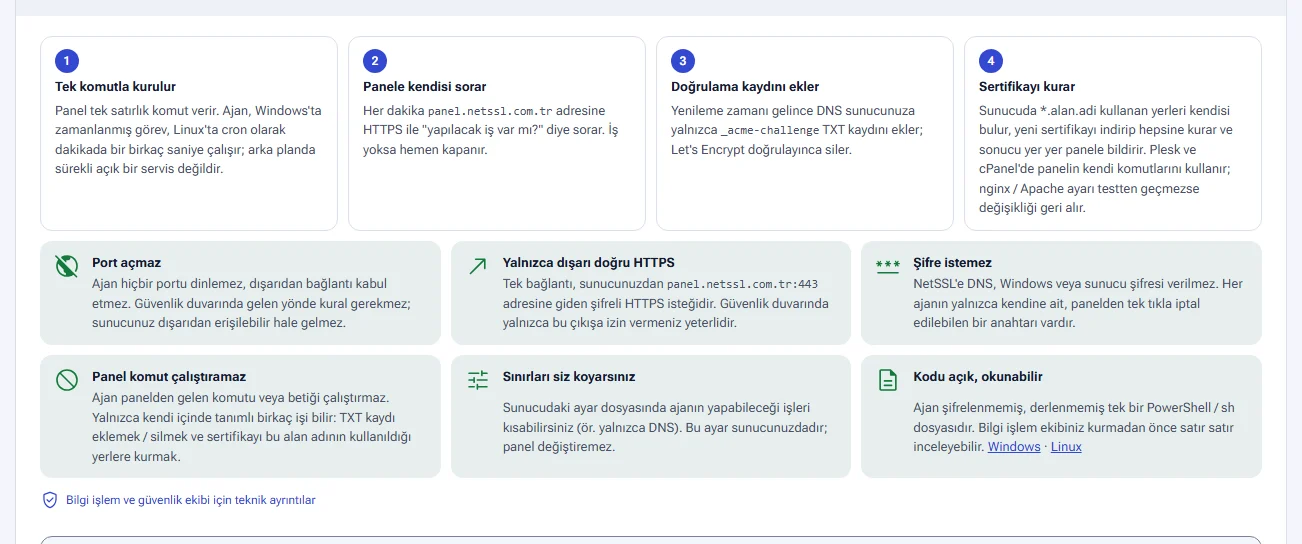
The agent is not a service that runs constantly in the background. It runs for a few seconds once a minute, as a scheduled task on Windows and as a cron job on Linux.
- It installs with one command. The panel gives you a one-line installation command.
- It asks the panel itself. Every minute it asks the NetSSL panel over HTTPS: "Is there any work to do?" If there is none, it exits immediately.
- It adds the validation record. When renewal time comes, it adds only the
_acme-challengeTXT record to your DNS server. Once Let's Encrypt has validated, it deletes the record. - It installs the certificate. It downloads the new certificate and installs it in the places it found. It reports the result for each place to the panel separately.
Security features
| Feature | What does it mean? |
|---|---|
| Opens no ports | The agent does not listen on any port. No inbound firewall rule is needed. |
| Outbound HTTPS only | The only connection is an encrypted HTTPS (443) request from your server to the NetSSL panel. You only need to allow this outbound traffic on the firewall. |
| Asks for no passwords | You do not give NetSSL any DNS, Windows or server password. Each agent has only its own key. You can revoke this key from the panel with one click. |
| The panel cannot run commands | The agent does not run commands or scripts sent from the panel. It only knows the tasks built into it: adding and deleting the TXT record, and installing the certificate. |
| You set the limits | You can restrict what the agent may do in the configuration file on the server. This setting is on your server, and the panel cannot change it. |
| Open, readable code | The agent is a single PowerShell or sh file that is neither encrypted nor compiled. Your team can review it line by line before installing it. The Windows and Linux links in the box open the source code. |
The agent runs with SYSTEM rights on Windows and root rights on Linux. IIS, the certificate store and web server settings require these rights.
What does it send to the panel and what does it change?
The Technical details for IT and security teams link lists what the agent sends and what it changes. Your security team can read this list before giving approval.
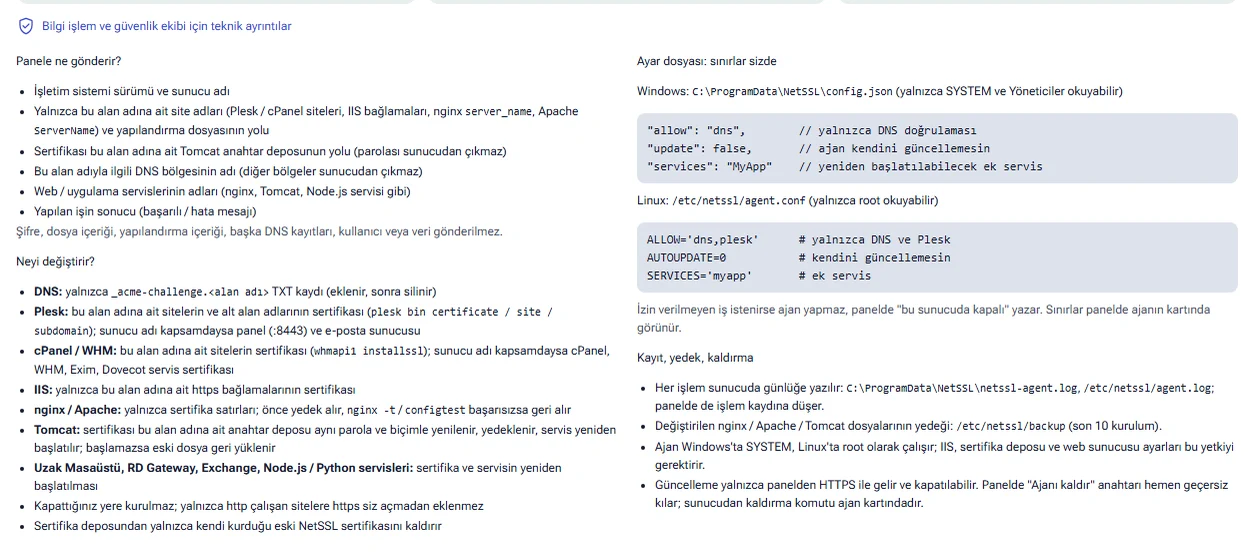
The agent sends the following to the panel:
- The operating system version and the server name.
- Only the names of sites that belong to this domain and the path of their configuration file.
- The path of any Tomcat keystore whose certificate belongs to this domain. The keystore password never leaves the server.
- The name of the DNS zone for this domain. Other zones never leave the server.
- The names of web and application services.
- The result of the work done (success or an error message).
No passwords, file contents, configuration contents, other DNS records, users or data are sent.
The agent changes only the following:
- DNS: it adds only the
_acme-challenge.<alan adı>TXT record and deletes it afterwards. - Plesk and cPanel: it changes the certificate of the sites that belong to this domain with the panel's own commands. It does not edit configuration files by hand.
- IIS: it changes only the certificate of the https bindings that belong to this domain.
- nginx and Apache: it changes only the certificate lines. It takes a backup first. If
nginx -torconfigtestfails, it rolls back the change. - Tomcat: it renews the keystore with the same password and format. It takes a backup first. If Tomcat does not start, it restores the old file.
- Remote Desktop, RD Gateway, Exchange, Node.js and Python services: it installs the certificate and restarts the service.
- From the certificate store, it removes only the old NetSSL certificate that it installed itself.
Adding a server and installation
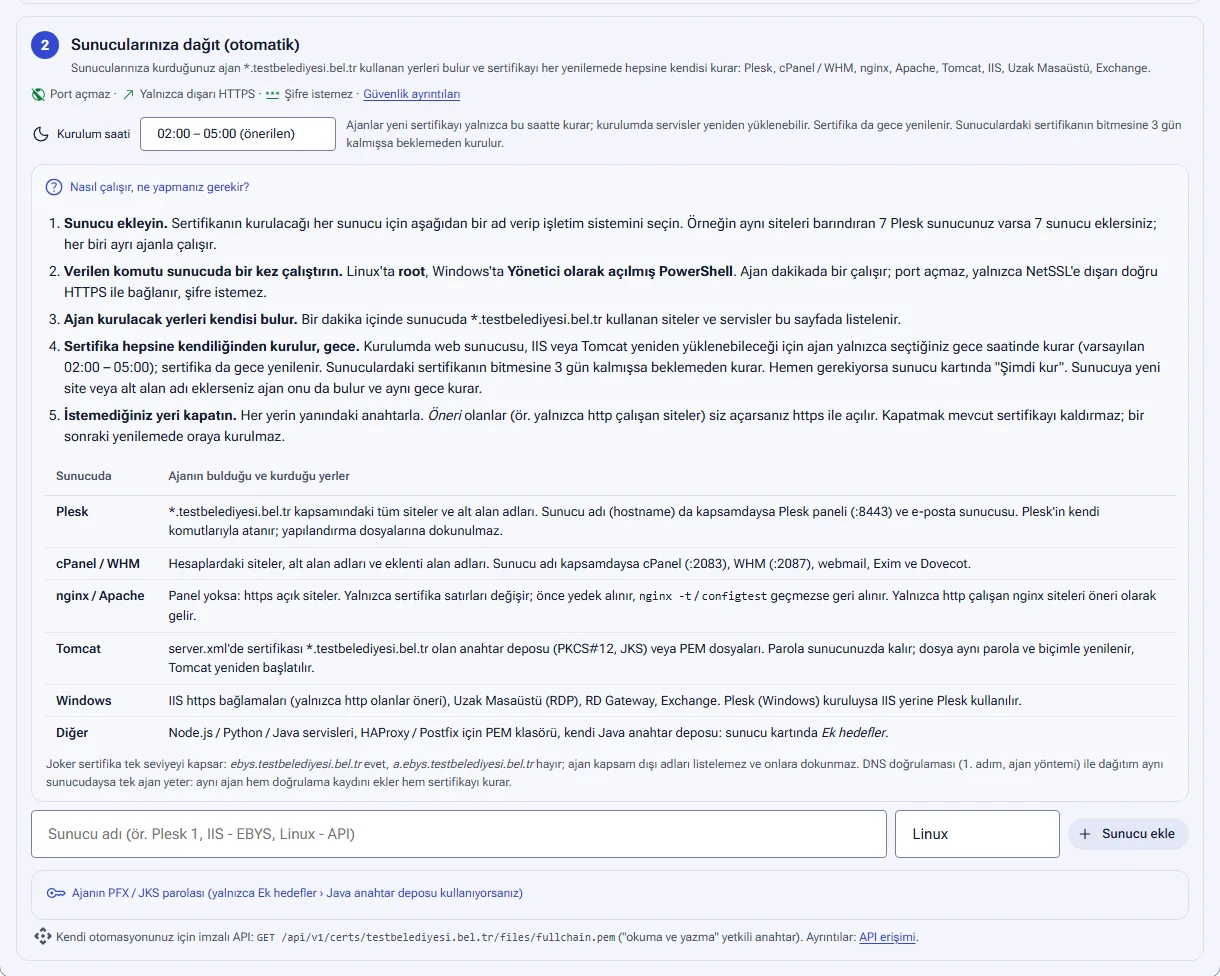
You add a separate agent for each server where the certificate will be installed. For example, if you have 7 Plesk servers hosting the same sites, you add 7 servers. A maximum of 20 servers can be added to one wildcard certificate.
- In the wildcard SSL box, scroll down to the Deploy to your servers (automatic) step.
- In the Server name field, enter a name you will recognize (e.g. Plesk 1, IIS - EDMS, Linux - API).
- Choose the operating system: Linux or Windows Server.
- Click the Add server button.
- Copy the installation command shown on the server card with Copy command.
- Run the command on the server once. On Linux, run it as root. On Windows, run it in PowerShell opened as Administrator.
- Within a minute the card shows Online and lists the places the agent found.
| Linux | Windows Server | |
|---|---|---|
| Installation location | /usr/local/sbin/netssl-agent |
C:\ProgramData\NetSSL |
| How it runs | Once a minute through cron | Once a minute through the "NetSSL Ajan" scheduled task (SYSTEM) |
| Configuration file | /etc/netssl/agent.conf |
C:\ProgramData\NetSSL\config.json |
| Places it finds automatically | Plesk, cPanel, nginx, Apache, Tomcat | IIS, Remote Desktop, RD Gateway, Exchange, Tomcat, Plesk (Windows) |
| Version | — | Windows Server 2012 R2 and later |
The installation command contains a key unique to the agent. Share the command only with the person who will do the installation.
Server card
Each server has a card. The card shows the server name, the operating system and the agent version.
| Label | Meaning |
|---|---|
| Waiting for installation | The command has not been run on the server yet. |
| Online | The agent connected to the panel within the last 3 minutes. |
| Last connection ... | The agent has not connected for a while. Check the scheduled task or cron job and outbound HTTPS access. |
| DNS validation: zone | This agent performs DNS validation for the domain. |
| Plesk server / cPanel / WHM server | The agent found this panel on the server. |
| Current certificate installed | The latest certificate has been installed on this server. |
| Will be installed tonight between ... | The new certificate is waiting for the installation time. |
| Could not install in some places | There is an error in at least one place. The error line appears below that place. |
| Does not self-update | Self-update has been turned off in the configuration file on the server. |
Agent for DNS validation
If you chose the My own DNS server (agent) method for wildcard SSL, you install the agent on your DNS server.
- Windows DNS: the agent adds the validation record to Windows DNS and deletes it.
- BIND: the agent adds the record with
nsupdate -l. For this, the zone configuration must includeupdate-policy local;.
When the agent finds the zone, the DNS validation label appears on its card. The wildcard SSL box also shows the line "adds the validation record to the ... zone". If the DNS server is one of the servers where the certificate will be installed, you do not need to add a separate agent. The same agent both adds the validation record and installs the certificate.
While a certificate is being obtained, the DNS agent must have connected to the panel within the last 3 minutes. If the agent does not add the validation record within 20 minutes, obtaining the certificate fails.
Places the agent finds and installs to
On the server, the agent looks only for names within the *.alan.adi scope. It does not list names outside the scope and does not touch them.
| On the server | Places the agent finds and installs to |
|---|---|
| Plesk | All sites and subdomains in scope. If the server name is also in scope, the Plesk panel (:8443) and the mail server. |
| cPanel / WHM | Sites, subdomains and addon domains in the accounts. If the server name is in scope, cPanel (:2083), WHM (:2087), webmail, Exim and Dovecot. |
| nginx / Apache | Sites with https enabled, when there is no panel. nginx sites that run only on http appear as suggestions. |
| Tomcat | Keystores (PKCS#12, JKS) or PEM files in server.xml whose certificate belongs to this domain |
| Windows | IIS https bindings, Remote Desktop (RDP), RD Gateway, Exchange. If Plesk (Windows) is installed, Plesk is used instead of IIS. |
| Other | Node.js, Python and Java services, a PEM folder for HAProxy and Postfix, your own Java keystore: Additional targets on the server card |
If you add a new site or subdomain to the server, the agent finds it too and installs the certificate the same night.
Status of places
| Status | Meaning |
|---|---|
| Installed | The current certificate has been installed in this place. |
| Will install tonight | The new certificate will be installed at the installation time. |
| Installation pending | The installation time has come, and the agent will install the certificate. |
| Installs when the agent connects | The agent is offline right now. |
| Installs once the certificate is obtained | The wildcard certificate has not been obtained yet. |
| Could not install | The installation failed. The error message appears below the row. |
| Suggestion | The agent found it but does not install automatically. An example is a site that runs only on http. |
| Off | You turned off this place. |
| Off on the server | The configuration file on the server does not allow this task. |
| Install manually | The agent cannot change this place safely. The description line gives the reason. |
The agent asks you to install some places manually. This happens, for example, when the certificate line comes from another file, the private key is encrypted or the keystore password is in an environment variable. For these places you can use Additional targets › PEM folder or Java keystore.
Turn off places you do not want
Each place has a switch next to it. The certificate is not installed in places where you turn the switch off. Turning it off does not remove the current certificate. The certificate is just not installed there at the next renewal. If you turn on a place marked Suggestion, the agent adds https there. For example, it adds an https binding with SNI to an IIS site that runs only on http.
Installation time and Install now
Installation may reload the web server, IIS or Tomcat. For this reason, the agent installs the new certificate only during the night-time window you choose. The certificate is also renewed at night.
The Installation time options are:
- 00:00 – 03:00
- 01:00 – 04:00
- 02:00 – 05:00 (recommended and default)
- 03:00 – 06:00
If the certificate on the servers has 3 days left before it expires, the agent installs it without waiting for the window. If you want the installation right away, click the Install now button on the server card. The confirmation dialog reminds you that there may be an interruption of a few seconds. The agent installs the certificate within a minute.
If installation fails
If installation fails in a place, the server card shows Could not install in some places. The agent tries again every 15 minutes. If you have fixed the problem, click the Retry now button. If installation fails on two attempts, you receive a "Wildcard SSL installation failed" email and a cert.deploy_failed webhook event.
Additional targets
You add the places the agent cannot find by itself in the Additional targets (manual) section of the server card.
| Additional target | What does it do? |
|---|---|
| PEM folder (HAProxy, Postfix, Dovecot ...) | It writes fullchain.pem and privkey.pem to the folder you choose. On Linux it also writes combined.pem, which holds the certificate and key in a single file for HAProxy. On Linux you choose the services to reload. On Windows you can enter a service to restart. |
| Java keystore (Tomcat, Spring Boot) | It writes a .p12 (Java 9+) or .jks (Java 8 and earlier) file to the path you enter. It then restarts the service you enter. |
| Application services (Linux only) | For the Node.js, Python, Java and .NET services the agent finds, it writes fullchain.pem and privkey.pem under /etc/ssl/netssl/<alan adı>/<servis>/. It then restarts the service. |
You define the file path in your application once. On later renewals the agent only replaces the file and restarts the service. If the application runs behind nginx or Apache, you only need to select that site.
Agent's PFX / JKS password
The agent protects the .p12 and .jks files it writes through Additional targets › Java keystore with this password. You enter the password in your Tomcat configuration (server.xml) once. Places found automatically (Plesk, cPanel, IIS, Tomcat server.xml ...) do not need this password. Tomcat's own keystore is renewed with its own password, and that password never leaves the server.

- The section opens with the Agent's PFX / JKS password link. The Current row shows the current password and a Copy button.
- You can enter your own password and click the Change password button. If you leave the field empty, a random password is generated.
- The password must be 8-64 characters long. Do not use Turkish letters or spaces.
- When you change the password, the agents reinstall the files with the new password within a minute.
- PFX, P12, JKS and ZIP files fetched through the API also come with this password. If you use your own scripts, update them too.
Limits in the configuration file
You limit what the agent can do with the configuration file on the server. Only the server's administrator can read and change this file. The panel cannot change this setting.
| Windows | Linux | |
|---|---|---|
| File | C:\ProgramData\NetSSL\config.json (readable only by SYSTEM and Administrators) |
/etc/netssl/agent.conf (readable only by root) |
| Allowed tasks | "allow": "dns" |
ALLOW='dns,plesk' |
| Self-update | "update": false |
AUTOUPDATE=0 |
| Additional services that may be restarted | "services": "MyApp" |
SERVICES='myapp' |
The tasks you can put in the allow list are:
- Linux:
dns,plesk,cpanel,nginx,apache,tomcat,app,pem,keystore - Windows:
dns,plesk,iis,rdp,rdgw,exchange,tomcat,store,pem,keystore
For example, if you set allow to only dns, the agent only performs DNS validation and does not install the certificate anywhere. If a task that is not allowed is requested, the agent does not do it. The panel shows Off on the server for that place. If self-update is off, the card shows the Does not self-update label. Updates come only from the panel over HTTPS.
Logs and backups
- The agent writes every action to a log file on the server:
C:\ProgramData\NetSSL\netssl-agent.logon Windows and/etc/netssl/agent.logon Linux. - Every installation is also recorded on the Logs → Panel actions page in the panel.
- Backups of the changed nginx, Apache and Tomcat files are kept in the
/etc/netssl/backupfolder. The backups of the last 10 installations are kept.
Removing the agent
- On the server card, open the Installation / removal commands link.
- Click the Remove agent button and confirm. The agent's key is revoked immediately. The agent on the server can no longer connect to the panel.
- Run the removal command shown in the same section on the server.
The removal command is shown on the card. For a default installation, the commands are:
- Linux:
rm -f /etc/cron.d/netssl-agent; rm -rf /etc/netssl; rm -f /usr/local/sbin/netssl-agent - Windows:
Unregister-ScheduledTask -TaskName 'NetSSL Ajan' -Confirm:$false; Remove-Item -Recurse -Force "$env:ProgramData\NetSSL"
Installed certificates stay in place. Remember to renew the certificate another way before it expires.
The *.kurum.bel.tr certificate covers ebys.kurum.bel.tr but not a.ebys.kurum.bel.tr. The agent does not list names outside the scope and does not install the certificate on them. Two-level names need a separate certificate.
Frequently asked questions
Which firewall rule should I open?
No inbound rule is needed. You only need to allow outbound HTTPS (443) from the server to the NetSSL panel.
The agent shows "Last connection" and does not come online.
On Windows, check that the "NetSSL Ajan" scheduled task is running. On Linux, check that the cron entry is in place. Make sure the server can reach the panel over outbound HTTPS. The agent's log file shows the cause of the error.
If the panel is compromised, can commands be run on my server?
No. The agent does not run commands or scripts sent from the panel. It only performs the tasks built into it. You can also narrow these tasks with the configuration file on the server.
We have more than one server hosting the same sites. What should we do?
Add a separate server for each one and run the command on each server. Each agent finds the places on its own server and installs the certificate there.
I need to install the certificate right away. Do I have to wait for the night?
No. Click the Install now button on the server card. The agent installs the certificate within a minute.