
What is this guide for?
It shows where to look when a site does not open, a certificate cannot be obtained or a visitor is blocked. Problems are grouped by symptom. The same information is also available in the panel on the Account → Help page.
When should you use it?
- When a host you just added does not go live.
- When visitors see an error page or a browser warning.
- When a visitor, a mobile app or an integration is blocked.
- When logs you expect do not appear or a notification email does not arrive.
Check these first
- The host page header: The status label and the warning chips often name the problem directly. The Target server box in the publishing path shows your server's status: Online (with the response time), Unreachable, Returning errors or Waiting for check.
- Setup screen: If the host is not live yet, this screen shows the error message and the next step.
- Security events: If a request was blocked, this page shows the reason and the rule that triggered.
- Reference code: If the visitor sent you the Ref code from the block page, type the code into the panel search (Ctrl K).
DNS problems
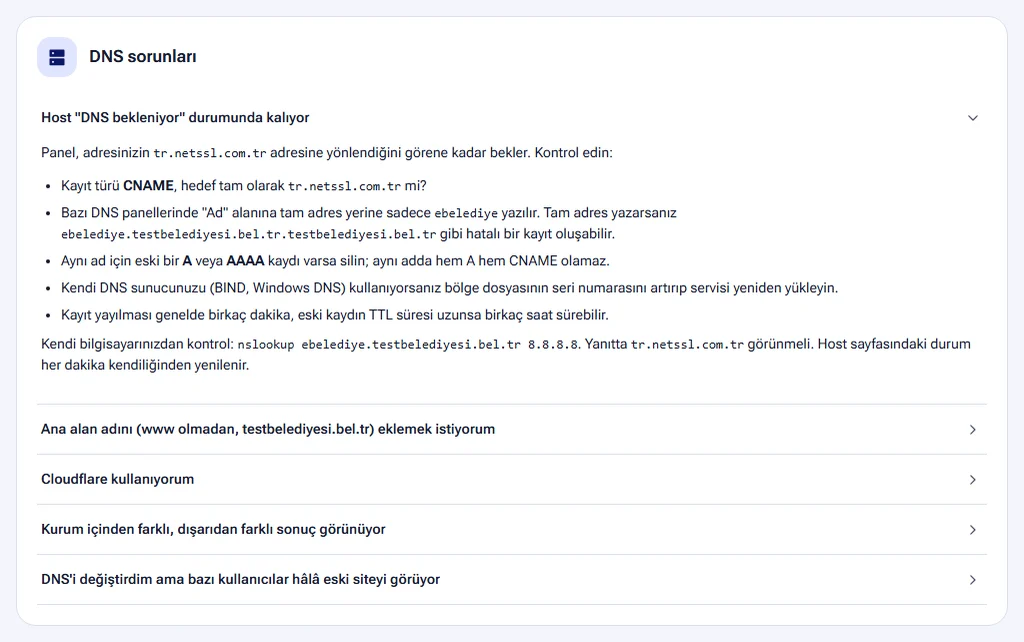
The host stays in “Waiting for DNS” status
The panel waits until it sees that the address points to NetSSL. Check the following:
- Is the record type CNAME, and is the target exactly the DNS target shown in the panel (e.g.
tr.netssl.com.tr)? - Did you enter the full address in the “Name” field? Some DNS panels expect only
ebelediye. If you enter the full address, you create a wrong record such asebelediye.testbelediyesi.bel.tr.testbelediyesi.bel.tr. - Is there an old A or AAAA record for the same name? If so, delete it. A name cannot have both an A record and a CNAME record.
- If you use your own DNS server (BIND, Windows DNS), increase the zone file's serial number and reload the service.
- Wait for the record to propagate. This usually takes a few minutes. If the old record has a long TTL, it can take a few hours.
To check from your own computer:
nslookup ebelediye.testbelediyesi.bel.tr 8.8.8.8The response should show the DNS target from the panel. While the setup screen is open, the status refreshes automatically. The Check now button checks without waiting.
The setup screen says “DNS record points to the wrong place”
The record points to another address. The panel shows where the record currently goes. If the record resolves to more than one IP address, only NetSSL's address should remain. Delete or correct the old record.
A “Cloudflare proxy must be turned off” warning appears
If your DNS is on Cloudflare, set the record's proxy status to DNS only (gray cloud). While the orange cloud is on, requests go to Cloudflare first. In that case the SSL certificate cannot be obtained, and protection runs through Cloudflare instead of NetSSL.
I cannot add the root domain (without www)
DNS rules do not allow a CNAME on the root domain (apex, @). Instead, add an A record that points to the NetSSL server's IP address. If you use Cloudflare, you can also add a CNAME at the root. To add the root domain as a host, your account needs root domain permission. If the panel says “The root domain itself cannot be added”, contact us for this permission.
Results differ inside and outside the organization
If your organization uses internal DNS (split DNS), the address may still point to the old server inside your network. Add the same CNAME record to your internal DNS server too, or delete the internal record.
I changed the DNS, but some users still see the old site
Until the old record's TTL expires, some DNS servers keep returning the old address. The problem usually clears within 1 hour. Before your next migration, lower the TTL to 300 seconds ahead of the change. This makes the switch faster.
The host page shows a “DNS record does not point to NetSSL” warning
The host is live, but your domain's DNS record no longer points to NetSSL. In this case the protections do not work, and the security score is 30 at most. Check who changed the record and restore it. If a DNS records changed warning appears and you did not make the change, change your domain management password. Details: Domain security.
SSL and HTTPS
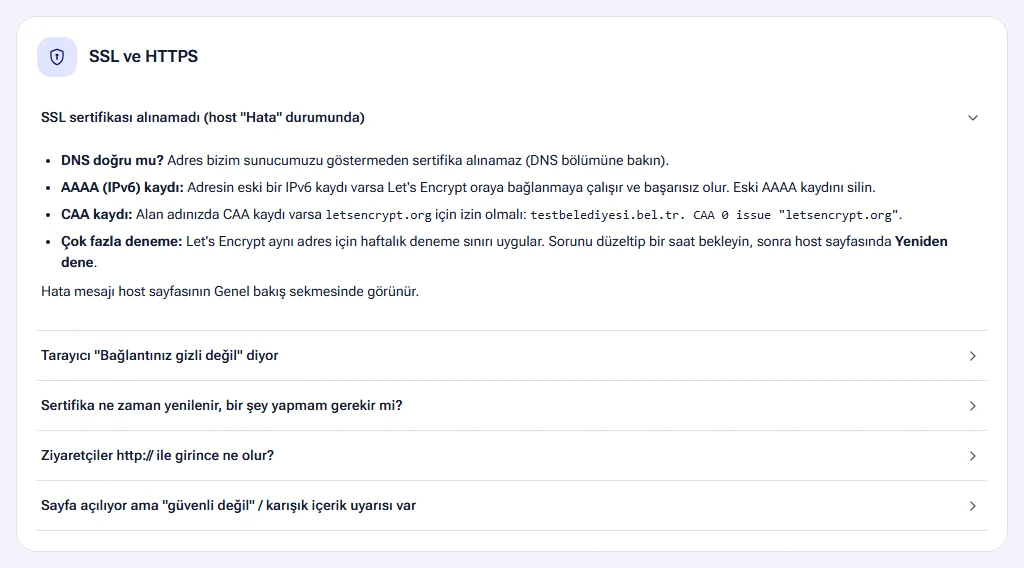
SSL certificate could not be obtained (host in “Error” status)
The error message appears on the host's setup screen and on the Overview page. Possible causes:
- DNS is not correct. A certificate cannot be obtained until the address points to NetSSL. See the DNS steps above.
- There is an old AAAA (IPv6) record. Let's Encrypt tries to connect there and fails. Delete the old AAAA record.
- The CAA record does not allow Let's Encrypt. If your domain has a CAA record, it must allow
letsencrypt.org. The panel shows this in the Needs attention list and with a red warning on the host page. - Too many attempts were made. Let's Encrypt applies a weekly attempt limit for the same address. Fix the problem, wait an hour and click the Retry button on the host page.
CAA record example:
testbelediyesi.bel.tr. CAA 0 issue "letsencrypt.org"The certificate is running out of days and does not renew
Certificates are valid for 90 days and renew automatically about 30 days before they expire. For renewal, the DNS record only needs to keep pointing to NetSSL. The Visitor box in the publishing path shows the remaining days. The expiry date appears in the SSL certificate section on the host's Maintenance and notifications page. If the remaining days keep dropping, check the DNS record and the CAA record.
The browser says “Your connection is not private”
- If the DNS changed recently, your browser may still be going to the old server. Wait a few minutes and restart the browser.
- If the host is not Active yet, the certificate has not been obtained. Follow the steps on the setup screen.
- If your organization's network has a security device that performs SSL inspection, the warning comes from that device. Try the site from outside, for example over your phone's mobile data.
The page opens but shows a “not secure” or mixed content warning
Your application generates image, style or script links on the page with http://. Set the application's address setting to https://. Alternatively, make the application trust the X-Forwarded-Proto: https header. NetSSL sends this header with every request. Details: Real visitor IP on the server.
Site does not open or shows an error
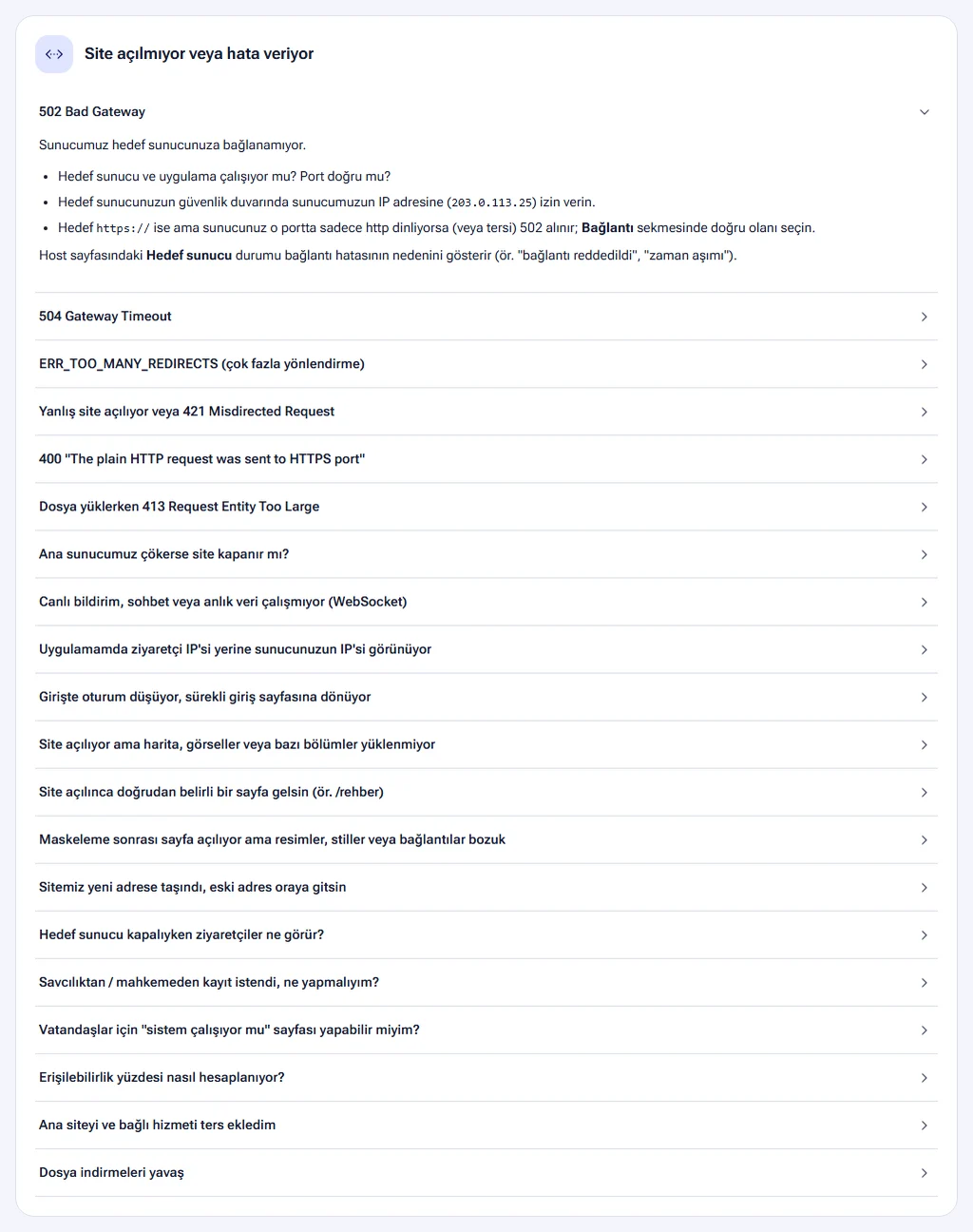
502 Bad Gateway
NetSSL cannot connect to your target server.
- Are the target server and the application running? Is the port correct?
- Allow the NetSSL address in your target server's firewall. The address appears in the How does traffic flow? box on the host's Publishing settings page.
- Check the protocol. If the target is set to
https://but your server listens only for http on that port (or the other way round), you get a 502. Choose the correct protocol in the Target server section on the host's Publishing settings page.
The Target server box in the host page header shows the cause of the error. If more than one fifth of the requests in the last 1 hour cannot reach the target, a warning bar appears on the Overview page. The Target server protection section on the Security page also shows whether your firewall is blocking a NetSSL address.
504 Gateway Timeout
The target server accepts the connection but responds too late. For long-running reports or exports, increase the Advanced settings → Timeout value on the host's Publishing settings page (e.g. 300 seconds). The value is between 10 and 600 seconds. If all pages are slow, the problem is on the target server.
ERR_TOO_MANY_REDIRECTS (too many redirects)
The most common cause is as follows. The target is defined as http://, but your target server redirects http requests to its own https address. NetSSL connects over http again, and an endless loop starts.
- Open the Target server section on the host's Publishing settings page.
- Set the protocol to
https://and the port to your server's https port (usually 443). - Alternatively, make your application redirect based on the
X-Forwarded-Protoheader.
The wrong site opens or you get 421 Misdirected Request
If your target server hosts more than one HTTPS site on the same IP (Plesk, cPanel, IIS), the server identifies the requested site from the domain name (SNI). Turn on the Send domain name to the target (SNI) option in the host's Publishing settings → Target server section. The option appears when the target is set to https://.
400 “The plain HTTP request was sent to HTTPS port”
The target port expects HTTPS, but the target is set to http://. Choose https:// in the Target server section.
413 Request Entity Too Large when uploading files
Increase the Advanced settings → Maximum file upload value on the host's Publishing settings page. The value is between 1 and 2048 MB. Also check your target server's own limit. In PHP this limit is the upload_max_filesize setting, and in IIS it is maxAllowedContentLength.
Live notifications, chat or real-time data do not work
The application uses WebSocket. Turn on the WebSocket option in the Performance and compatibility section on the host's Publishing settings page.
The session drops after login and keeps returning to the login page
Your application may think it runs over http and set its cookies incorrectly. Set the application's address to https:// and make it trust the X-Forwarded-Proto header. In frameworks such as Laravel, WordPress and ASP.NET, this setting is called “trusted proxy”.
My application shows NetSSL's IP instead of the visitor's IP
This is expected. The real IP arrives in the X-Real-IP and X-Forwarded-For headers. The setting for each server type is in the Real visitor IP on the server guide.
The site opens, but maps, images or some sections do not load
Your page may load part of its content from another address (e.g. cbs.testbelediyesi.bel.tr for maps). The browser loads this address in the background. If browser verification is required there, the visitor cannot see it and the content does not load. This usually happens while attack protection is on, or with smart protection for visitors from abroad.
The solution is to make that address a linked service of the main site. Choose the main site in the Site structure section on the address's Publishing settings page. A visitor who passes verification on the main site is not verified again there. Details: What is NetSSL and how do you set it up?
Images, styles or links are broken after masking
If the addresses on the page are relative (e.g. css/stil.css), the browser requests them relative to the address the visitor sees. The requests then go to the wrong place.
- In the “Subfolder” rule, keep the Pass requests that start with the target path through unchanged option turned on.
- If the problem continues, change the same rule to Redirect (address changes). Redirection works with every application.
The Publishing settings guide explains address rules in detail.
Our main server went down and the site went offline
The host's Publishing settings page offers two safeguards:
- Backup target server: Page requests that cannot reach the main server go to the backup immediately. If the outage lasts more than 2 minutes, the whole site switches to the backup. Traffic returns once the main server responds steadily for 5 minutes. Keeping the data on the backup server up to date is your responsibility.
- Always On: If the target server does not respond, visitors see the last saved copy of the pages.
File downloads are slow
For fair use, the download speed per connection is capped at the limit in your package. The limit appears on the Transferred data card on the host's Overview page. Contact us for higher speeds.
I added the main site and the linked service the wrong way round
You do not need to delete and add them again. Open the Site structure section on the Publishing settings page of the site that actually opens (the address that currently appears as the linked service). Click the Swap: make this address the main site button. No host is deleted. Logs, SSL certificates and DNS stay the same.
Security and access problems
Visitors see a “verifying your browser” page
This page is the security shield's browser verification. It takes a few seconds, and each visitor sees it only once. Possible causes:
- Smart protection is on, and the visitor comes from outside your trusted countries.
- Under-attack mode was turned on manually.
- Automatic attack protection kicked in during a real attack.
You can edit your trusted countries on the host's Security page. Details: Attack protection.
A mobile app, e-signature, integration or API does not work
Clients that are not browsers cannot pass verification. Enter these paths in the API and integration paths section on the host's Security page (e.g. /api/, /ws/, *.asmx). Requests to these paths are not asked for verification, and standard protection does not ban them. If the integration comes from a fixed IP, you can also add that IP to the IPs exempt from rules list.
Why was a request blocked, and which rule blocked it?
Open the Recent events table on the host's Security events page. Hover over the description in the Reason column (tap it on a phone). The box that opens shows why the request was stopped and which rule triggered. It also shows whether the rule is currently on and what you can do. The link at the bottom opens that rule's setting directly. Details: Security events.
An IP was banned by mistake
- Open the Currently banned IPs table on the host's Security events page.
- Click the Unban button next to the IP. The change takes effect within 1 minute.
- If you do not want the IP to be caught again, add it to the IPs exempt from rules list.
Standard protection does not ban anyone under normal conditions. It bans only IPs that send hundreds of requests per second or that keep failing verification during an attack.
Citizens abroad cannot access the site
If the country access rule is set to “Only selected countries can enter” and the action is set to “Block access”, the site is closed to visitors from abroad. If you set the action to Require browser verification, real users abroad can enter after a short verification. Details: Bot and access rules.
I cannot change a setting and the buttons look disabled
Your role may not allow this action. For example, the Viewer and Log officer roles cannot change settings. You can see your role on the My account page. To change it, contact your organization's panel administrator.
Log and notification problems
Visitor logs do not appear
- Logs are transferred from the servers every few minutes. New requests appear after a few minutes.
- Requests for images, styles, scripts, video segments and map tiles (WMS/WMTS) are not written to the list. Error responses are always written.
- The default view shows the last 7 days. Select a date to see earlier days.
Notification emails do not arrive
- Is the Send email when a host goes live / has an error option turned on on the My account page?
- Are the Notifications settings turned on on the host's Maintenance and notifications page?
- Check your spam or junk folder. Add the sender address to your safe senders list.
When will I find out that my target server is down?
NetSSL checks your target server every minute. You get an email if the server is unreachable or returns a 5xx error for the time you choose in the host's Maintenance and notifications → Notifications section. The options are 1, 3, 5, 15 and 30 minutes. The recommended time is 5 minutes. When the server recovers, you get a “reachable again” email with the outage duration.
I need old logs for an official request
The log retention period depends on your package. Logs are deleted automatically when their retention period ends. The Law 5651 logs and official requests guide explains the retention period and the official request package.
I lost my phone and cannot get the two-factor authentication code
You can sign in by entering one of the recovery codes you received during setup (in ABCD-EFGH format) in the code field. If you do not have your codes, ask your organization's panel administrator or us to reset two-factor authentication.
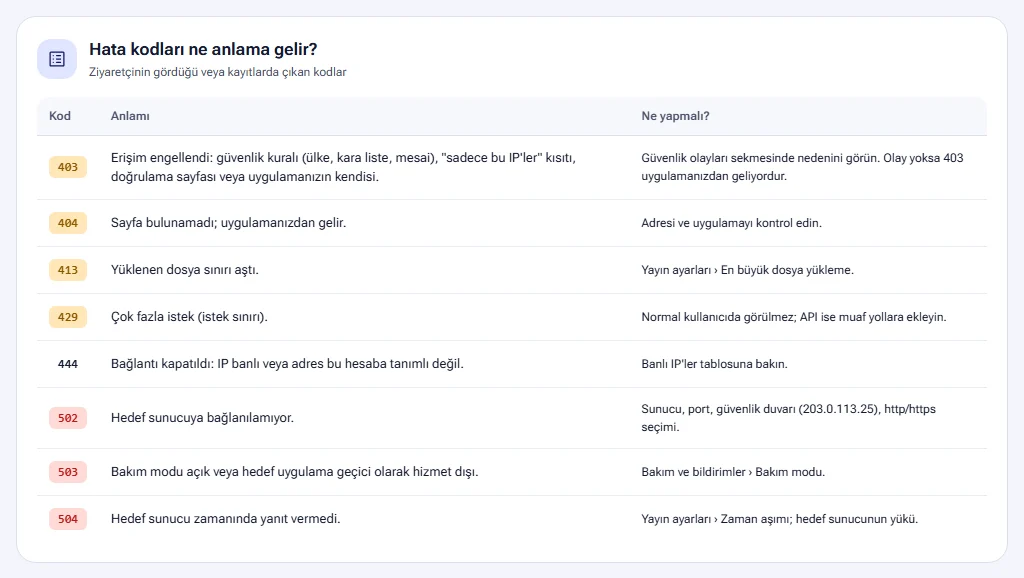
Error codes
What the codes that visitors see or that appear in the logs mean:
| Code | Meaning | What to do? |
|---|---|---|
| 403 | Access denied. The cause may be a security rule (country, blacklist, office hours), the “only these IPs” restriction, the verification page or your application itself. | See the reason on the Security events page. If there is no event, the 403 comes from your application. |
| 404 | Page not found. The code comes from your application. | Check the address and the application. |
| 413 | The uploaded file exceeded the limit. | Increase the Publishing settings → Maximum file upload value. |
| 429 | Too many requests (request limit). | Normal users do not see it. If the requests come from an API, add the path to the exempt paths. |
| 444 | Connection closed. The IP is banned, or the address is not defined for this account. | Check the Currently banned IPs table. |
| 502 | NetSSL cannot connect to the target server. | Check the server, the port, the firewall and the http/https choice. |
| 503 | Maintenance mode is on, or the target application is temporarily out of service. | Check the Maintenance and notifications → Maintenance mode section. |
| 504 | The target server did not respond in time. | Increase the Publishing settings → Timeout value. Check the load on the target server. |
Tell us which host it is and when the problem started, and add a screenshot of the page the visitor sees. If the block page shows a Ref code, include it too. The support address appears at the top of the Help page and at the bottom of the left menu.
Frequently asked questions
What happens when visitors come in over http://?
The visitor is automatically redirected to the https:// address. If you want browsers to always use https, turn on the HSTS (HTTPS only) option in the host's Publishing settings → Advanced settings section. It is hard to undo once you turn it on. If you are not sure, leave it off.
What do visitors see when the target server is down?
If the Information page if the target is unreachable option is on (the default), visitors see a Turkish “The site is not responding right now” page. The page refreshes itself every 30 seconds. When your server comes back, the visitor returns to the site automatically. If the option is off, the browser shows “502 Bad Gateway”. If the Always On option is on, the visitor sees the last saved copy of the pages with a warning at the top. Pages without a saved copy show the information page.
Will my site disappear from Google?
No. Real Google and Bing bots are verified by their IP addresses and do not get caught by the protection. The Allow search engine bots option in the Verification settings section controls this behavior. Fake bots that pretend to be Google are blocked.