
What does this screen do?
The lower part of the host's Security page holds numbered cards. These cards scan your site regularly and notify you when they see a leak. They also check whether your target server is exposed to direct attacks. Each card has its own on/off switch. When you change a switch, the setting is saved immediately. Some hardening settings are on the Performance and compatibility card of the host's Publishing settings page.
Notifications arrive by email. If you have set up Telegram, SMS or a webhook, you are also notified through these channels. Channel settings are in the Notifications and integrations guide. Findings also affect the site's security score. The score is explained in the Using the panel guide.
When should you use it?
- A penetration test report listed items such as “server information disclosure”, “no Secure / HttpOnly on cookies” or “missing security headers”.
- You want to find out whether a forgotten backup or
.envfile is left on the server. - You want to know right away if foreign code is added to your payment or application page.
- You want to find out whether the WordPress, PHP or jQuery version on your site is outdated.
- You want to be notified if citizens' Turkish ID numbers are exposed on a page.
- You want to confirm that your target server is open only to NetSSL.
Target server protection
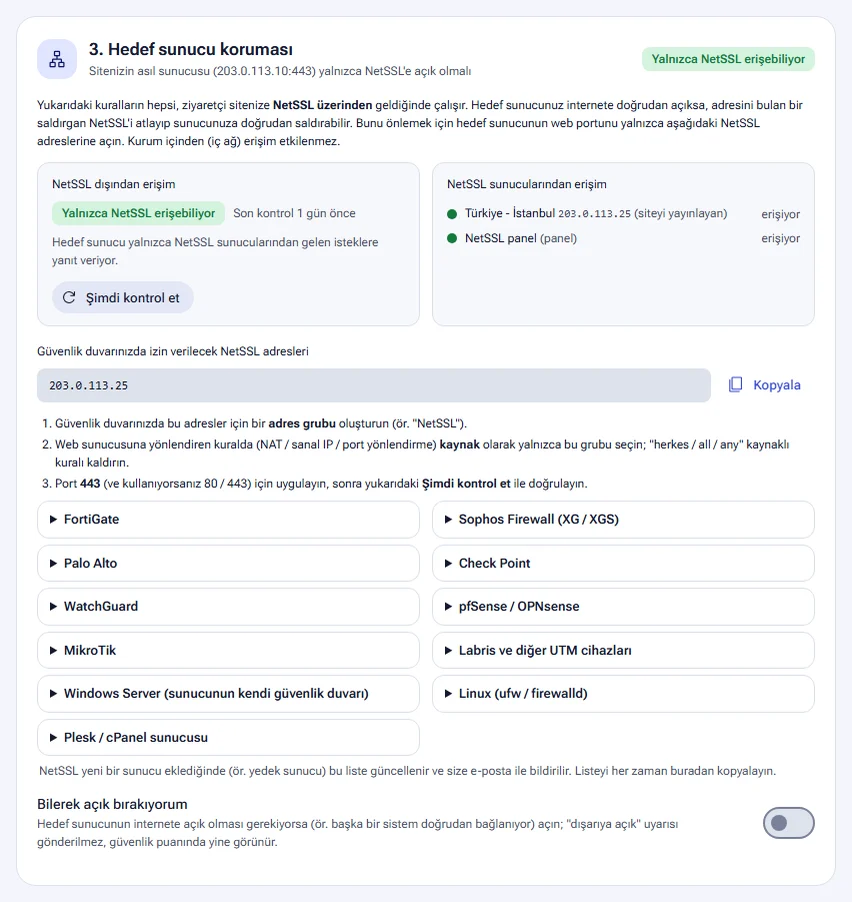
All security rules work when a visitor reaches your site through NetSSL. If your target server is directly open to the internet, an attacker who finds its address can bypass NetSSL. The 3. Target server protection card checks this.
- The Access from outside NetSSL box shows whether the target server is open from outside. The status is Only NetSSL can access, Directly accessible from outside, On the internal network (no outside access), Could not be checked or Check pending. The Check now button runs the check immediately.
- The Access from NetSSL servers box shows whether the NetSSL server that publishes the site, and the backup server if there is one, can reach the target server. If a NetSSL address cannot reach it, the backup server cannot serve the site during an outage.
- You copy the NetSSL addresses to allow in your firewall list with the Copy button.
- Create an address group for the NetSSL addresses in your firewall (e.g. “NetSSL”).
- In the rule that forwards traffic to the web server (NAT / virtual IP / port forwarding), select only this group as the source. Remove any rule with “Everyone / all / any” as the source.
- Apply the rule to the site's web port, and to ports 80 / 443 if you use them.
- Confirm the result with the Check now button.
The card has short guides for FortiGate, Sophos Firewall (XG / XGS), Palo Alto, Check Point, WatchGuard, pfSense / OPNsense, MikroTik, Labris and other UTM devices, Windows Server, Linux (ufw / firewalld) and Plesk / cPanel. Access from inside the organization (internal network) is not affected by this setting. If your server is found open to the outside, you are notified.
If NetSSL adds a new server (e.g. a backup server), the list is updated and you get an email. Always copy the list from this card. If the target server must stay open to the internet, turn on the I am leaving it open on purpose switch. In that case, the “open to the outside” warning is not sent. The status still appears in the security score.
To see the real visitor IP in your target server's logs, see the Real visitor IP guide.
DNS record monitoring
A common attack on municipalities and organizations is the theft of the password at the domain registrar. The attacker changes the name servers (NS). The site and emails quietly go somewhere else. The 4. DNS record monitoring card catches this change.
- NetSSL checks your domain's NS, MX, A and AAAA records every 30 minutes.
- If two checks both see a change, you get an email. If you chose Telegram or SMS, you are also notified through these channels.
- The card also checks that this site's DNS record still points to NetSSL. The card shows the record that should be there. If the record points somewhere else, a “no longer published through NetSSL” warning appears. In that case, the protections do not work for that address.
- The card shows the domain's current records. A record that differs from the known state is shown in red.
If your organization made the change, click the We made this change button. The current records are saved as the known state and the warning disappears. If you did not make the change, change the password at your domain registrar immediately.
The DNS record monitoring switch applies to all sites on the domain. The other security checks for the domain are in the Domain security guide.
Exposed file scan
The 9. Exposed file scan finds sensitive files that were forgotten on your server and can be downloaded from the internet. Once a week, NetSSL probes your site with the 64 addresses that attackers try first with automated tools. It looks for these files:
- environment files (
.env) and Git / SVN repositories - configuration backups (e.g.
wp-config.php.bak) andweb.config - SQL dumps and site backups (archives such as
.zip) - private keys and
.htpasswd - phpinfo, the server status page and error logs
- database panels such as phpMyAdmin / Adminer, debug pages and open directory listings
Only the first part of each file is read, and its type is verified. The content is not stored. The scan sends about 60 short requests and does not strain your site. Scan requests are not caught by NetSSL rules. The findings table has the columns Address, What was found, Severity (Critical, High, Medium) and Status.
| Status | Meaning |
|---|---|
| Public | Anyone can download the file right now. |
| NetSSL is blocking | Scan protection does not serve the file to visitors. The file is still on the server. |
| Closed | You closed the file to everyone on NetSSL with the Close button. |
| Intentionally public | You marked the file as one that must stay public. You will not be warned about it again. |
- The Close button closes the file to everyone on NetSSL. Exempt IPs cannot open the file either. Open access undoes this.
- The Intentionally public button is for cases such as a folder you share on purpose. Remove mark undoes this mark.
- When a new finding appears, you are notified by email, Telegram, SMS and webhook.
- The Scan now button starts the scan immediately.
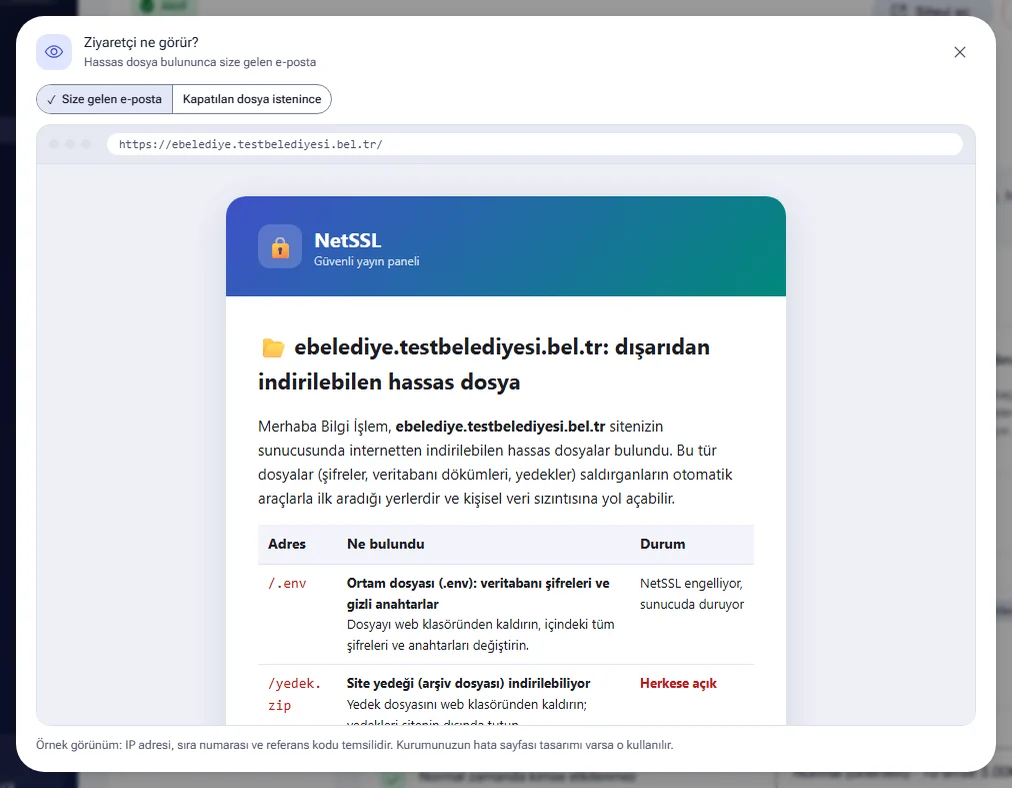
If the file was public for a while, its content may have been read. Delete the file from the server. Change the database passwords and keys in it. If the SQL dump contains personal data, carry out a data breach assessment under KVKK (Türkiye's Personal Data Protection Law No. 6698).
Exposed secrets and passwords
Attackers scan the JavaScript files of organization sites with automated tools. If an SMS provider password, a payment (iyzico / PayTR) secret key, an SMTP password or a database connection is left in these files, anyone can read it. The Exposed secrets and passwords scan finds them.
- Once a week, NetSSL scans pages (up to 150) and the site's own JavaScript files (up to 60). The scan runs together with the weekly site scan.
- It looks for private keys, database connections with passwords, passwords exposed in addresses, and passwords and secret keys in code.
- It also looks for AWS, Stripe, Slack, GitHub, SendGrid, Telegram bot and Google keys. Exposed source maps (
.map), password hints in HTML comments and internal network addresses also count as findings. - Findings are listed with Critical, High, Medium and Low severity. Each finding shows where it was seen, when it was first seen and what needs to be done.
- Values are not stored. The panel shows only a masked sample.
You mark a key that you leave exposed or restrict on purpose with Ignore (intentionally public / restricted). A map key restricted to your site's address is an example. The Monitor again button removes this mark. Fixed findings leave the list by themselves. The first result appears after the next site scan. After the first scan, if a new critical or high finding appears, you are notified by email and webhook (secret.exposed).
Deleting the password from the code is not enough. The value may have been read. First change the password or revoke the key in the service's panel. Then remove this code from the browser side and move it to the server side.
External script monitoring
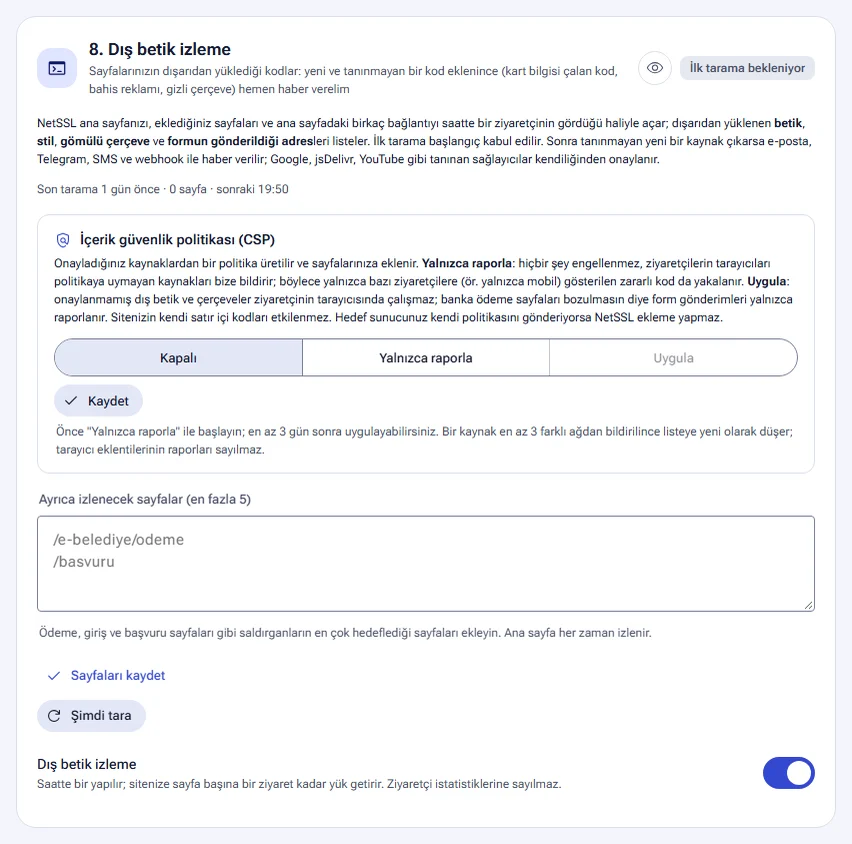
Attackers add card-stealing code, betting ads or hidden frames to the sites they take over. External script monitoring watches the code that your pages load from outside.
- Once an hour, NetSSL opens your home page, the pages you add and a few links on the home page as a visitor sees them.
- It lists externally loaded scripts, styles, embedded frames and the addresses that forms submit to.
- The first scan is taken as the baseline. After that, if a new unrecognized source appears, you are notified by email, Telegram, SMS and webhook.
- Recognized providers such as Google, jsDelivr and YouTube are approved automatically.
For each source, you choose Approve or I don't recognize it. The status of a source is New: awaiting your approval, I don't recognize it, Visitor report (being verified), Approved, Recognized provider or Present at first scan. Risky sources also get a label. The labels are Unencrypted (http) connection, Loaded from an IP address, Lookalike domain, On the USOM malicious list, Form submits to another site, Hidden frame and Reported by a visitor's browser.
Add your payment, login and application pages to the Additional pages to monitor (up to 5) field. The home page is always monitored. The scan puts a load on your site of about one visit per page. These visits are not counted in visitor statistics.
Content security policy (CSP)
A policy is generated from the sources you approve and added to your pages. There are three options.
| Option | What happens? |
|---|---|
| Off | No policy is added. |
| Report only | Nothing is blocked. Visitors' browsers report the sources that do not match the policy. This also catches malicious code that is shown only to some visitors. |
| Enforce | Unapproved external scripts and frames do not run in the visitor's browser. Form submissions are only reported, so that bank payment pages do not break. |
Start with Report only. The Enforce option becomes available after at least 3 days of reporting. A source is added to the list as new once it is reported from at least 3 different networks. Reports from browser extensions do not count. Your site's own inline code is not affected. If your target server sends its own policy, NetSSL does not add one.
Software versions
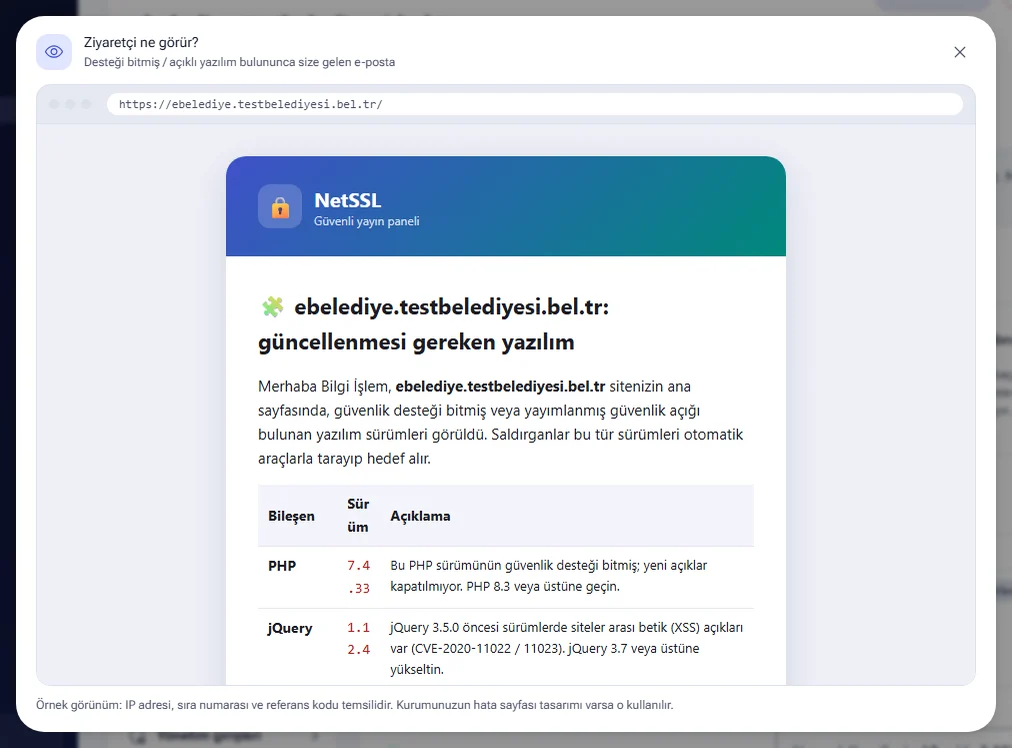
The 6. Software versions card notifies you if software your site uses has reached end of support or has a known vulnerability. Once a day, NetSSL opens your home page as a visitor sees it. It reads the version information from the page passively. No attack or penetration test is performed.
The software checked is WordPress, Drupal, Joomla, jQuery, Bootstrap, PHP, IIS and WordPress plugins. The table has the columns Component, Version, Status and Description. The status is End of support / vulnerable, Should be updated, Looks up to date or Info. You are notified when an end-of-support or vulnerable version is seen. The Scan now button runs the scan immediately. For linked services, the scan runs on the main site.
If a vulnerable WordPress plugin is seen, the matching virtual patch turns on by itself. Virtual patching is explained in the Attack protection guide. Even with Hide server information on, the scan still sees the real version.
Turkish ID number leak
Pages such as application lists, tender participants and exam results are sometimes left public by mistake. These pages can show citizens' Turkish ID numbers. The 5. KVKK: Turkish ID number leak alert card catches this.
- NetSSL reads the page content in a small share of the requests to your site. One in 20 requests is sampled. The same page is checked at most once an hour.
- Numbers that match the Turkish ID number algorithm are counted. If 3 or more different numbers are seen on a page, you are notified.
- The numbers themselves are never saved anywhere. Only the page address and how many numbers were seen are kept.
- The page is not changed and the visitor notices nothing. Site speed is not affected.
There are two buttons for a page that is found. If you fixed the page, click the Fixed button. If the page is open only to authorized staff, click the Authorized page button. You then get no more warnings for this page. The Monitor again button in the Previous findings list restarts monitoring. If your pages must show ID numbers and all of them are in an authorized area, you can turn off the scan.
If the page is public, close it or mask the numbers right away. If needed, block the page temporarily with the Custom rules described in the Attack protection guide. Under KVKK, a breach must be reported to the Personal Data Protection Board within 72 hours.
Cookie security
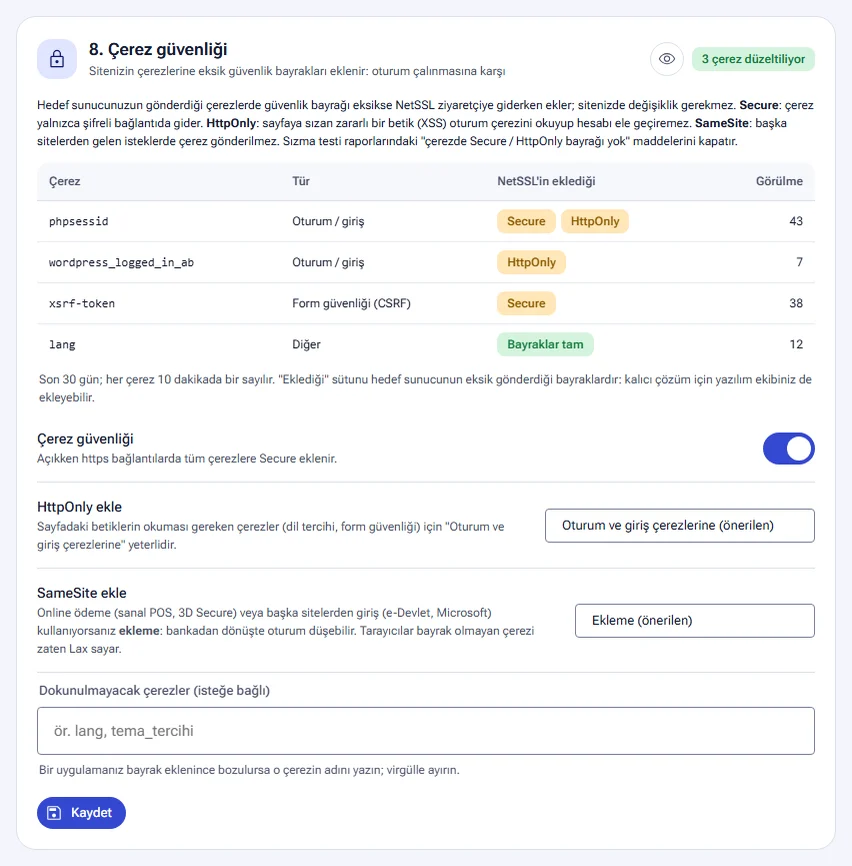
The 8. Cookie security card adds missing security flags to the cookies your target server sends. No change to your site is needed. The setting closes the “no Secure / HttpOnly flag on cookie” items in penetration test reports.
| Flag | What does it do? |
|---|---|
| Secure | The cookie is sent only over an encrypted connection. |
| HttpOnly | A malicious script injected into the page (XSS) cannot read the session cookie and take over the account. |
| SameSite | The cookie is not sent with requests that come from other sites. |
- While the Cookie security switch is on, Secure is added to all cookies on https connections.
- The Add HttpOnly list has the options To session and login cookies (recommended), To all cookies (except XSRF / CSRF) and Do not add. Scripts on the page must be able to read cookies such as language preference and form security. That is why the recommended option is enough.
- The Add SameSite list has the options Do not add (recommended), Lax and Strict. If you use online payment (virtual POS, 3D Secure) or external logins such as e-Devlet or Microsoft, do not add SameSite. The session may drop when the user returns from the bank.
- In the Cookies to leave untouched field, enter the cookie name of an application that breaks when a flag is added. Separate multiple names with commas.
The card's table shows the cookies seen in the last 30 days. It shows the cookie's type (Session / login, Form security (CSRF) or Other) and the flags Added by NetSSL. This column shows the flags that the target server does not send. For a permanent fix, your software team can also add these flags in the application. Settings are saved with the card's Save button.
Security headers, server information and email protection
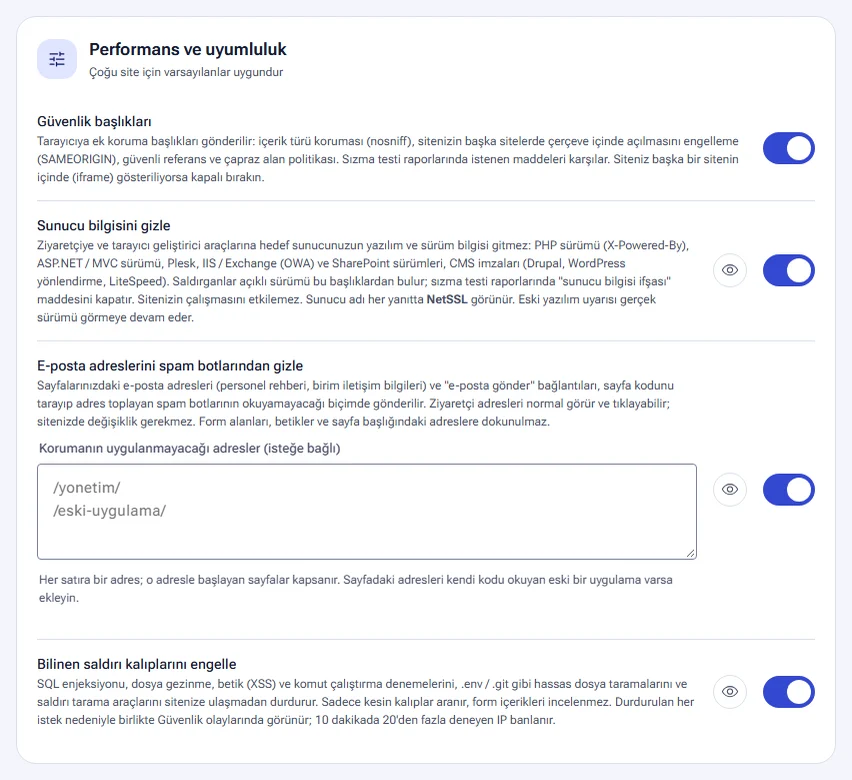
These three settings are on the Performance and compatibility card of the host's Publishing settings page. Each also has a row in the Security group of the host menu. Clicking a row takes you to the setting. The settings are saved with the page's save button.
Security headers
The Security headers setting sends additional protective headers to the browser. It adds content type protection (nosniff), frame protection (SAMEORIGIN), a secure referrer policy and a cross-origin policy. Frame protection stops your site from being opened inside a frame on other sites. The setting meets the items requested in penetration test reports. The setting is optional. If your site is shown inside another site (iframe), leave it off.
Hide server information
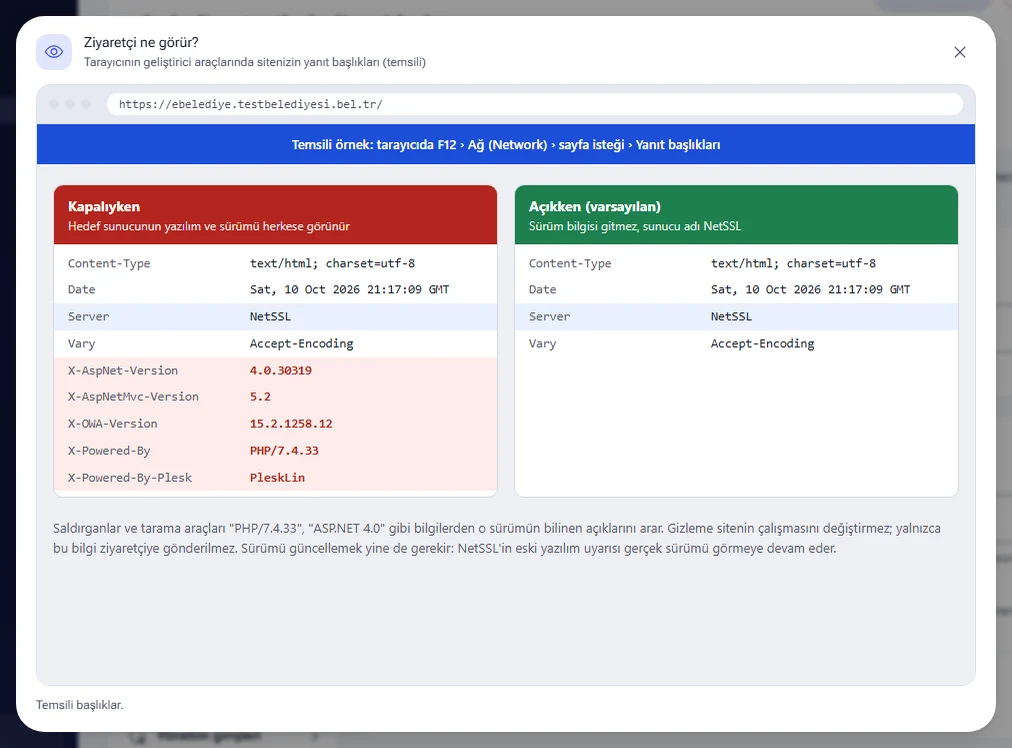
While Hide server information is on, your target server's software and version information does not reach visitors. The PHP version (X-Powered-By), the ASP.NET / MVC version, Plesk, IIS / Exchange (OWA) and SharePoint versions, and CMS signatures are hidden. Attackers find vulnerable versions from these headers. The setting closes the “server information disclosure” item in penetration test reports.
- The setting does not affect how your site works.
- The server name appears as NetSSL in every response.
- The setting is on by default.
- The software versions scan still sees the real version.
The eye icon shows the response headers that the browser's developer tools display, with the setting off and on, side by side.
Email address protection
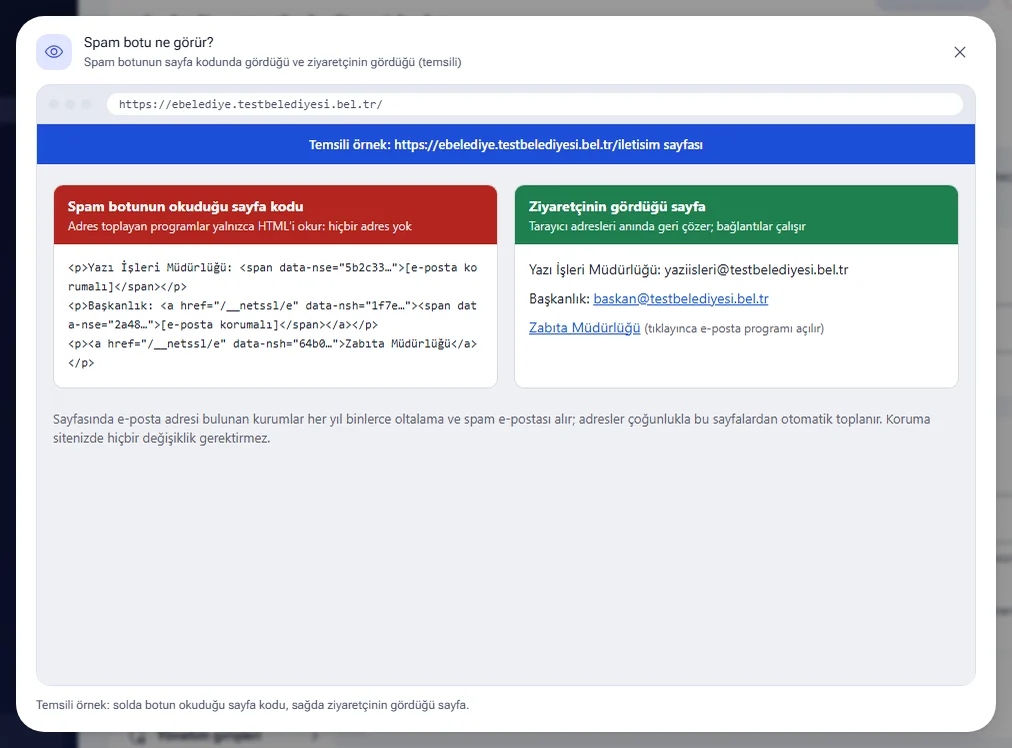
The Hide email addresses from spam bots setting protects the email addresses and “send email” links on your pages. A staff directory and department contact pages are examples. The addresses are sent in a form that harvesting bots cannot read when they scan the page code. Visitors see the addresses normally and can click them. No change to your site is needed. The setting is on by default.
- Addresses in form fields, scripts and the page head are not touched.
- If you have an old application whose own code reads the addresses on the page, enter its address in the Addresses where protection is not applied (optional) field. Enter one address per line. Pages that start with that address are covered.
- The eye icon shows the page code a spam bot reads and the page a visitor sees, side by side.
To turn on security headers and attack patterns on more than one host, use the Bulk security settings section on the Your sites → Security page. Details are in the Settings history and templates guide.
Frequently asked questions
Do these scans put a load on my site?
No. The exposed file scan sends about 60 short requests once a week. The software version scan opens only the home page once a day. External script monitoring adds a load of about one visit per page once an hour. The Turkish ID number scan runs only on sampled requests and does not affect site speed.
I closed the exposed file with “Close”. Is that enough?
No. The Close button closes the file only to visitors who come through NetSSL. The file stays on the server. Delete the file from the server and change the passwords in it. If your target server is directly open to the internet, the file can still be downloaded.
Users' sessions drop after they pay with virtual POS.
Check that the Add SameSite setting on the Cookie security card is set to Do not add (recommended). If Lax or Strict is selected, the session may drop when the user returns from the bank. If the problem occurs with one specific cookie, enter that cookie's name in the Cookies to leave untouched field.
We made the DNS change, but we got a warning. What should I do?
On the host's Security page, click the We made this change button on the 4. DNS record monitoring card. The new records become the known state and the warning disappears. If your organization did not make the change, do not click this button. Change your domain password immediately.
The target server shows “Directly accessible from outside”. What should I do?
In your firewall, open the web port only to the NetSSL addresses on the card. Open the short guide for your device on the card and follow the steps. Then confirm the result with the Check now button. The status should be Only NetSSL can access.