
Overview screen
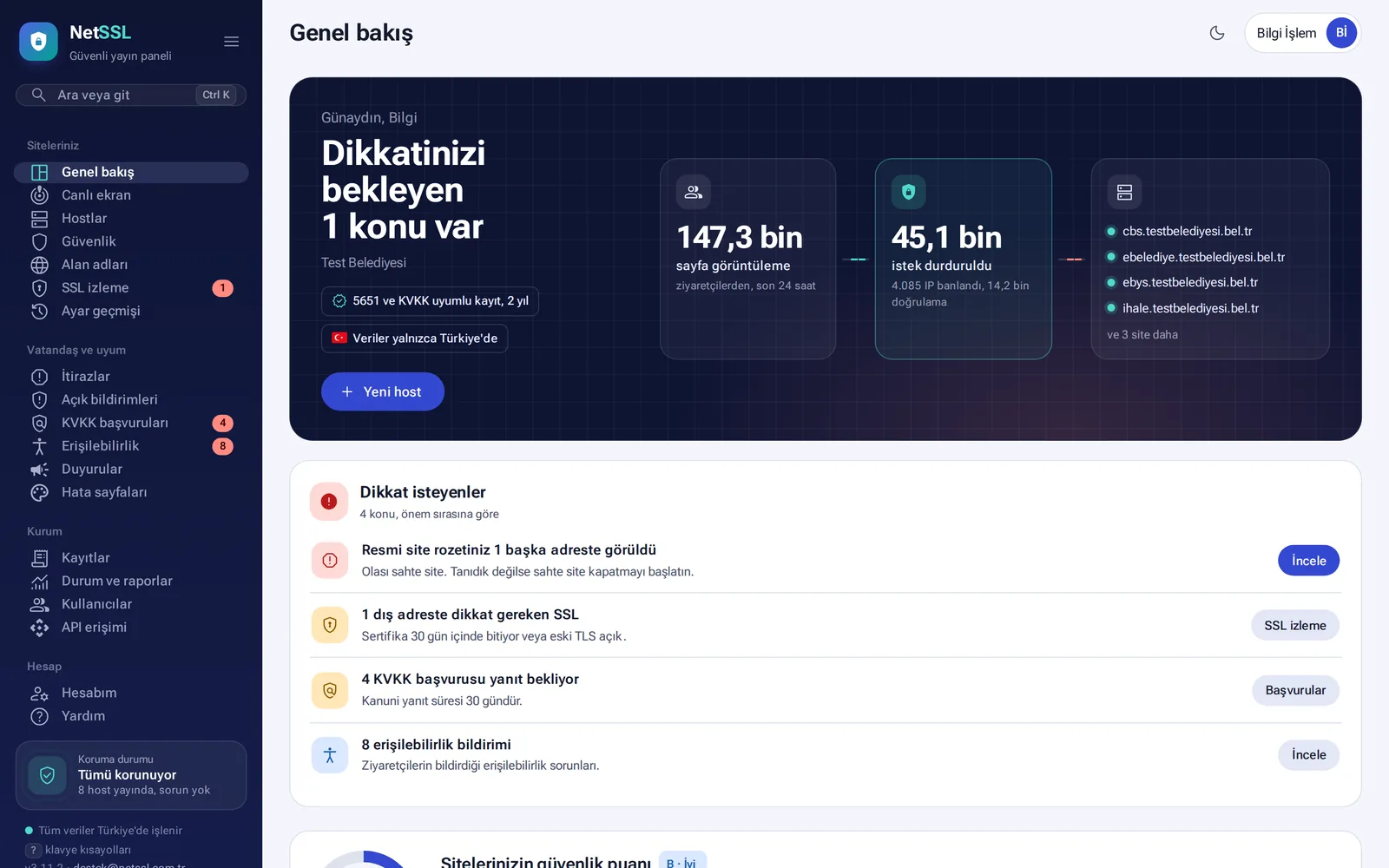
When you log in to the panel, Overview opens. The top of the screen summarizes the last 24 hours of all your sites. It shows the number of pages visitors opened, the stopped requests and the status of your sites. The Protection status card at the bottom of the left menu tells you in one line whether all hosts are live.
Needs attention
Everything you need to deal with that day is collected in one list, in order of importance. For example, a certificate may be close to expiry, a KVKK request may be waiting for a reply, your official site badge may have been seen on another address or visitors may have reported an accessibility problem. Each line has a button that takes you straight to the related screen.
Security score
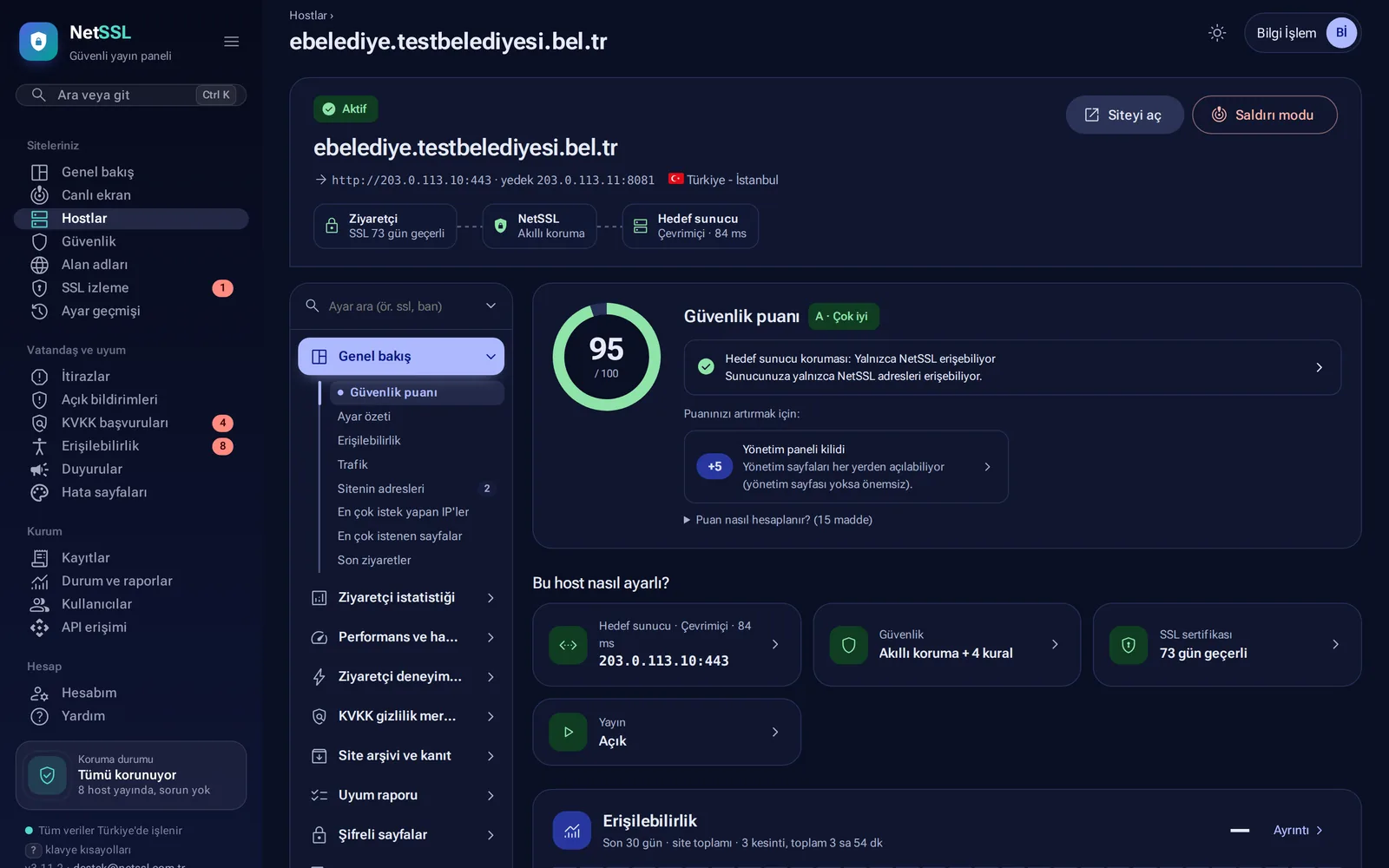
Each host gets a security score out of 100 and a letter grade. The organization-wide score appears on the overview. The score is made up of 15 items. The How is the score calculated? link shows the items one by one. The To raise your score card suggests the next step, for example “+5 Admin panel lock”.
Finding settings screens easily
- Search or go (Ctrl K): type a word such as “ssl”, “ban” or “vpn”, and the panel takes you to the right setting.
- You are here: when you open a section from the menu, that section is highlighted.
- What does the visitor see? The eye icon next to each setting shows in advance the page the visitor will see when the setting is on.
- Keyboard shortcuts: you can open the list with the ? button at the bottom of the left menu.
Settings history, undo and templates
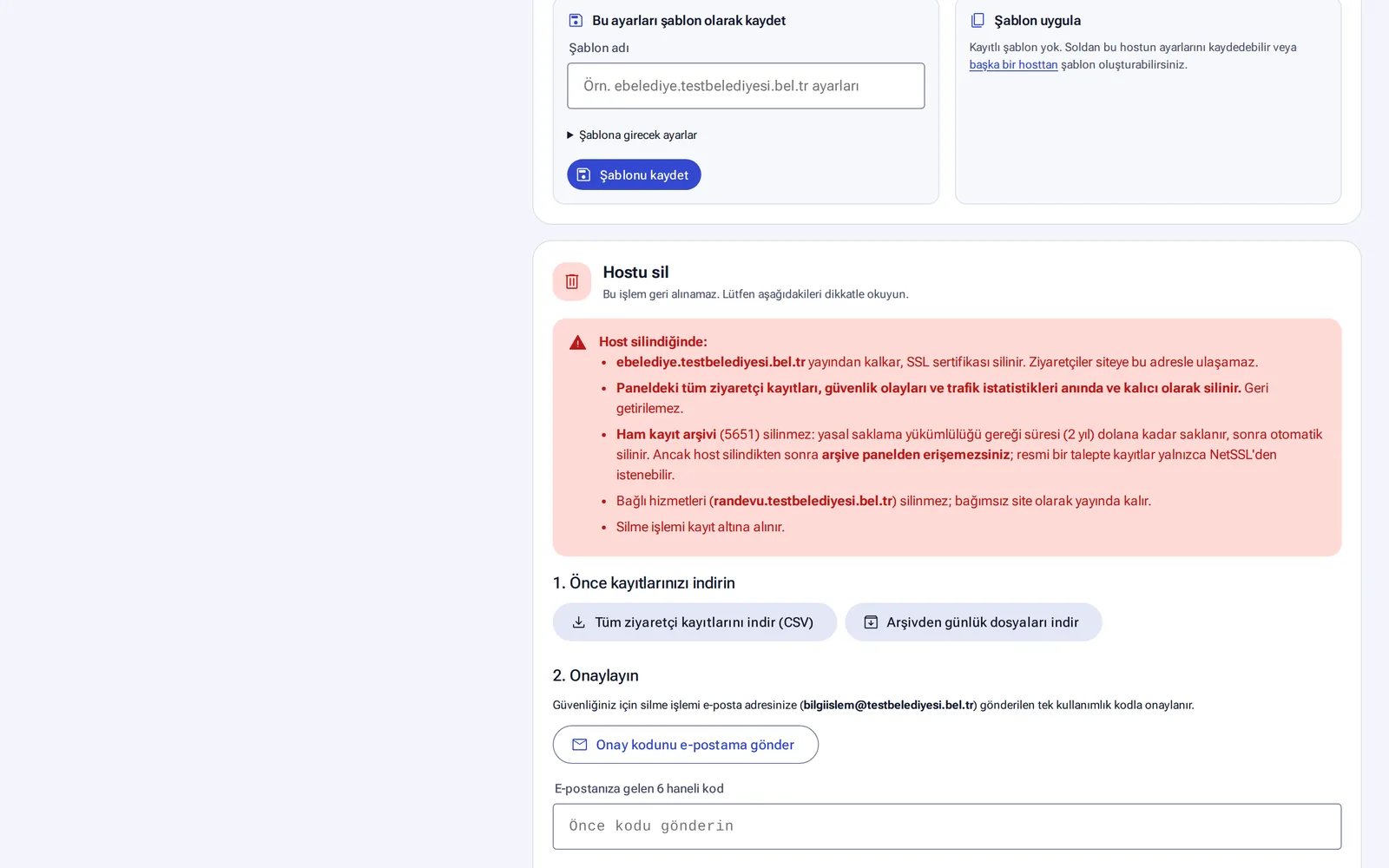
Every settings change is logged with who made it, when, and which value it changed to which. Your sites → Settings history lists all changes. You can return a host's recent changes to their old state with one click using the Undo button. You can save settings you like as a template and apply them to other hosts.
Dark theme and phone
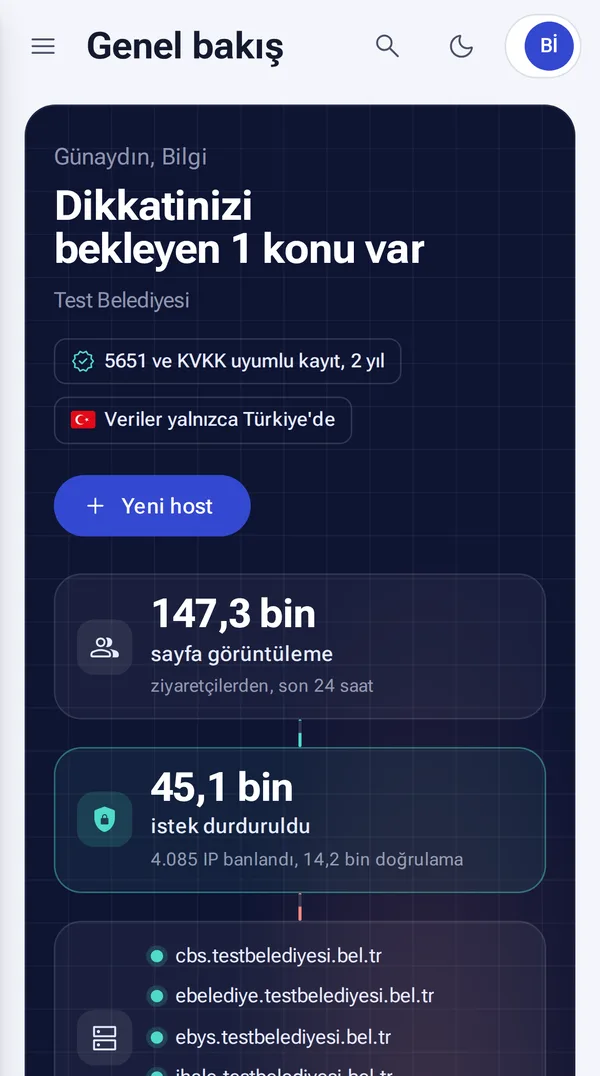
Use the moon icon at the top right to switch between the light and dark theme. The panel also works fully on a phone. The Overview, Hosts, Security, Logs and Menu tabs are at the bottom.
Start your day with the Needs attention list. If the list is empty, there is nothing to do for your certificates, requests and domains.
Frequently asked questions
Can I undo a wrong setting?
Yes. The Undo and templates section on the host's Maintenance and notifications page lists recent changes with their old and new values. Each one has an Undo button next to it.
Can I see in advance how a setting will affect visitors?
Yes. Click the eye icon next to the setting. The page the visitor will see opens as a preview.