
Roles
On the Organization → Users page, you give each person only the permissions they need. Each user sees only the sites they are authorized for.
| Role | What can they do? |
|---|---|
| Organization administrator | Everything: adding and deleting hosts, all settings, logs, official requests and users |
| Technical officer | They manage the settings of the hosts they are authorized for. They cannot add or delete hosts. |
| Log officer (5651) | They cannot change settings. They view the logs and the archive and prepare official request packages. |
| Viewer | They can only view. |
Every organization must have at least one organization administrator.
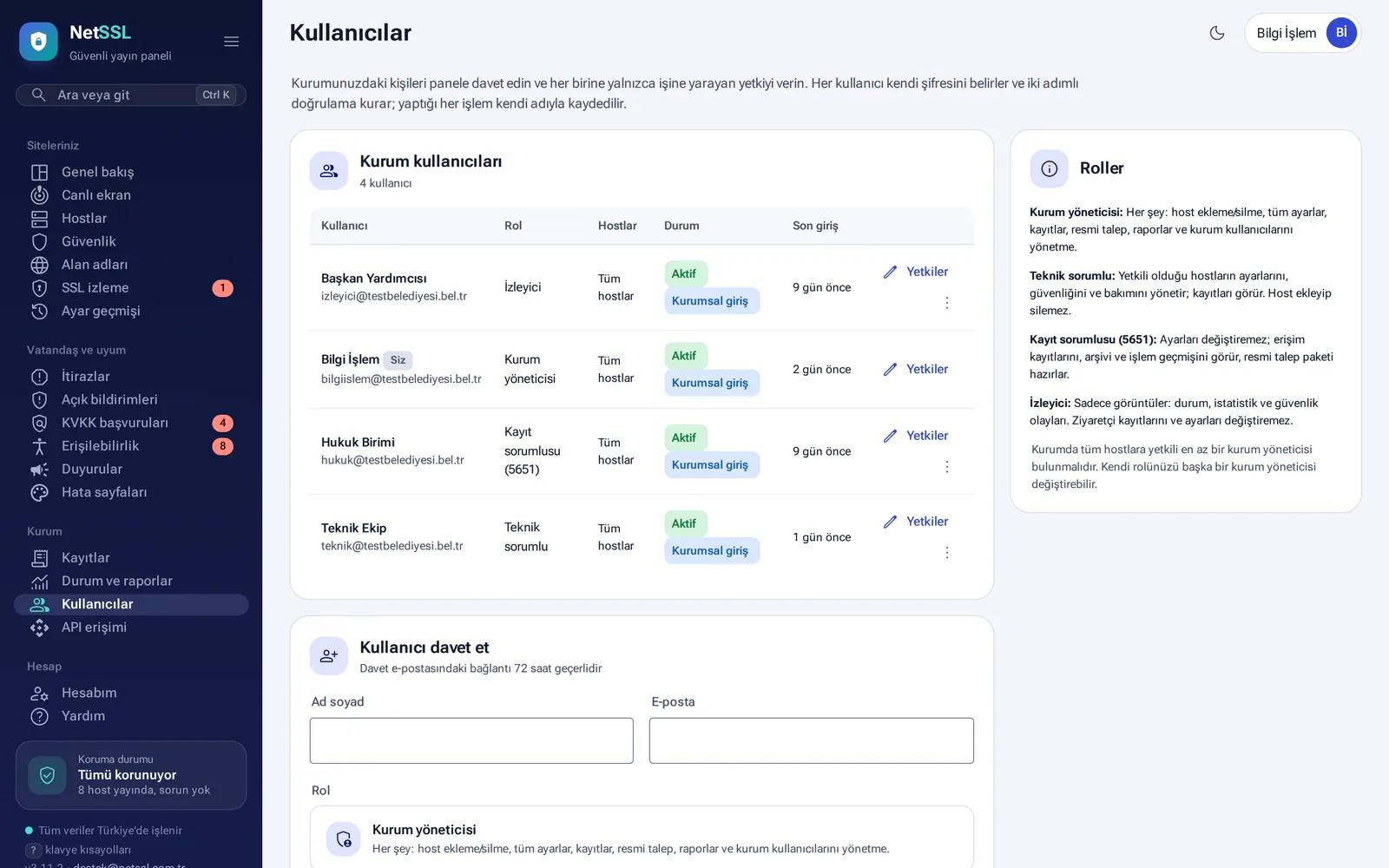
Invite a user
- In the Invite user section, enter the person's full name and email address.
- Choose the role.
- Decide whether the user can access all hosts (including those added later) or only the sites you select.
The invitation link is valid for 72 hours.
Login methods
- Two-factor authentication: it is required at every login.
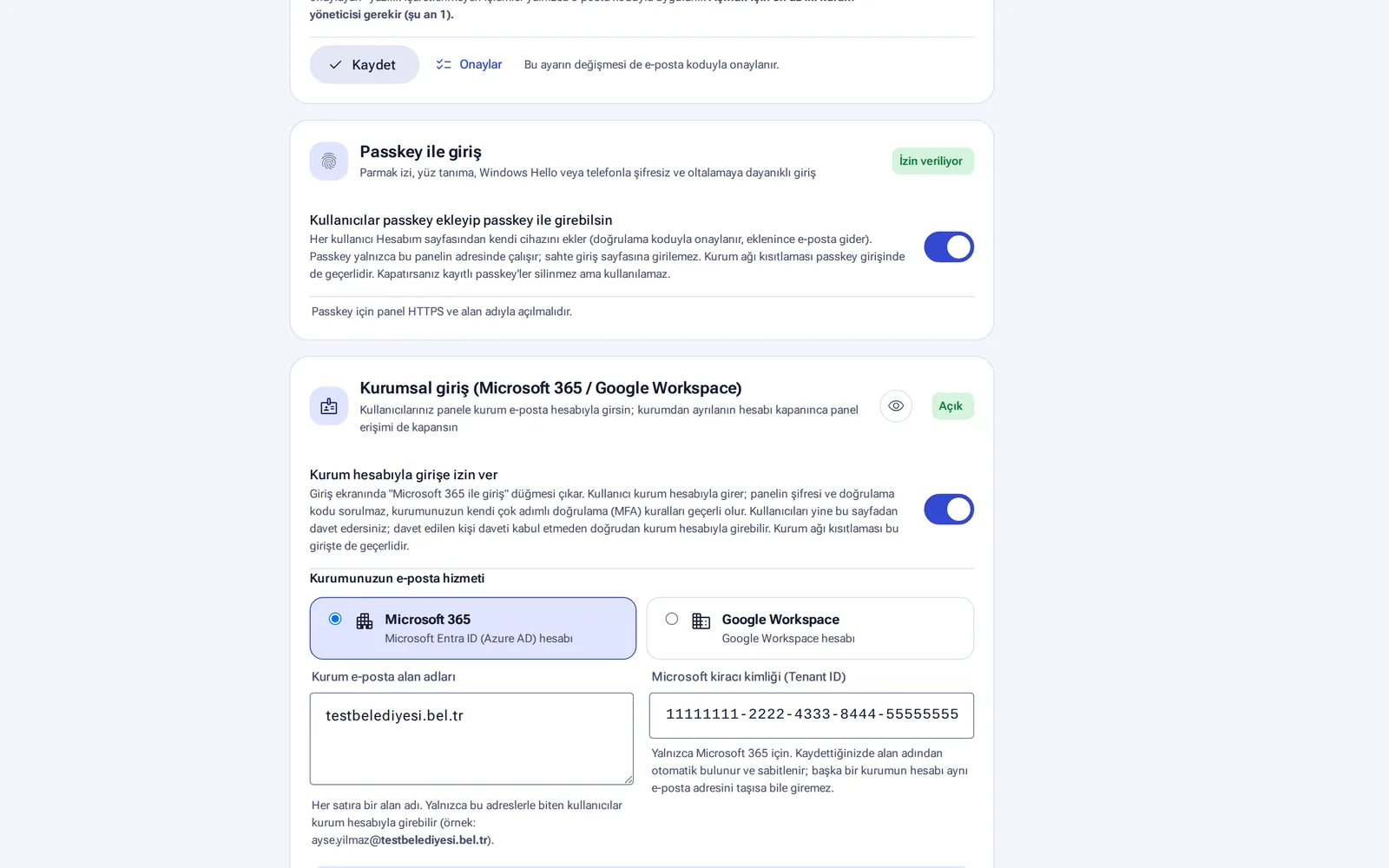
- Passkey: you log in without a password, using a fingerprint, face recognition, Windows Hello or your phone. Passkeys resist phishing.
- Organization login: users log in with a Microsoft 365 (Entra ID) or Google Workspace account. The organization's email domains and Microsoft tenant ID are pinned, so an account from another organization cannot log in even if it uses the same address. The panel does not ask for a password, and your organization's own multi-factor authentication rules apply. When someone leaves the organization and their account is closed, their panel access is closed too.
- Organization login only: when you turn it on, password and passkey logins are turned off. Open sessions end within 12 hours at the latest.
Restricting panel login to your organization's network
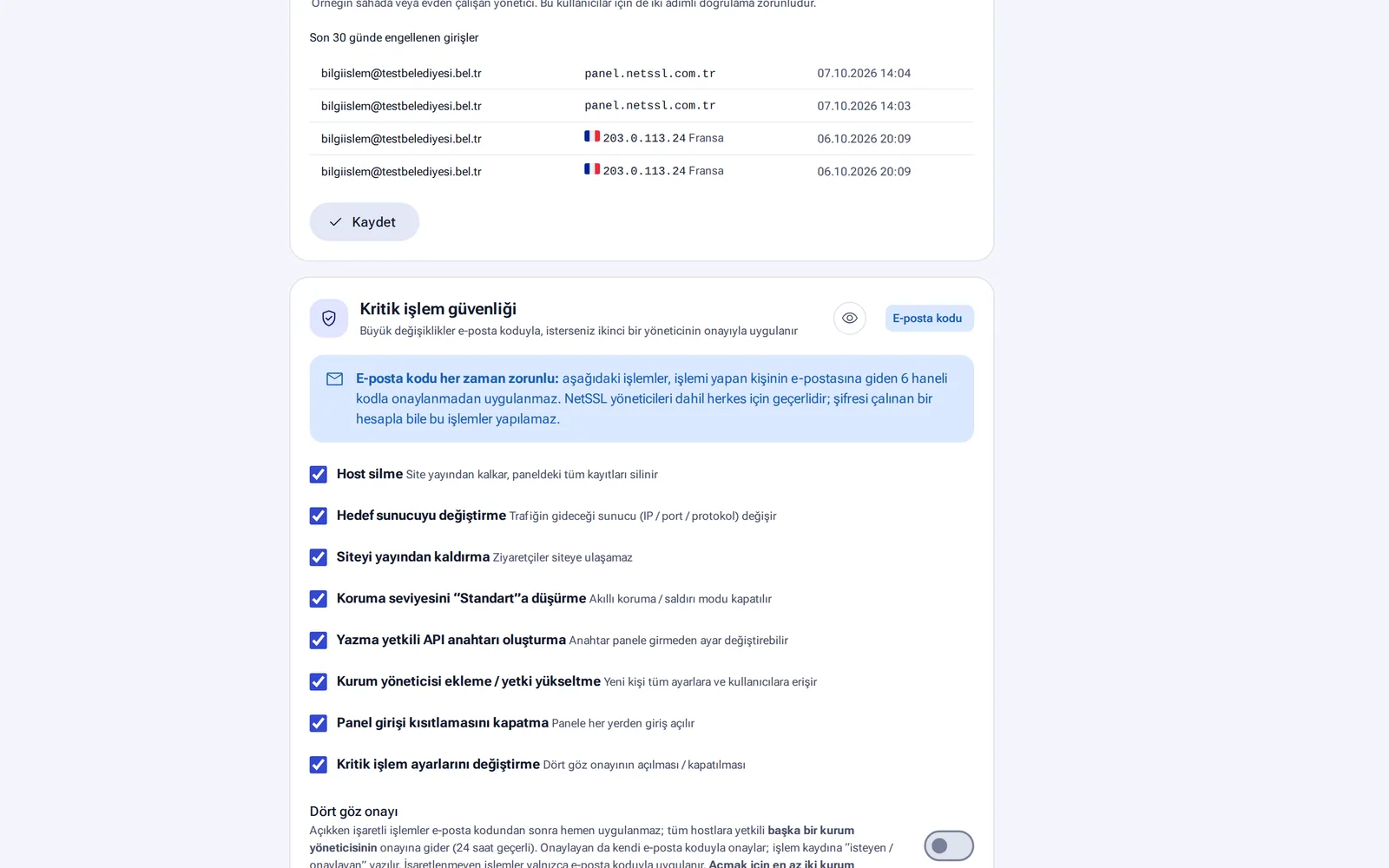
When you enter your organization's IP addresses and networks, the panel accepts logins only from those addresses. You mark people who also need to log in from outside as exceptions. Two-factor authentication is required for them too. If someone tries to log in from outside the organization with the correct password, the organization administrators get an email. The panel lists the logins blocked in the last 30 days.
Critical action security and four-eyes approval
The actions below are not applied until they are confirmed with a 6-digit code sent to the email address of the person performing them. This rule also applies to NetSSL administrators.
- Deleting a host, changing the target server, taking a site offline
- Lowering the protection level to “Standard”
- Creating an API key with write access
- Adding an organization administrator or raising a user's permissions
- Turning off the panel login restriction or changing critical action settings
If Four-eyes approval is on, these actions go to another organization administrator for approval. The approval request is valid for 24 hours, and the approver also confirms with their own email code. The action log records both the requester and the approver. This option needs at least two organization administrators.
Before you turn on Organization login only, make sure at least one user has logged in successfully with an organization account.
Frequently asked questions
Can an invited person log in without accepting the invitation?
If organization login is on, the invited person can log in directly with their organization account.
Can an organization administrator lower their own role?
Not if there is no other organization administrator. The organization must always have at least one organization administrator with full permissions.