
PostaOfis Ai — AI That Works Inside Your Webmail
Summarize your emails in seconds, translate them into other languages, check whether they are fraudulent and create professional reply drafts from just a few words. And all of this runs on our own servers — your data is never sent to any outside service.
What Is PostaOfis Ai?
PostaOfis Ai is an AI assistant built into your webmail panel. Whether you are reading an incoming email or writing a new one, you get help from the AI without ever leaving the screen.
In practice, it gives you three big benefits:
- It saves time — you see a summary of long threads without reading them, and produce a reply draft without spending minutes on it.
- It reduces mistakes — it corrects the spelling and grammar of the emails you send and gives them a professional tone.
- It improves your security — it analyzes suspicious emails with one click and flags fraud attempts for you.
Some webmail services have no AI at all; others send your emails to third-party AI services abroad to process them. PostaOfis Ai runs inside the server, on its own hardware. You get the convenience of AI while your correspondence stays within your organization, which makes it suitable for municipalities, public institutions and sensitive correspondence.
Privacy and Security
In PostaOfis Ai, the top priority is privacy. The content of your emails, the questions you ask and the reply drafts it produces never leave our servers and are never used to train any model.
Local AI
Runs inside our server, on our own GPU. Your data never leaves the building.
No External Services
Emails are never sent to any external AI service.
No Internet Access
The AI's outbound connections are disabled, so it cannot leak data.
Not Used for Training
Your data does not feed any AI model and is not stored.
GDPR-Compliant
Data stays under your organization's control and is not disclosed to third parties.
Encrypted Connection
All traffic between webmail and the AI is encrypted with HTTPS.
Emails containing official correspondence, citizen data and sensitive information pose a serious privacy risk if they leave the organization. PostaOfis Ai removes this risk completely: no email content is uploaded to an external cloud for analysis. The AI does its work on your server, returns the result to you, and the data stays there.
Active Automatically — No Setup Needed
PostaOfis Ai comes ready to use on all your email accounts. There is no add-on to install, nothing to configure and no extra fee to pay.
The AI buttons are active from the moment you log in to webmail. They appear automatically in the toolbar when you open an email, and in the editing window when you write one.
Where Do I Find the Assistant?
PostaOfis Ai shows up in two places:
📨 When Reading an Incoming Email
When you open an email, the ★ PostaOfis Ai toolbar appears just above the message. Buttons such as Summarize, Translate, Fraud and Reply with AI are here.
✍️ When Writing a New Email
On the compose screen, click the ★ PostaOfis Ai button to open the assistant window. Text generation, rewriting, grammar correction and subject suggestions are here.
AI for Incoming Emails
When you open an email, the AI toolbar appears at the top of the message. Each button works with a single click and shows its result in a panel that opens above the message.
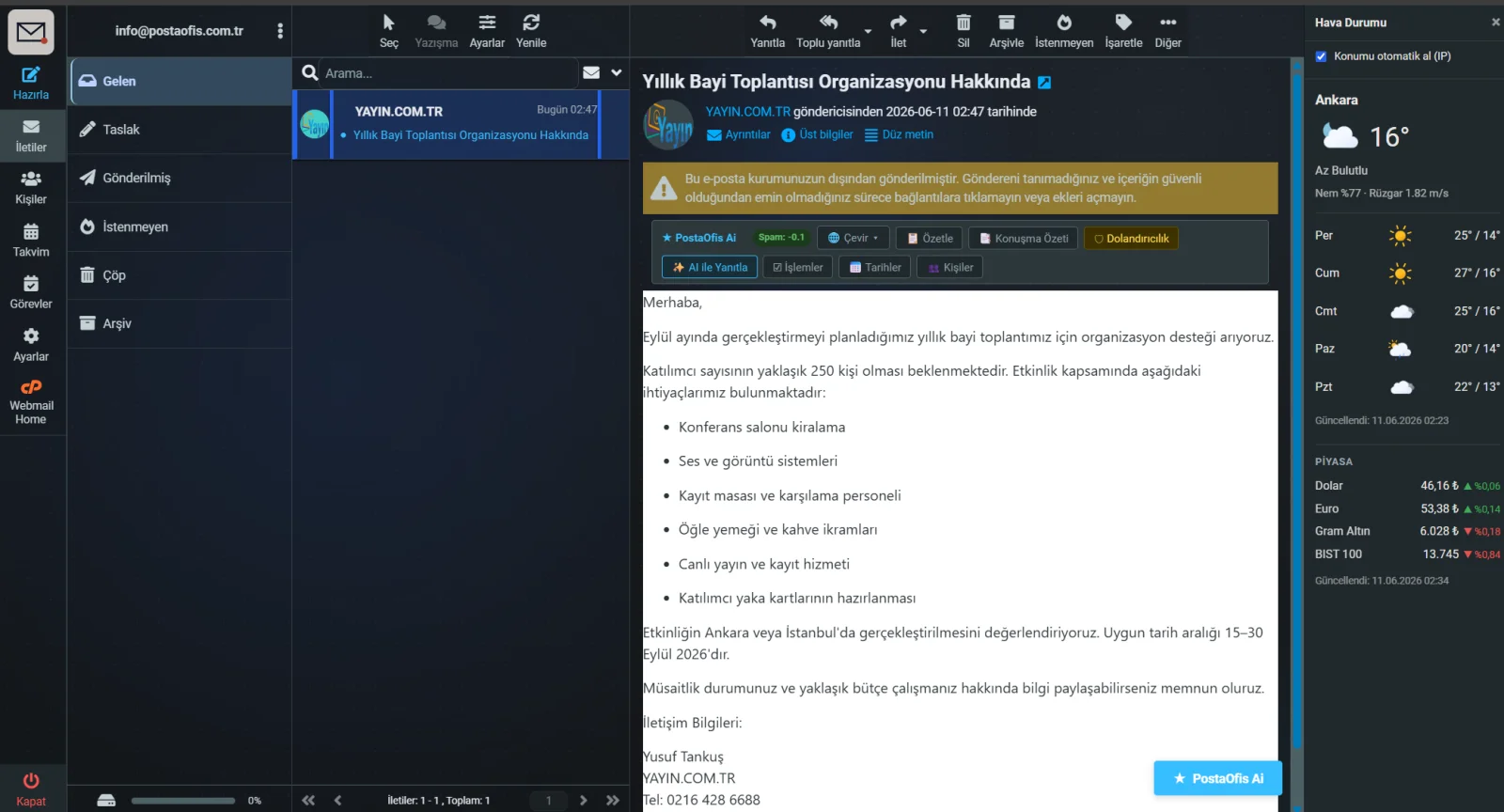
The toolbar also shows the message's spam score. Negative values (e.g. -0.1) mean the message is safe, while high positive values mean it is more likely to be spam.
Below you will find what each feature does and how to use it.
📄 Summarize
Instead of reading a long email from start to finish, click the Summarize button. The AI pulls out the gist of the message in a few sentences.
| What it does | How to use it |
|---|---|
| Summarizes long emails and attachments in 3 sentences | Open the email → click Summarize → the summary appears in the panel |
| Lists the key points as bullet points | Use Copy in the panel to grab the text |
It is ideal when you want to quickly skim the long emails piling up in your inbox. Within seconds you can tell which messages are urgent, without reading them one by one.
📖 Conversation Summary (Thread Summary)
Instead of reading a long chain of back-and-forth emails (a thread) from the beginning, use Conversation Summary to see the flow of the whole exchange at a glance.
The AI reads every message in the thread and extracts:
- Summary: The overall subject and purpose of the exchange
- Key Points: Concrete details such as the event, date range and number of attendees
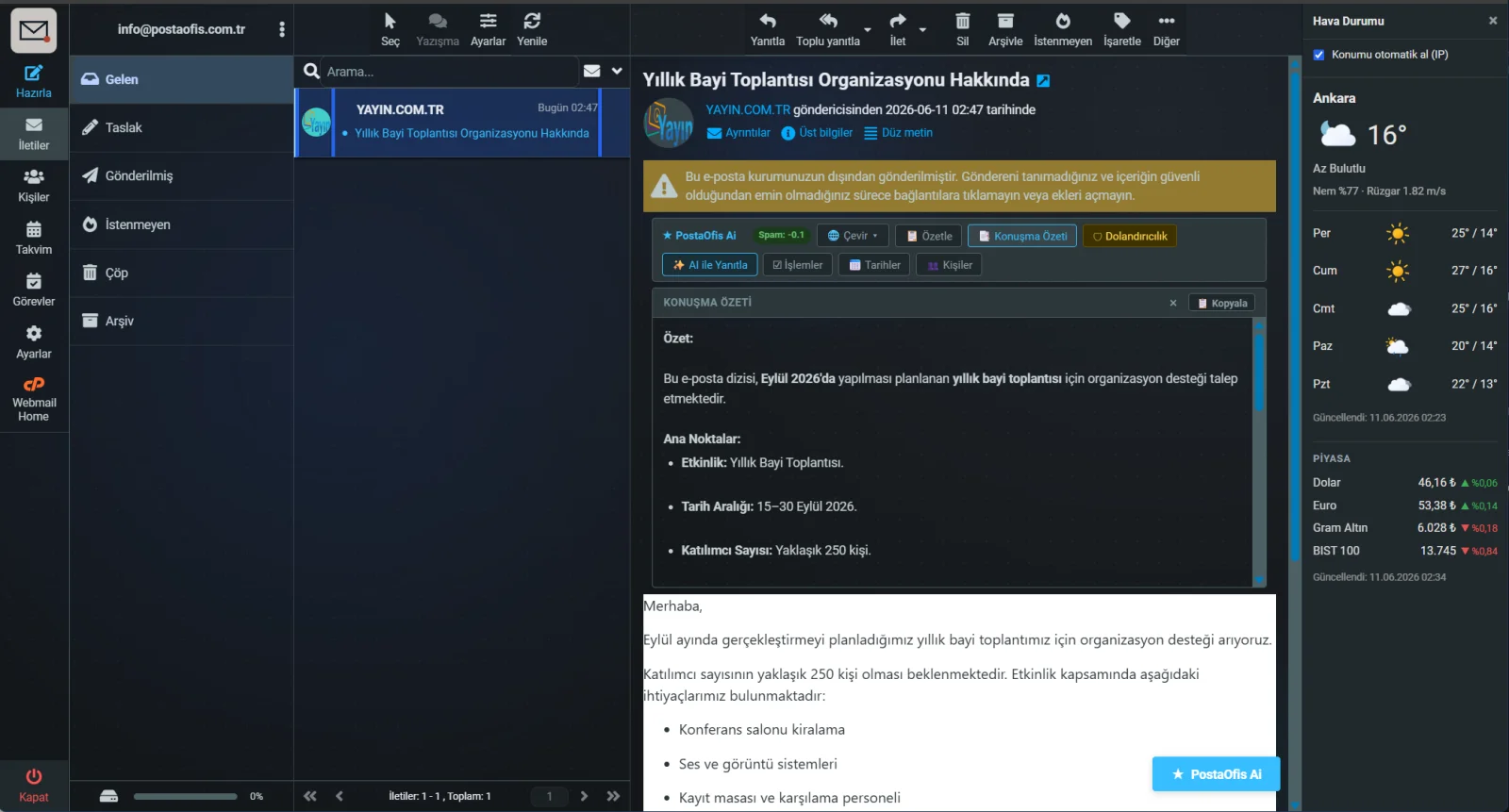
Summarize only summarizes the single message that is open. Conversation Summary looks at every message in that exchange (the whole back-and-forth chain) together. When you join a long email exchange late, it instantly answers the question "where are we now?"
🌐 Translation
To understand an email that arrives in a foreign language, or to translate text you have written into another language, use the Translate button. Just pick the target language from the list that opens.
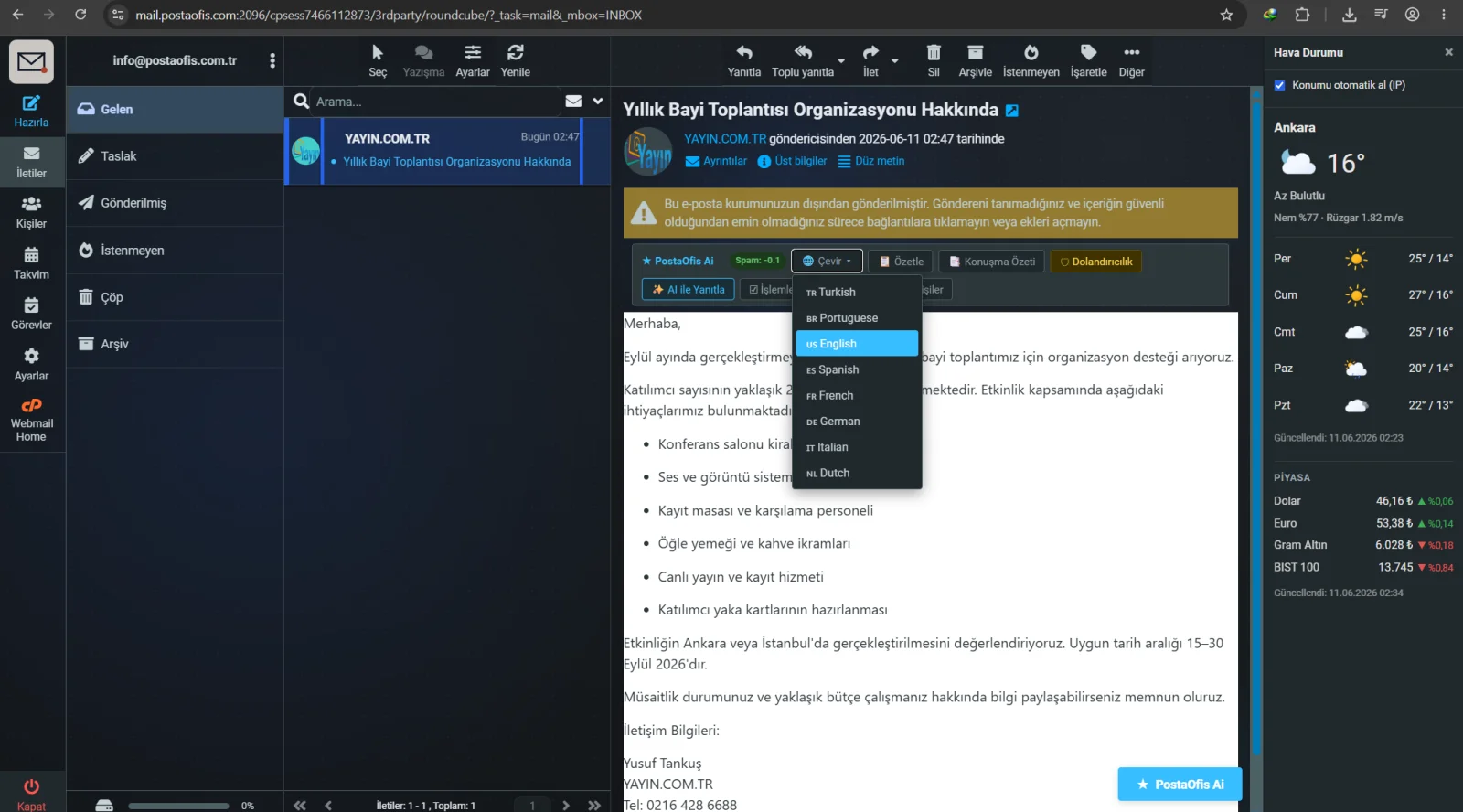
Supported languages:
| Language | Language |
|---|---|
| 🇹🇷 Turkish | 🇪🇸 Spanish |
| 🇬🇧 English | 🇫🇷 French |
| 🇵🇹 Portuguese | 🇩🇪 German |
| 🇮🇹 Italian | 🇳🇱 Dutch |
It automatically detects which language the incoming message is in — you don't need to choose the source language. Just pick the target language you want and let the AI handle the rest. Translations come out fluent and natural in Turkish (or whichever target language you choose).
🛡️ Fraud Analysis
One of the biggest threats online is phishing and fraud emails. When a message arrives that you are suspicious of, click the Fraud button; the AI examines the email line by line and reaches a verdict.
| Verdict | Meaning |
|---|---|
| 🟢 SAFE | No signs of fraud or phishing were found in the email |
| 🟡 SUSPICIOUS | There are warning signs that need attention — be cautious |
| 🔴 DANGEROUS | Very likely fraud — don't click the links and don't touch the attachments |
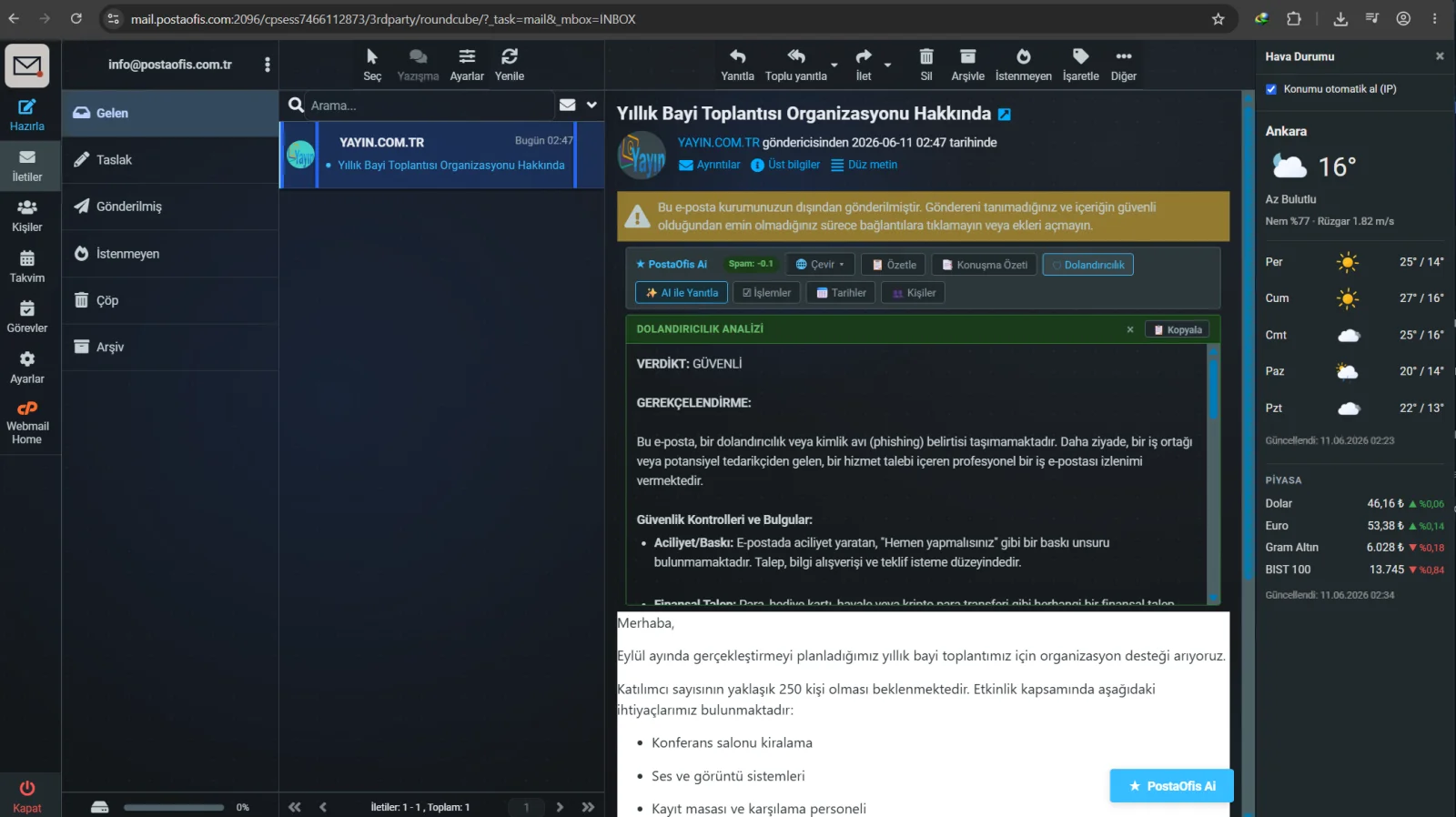
The analysis doesn't just give a verdict; it also explains why it reached it. The main things it checks:
- Urgency/Pressure: Are there panic-inducing phrases such as "you must do this immediately"?
- Financial Request: Is it asking for money, gift cards, a bank transfer or a crypto transfer?
- Technical signs such as fake links and sender inconsistencies
Always run the Fraud analysis on emails from senders you don't know, emails that pressure you to hurry, or emails asking for personal or financial information. If the result is "DANGEROUS", don't click the links and don't open the attachments.
☑️ Action Items (Actions)
If an email gives you several tasks, the Actions button turns them into a to-do list for you. The AI picks out every request in the message one by one and lays them out as a list.
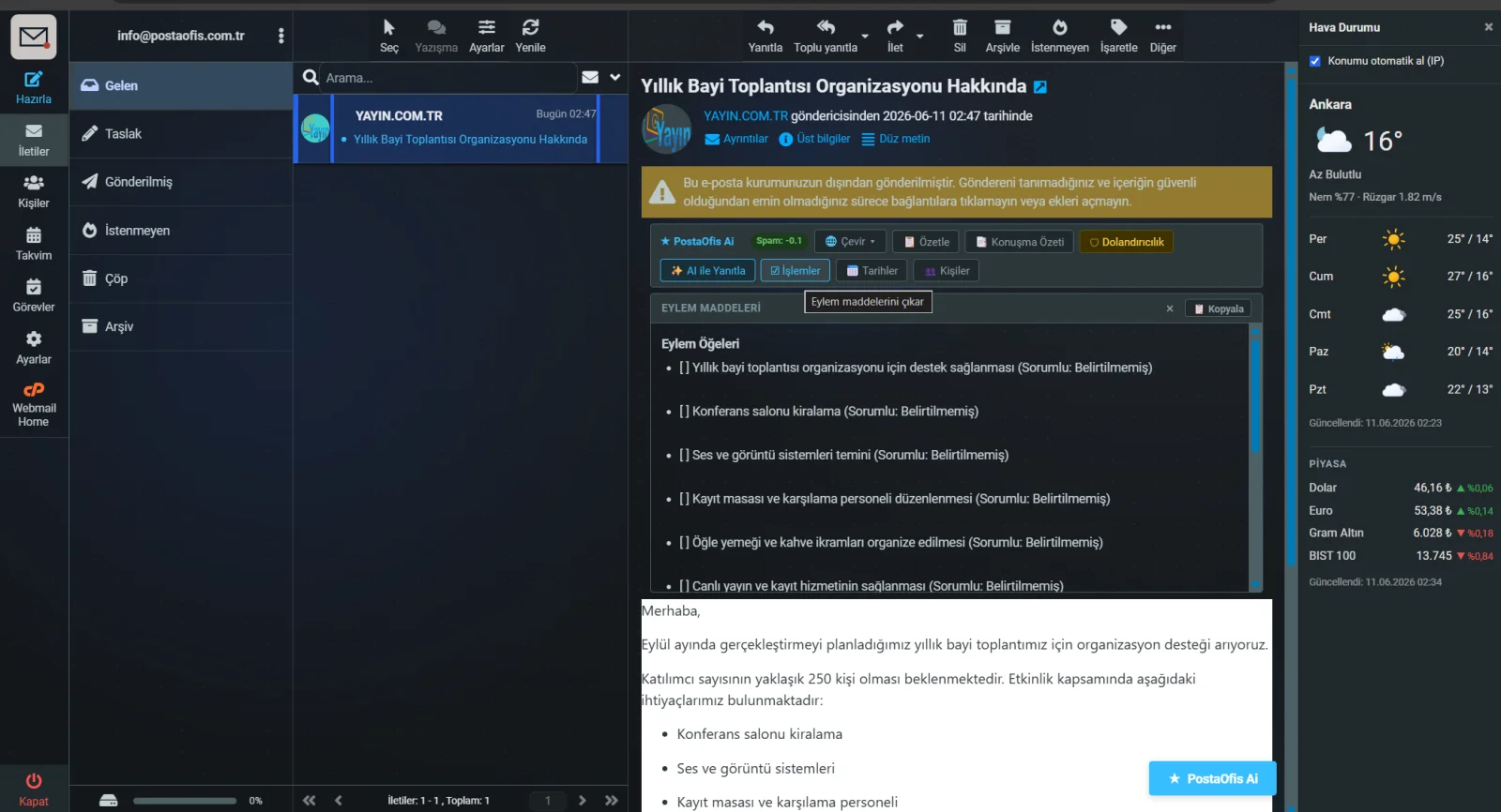
Where possible, each item is shown together with the person responsible. You can grab the list with Copy and paste it into your task manager or notes.
It is very handy for event and project emails full of requests like "do this, prepare that, arrange the other". You see every task as a clear list without missing a single item.
📅 Date & Task Extraction
The Dates button automatically finds and lists time-related information in the email, such as meetings, deadlines and appointments. It picks up phrases like "between 15–30 September" or "tomorrow at 14:00", making it easier to add them to your calendar.
👤 Contact Extraction
The Contacts button automatically extracts the contact details in the email:
- Names — people mentioned in the message
- Email addresses
- Phone numbers
- Company / organization names
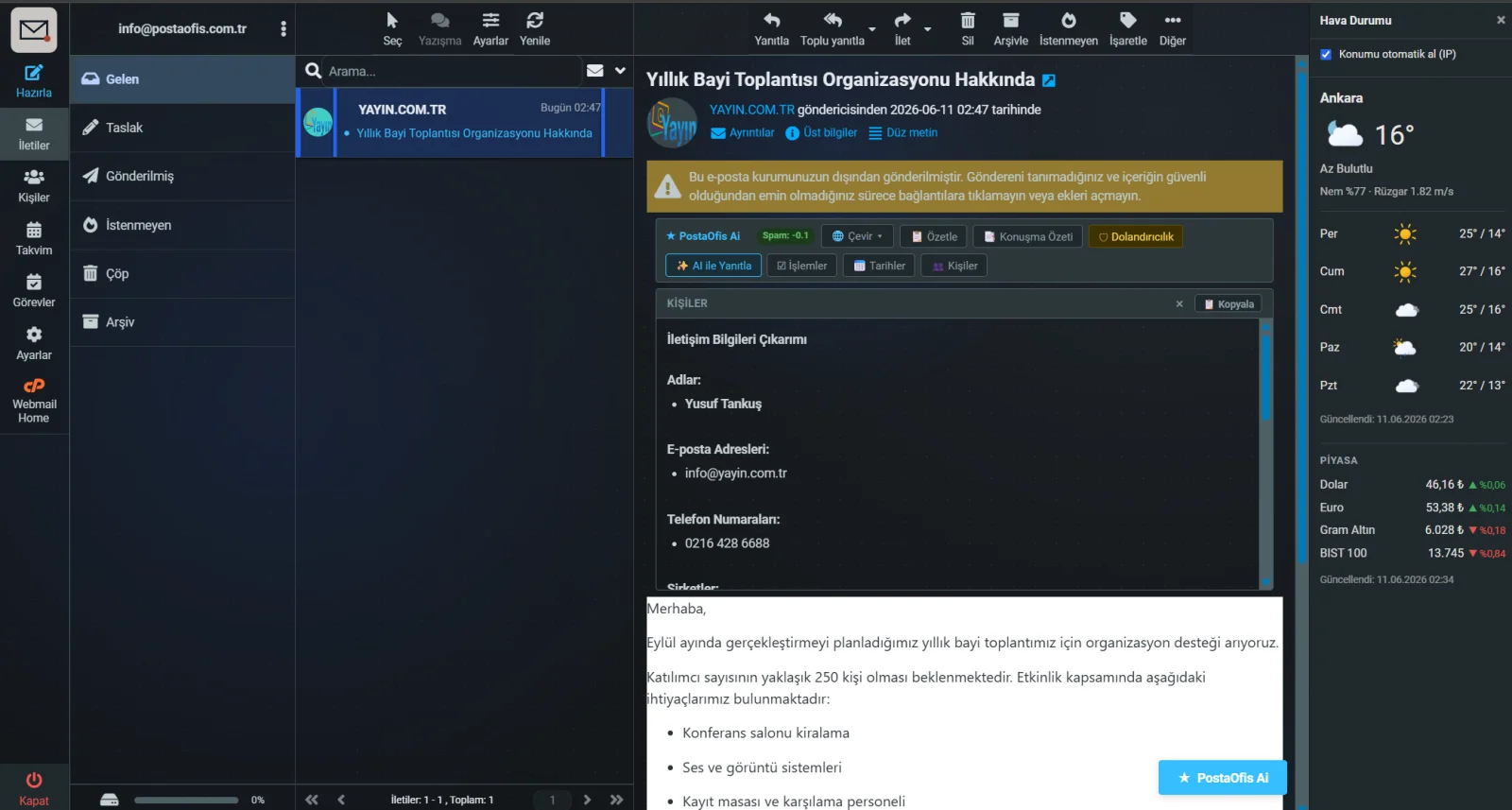
No need to search through someone's signature for each detail. Use the Copy button to grab the extracted details and save them straight to your address book.
✨ Reply with AI
When you need to answer an email, click the Reply with AI button. The AI understands the content of the incoming message and prepares a suitable reply draft for you. A few words of guidance are enough — the assistant does the rest.
You will find detailed instructions for this feature in the next section.
AI While Writing Email — PostaOfis Ai Assistant
When you are writing a new email or replying to one, click the ★ PostaOfis Ai button to open the PostaOfis Ai Assistant window. This is the control panel that brings together all of the assistant's writing features.
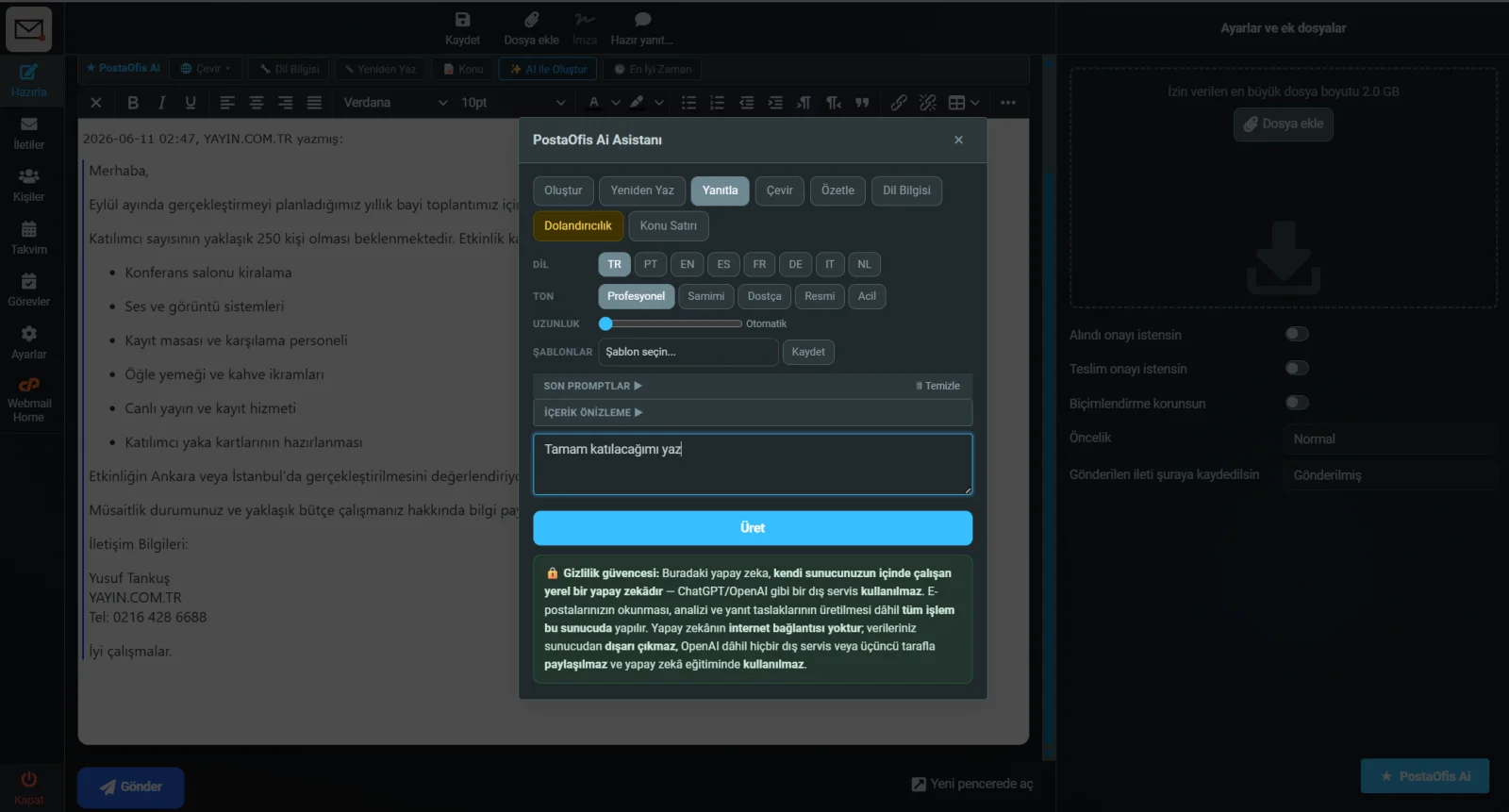
The AI you use while writing is also a local AI running on our own servers. The text you write, the drafts you produce and the instructions you give never leave the server and are not shared with any outside service.
Modes
The buttons at the top of the window determine which task the AI performs:
| Mode | What it does |
|---|---|
| Compose | Writes a complete email from scratch based on a few keywords |
| Reply | Produces a suitable reply draft to the open email |
| Rewrite | Rewrites your text so it is more fluent, cleaner or in a different tone |
| Translate | Translates your draft into the language you choose |
| Summarize | Shortens and summarizes a long text |
| Grammar | Fixes spelling and grammar mistakes (explained in detail below) |
| Subject Line | Suggests a subject line that fits the content of the message |
Choosing a Language
You choose which language the draft is written in: Turkish, Portuguese, English, Spanish, French, German, Italian, Dutch.
Choosing a Tone
The same message should be written in a different style depending on who you are writing to. You decide the tone:
| Tone | When to use it |
|---|---|
| Professional | Business correspondence, corporate communication |
| Formal | Letters to official institutions and authorities |
| Warm | Business partners you know, warm communication |
| Friendly | Casual, relaxed style |
| Urgent | Situations that need a quick response and call for urgency |
Length
Use the Length slider to set how long the draft will be. On the default Auto setting, the AI decides for itself which length suits the topic best.
Templates and Recent Prompts
- Templates: Save instructions you use often and recall them with one click. For example, you don't have to retype patterns such as "politely decline" or "write a meeting confirmation" every time.
- Recent Prompts: Instructions you have given before are listed here; use Clear to reset the history.
Step by Step: Creating a Reply with AI
Open the Assistant
On the reply screen, click the ★ PostaOfis Ai button and select Reply mode.
Set the Language and Tone
Choose the language (e.g. TR) and the tone (e.g. Professional). Adjust the length if needed.
Write Your Instruction
Say what you mean in a few words. Example: Tamam katılacağımı yaz ("OK, say I'll attend"). The AI builds a complete reply from this short hint.
Click Generate
Click the Generate button. The draft appears in the Preview section at the bottom of the window.
Review and Refine
If you don't like the result, you can change the instruction and generate again, or give follow-up commands such as kısalt ("shorten") or İngilizceye çevir ("translate into English").
Apply It to the Email
When the draft is ready, use Apply to Email to insert it straight into the message, Copy to put it on the clipboard, or Save Draft to keep it for later.
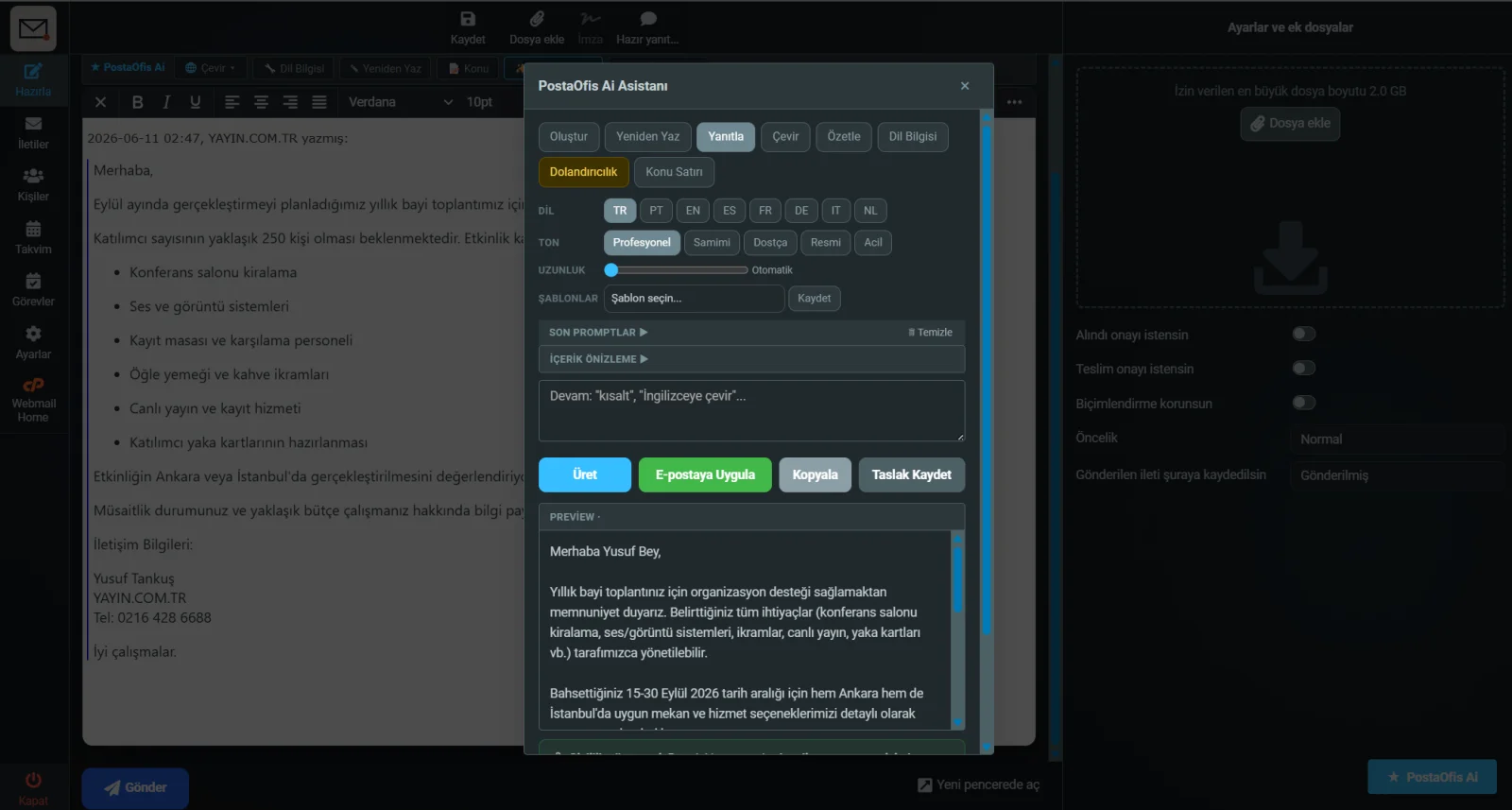
You don't have to stop after the first draft. With follow-up instructions like "make it shorter", "write it a bit more formally" or "add the date", you can refine the draft step by step until it is exactly how you want it.
Grammar — Text Correction
If you don't want any spelling or grammar mistakes left in an email you have written, the Grammar feature is for you. The AI reads your text, fixes the mistakes and makes it flow better without changing the meaning.
| Fixes | Preserves |
|---|---|
| Spelling mistakes | Your core message and intent |
| Missing punctuation | The content and the information you provided |
| Broken sentence structure | The tone you selected |
| Awkward phrasing | — |
After writing your text, select Grammar mode in the assistant window and click Generate. The corrected version appears in the preview; if you like it, update your text with Apply to Email. It is ideal for a quick check before you hit Send.
Subject Line Suggestions
Writing the body of an email is often easier than coming up with the subject. The Subject Line feature looks at the content of your message and suggests a clear, eye-catching subject line.
A good subject line makes your email more likely to be opened and helps the recipient find the message later. Once you have written the message, get a Subject Line suggestion and paste the one you like into the subject field.
Which Feature Should I Use When?
| Your situation | Use |
|---|---|
| A long email arrived and I want to understand it quickly | Summarize |
| I joined a long email thread late | Conversation Summary |
| A message arrived in a foreign language | Translate |
| The sender looks suspicious — it could be fraud | Fraud |
| The email gives me lots of tasks | Actions |
| It contains meeting or deadline information | Dates |
| I want to add someone's contact details to my address book | Contacts |
| I need to write a quick, well-written reply | Reply with AI |
| I'm writing an email from scratch | Compose |
| I want to fix the spelling in my text | Grammar |
| I'm looking for a subject line that fits the message | Subject Line |
Frequently Asked Questions
| Question | Answer |
|---|---|
| Does the AI send my emails anywhere outside? | No. Everything is processed inside our own servers; no data leaves. |
| Does it use ChatGPT or OpenAI? | No. No external services are used, and the AI's internet connection is disabled. |
| Is my data used to train the AI? | No. Your correspondence does not feed any model and is not stored. |
| Do I need to set anything up? | No. It is active automatically on all your email accounts. |
| How many languages does it support? | Turkish, English, Portuguese, Spanish, French, German, Italian and Dutch. |
| Do I have to send the reply it generates as is? | No. You can review, edit or copy the draft first, or save it as a draft. |
| Is it suitable for municipal or institutional correspondence? | Yes. Because it is GDPR-compliant and privacy-focused, it is especially well suited to sensitive correspondence. |