
Webmail Login Screen, 2FA and Security — From One Panel
Design your webmail and cPanel login page around your organization, enforce two-factor authentication (2FA), see who logged in from where, and block suspicious access. Everything from your branding to your security is tailored to you, in a single management center.
What Is Webmail Management?
Webmail Management is a comprehensive management panel that gives you end-to-end control of your email login infrastructure. You can think of it in two main areas: visual identity (how your login page looks) and security (who can log in, from where, and how).
With this panel you:
- Brand the login page with your own logo, colors and text.
- Enforce two-factor authentication (2FA) to protect your users' accounts.
- Monitor all login activity, devices and suspicious attempts.
- Restrict access with country- and IP-based rules.
In many hosting panels the login page is fixed, 2FA is managed in scattered places, and security events are invisible. Webmail Management brings all of this together on one screen: branding, users' 2FA status, login records, trusted devices and live security monitoring.
Your customizations and security rules apply not only to webmail (webmail.yourdomain) but also to the mail login screen (mail.yourdomain). Wherever your users log in from, they see the same corporate identity and the same layer of security.
Key Features
Branded Login Page
Match the login screen to your organization with 7 ready-made themes, your logo, colors, welcome text and custom CSS.
Mandatory 2FA
Make two-factor authentication mandatory for all users. Supports authenticator apps and recovery codes.
Login Logs
Who logged in, when, from where and on which device — filter the records and download them as CSV.
Trusted Device Management
See devices marked "Remember this device" and revoke them with one click when needed.
Live Security Monitoring
Track blocked logins, IP bans and mail attacks in real time.
Country & IP Rules
Choose which countries logins are accepted from, and exempt your safe IPs.
Dashboard — Overview
In the panel, go to SERVICES → Webmail Management in the left menu. The Dashboard tab gives you a summary of your login infrastructure.
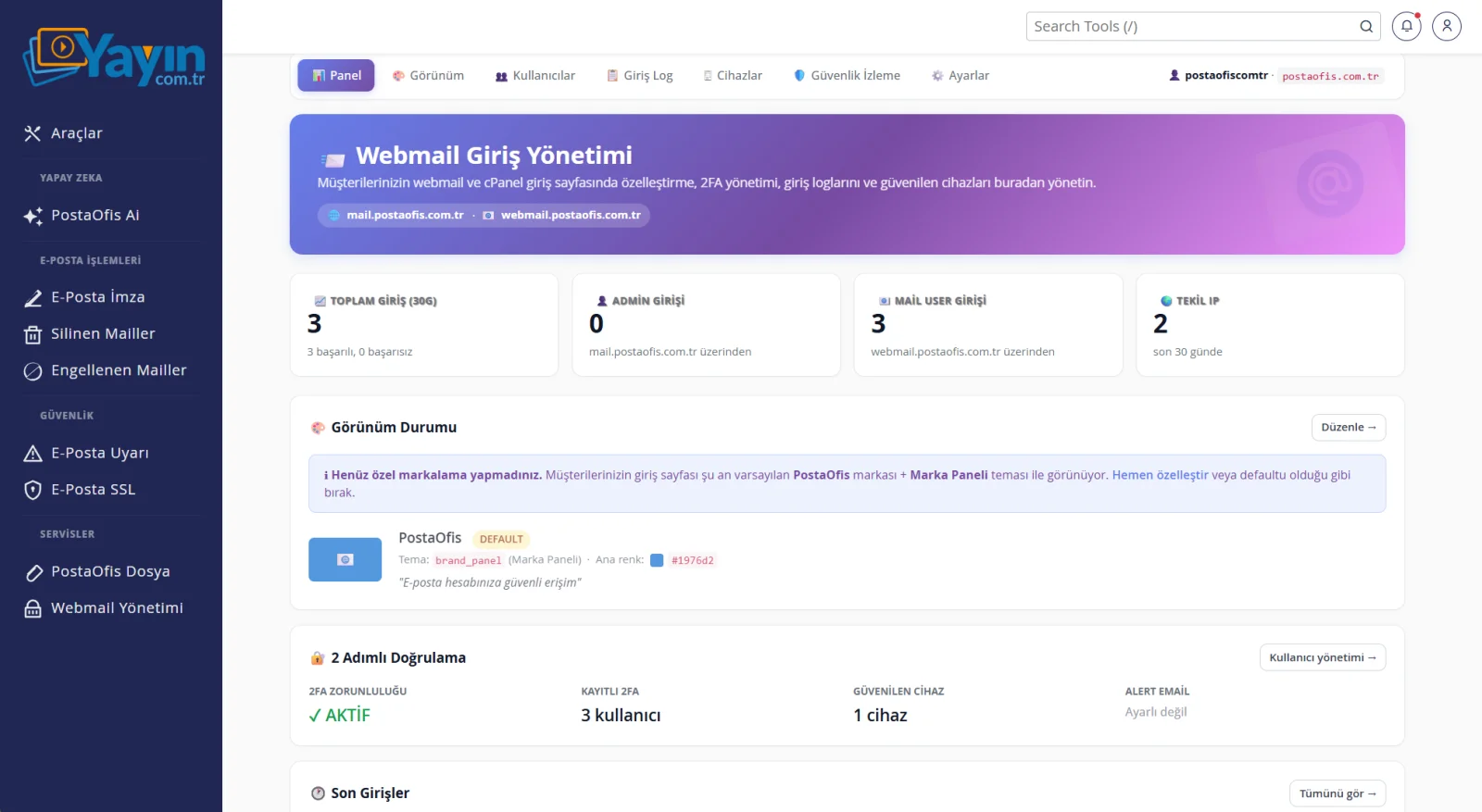
| Section | Contents |
|---|---|
| Total Logins (30D) | Number of logins in the last 30 days (successful/failed) |
| Admin / Mail User Logins | Breakdown of administrator and regular user logins |
| Unique IPs | Number of unique IPs that logged in during the last 30 days |
| Appearance Status | Active brand theme and color summary |
| Two-Factor Authentication | 2FA requirement, number of enrolled users and trusted devices |
The tabs at the top (Dashboard · Appearance · Users · Login Log · Devices · Security Monitoring · Settings) give you access to every management area.
Appearance — Branding the Login Page
The Appearance tab lets you tailor the login screen your users see to your organization. The live preview on the right shows every change instantly.
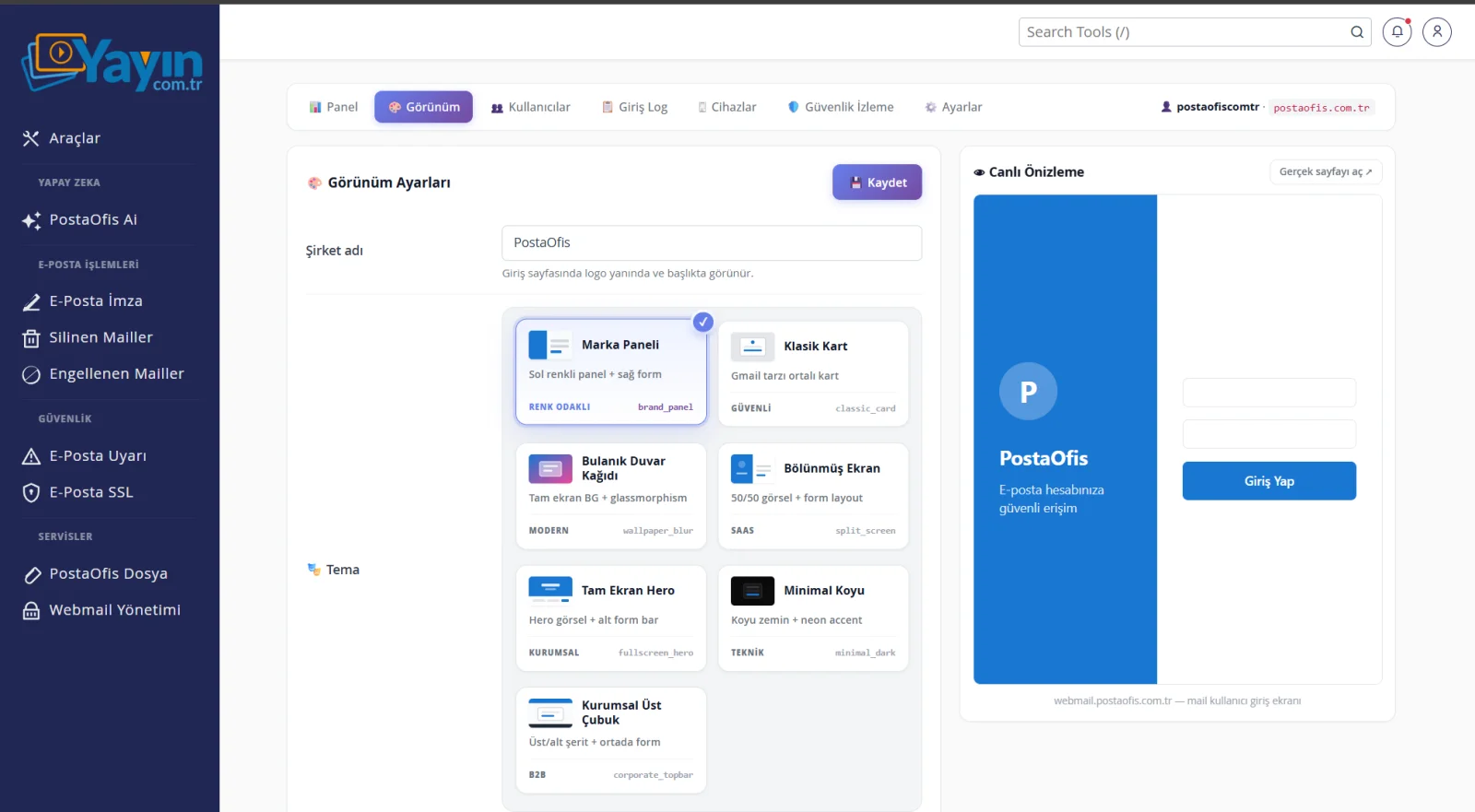
Ready-Made Themes — choose from 7 different login screen layouts:
| Theme | Style |
|---|---|
| Brand Panel | Colored panel on the left + form on the right (color-focused) |
| Classic Card | Gmail-style centered card |
| Blurred Wallpaper | Full-screen background + glassmorphism |
| Split Screen | 50/50 image + form layout |
| Full-Screen Hero | Hero image + form bar at the bottom |
| Minimal Dark | Dark background + neon accent |
| Corporate Top Bar | Top/bottom strips + centered form |
Beyond the theme, you can also customize:
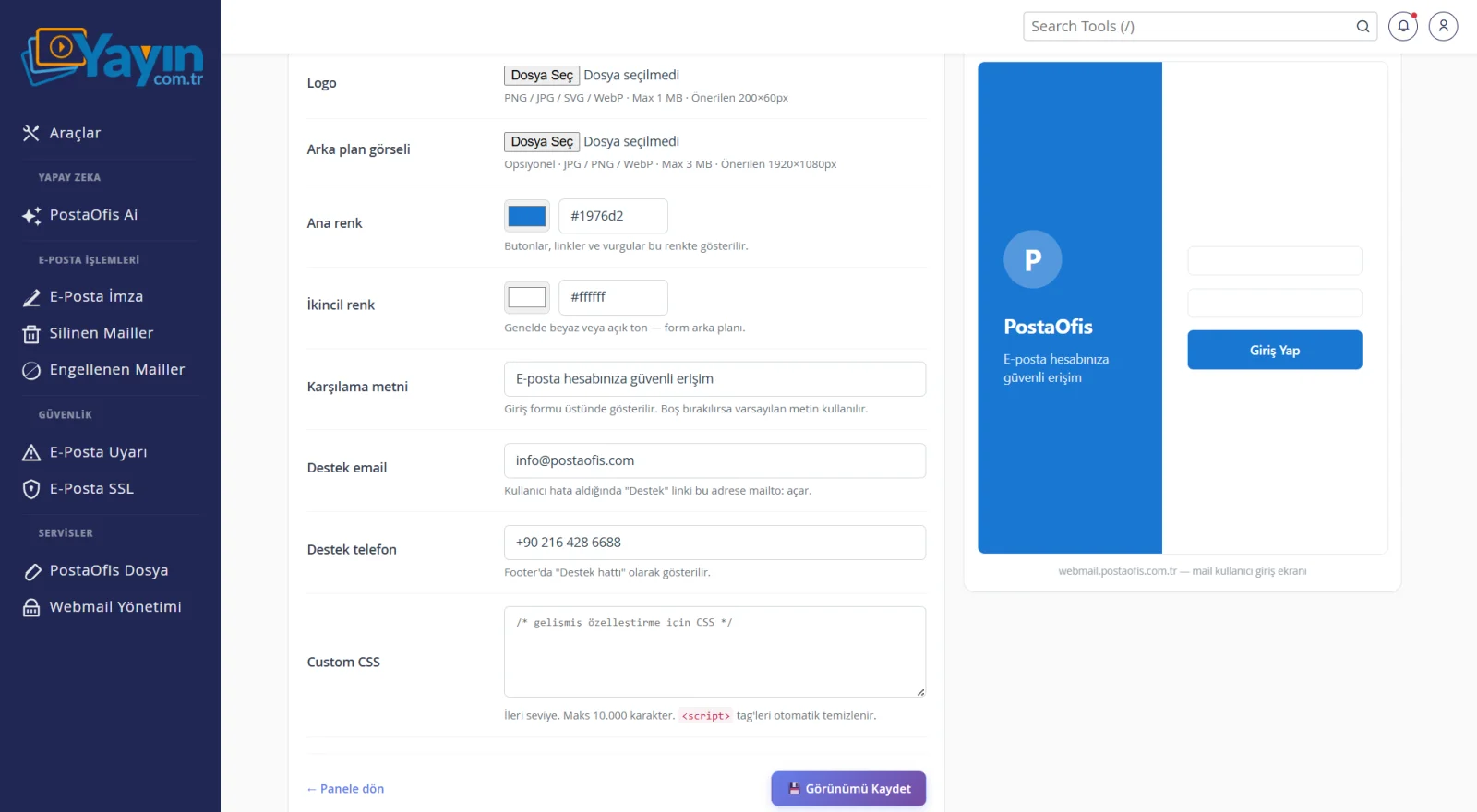
- Logo & Background Image: Upload your own logo and login screen background.
- Primary & Secondary Color: Set your corporate colors for buttons, links and highlights.
- Welcome Text: Write the message shown above the login form.
- Support Email & Phone: The support details users can turn to when they run into a problem.
- Company Name: Shown next to the logo and in the title.
- Custom CSS: For advanced customization (max. 10,000 characters;
<script>tags are removed automatically for security).
The live preview on the right shows exactly how the mail login screen will look, before you save your settings. You can also check it full screen with "Open actual page". Once you have the look you want, apply it with Save Appearance.
Login Experience — What Does the User See?
The branded login screen is the first thing your users see. It is clean, secure and professional.
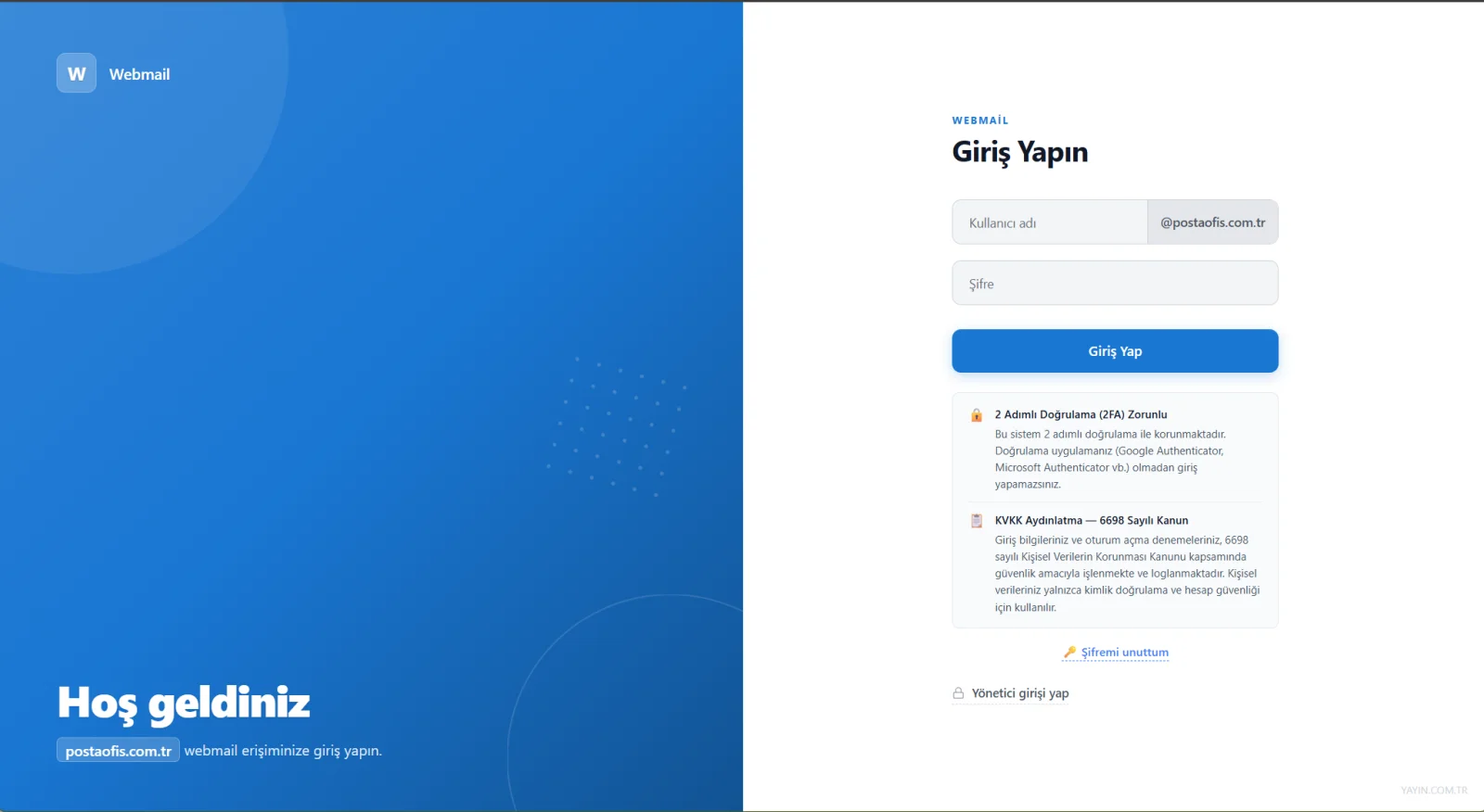
The login screen also shows the 2FA requirement and the data-protection (KVKK) notice, so users are informed about security and privacy from the very first step.
First-Time Setup: Activating 2FA
On their first login, the user sets up two-factor authentication. They scan the QR code with an authenticator app (Google Authenticator, Microsoft Authenticator, etc.) or enter the key manually.
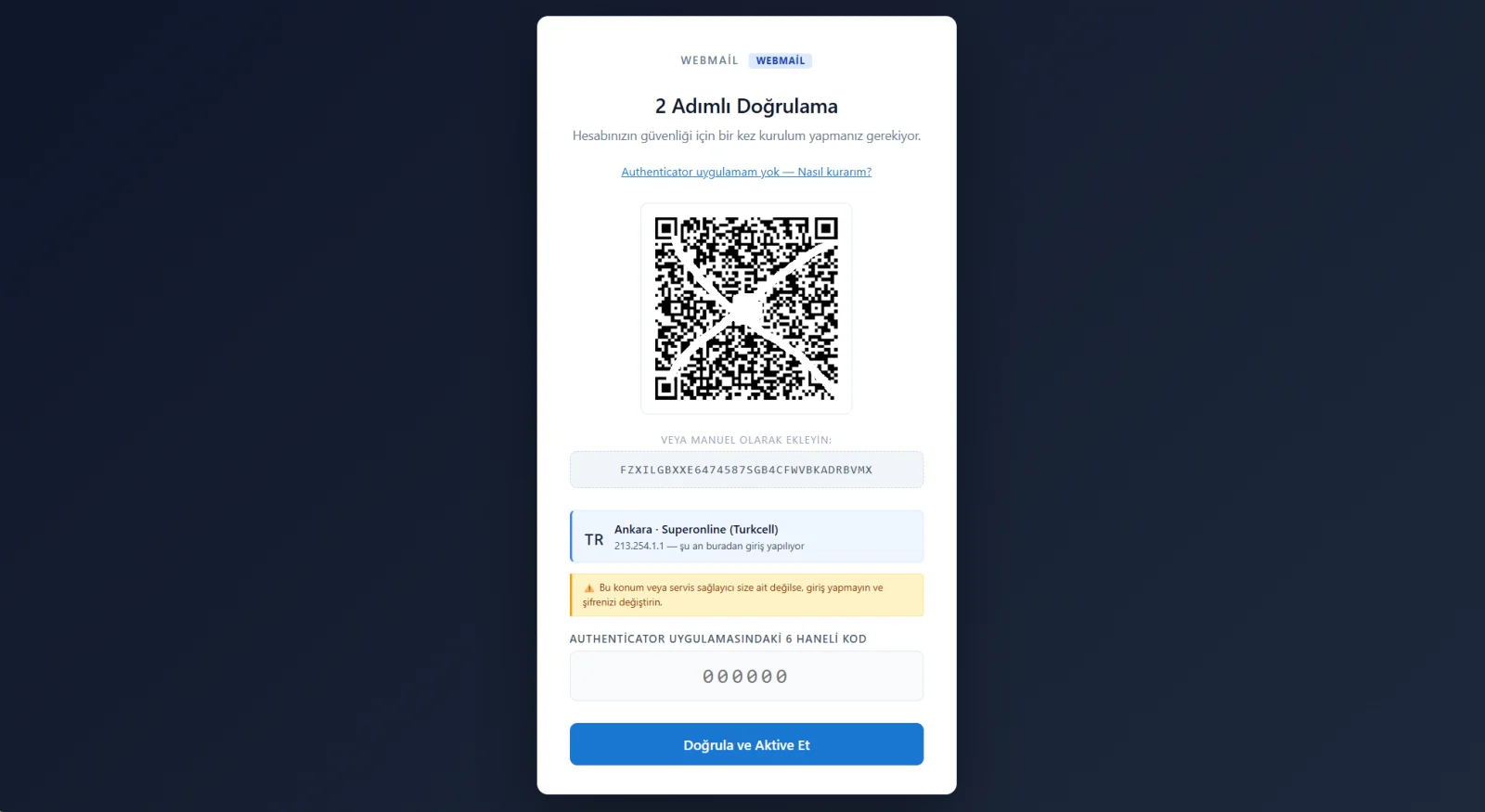
The setup and login screens show the IP, city and ISP of the current login. With the warning "If this location is not yours, do not log in and change your password", users can spot anything suspicious right away.
Recovery Codes
After setting up 2FA, the user is given single-use recovery codes. If they lose access to their phone, they can log in with these codes. The codes can be copied or downloaded as a .txt file.
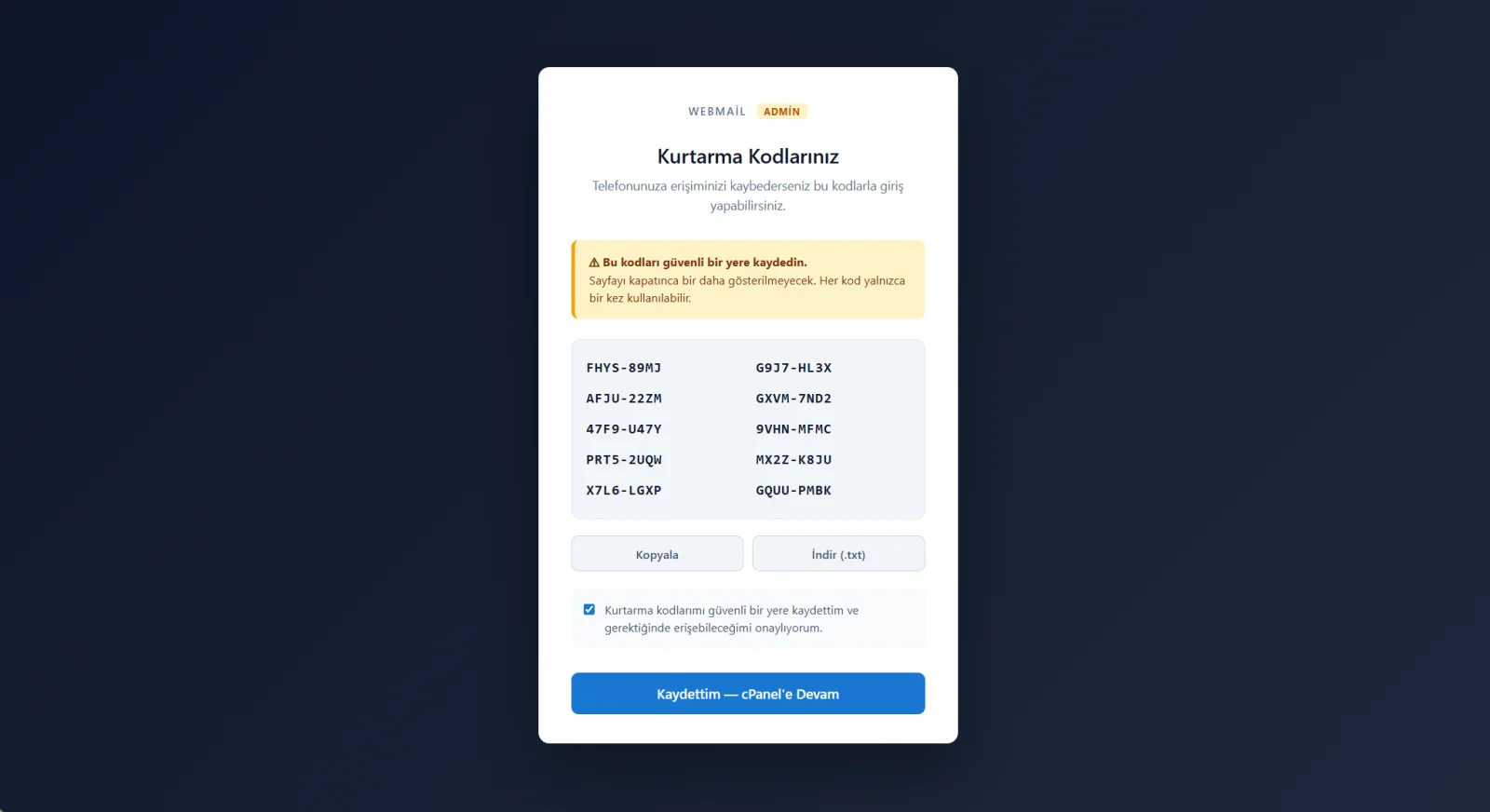
These codes are never shown again once the page is closed, and each code can be used only once. It is essential that users save them somewhere safe.
Subsequent Logins
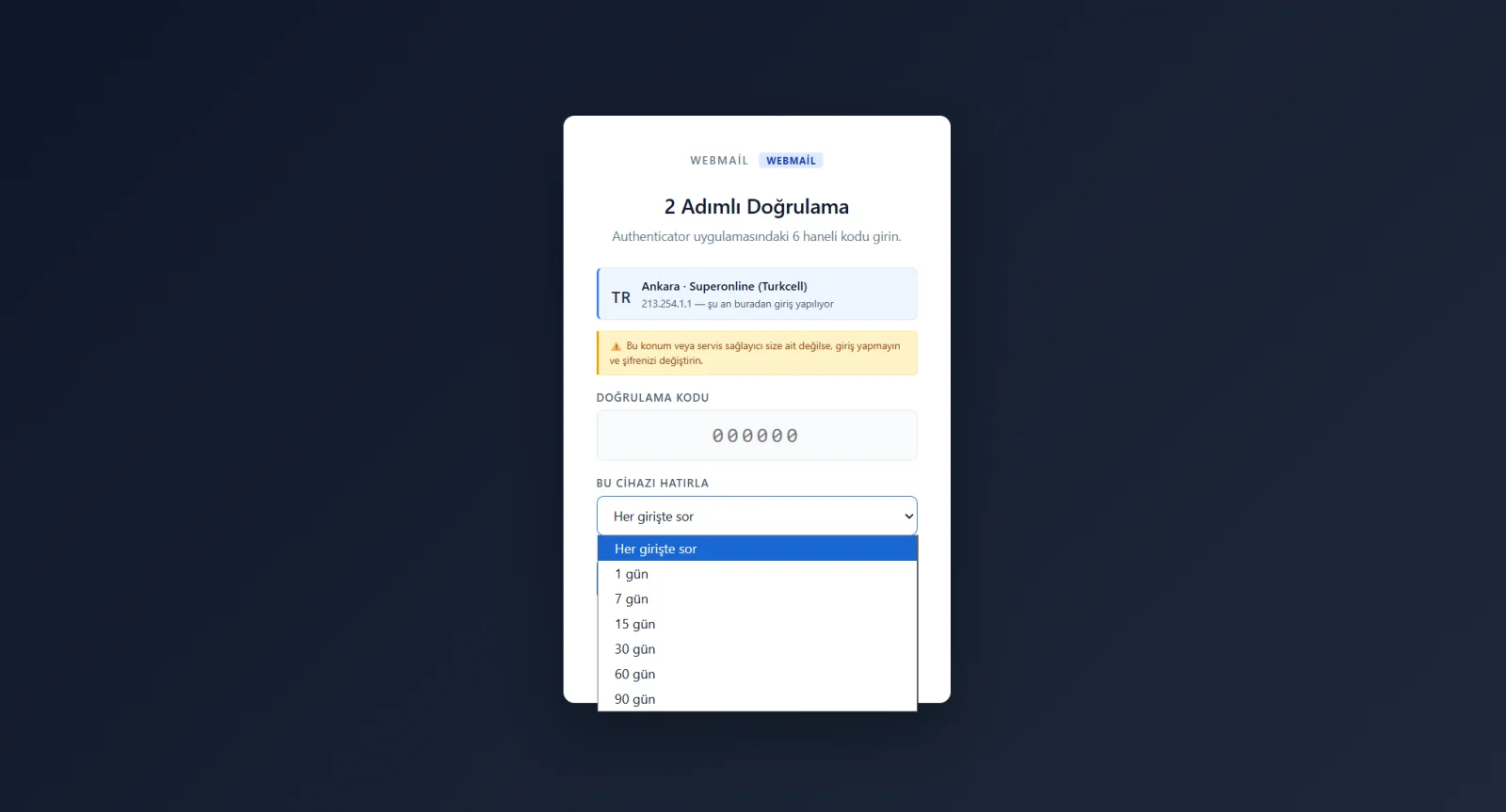
After setup, the user enters the 6-digit code from their authenticator at every login. With the "Remember this device" option, they can skip the code on a trusted device for a set period (1–90 days).
Users — 2FA Status and Management
The Users tab shows the security status of all email accounts in a single list.
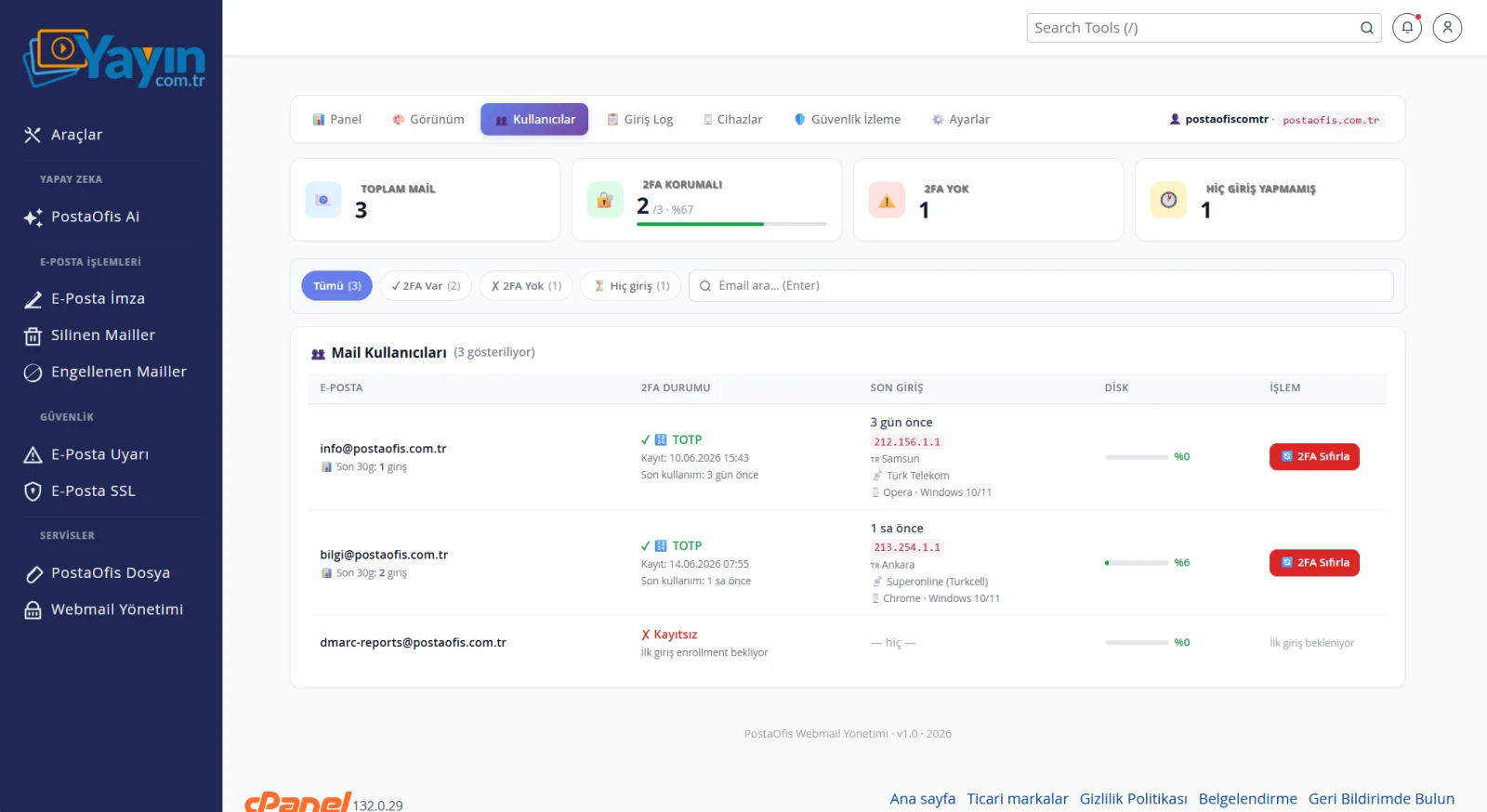
The cards at the top summarize the overall picture: the number of Total Mailboxes, 2FA Protected, No 2FA and Never Logged In users. For each user, the list shows:
- 2FA Status (set up / not enrolled)
- Last Login (date, location, device)
- Disk usage
- The Reset 2FA action (you reset a user's 2FA when they change their phone or lose access)
Use the filters at the top (Has 2FA / No 2FA / Never logged in) to narrow the list quickly.
When a user loses their phone or deletes their authenticator app, they can no longer log in. Use Reset 2FA to reset that user's two-factor authentication; they set it up again at their next login.
Login Log — All Login Activity
The Login Log tab keeps a record of every login to the system. You can see who logged in, when, from where and on which device.
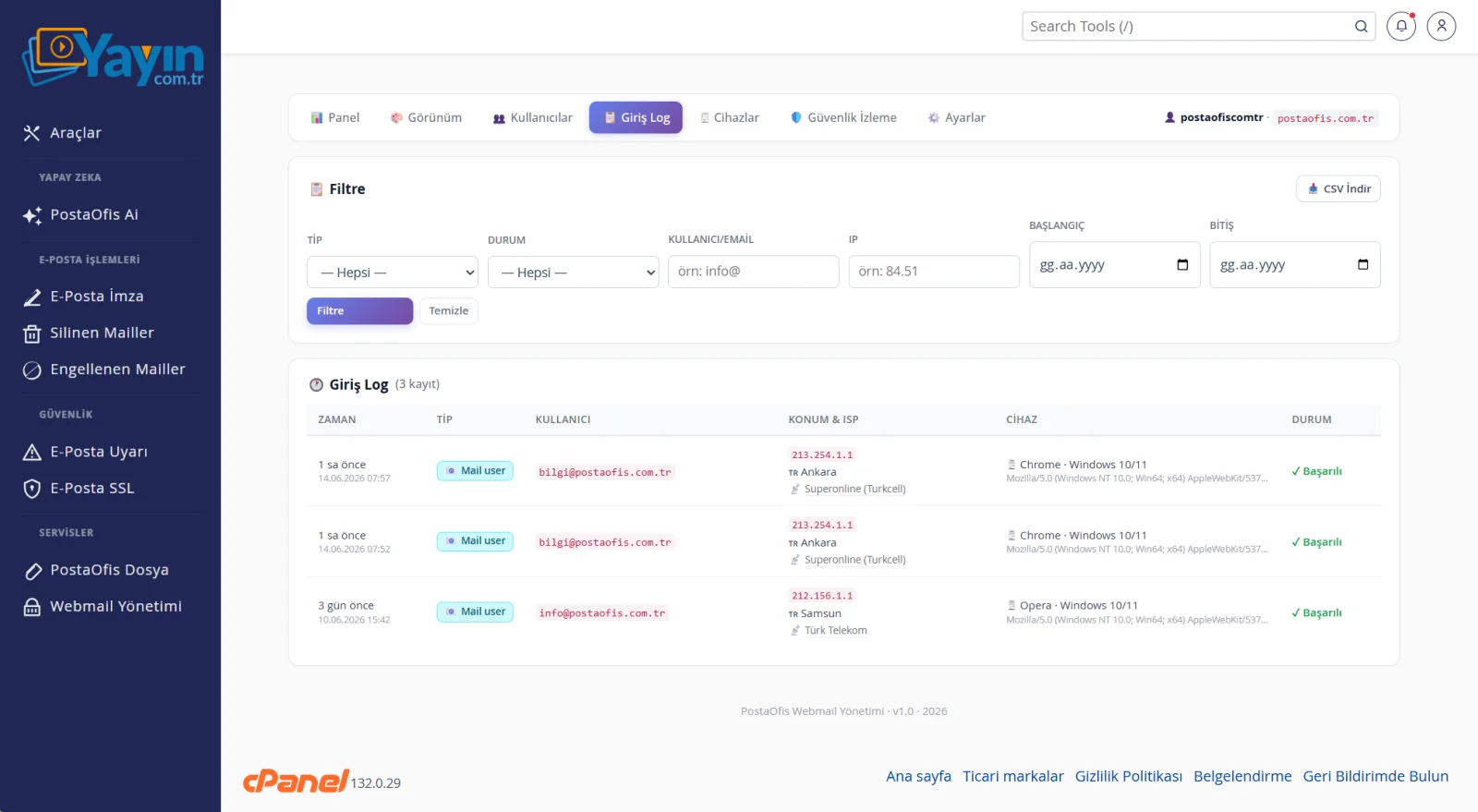
| Column | Description |
|---|---|
| Time | Moment of login |
| Type | Mail user / Admin / source |
| User | Email address used to log in |
| Location & ISP | City, country and ISP |
| Device | Browser and operating system |
| Status | Successful / failed |
Use the Filter field at the top to search by type, status, user, IP and date, and export the records with Download CSV (ideal for auditing and reporting).
Devices — Trusted Device Management
The Devices tab lists the devices on which users chose "Remember this device". These devices do not ask for a 2FA code again at the next login.
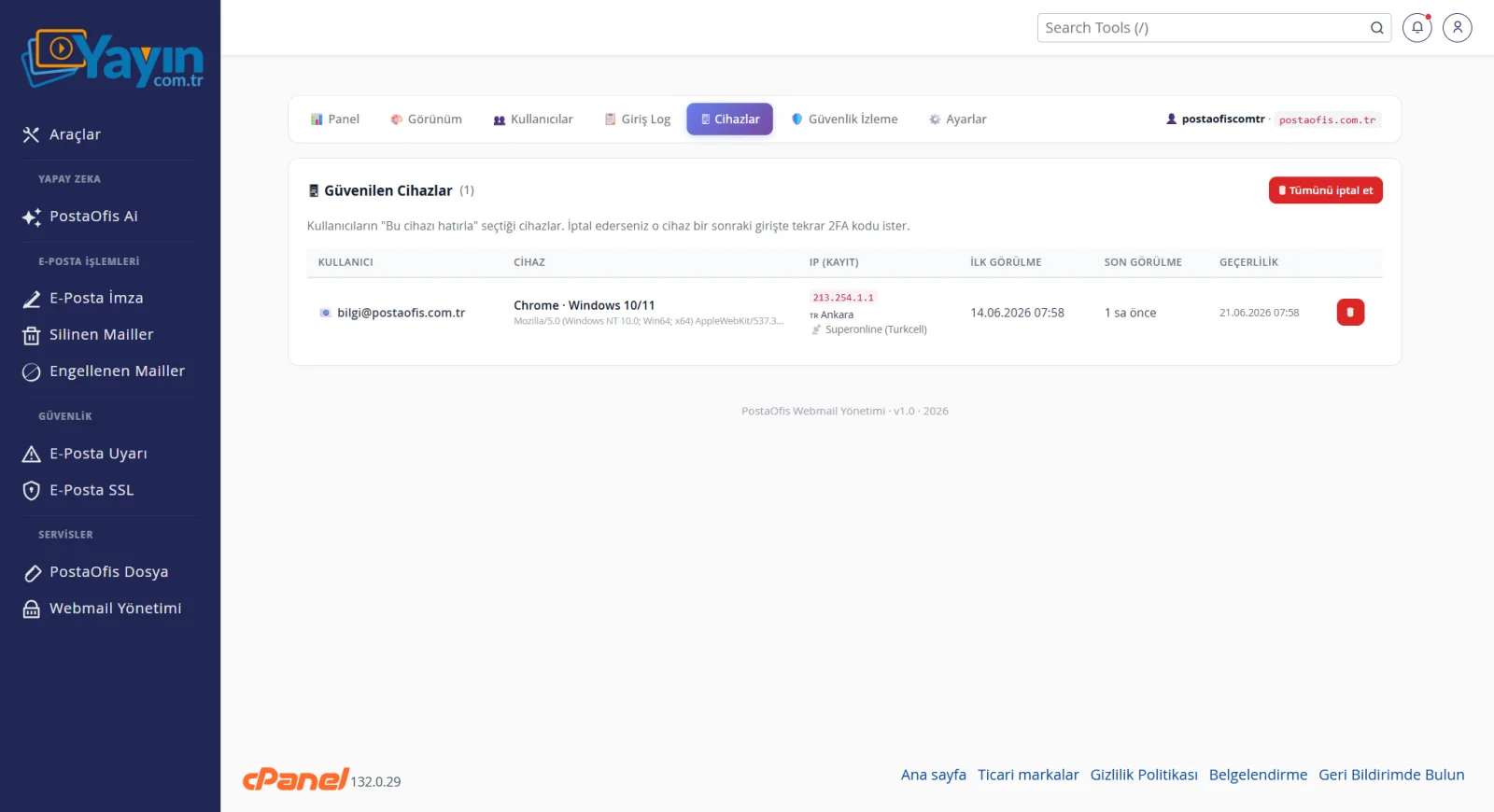
For each device you see its user, browser/operating system, IP, first and last seen times, and validity period. You can revoke a suspicious device with one click, or all of them at once — a revoked device asks for a 2FA code again at the next login.
If a user has lost their laptop or phone and that device is on the "trusted" list, it poses a risk. By revoking the device here, you make verification mandatory again for any login from it.
Security Monitoring — See Attacks in Real Time
The Security Monitoring tab shows threats targeting your system in real time.
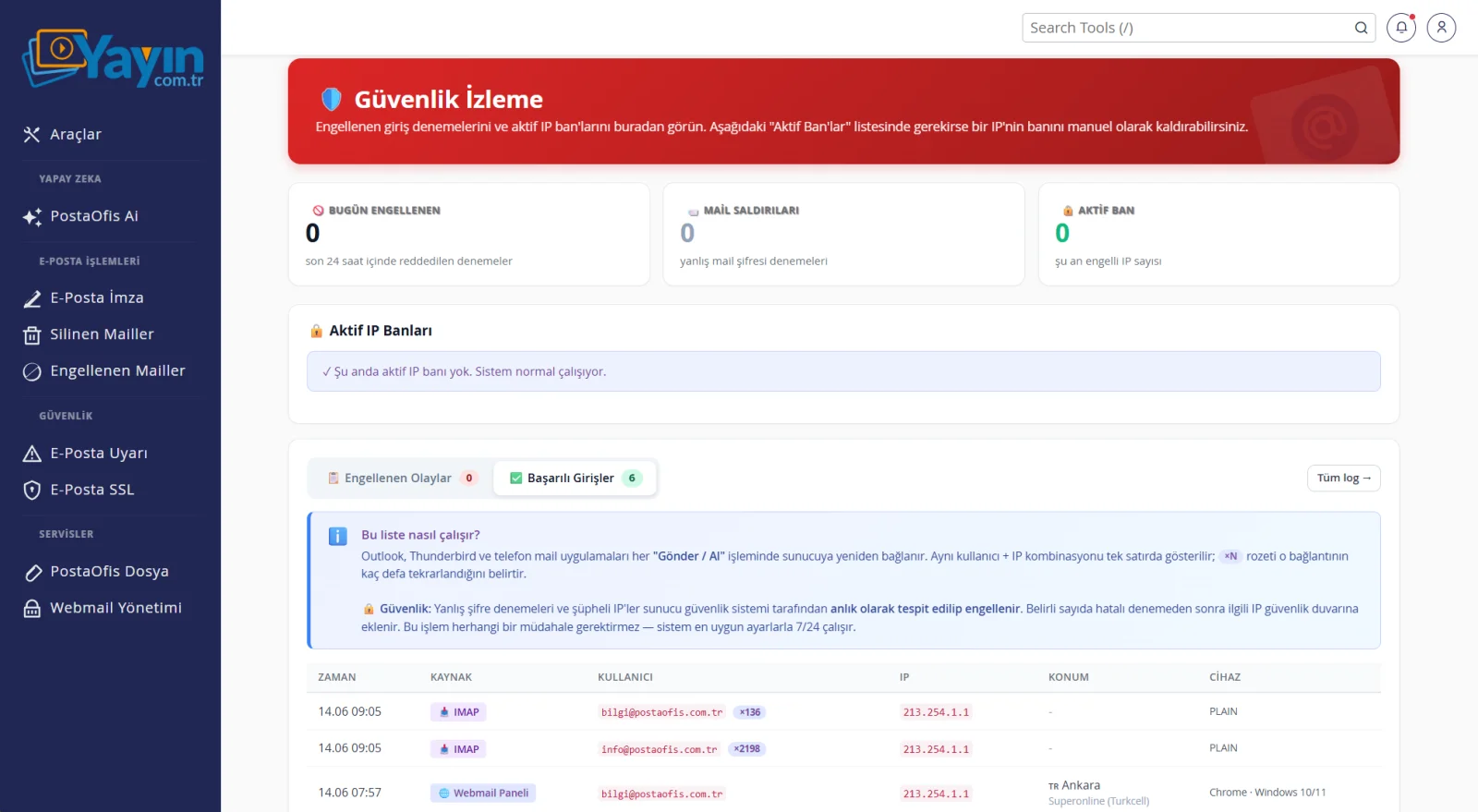
The cards at the top summarize the situation:
| Card | Description |
|---|---|
| Blocked Today | Login attempts rejected in the last 24 hours |
| Mail Attacks | Wrong mail password attempts |
| Active Bans | Number of IPs currently blocked |
Below is the Active IP Bans list; if needed, you can lift an IP ban manually. Use the Blocked Events and Successful Logins tabs to follow all activity.
Wrong password attempts and suspicious IPs are detected and blocked instantly by the server security system. After a certain number of failed attempts, the IP is automatically added to the firewall. The system runs on its own 24/7; you only monitor it and step in when needed.
Settings — Define Your Security Rules
The Settings tab is the heart of login security. This is where you decide who can log in, from where and how.
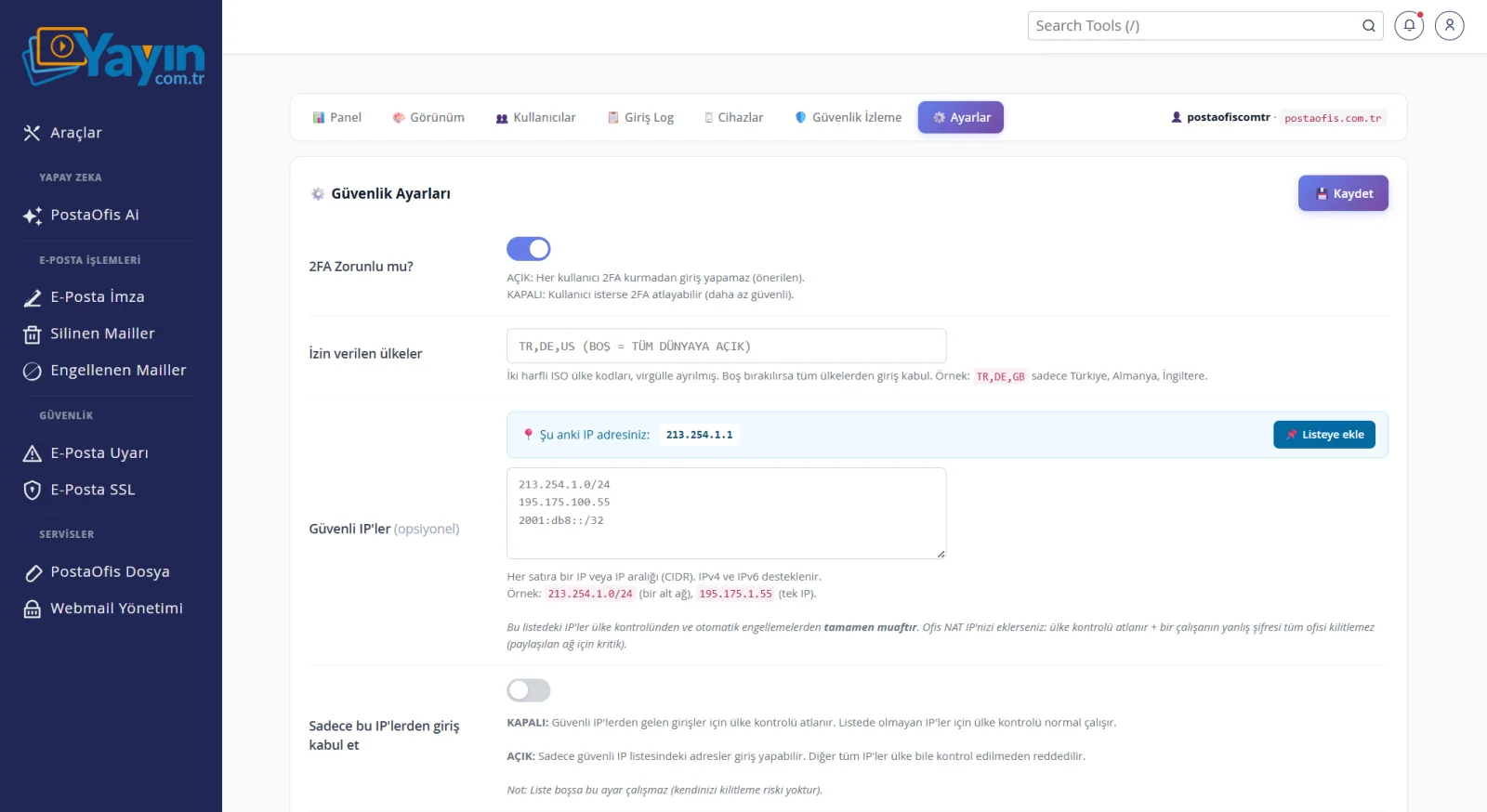
| Setting | Description |
|---|---|
| Require 2FA? | When on, no user can log in without setting up 2FA (recommended). |
| Allowed Countries | Logins are accepted only from the countries you specify (e.g. TR, DE, US). Empty = worldwide. |
| Safe IPs | IPs on this list are exempt from the country check and from automatic blocking. |
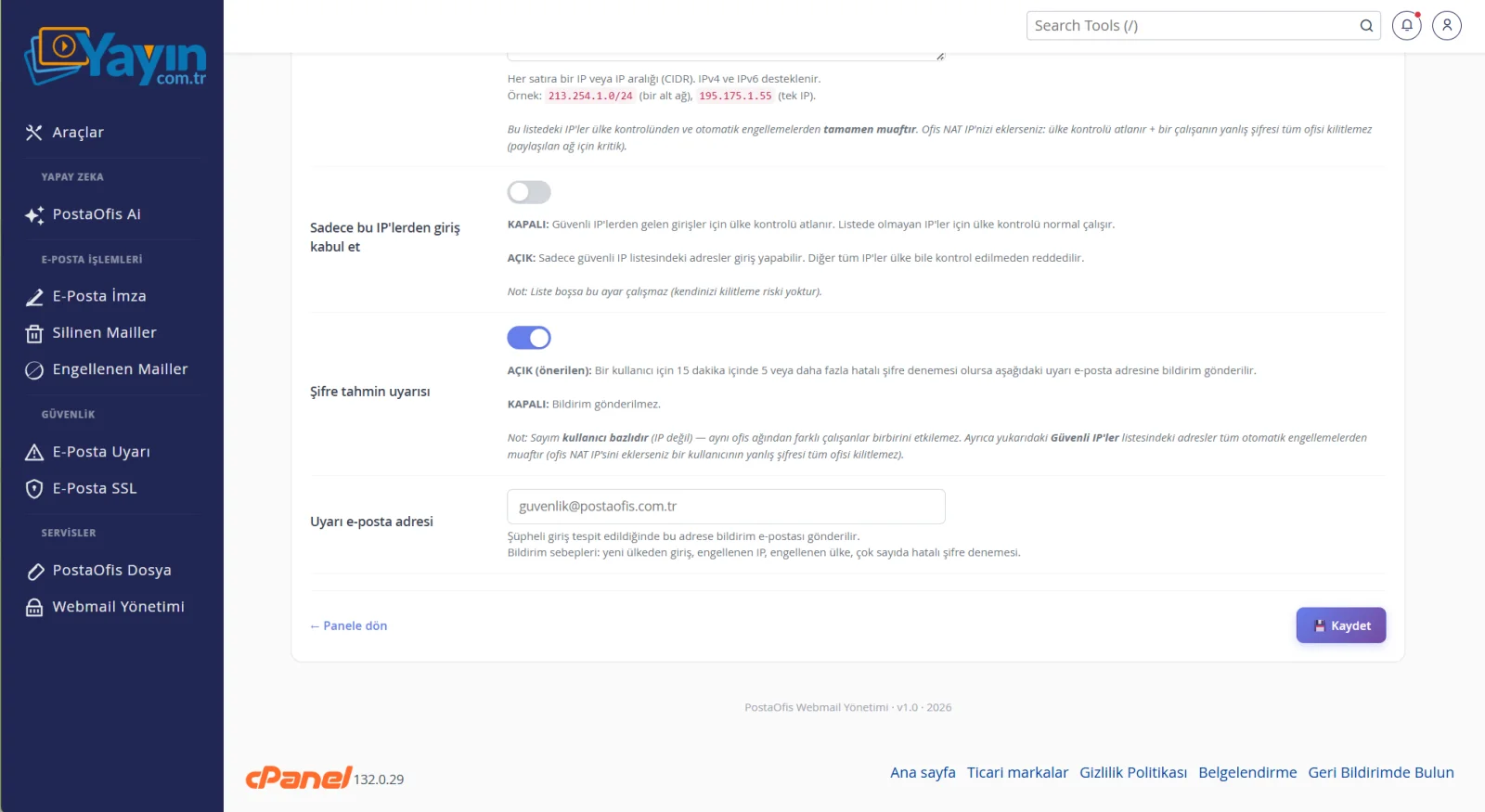
| Only accept logins from these IPs | When on, only addresses on the safe IP list can log in. |
| Setting | Description |
|---|---|
| Password Guessing Alert | If a user has 5+ failed password attempts within 15 minutes, an alert email is sent. |
| Alert Email Address | When a suspicious login is detected (new country, blocked IP, many failed attempts), the notification goes to this address. |
If you work from a shared office network (shared IP), it is essential to add your office IP to the Safe IPs list. That way the country check is skipped, and one employee's wrong password attempts will not lock out the entire office.
Warning When Disabling 2FA
Turning off two-factor authentication is a serious security decision. That is why the system clearly warns you about the possible consequences and asks for confirmation before you turn it off.
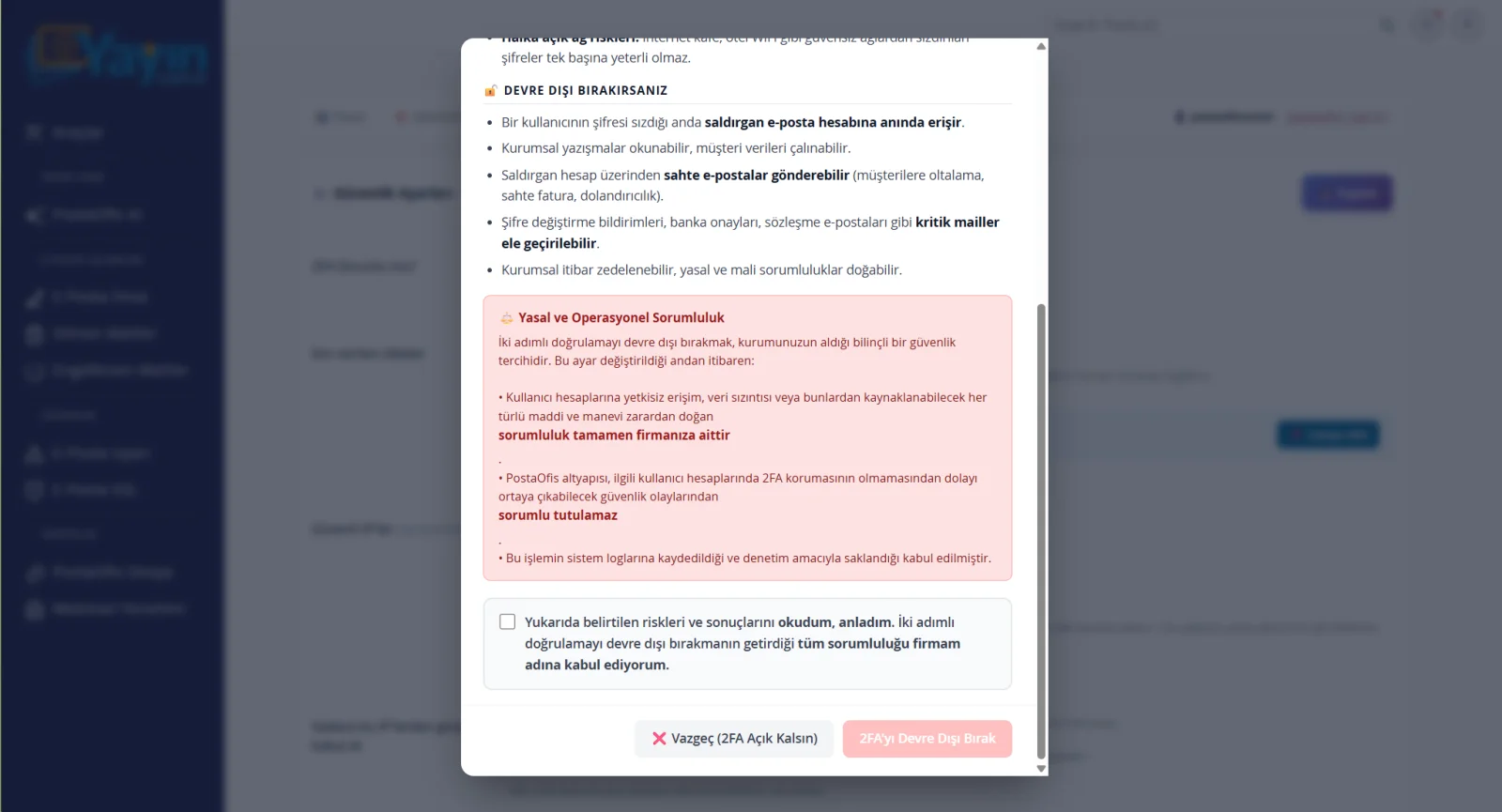
With 2FA off, the moment a user's password leaks, an attacker can access the account: corporate correspondence can be read and fake emails can be sent from the account. That is why we strongly recommend keeping 2FA on. Only confirm on the disable screen once you fully understand the consequences.
Frequently Asked Questions
| Question | Answer |
|---|---|
| Do I have to brand the login page? | No, you can leave it on the default theme. But we recommend giving it a corporate look with your logo, colors and text. |
| Can I make 2FA mandatory for all users? | Yes. When "Require 2FA" is on in Settings, no user can log in without setting up 2FA. |
| What do I do if a user loses their phone? | Reset that user's 2FA from the Users tab; they then set it up again. Recovery codes are another option. |
| Can I block logins from certain countries? | Yes. You specify the allowed countries; logins from countries not on the list are rejected. |
| Will I be notified of a suspicious login? | Yes. If an alert email address is set, you are notified of logins from a new country, blocked IPs and repeated failed attempts. |
| Can I export the login records? | Yes. You can download them as CSV from the Login Log; ideal for auditing. |
| Do these settings also cover the cPanel login? | Yes. The webmail and mail login screens and their security rules are managed together. |