
Instant Messaging for Your Organization, Right Inside Webmail
Your staff message each other instantly from inside the webmail they already use, without installing any outside app. It's as easy as WhatsApp, but all data stays on your own server and never goes to an overseas cloud. A GDPR-compliant, auditable internal communication solution for municipalities and organizations, built around your department structure.
What Is PostaOfis Chat?
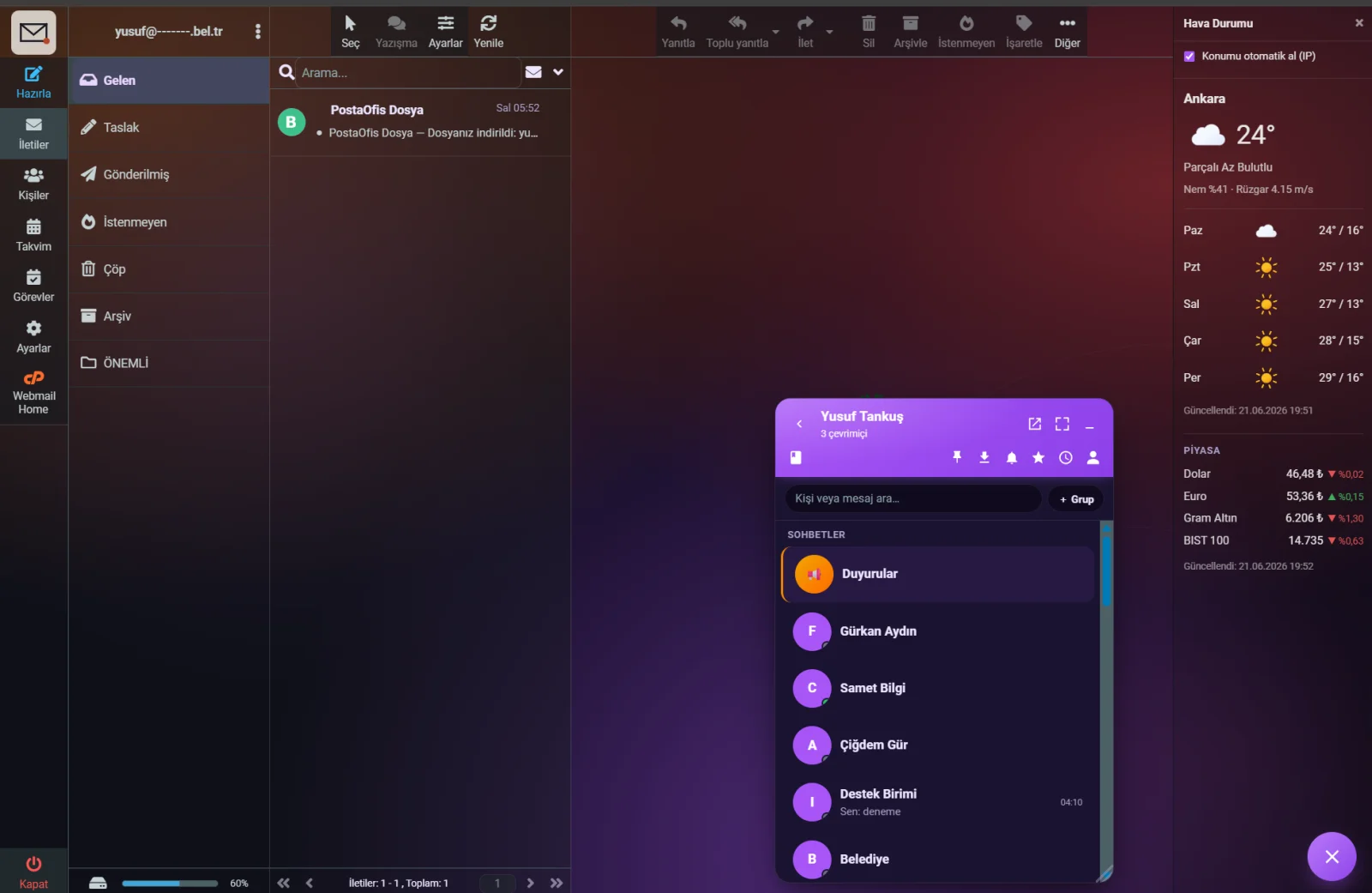
PostaOfis Chat (kurumsohbet) is a full-featured corporate messaging system that runs embedded inside your webmail interface. Users click the chat bubble in the corner of webmail and, just like in popular messaging apps, chat one-to-one, talk in department groups, share files and receive announcements.
The difference is fundamental: the system needs no separate app, no separate account and no separate server, and it doesn't take your data outside the organization. It's part of the webmail your staff already open every day.
One-to-one and group chats, department groups, an announcement channel, file/image sharing, emoji and reactions, replies and quotes, @mentions, read receipts, a "typing…" indicator, pinned messages, saved messages, reminders, forwarding, in-chat search, a media gallery and conversation export — all inside webmail.
Why It Suits Municipalities and Organizations
In many organizations, internal communication runs either through personal WhatsApp accounts (uncontrolled, with personal and work mixed together) or through overseas cloud services (data held abroad). Both carry serious risks for public institutions. PostaOfis Chat fills this gap:
Stays on Your Organization's Server
All messages and files are hosted on your own server. No data goes to any overseas service.
Built into Webmail
No separate app, password or installation. Staff chat from the webmail they already use.
Department Structure
Fits your department structure: Public Works, Municipal Police, Financial Services… an automatic group for each department.
Administrator Oversight
The administrator sees all messages (including deleted ones) and moderates content, and an audit log is kept.
GDPR-Compliant
Personal data is processed under the organization's control, and data residency is ensured.
No Extra Licenses or Subscriptions
Unlike cloud services billed monthly per user, it runs on your own infrastructure.
GDPR & Data Privacy
For public institutions and municipalities, where internal messages are stored is a critical legal responsibility. PostaOfis Chat is designed to be secure on this point from start to finish.
Data residency: Messages, files and user profiles are stored in a database on your organization's server; they never go abroad.
No external services: No third-party cloud service is used for messaging.
Controlled file access: Shared files have no public URL; they are served only through short-lived, signed links.
Auditability: Every moderation action and message event is written to the audit log and can be exported as CSV.
Moderation: The administrator can delete inappropriate content and block users; everything, including deleted messages, is on record.
When staff handle work through personal WhatsApp accounts, corporate information ends up scattered across personal devices, data is lost when employees leave, and there's a risk of GDPR violations. PostaOfis Chat moves all internal communication into a single channel under the organization's control.
Comparison of Internal Communication Options
Below, common internal communication options are compared on the points that matter to a public institution. Standard webmail software has no built-in chat; usually a separate chat server is installed and connected through a plugin — which means a separate server and separate administration.
| Feature | Personal messaging apps | Overseas cloud work platforms | Separate chat software on the organization's server | PostaOfis Chat |
|---|---|---|---|---|
| Where is the data? | Abroad | Overseas cloud | Own server | Own server |
| Inside webmail? | No | No | No | Yes |
| Separate app/password | Required | Required | Required | Not required |
| Separate server setup | — | — | Required | Not required |
| GDPR / data residency | ❌ | ❌ | ✅ | ✅ |
| Admin moderation + audit log | ❌ | Limited | Yes | ✅ (including deleted) |
| Department (unit) structure | ❌ | Manual | Manual | ✅ automatic |
| Monthly per-user fee | Free but uncontrolled | Usually paid | Server costs | No extra subscription |
Mainstream work platforms are mature and capable, offering broad features such as voice and video calls. PostaOfis Chat doesn't differ in scope; what sets it apart is that it delivers these three things together: it is built into webmail, it needs no separate setup or sign-in, and it keeps data inside the organization.
User Side — All Features
Users enter the system from the chat bubble in the corner of webmail. Everything a user can do is described in detail below.
Real-Time Infrastructure (WebSocket)
PostaOfis Chat delivers messages instantly — there's no need to refresh the page. The system opens a WebSocket connection, and messages, read receipts and the "typing…" status stream live.
If the WebSocket connection drops, the system reconnects automatically with exponential backoff. If no connection can be established at all, a polling fallback kicks in, so messages still arrive. Users don't notice any of these switches — the chat stays smooth under all conditions.
Along with this come live indicators: contacts' online dots (updated instantly), read receipts (✓ delivered / ✓✓ read), the "typing…" indicator and unread message counters.
Profile — Your Identity
You decide how you appear in chat: display name, title, avatar and department/unit.
Avatar chain: If you upload an avatar, your file is served securely from the organization's server with a signed token (there is no public URL). If you don't upload one, a colored badge with your initials is generated automatically — so everyone always has an avatar.
If the administrator has turned on the "Name + Department required" setting, users who haven't completed their profile (display name + department) have their message box locked — they can't send messages or files until the profile is complete. This way, every message makes clear who the sender is and which department they work in; there are no anonymous or incomplete identities.
Theme and Layout
Each user personalizes the chat window to their liking; the choice applies instantly and affects only that user.
- 6 themes: Corporate (Aurora), Blue, Green, Burgundy, Night (dark) and Light.
- 4 layouts: *Classic* (single panel), *Side by side* (list + chat like WhatsApp — widens automatically in a large window), *Spacious* (large) and Custom.
- Custom layout: You set the list width with a slider (up to ≈320px) and adjust message density by hand. Your preferences are saved on your device.
The administrator sets a default theme/layout for the organization; users can apply their own preference on top of it and reset it at any time with "back to administrator default".
Messaging and Groups
From the list on the left, you chat one-to-one with a person, with a group or with a department group. Press Enter to send and Shift+Enter for a new line.
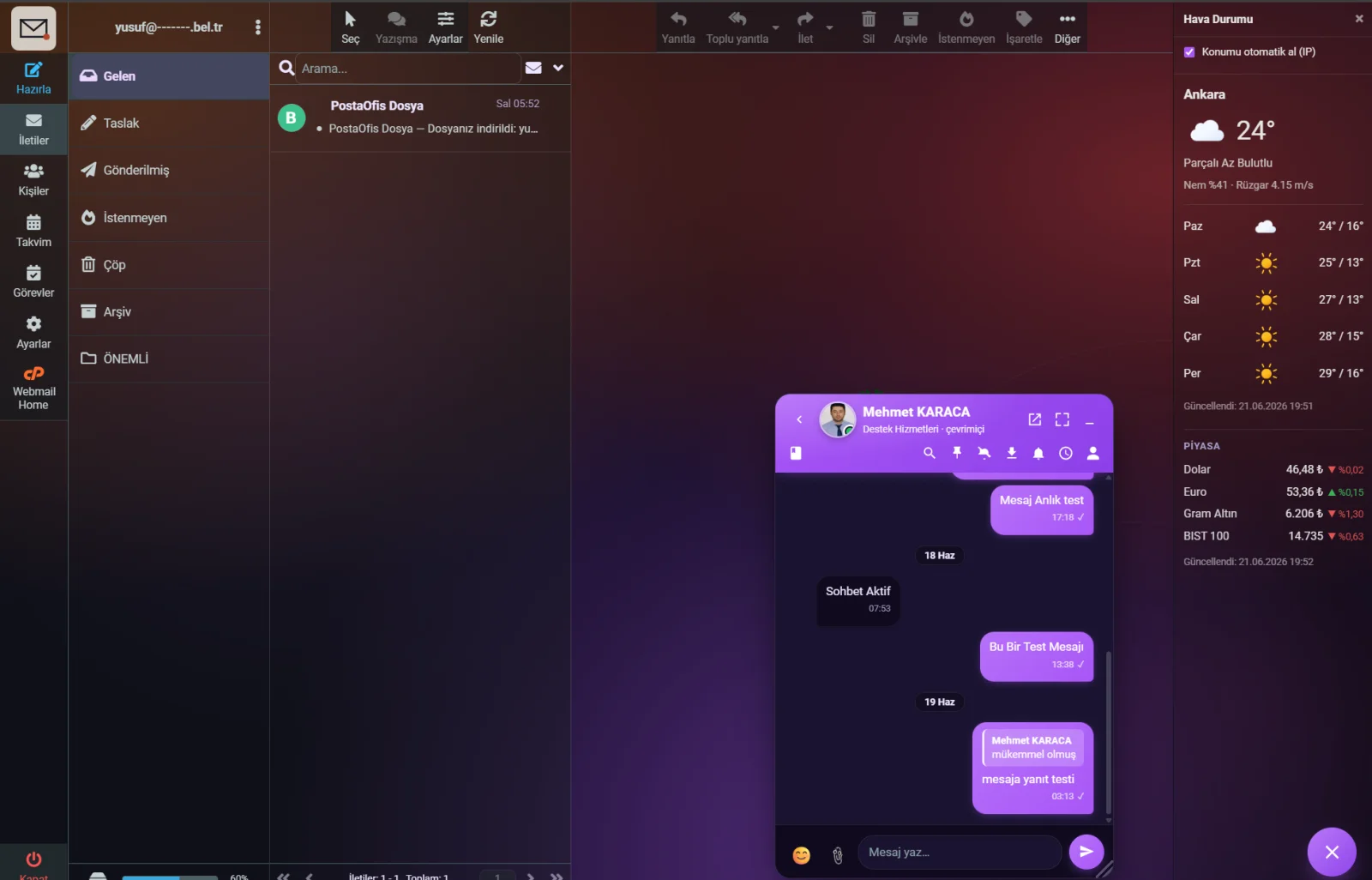
Group management: You create new groups (adding several people), add members from the group info screen, and leave groups. Department groups, on the other hand, are created automatically from the departments the administrator defines (see "auto-group by department" below).
Editing and Deleting Messages
- Editing messages: You can edit a message after sending it; the message then shows an "edited" label.
- Deleting messages: You can delete your own messages (with confirmation). A deleted message disappears from the chat, while the moderation record is kept on the administrator side.
Replies, Mentions and Reactions
| Feature | What it does |
|---|---|
| Reply / Quote | You reply by quoting a specific message; clicking the quote jumps to the original message, so topics don't get mixed up. |
| @mention | While typing, enter @ and pick a name from the list that opens. The tagged person gets a special notification — it stands out even in a muted chat. Use @herkes ("everyone") to tag the whole group. |
| Reactions | Leave a quick emoji reaction on a message. Available reactions: 👍 ❤️ 😂 😮 😢 🙏. Click the same reaction again to remove it. |
| Emoji | Add emoji to your text from the emoji panel. |
File and Image Sharing
You add images, documents and files to the chat — up to 12 files at a time. There are three ways: pick them with the paperclip button, drag and drop them, or paste them from the clipboard. Images are sent with a small preview; the file size limit is set by the administrator.
Saved Messages, Reminders and Forwarding
| Feature | What it does |
|---|---|
| Saved (⭐) | Star an important message and find it in one place under Saved in the header (visible only to you). |
| Reminders (⏰) | Set a timed reminder for yourself about a message. Built-in presets: "in 1 hour", "today 18:00", "tomorrow 09:00" or a custom time. You get a notification when it's due; past reminders are marked separately. |
| Forwarding (↪) | Forward a message as-is to another person or group; search for the destination and select it. A "↪ Forwarded" badge appears, and if there's an attachment, the file goes along too. |
Pinning Chats and Messages
- Pinning chats (📌): Pin a chat you use often to the top of the list (personal to you; press again to unpin).
- Pinning messages: Pin a message to the top of a chat; everyone in that chat sees it. A pinned message bar appears at the top; click the message in the bar to jump to it, and move between pinned messages.
Muting and Two Kinds of Search
- Muting (🔕): Silence a chat's sounds and notifications (per member, applied on every device); the unread counter still works. The 🔕 on a list row shows you which chats are muted.
- Global search (people/messages): From the box above the list, search both people/chat names and message content across all chats; click a result row to go to that message.
- In-chat search (🔍): Search the full history of the open chat for a word and move between matches with the
˄ ˅arrows; a counter shows the total number of matches, and history loads automatically for older matches that aren't on screen.
Media Gallery and Lightbox
The Media & Files tab on the contact/group info screen gathers every image and file shared in that chat on one screen. Click an image to open a full-screen gallery (lightbox); browse with ◀ ▶ or ← →, download with ⬇, and close with Esc.
Notifications: Sound, Desktop and Do Not Disturb (DND)
- Sound alerts: A soft alert sound plays for new messages; a more noticeable tone is used for mentions and priority messages (the volume is lowered automatically for back-to-back sounds).
- Desktop notifications: If you grant browser notification permission, you get desktop notifications even when the window is closed; clicking a notification opens the relevant chat.
- Do Not Disturb (DND 🔔): Silence all sounds and notifications with a single click. When you turn it off, the system re-initializes the notification permission and the sound engine. Your preference is saved on your device.
Announcement Channel
A special channel (📢) through which authorized people send one-way announcements to everyone. Regular users can only read; users without permission don't see a message box at all, just a "read-only" note in its place. Only the people the administrator designates can post here. It's ideal for delivering important organizational information to all staff at once.
All User Features — Quick Reference
A summary of every feature, including those not shown in the screenshots:
| Category | Features |
|---|---|
| Real time | WebSocket live messaging, automatic reconnection, polling fallback, online dots, "typing…", read receipts (✓/✓✓) |
| Message actions | Send, edit, delete, reply/quote, forward, copy |
| Interaction | @mention (+@herkes for everyone), emoji, reactions (6 emoji), saved messages, reminders (with presets) |
| Pinning | Chat pinning (personal), message pinning (shared, pin bar) |
| Search | Global people/message search, in-chat search + highlighting + jumping |
| Files | Up to 12 files, drag and drop, paste, media gallery, lightbox |
| Groups | Group creation, adding members, group info, leaving, automatic department groups |
| Announcements | One-way announcement channel, permission-based posting, read-only view |
| Notifications | Sound alerts (2 tones), desktop notifications, Do Not Disturb (DND), muting |
| Personalization | 6 themes, 4 layouts (custom: width + density slider), avatar (upload / initials badge) |
| Window | Drag, resize, full screen, pop-out (PiP), position memory |
| Archive | Download conversation as .txt, print to PDF |
| Help | Searchable built-in guide, automatic tour on first launch |
| Security | Name + department sending lock, signed avatar/file access, delete with confirmation |
Window Management and Export
You can drag the chat window by its title bar, resize it from the corner, switch to full screen and back, or pop it out into a separate window (pop-out / PiP) — the chat stays open while you move around webmail. The window position and size are remembered. You can download an entire conversation as text (.txt) or print it as PDF for your archive (if the administrator disables export, these buttons are hidden).
Built-In User Guide
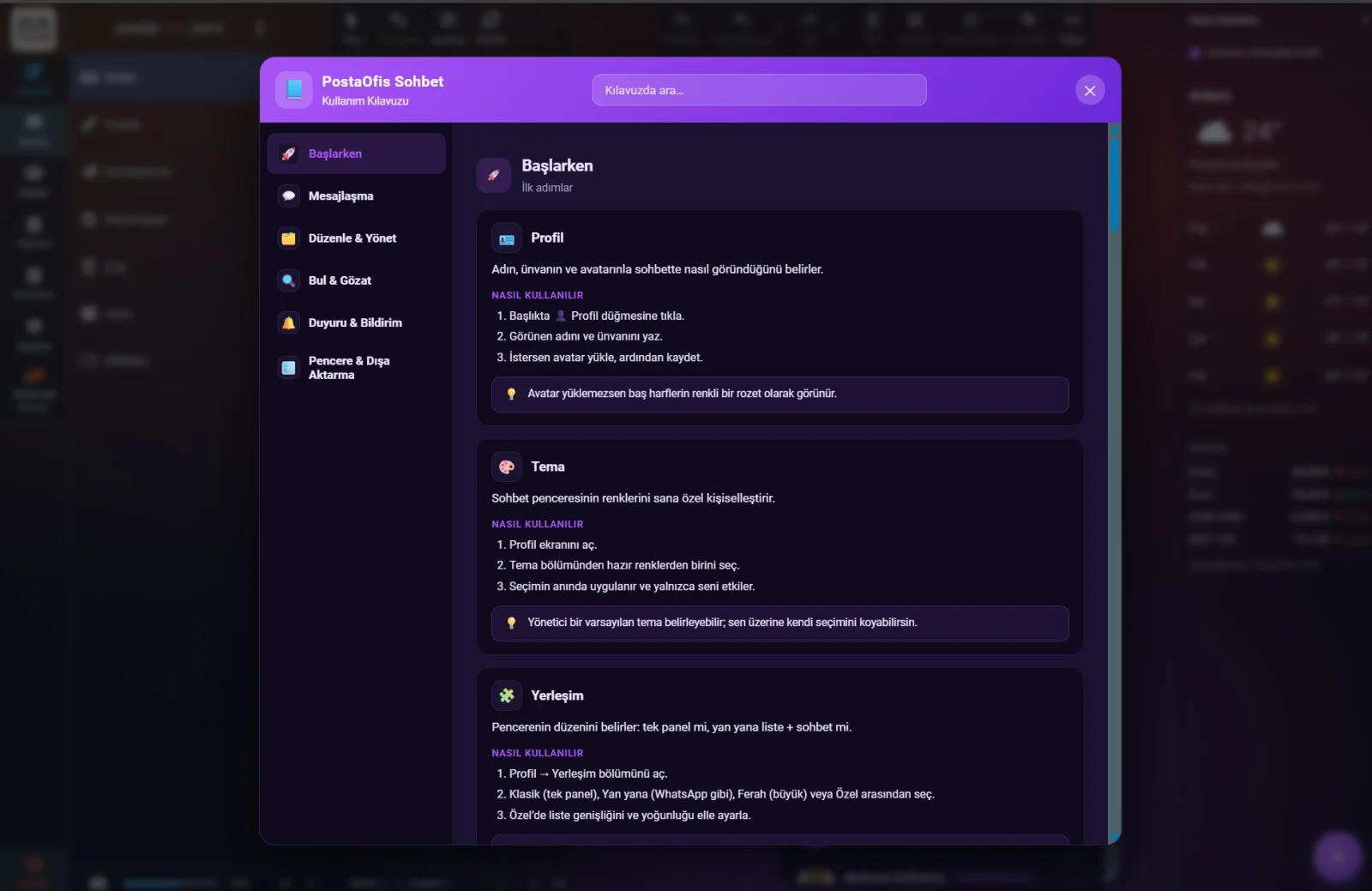
Inside the chat window there's a searchable User Guide (Getting Started, Messaging, Edit & Manage, Find & Browse, Announcements & Notifications, Window & Export). Users can learn every feature here without asking the administrator; the guide window's colors match the user's theme.
When a user opens the chat for the first time, the guide opens once by itself, so staff can discover the system without any training. It doesn't open automatically after that; it's available whenever needed from the ❔ button in the header.
Admin Panel — Chat Management
It's managed in the panel under SERVICES → Chat Management. Each account manages chat only for its own domains; no other organization's data is visible.
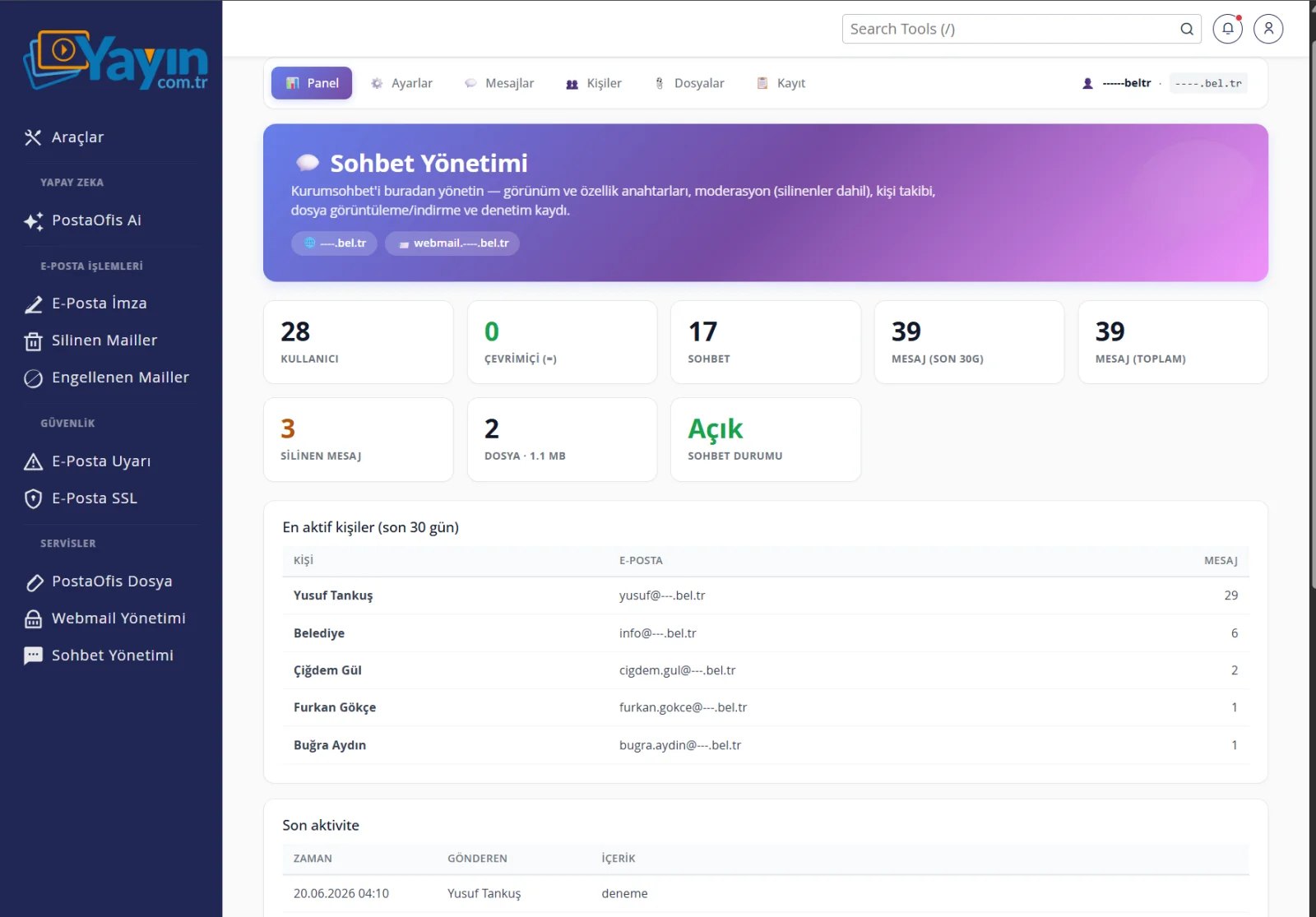
Top tabs: Dashboard · Settings · Messages · People · Files · Log
📊 Dashboard
It summarizes the number of users, people online, total chats, message counts (last 30 days / total), deleted messages, file count/size and chat status. Below, the most active people and recent activity are listed.
⚙️ Settings
All appearance and feature switches are here.
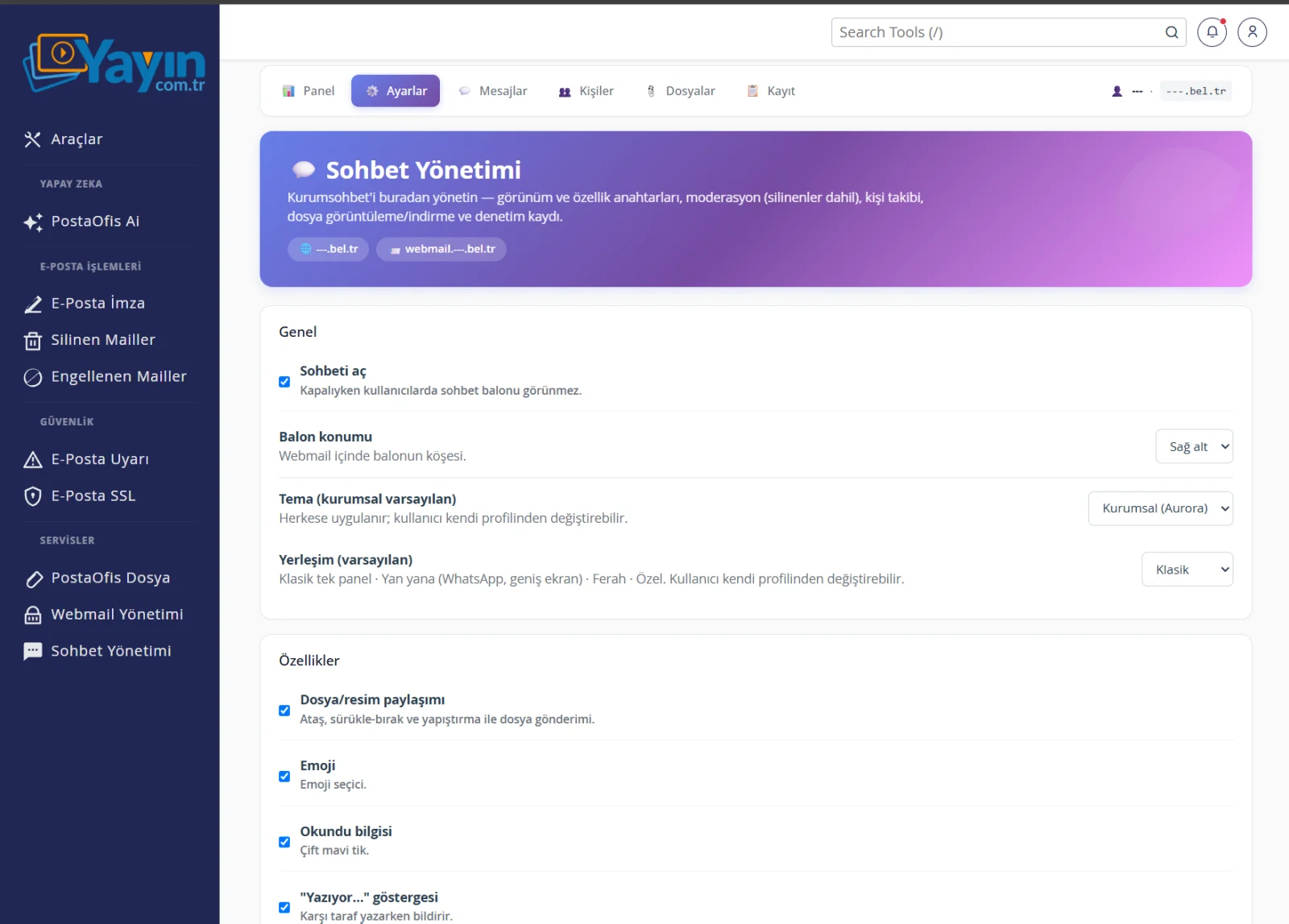
General: Turn chat on/off, bubble position (bottom right / bottom left), default theme and layout.
Features (can be turned on and off): File/image sharing, emoji, read receipts, "typing…" indicator, group chat, conversation export.
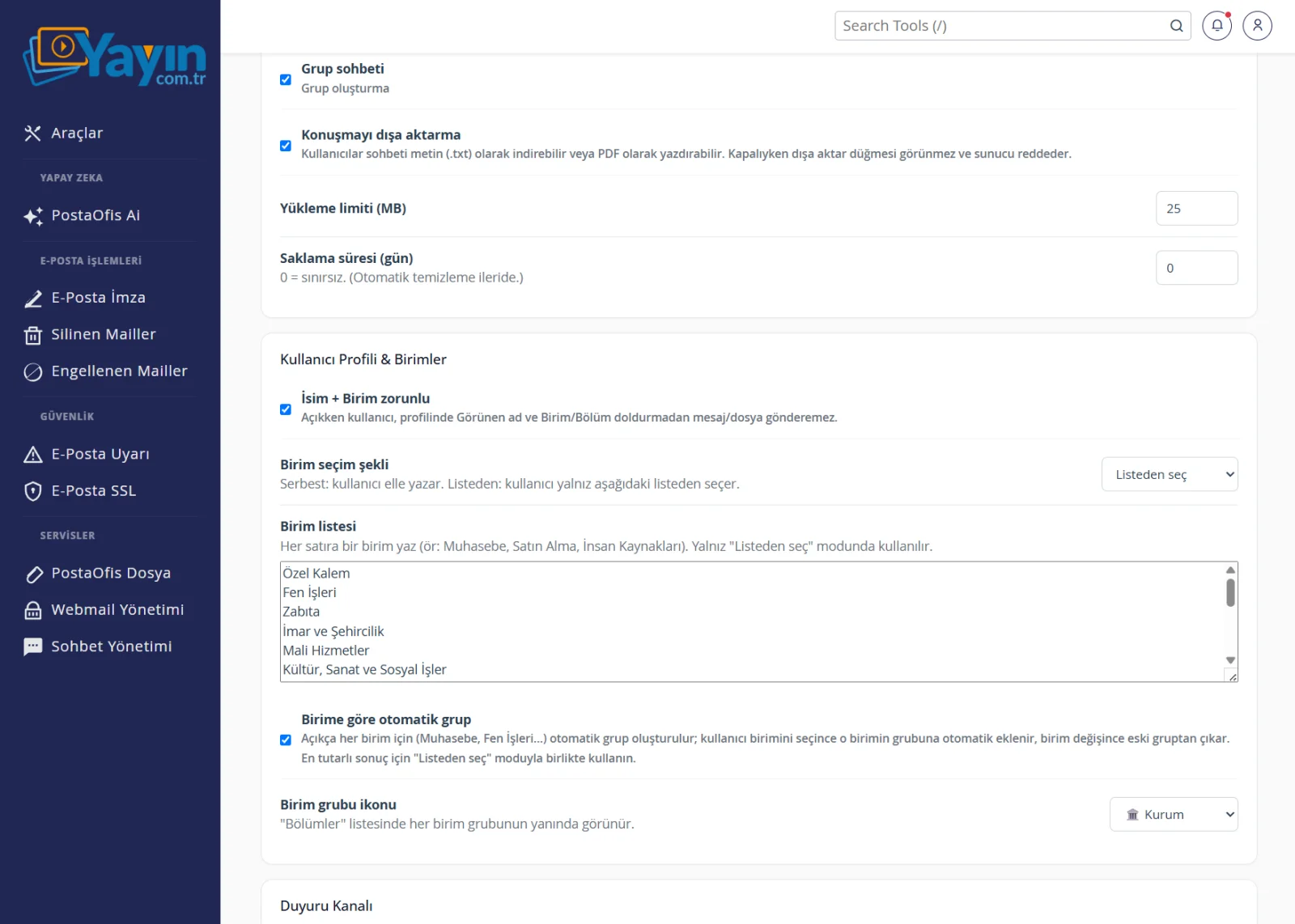
Limits: Upload limit (MB) and retention period (days; 0 = unlimited).
User Profile & Departments: Name + department requirement, how departments are chosen (free text / pick from a list), the department list (e.g. Private Office, Public Works, Municipal Police, Zoning and Urban Planning, Financial Services…), auto-group by department (a group is created automatically for each department; when users select their department they join that group, and when their department changes they leave the old one) and the department group icon.
Announcement Channel: You set up the announcement channel and choose the people who can post announcements to it.
This feature is especially valuable for public institutions: you enter the directorates in the department list, each staff member selects their department in their profile and is automatically added to that directorate's group. When staff change departments, they leave their old group and join the new one — no manual group management needed.
💬 Messages (Moderation)
You see the list of chats and messages — including deleted ones. You can delete a message, restore it or delete it permanently. Use search to find content. Every action is written to the audit log.
The system also distinguishes message types: text, image, file and system messages (events such as joining/leaving or chat creation), as well as the context a message belongs to (one-to-one / group / announcement). This keeps the moderation screen from mixing ordinary messages with automatic system events.
👥 People
You keep track of users and, when needed, block a person or unblock them again.
📎 Files
Lists all shared files; you view, download or delete them via a signed admin link. There are no public file URLs — access is granted only with the administrator's short-lived token.
📋 Log (Audit Log)
Keeps an audit log of all moderation actions and message events; it can be exported as CSV. It's a critical record for GDPR audits and organizational accountability.
Municipal / Organizational Use Cases
| Scenario | How It Helps |
|---|---|
| Fast communication between directorates | Each department chats instantly in its automatic group, and email traffic goes down. |
| Announcements to all staff | Important information reaches everyone at once through the announcement channel. |
| Sensitive conversations | An auditable channel where data stays inside the organization, instead of personal WhatsApp. |
| Document sharing | Files are shared within the chat, on the organization's server, with signed access. |
| Accountability | Every action is traceable through admin moderation + audit log + CSV. |
| Staff turnover | Because the data stays with the organization rather than the individual, conversations aren't lost when staff leave. |
Frequently Asked Questions
| Question | Answer |
|---|---|
| Do staff need to download a separate app? | No. The chat is inside webmail; it needs no separate app, installation or password. |
| Where are messages stored? | In a database on your organization's own server. Nothing is sent to an overseas cloud. |
| Can the administrator see messages? | Yes, for moderation purposes — including deleted ones. Every action is written to the audit log. |
| How is the department structure set up? | Enter the department list in Settings and turn on "auto-group by department"; the rest is automatic. |
| Can a deleted message be recovered? | Yes, the administrator can restore it from the Messages section (or delete it permanently). |
| Is file sharing secure? | Yes. There are no public URLs; files are served only through signed, short-lived links. |
| Can I archive a conversation? | Yes. You can download the conversation as text (.txt) or print it as PDF. |
| Is it GDPR-compliant? | Yes. Organizational privacy is safeguarded through data residency, an audit log, moderation and access control. |