
What is this screen for?
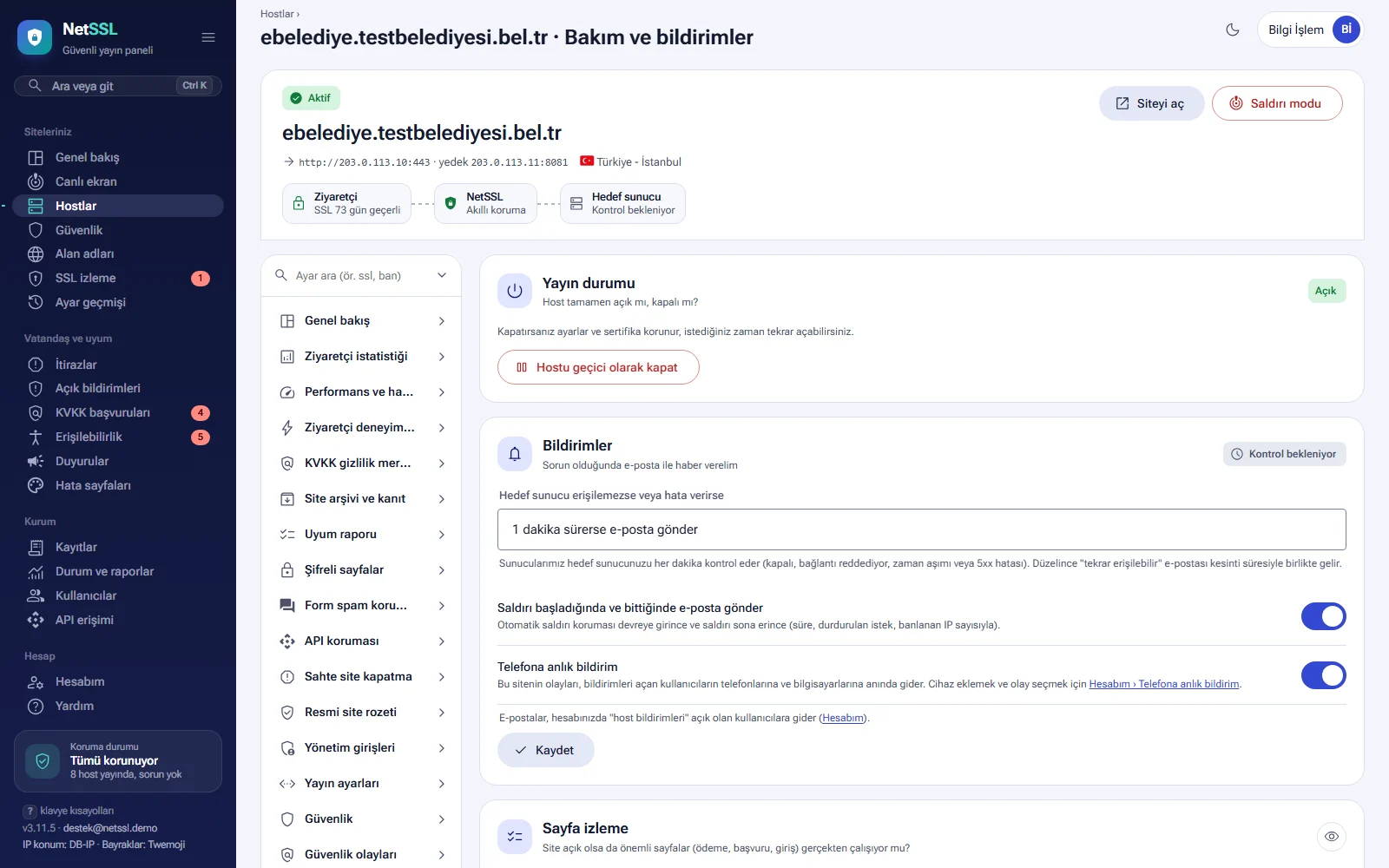
The host's Maintenance and notifications page brings together monitoring tools that check your site at regular intervals. Each tool catches a different problem.
| Tool | What does it catch? | How often? |
|---|---|---|
| Notifications | The target server going down or returning errors | Every minute |
| Page monitoring | An important page that stops working | From every 5 minutes to once an hour |
| Site change monitoring | Unauthorized changes to the page (defacement) | Every 10 minutes |
| Broken links and insecure content | Broken links, files that do not open and http:// content |
Once a week |
| Missing pages (404) | Addresses that visitors cannot find | Continuously, from real visits |
| Search engine visibility | The site being closed to search engines, and page title problems | Daily and weekly |
Other cards on the same page are covered in other guides. Maintenance mode and the waiting room are in the Maintenance and peak days guide. Notice publication proof is in the Site archive and notice proof guide. The accessibility pre-scan is explained in the Web accessibility guide, cross-border data transfer in the KVKK privacy center guide and vulnerability reports in the Vulnerability reports guide.
When should you use it?
- When the server goes down, you want to know before citizens do.
- The payment or application page comes up blank from time to time and you want to know about it right away.
- If “hacked by” text or hidden betting links are added to your home page, you don't want visitors to see them.
- The site has been redesigned and old links give a “page not found” error.
- The browser address bar shows “Not secure” instead of a padlock.
- You want to make sure your site keeps appearing on Google.
Notifications: outage alert
The Notifications card sends you an email when your target server goes down or returns errors. NetSSL checks your target server every minute. A server that is down, a refused connection, a timeout and a 5xx error all count as problems.
- From the If the target server is unreachable or returns errors list, choose a time: 1, 3, 5, 15 or 30 minutes. The recommended time is 5 minutes. The Don't notify option turns this alert off.
- If you wish, turn on the Send an email when an attack starts and ends switch. This email includes the duration of the attack and the numbers of stopped requests and banned IPs.
- If you wish, turn on the Push notification switch. This site's events then go instantly to the phones and computers of the users who have turned on notifications.
- Click the Save button.
When the problem is fixed, a “reachable again” email arrives with the duration of the outage. The chip in the top right corner of the card shows the latest status of the target server. Emails go to users who have “host notifications” turned on in their account. Notification channels and personal settings are explained in the Notifications and integrations guide.
Page monitoring
An important page can fail even when the site is up. Page monitoring opens pages such as payment, application or login pages as often as you choose. The page is opened along the same path a visitor takes: DNS, SSL, NetSSL and your server. Up to 5 pages per site can be monitored.
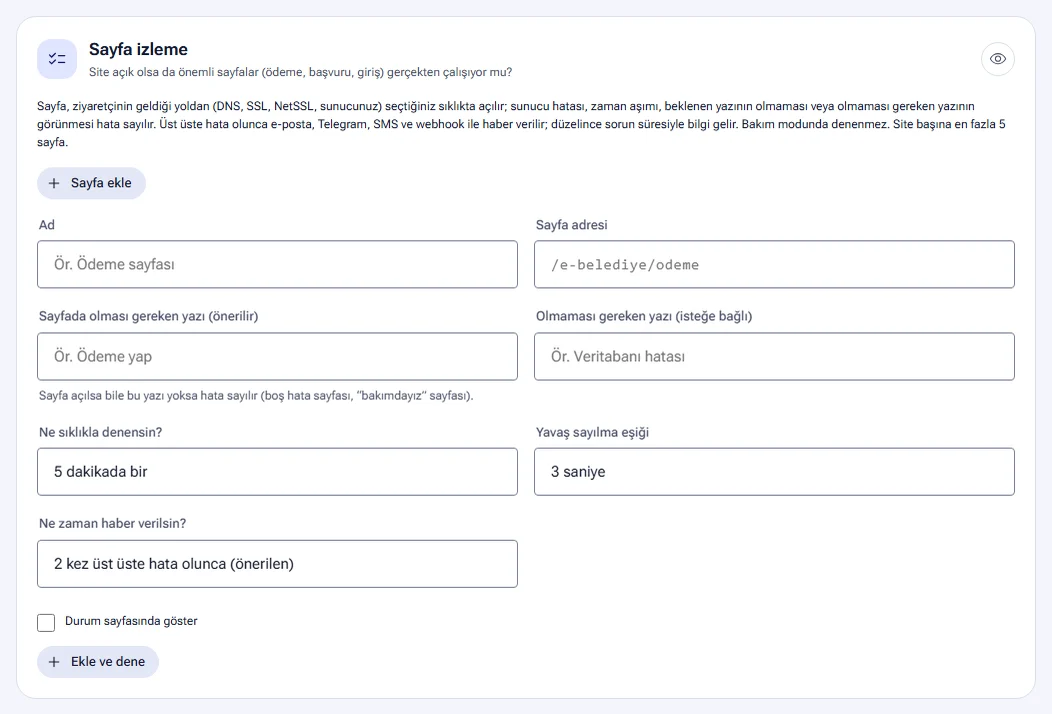
- Click the Add page button.
- Fill in the Name (e.g. “Payment page”) and Page address (e.g.
/e-belediye/odeme) fields. - In the Text that must be on the page (recommended) field, enter a phrase that is always on the page (e.g. “Pay now”). If this text is missing, the check counts as an error even when the page opens. This way, blank error pages and “we're under maintenance” pages are caught too.
- If you wish, fill in the Text that must not be on the page (optional) field (e.g. “Database error”).
- For How often should it be checked?, choose every 5, 10, 15 or 30 minutes, or once an hour.
- For Slowness threshold, choose a value between 1 and 10 seconds.
- For When should you be notified?, choose On the first error, After 2 errors in a row (recommended) or After 3 errors in a row.
- If you want the page to appear on the public status page too, tick the Show on status page box.
- Click the Add and test button.
The following count as errors:
| Error | Example |
|---|---|
| The page could not be opened | A DNS, connection or SSL problem, or a timeout |
| The server returned an error code | A 500 or 503 response |
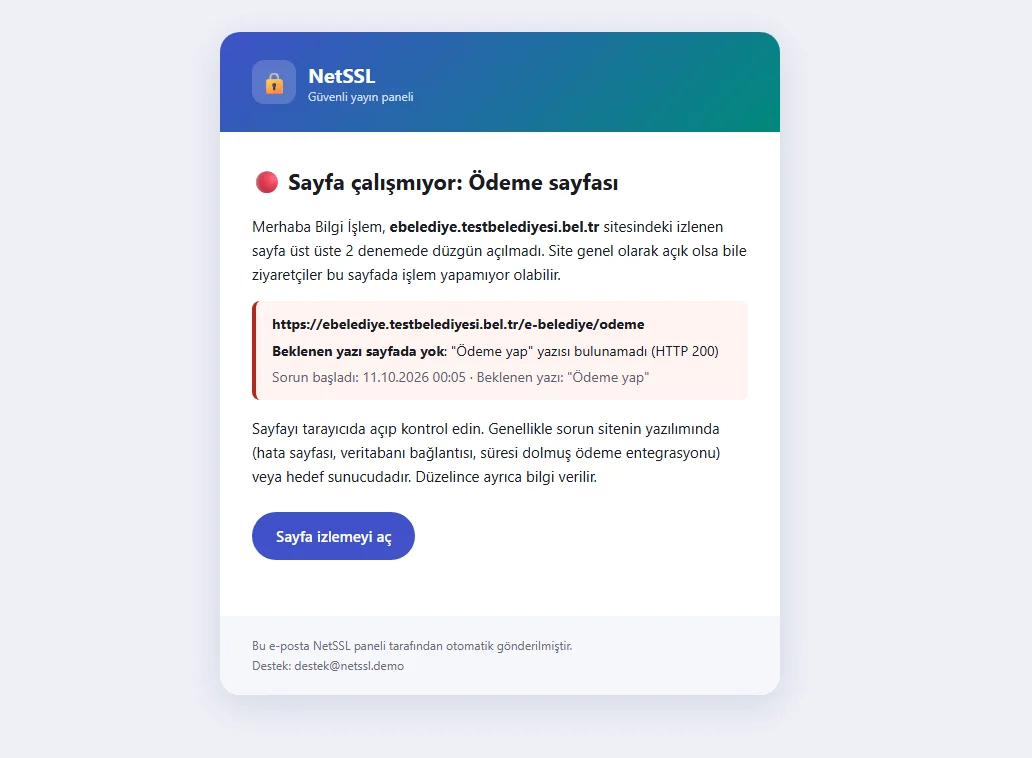
| The expected text is not on the page | The page came up blank or a maintenance page opened |
| Text that must not be there is on the page | The page says “Database error” |
| It redirects to another site | The page goes to another domain |
You get an email after the number of errors in a row that you chose. If Telegram, SMS and webhook are turned on, you are notified through these channels too. When the problem is fixed, a second notification arrives with the duration of the problem. The page is not checked while maintenance mode is on. Page monitoring requests are not counted in the visitor statistics.
Below each monitored page, you see an hourly bar for the last 24 hours, the availability percentage and the average time. The Test now, Pause, Edit and Delete buttons are on the page's row. The Recent problems table lists past problems with their start and end times. If a page shown on the status page has a problem, that service appears with a partial outage on the status page.
Site change monitoring
Site change monitoring opens your page every 10 minutes the way a visitor sees it. It compares the page with its saved normal version. If an attacker changes the page (defacement), you and the NetSSL team get an email. This monitoring is on by default for every main site.
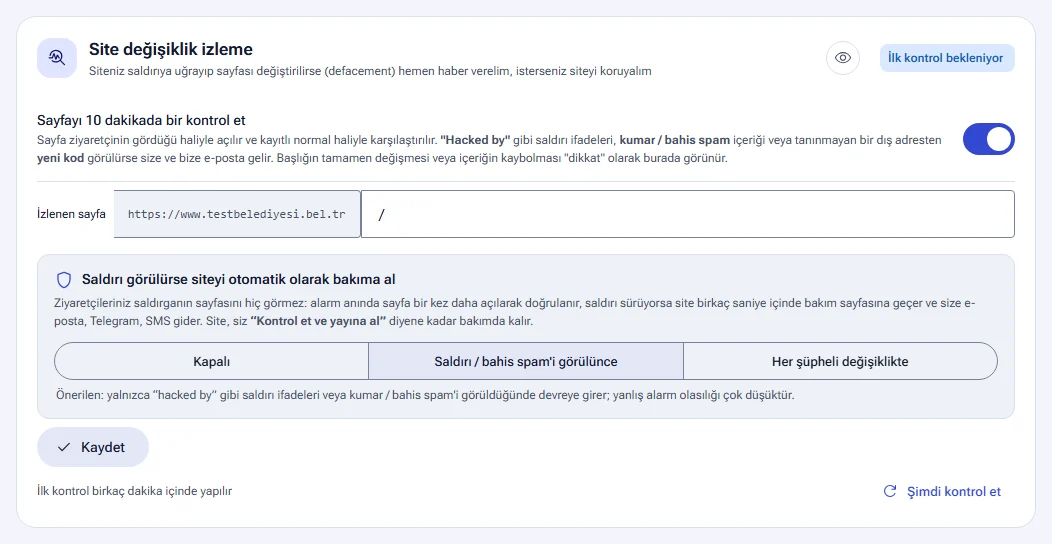
The following trigger an alarm:
- Attack phrases such as “Hacked by”
- Gambling and betting spam (including hidden links)
- New code loaded from an unknown external address
If the title changes completely or most of the content disappears, the panel shows this as a “warning”.
- Make sure the Check the page every 10 minutes switch is on.
- In the Monitored page field, enter the path to monitor. By default, the home page is monitored.
- Choose an option for Put the site into maintenance automatically if an attack is detected.
- Click the Save button.
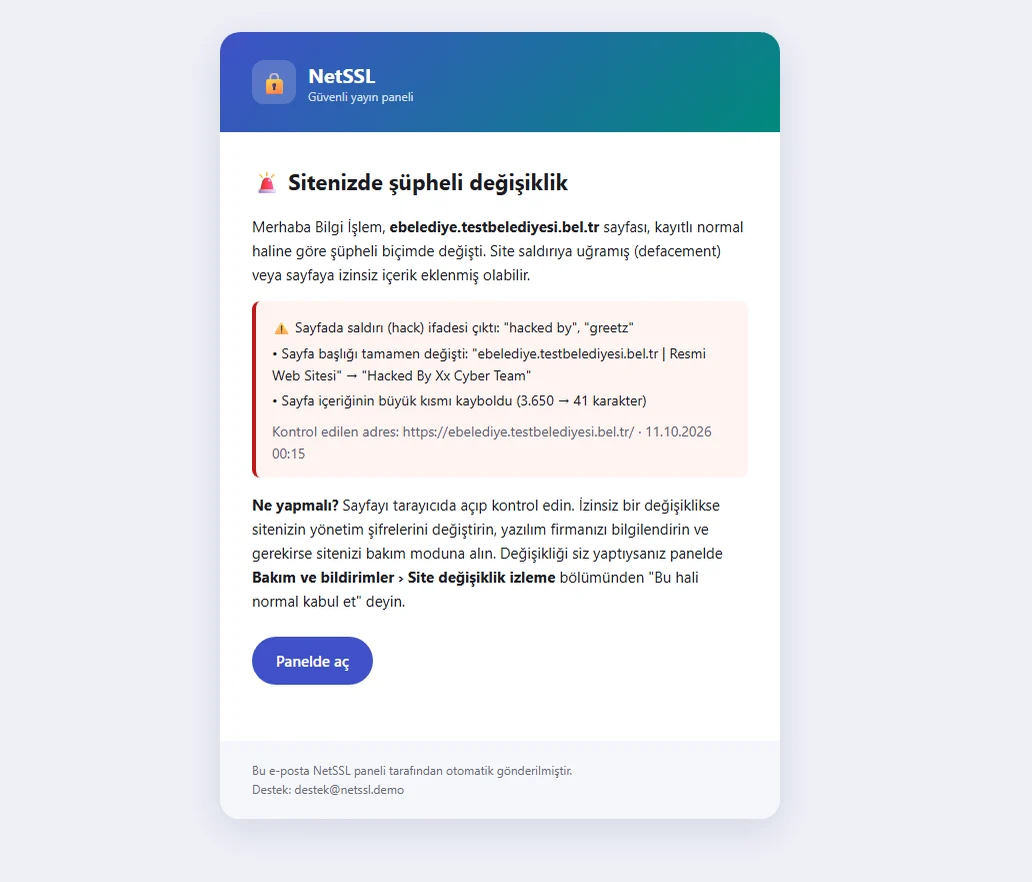
The Check now button checks the page right away. If you made the change yourself, click the Accept this version as normal button. Later checks then compare against the new version.
Automatic maintenance when an attack is detected
If this option is on, your visitors do not see the attacker's page. When an alarm fires, the page is opened once more to confirm it. If the attack is still there, the site switches to the maintenance page within a few seconds. You get an email, a Telegram message and an SMS.
| Option | When does it put the site into maintenance? |
|---|---|
| Off | Never. You only get a notification. |
| When an attack / betting spam is seen | When attack phrases such as “Hacked by” or gambling and betting spam are seen. This is the recommended option, and the chance of a false alarm is very low. |
| On every suspicious change | Also when new code is loaded from an unknown external address. If plugins are often added to your site, use the previous option. |
During maintenance, visitors see an ordinary maintenance page. The page does not mention the attack. Your IPs that can see the site during maintenance still see the site. The site stays in maintenance until you publish it again. After you clean the site, follow these steps:
- Restore the changed files on your server from a backup, or clean them with your software company.
- Change the site's admin, FTP and database passwords, and update your software.
- Click the Check and publish button. NetSSL opens the real page behind the maintenance page. If the page is clean, the site goes back online right away. If it is still suspicious, the site stays in maintenance.
If you made the change yourself, the We made this change, publish button publishes the site without checking the page. This version of the page becomes the new normal version.
Broken links and insecure content
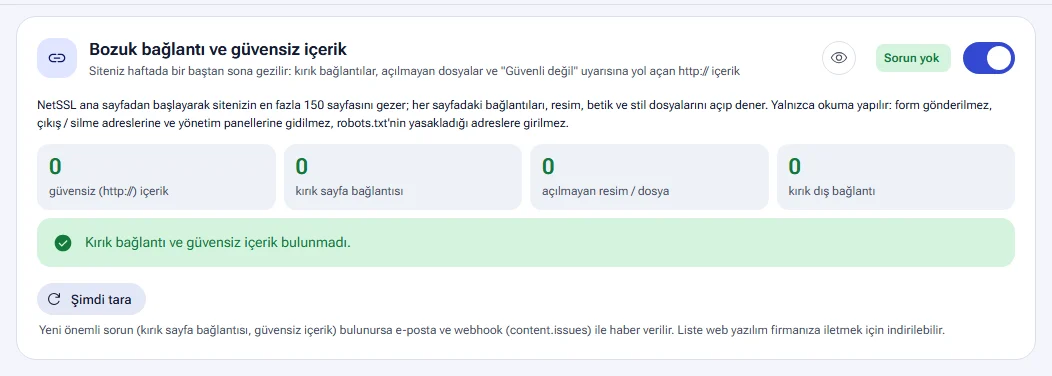
Once a week, NetSSL crawls your site, starting from the home page. Up to 150 pages are crawled. The links, images, scripts and style files on each page are opened and tested. The scan only reads. It does not submit forms, and it does not visit logout or delete addresses or admin panels. It does not enter addresses that the robots.txt file disallows.
| Finding | Why does it matter? |
|---|---|
| Blocked insecure resource | It is a script, style, frame or form loaded over http:// on an HTTPS page. The browser blocks these, and part of the page does not work. |
| Insecure image / video | It is an image, video or audio file loaded over http:// on an HTTPS page. The browser may show “Not secure” instead of a padlock. |
| Broken page link | A link on your site goes to a page that does not open. Visitors and search engines see an error page. |
| File that does not open | An image, script or style file used on the page does not open. The page looks incomplete. |
| Broken external link | A link to another site does not open. Expired domains can be registered by someone else and misused. |
If insecure content is found, the Fix insecure content automatically switch appears on the card. This switch tells the browser to request http:// addresses over HTTPS. No change is needed on your site. Addresses that open over HTTPS are fixed right away. Addresses that do not open over HTTPS are marked “not on https”. Change or remove these addresses on your site.
- The Scan now button starts a scan without waiting.
- The Ignore button removes a finding from the list. The Watch again button brings it back.
- The Download list (Excel / CSV) button downloads the list so that you can send it to your web software company.
- If a new important problem is found, you are notified by email and webhook (
content.issues).
Missing pages (404) and redirects
The Missing page assistant shows the pages that visitors could not find, where they came from and which page they can be redirected to. You add the redirect with one click.
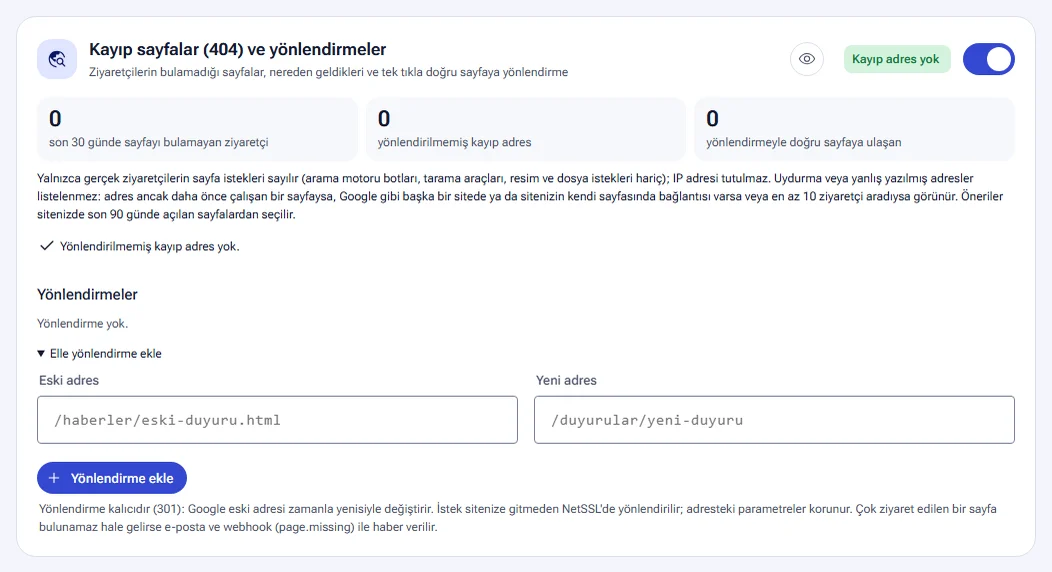
There are three numbers at the top of the card. They show, for the last 30 days, the visitors who could not find a page, the missing addresses without a redirect and the visitors who reached the right page through a redirect.
Made-up or mistyped addresses are not listed. An address is listed in one of these cases:
- The address used to be a working page.
- Another site such as Google, or a page on your own site, links to the address.
- At least 10 visitors looked for the address.
Only page requests from real visitors are counted. Search engine bots, crawlers, and image and file requests are not counted. IP addresses are not kept.
To fix a missing address:
- Click the address in the list. Its visitor count and sources appear.
- Click one of the Suggested target buttons. The suggestions come from pages opened on your site in the last 90 days and are shown with a match percentage.
- If no suggestion fits, type the target address yourself and click the Redirect (301) button.
- If you removed the page on purpose, click the Ignore (removed on purpose) button.
If the source of an address is “The site's own page”, your site has a broken internal link. The Broken links and insecure content scan shows which page the link is on.
The Redirects table shows the redirects you have added and how many times they were used in the last 30 days. You can add up to 300 redirects. In the Add redirect manually section, you can also redirect an address that is not on the list.
- The redirect is permanent (301). Over time, Google replaces the old address with the new one.
- The request is redirected on NetSSL before it reaches your site. Parameters in the address are kept.
- If a frequently visited page can no longer be found, you are notified by email and webhook (
page.missing). - If you turn off the assistant, missing pages are not counted. The redirects you have added keep working.
Search engine visibility (SEO)
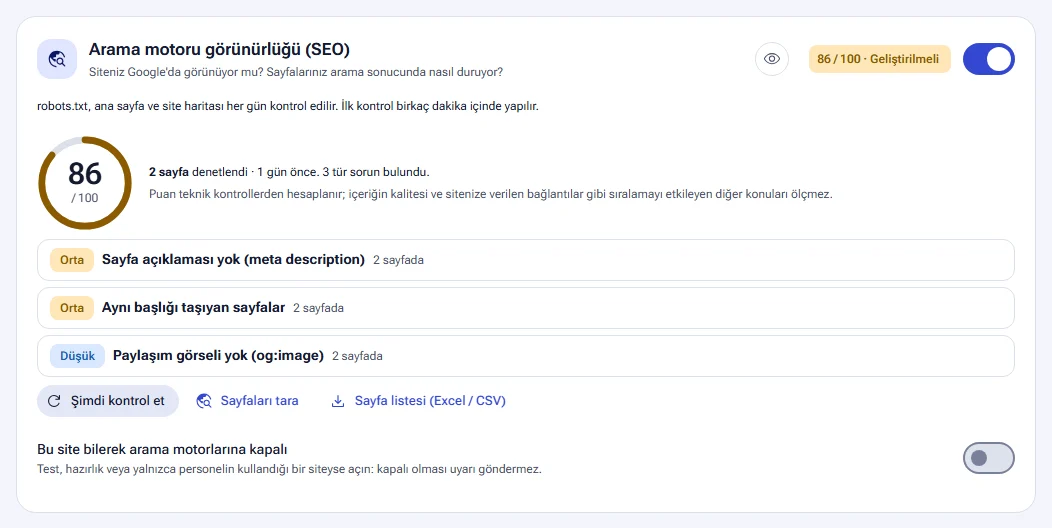
Search engine visibility checks whether your site appears on Google and how your pages look in search results. This scan is on by default.
Daily check
robots.txt, the home page and the sitemap are checked every day. Each one shows OK, Warning or Problem next to it. If the site is closed to search engines by mistake, you are notified right away. This usually happens because of a Disallow: / line or a noindex tag left over from a test server. The alert comes by email (URGENT), webhook (seo.blocked), Telegram and SMS. You are notified again when the problem is fixed.
Weekly page audit
The pages crawled in the weekly site scan (up to 150) are audited too. The audit looks at the title, the description, the main heading (h1), the canonical address and the share image. The result is shown as a score out of 100.
| Severity | Example problems |
|---|---|
| Critical | robots.txt blocks the whole site. The home page is closed to search engines (noindex). |
| High | robots.txt returns an error. The canonical address points to another site. The page has no title. |
| Medium | The sitemap is missing or faulty. The page has no description. Several pages have the same title. |
| Low | The title or description is too long. The main heading (h1) is missing. The share image (og:image) is missing. |
Each problem comes with a Why does it matter? and a How do you fix it? explanation. Example pages are listed as they look in Google results. The score is calculated from technical checks. It does not measure content quality or the links other sites give to yours.
- Check now runs the daily check right away.
- Scan pages starts the weekly audit without waiting.
- Page list (Excel / CSV) downloads the titles and descriptions of all pages.
- Mark a page that is hidden on purpose, such as search results or login, as Hidden on purpose.
- On a test, staging or staff-only site, turn on the This site is closed to search engines on purpose switch. No alerts are sent in this case.
The card's eye icon shows how your pages will look in Google results, based on the last scan.
The broken link scan, the search engine audit and the accessibility pre-scan run in the same weekly crawl. They put no extra load on your site.
Frequently asked questions
We got an alert about a page we changed on purpose. What should we do?
On the host's Maintenance and notifications page, open the Site change monitoring section and click the Accept this version as normal button. Later checks then compare against the new version of the page.
Isn't it risky to put the site into maintenance automatically?
When an alarm fires, the page is opened once more to confirm it. A momentary glitch does not take the site down. The When an attack / betting spam is seen option acts only on clear signs of an attack. A changed title or missing content alone does not put the site into maintenance.
What is the difference between the target server notification and page monitoring?
The target server notification checks whether your server responds. Page monitoring checks whether a specific page opens with the right content. The payment page can come up blank while the server is running. Only page monitoring catches this.
What is the difference between address rules and missing page redirects?
A missing page redirect sends one old address to one new address permanently (301). You can add up to 300 of them. Address rules, on the other hand, can cover everything under an address and can mask addresses. You can set up to 20 rules. Address rules are explained in the Publishing settings guide.
Does the weekly scan break anything on our site?
No. The scan only reads. It does not submit forms, and it does not visit logout or delete addresses or admin panels. It does not enter addresses that the robots.txt file disallows.