
What does this screen do?
The 2. Additional rules list on the host's Security page decides who can reach the site, from where and how fast. Each rule is one row. Click a row to open the rule's settings. The label on the right shows the rule's current status. The eye icon shows the page the visitor will see when the rule takes effect. Bot management is a separate card on the same page.
You save the additional rules with the Save and apply button at the bottom of the page. They take effect on the server within a few seconds. The Undo button discards the changes you have not saved. You can undo saved changes on the Settings history screen.
When should you use it?
- You want your e-municipality application to be used only from Türkiye.
- You want to open an internal application only to your organization's network.
- Your monitoring service or software vendor gets caught by the protection.
- You do not want AI companies to collect your content for model training.
- Bots from cloud servers copy your site or overload it.
- Another site embeds your images or your live stream in its own pages.
Country access
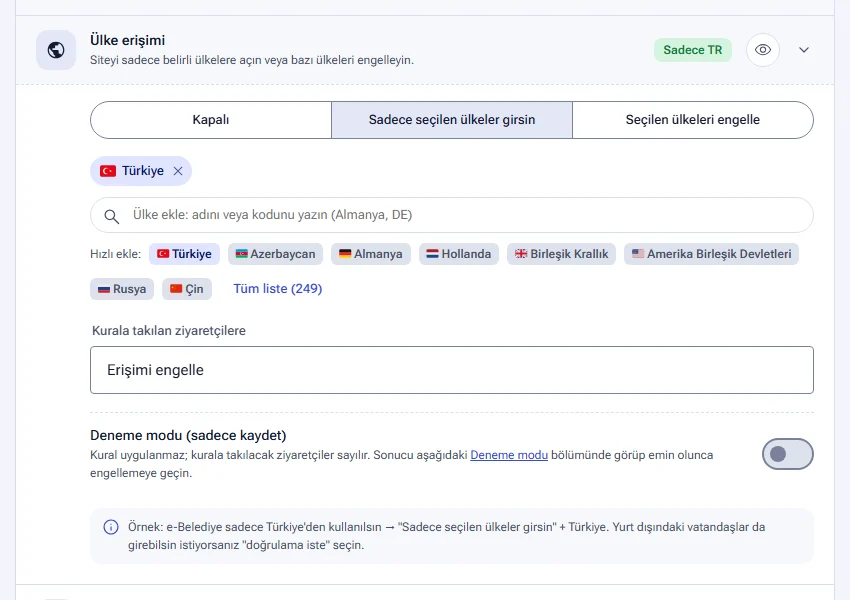
Country access opens the site only to certain countries or blocks some countries. There are three options: Off, Allow only selected countries and Block selected countries.
- In the 2. Additional rules list, click the Country access row.
- Select Allow only selected countries or Block selected countries.
- Search for countries by name or code and add them. The Quick add row shows frequently chosen countries. The Full list (249) link opens all countries.
- From the For visitors caught by the rule list, choose Block access or Require browser verification (more flexible).
- If you are not sure, turn on the Test mode (log only) switch.
- Click the Save and apply button.
Example: the e-municipality should be used only from Türkiye. To do this, select Allow only selected countries and add Türkiye. If citizens abroad should also be able to enter, set the action to Require browser verification. Real people then enter after a short verification.
The Trusted countries list decides who is not asked for verification in smart protection. Country access blocks the countries you select or sends them to verification. The protection level is explained in the Attack protection guide.
IP address lists
The IP address lists section has three lists. You write one entry per line. An entry can be a single IP (212.156.1.5) or a network (88.255.10.0/24). Each list holds up to 500 entries.
| List | What does it do? | When? |
|---|---|---|
| Allow only these IPs (closed circuit) | If the list is filled in, the site opens only from these addresses. Everyone else is blocked. If you leave it empty, the site is open to everyone. | Internal applications |
| IPs exempt from rules | These addresses are not caught by rules such as verification, country access and request limit. | Your organization's network, monitoring services, your software vendor |
| Blocked IPs | Requests from these addresses are blocked. | Specific addresses that cause you trouble |
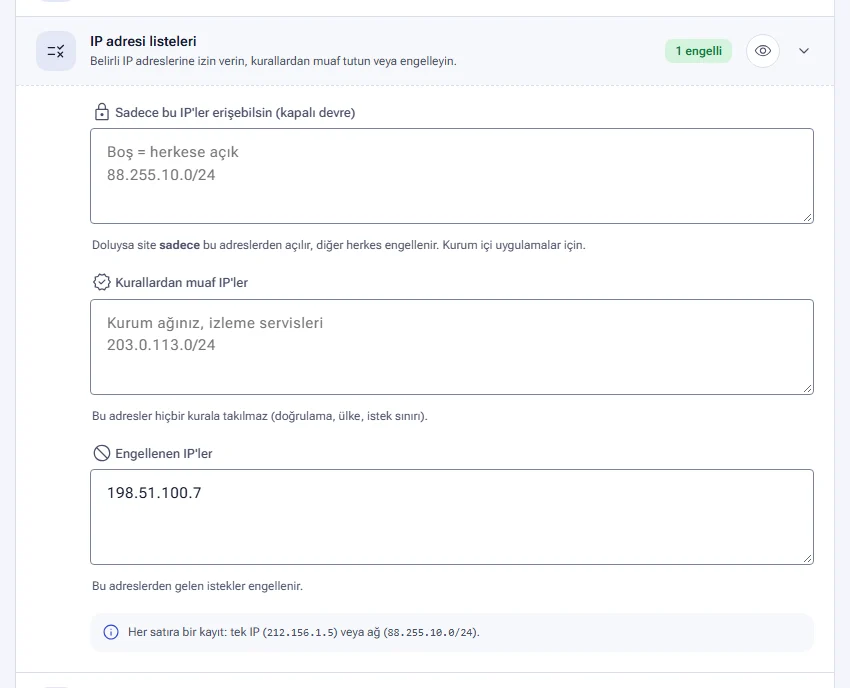
The IPs exempt from rules list does not bypass the Admin panel lock. The lock has its own organization network list. Files you set to Close in the exposed file scan also stay closed to exempt IPs.
Bot management
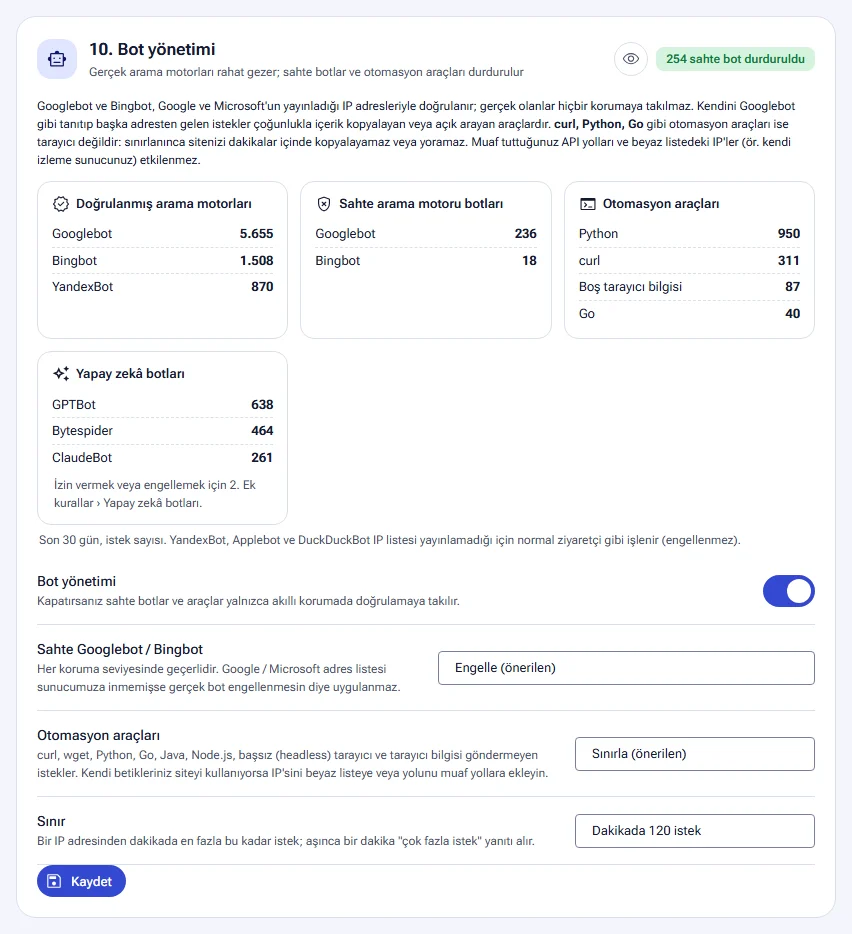
The 10. Bot management card separates real search engines from fake bots and automation tools. Googlebot and Bingbot are verified against the IP addresses that Google and Microsoft publish. Real ones are never caught by any protection. A request that claims to be Googlebot but comes from another address is usually a tool that copies content or looks for vulnerabilities.
The card shows the request counts for the last 30 days in four groups: Verified search engines, Fake search engine bots, Automation tools and AI bots.
| Setting | Options |
|---|---|
| Fake Googlebot / Bingbot | Block (recommended) or Don't block (verification only in smart protection). The setting applies at every protection level. |
| Automation tools | Limit (recommended), Block or Leave alone. This group includes curl, wget, Python, Go, Java, Node.js, headless browsers and requests that send no browser information. |
| Limit | 30, 60, 120 or 300 requests per minute. An IP that goes over the limit gets a “too many requests” response for one minute. |
- YandexBot, Applebot and DuckDuckBot do not publish IP lists. These bots count as normal visitors and are not blocked.
- If the Google and Microsoft address lists have not reached the server, the fake bot rule is not applied. This way a real bot is never blocked.
- If your own scripts use the site, add the script's IP to the IPs exempt from rules list. If the script uses an API path, you can also write the path in the API and integration paths section.
- If you turn off the Bot management switch, fake bots and tools are caught only by verification in smart protection.
The card's settings are saved with its own Save button.
AI bots
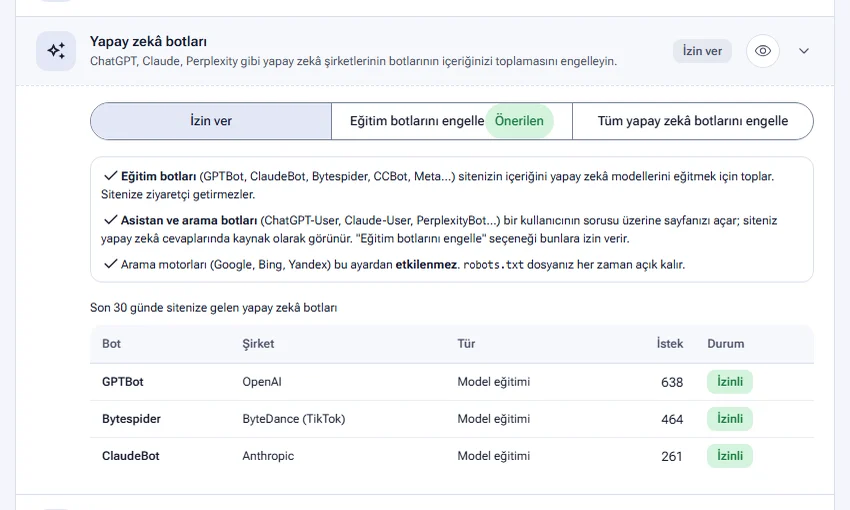
The AI bots rule manages the bots of companies such as ChatGPT, Claude and Perplexity. The panel recognizes 31 AI bots. Their requests are counted even if you allow them.
| Option | What happens? |
|---|---|
| Allow | All AI bots can enter the site. |
| Block training bots (Recommended) | Bots that collect content for model training, such as GPTBot, ClaudeBot, Bytespider, CCBot and Meta, are blocked. Assistant and search bots can still enter. |
| Block all AI bots | Assistant and search bots are blocked too. |
Training bots do not bring visitors to your site. Assistant and search bots (ChatGPT-User, Claude-User, PerplexityBot ...) open your page in response to a user's question. If you allow these bots, your site can appear as a source in AI answers. Google, Bing and Yandex are not affected by this setting. Your robots.txt file always stays open.
The table at the bottom of the section shows the bots that came in the last 30 days. It lists each bot's company, type, request count and status: Allowed or Blocked. The total for all your sites is on the AI bots card on the Your sites → Security page.
Data center and cloud IPs
Most bots come from the networks of server companies. DigitalOcean, OVH, AWS and Azure are examples. Citizens on home or mobile internet are not affected by this rule. Turkish home and mobile internet providers such as Türk Telekom, Turkcell, Vodafone and Superonline are not on the list.
| Option | What happens? |
|---|---|
| Allow | The rule does not run. This is the default setting. |
| Require verification (recommended) | A real person with a browser passes in a few seconds. Automated tools cannot pass. Verification is asked only when a page opens. Form and integration requests (POST) from cloud servers are not affected. |
| Block | Every request from these networks is stopped. |
- The bottom of the section shows the number of networks on the list and the last update time.
- Real Google and Bing bots, IPs exempt from rules and API paths are not affected.
- If one of your services connects to your site from a cloud server (for example a monitoring tool), add its address to the IPs exempt from rules list.
- The rule works only on IPv4 addresses.
- With the Test mode (log only) switch, you can first see which addresses come in.
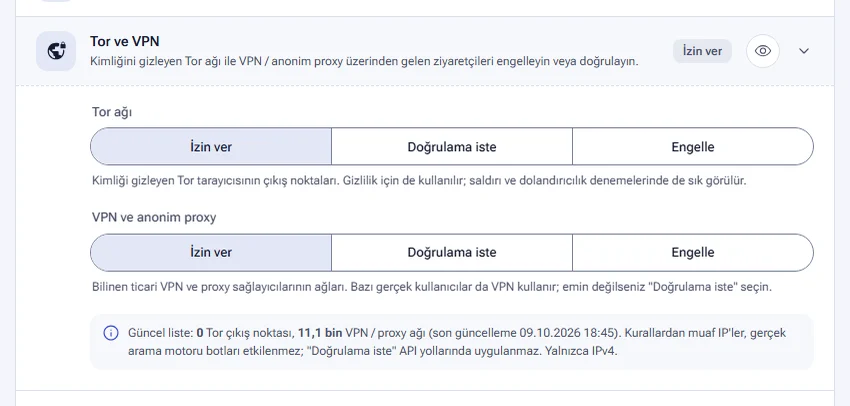
Tor and VPN
The Tor and VPN rule manages visitors who hide their identity. You choose Allow, Require verification or Block separately for the Tor network and for VPN and anonymous proxy.
- People use the Tor browser for privacy. It also appears often in attacks and fraud attempts.
- Some real users also use a VPN. If you are not sure, choose Require verification for VPN.
- IPs exempt from rules and real search engine bots are not affected. The Require verification option does not apply to API paths.
- The rule works only on IPv4 addresses. The bottom of the section shows the size of the lists and the last update time.
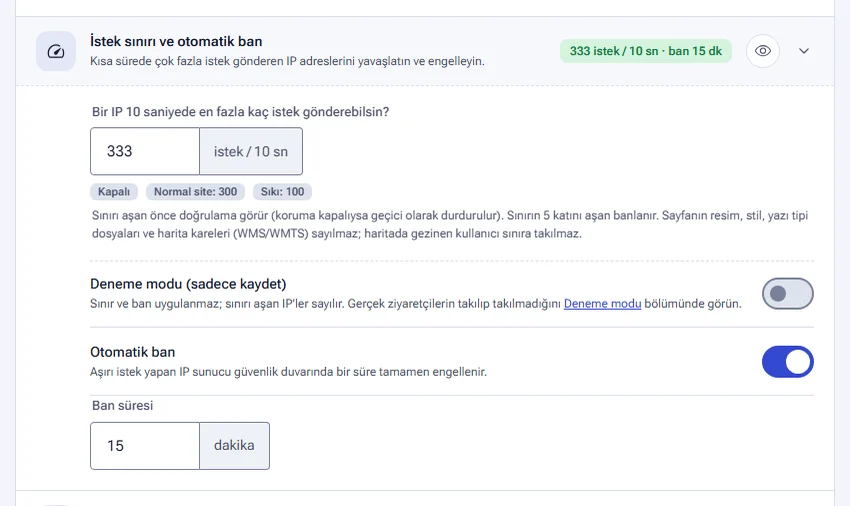
Request limit and automatic ban
The Request limit and automatic ban rule slows down and blocks IP addresses that send too many requests in a short time. Standard protection already stops requests at attack speed. This rule lets you set a stricter limit.
- Write the limit in the How many requests can one IP send in 10 seconds? field. The Off, Normal site: 300 and Strict: 100 buttons fill the field with a preset value.
- Leave the Automatic ban switch on and enter the Ban duration in minutes. The default duration is 15 minutes.
- To see whether real visitors get caught, you can first turn on the Test mode (log only) switch.
- Click the Save and apply button.
- A visitor who goes over the limit first sees a verification.
- If the protection level is Standard or the request goes to an API path, a request over the limit is stopped temporarily. The visitor gets a “Too many requests” response.
- If automatic ban is on, an IP that goes over 5 times the limit is banned at the firewall.
- Image, style and font files and map tiles (WMS/WMTS) are not counted. A user who moves around a map does not hit the limit.
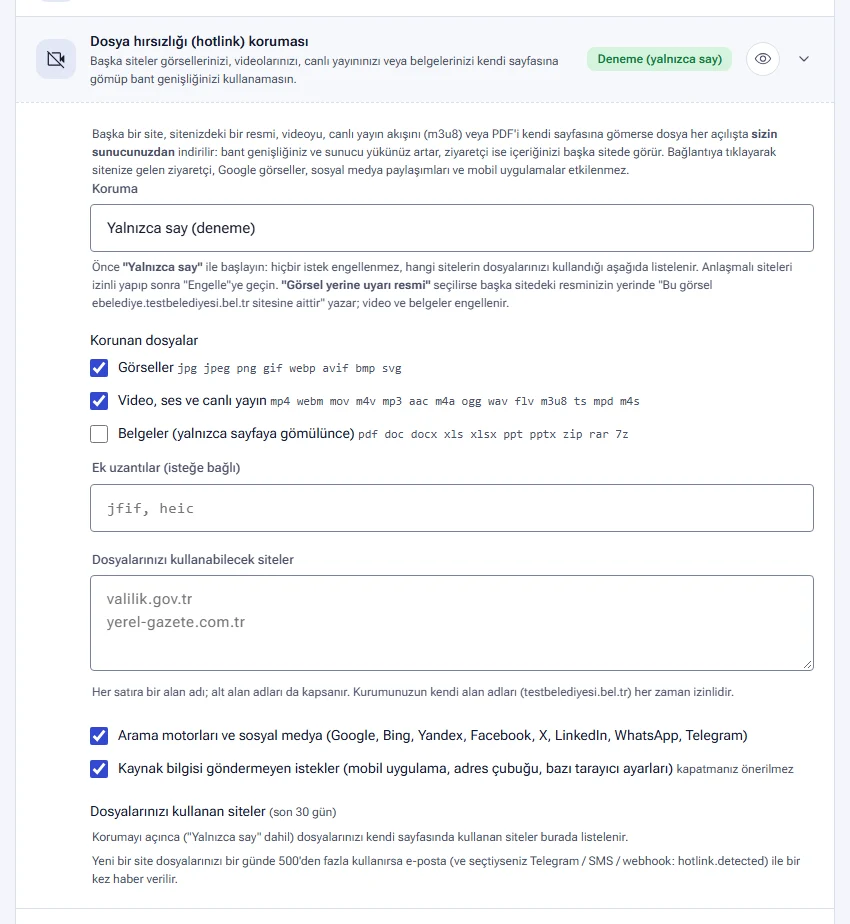
File theft (hotlink) protection
Another site can embed your image, video, live stream (m3u8) or PDF in its own page. The file is then downloaded from your server each time that page opens. Your bandwidth and server load go up. The visitor sees your content on another site. File theft (hotlink) protection prevents this.
| Protection | What happens? |
|---|---|
| Off | The protection does not run. This is the default setting. |
| Count only (test) | No request is blocked. The sites that use your files are listed. |
| Block | A file embedded in another page is not served. |
| Show a warning image instead | Where your image appears on another site, the text “This image belongs to ...” appears instead. Videos and documents are blocked. |
In the Protected files section, you select the file types: Images, Video, audio and live streams and Documents (only when embedded in a page). You can write other extensions in the Additional extensions (optional) field (for example jfif, heic). The following always get through:
- A visitor who comes to your site by clicking a link
- Your organization's own domains
- Domains and subdomains you write in the Sites allowed to use your files list (up to 100 sites)
- Search engines and social media (Google, Bing, Yandex, Facebook, X, LinkedIn, WhatsApp, Telegram). You can turn this option off.
- Requests that send no referrer information (mobile apps, the address bar). The panel does not recommend turning this option off.
- From the Protection list, choose Count only (test) and save.
- After a few days, look at the Sites using your files (last 30 days) table. It shows each site, its request counts for 30 days and for today, and the most used files.
- On the rows of partner sites, click the Allow button.
- Change the protection to Block or Show a warning image instead.
If a new site uses your files more than 500 times in one day, you get an email once. If you selected Telegram, SMS or webhook (hotlink.detected), you are also notified through those channels.
Form and file upload protection
Form and file upload protection consists of two settings. Only form submissions (POST) are inspected. JSON requests and page loads are not affected.
- Block dangerous file uploads: This setting blocks uploads of files that can run on the server, such as
.php,.asp,.exeand.htaccess, through application, complaint and tender forms. Double extension tricks such asresim.php.jpgare caught too. The Also block if the file contains PHP code option also stops code hidden inside an image. Image, PDF, Word, Excel and ZIP files are not affected. The default list has 42 extensions. You can add more extensions in the Additional extensions to block field. An IP that makes 5 attempts in 10 minutes is banned. - Repeated form submission limit: If an IP sends more submissions to the same form address in 10 minutes than the limit allows, it sees a “too many submissions” page. You can set the limit to 5, 10, 20, 50 or 100 submissions. An IP that reaches 3 times the limit is banned. Login pages are not covered by this limit.
/wp-admin/, /wp-json/, /wp-cron.php, /administrator/ and API paths are automatically exempt from both protections. You can write other addresses in the Addresses exempt from both protections field. A separate page stops form messages with betting, advertising and adult content. That page is explained in the Login page and form protection guide.
Other access rules
Login page protection, the Office hours rule and the Admin panel lock are also in the 2. Additional rules list. These three rules are explained in the Login page and form protection guide. With Custom rules, you write your own rules based on address, country, IP or browser identity (user agent). Custom rules are covered in the Attack protection guide.
To apply the same rules to more than one host at once, use the Bulk security settings section on the Your sites → Security page. Bulk settings also cover country access, IP lists, AI bots, Tor and VPN, and request limit settings. Details are in the Settings history and templates guide.
Recognized IP addresses
The Recognized IP addresses card on the Your sites → Security page shows what an IP address is, next to the address in logs and statistics. The setting applies to all of your organization's sites.
- Search engine and AI bots are recognized automatically. Google Inspection Tool, Googlebot, Bingbot, YandexBot, Applebot, DuckDuckBot, Baiduspider, PetalBot, SeznamBot and 31 AI bots are on this list.
- Bots with a check mark are verified against the IP ranges that Google and Bing publish. A client that comes from outside these ranges but presents itself as Googlebot appears with the Googlebot (fake) label.
- In the Your own IP labels section, you give a name to an IP or network. For example, you can name your monitoring server “Monitoring server” and your organization's network “Municipality network”.
The label appears next to the IP in logs, on the host's overview, in security events and on the reference code page. If an IP matches more than one label, the label of the narrowest network applies. Removing a label does not delete any logs.
- Open the Your sites → Security page.
- On the Recognized IP addresses card, write the address in the IP or network field.
- Write a name in the field next to it. The name can be up to 60 characters long.
- Click the Add button.
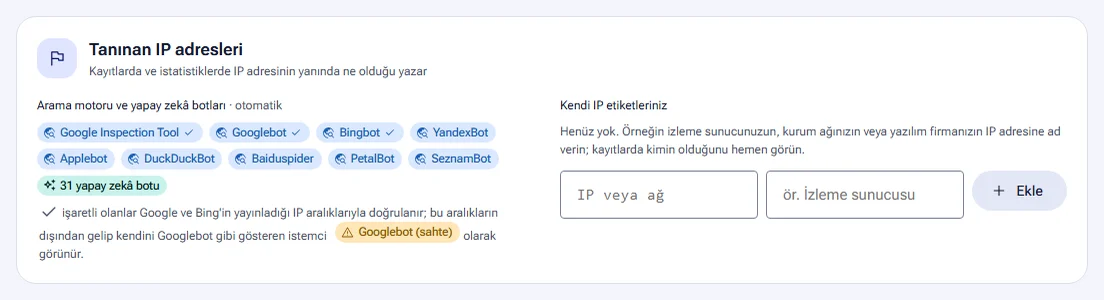
A label only shows who an address belongs to. To exempt an address from the protections, use the IPs exempt from rules list in the host's IP address lists section.
Frequently asked questions
Citizens abroad cannot enter the site. What should I do?
If the Country access rule is set to Allow only selected countries and the action is Block access, entry from abroad is closed. If you set the action to Require browser verification, real users abroad can enter after a short verification.
Can I keep the site open only to users inside the organization?
Yes. Write your organization's external IP addresses in the Allow only these IPs (closed circuit) field. Everyone who is not on the list is blocked. The addresses on the list are never asked for verification.
Our monitoring service or software vendor gets caught by the protection.
Add the IP addresses of these services to the IPs exempt from rules list. These addresses are not caught by verification, country or request limit rules. To recognize them easily in the logs, you can also give the addresses names on the Recognized IP addresses card.
If I block AI bots, will I disappear from Google?
No. Google, Bing and Yandex are not affected by the AI bots setting. The Block training bots option still allows assistant and search bots. So your site can keep appearing as a source in AI answers.
An IP was banned by mistake. What should I do?
Lift the ban in the Currently banned IPs table on the host's Security events page. To keep the IP from getting caught again, add it to the IPs exempt from rules list. Details are in the Security events guide.