
What does this screen do?
The Your sites → Settings history page does two jobs. It shows the latest settings changes on your hosts and lets you undo them. It also manages settings templates. A template stores the settings you like under a name and applies them to other hosts with one click.
When should you use it?
- When a site broke after a settings change and you want to go back to the old state.
- When you need the answer to “Who changed this setting, and when?”
- When you want to give a new site the same security settings as your other sites.
- When you want to turn on the same rule on all sites at once.
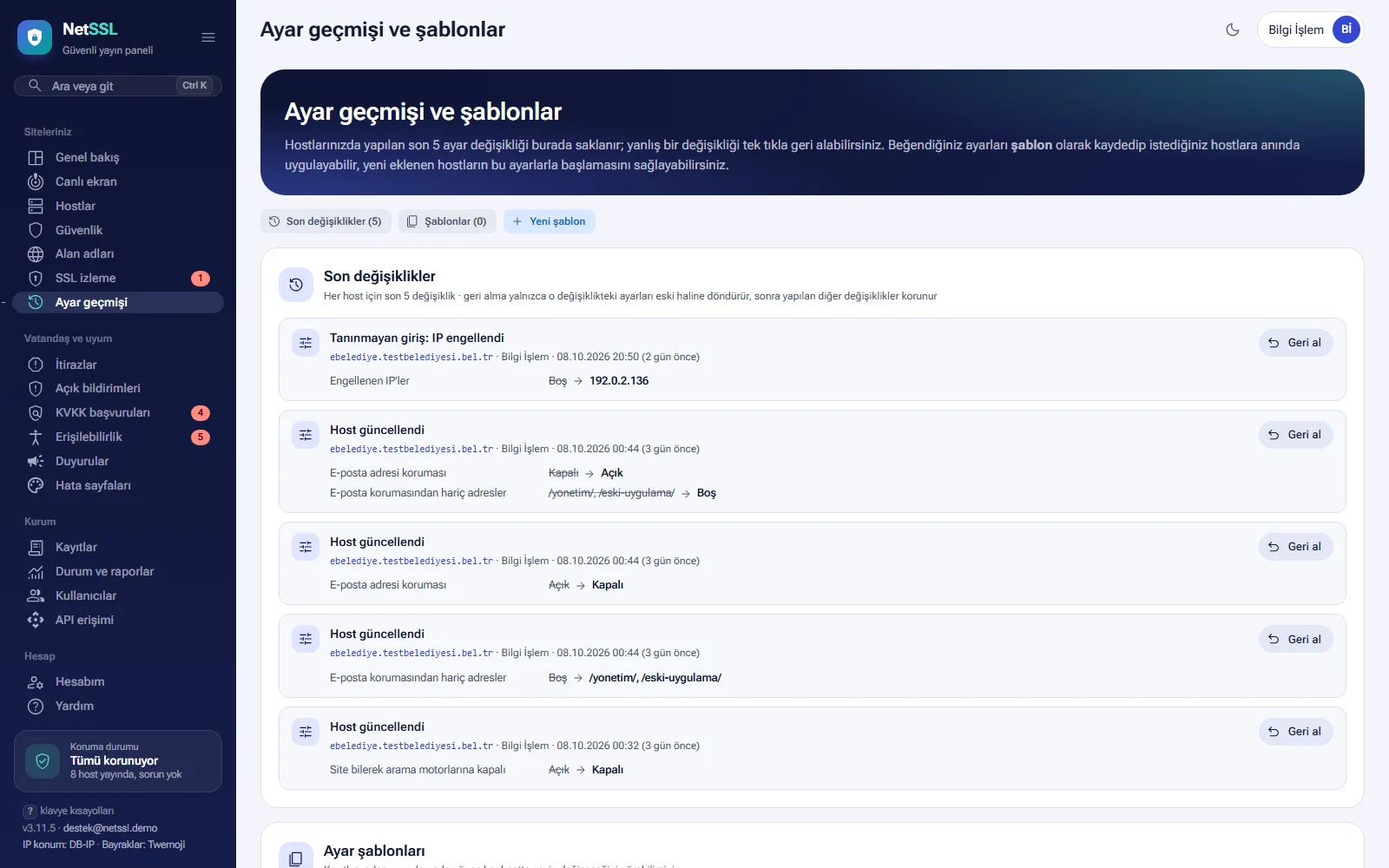
The buttons at the top of the page switch between sections: Recent changes, Templates and New template. The number in brackets shows the number of entries.
Recent changes
The list keeps the last 5 settings changes for each host. Each entry shows:
- The name of the change. Examples: Host updated, Template applied: ..., Undone: ..., Unrecognized login: IP blocked.
- The host name, the person who made the change, the date and the time since then, such as “2 days ago”.
- The old value (struck through) and the new value of each changed setting.
If several hosts have changes, you can filter by host with the list at the top right. If more than 8 settings changed in one entry, the first 8 settings appear with the count of the rest. Clicking the host name in an entry opens that host's own history.
Undoing a change
- Press the Undo button next to the change you want to undo.
- In the window that opens, check the settings that will go back to their old values and confirm.
- The settings go back to their old values. The server applies them within a few seconds.
Undo returns only the settings in that change to their old values. Other changes made later are kept. The undo is also written to the list as a new change. An Undone label appears next to the old entry. If needed, you can undo the undo as well.
If the undo changes a critical setting (e.g. it lowers the protection level), your organization's critical action security takes effect. In this case the panel asks for an email code or a second administrator's approval. Details: Users and login security.
The history keeps the last 5 changes for each host. You cannot undo an older change. Before a big rework, save the host's settings as a template. If needed, you can apply the template to go back to the earlier settings.
Undo on the host page
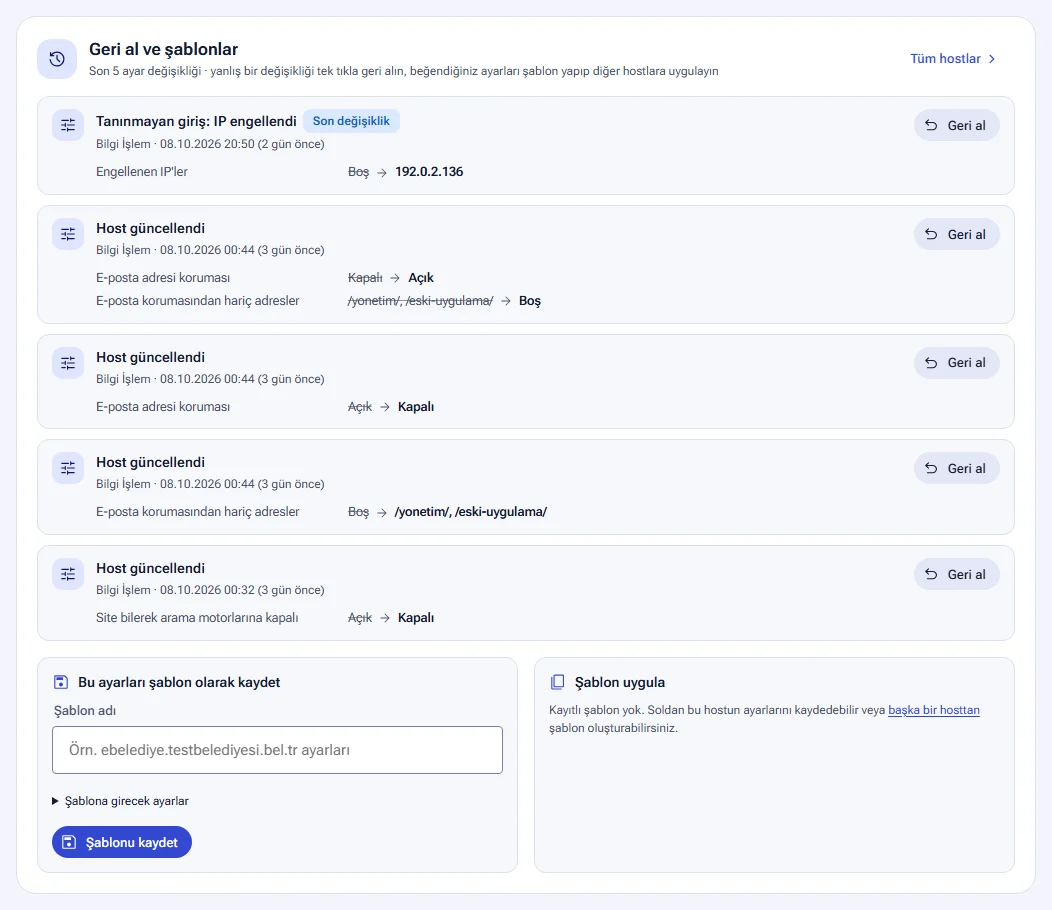
- The Undo and templates section on the host's Maintenance and notifications page shows only that host's last 5 changes. The newest entry has a Latest change label. The All hosts link opens the Settings history page.
- After you save a setting, a Latest change bar appears at the top of host pages for 15 minutes. The bar summarizes the changed settings and has an Undo button. Only the person who made the change sees the bar.
- The bar at the bottom of the Publishing settings page also has an Undo button. This button clears changes you have not saved yet. To undo a saved change, use the list above.
Settings templates
A template is a named copy of the setting sections you choose from a host. You apply the template to any hosts you want with one click. Each organization can save up to 30 templates. A template stores the settings as they were at the moment you saved it. If the source host changes later, the template stays the same.
Sections a template can include
| Section | Contents | Default |
|---|---|---|
| Security shield | Protection level, country rule, IP lists, request limit, login and scan protection, USOM, AI bots, Tor/VPN, office hours, custom rules | Selected |
| Attack patterns and headers | Block attack patterns, security headers, HSTS | Selected |
| Performance and compatibility | WebSocket, HTTP/2, compression, cache, Always On, error page, timeout, upload size | Selected |
| Admin lock | Admin pages open only from the organization's network | Selected |
| Allowed IPs only | The site opens only to these IPs. Nobody else can access it. | Not selected |
| Redirect rules | Address redirect and masking rules | Not selected |
| Notifications | Outage and attack emails | Selected |
| Waiting room | Settings for the queue page during peak traffic | Not selected |
| Cookie consent banner (KVKK) | Banner text, buttons, appearance, tracking codes held until consent | Not selected |
The target server, backup server and additional address are specific to each host, so templates do not include them.
Creating a new template
- Go to the New template section on the Settings history page.
- In the Host to copy settings from list, choose the host whose settings you like.
- Enter a Template name (e.g. “Municipality standard security”). The name can be up to 80 characters. You cannot save a second template with the same name.
- Tick the sections in the Settings to include in the template area. You must select at least one section.
- Press the Save template button.
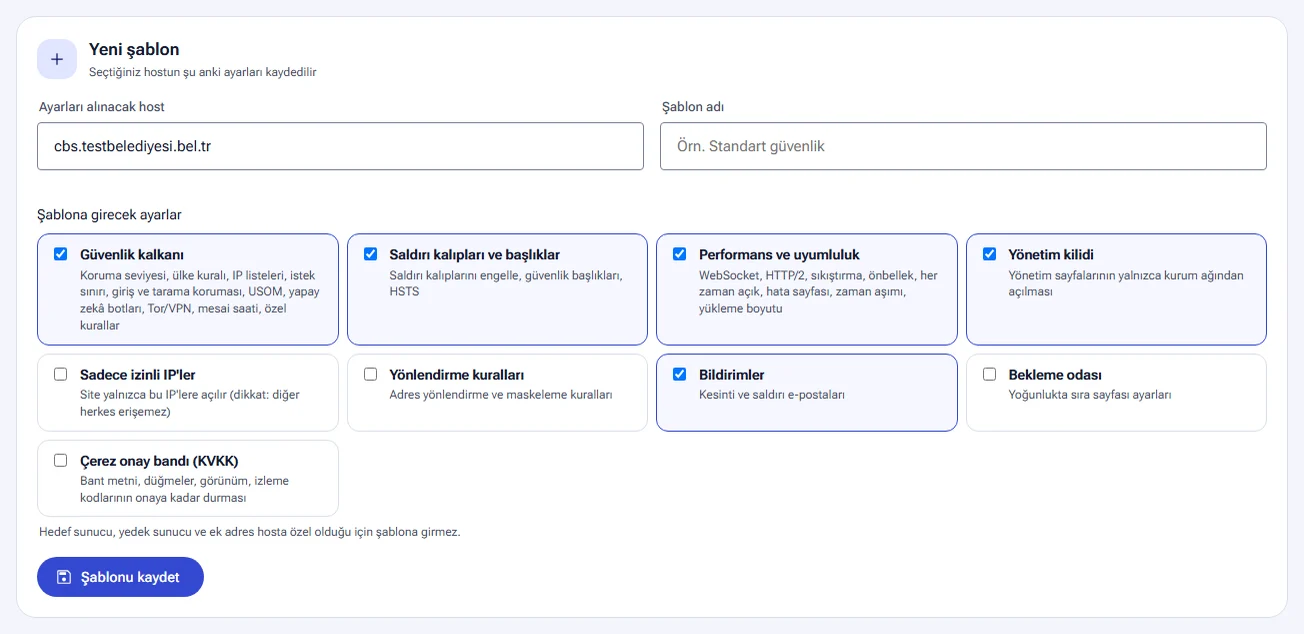
You can do the same from the Save these settings as a template box in the host's Undo and templates section.
Applying a template
Each saved template appears as a card in the Settings templates section. The card shows the template's name, the host it was saved from, who saved it and when. The sections it includes appear as labels. The Template contents drop-down lists every saved setting and its value.
- Tick the hosts in the Hosts to apply to list. Select all selects them all.
- Press the What will change? button. A window shows which setting will change to which value on each host.
- Press the Apply to selected hosts button and confirm.
Hosts whose settings already match the template do not change. Each application is written to the host's history as Template applied. If you do not like the result, you can go back with Undo.
To apply a template to a single host, use the Apply template box in the host's Undo and templates section. Choose the template, check it with What will change? and press the Apply button.
Start new hosts with a template
The Use for new hosts button on the template card makes the template the starting settings for new hosts. The card then shows a Used for new hosts label. From then on, this template is preselected in the Starting settings field on the New host and Bulk add hosts screens. When you add a host, you can switch back to the NetSSL defaults option if you wish.
Only one template can have this role at a time. The Do not use for new hosts button removes the setting. New hosts then start with the NetSSL defaults.
Deleting a template
The Delete button on the template card deletes the template. The settings of the hosts it was applied to earlier do not change.
Action history
The Action history section on the host's Maintenance and notifications page has the title “Actions on this host”. The section lists the last 10 actions on that host with the person's name and the time. Besides settings changes, actions such as downloads and publishing are also written here. For actions the system performs by itself, System appears instead of a person.
The All link opens the panel action logs, which show all the actions in your organization. Details: Law 5651 logs and official requests.
Action history only keeps a record and has no undo button. To return settings to their old values, use the Undo and templates section.
Bulk security settings
The Bulk security settings section at the bottom of the Your sites → Security page applies the same rules to several hosts at once. The Organization-wide → Bulk security settings row in the host menu also leads here.
- In the Which settings should be applied? section, tick the groups you want to apply. The settings of each group you tick open.
- Choose the values.
- In the Which hosts? section, tick the hosts. Each host shows its current protection level next to it. Select all selects them all.
- Press the Apply to selected hosts button and confirm.
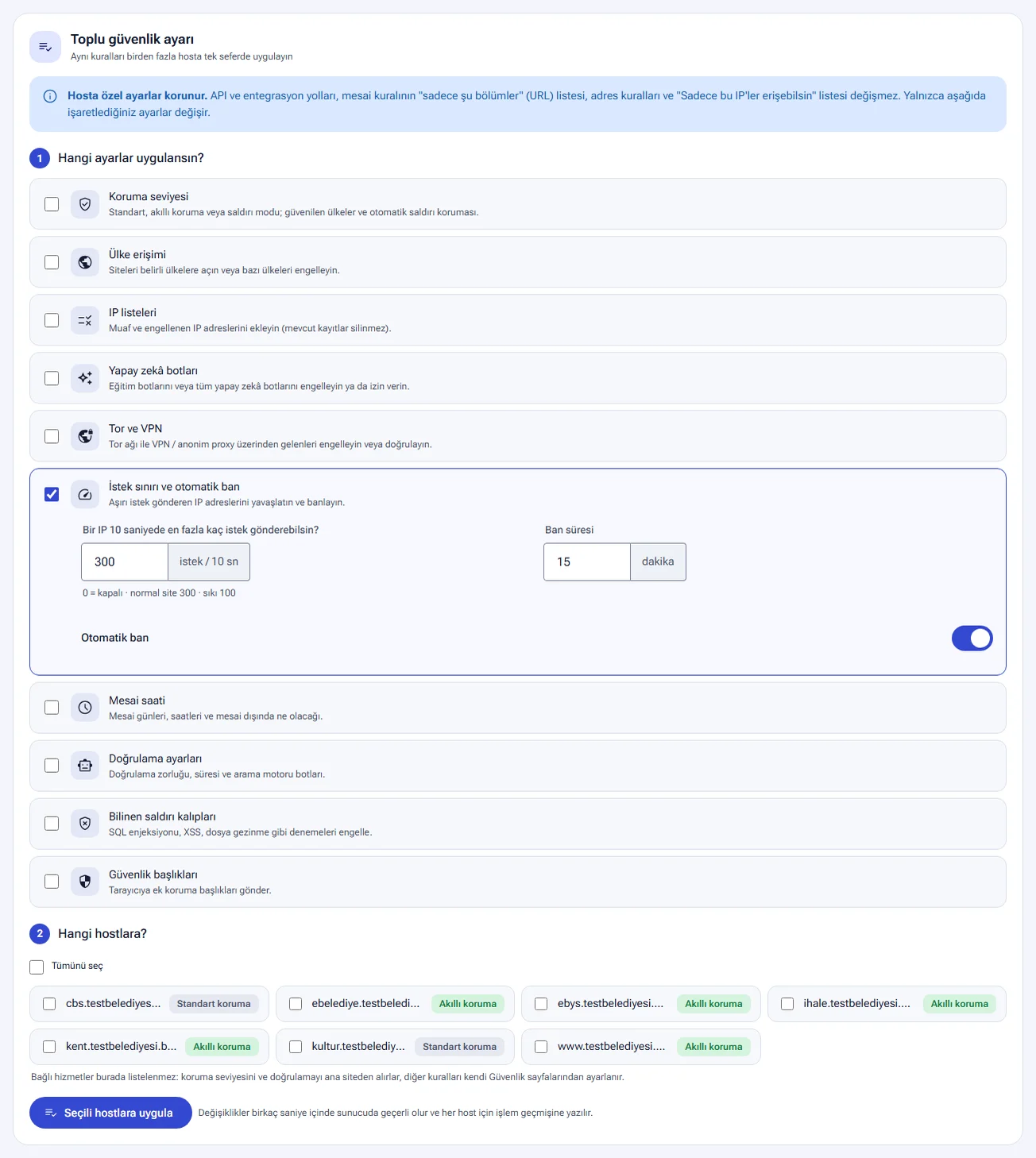
| Group | Settings |
|---|---|
| Protection level | Standard, Smart protection or Under-attack mode. Trusted countries for smart protection. Automatic attack protection (Off, Sensitive, Normal, High-traffic site). |
| Country access | Off, Only selected countries may enter or Block selected countries. For visitors caught by the rule, block access or require browser verification. |
| IP lists | Adds addresses to the IPs exempt from rules and to the blocked IPs |
| AI bots | Allow, Block training bots or Block all AI bots |
| Tor and VPN | Allow, Require verification or Block, set separately for the Tor network and for VPN / anonymous proxies |
| Request limit and automatic ban | The number of requests one IP can send in 10 seconds (0 is off, 300 for a normal site, 100 for strict), ban duration (minutes), automatic ban |
| Office hours | Working days, start time and end time. Block access or require verification outside office hours. |
| Verification settings | Verification difficulty, how long a verification stays valid (hours), allowing search engine bots |
| Known attack patterns | Blocks attempts such as SQL injection, XSS and path traversal |
| Security headers | Sends additional protection headers to the browser |
The settings are explained in detail in the Attack protection and Bot and access rules guides.
Things to know:
- Only the groups you tick change. The values you choose replace the current values of the hosts.
- Addresses you enter in the IP lists are added to the existing lists. Existing entries are not deleted.
- Host-specific settings are kept. API and integration paths, the “only these sections” (URL) list of the office hours rule, address rules and the “Only these IPs may access” list do not change.
- Linked services do not appear in the list. They take their protection level and verification from the main site.
- Changes take effect on the server within a few seconds. They are written to the settings history of each host. If needed, you can undo them host by host.
- A critical change, such as lowering the protection level to Standard, triggers critical action security.
Use a template if you want to copy all security settings from a model host. If you only need to apply one or two rules (e.g. the request limit or office hours) to several sites, bulk security settings are faster.
Frequently asked questions
Why is the Undo button not visible?
Undo requires permission to change settings. Users with the Viewer or Log officer role see the list but cannot undo. Also, the button does not appear next to an entry that has already been undone.
How do I go back to a change older than the last 5?
The history keeps only the last 5 changes. To go back to an older setting, correct the setting by hand or apply a template you saved earlier. You can see who did what and when in the panel action logs.
If I apply a template, does the target server address change?
No. The target server, backup server and additional address are specific to each host, and templates do not include them. Templates also leave out the Allowed IPs only and Redirect rules sections unless you select them.
If I delete a template, are the hosts it was applied to affected?
No. Deleting removes only the template record. The settings of the hosts stay as they are.