
What does this screen do?
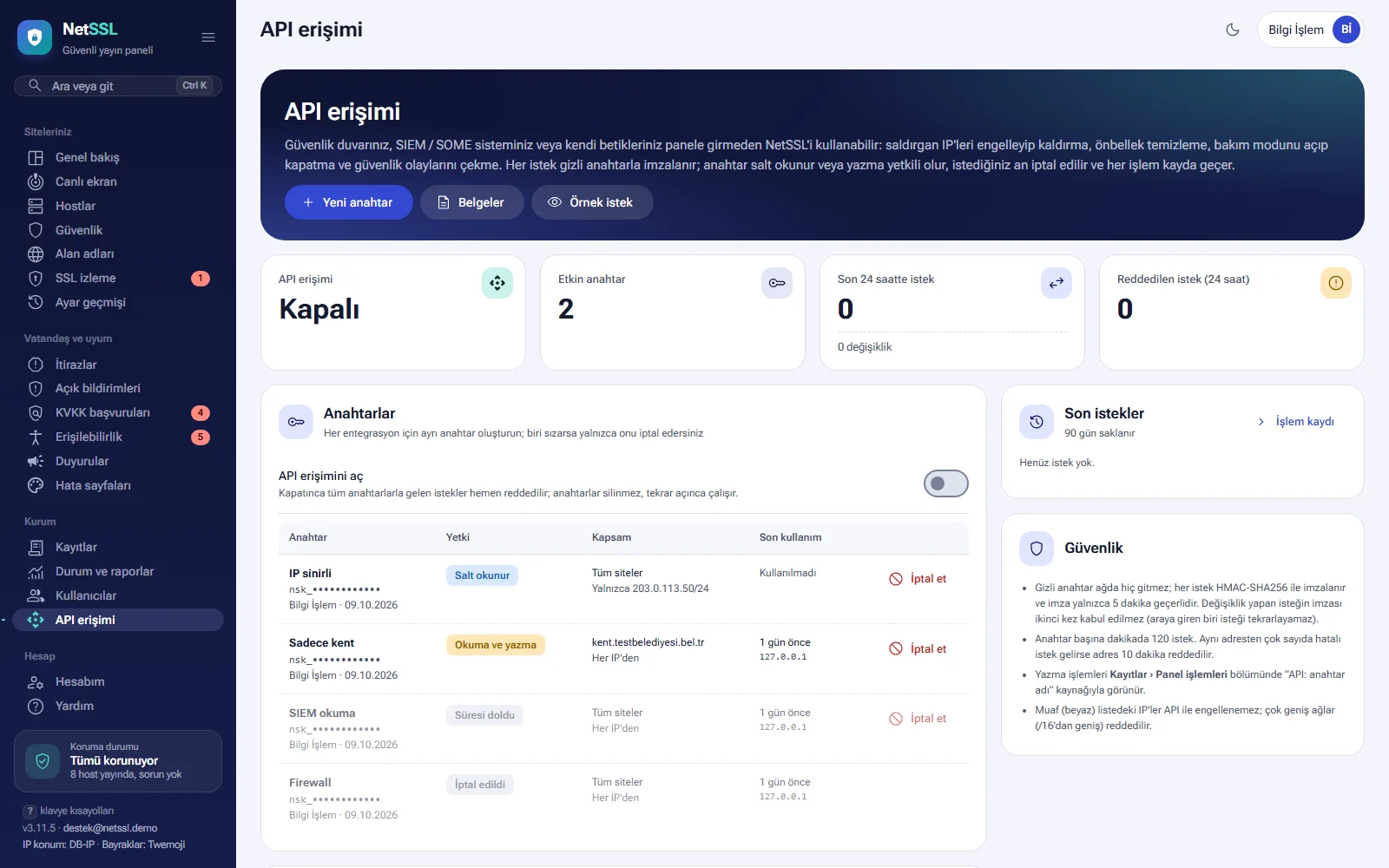
The Organization → API access page lets your own systems talk to NetSSL. With the API you can do these tasks without logging in to the panel:
- Block attacker IP addresses or remove their blocks.
- Clear a site's cache.
- Turn maintenance mode on or off.
- Fetch security events and the status of your sites.
- Get the details and files of the wildcard SSL certificate, and start a renewal.
Only an organization administrator with access to all hosts can open this page.
When should you use it?
- You want a firewall such as FortiGate to block the attacker IPs it detects in NetSSL too.
- Your SIEM or CSIRT system will fetch new security events regularly.
- You want your deployment script to clear the cache automatically after a site update.
- You will turn maintenance mode on and off with a script during planned work.
- You want to fetch the wildcard SSL certificate to your own servers with a script.
If you want logs to be sent to your SIEM automatically, use SIEM / CSIRT forwarding instead of the API. This forwarding is covered in the Notifications and integrations guide.
Turning on API access
The Enable API access switch in the Keys section turns the whole API on or off. When you turn it off, requests with any key are rejected immediately. The keys are not deleted. They work again when you turn the API back on.
The tiles at the top of the page show the API status, the number of active keys, the requests in the last 24 hours and the rejected requests.
Creating a new key
Create a separate key for each integration. If a key leaks, you revoke only that key.
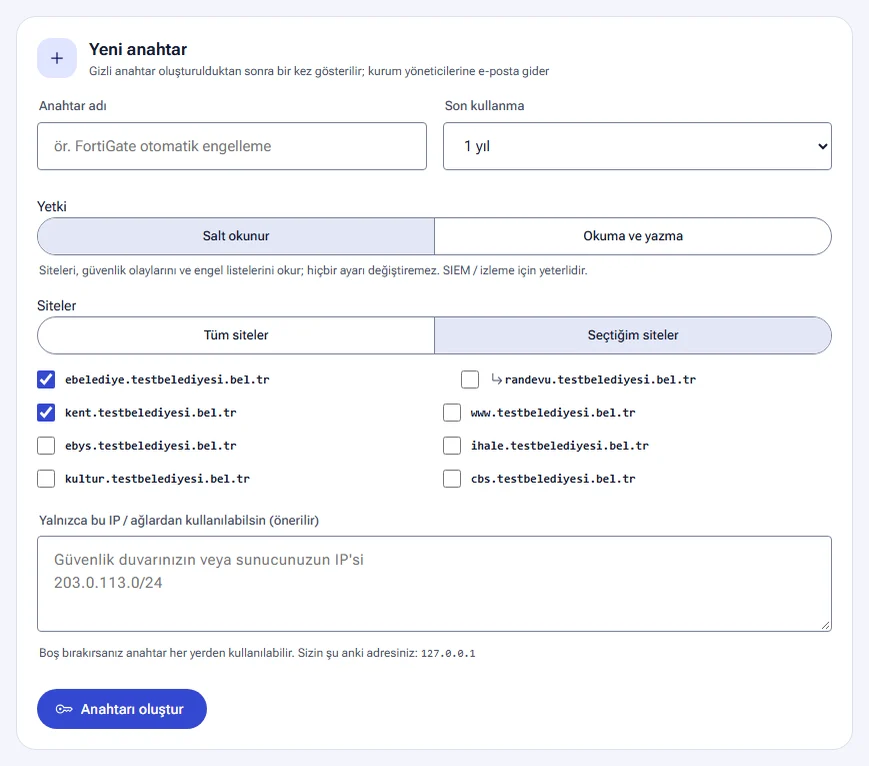
- In the New key section, type a Key name (e.g. FortiGate automatic blocking).
- Choose the Expiry: No expiry, 30 days, 90 days or 1 year. The default is 1 year.
- For Permission, choose Read-only or Read and write.
- In the Sites field, choose All sites or Sites I select.
- Enter your system's IP address or network in the Allow use only from these IPs / networks (recommended) field.
- Click the Create key button.
| Permission | What can it do? |
|---|---|
| Read-only | It reads sites, security events and block lists. It cannot change any settings. It is enough for SIEM and monitoring. |
| Read and write | It can also block and unblock IPs, clear the cache, turn maintenance mode on and off, and start a wildcard SSL renewal. |
- If you leave the IP field empty, the key can be used from anywhere. Your current address is shown below the field.
- Creating a key with write permission is a critical action and is confirmed with an email code. If four-eyes approval is on, a second organization administrator must also approve it.
- An organization can have up to 20 active keys.
When the key is created, two values appear on the screen:
- Key ID (X-NetSSL-Key): sent with every request. It is not secret.
- Secret key: used to sign requests. It is never sent with requests.
The secret key is shown only once, on this screen. The same screen also has a ready-made bash command with your key filled in. When a key is created, an email goes to the organization administrators.
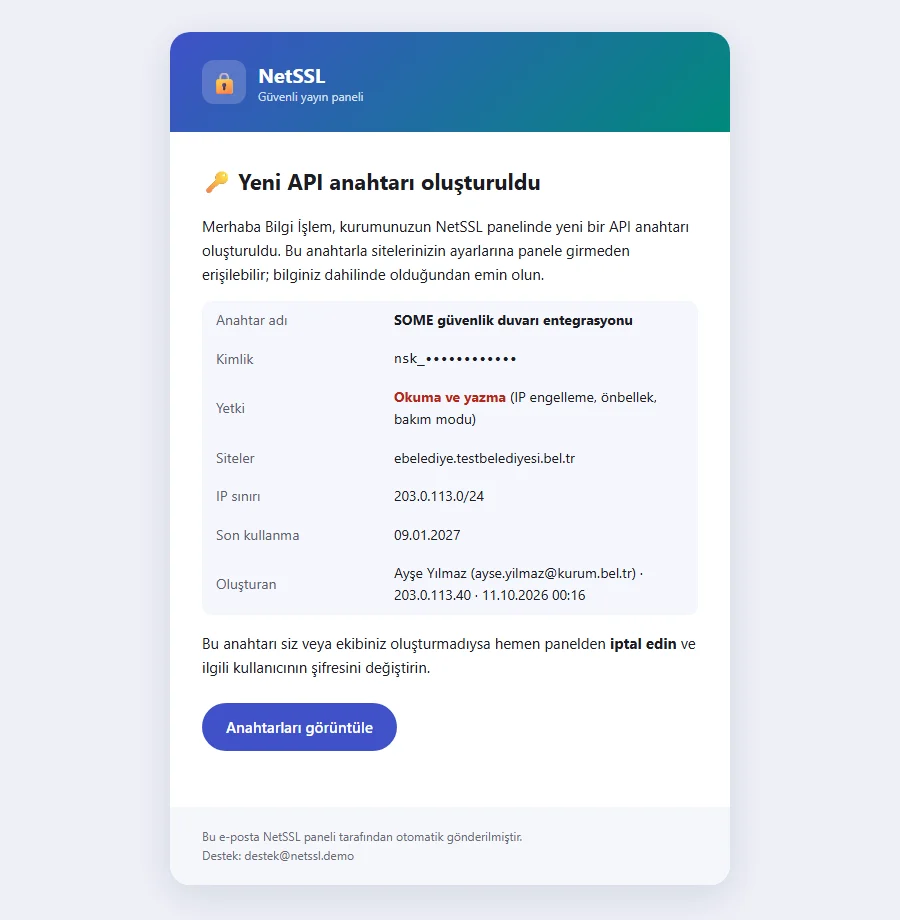
Copy the secret key right away and save it somewhere safe, such as a password manager. Once you leave the page, it cannot be shown again. Do not share the secret key by email or message. If you lose it, revoke the key and create a new one.
Key list and revoking
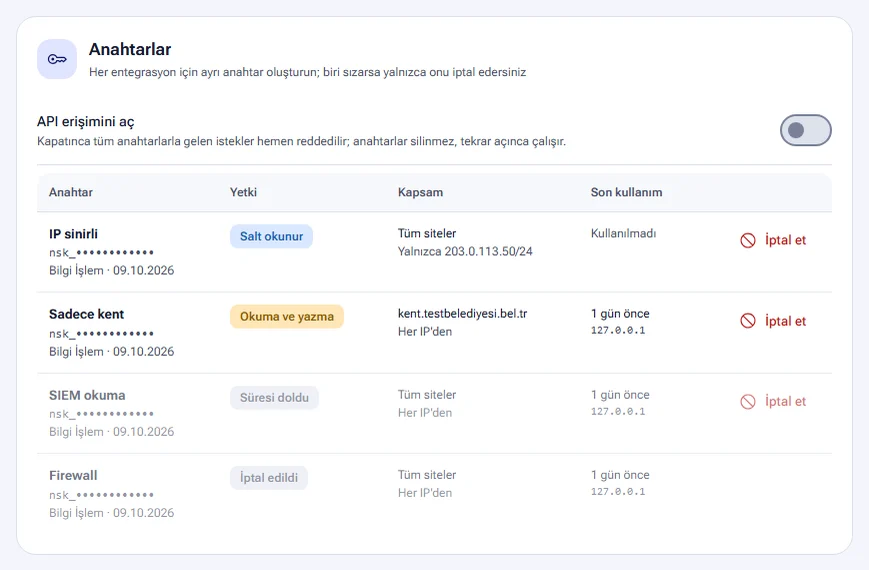
The Keys table shows each key's name, ID, creator and creation date.
| Column | What does it show? |
|---|---|
| Permission | Read-only, Read and write, Expired or Revoked. For keys with an expiry, the end date is also shown. |
| Scope | The sites the key can use and its IP restriction (From any IP or “Only …”). |
| Last used | Time of the last request, the IP it came from and the number of requests in the last 24 hours. |
- The Revoke button disables the key permanently. Requests with this key are rejected immediately. This cannot be undone. If needed, you create a new key.
- The Recent requests section lists API requests with their method, path, key name, IP and result code. Requests are kept for 90 days.
- Write actions appear in Logs › Panel actions with the source “API: key name”.
How do you send a signed request?
The API address is shown at the start of the Documentation section and ends with /api/v1. Responses are in JSON format. A successful response looks like {"ok":true,"data":…} and an error response looks like {"ok":false,"error":{"code","message"}}.
Every request carries three headers:
| Header | Value |
|---|---|
X-NetSSL-Key |
Key ID |
X-NetSSL-Time |
Unix time of the request |
X-NetSSL-Signature |
Signature of the request |
The signature is calculated with this formula: hex( HMAC-SHA256( gizli_anahtar, YÖNTEM + "\n" + YOL?SORGU + "\n" + ZAMAN + "\n" + hex(SHA256(gövde)) ) )
- For requests without a body (GET), the SHA256 of an empty string is used.
- The path starts with
/api/v1and includes the query string. - In paths, you can write the site name or the site number in place of
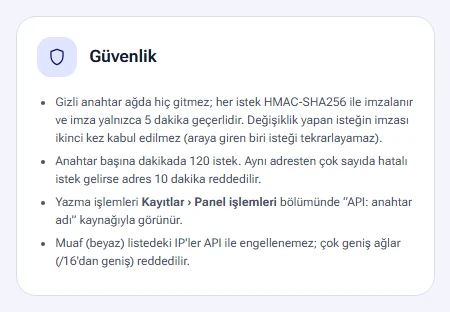
{site}. - The secret key never travels over the network. A signature is valid for only 5 minutes, so your server's clock must be correct.
- The signature of a request that makes changes is not accepted a second time. Someone who intercepts the request cannot replay it.
- Do not send the same change request with the same body twice in the same second. The second one counts as a replay and is rejected.
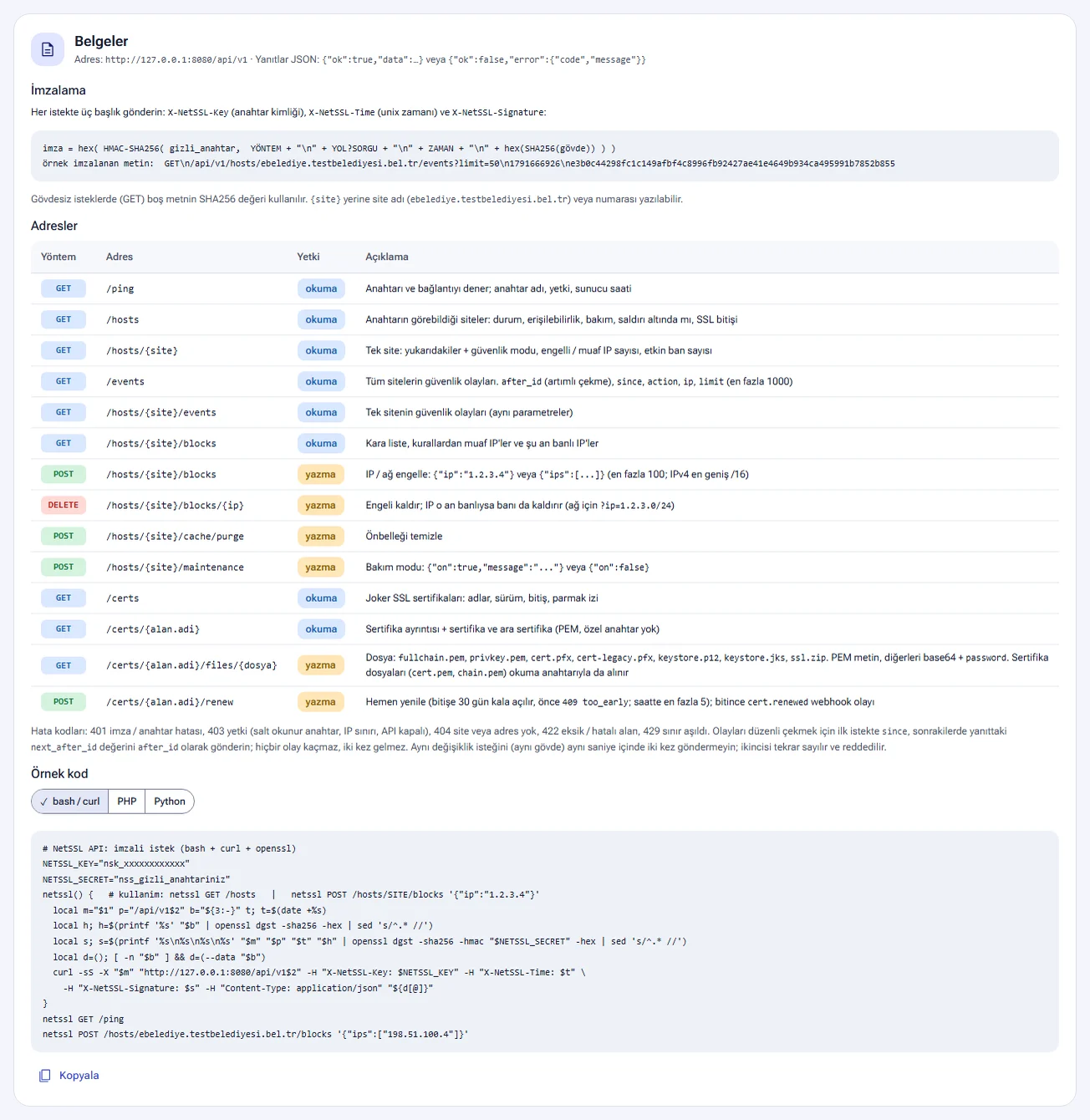
Endpoints
| Method | Path | Permission | What does it do? |
|---|---|---|---|
| GET | /ping |
read | Tests the key and the connection. Returns the key name, the permission and the server time. |
| GET | /hosts |
read | Sites the key can see: status, availability, maintenance, whether under attack, SSL expiry |
| GET | /hosts/{site} |
read | Single site: in addition to the above, security mode, number of blocked and exempt IPs, number of active bans |
| GET | /events |
read | Security events of all sites |
| GET | /hosts/{site}/events |
read | Security events of a single site |
| GET | /hosts/{site}/blocks |
read | Blacklist, IPs exempt from rules and currently banned IPs |
| POST | /hosts/{site}/blocks |
write | Blocks an IP or network: {"ip":"1.2.3.4"} or {"ips":[...]} |
| DELETE | /hosts/{site}/blocks/{ip} |
write | Removes the block. If the IP is banned at that moment, it also lifts the ban. |
| POST | /hosts/{site}/cache/purge |
write | Clears the cache. |
| POST | /hosts/{site}/maintenance |
write | Maintenance mode: {"on":true,"message":"..."} or {"on":false} |
| GET | /certs |
read | Wildcard SSL certificates: names, version, expiry, fingerprint |
| GET | /certs/{alan.adi} |
read | Certificate details, the certificate and the intermediate certificate (PEM, no private key) |
| GET | /certs/{alan.adi}/files/{dosya} |
read / write | Gets a certificate file. |
| POST | /certs/{alan.adi}/renew |
write | Starts a wildcard SSL renewal right away. |
Fetching security events
- The
/eventsand/hosts/{site}/eventsendpoints accept theafter_id,since,action,ipandlimitparameters.limitcan be at most 1000. - To fetch events regularly, send
sincein the first request. In later requests, send thenext_after_idvalue from the response asafter_id. This way no event is missed and none arrives twice.
IP blocking
- You can send up to 100 IPs or networks in one request. For IPv4, the widest network is /16.
- IPs on the exempt list (allowlist) cannot be blocked through the API.
- To remove a network block, add
?ip=1.2.3.0/24to the path.
Getting wildcard SSL files
You can get the files of your wildcard SSL certificate through the API. For example, to get the full chain, send a request to this path: GET /api/v1/certs/<alan-adı>/files/fullchain.pem
- Files:
fullchain.pem,cert.pem,chain.pem,privkey.pem,cert.pfx,cert-legacy.pfx,keystore.p12,keystore.jks,ssl.zip. - The response is JSON. PEM files come as text in the
contentfield. Other formats come as base64, and the response also includes the file's password (password). fullchain.pem,cert.pemandchain.pemcan also be fetched with a read-only key. Files that contain the private key need a read-and-write key.- The
/renewrequest becomes available 30 days before expiry. If you send it earlier, you get a409 too_earlyresponse. You can make up to 5 attempts per hour. When the renewal finishes, acert.renewedwebhook event is sent.
Wildcard SSL itself and its deployment to servers are covered in the Automatic SSL and wildcard SSL and SSL deployment agent guides.
Error codes and limits
| Code | Meaning |
|---|---|
| 401 | Signature or key error |
| 403 | No permission: read-only key, IP restriction or API turned off |
| 404 | Site or path not found |
| 409 | Too early for a wildcard SSL renewal (too_early) |
| 422 | Missing or invalid field |
| 429 | Limit exceeded |
- Each key can send 120 requests per minute.
- If many failed requests come from the same address, that address is rejected for 10 minutes.
- The secret key is stored encrypted in the panel.
Ready-made examples
The Sample code area at the end of the Documentation section has three ready-made examples: bash / curl, PHP and Python. Each example contains a small function that sends a signed request. Use the Copy button to get the code, then replace the key ID and the secret key with your own values.
- The bash example tests the connection with
netssl GET /pingand blocks an IP. - The PHP example fetches a site's security events.
- The Python example turns on maintenance mode for a site.
The Sample request button at the top of the page shows sample requests and responses. It includes examples for fetching events, blocking an IP and the new key email.
When you start a new integration, first send a GET /ping request with a read-only key. If the response shows the key name and permission, your signature is correct. Then create a separate key with write permission if you need one.
Frequently asked questions
I lost the secret key. Can I see it again?
No. The secret key is shown only once, when it is created. Disable the old key with Revoke and create a new one.
I get a 401 error on every request.
The signature may be calculated incorrectly. Check that the path in the signed string starts with /api/v1 and includes the query string. For GET requests, use the SHA256 of an empty string. If your server's clock is off by more than 5 minutes, the signature is also rejected.
I get a 403 error.
There are three possible causes. The key may be read-only while you try a write action. The IP the request comes from may be outside the key's IP restriction. Or the Enable API access switch may be off.
Can I get a certificate with a read-only key?
You can get the fullchain.pem, cert.pem and chain.pem files. The privkey.pem, PFX, P12, JKS and ZIP files contain the private key, so they need a read-and-write key.
Who made the API requests, and how do I track them?
Every request is listed in the Recent requests section for 90 days. Write actions are also recorded in Logs › Panel actions with the source “API: key name”. When a new key is created, an email also goes to the organization administrators.