
What does this screen do?
Even when an organization's site is protected, weak points on the domain side can go unnoticed. The domain can expire. Someone can steal the password at the domain registrar and change the name servers. Fake emails can be sent in the organization's name. A forgotten test address can stay online without protection. The Domains page monitors these risks in one place and notifies you when a problem occurs.
When you add a host, your domain is added to this page automatically and monitoring starts. You do not need to set anything up.
When should you use it?
- When you want to see when your domain expires.
- When you get a "DNS records changed" warning.
- When you suspect that fake emails were sent in your organization's name.
- When you want to fix your SPF, DKIM and DMARC records.
- When your site gets on a blacklist or the browser shows a red warning.
- When someone gets a certificate for your domain that you do not recognize.
- When you want to find forgotten or unprotected subdomains.
- When someone registers a domain that imitates your name.
Domains list
The Your sites → Domains page shows your domains in a table. Each column summarizes the status of one section. When you click a label, that section opens on the domain page.

| Column | What does it show? |
|---|---|
| Registration expiry | Days left until the domain expires |
| DNS | Whether the DNS records have changed |
| Email security | Overall status of the SPF, DKIM and DMARC records |
| Blacklist | Whether the domain or its sites are on a list |
| SSL / CAA | Number of unrecognized certificates or the status of the CAA record |
| Subdomains | Number of unprotected or risky subdomains |
| Lookalike names | Number of new lookalike domains that need review |
| Wildcard SSL | Status of the wildcard certificate |
| Sites | Your hosts under this domain |
If the domain expires within 30 days or gets on a blacklist, a warning bar appears at the top of the page. The number of domain problems appears as a badge on the Domains line in the menu. For details, click the domain or the Details button.
Domain page
At the top of the domain page there are buttons that take you to each section: General, DNS records, Email security, DMARC reports, Blacklists, SSL and CAA, Subdomains, Wildcard SSL and Lookalike domains. The Wildcard SSL section is covered in the Automatic SSL and Wildcard SSL guide.
Each monitoring section has an on/off switch at the top right. If you turn monitoring off, that section is not checked and sends no warnings. The eye icon shows a sample of the email that the section will send you. You need edit permission to change the settings.
Expiry and summary
The General section summarizes the status of all sections in tiles. When you click a tile, you go to that section. The domain's registration details are shown below the tiles.
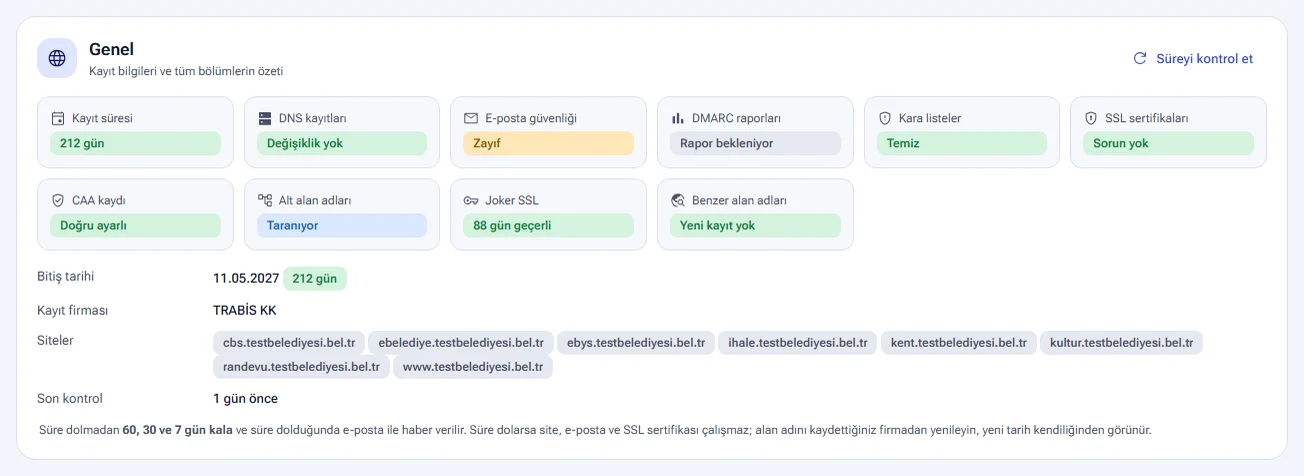
- It shows the Expiry date and the number of days left.
- Registrar shows where you renew the domain.
- Sites lists your hosts under this domain.
- Check expiry queries the expiry date again right away.
The expiry date is queried with RDAP. If RDAP does not respond, WHOIS is used. Domains ending in .tr are queried through TRABİS. You get an email 60, 30 and 7 days before expiry and when the domain expires. When you renew the domain with your registrar, the new date appears automatically and a "renewed" email arrives.
If the domain expires, the site, email and SSL certificate stop working. The certificate cannot be renewed either. Renew the domain on time with the company you registered it with.
DNS records and change alarm
One of the most common attacks on organizations is the theft of the password at the domain registrar. The attacker changes the name servers (NS). The site and emails quietly go somewhere else. The DNS records section catches this change.
- NS, MX, A and AAAA records are checked every 30 minutes.
- If a change shows up in two checks, you get an email. If you chose Telegram or SMS, you are notified there too.
- Records that differ from the known state are shown in red.
- When something changes, the section shows a DNS records changed warning. The warning shows the old and new values side by side.
- If your organization made the change, click the We made this change button. The current records are saved as the known state and the warning goes away.
- Check now queries the records right away.
| Record | Why does it matter? |
|---|---|
| Name servers (NS) | If they change, control of all your records passes to someone else. This is the most critical record. |
| Mail servers (MX) | If they change, emails sent to your organization go to another server. |
| Main domain IPv4 (A) | If it changes, your main domain points to another server. |
| Main domain IPv6 (AAAA) | The same risk applies to IPv6 visitors. |
On the right side of the section is the Do the sites' records point to NetSSL? list. For each host it shows correct, not pointing, pending or not live. A site that does not point to NetSSL is online without NetSSL protection. In that case the panel shows the CNAME record that should be in place. It also sends an urgent email saying "no longer published through NetSSL".
Do not click the We made this change button. Change the password at your domain registrar right away and restore the old records. Turn on the registrar's two-factor authentication and transfer lock options.
Email security (SPF, DKIM, DMARC)
Fraudsters often send fake emails in an organization's name. Three DNS records make this harder. SPF says which servers can send email. DKIM signs the email. DMARC says what to do with email that fails these checks.
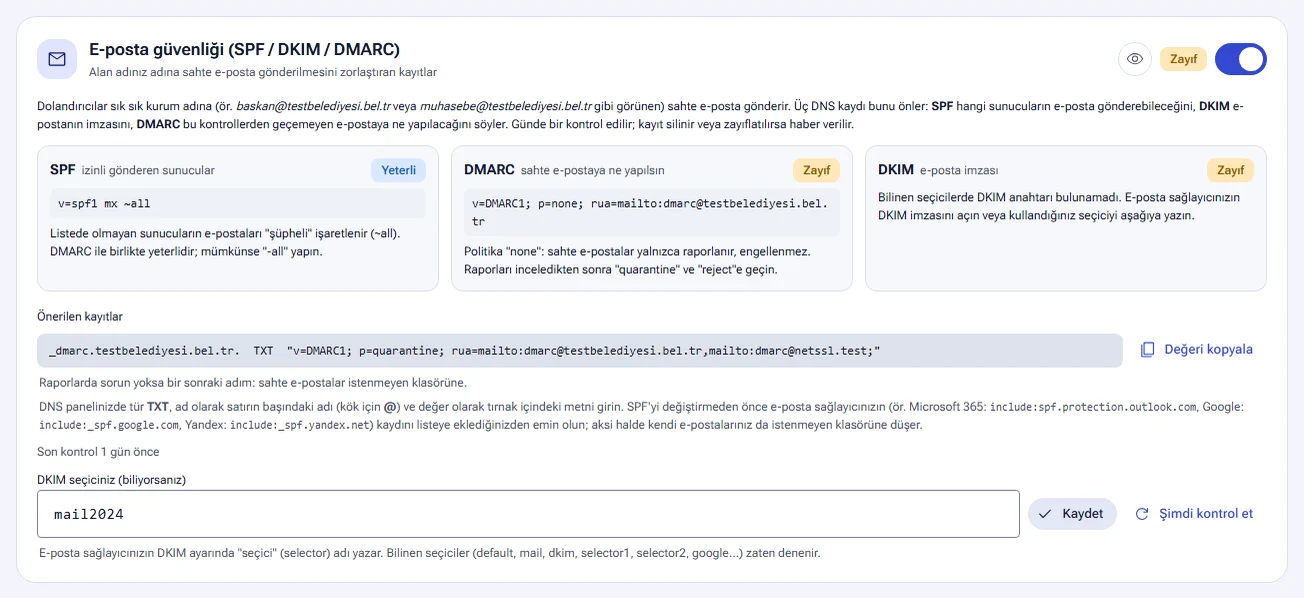
The records are checked once a day. If a record is deleted or weakened, you get an email. Each record's status shows as Good, Adequate, Weak, Missing / dangerous or Unknown. Below each record, the panel explains why it has this status.
| Record | What the panel checks |
|---|---|
| SPF | Whether the record exists, whether there is more than one, whether +all allows everyone, whether the 10 DNS lookup limit is exceeded, and whether it ends with -all, ~all or ?all |
| DMARC | Whether the record exists, whether a policy (p=) is set, whether the policy is none, quarantine or reject, and whether the enforcement rate (pct) is 100% |
| DKIM | Whether a DKIM key exists for the common selectors (default, mail, dkim, selector1, selector2, google ...) |
For missing or weak records, the panel shows Recommended records. Use the Copy value button to get the value, then add it to your DNS panel as a TXT record. The record name is shown at the start of the line. For the root domain, use @ as the name.
- If your DKIM selector is not one of the common names, type it in the Your DKIM selector (if you know it) field and click Save. You can find the selector name in your email provider's DKIM settings.
- Check now reads the records again right away.
- If your domain has no MX record, the panel recommends records that say "this domain does not send email". Attackers abuse unprotected domains like these most often.
Do not forget to add your email provider's entry to the SPF record. For example, Microsoft 365 needs include:spf.protection.outlook.com, Google needs include:_spf.google.com and Yandex needs include:_spf.yandex.net. Otherwise your own emails will also land in the spam folder.
DMARC reports
Receiving servers such as Gmail, Outlook and Yandex send a daily DMARC report with the results for emails that claim to come from your domain. NetSSL reads these reports and groups the senders. This way you can see who sends email in your name.
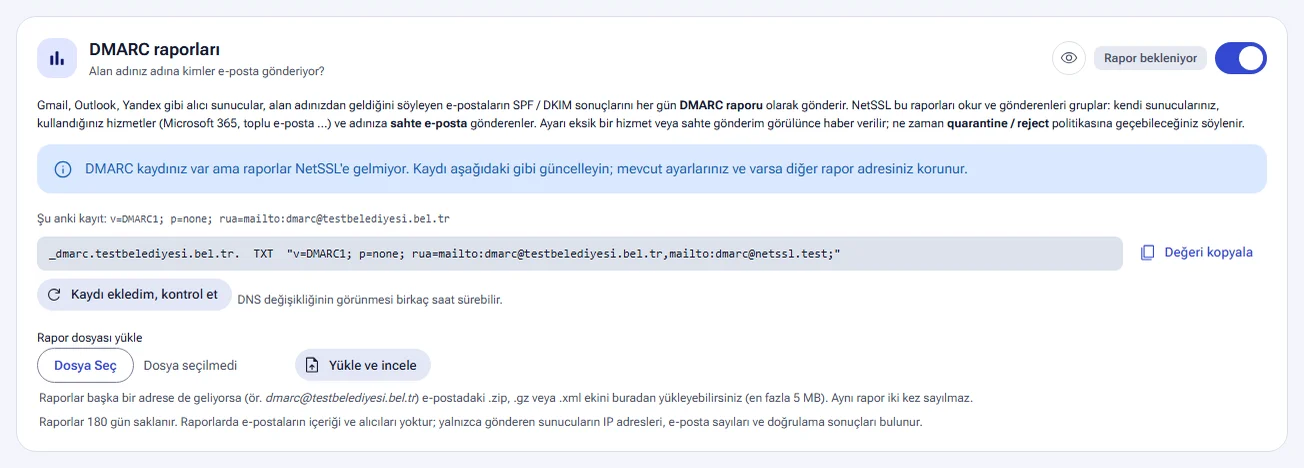
Send the reports to NetSSL
- Copy the recommended record in the DMARC reports section with Copy value.
- Add the record to your DNS panel as a TXT record named
_dmarc, or replace your existing record with it. - Click the I added the record, check it button.
If you have no DMARC record, the panel recommends a record that starts with p=none. This policy blocks no email. It only collects reports. If you already have a record, the panel recommends one that keeps your current settings and your other report address. The DNS change may take a few hours to show. The first reports usually arrive within 24-48 hours.
What do you see in the reports?
- The Email (30 days), Passing DMARC, Spoofed / unauthorized and Policy tiles.
- A daily chart of the last 30 days. The chart shows authenticated and failed emails in different colors.
- The Senders (last 30 days) list. Each sender is grouped as Your server, Service in use or Other. Its status shows as Passing, Misconfigured, Partially passing or Spoofed / unauthorized. You can expand each group to see its IP addresses.
- The Recent reports list. It shows which organization sent each report, on which date and how.
The panel also tells you when you can tighten your policy. It needs at least 7 days of reports to decide. If at least 98% of your own emails were authenticated in the last 14 days, the panel says You are ready for the next step. It then writes the record for the next policy (quarantine, then reject). If a sender is misconfigured, the panel asks you to fix it first.
You get an email when someone sends fake emails in your name or when one of your services turns out to be misconfigured.
Uploading a report file
If reports also go to another address, upload the .zip, .gz or .xml attachment from the email in the Upload report file field and click Upload and review. The file can be up to 5 MB. The same report is never counted twice. Reports are kept for 180 days. Reports do not contain the content or recipients of emails. They contain only the IP addresses of the sending servers, email counts and authentication results.
Blacklists
Hacked sites often end up on security lists because they host phishing pages or malicious files. Browsers then show a red warning instead of your site. Your emails land in the spam folder and the site drops out of search results. The Blacklists section checks your domain and its sites on these lists every 6 hours:
| List | What is it for? |
|---|---|
| USOM | Malicious link list of USOM, Türkiye's national cyber incident response center |
| Spamhaus DBL | Spam and phishing domain list used by most email servers |
| SURBL | Phishing and malware list used by email and web filters |
| Google Safe Browsing | Sites for which Chrome, Firefox, Safari and Android show a red warning. This list is checked once the NetSSL administrator enters a Google API key. |
Each list shows Clean, Listed, Query failed or Off. If a query fails, it is retried at the next check. Check now queries the lists right away.
If your domain gets on a list, the section shows a You are blacklisted warning and you are notified at once. The panel suggests three steps:
- Remove foreign files from the server (phishing pages, malicious scripts, hidden spam links) and update your software.
- Change the admin, FTP, database and email passwords.
- After the cleanup, request removal from the list through the link the panel gives you.
Once you are off the list, the section shows Clean again and a domain.delisted webhook event is sent.
SSL certificates and CAA
Every SSL certificate issued anywhere in the world is written to public Certificate Transparency (CT) logs. NetSSL reads these logs for your domain every 6 hours. If it sees a new certificate for your domain that was not issued through NetSSL or by an authority you recognize, it notifies you. This helps you spot early that someone got a certificate for a fake site.
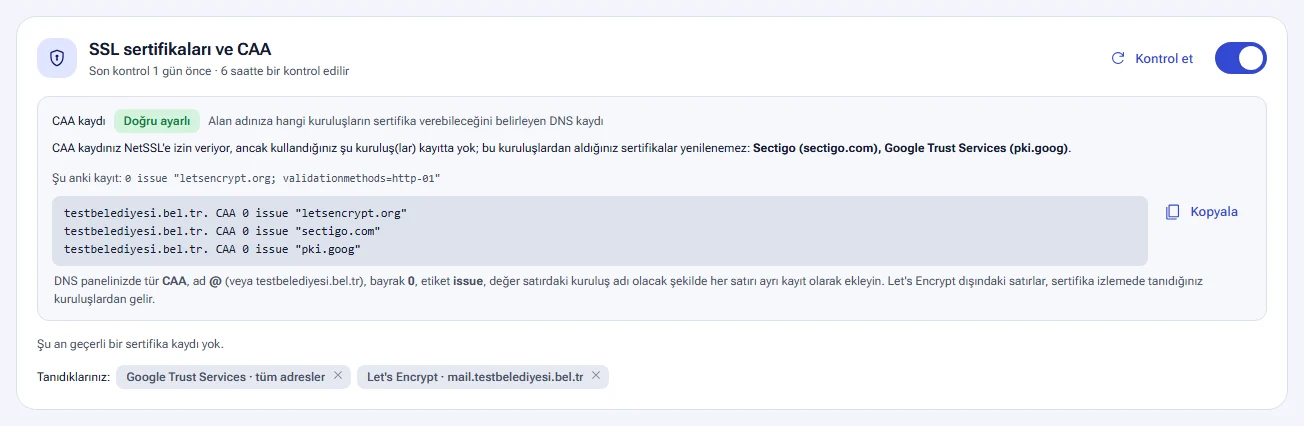
Unrecognized certificate
When a new certificate is seen, the section shows its addresses, the issuer, the validity period and when it was seen. The View record link opens the certificate's public record.
- If you or one of your suppliers got the certificate, click the I recognize it button. When the same authority renews certificates for these addresses, no further warnings arrive.
- To recognize all certificates that one authority issued under your domain, click the Recognize all ... certificates button that shows the authority's name.
- The authorities you recognize are listed on the Recognized line. You can remove one from the list with the cross mark.
- If nobody recognizes the certificate, change your DNS management password and take measures against a fake site.
The statuses in the certificate list are Not recognized, Recognized by you, Recognized provider, NetSSL and Before monitoring started. Host and wildcard certificates that NetSSL obtained do not raise warnings. The first scan treats the certificates that exist at that moment as normal and sends no warnings. An unrecognized certificate also appears as a warning on the host page.
CAA record
The CAA record is a DNS record that sets which certificate authorities can issue certificates for your domain. The panel reads your record and shows its status.
| Status | Meaning and what to do |
|---|---|
| Correctly set | The record exists and allows Let's Encrypt, which NetSSL uses. |
| No CAA record | Any authority can issue certificates. Adding a record is optional but recommended. First check your services that use other authorities. |
| Missing authority | The record allows NetSSL. However, an authority you use is not in the record, so its certificates cannot be renewed. |
| NetSSL is blocked | Urgent: the record does not allow Let's Encrypt. Your sites' certificates cannot be renewed. Add the recommended line without deleting the existing records. |
| Could not be checked | The DNS query failed. It will be retried. |
The panel writes out the lines to add. Copy them with the Copy button and add them to your DNS panel. Enter each line as a separate record: type CAA, name @, flag 0, tag issue, and the authority name on the line as the value. The lines other than Let's Encrypt come from the authorities you recognized in certificate monitoring. If the CAA record blocks NetSSL, host pages also show the SSL certificate cannot be renewed warning and you get an email.
Unprotected subdomains
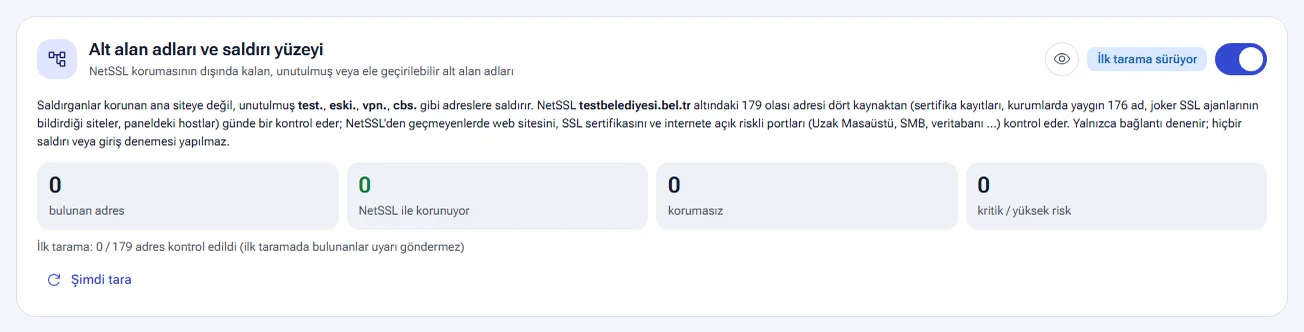
Attackers do not go after the protected main site. They attack forgotten addresses such as test., eski., vpn. or cbs.. The Subdomains and attack surface section finds these addresses.
How are subdomains found?
NetSSL collects possible addresses once a day from four sources:
- Certificate logs: names in certificates issued for your domain.
- Common name scan: names that organizations often use (www, mail, vpn, ebys, cbs, test, eski ...).
- Site reported by the agent: sites that wildcard SSL agents find on servers.
- Host in the panel: hosts you added to NetSSL.
If your domain has a wildcard DNS record (*.alan.adi), guessed names count only if they point somewhere else.
What is checked?
For each address that does not go through NetSSL, the website, the SSL certificate and risky ports open to the internet are checked. Only a connection is attempted. No attack or login attempt is made.
- SSL certificate: whether the certificate has expired, is self-signed, belongs to another name or is missing.
- Risky ports: Remote Desktop (RDP), Windows file sharing (SMB), Telnet, MSSQL, MySQL / MariaDB, PostgreSQL, Oracle, MongoDB, Redis, Elasticsearch, Memcached, the container management API (2375) and VNC are high risk. FTP and SSH count as medium risk.
| Type | Meaning | Risk |
|---|---|---|
| Can be taken over | The CNAME record points to a service that was shut down. If an attacker opens the same name on that service, they can publish their own page on your address. Delete the record from DNS. | Critical |
| Not pointing to NetSSL | It exists as a host in the panel, but its DNS record does not point to NetSSL. The site is online without protection. | High |
| Unprotected | It points directly to your organization's server. Attack protection and monitoring do not work on this address. | High if a high-risk port is open, Medium if there is a website or an open port |
| Internal network address | Public DNS contains an internal network address (10.x, 172.16-31.x, 192.168.x). This reveals your internal network layout. | Info |
| On an external service | It is online behind another service (CDN, cloud). | Info |
| Protected by NetSSL | No problem. | No problem |
What can you do?
- Add selected to NetSSL opens the bulk host add page for the unprotected addresses you selected. The page comes pre-filled with the target servers. After you check and add them, you point the DNS record to NetSSL. Bulk adding is covered in the What is NetSSL guide.
- Fix DNS opens the page of the host that does not point to NetSSL.
- Reviewed marks the new address as reviewed.
- Intentionally open marks that you left the address open on purpose. No further warnings arrive for this address. You can undo this with Monitor again.
- Scan now starts the scan right away.
Addresses found in the first scan do not send warnings. If a new unprotected or risky address appears later, you get an email. For an address that can be taken over, the email subject starts with "URGENT". Other addresses are listed under the Other addresses heading.
Lookalike domains (fake site)
Attackers register domains that look like yours to imitate your organization. They set up a fake site and send emails in your organization's name. The Lookalike domains section catches these registrations early.
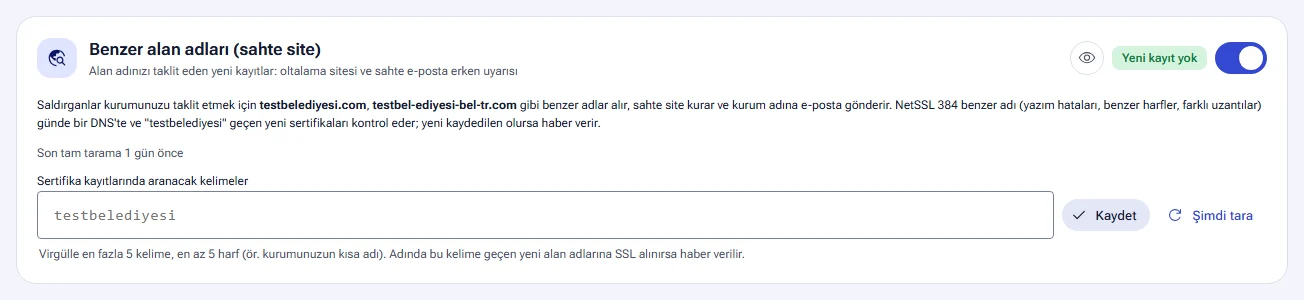
- NetSSL generates names that look like your domain. They include typos, similar-looking letters, different extensions and additions such as
-bel-tr.com. - These names are checked once a day to see whether they are registered in DNS.
- NetSSL also searches certificate logs for new domains that contain your keyword.
- The first scan counts the names registered at that moment as Previously registered and sends no warning.
- If a lookalike name is registered or gets a certificate later, you get an email.
Type your organization's short name in the Keywords to search in certificate logs field and click Save. You can enter up to 5 words separated by commas. Each word must have at least 5 letters.
A newly found name appears as New: needs review. The row shows where the name was seen, its IP address, whether it can receive email and its certificate authority.
| Button | When? |
|---|---|
| Ours | If the domain belongs to your organization |
| Harmless | If the domain belongs to someone else but is not a threat |
| Fake site: start takedown | If the domain imitates you. The fake site takedown process starts with this address. |
| Report to USOM | This button appears if you have no host linked to the domain. |
The fake site takedown process is covered in the Official site badge and fake sites guide. The names you reviewed stay in the Other lookalike names list. Their status shows as Previously registered, Ours, Harmless or No longer registered. The Review button moves a name back to the list of names to review.
When are you notified?
| Section | You are notified when | Webhook event |
|---|---|---|
| Registration expiry | 60, 30 and 7 days before expiry, on expiry, and when the domain is renewed | domain.expiring, domain.renewed |
| DNS records | NS, MX, A or AAAA changes | dns.changed |
| DNS records | A site no longer points to NetSSL | dns.off |
| Email security | SPF, DKIM or DMARC is deleted or weakened | mail.weakened |
| DMARC reports | Spoofed sending or a misconfigured sender is seen | dmarc.spoof, dmarc.fix |
| Blacklists | The domain gets on a list (only a webhook when it comes off a list) | domain.blacklisted, domain.delisted |
| SSL and CAA | An unrecognized certificate is issued | cert.issued |
| SSL and CAA | The CAA record blocks NetSSL | caa.blocked |
| Subdomains | A new unprotected or risky address appears | subdomain.found |
| Lookalike names | A new lookalike name is registered | lookalike.found |
Emails go to the users in your organization who receive notifications. Webhook, Telegram and SMS settings are in the Notifications and integrations guide.
Frequently asked questions
I got a "DNS records changed" warning. What should I do?
First find out whether your organization made the change. If you made it, click the We made this change button. If you did not, change the password at your domain registrar right away and restore the old records.
Can I set the DMARC policy to reject right away?
This is not recommended. First collect reports with p=none. The panel reviews at least 7 days of reports. When it sees that your own emails are authenticated, it says You are ready for the next step and writes the record for the next policy.
Someone got a certificate for my domain that I do not recognize. Is this dangerous?
Not always. Your email provider or one of your suppliers may have obtained a certificate. Ask the teams involved. If nobody recognizes it, change your DNS management password. Then use a CAA record to limit which authorities can issue certificates.
Does the subdomain scan attack my servers?
No. NetSSL only attempts a connection. It checks the website, the certificate and whether the port is open. It makes no attack or login attempts.
Why does Google Safe Browsing show as "Off"?
This list is checked once the NetSSL administrator enters a Google API key. If no key has been entered, the list shows as Off. The other lists keep working.