
Bring Back Accidentally Deleted Emails Within 90 Days
Your emails are not lost even if you empty the trash. A copy of every email permanently deleted from any of your accounts is kept here for 90 days — you can preview it, download it or restore it to your inbox with one click.
What Does This Tool Do?
Normally, if you also delete an email from the trash, that email is lost permanently. This is exactly where the Deleted Emails tool comes in: it captures a copy of every email deleted from the trash and keeps it safely for 90 days.
This means you can:
- Recover an accidentally deleted email — even after emptying the trash.
- See all accounts in one panel — deleted emails from every email account on your domain are collected here.
- Check before restoring — you preview the email and make sure it is the right one.
- Archive emails — you can download an email as an
.emlfile and keep it.
With standard webmail services, an email cannot be brought back once the trash has been emptied. This tool makes even permanent deletion reversible. It protects your organization against data loss caused by accidentally deleting an important message.
Where Do I Find the Tool?
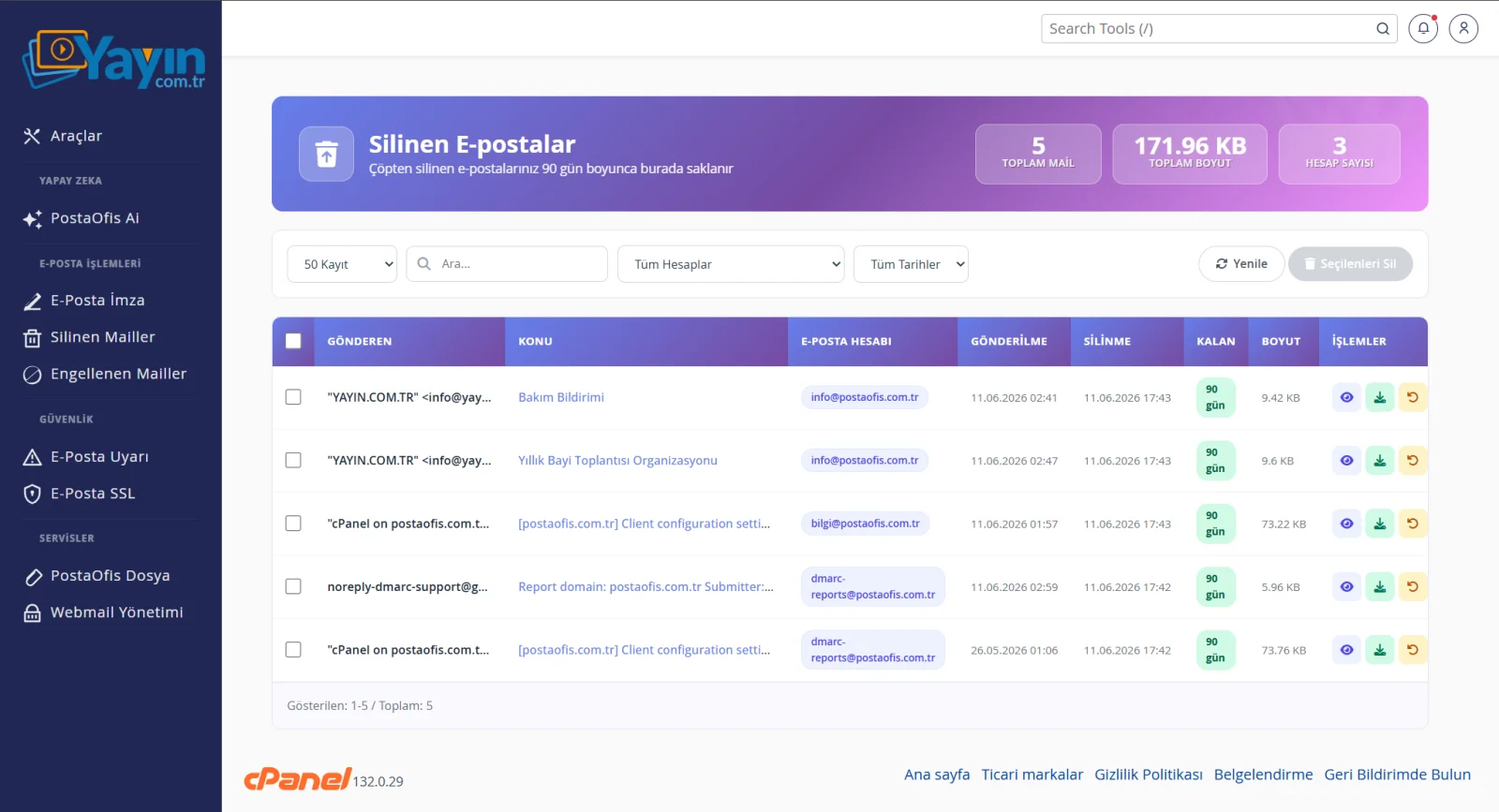
In the panel, go to EMAIL OPERATIONS → Deleted Emails in the left menu. At the top are three information cards summarizing the overall status of deleted emails:
| Card | Description |
|---|---|
| Total Emails | Number of deleted emails being kept |
| Total Size | Total space these emails take up |
| Account Count | Number of email accounts that have deleted emails |
The 90-Day Rule and Time Remaining
Each deleted email is kept for 90 days from the date it was deleted. At the end of this period, it is cleaned up automatically. The Remaining badge on each row shows how many days are left to restore that email, and its color code shows how urgent it is:
| Color | Time Remaining | Meaning |
|---|---|---|
| 🟢 Green | 8 days or more | You have plenty of time |
| 🟡 Yellow | 4–7 days | Time is running out, make a decision |
| 🔴 Red | 3 days or fewer | Final days — restore before it is permanently deleted |
If you want to recover an email with 3 days or fewer remaining (red), do not wait. Once the time runs out, the email is permanently deleted and cannot be recovered, even with this tool.
The List Screen
The table shows all stored deleted emails in columns:
| Column | Description |
|---|---|
| Sender | The person/address who sent the email |
| Subject | The subject line of the email |
| Email Account | The account the email belongs to (e.g. info@…) |
| Sent | The date the email was originally sent |
| Deleted | The date the email was deleted from the trash |
| Remaining | Days left before permanent deletion (color-coded badge) |
| Size | The file size of the email |
| Actions | View, Download and Restore buttons |
Filtering and Search
When many emails pile up, use the filters to quickly find what you are looking for:
| Filter | Function |
|---|---|
| Records per page | Selects how many emails are listed per page (e.g. 50 Records) |
| Search | Runs a text search by sender or subject |
| All Accounts | Filters emails from a specific email account |
| All Dates | Filters by date range, such as Today / Last 7 Days / Last 30 Days |
| 🔄 Refresh | Reloads the list with the latest data |
Actions: View, Download, Restore
You can take different actions with the three buttons to the right of each email:
| Button | Function |
|---|---|
| 👁️ View | Previews the email's content without opening it — sender, recipient, subject, date, size, attachments and message body |
| ⬇️ Download | Downloads the email to your computer as an .eml file (for archiving) |
| ↩️ Restore | Moves the email back to the inbox of the account it belongs to |
When you click View, the Email Details window opens and shows all the email's information; you can also Download or Restore it directly from there.
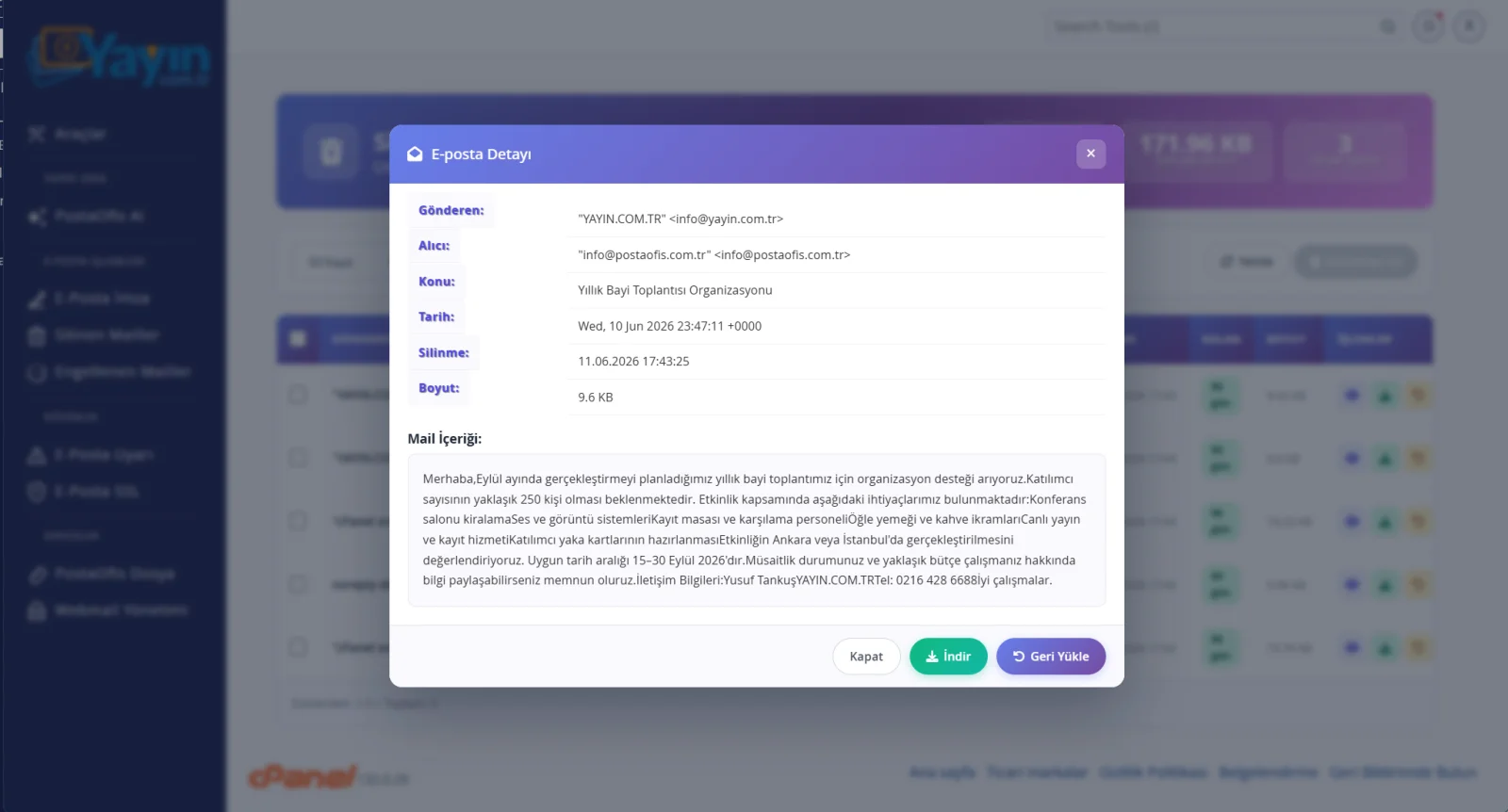
Restore takes the email out of storage and puts it back in the inbox of the account it belongs to. After that, the email appears in your inbox again when you open webmail. We recommend using View first to make sure you have selected the right email.
Bulk Deletion
If you want to permanently delete a stored email before the 90 days are up, tick the rows and use the 🗑️ Delete Selected button in the top-right corner.
Emails removed with Delete Selected are also deleted completely from this tool and can never be recovered. Use it only for emails you are sure you no longer need.
Step by Step: Restoring a Deleted Email
Open the Deleted Emails Page
Go to the Deleted Emails section in the panel. Deleted emails from all accounts are listed.
Find the Email
Use the search box or the account/date filters to find the email you want to restore.
Check Its Content
Use the 👁️ View button to make sure it is the right email. Review the sender, subject and content.
Restore It
Click the ↩️ Restore button. The email is moved to the inbox of the account it belongs to.
Check in Webmail
Open webmail for the relevant account; the restored email will be back in the inbox.
Frequently Asked Questions
| Question | Answer |
|---|---|
| I emptied the trash. Can my email still be recovered? | Yes. Emails deleted from the trash are kept in this tool for 90 days and can be restored. |
| How long are emails kept? | 90 days from the date they were deleted. When that period ends, they are permanently deleted. |
| Do I only see emails from my own account? | No. Deleted emails from all email accounts on your domain are listed in one panel. You can filter by account. |
| Where does a restored email go? | It is moved back to the inbox of the account it belongs to and appears again in webmail. |
| I want to keep the email but not put it in the inbox. What should I do? | Use Download to save the email to your computer as an .eml file; the inbox is left untouched. |
| What does the color of the Remaining badge show? | The days left to restore the email: green (8+ days), yellow (4–7 days), red (≤3 days). |
| Will an email I removed with Delete Selected come back? | No. This action is permanent and cannot be undone. |