
Send Large Files Securely
Send files of up to 2 GB without running into email attachment size limits. Your large attachments automatically become secure download links, and the files stay on your organization's server. If the link is opened on another device, the verification code goes only to the recipient's email — GDPR-compliant, corporate-grade privacy.
What Is PostaOfis File?
Email servers limit the size of attachments. When you want to send a large video, a high-resolution design file or a bulky archive, the email is either rejected or clogs up the recipient's mailbox.
PostaOfis File solves this problem at the root: attachments above the size you set are automatically converted into secure download links as the email is sent. The recipient gets to the file with one click from a neat "download card" placed inside the email.
PostaOfis File isn't tied to webmail; it works at the server level. Whether you send from webmail, Outlook, the mail app on your phone or any other SMTP client, large attachments are always converted into download links automatically. So you don't need a particular program to use the file service — the system steps in wherever your email is sent from.
Sending large files usually means turning to file-sharing services hosted abroad, which means uploading the file to third-party servers. PostaOfis File runs on your own server: the file never leaves your organization, and access is controlled with a 6-digit code tied to the recipient's mailbox. You get the convenience of large file transfer and GDPR-level privacy at the same time.
Key Features
Automatic Conversion
Attachments above the threshold size are turned into download links without you doing a thing. You can send files of up to 2 GB.
Device-Bound Access
The first device to open the link is bound to the file. Even if the link is forwarded to someone else, a different device has to verify.
OTP Verification by Email
If a different device/IP opens the link, a 6-digit code is sent to the recipient's email. Only the real recipient can download.
GDPR-Compliant
Files stay on your organization's server and never leave it. Ideal for municipal, public-sector and legal documents.
Customizable Card
Match the download card to your organization with 6 themes, your brand logo, your organization name and placement options.
Trackable & Manageable
See how many times each file has been downloaded, get download notifications and delete files whenever you like.
Works from Any Client
Webmail, Outlook, phone or SMTP client — wherever you send from, it kicks in at the server level.
GDPR & File Privacy
In PostaOfis File, privacy comes first. It is designed for organizations that share sensitive documents.
Hosted on your own server: Files are uploaded directly to your organization's server, not to clouds abroad.
Access is tied to the recipient: Even if the link falls into the wrong hands, any attempt to open it from a different device sends the verification code only to the recipient's mailbox.
The sender is masked: The sender's address is masked on the download page (e.g. i**o@...).
Tracked: Every download session is logged — you know who downloaded the file and when.
You're in control: You decide how long a file lives, and you can delete it at any time.
❌ Ordinary File Services
The file is uploaded to a third-party cloud abroad. Anyone who gets hold of the link can download it. The data leaves your organization's control.
✅ PostaOfis File
The file stays on your organization's server. Access is bound to the device and verified through the recipient's mailbox. The data stays under your organization's control.
How Does It Work?
The whole process is automatic for you. It works in three steps:
You Write an Email as Usual
Whichever program you use (webmail, Outlook, phone, SMTP client), you compose your email and attach your large files just as you always do. (Up to 2 GB)
Large Attachments Automatically Become Links
When you press Send, attachments above the threshold size are converted into secure download links, and a neat "download card" is added to the email.
The Recipient Downloads Securely
The recipient downloads the file from the card in the email. If the link is opened on another device, the system asks for a verification code.
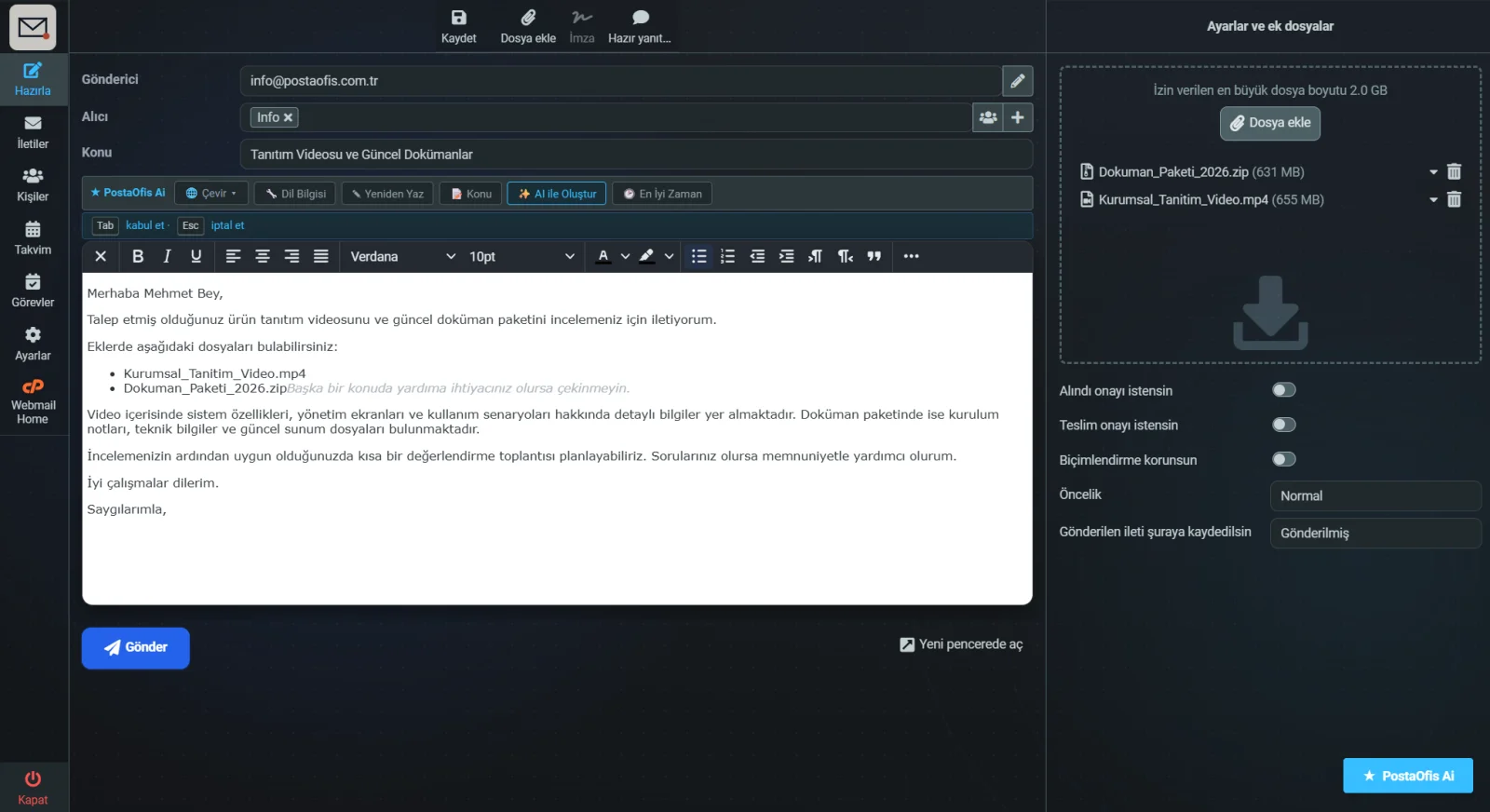
When Sending: Adding Large Attachments in Webmail
You attach files on the compose screen. The system accepts files of up to 2 GB; anything above the threshold size is converted into a link in the background.
On the Recipient's Side: The Download Card
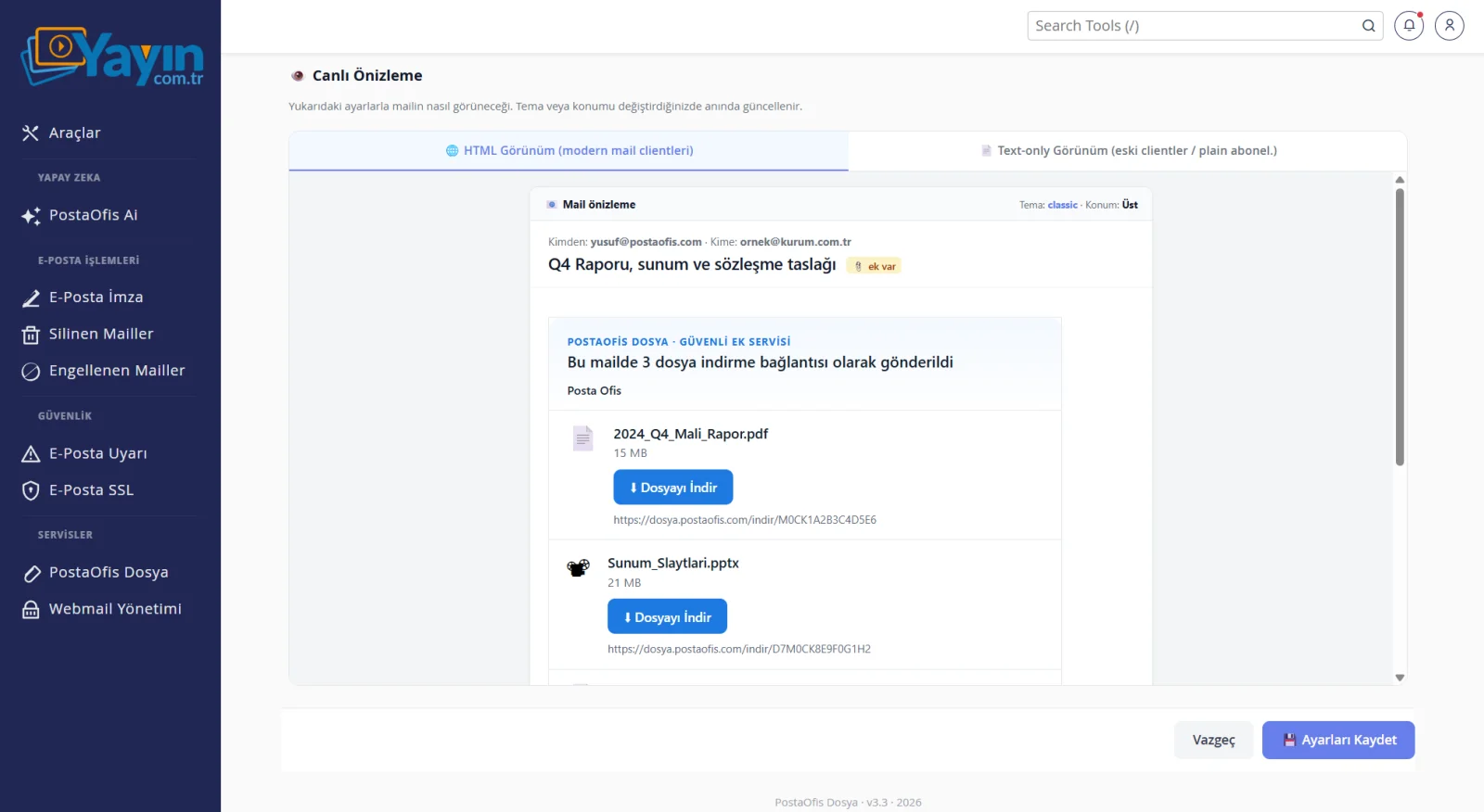
Instead of the files, a tidy download card appears in the recipient's inbox. The card lists each file's name and size, with a "Download File" button.
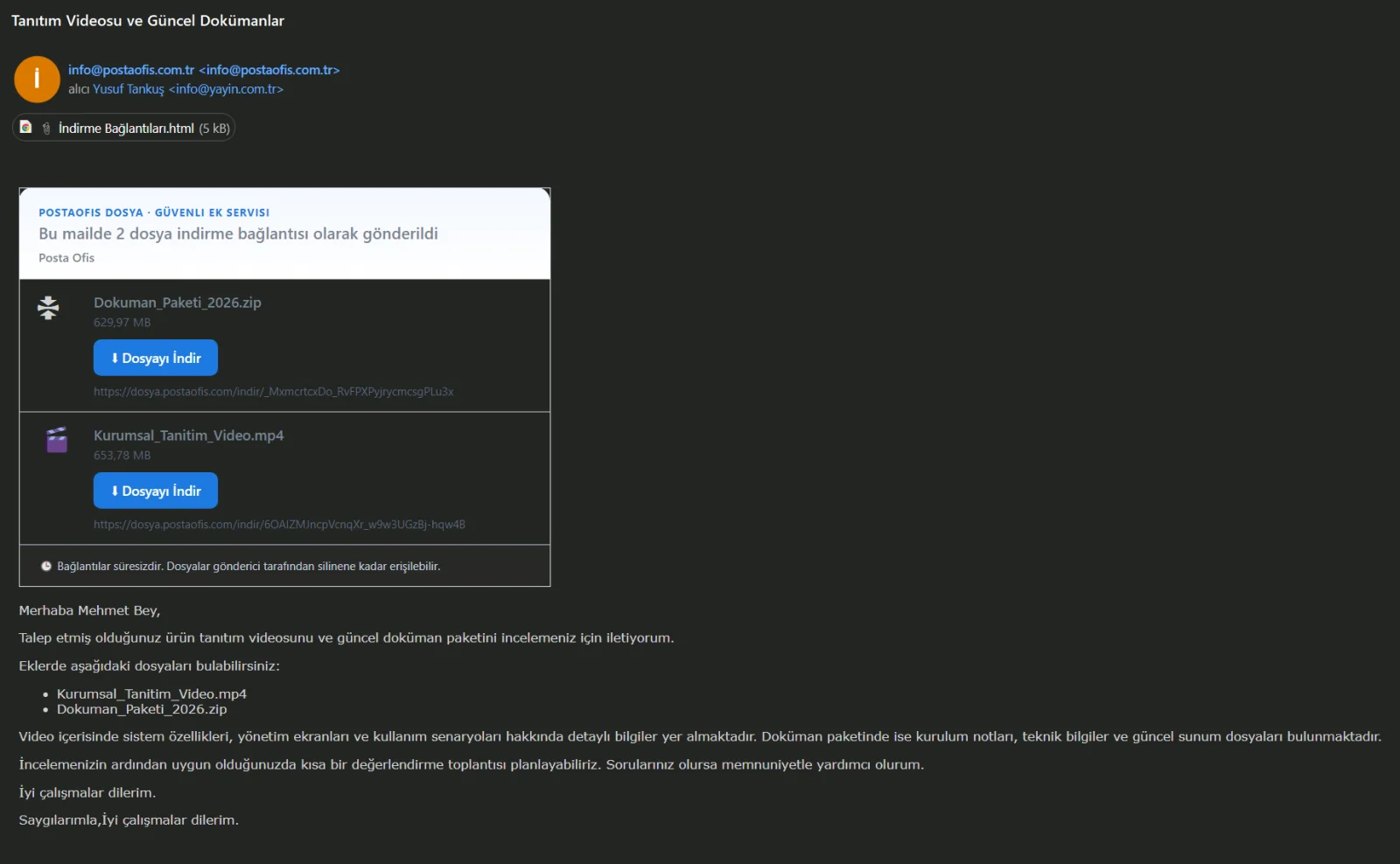
A small İndirme Bağlantıları.html file is attached to the email. This makes the familiar paperclip (📎) icon appear in the Outlook/Gmail message list, so the recipient can tell right away that the email contains files. Opening the attachment shows a clean HTML list of all the files.
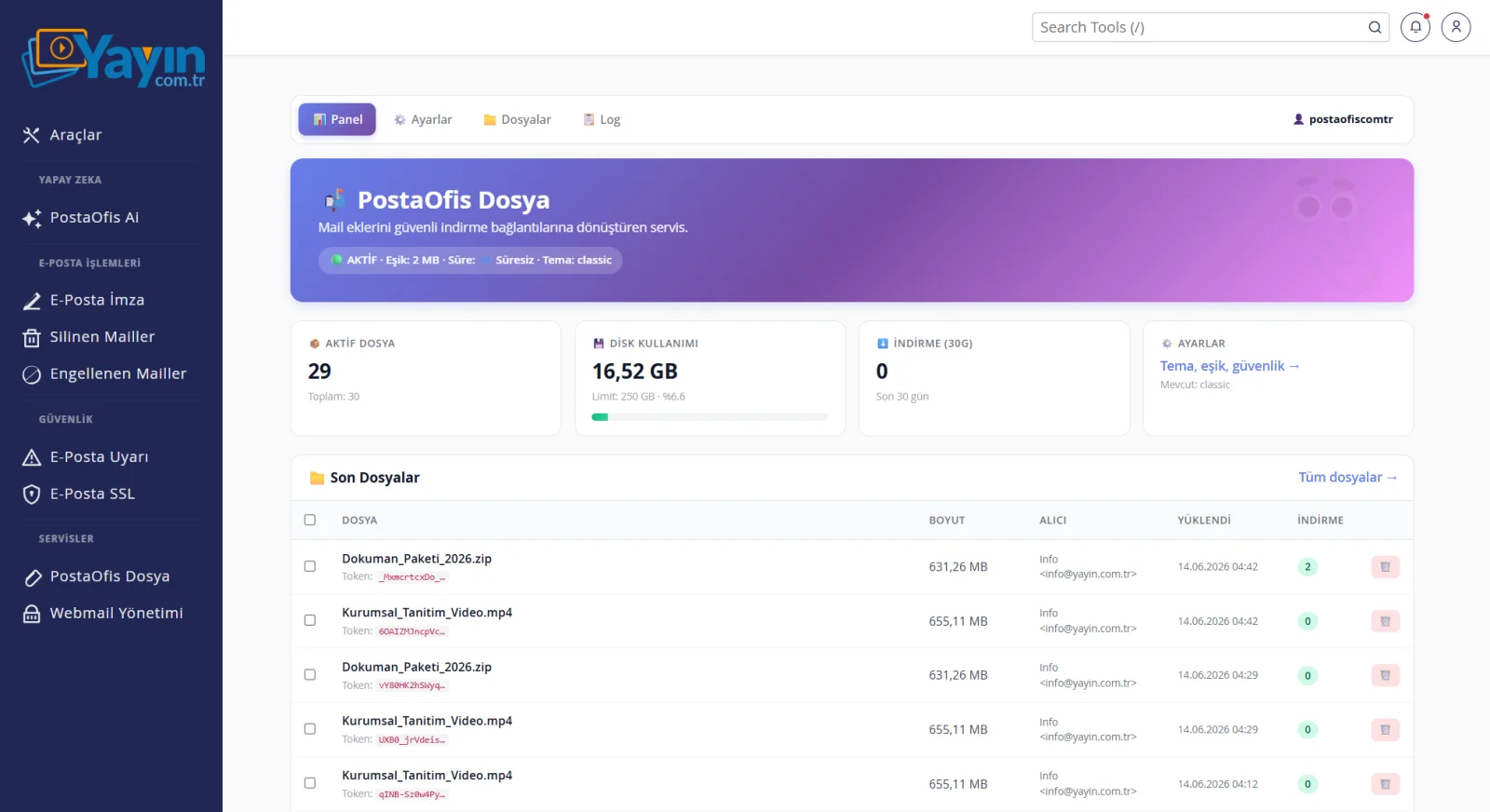
Panel — Overview
In the panel, go to SERVICES → PostaOfis File in the left menu. The Panel tab summarizes the overall status of the service:
| Card | Description |
|---|---|
| Active Files | Number of files currently available |
| Disk Usage | How much of the total space is used (e.g. 16.52 GB / 250 GB) |
| Downloads (30D) | Total number of downloads in the last 30 days |
| Settings | Quick access to theme, threshold and security settings |
At the bottom, the Recent Files list shows the latest uploads with their token, size, recipient, upload date and download count.
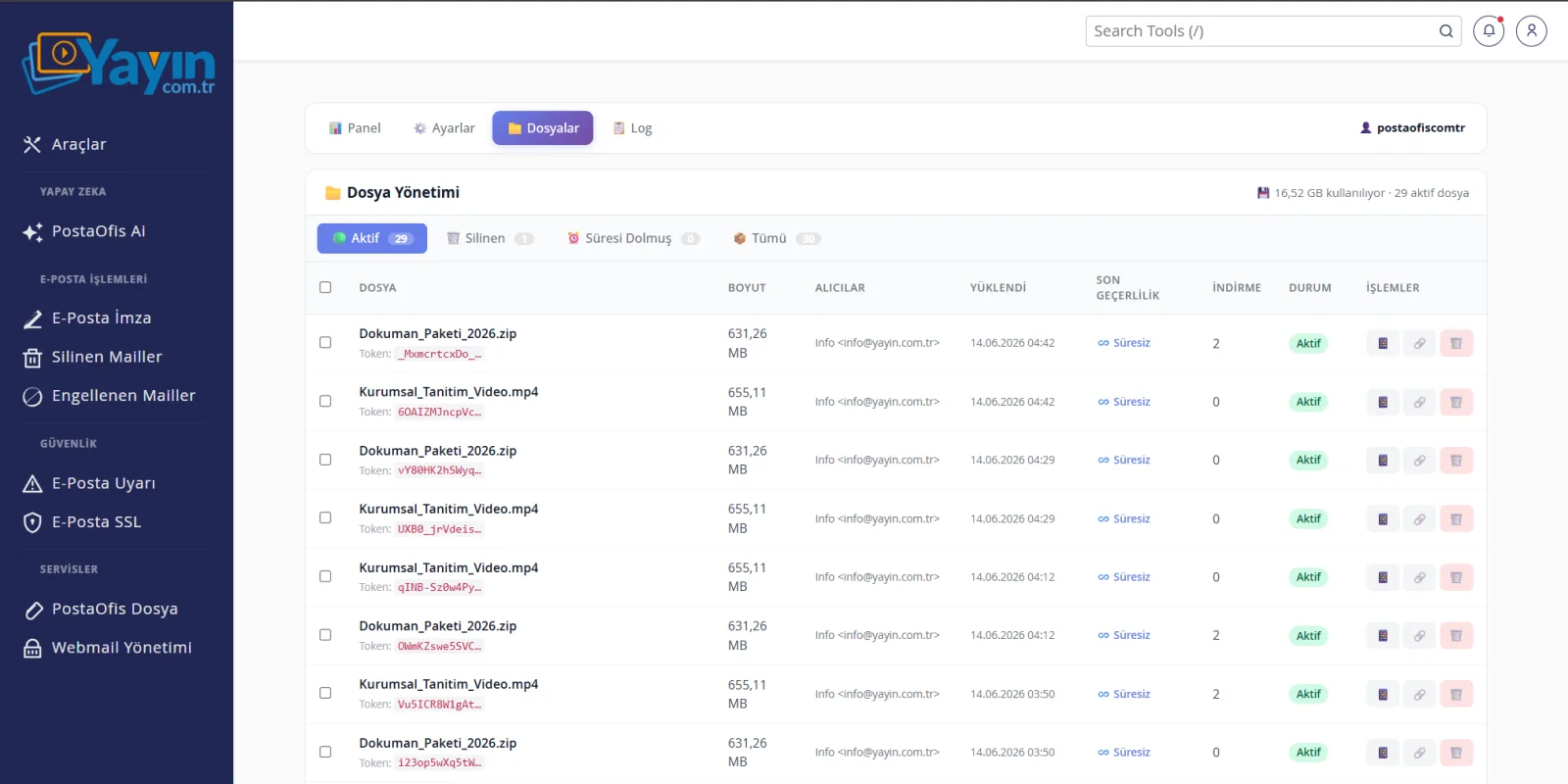
File Management
The Files tab lets you manage all the files you have sent. Use the tabs at the top to filter files by status:
| Tab | Contents |
|---|---|
| 🟢 Active | Files that are currently available |
| 🗑️ Deleted | Files you have deleted |
| ⏰ Expired | Files whose validity period has ended |
| 📦 All | All files |
Each row shows the file name and token, size, recipients, upload date, expiry date, download count and status. Use the action buttons on the right to copy the link or delete the file.
Settings
The Settings tab is split into three sections: Basic Settings, Email Appearance and Security.
⚙️ Basic Settings
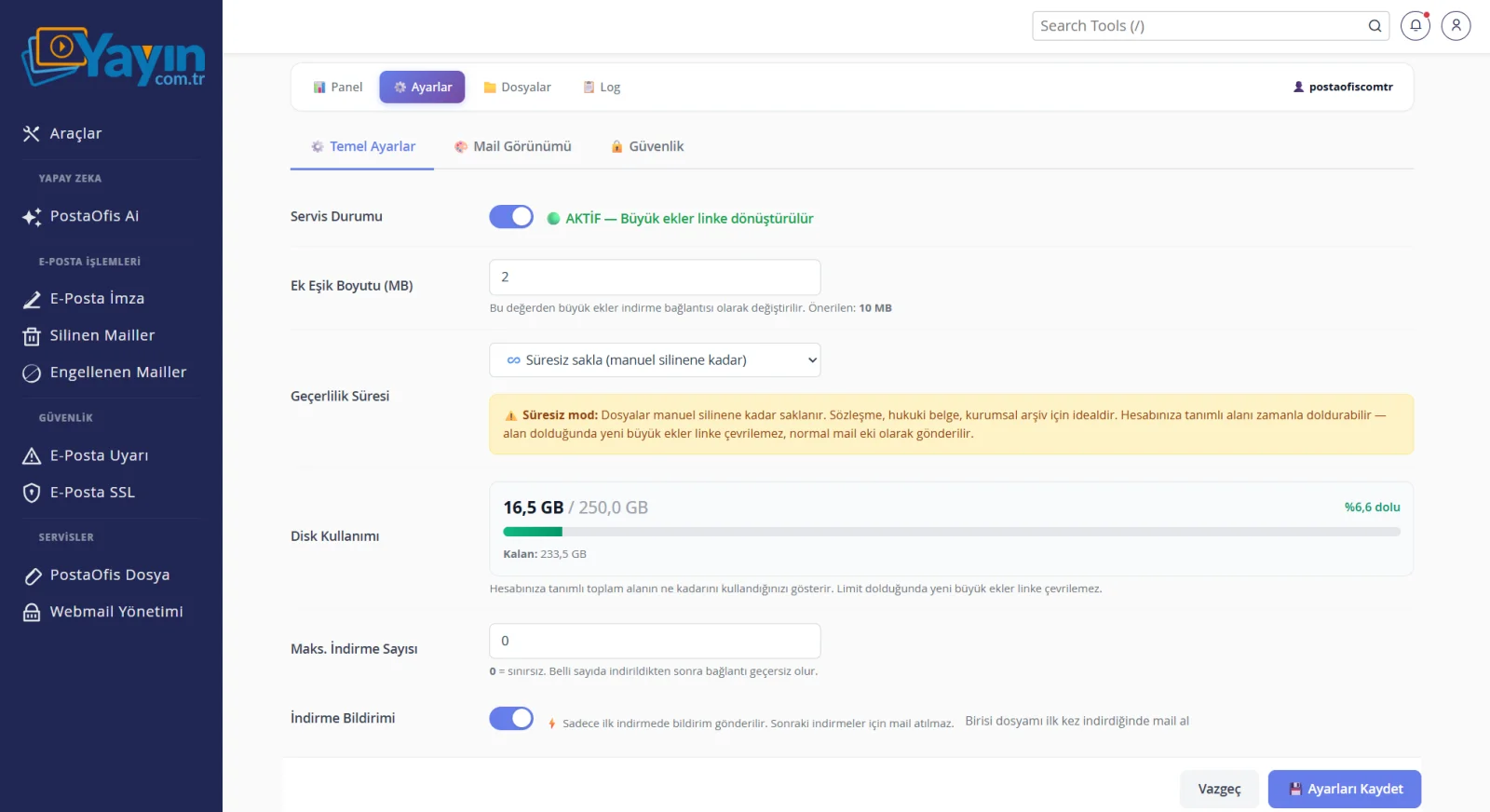
| Setting | Description |
|---|---|
| Service Status | Turns the service on and off. When it is active, large attachments are converted into links. |
| Attachment Threshold Size (MB) | Attachments larger than this value are converted into download links. Recommended: 10 MB. |
| Validity Period | How long files are kept. If you choose "Indefinite", files remain until they are deleted manually. |
| Disk Usage | Shows how much of the space allocated to your account is used. |
| Max. Downloads | 0 = unlimited. The link becomes invalid after a set number of downloads. |
| Download Notification | You receive an email the first time your file is downloaded. |
The "Keep indefinitely" mode is ideal for contracts, legal documents and corporate archives, because the file stays available until you delete it. However, it can gradually fill up the space allocated to your account. Once the space is full, new large attachments can't be converted into links, and the system tries to send them as regular email attachments instead. It's worth checking your disk usage from time to time.
🎨 Email Appearance
This section sets the visual identity of the download card. The live preview on the right shows every change you make instantly.
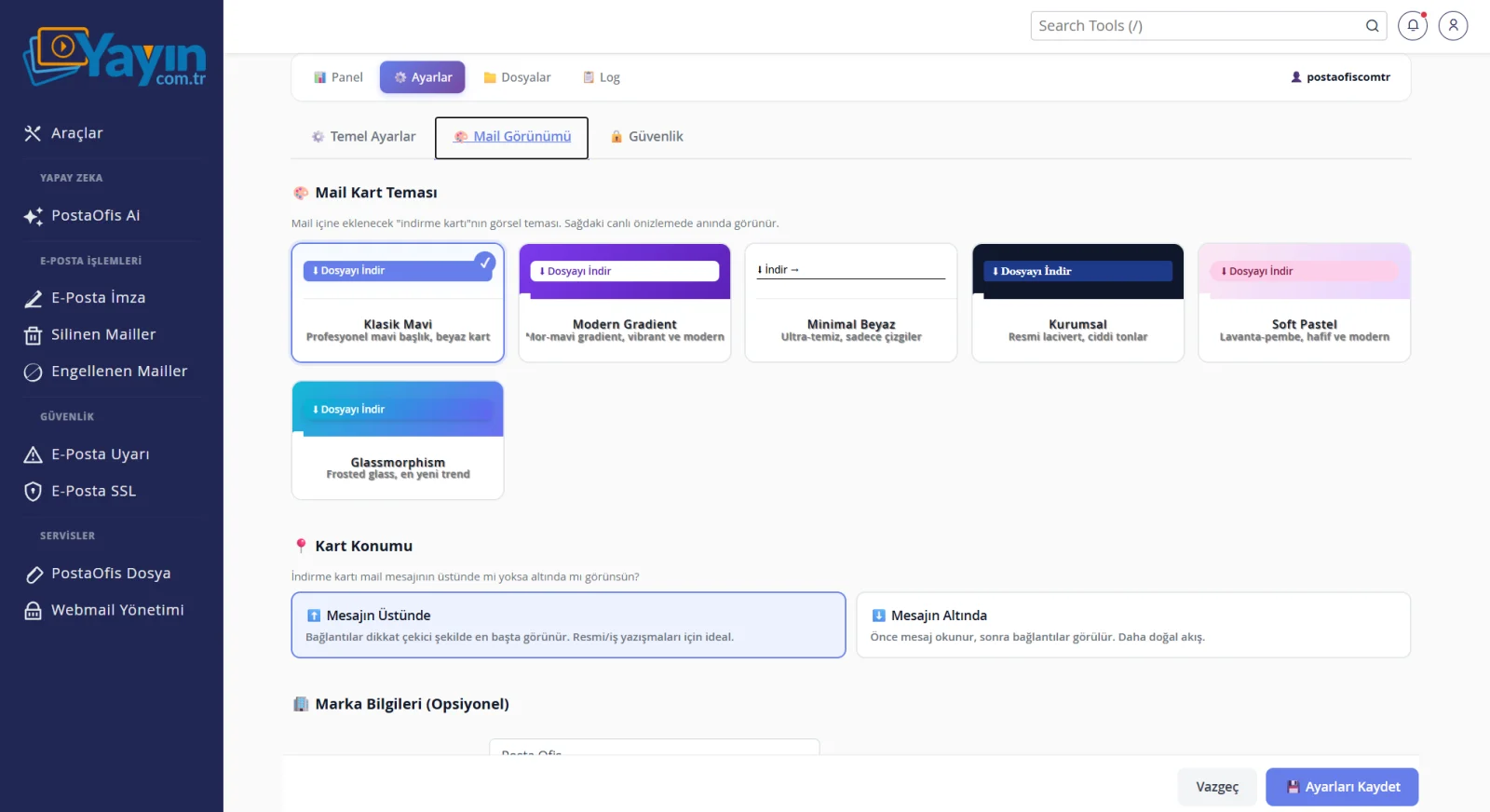
Email Card Theme — Choose from six ready-made themes:
| Theme | Style |
|---|---|
| Classic Blue | Professional blue header, white card |
| Modern Gradient | Purple-blue gradient, vibrant and modern |
| Minimal White | Ultra-clean, lines only |
| Corporate | Formal navy, serious tones |
| Soft Pastel | Lavender-pink, light and modern |
| Glassmorphism | Frosted-glass effect, a recent design trend |
Card Position — Where the download card sits relative to the message:
- Above the Message: The links come first and stand out. Ideal for formal and business correspondence.
- Below the Message: The message is read first, then the links are seen. A more natural flow.
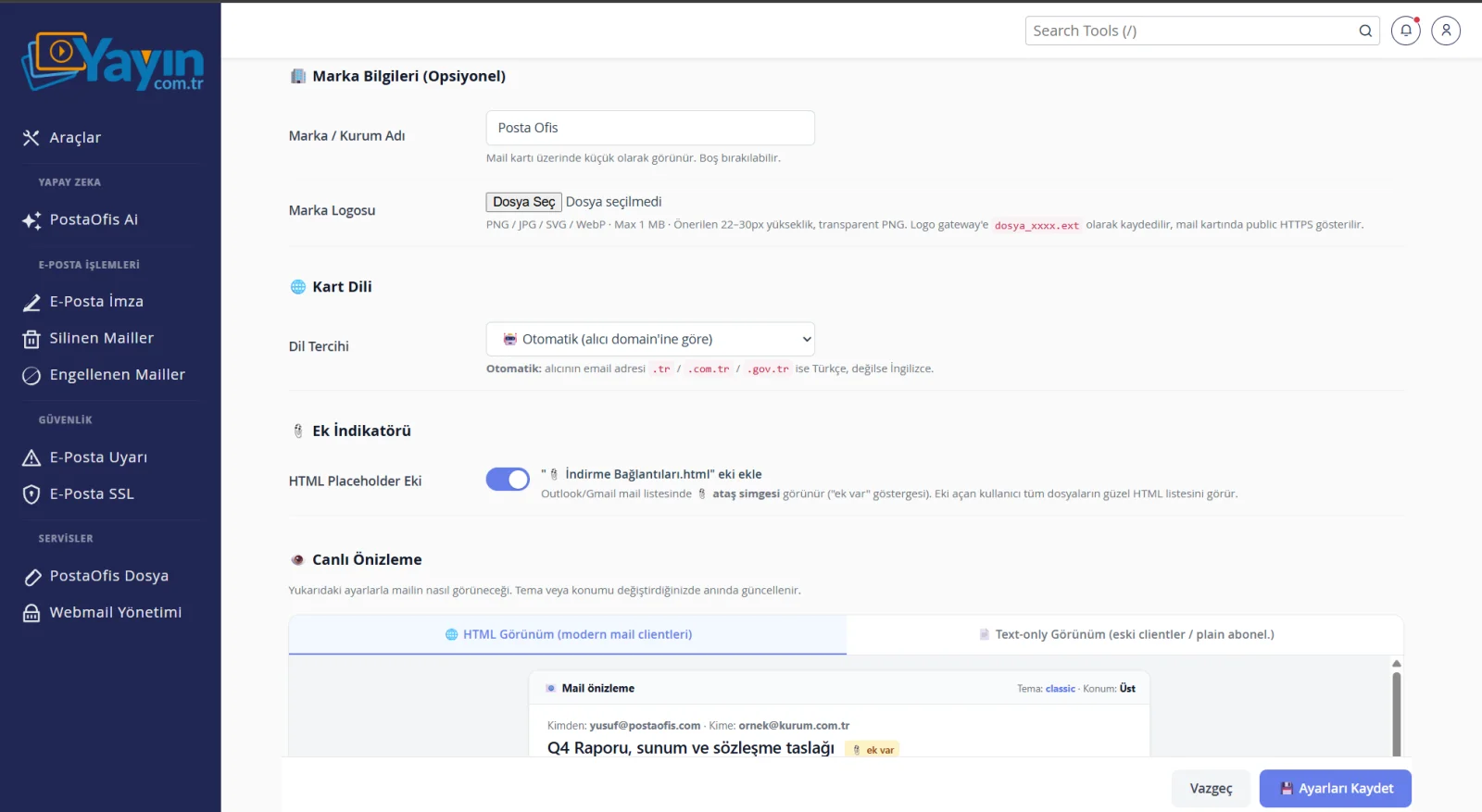
Brand Details (Optional) — You can show your organization's name and logo on the card. For the logo, you can upload PNG/JPG/SVG/WebP (max. 1 MB; recommended height 22–30px; transparent PNG).
Card Language — If set to "Automatic", the card is shown in Turkish when the recipient's email address ends in .tr / .com.tr / .gov.tr, and in English otherwise.
Attachment Indicator (HTML Placeholder Attachment) — When enabled, İndirme Bağlantıları.html is attached to the email, so mail clients show the paperclip icon (the 📎 "has attachment" indicator).
Live Preview — Lets you see both the HTML view (modern clients) and the plain-text view (older clients) of the email before you save your settings.
🔒 Security
The settings in this section keep the file protected even if its link falls into the wrong hands.
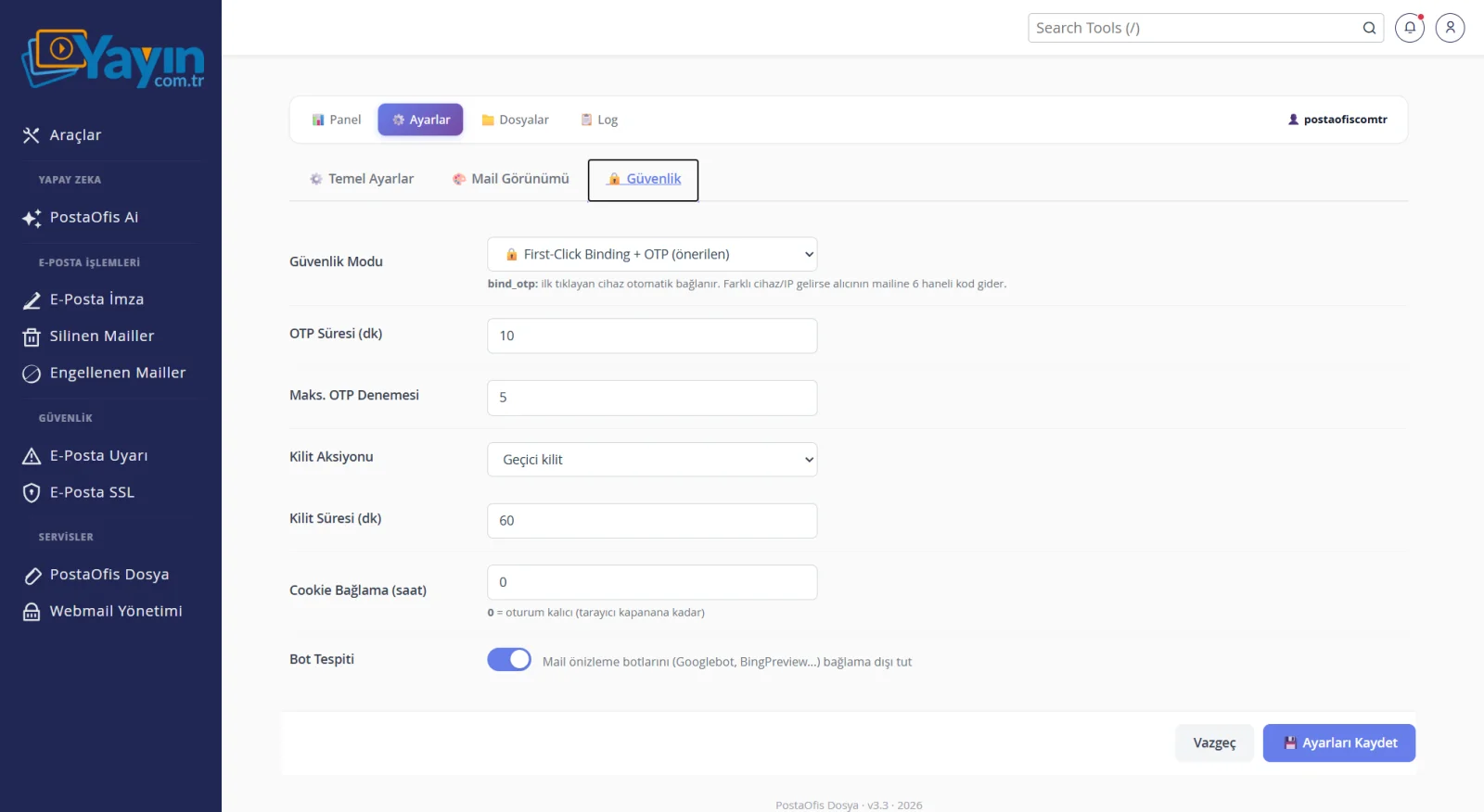
Security Mode: First-Click Binding + OTP (recommended)
This mode works in two layers:
- First-Click Binding: The first device to open the link is "bound" to the file with a secure cookie. That device can download the file without any issues.
- OTP Verification: If the same link is opened from a different device or IP, the system assumes the link may have been forwarded or leaked and sends a 6-digit code to the recipient's email. Only someone with access to that mailbox can continue.
| Setting | Description |
|---|---|
| OTP Validity (min) | How long the code stays valid after it is sent (e.g. 10 min) |
| Max. OTP Attempts | How many wrong attempts are allowed before the lock kicks in (e.g. 5) |
| Lock Action | What happens after too many failed attempts (e.g. temporary lock) |
| Lock Duration (min) | How long the lock lasts (e.g. 60 min) |
| Cookie Binding (hours) | How long the device binding stays valid. 0 = lasts for the session (until the browser is closed) |
| Bot Detection | Excludes email preview bots (Googlebot, BingPreview…) from binding |
Services such as Outlook and Gmail automatically preview (click) incoming links for security reasons. Without bot detection, these preview bots would count as the "first device to click" and needlessly force the real recipient through OTP verification. Bot detection recognizes these automated visits and leaves them out of binding, so the real recipient is always the "first to click" and downloads without any hassle.
The Recipient's Secure Download Experience
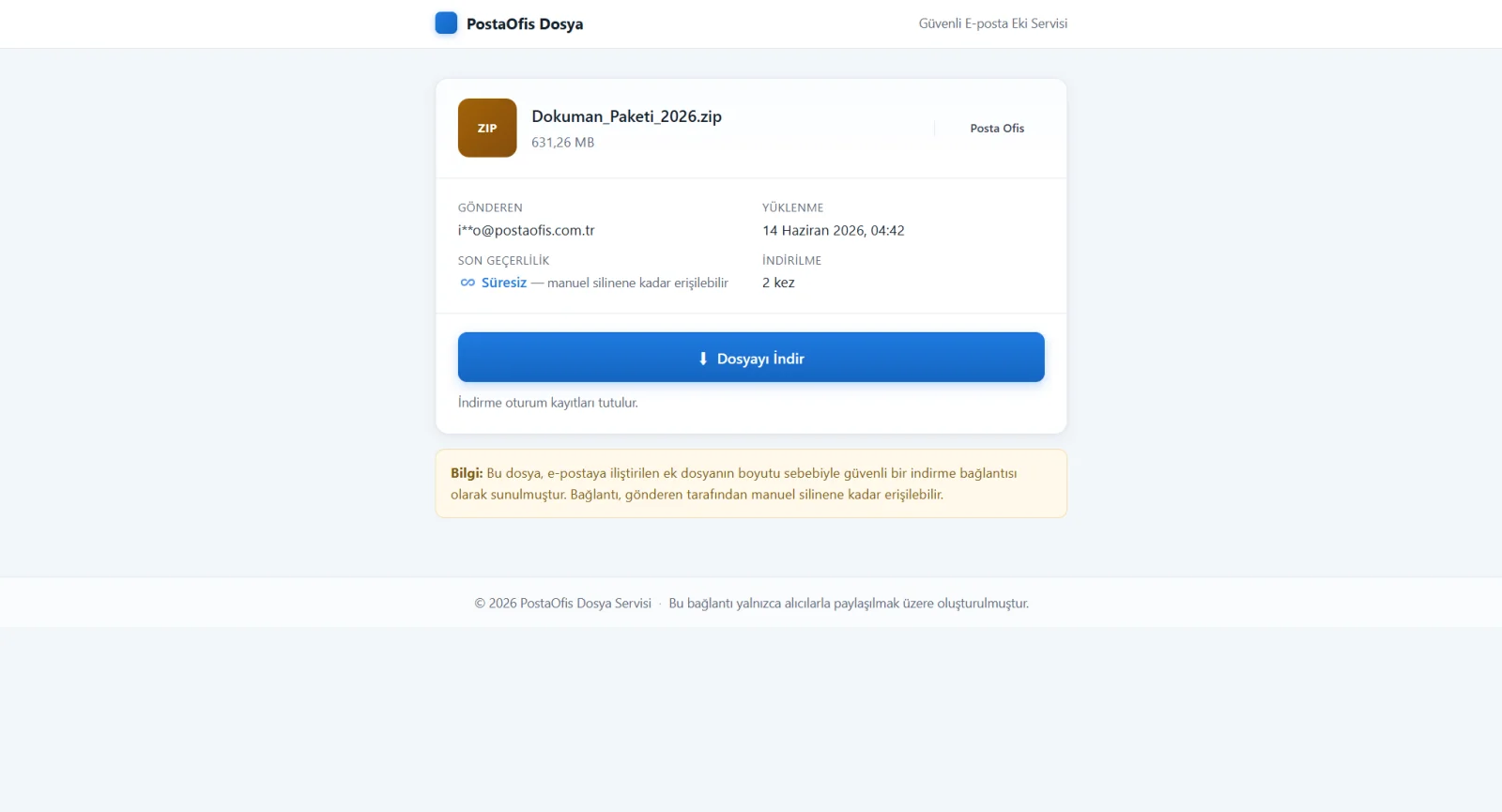
When the recipient clicks the button on the download card, they land on a clean download page showing the file name, size, sender (masked), upload date, validity and download count.
If the link has been opened on another device, a verification screen appears instead of a direct download. The recipient clicks "Send Verification Code", the code arrives at their own email address, and once they enter it, the download continues.
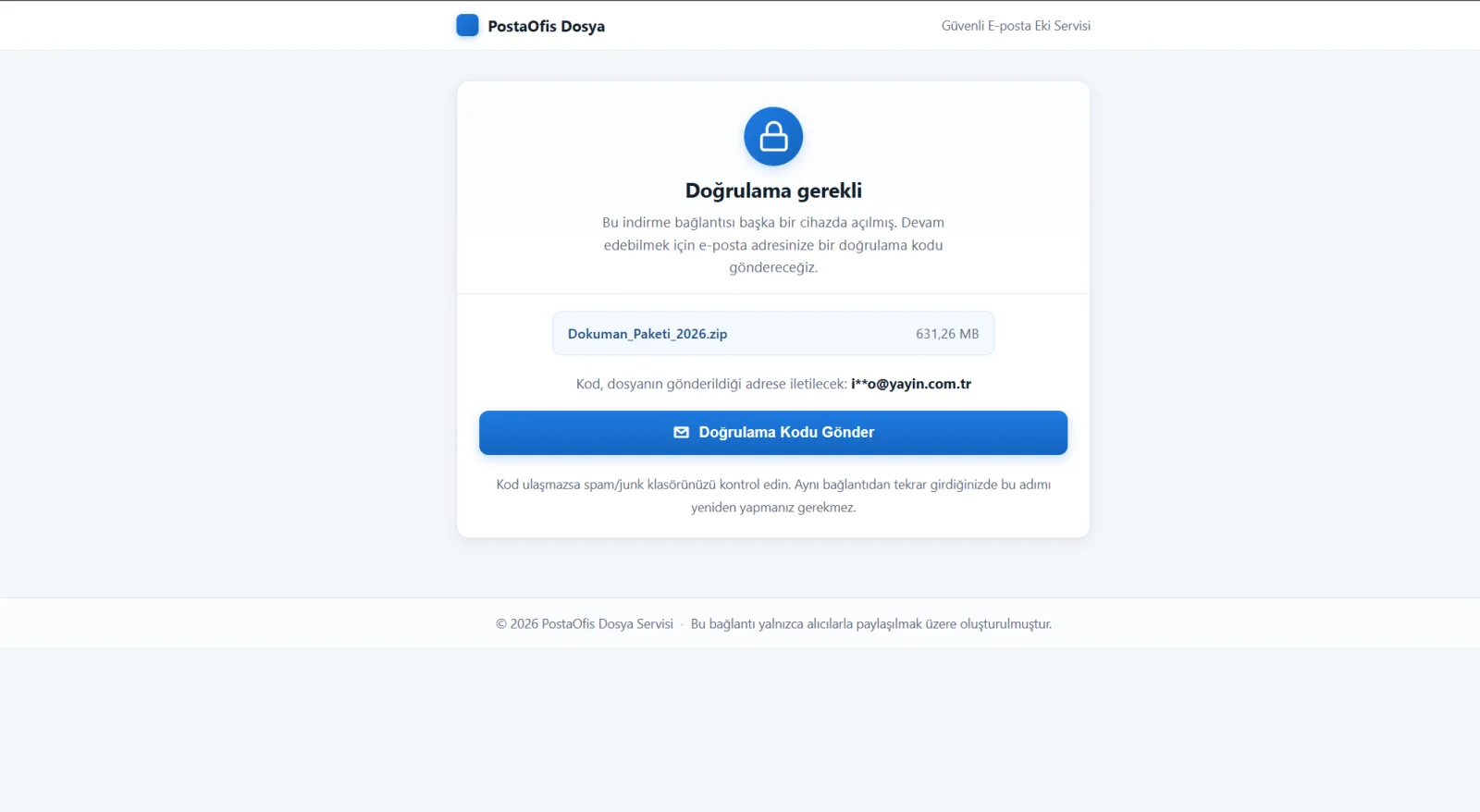
Once the recipient has verified, they don't need to repeat this step when they come back through the same link, because their device is now bound. Verification is only requested when a new or suspicious device comes into play.
Step by Step: Sending a Large File
Make Sure the Service Is Active
Under Settings → Basic Settings, Service Status must be active and a threshold size must be set.
Prepare the Email
Open a new email in webmail, enter the recipient and subject, and write your message.
Add the Files
Add your large files with Attach File (up to 2 GB). Anything above the threshold will be processed automatically.
Send It
Press Send. Large attachments become secure links, and a download card is added to the email.
Keep Track
Under Panel → Files, you can see how many times your file has been downloaded and delete it when needed.
Use Cases
| Scenario | How It Helps |
|---|---|
| Municipal / public-sector documents | Share contracts and official documents in a GDPR-compliant way, without sending them to a cloud abroad. |
| Promotional videos / large media | Deliver videos of hundreds of MB with a download card, without hitting attachment limits. |
| Legal documents | "Indefinite" mode + OTP verification lets you store the document so that only the recipient can access it. |
| Corporate archives | Send large archive packages as links and keep a record of every download. |
| Sensitive files | Downloads are bound to the device; even if the link is forwarded, it won't open without verification. |
Frequently Asked Questions
| Question | Answer |
|---|---|
| Can I only send from webmail? | No. The system works at the server level, so large attachments are automatically converted into links in emails you send from webmail, Outlook, your phone or any SMTP client. |
| What is the largest file I can send? | Up to 2 GB. Attachments above the threshold size are automatically converted into links. |
| Where are my files stored? | On your own server. They are never uploaded to a cloud abroad or to a third party. |
| What happens if the link is forwarded to the wrong person? | When a different device opens it, the system sends a 6-digit verification code to the recipient's email. The file can't be downloaded without the code. |
| Who receives the OTP code? | The recipient address the file was sent to. So only the person with access to that mailbox can download it. |
| How long does a file stay available? | That depends on the validity period in the settings. If you chose "Indefinite", it stays until you delete it. |
| Can I limit the number of downloads? | Yes. With Max. Downloads, you can make the link invalid after a set number of downloads. |
| Will I know when someone downloads it? | If Download Notification is on, you get an email the first time your file is downloaded. |
| Can I change how the download card looks? | Yes. You can fully customize it with 6 themes, card position, your brand logo and your organization name. |
| Will a recipient using an older email program still see it? | Yes. Modern clients show the HTML card, while older clients show the plain-text version. |