
See the Spam Emails Blocked by the Server
This is where a record is kept of spam and fake emails that the server rejected automatically before they ever reached your inbox. Track from a single screen which addresses were blocked, when, and with what spam score; add a sender that was blocked by mistake to the allowlist.
What Does This Tool Do?
Blocked Emails gives you a record of the emails rejected by the server's spam filter. These emails never land in your inbox; because they were identified as fake or harmful, they are stopped at the server level.
This tool gives you:
- Transparency — you can see what your system is protecting you from.
- Monitoring — you can track who is trying to send spam, and how often.
- Fixing false blocks — if a trusted sender was blocked by mistake, you solve the problem by adding their address to the allowlist.
Rejected spam emails are those with a spam score of 20 or higher, usually sent from fake addresses. Messages above this score show strong signs of spam, so they are rejected without being accepted into the inbox.
Deleted Emails are emails that reached you but were deleted later, and they can be restored. Blocked Emails, on the other hand, are spam messages that never reached you because the server rejected them — this is a log/monitoring record, and these emails cannot be "restored" to the inbox. What you can do is add a sender that was blocked by mistake to the allowlist.
Where Do I Find the Tool?
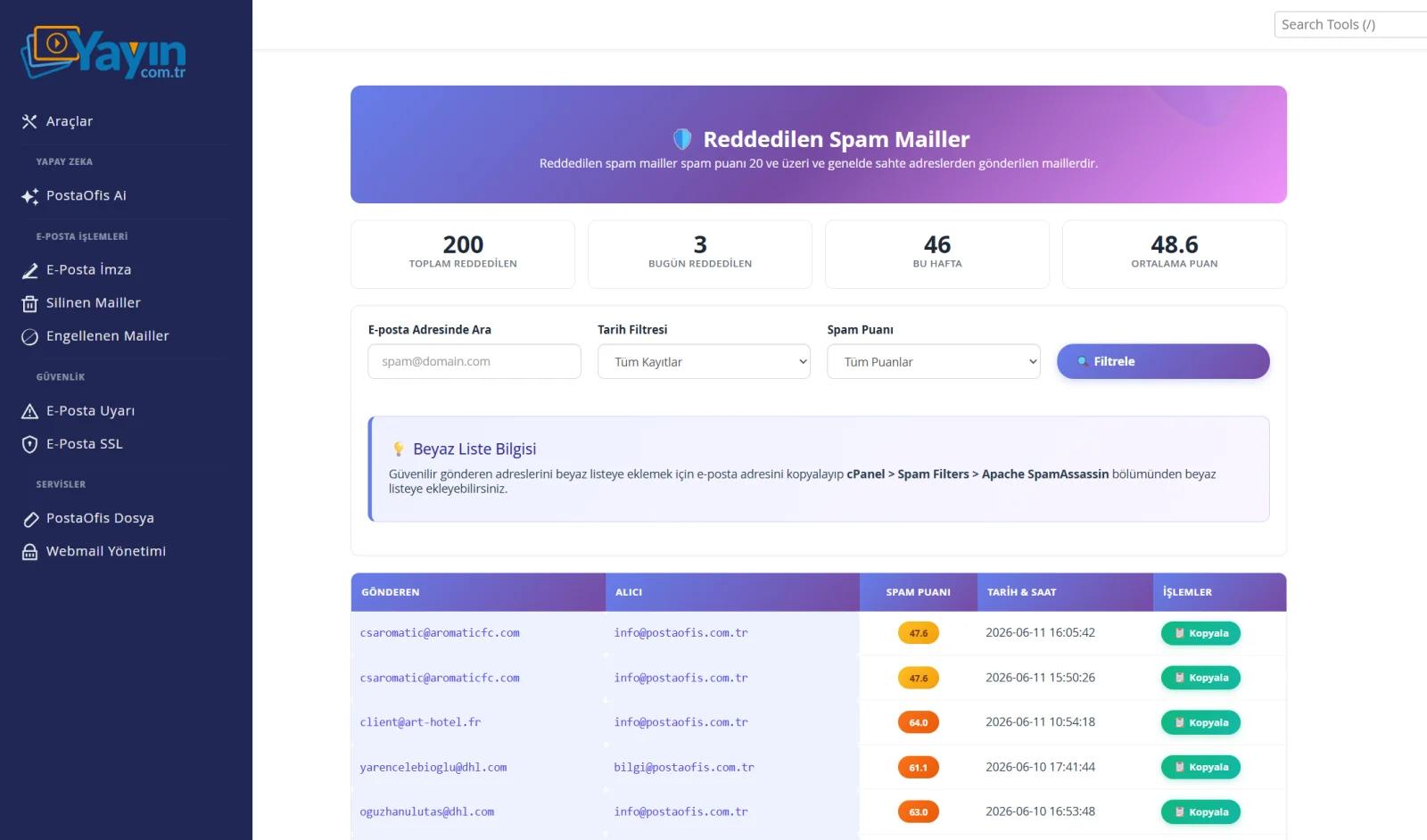
In the panel, go to EMAIL OPERATIONS → Blocked Emails in the left menu. At the top are four summary cards:
| Card | Description |
|---|---|
| Total Rejected | Total number of spam emails blocked so far |
| Rejected Today | Number of emails blocked today |
| This Week | Number of emails blocked in the last 7 days |
| Average Score | Average spam score of the blocked emails |
Spam Score and Color Codes
Every email has a spam score. The higher the score, the more likely the email is spam or harmful. In the list, scores are shown with color-coded badges:
| Color | Score Range | Meaning |
|---|---|---|
| 🔴 Red | 90 and above | Very high risk — almost certainly spam |
| 🟠 Orange | 50 – 89 | High-risk spam |
| 🟡 Amber | 20 – 49 | Above the spam threshold, risky |
| 🟢 Green | Below 20 | Low (rarely seen, since the threshold is 20) |
The higher the average score, the more aggressive the spam targeting your organization. If you regularly see high-scoring (red) emails, the system is successfully stopping these attacks — you do not need to take any further action.
The List Screen
The table shows each blocked email in columns:
| Column | Description |
|---|---|
| Sender | The address that tried to send the spam (usually fake) |
| Recipient | Your account the email was addressed to |
| Spam Score | The email's spam score (color-coded badge) |
| Date & Time | The moment the email was blocked |
| Actions | Copy the sender address (📋 Copy) |
Filtering and Search
When many records pile up, you can narrow them down with filters:
| Filter | Function |
|---|---|
| Search Email Address | Searches by a specific sender or recipient address |
| Date Filter | All Records / Today / This Week / This Month |
| Spam Score | All Scores / High (80+) / Medium (50–79) / Low (below 50) |
| 🔍 Filter | Filters the list by the criteria you selected |
Copying the Sender Address
The 📋 Copy button on each row copies that email's sender address to the clipboard. You will usually use it for one of two purposes:
- Noting down / reporting an address that keeps sending spam
- Adding a trusted sender that was blocked by mistake to the allowlist
Allowlist: Recovering a Sender Blocked by Mistake
Sometimes a trusted sender can get a high spam score because of its content or server configuration and end up blocked by mistake (this is called a "false positive"). In that case, you add the sender to the allowlist so that its future emails get through without being blocked.
Copy the Address
Use the 📋 Copy button on the blocked email's row to copy the sender address to the clipboard.
Go to the Spam Filters Section
In cPanel, open Spam Filters → Apache SpamAssassin.
Add It to the Allowlist
Paste the address you copied into the allowlist (whitelist) field and save. Emails from this address will no longer be blocked.
Addresses you add to the allowlist are exempt from spam checks. That is why you should only add senders you genuinely know and trust. Adding an address you do not know to the allowlist can let real spam reach your inbox.
Frequently Asked Questions
| Question | Answer |
|---|---|
| Can I move a blocked email into my inbox? | No. These emails were rejected by the server and are not delivered. You can only see their record and, if needed, add the sender to the allowlist. |
| Which emails are blocked? | Emails with a spam score of 20 or higher, usually coming from fake addresses. |
| How is the spam score determined? | The spam filter on the server (SpamAssassin) evaluates the content, headers and sender reputation, and assigns a score. High score = high likelihood of spam. |
| What do I do if a trusted sender was blocked? | Copy their address and add it to the allowlist under cPanel > Spam Filters > Apache SpamAssassin. |
| Do these records take up space? | No, not in your inbox; they are kept only as a log for monitoring purposes. |
| Is a high average score a bad thing? | No — a high score on blocked emails means the system is successfully stopping aggressive spam. |