
Monitor the Security of Your Mail Connections from One Screen
See the status of the SSL certificates that encrypt your email traffic in real time. Are the certificates for your mail, webmail and autodiscover subdomains valid, when do they expire, how many days are left — all at a glance. Certificates are renewed automatically by AutoSSL; if needed, you can renew them manually with one click.
What Does This Tool Do?
Mail SSL Certificate Status shows the health of the SSL certificates your mail server uses for secure (encrypted) connections. An SSL certificate encrypts all mail traffic between you and the server — your passwords and messages cannot be read on the network.
With this tool you:
- Monitor security status — see whether your certificates are valid and whether expiry is approaching.
- Prevent outages — an expired certificate shows users a security warning or blocks the connection. You spot this in advance.
- Renew with one click — start a certificate renewal manually when needed.
Without an SSL certificate, your email login password and message contents can travel over the network as plain text. A valid certificate lets you log in to webmail securely over HTTPS, lets clients such as Outlook and phones connect without warnings, and keeps all traffic encrypted.
Monitored Subdomains
This tool monitors the certificates of the three subdomains that are critical for email:
| Subdomain | What It Is Used For |
|---|---|
| mail.yourdomain | Secure connection of Outlook, phones and other clients to the server (over IMAP/POP/SMTP) |
| webmail.yourdomain | Secure HTTPS login to webmail from the browser |
| autodiscover.yourdomain | Lets Outlook and mobile devices find account settings automatically |
These three subdomains work together. For example, if the webmail certificate is valid but the mail certificate has expired, you can log in to webmail but may get a warning when connecting from Outlook. That is why it matters that all three are "Active".
Where Do I Find the Tool?
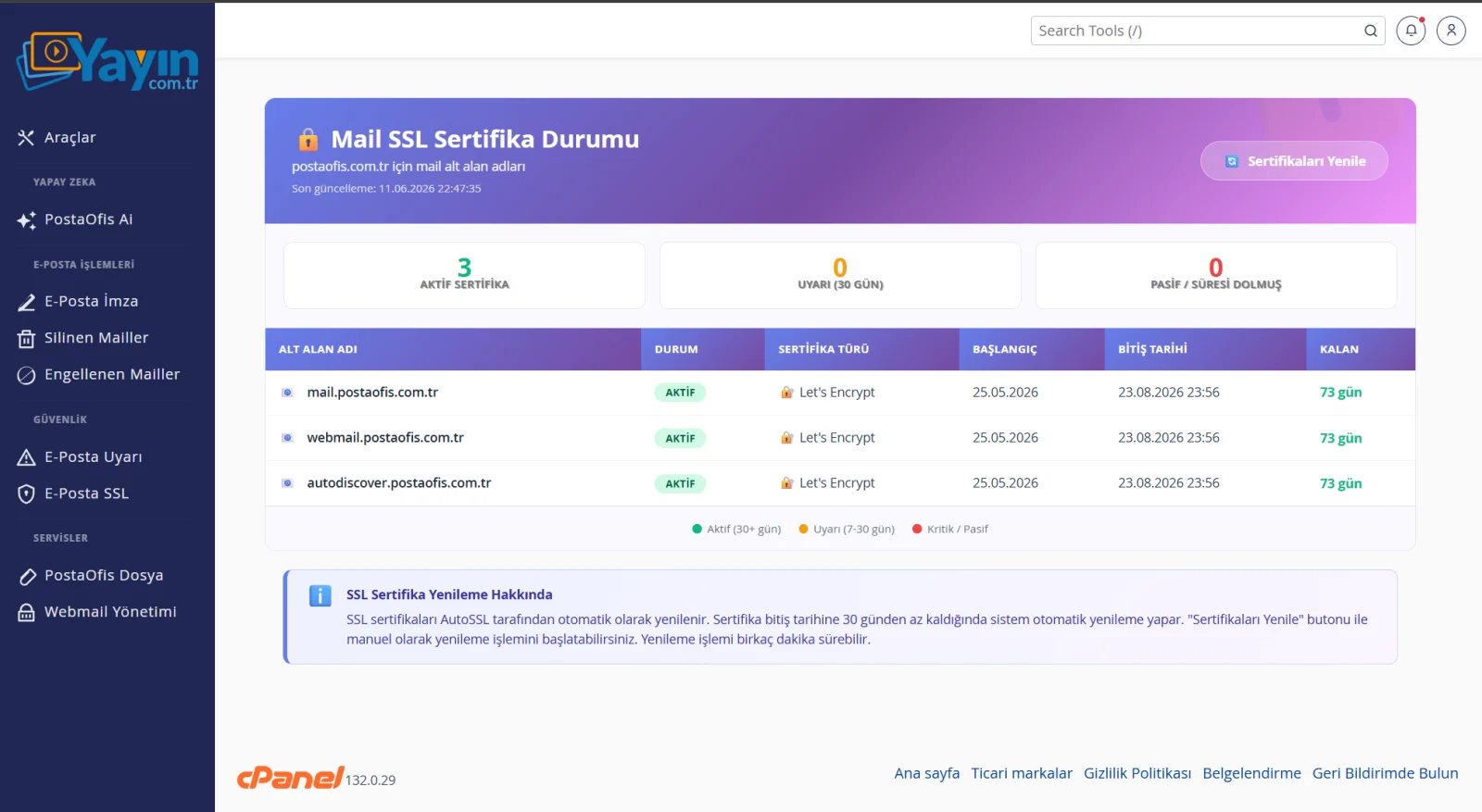
In the panel, go to SECURITY → Email SSL in the left menu. The Mail SSL Certificate Status screen opens. At the top there are three summary cards:
| Card | Description |
|---|---|
| 🟢 Active Certificates | Number of certificates that are valid with plenty of time left |
| 🟡 Warning (30 Days) | Number of certificates with less than 30 days until expiry |
| 🔴 Inactive / Expired | Number of invalid or expired certificates |
Statuses and Color Codes
Each certificate has a status and a color based on its remaining validity:
| Color | Status | Time Remaining | Meaning |
|---|---|---|---|
| 🟢 Green | Active | More than 30 days | All good, no action needed |
| 🟡 Yellow | Warning | 8 – 30 days | Renewal approaching (usually done automatically) |
| 🔴 Red | Critical | 1 – 7 days | Very little time left — renew manually if needed |
| 🔴 Red | Expired / Inactive | 0 days | Certificate invalid — urgent renewal required |
List View
The table shows the certificate details for each subdomain:
| Column | Description |
|---|---|
| Subdomain | Monitored mail subdomain (mail / webmail / autodiscover) |
| Status | Active / Warning / Critical / Expired |
| Certificate Type | The organization that issued the certificate (e.g. Let's Encrypt, cPanel AutoSSL) |
| Start Date | Date the certificate becomes valid |
| Expiry Date | Date and time the certificate expires |
| Remaining | Days left until expiry (color-coded) |
Automatic Renewal (AutoSSL)
Most of the time you do not need to renew SSL certificates by hand. Certificates are renewed automatically by the AutoSSL system.
When a certificate has less than 30 days left before expiry, the system renews it automatically. So in most cases your certificates stay valid even if you never touch this screen.
Manual Renewal: The "Renew Certificates" Button
If you still want to start a renewal right away, use the 🔄 Renew Certificates button at the top right. This triggers the AutoSSL check manually.
Open the SSL Status Page
In the panel, go to SECURITY → Email SSL and check the certificate statuses.
Press the Renew Button
Click the 🔄 Renew Certificates button at the top right. The AutoSSL check starts.
Wait a Few Minutes
Renewal can take a few minutes. During this time the system updates the certificates in the background.
Check the Status Again
Refresh the page. Once the certificates are updated, the "Remaining" day count will be back to a long period.
AutoSSL usually takes care of it on its own. But if a certificate stays red for a long time, trigger a renewal manually with Renew Certificates. If the problem persists, you may need to make sure the DNS record for that subdomain is correct and points to the server.
Frequently Asked Questions
| Question | Answer |
|---|---|
| Do I have to renew the certificates myself? | No. AutoSSL renews them automatically once less than 30 days remain before expiry. Manual renewal is there only if you want it. |
| Which subdomains are monitored? | The mail, webmail and autodiscover subdomains — the three that are critical for email. |
| What is Let's Encrypt? | A free and widely used SSL certificate provider. The Certificate Type column shows which provider issued each certificate. |
| Is the "Warning" status a problem? | No. It only means renewal is approaching, and it is usually done automatically. You do not need to do anything. |
| How long does renewal take? | Usually a few minutes. The process completes in the background. |
| What happens when a certificate expires? | Users may see a security warning, or the secure connection may be blocked. That is why it is important to keep an eye on red statuses. |