
Personal signature — written by the user
Define One Standard Signature for Your Organization
Create a professional email signature for your domain — in text or HTML. Add legal warnings, KVKK privacy notices and confidentiality notices with a single click. Set it up once, and your corporate identity looks consistent on every email.
What Does This Tool Do?
Domain Email Signature Management lets you define a corporate (global) signature that is added to the very bottom of every email on your domain. This signature does not affect the personal signature users write for themselves in webmail — it appears below it as a fixed, standard corporate block.
Its main benefits:
- Corporate consistency — the same corporate block appears below everyone's personal signature.
- Legal protection — you add confidentiality, disclaimer and KVKK notices using ready-made templates.
- Time savings — you prepare the signature once instead of retyping it in every email.
- Flexibility — you choose between a plain-text and a rich HTML signature.
In official correspondence, notices under the Turkish Electronic Signature Law No. 5070 and the Turkish Personal Data Protection Law No. 6698 (KVKK) are expected below the signature. This tool offers these texts as ready-made templates — you add them to your signature with a single toggle, without having to ask your legal department.
Two-Layer Signature: Personal + Global
It is important to be clear on this point: the signature in this panel does not replace users' own signatures. The two signatures work together.
✍️ Personal Signature (User)
Each user can add their own signature in webmail — their name, title, direct phone number and so on. This signature appears in the upper part of the email.
🏛️ Global Signature (This Panel)
The corporate signature you define in this panel stays fixed at the very bottom of the email. It is ideal for organization details and legal/KVKK notices.
So when an email is sent, the order is as follows:
| Order | Content | Source |
|---|---|---|
| 1 | Body of the email | Written by the user |
| 2 | Personal signature (name, title, phone...) | The user's webmail signature |
| 3 | Global corporate signature + legal/KVKK notices | This panel (fixed at the bottom) |
Users can edit their personal details however they like, while the part that must be the same for everyone — such as the organization name, legal warnings and the KVKK text — is managed centrally and added automatically to the bottom of every email. This prevents situations where a user accidentally deletes a mandatory notice or never adds it at all — the corporate block is always there.
Where Do I Find the Tool?
In the panel, go to EMAIL OPERATIONS → Email Signature in the left menu. The Domain Email Signature Management screen opens.
At the top of the page is an information panel summarizing the status of your signature:
| Item | Description |
|---|---|
| 🌐 Domain | The domain the signature is defined for |
| 👤 User | The related account user |
| 📊 Status | Whether the signature is Active or Inactive |
| 📁 Files | Whether a saved signature file exists (Available / None) |
ACTIVE / INACTIVE Toggle
The ACTIVE toggle in the top-right corner of the screen is the master on/off switch for the signature.
🟢 ACTIVE
Your signature is in use. The text/HTML signature you defined applies as the standard signature.
🔴 INACTIVE
The signature is temporarily disabled. Your content is not deleted, just not used. You can activate it again whenever you like.
Setting the signature to inactive does not delete the text you prepared. If you want to send emails without a signature for a while, switch the toggle off, then turn it back on with one click.
Two Signature Types: Text and HTML
The page has two tabs. Depending on your needs, you can fill in one or both.
📝 Text Signature
Simple, unformatted plain text. It displays correctly in every email client. This is the simple and safe option.
🎨 HTML Signature
A rich signature that can include color, bold text, links and images. It gives a more corporate, eye-catching look.
📝 Text Signature
In the Text Signature tab, you write your signature as plain text. It usually includes the following:
- Domain / organization name
- Phone number
- Website address
- Email address
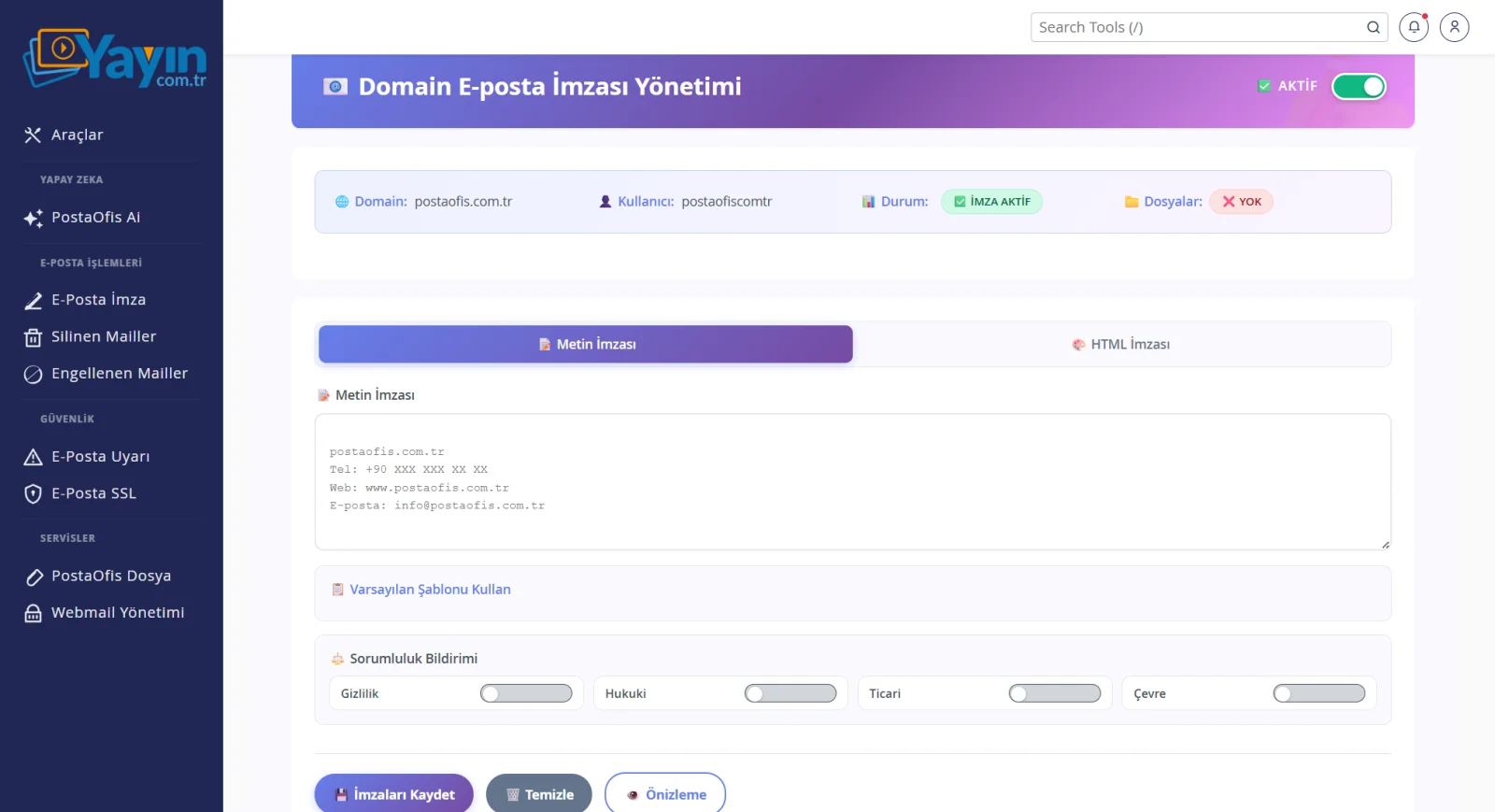
If you do not want to write from scratch, click the 📋 Use Default Template box. The system fills in a ready-made draft based on your domain; you only need to edit fields such as the phone number.
🎨 HTML Signature
In the HTML Signature tab, you design your signature visually with a rich text editor. The editor toolbar includes options such as bold/italic text, color, font, alignment, links, image insertion and lists.
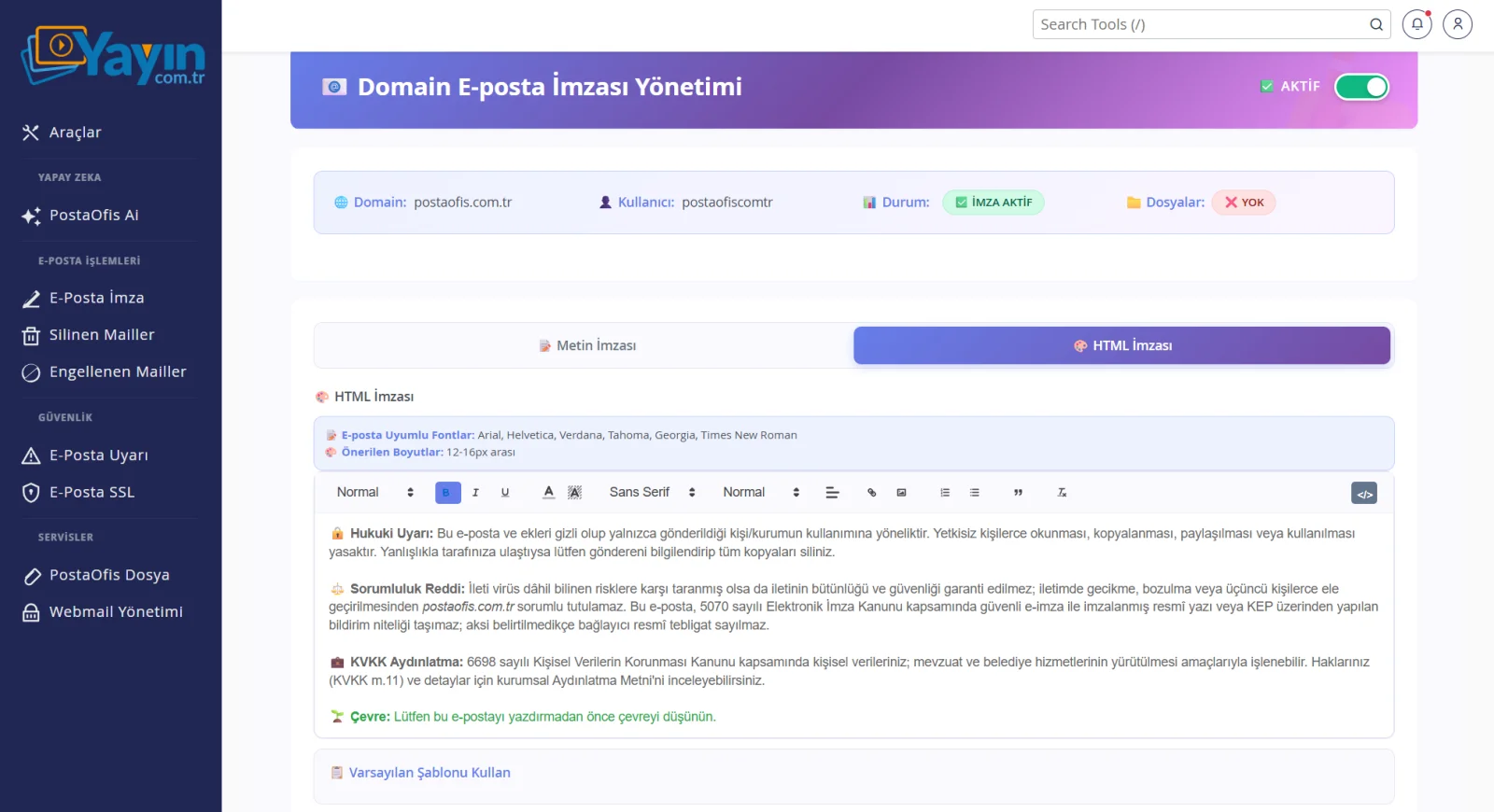
To make sure your emails display correctly in different programs (Outlook, Gmail, webmail, etc.), we recommend using email-safe fonts:
| Topic | Recommendation |
|---|---|
| Compatible fonts | Arial, Helvetica, Verdana, Tahoma, Georgia, Times New Roman |
| Recommended size | Between 12–16px |
Some stylish-looking fonts are not installed in every email program and may appear broken on the recipient's side. The fonts above are available on almost every system, so your signature looks the same everywhere. Keeping the font size between 12–16px also preserves readability.
Here too, you can use 📋 Use Default Template to load a pre-formatted HTML signature draft tailored to your domain.
Disclaimers (Legal & KVKK Texts)
Below both tabs is a Disclaimers section. When you switch on a toggle here, the related ready-made text is added automatically below your signature. Four types of notice are available:
| Toggle | Text Added | Content |
|---|---|---|
| Confidentiality | 🔒 Legal Warning | States that the email is confidential and intended only for its recipient, and that anyone who receives it by mistake should notify the sender and delete all copies. |
| Legal | ⚖️ Liability Disclaimer | Explains that the integrity of the message is not guaranteed and that it does not count as a binding official notification under the Turkish Electronic Signature Law No. 5070 or the KEP (registered email) system. |
| Commercial | 💼 KVKK Privacy Notice | Adds the privacy notice on the processing of personal data under the Turkish Personal Data Protection Law No. 6698 (KVKK) and reminds recipients of their rights under Article 11 of the KVKK. |
| Environment | 🌱 Environmental Note | Adds an environmental awareness note such as "Please consider the environment before printing this email." |
These notices are independent toggles. You can add only the KVKK text, or turn on confidentiality + legal + KVKK all at once. Leave the ones you do not need switched off. You make your selection separately in the Text and HTML tabs.
Saving, Clearing and Previewing
There are three buttons at the bottom of the page:
| Button | Function |
|---|---|
| 💾 Save Signatures | Saves and activates the text and HTML signatures you prepared |
| 🗑️ Clear | Clears the content in the editor (to start over before saving) |
| 👁️ Preview | Shows how the signature will look in an email, without saving |
Especially for the HTML signature, use the Preview button to check how your signature actually looks. Once you are sure the colors and alignment are as you want, click Save Signatures to make it permanent.
Step by Step: Creating a Corporate Signature
Open the Page
Go to the Email Signature section in the panel and make sure the toggle in the top-right corner is set to ACTIVE.
Choose the Signature Type
Choose the Text Signature tab for a simple signature, or the HTML Signature tab for a corporate look with colors and links.
Prepare the Content
Write your signature, or load the ready-made draft with 📋 Use Default Template and edit it. For the HTML signature, choose email-safe fonts.
Add the Disclaimers
In the bottom section, turn on the notices that suit your needs: Confidentiality, Legal, Commercial (KVKK), Environment.
Preview
Click the 👁️ Preview button to check both the text and HTML versions of the signature.
Save
Click the 💾 Save Signatures button. Your signature is now ready as your standard corporate signature.
Frequently Asked Questions
| Question | Answer |
|---|---|
| Does this signature delete users' own signatures? | No. Users can add their own personal signatures in webmail; the corporate signature from this panel stays fixed below them. The two work together. |
| Where does the global signature appear? | Always at the very bottom of the email — below the user's personal signature, as a corporate block. |
| Should I use the text and HTML signatures together? | You can fill in both. Clients that display plain text use the text signature, and clients that display rich content use the HTML signature. |
| Can I turn the signature off temporarily? | Yes. Set the toggle in the top-right corner to INACTIVE; your content is not deleted, and you can turn it back on whenever you like. |
| Do I have to write the disclaimers myself? | No. The Confidentiality, Legal, KVKK and Environment texts come ready-made; you just need to switch on the relevant toggle. |
| Which fonts should I use? | Arial, Helvetica, Verdana, Tahoma, Georgia or Times New Roman. A size of 12–16px is recommended. |
| Will my signature look the same in every email program? | If you use email-safe fonts and the recommended sizes, it looks consistent everywhere, including Outlook, Gmail and webmail. |
| Can I test how it looks without saving? | Yes, the Preview button shows the signature without saving it. |