
Fit Hours Into Seconds
Turn your camera's daily footage into a short, automatically accelerated video. Watch slow changes — sunrise, traffic flow, construction progress, shifting crowds — in a matter of seconds. And it is completely free for your first 3 cameras.
Timelapse is rarely offered by live-streaming platforms, and the providers that do offer it typically charge a substantial fee per camera. At yayin.com.tr, daily timelapse is completely free for your first 3 cameras. On top of that, we set ourselves apart with capabilities no competitor offers: real-time timelapse viewing, and serving the previous day at the same time.
What Is Timelapse?
Frames are captured from your camera at regular intervals during the time window you choose, then turned into a short, accelerated video. Hours are compressed into a few seconds — ideal for quickly reviewing changes that happen slowly.
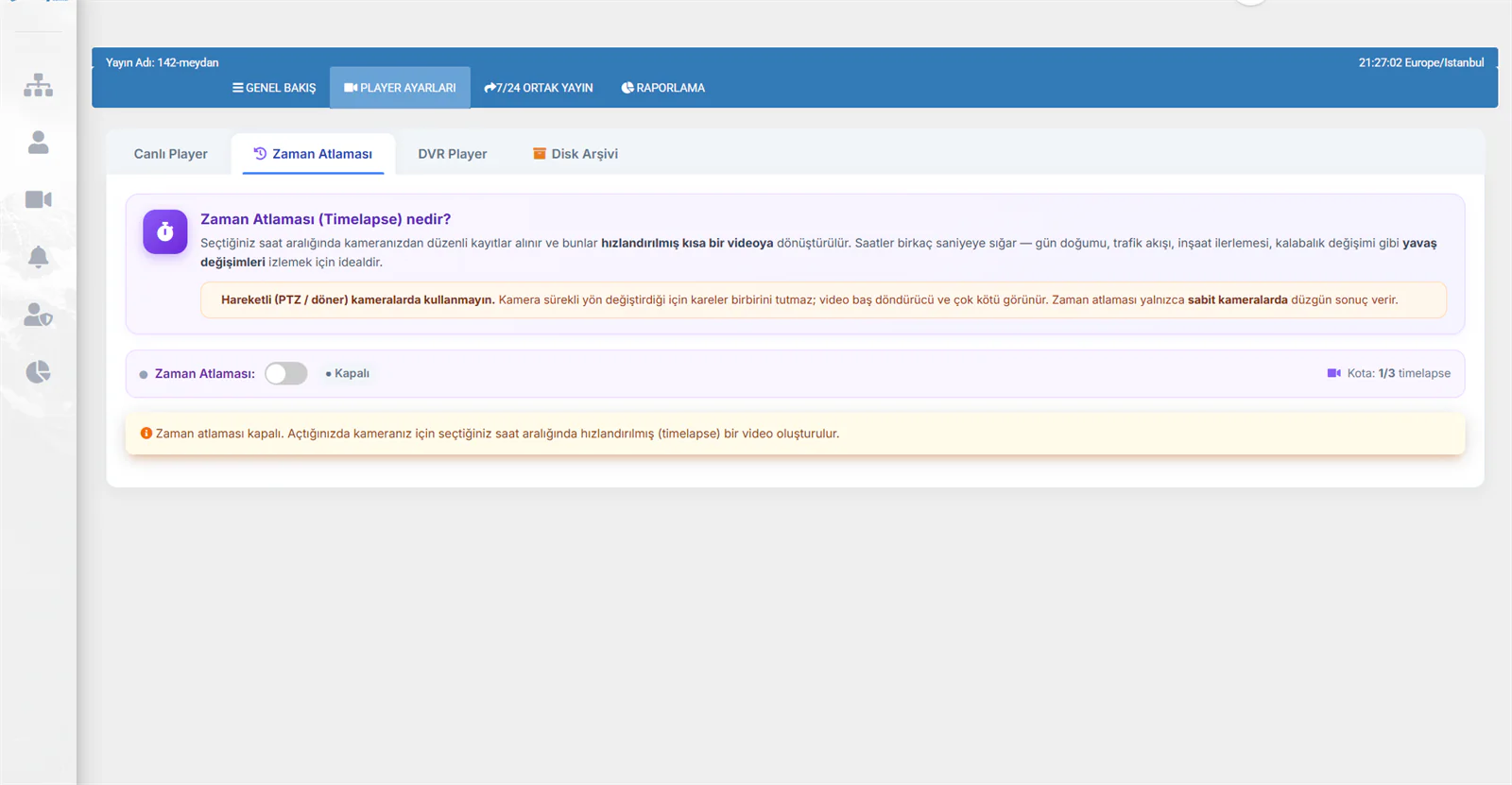
Example uses:
Construction Progress
Follow the days-long build of a building or project in videos that last seconds.
Sunrise / Sunset
Capture changing light, sky colours and scenery in accelerated form.
Traffic Flow
Show how traffic density shifts through the day in one short video.
Changing Crowds
Watch how busy a square, park or seafront gets over the course of a day.
Do not use timelapse on moving (PTZ) cameras. Because the camera keeps changing direction, the frames do not line up and the video looks disorientating and very poor. Timelapse only produces good results on fixed cameras.
What Sets Us Apart: Real-Time Timelapse
Competing systems only build the timelapse video once the day is over — which means you can only watch today's video tomorrow. At yayin.com.tr there is real-time timelapse: the frames collected so far during the day can be watched live.
Let us explain how this works with an example:
Say your timelapse starts at 05:00 in the morning. By 06:00, the first hour of frames has been collected. When a viewer opens the player at 15:00, they can watch every frame captured that day between 05:00 and 15:00 as an accelerated video, right at that moment. There is no need to wait for the day to end — whatever has been collected so far can be watched immediately.
Viewers can also watch the previous day's complete timelapse if they wish. Today's (real-time) and yesterday's streams are offered side by side.
Timelapse in the Player
While watching the live stream, a viewer can switch to the accelerated video by pressing the timelapse button in the player.
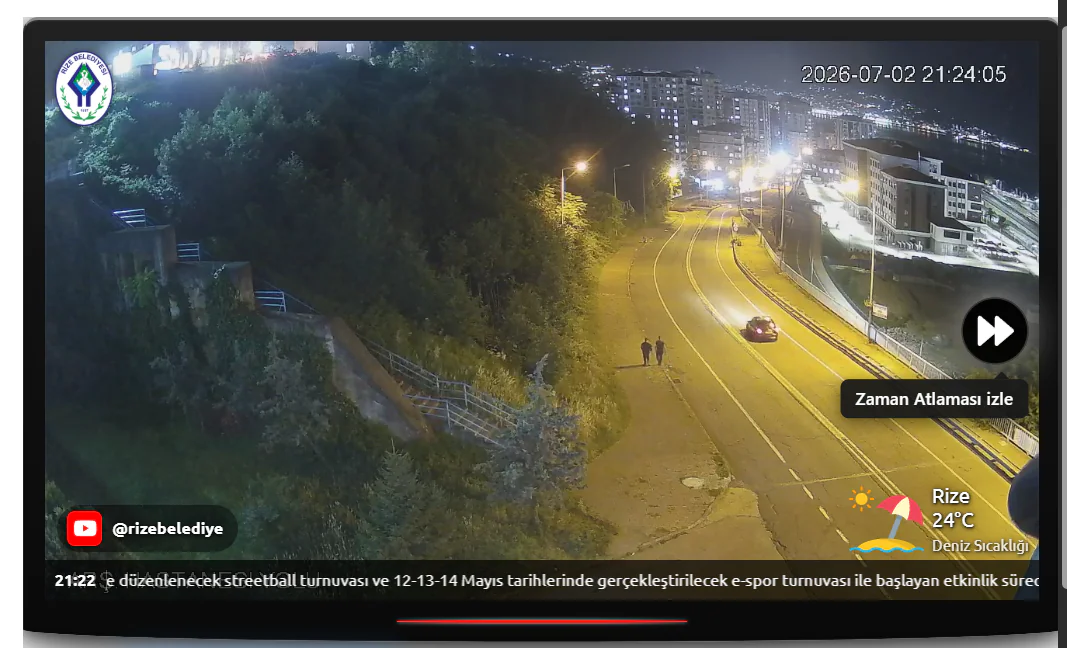
A "Watch Timelapse" button (⏩) appears in the player. When a viewer presses it, a menu opens if both today's and yesterday's streams are enabled:
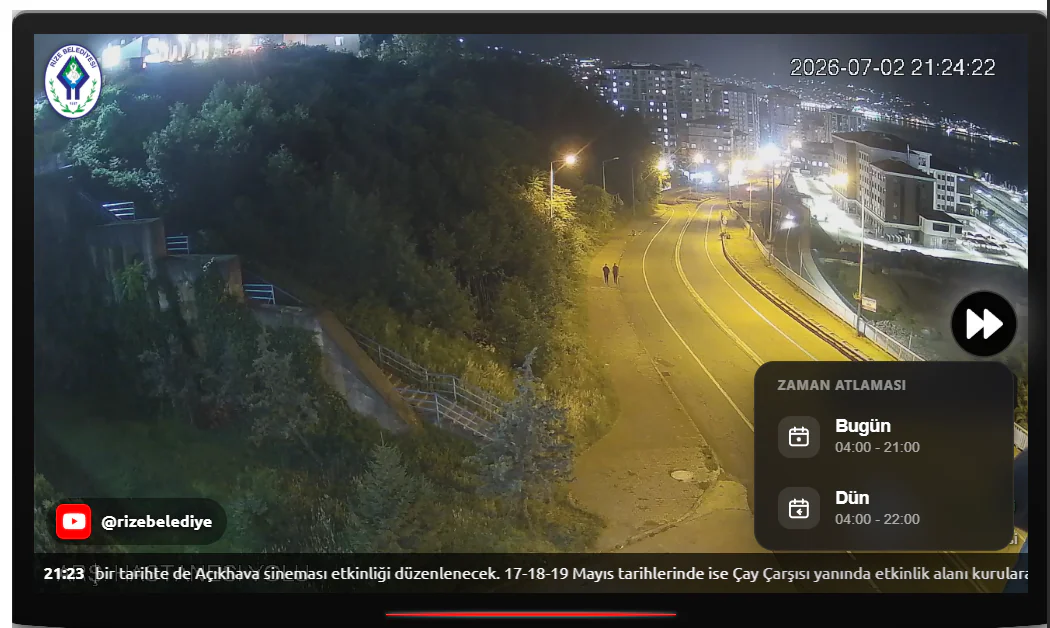
| Option | Description |
|---|---|
| Today | Frames collected from the start time up to this moment — real-time timelapse |
| Yesterday | The complete timelapse video for the previous day |
If only one option is enabled (today only or yesterday only), that video plays straight away without opening a menu.
Settings
You can configure everything from the Player Settings → Timelapse tab on the camera management page.
Turning Timelapse On
Timelapse is off by default. When you switch the Timelapse toggle on, the configuration options appear.
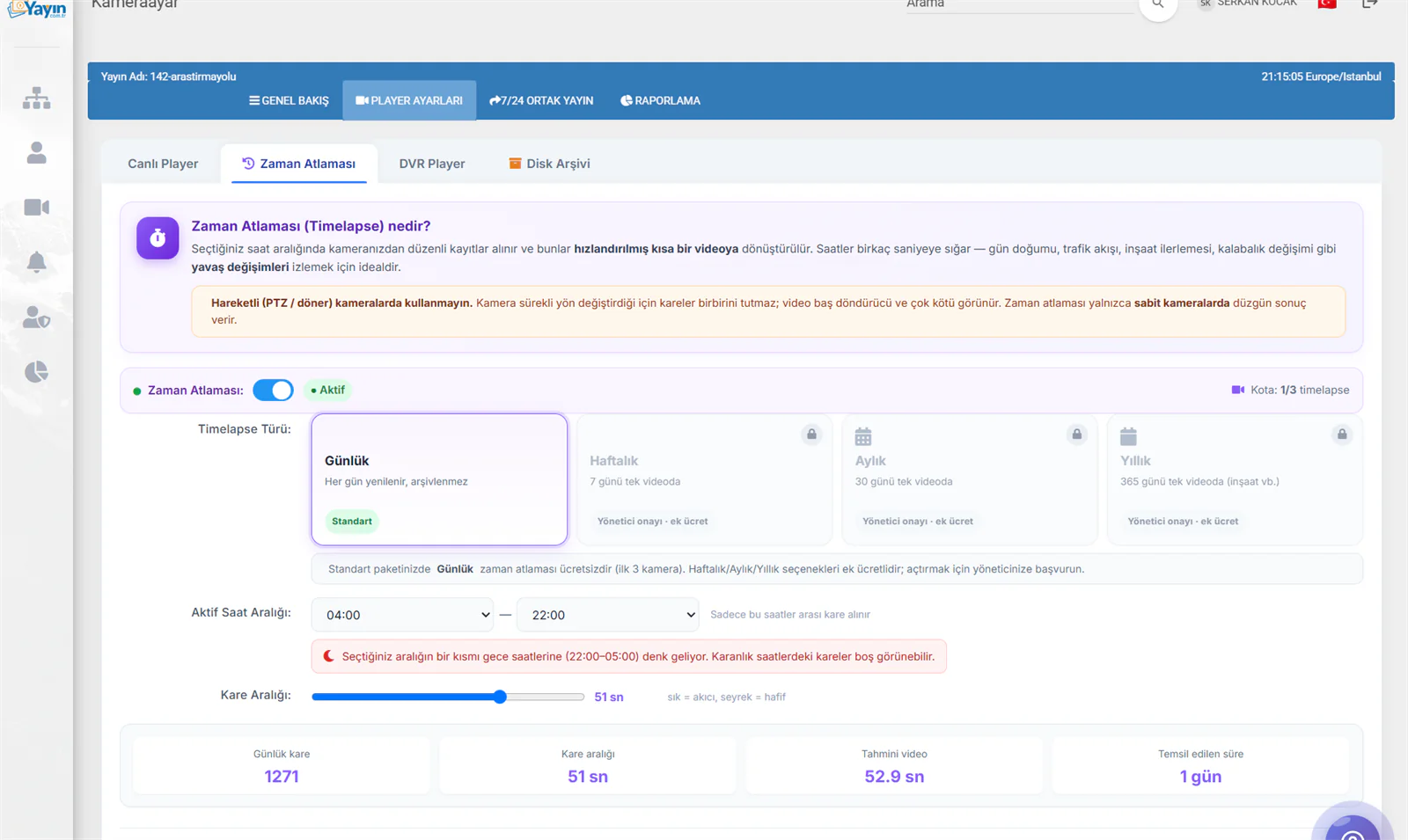
Timelapse Type
Daily timelapse is completely free for your first 3 cameras on the standard package. The Weekly, Monthly and Yearly options — and timelapse on more than 3 cameras — are subject to an additional fee; contact your account manager to have them enabled.
| Type | Description | Status |
|---|---|---|
| Daily | Refreshed every day, not archived | ✅ Free for the first 3 cameras |
| Weekly | Combines 7 days into a single video | 🔒 Requires approval · additional fee |
| Monthly | Combines 30 days into a single video | 🔒 Requires approval · additional fee |
| Yearly | Combines 365 days into a single video (construction, etc.) | 🔒 Requires approval · additional fee |
Active Time Window
Frames are only captured during the time window you define. If you choose 04:00 – 22:00, for example, frames are captured only between those hours and the night-time hours are left out of the video.
If part of your chosen window falls during the night (22:00–05:00), the frames from those dark hours may look empty or very dark. In areas without lighting, we recommend selecting daytime hours.
Frame Interval
This sets how often a frame is captured, adjusted with a slider:
- Short interval (fewer seconds) = a smoother video, but more frames and more storage
- Long interval (more seconds) = a lighter video, but less smooth
Live Calculation Cards
As you change the settings, the cards below update instantly with estimated values:
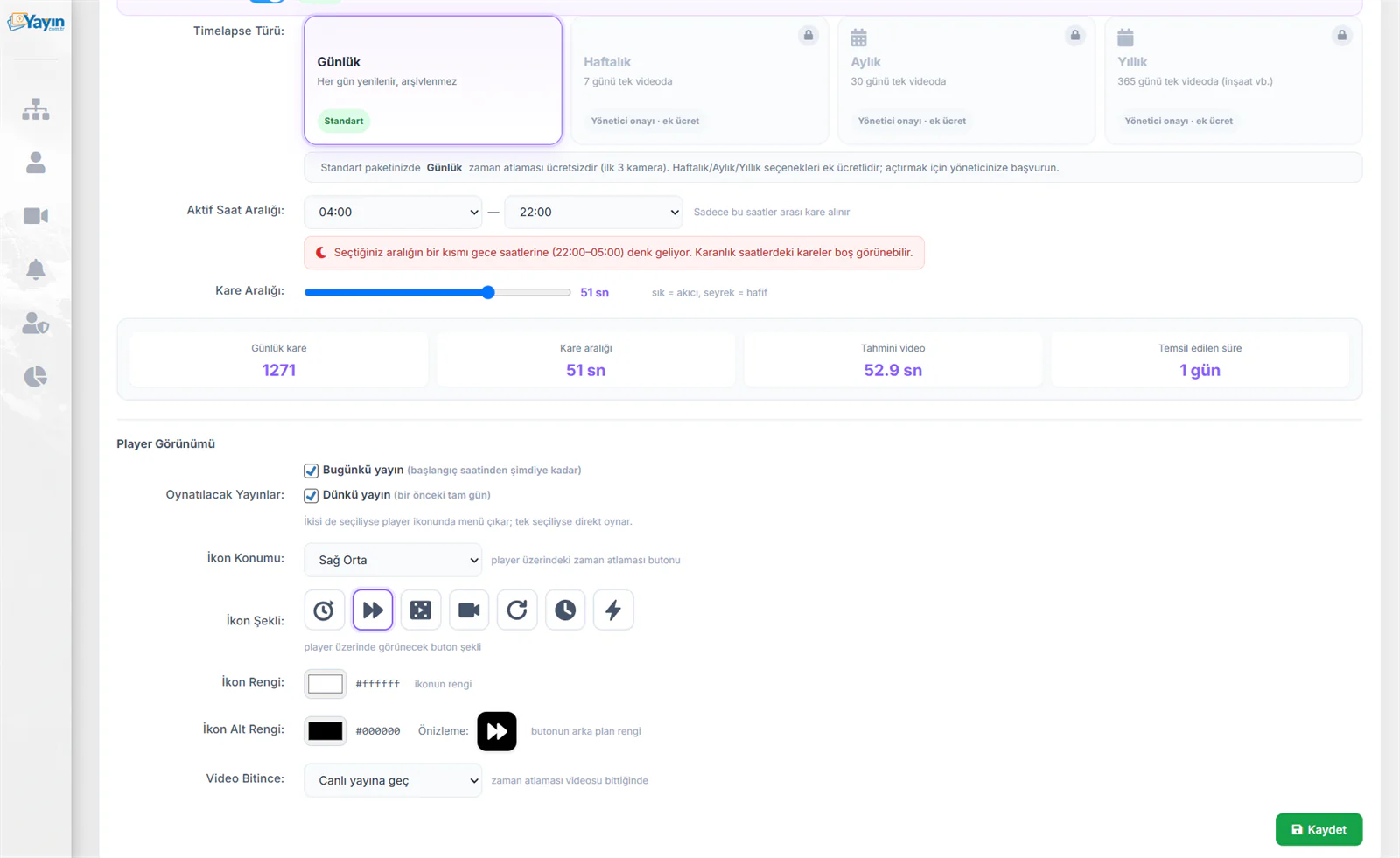
| Card | Description |
|---|---|
| Frames per Day | The total number of frames that will be captured in a day with the current settings |
| Frame Interval | How often a frame is captured |
| Estimated Video | The estimated length of the resulting timelapse video |
| Period Covered | How many days or hours the video represents |
Player Appearance Settings
You can customise how the timelapse button looks in the player.
Streams to Play
| Option | Description |
|---|---|
| Today's stream | Real-time timelapse from the start time up to now |
| Yesterday's stream | The timelapse for the previous full day |
If both are selected, a menu appears on the player icon; if only one is selected, it plays directly.
Icon Settings
| Setting | Description |
|---|---|
| Icon Position | Where the timelapse button sits in the player (middle right, bottom right, top left, etc.) |
| Icon Shape | A choice of 7 button shapes (⏱ timer, ⏩ fast forward, 🎬 film, 📹 camera, 🔄 loop, 🕐 clock, ⚡ lightning) |
| Icon Colour | The colour of the button icon |
| Icon Background Colour | The background colour of the button — shown instantly in the preview |
| When the Video Ends | What happens when the timelapse video finishes (switch to live, replay from the start, stop) |
As with every other player feature, the changes you make to your timelapse settings appear in the live player immediately, without changing the embed code.
Turning Timelapse Off
A confirmation dialog appears when you choose to turn timelapse off.
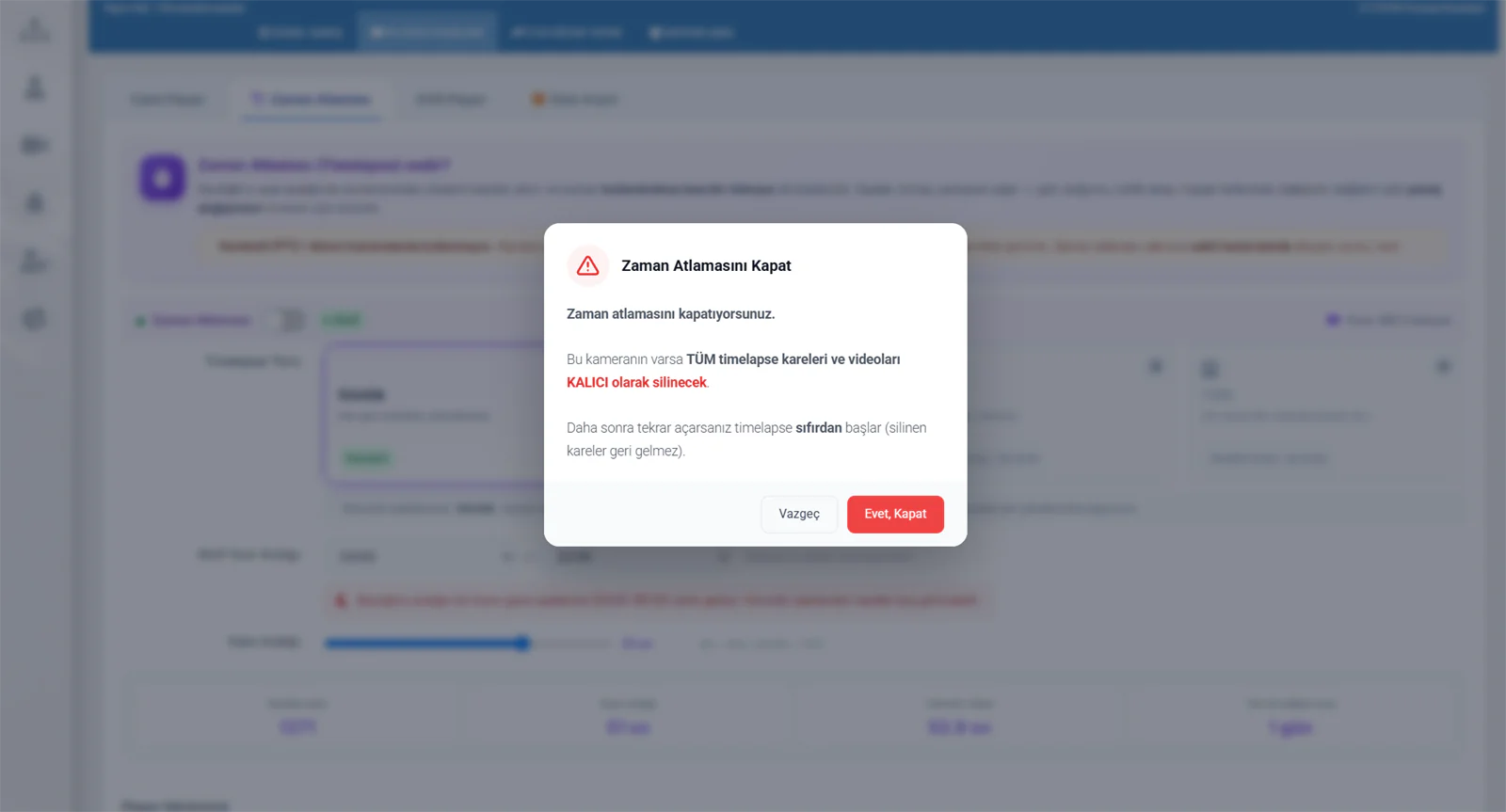
When you turn timelapse off, all timelapse frames and videos for that camera are permanently deleted. If you turn it back on later, the timelapse starts again from scratch — deleted frames cannot be recovered. For that reason, we recommend downloading your videos before turning it off.
Why Choose Us?
| Feature | Yayin.com.tr | Other Providers |
|---|---|---|
| Daily timelapse | ✅ Free for the first 3 cameras | ❌ High fee per camera |
| Real-time timelapse | ✅ Watch what has been collected so far | ❌ Only ready once the day ends |
| Today + yesterday together | ✅ Both offered at once | ❌ Usually only the past |
| Flexible time selection | ✅ Adjustable from the panel | ❌ Fixed time blocks |
| Built into the player | ✅ One button to watch | ❌ A separate page or link |
| Appearance customisation | ✅ Icon, colour, position | ❌ Limited or unavailable |
| Weekly / monthly / yearly | ✅ Available as an add-on | ❌ Usually unavailable |
| Support from broadcast specialists | ✅ Real people on the phone, 24/7 | ❌ Often ticket-only |
Other providers generally charge a monthly per-camera fee for timelapse. At yayin.com.tr, daily timelapse is free for your first 3 cameras, and no competitor offers real-time viewing. It is ideal for municipalities, construction companies and tourism businesses.
Demo & Sample Videos
To see what timelapse looks like in practice, take a look at our demo stream.
Live Demo Player
The demo player below shows the timelapse feature live. Click the timelapse button in the player to try it for yourself:
Sample Timelapse Video
You can watch a ready-made timelapse example in the video below:
To test timelapse on your own cameras, enable the Daily type from the Player Settings → Timelapse tab (free for your first 3 cameras). The first frames start building up within a few hours, and you can then watch the real-time timelapse.