
Every platform with RTMP · 5 simultaneous destinations free · failover protection
Send Your Live Stream to Social Media
Send your camera feed simultaneously to TikTok, YouTube, Facebook, Instagram, X (Twitter), Twitch — any platform with an RTMP address, and to your own private RTMP server too. There is no time limit, failover protection is built in, and you can add an audio source.
Why 24/7 Multistreaming?
Simultaneous Multi-Platform
Stream from a single camera to TikTok, YouTube, Facebook, Instagram, X, Twitch — any platform with an RTMP address, and to your own private RTMP server. The standard package includes 5 simultaneous destinations free of charge, with no restriction on which platforms you choose.
No Time Limit
Your streams run 24 hours a day, 7 days a week. There are no daily, weekly or monthly time restrictions.
Failover Protection
If the camera connection drops, a "no signal" image takes over automatically. Your social media stream is not interrupted and the platform does not shut it down.
Adding an Audio Source
No audio on your camera? Not a problem — add background music, sports music or a silent audio source and send a stream with sound to social media.
When your camera loses its internet connection or is switched off, the social media stream does not stop. The system automatically switches to a "no signal" image and keeps delivering an uninterrupted stream to the social platforms. As soon as the camera comes back online, the live picture returns automatically. This is what stops platforms like YouTube and Facebook from ending your broadcast.
The Stream Destinations Page
On your camera management page, click the 24/7 Multistreaming tab in the top menu. If a stream is active, a red on-air indicator appears next to the tab.
If you have not created a destination yet, click + Create New Stream Destination to add your first one.
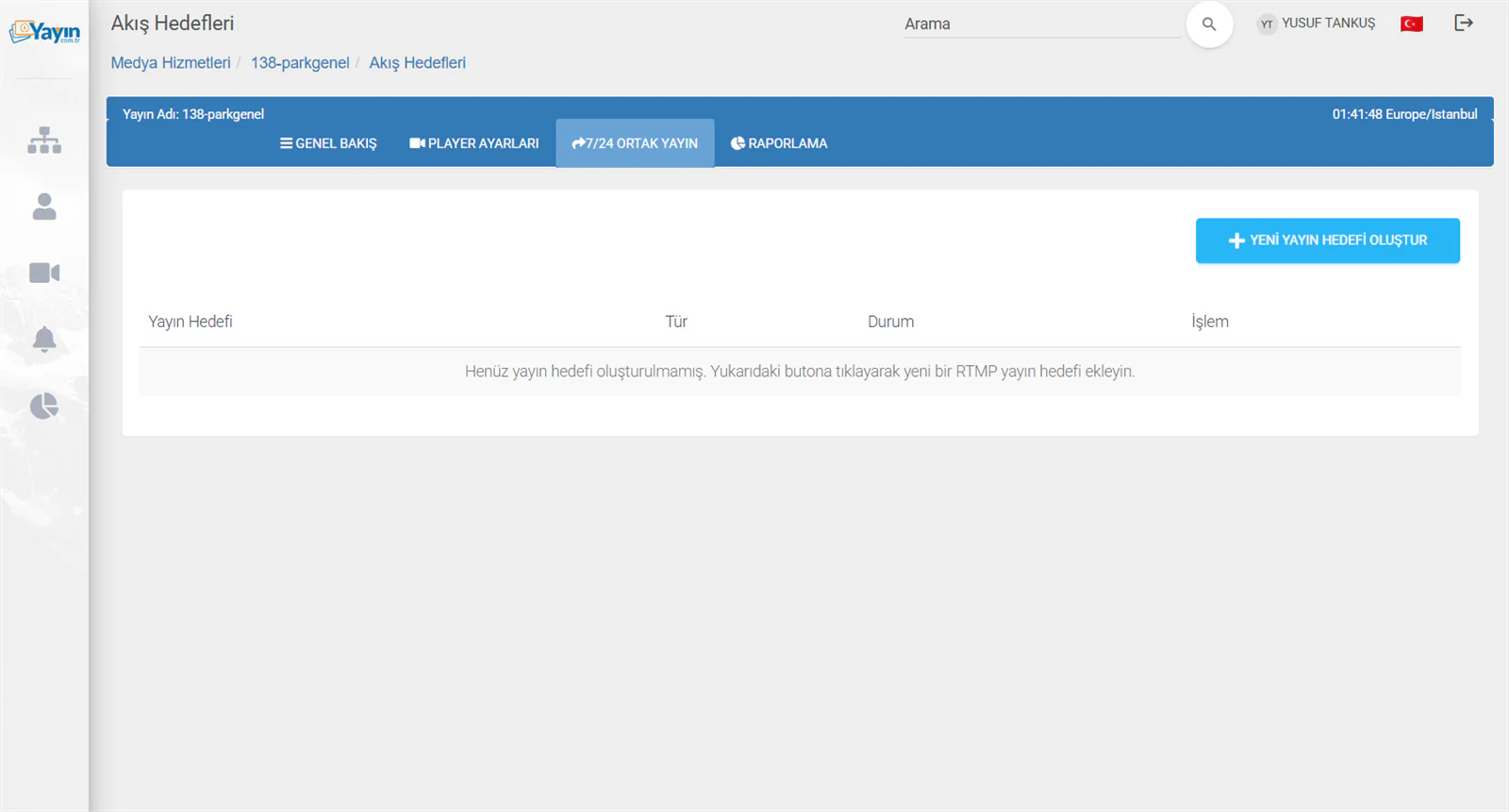
Creating a New Stream Destination
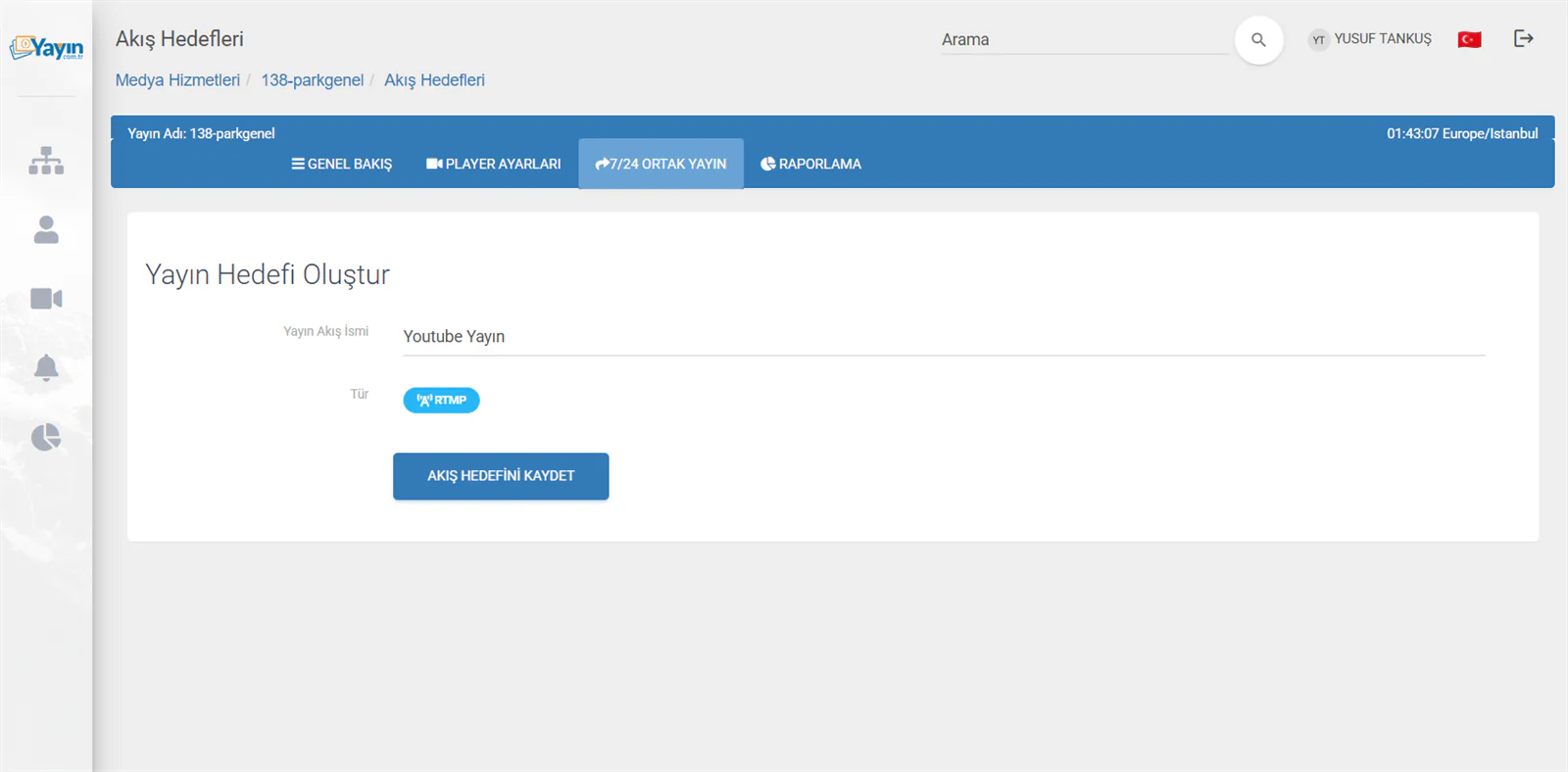
Create the Destination
Click + Create New Stream Destination. On the page that opens, give your destination a name (for example "YouTube Stream", "Facebook Live", "Twitch Stream").
Save the Stream Destination
Click Save Stream Destination. The destination is created and you are taken to its management page.
Stream Destination Settings
Once a destination has been created, its management page has three sections: status information, control buttons and stream settings.
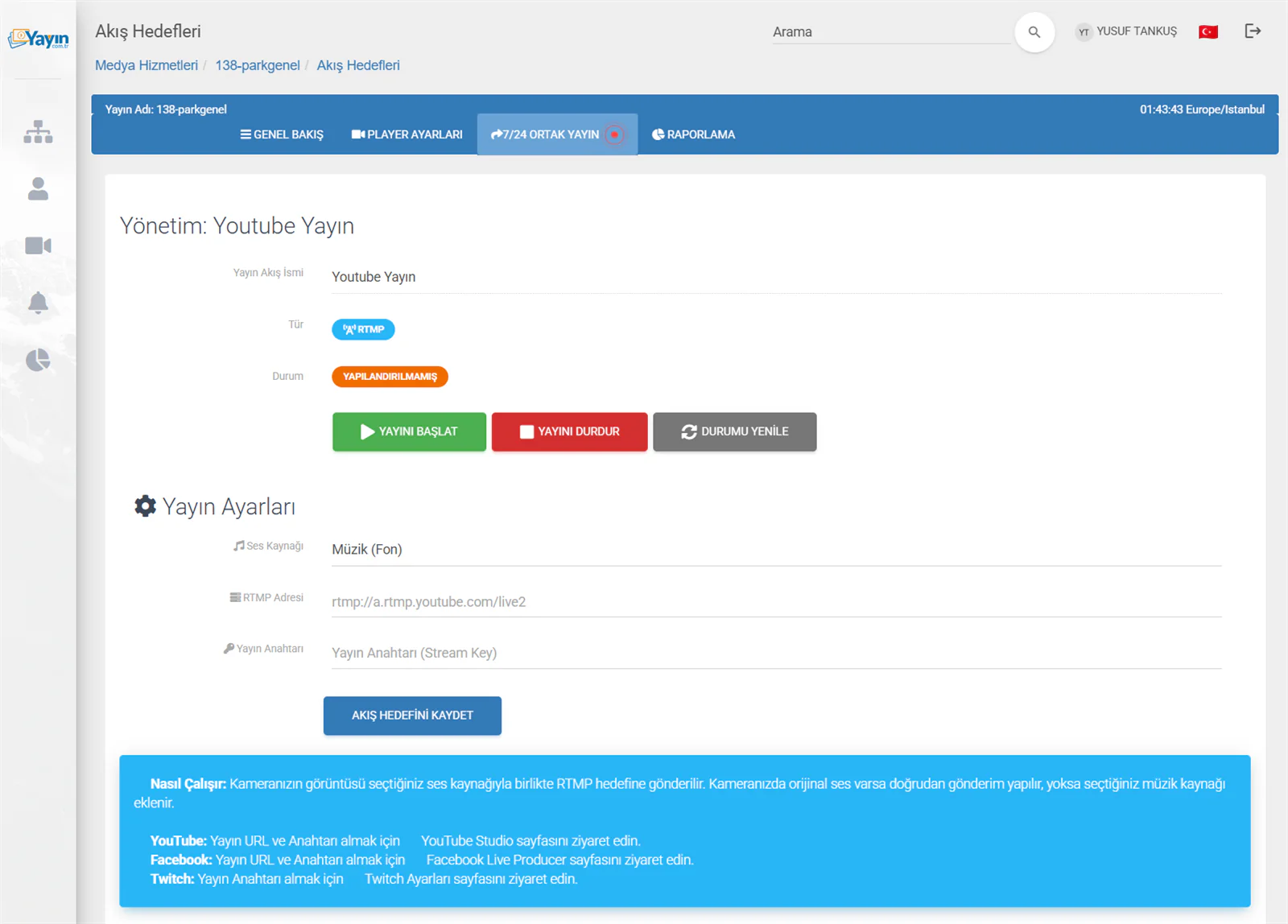
Status Information
| Status | Meaning |
|---|---|
| Not Configured | No RTMP address or stream key has been entered yet |
| Stream Off | The settings are complete but the stream has not been started |
| On Air | The stream is active and being delivered to social media |
| Camera Offline | There is no camera connection (failover protection is active) |
Control Buttons
| Button | Description |
|---|---|
| Start Stream | Starts delivery to social media (disabled while the stream is running) |
| Stop Stream | Stops delivery (disabled while the stream is off) |
| Refresh Status | Checks and updates the stream status |
When you click start or stop, an animated dialog shows you each step of the process. The work completes in the background, so you are not left waiting on the page.
Choosing an Audio Source
Choose the audio source for the stream you send to social media. This feature lets you deliver a stream with sound even when your camera has no audio.
| Audio Source | Description |
|---|---|
| Original Camera Audio | If your camera has AAC audio, the video and audio are delivered directly. If the camera has no audio, this option is disabled and a "Your camera has no audio" message is shown. |
| Music (Background) | Royalty-free background music is added. The camera feed and the music are combined before delivery. |
| Music (Sports) | Royalty-free sports music is added — ideal for five-a-side pitches and sports facilities. |
| Silent | Only the video is delivered, with no audio. Some platforms may not support a completely silent stream, in which case a silent audio channel is added. |
Many IP cameras have no microphone, or use an incompatible audio codec. In that case you can add sound to your stream by selecting Music (Background) or Music (Sports). The camera feed and your chosen audio source are combined automatically and delivered to social media. If your camera does have original AAC audio, select Original Camera Audio and the sound is passed through directly, with no additional processing.
RTMP Address and Stream Key
Enter the streaming details supplied by your social media platform here:
| Field | Description |
|---|---|
| RTMP Address | The RTMP server address provided by the platform |
| Stream Key | The stream key provided by the platform |
Where Do I Find Each Platform's RTMP Details?
| Platform | RTMP Address | Where to Find the Stream Key |
|---|---|---|
| YouTube | rtmp://a.rtmp.youtube.com/live2 |
YouTube Studio → Live Streaming → Stream Key |
| Obtained from Facebook Live Producer | Facebook Live Producer → Go Live → Use Stream Key | |
| Twitch | rtmp://live.twitch.tv/app |
Twitch Settings → Stream → Primary Stream Key |
| Obtained from Instagram Live Producer | Instagram → Professional Dashboard → Live | |
| X (Twitter) | Obtained from X Media Studio | X → Media Studio → Producer → Live |
Once you have entered the details, click Save Stream Destination.
Starting Your Stream — Step by Step
Choose the Audio Source
If your camera has audio, choose "Original Camera Audio"; if not, choose "Music (Background)" or one of the other options.
Enter the RTMP Details
Enter the RTMP address and stream key supplied by your social media platform.
Save
Click Save Stream Destination to store your settings.
Start the Stream
Click Start Stream. The steps appear in an animated dialog — the camera details are read, the audio is prepared, the connection is established and the stream begins.
Multi-Platform Streaming
You can stream from a single camera to several platforms at once by creating a separate destination for each. A destination can be any platform with an RTMP address (TikTok, YouTube, Facebook, Instagram, X, Twitch, Kick and so on) or your own private RTMP server — there is no restriction on which platform you choose.
An example: a municipal camera streaming at the same time to:
- a YouTube channel
- a Facebook page
- the player on the municipality website
- an Instagram live stream
- an X (Twitter) live stream
That is several destinations running simultaneously. The example uses 5 different platforms, but you could just as easily define 5 destinations on the same platform — the choice is entirely yours.
The standard package includes 5 simultaneous stream destinations free of charge per camera — with no restriction on which platform (or private RTMP server) each one points to; 5 different platforms or 5 destinations on the same platform, as you prefer. Sending to more than 5 destinations at once requires an add-on package; for details call +90 216 428 66 88 or WhatsApp +90 544 329 01 20.
Failover Protection
Other Platforms
When the camera connection drops, the social media stream drops with it. The platform ends the broadcast automatically and it has to be restarted by hand.
yayin.com.tr
When the camera drops, a "no signal" image takes over automatically. The social media stream continues uninterrupted, and the live picture returns as soon as the camera is back.
Thanks to this feature:
- short internet outages do not take your stream down
- you do not have to restart the stream after the camera reboots
- platforms such as YouTube and Facebook do not end your broadcast because "the publisher lost connection"
- you get a genuine 24/7 uninterrupted stream
The Result: How Multi-Platform Streaming Looks
Once you have created and started all your destinations, your 24/7 Multistreaming page looks like this, with the status of each destination tracked in real time:
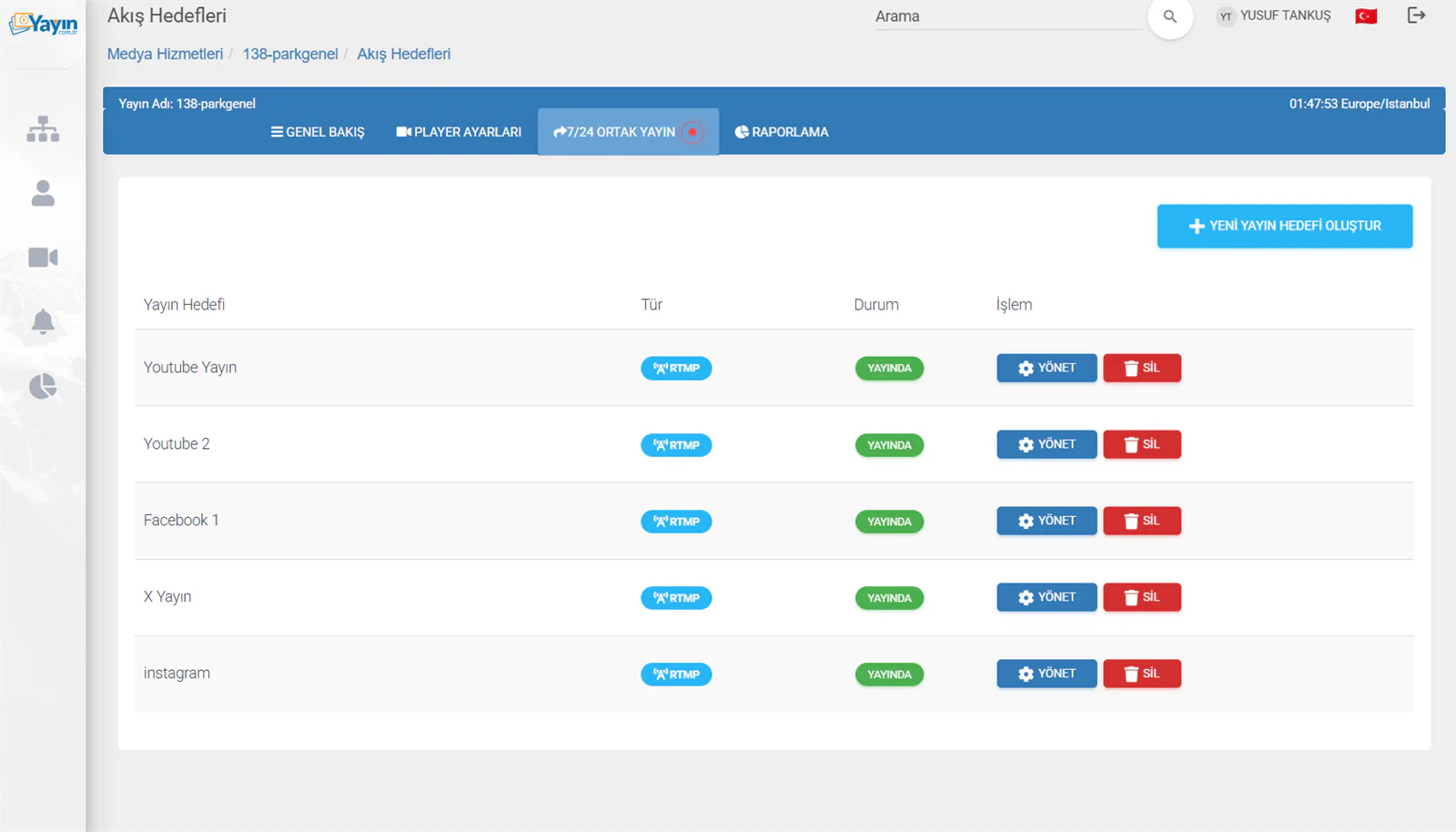
While you have active streams, a red on-air indicator appears next to the 24/7 Multistreaming tab in the top menu — so you can tell at a glance that a social media stream is running, whichever page you are on.
An Example Stream
Below you can watch an example of a live stream delivered to YouTube through our platform:
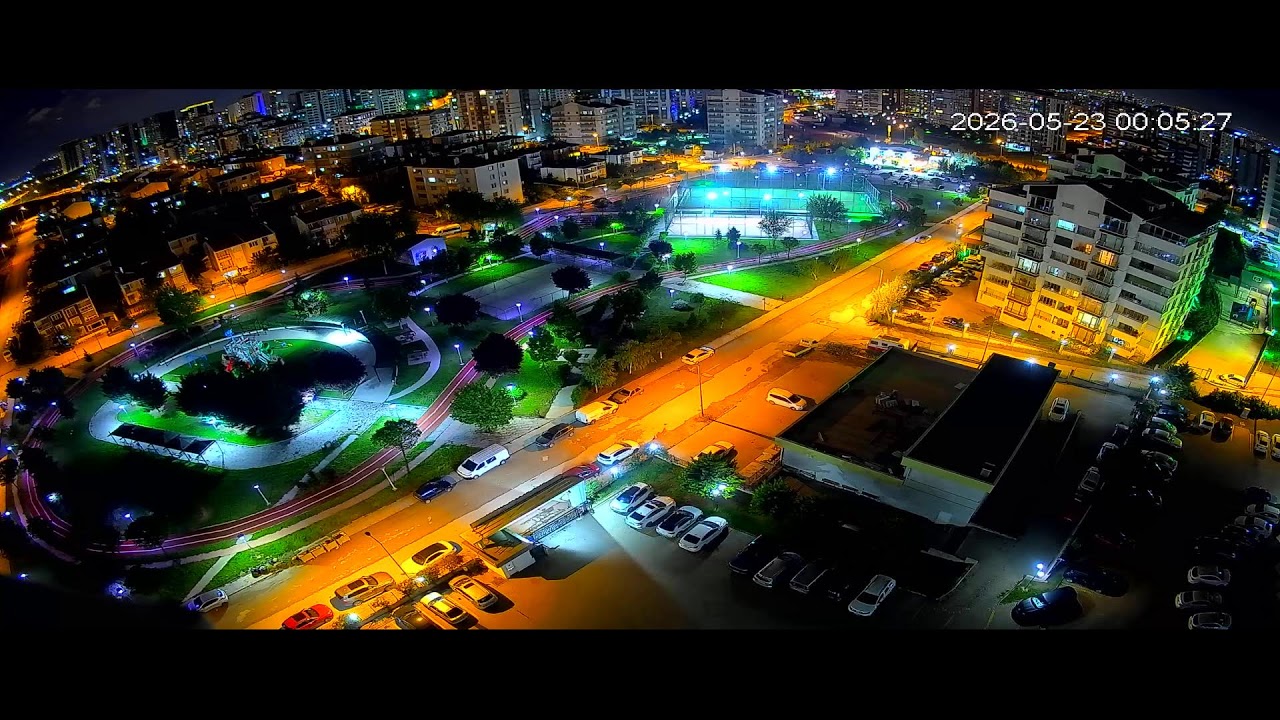
This stream is delivered from an IP camera to YouTube through the yayin.com.tr panel, 24/7 and without interruption.
Frequently Asked Questions
| Question | Answer |
|---|---|
| Is there a time limit on streaming? | No — you can stream 24 hours a day, 7 days a week. There is no time restriction. |
| How many platforms can I stream to at once? | The standard package includes 5 simultaneous destinations free of charge, and you are free to choose the platforms (anywhere with RTMP, plus private servers). More simultaneous destinations require an add-on package. |
| My camera has no audio — is that a problem? | No. You can add an audio source using the Music (Background), Music (Sports) or Silent options. |
| Where do I get the stream key? | From each platform's own settings page. The links are in the table above. |
| If the camera drops, does the stream end? | No. A "no signal" image takes over automatically and the social media stream continues. |
| What will the stream quality be? | It is delivered at your camera's resolution and bitrate. No additional compression is applied. |