
Publish All Your Cameras with a Single Embed
Group several IP cameras onto one page and publish them professionally. With 15 themes, multi-camera merging, scheduling and advanced player settings, you are in full control.
A playlist lets you publish several cameras on any website with a single embed code. Instead of a separate embed for each camera, you paste one piece of code; visitors switch between cameras, watch several at once and reach the DVR recordings. It is ideal for municipalities, sports facilities, schools and corporate sites.
The Playlist Panel
Click the Playlist tab (the camera icon) in the left-hand menu to open the Playlist Management panel. The page has two main sections: Camera Playlist Management and Playlist Group Management.
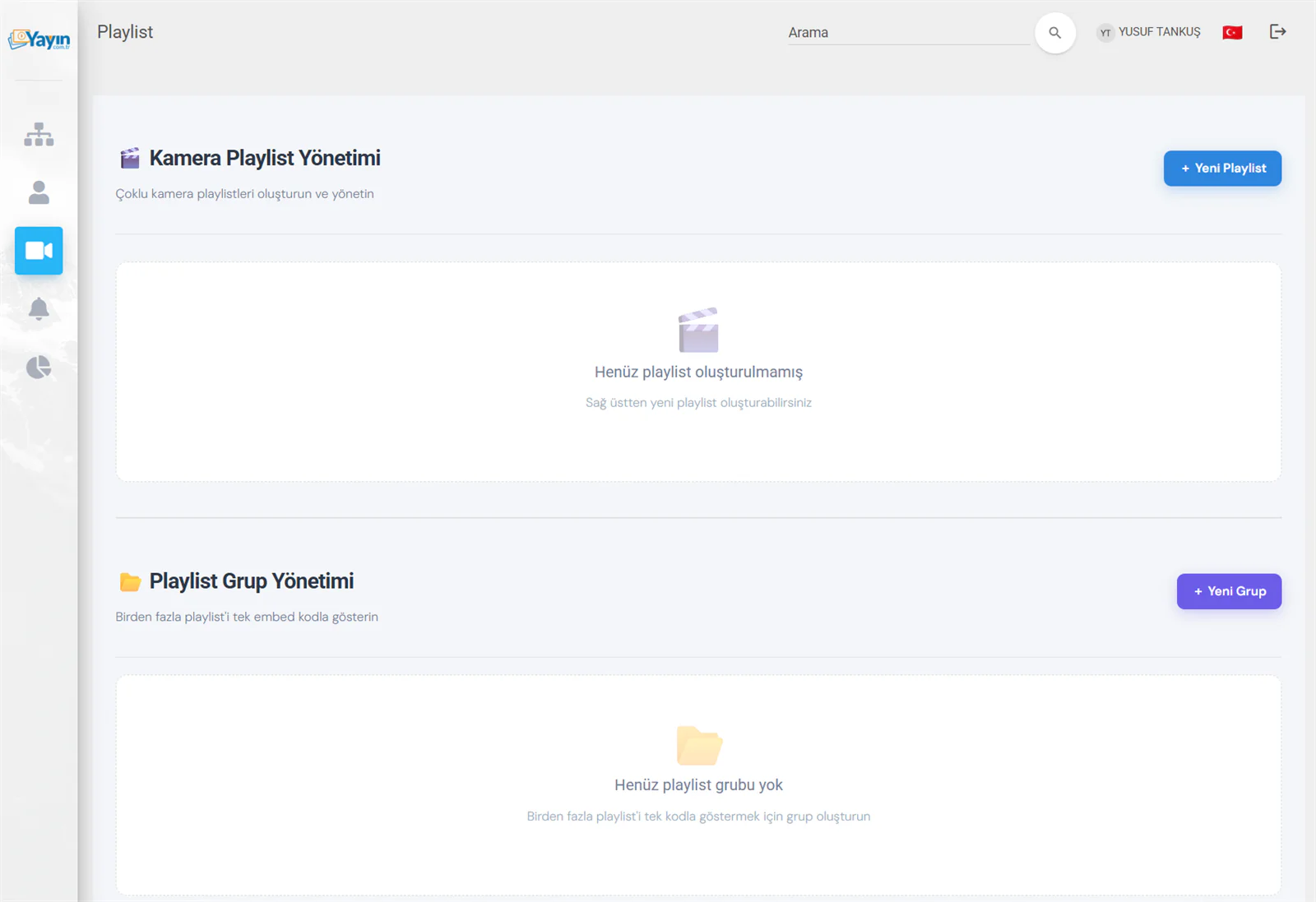
If you have not created a playlist yet, an empty-state screen appears. Use the + New Playlist button at the top right to get started straight away.
Creating a Playlist
Click + New Playlist to create one. Follow these steps in the dialog that opens:
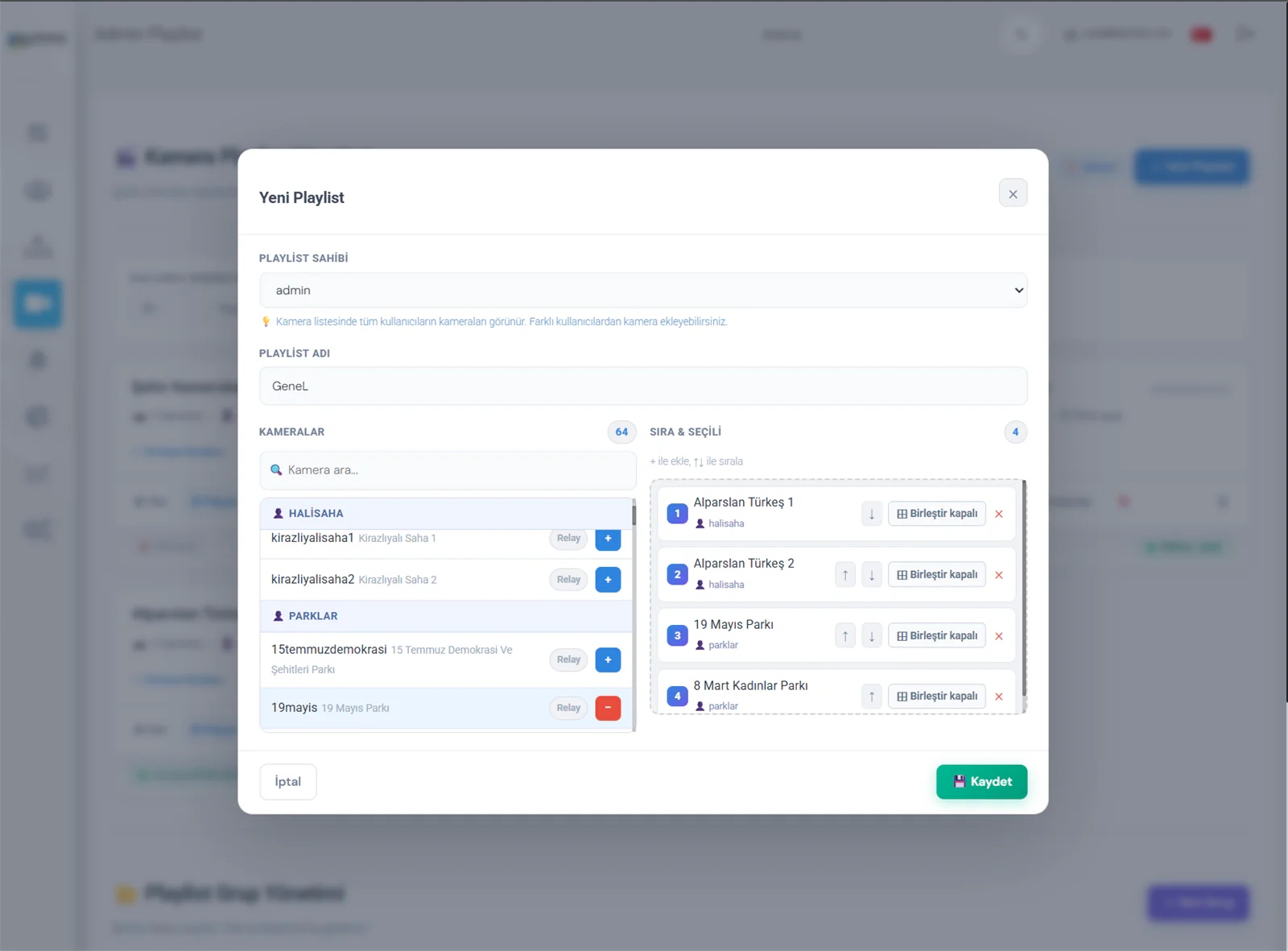
Playlist Management
Admin users can select any user from the "Playlist Owner" field, which lets cameras from different accounts be combined into a single playlist. Standard users see only their own cameras.
Enter a Playlist Name
Give it a meaningful name (for example "Bay Sports Pitches"). This name appears both in the panel and on the embed page. The URL is generated automatically, converting Turkish characters.
Select the Cameras
Add the cameras you want from the list on the left using the + button. The search box lets you filter quickly, and cameras are grouped by user.
Set the Order and Merge Options
In the "Order & Selected" section on the right, set the camera order with the ↑↓ arrows. The "Merge" button next to each camera turns the multi-camera merge feature on or off.
Save
Press 💾 Save. The playlist is created instantly and the embed codes are ready.
Before a camera can be added to a playlist it must have a Player Name assigned. Cameras without one are shown with a warning icon in the list. Clicking it opens a small dialog asking you to enter a name — once entered, you can add the camera to the playlist.
The Playlist Card and Its Actions
Each playlist you create is listed as a card showing its name, camera count, creation date, player source and embed codes.
Each card has the following action buttons:
| Button | Function |
|---|---|
| ▶ Watch | Opens the playlist in a new tab so you can preview it live |
| ⚙ Player | Opens the player settings dialog — appearance, audio, theme and security |
| ✏ Edit | Lets you change the playlist name, camera list and order |
| ⏰ Scheduling | Opens the broadcast scheduling dialog (24/7, daily, weekly) |
| 🗑 Delete | Permanently deletes the playlist — protected by a confirmation dialog |
There are two status indicators at the bottom of the card:
| Indicator | Description |
|---|---|
| Scheduling Status | 24/7 Active, or the custom schedule (green = active, red = inactive) |
| Offline Toggle | Turns automatic hiding of offline and H.265 cameras on or off |
Embed Codes
Open the Embed Codes section on any playlist card to see three integration methods:
| Method | Description |
|---|---|
| ⭐ JS Embed | The cleanest integration and the recommended method. It sets the player size and style automatically and is fully responsive |
| iframe | The classic iframe method. You need to set the width and height manually |
| Responsive iframe | A responsive iframe wrapper that preserves the 16:9 ratio. Suitable for mobile-friendly sites |
The JS embed method lets the player sit naturally within your page. It behaves responsively, has no iframe limitations and gives the best performance. The other methods should only be used where JS embed is not supported.
Playlist Themes
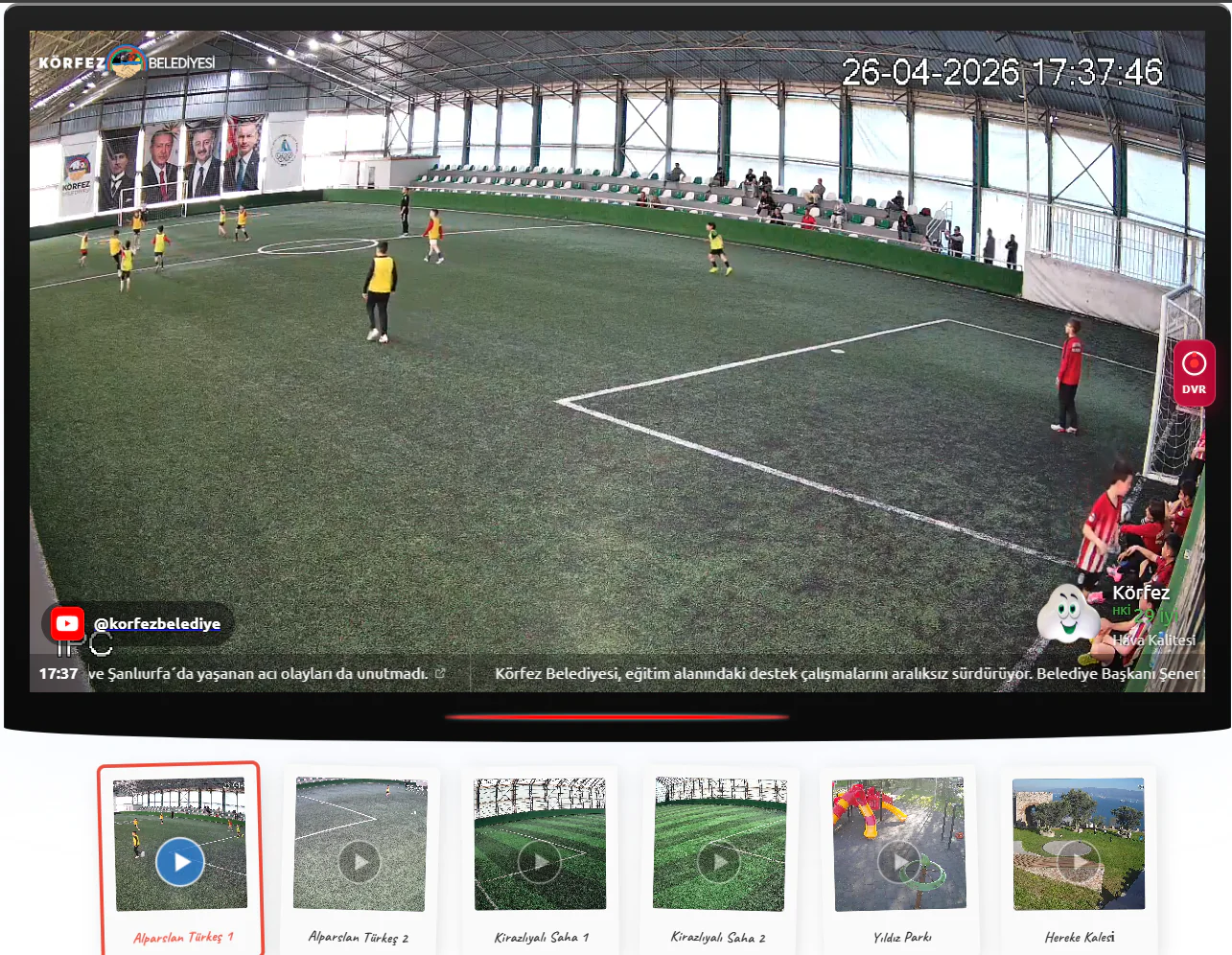
You can choose from 15 themes for your playlist. They fall into two categories: Themes with a Player, which show a large player at the top, and Gallery (No Player) Themes, which present every camera in a gallery format. To change the theme, click ⚙ Player on the playlist card and choose from the Playlist Theme dropdown.
Themes with a Player (7)
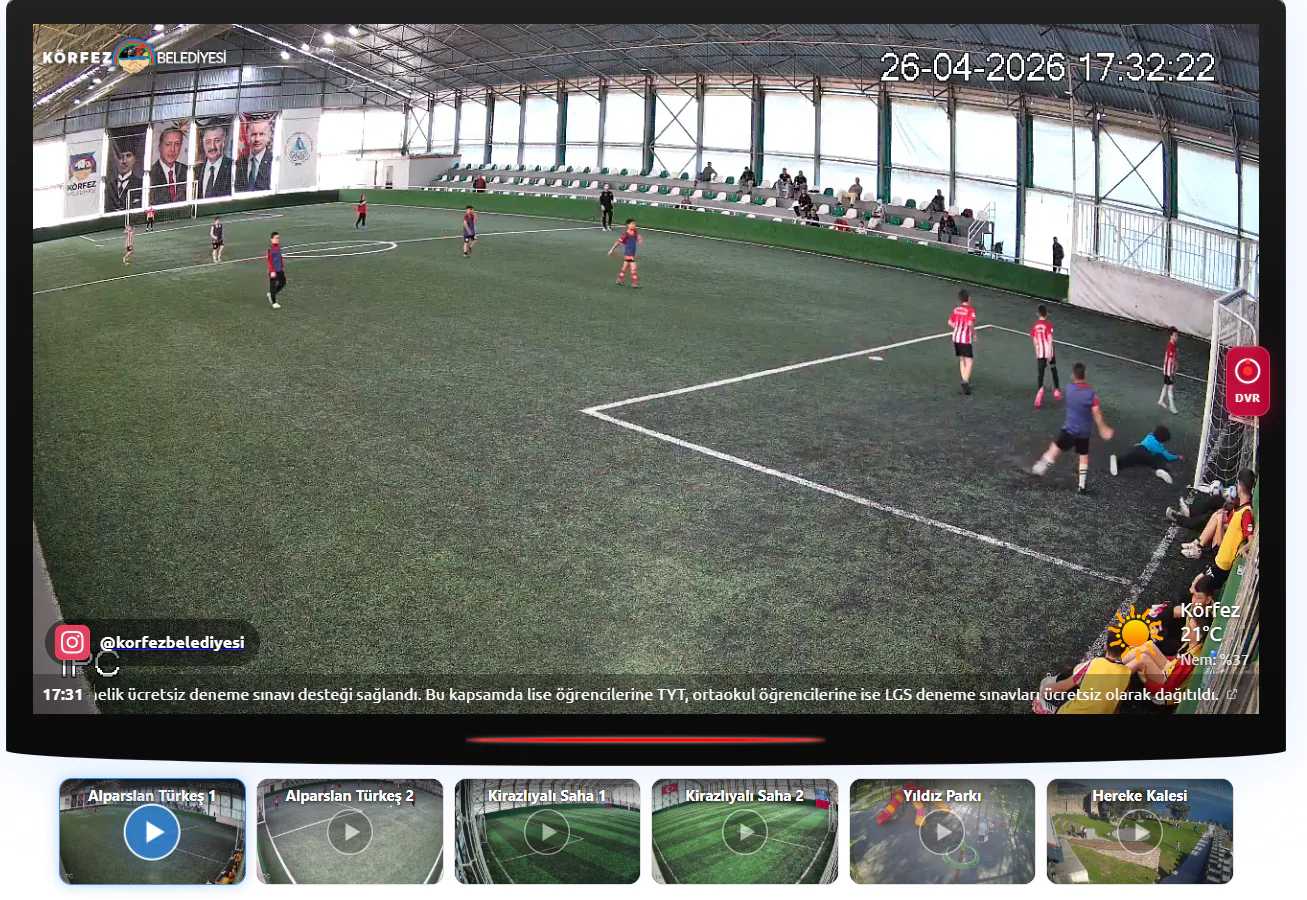
The selected camera plays in a large player at the top, with camera previews listed underneath. Clicking a thumbnail switches the player to that camera.
🔲 Grid (Classic) — plain and functional. Camera thumbnails are arranged in a horizontal row underneath. The cleanest and fastest-loading theme.
🃏 Card View — each camera is shown as a card. With the camera name, a "LIVE" label and a "VIEW" button, it makes for a professional interface.
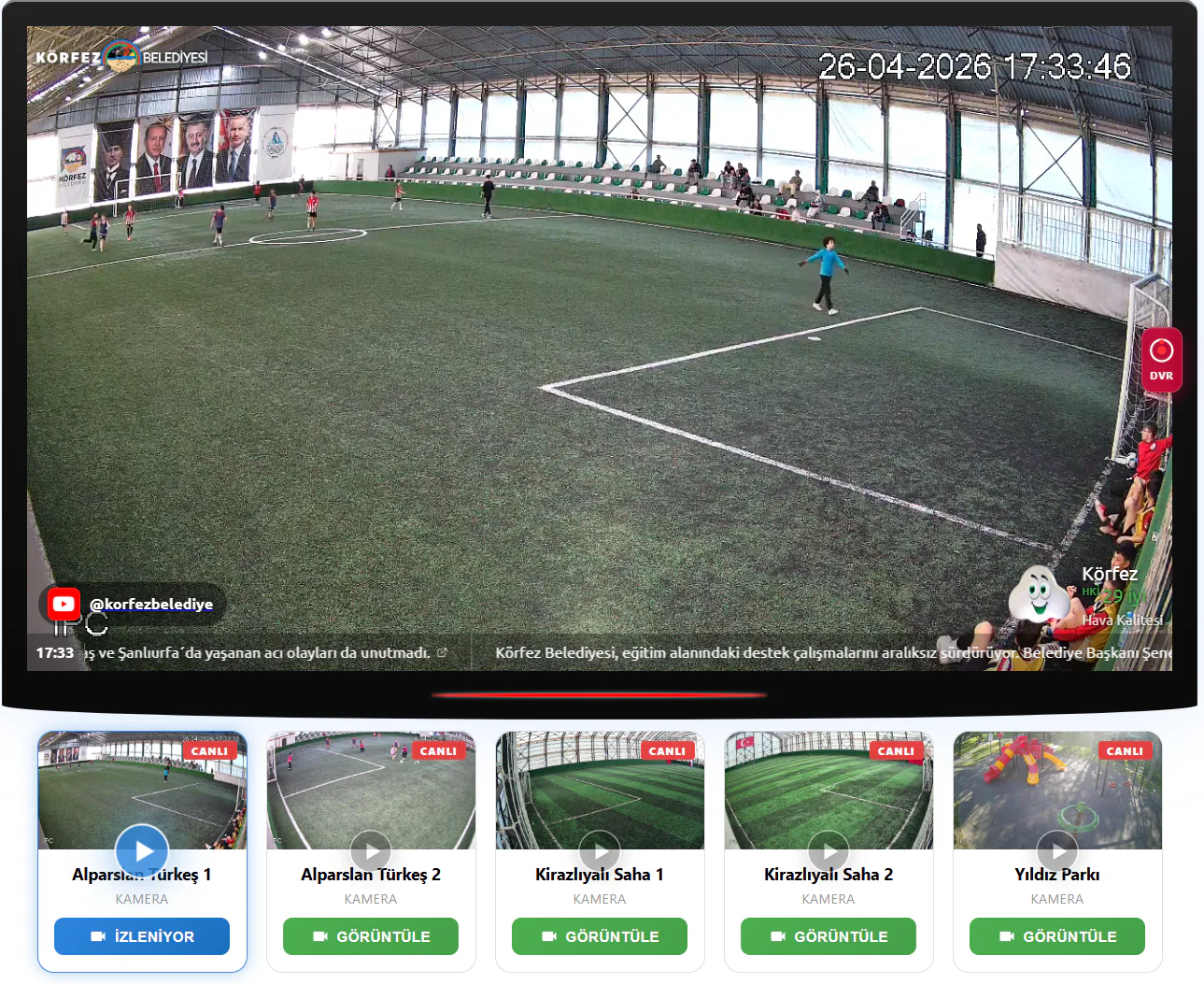
🎬 Cinematic — a cinema atmosphere in dark tones. Camera thumbnails appear as cards with gradient backgrounds, and "LIVE" labels and camera names are set in large type.
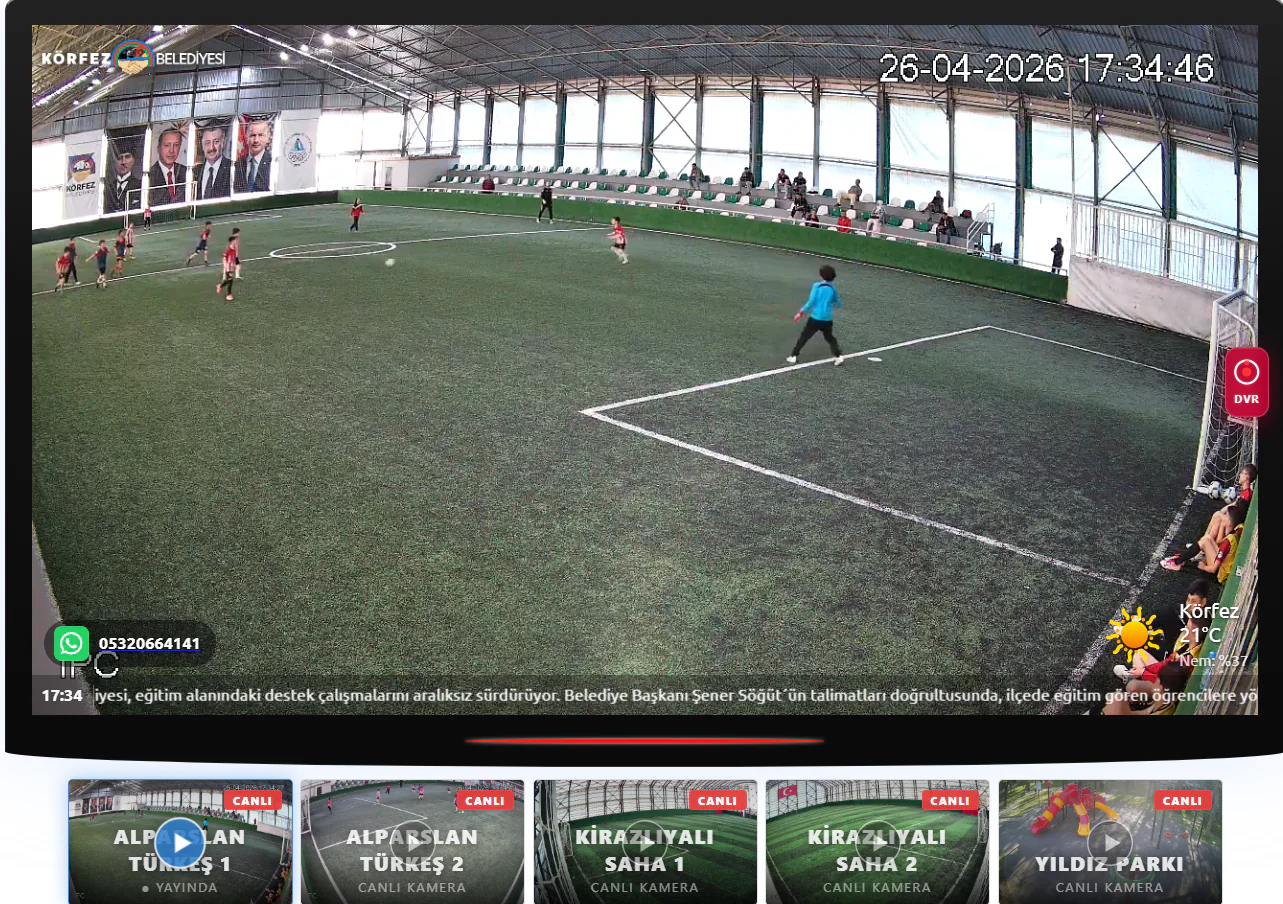
🧊 Glass Effect — semi-transparent, frosted-glass (glassmorphism) thumbnails for a modern, elegant look. The active camera shows "ON AIR" and "READY" status labels.
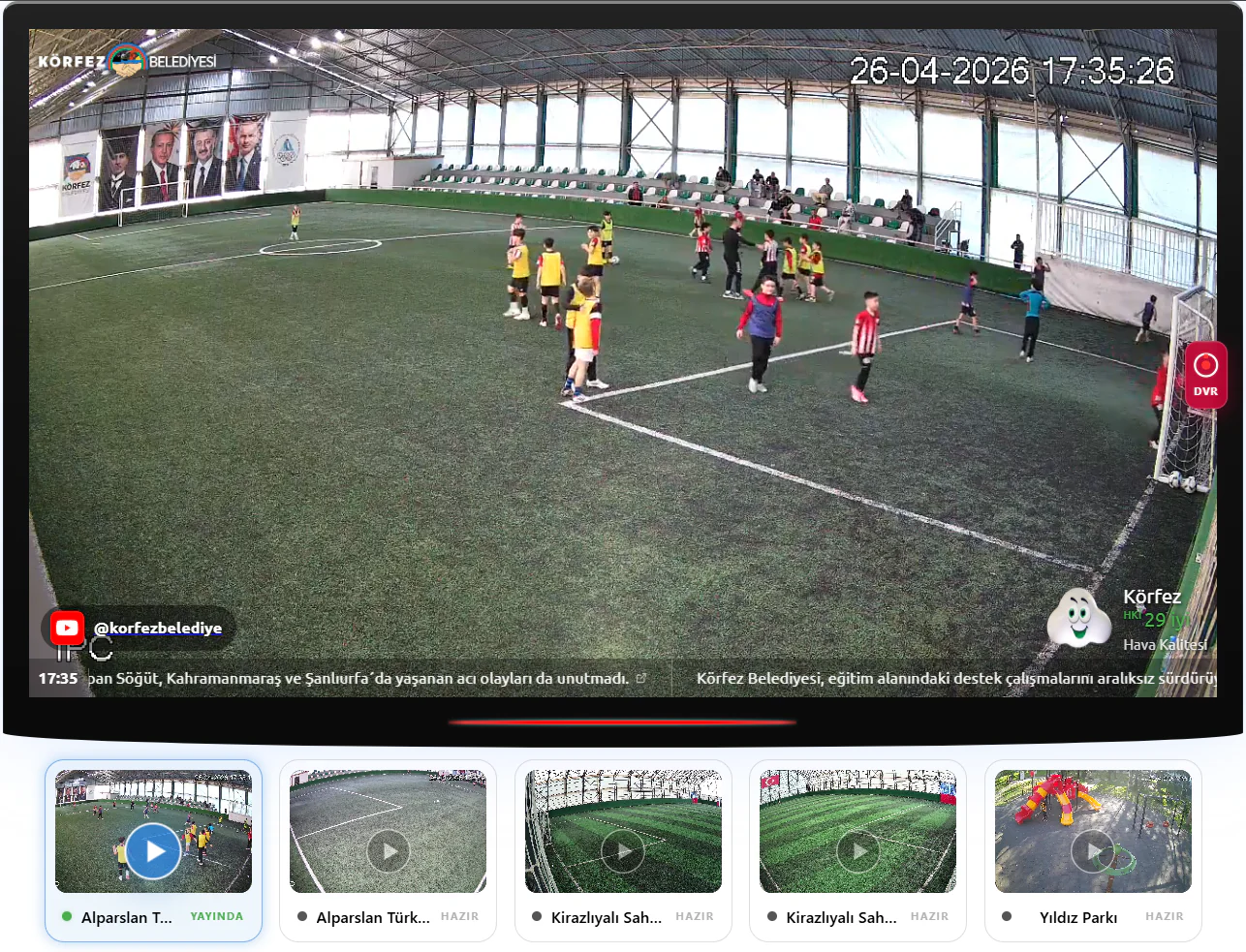
🧩 Mosaic — the first camera is large and the rest are arranged as smaller thumbnails in a mosaic. A visual theme that makes the best possible use of the space.
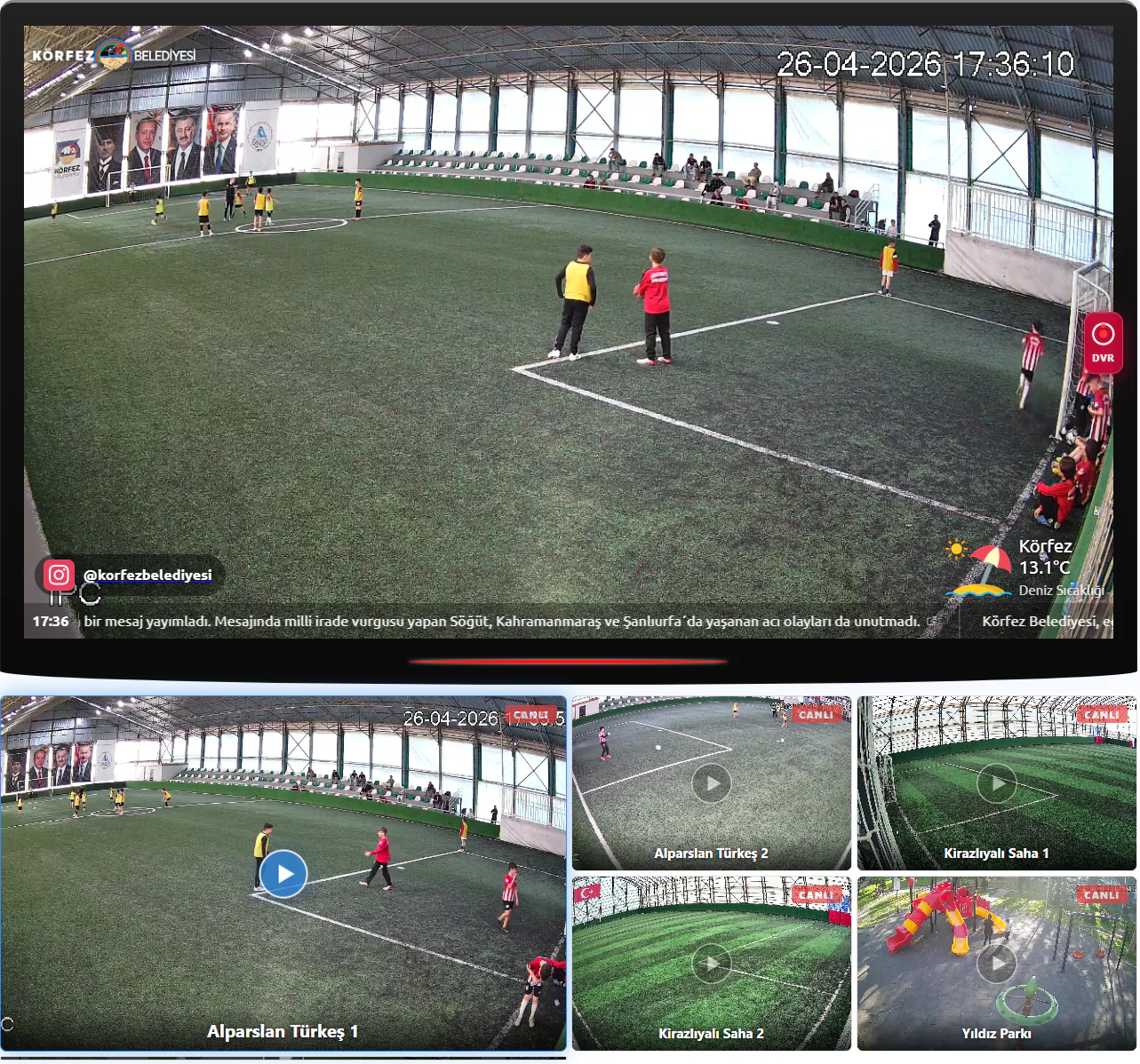
💜 Neon — neon glow effects on a dark background, with camera thumbnails surrounded by a purple/blue glow. Ideal for night-themed or entertainment venue sites.
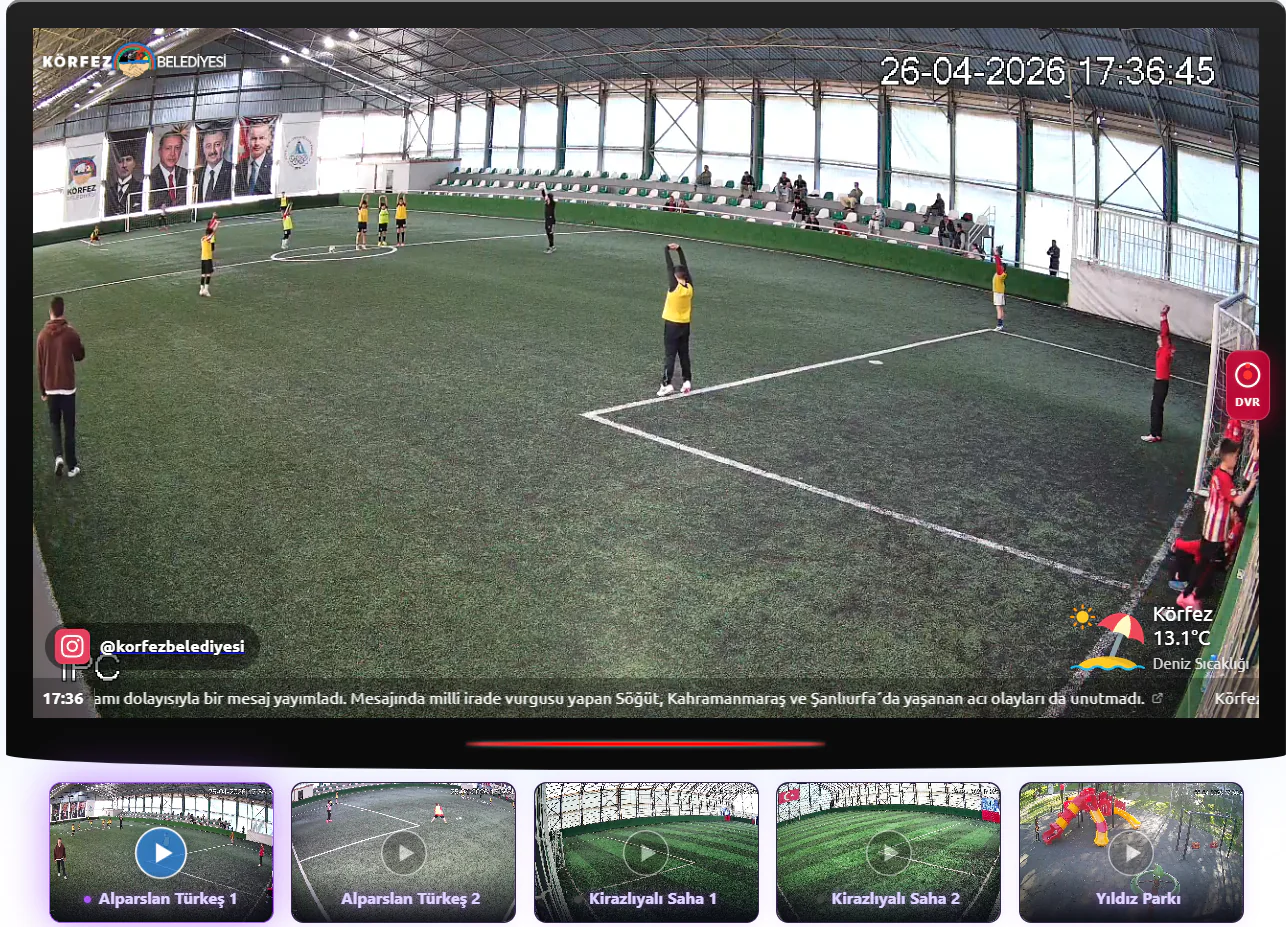
📸 Polaroid — camera thumbnails are shown as Polaroid-style photo cards, with the camera name written underneath in a handwritten style.
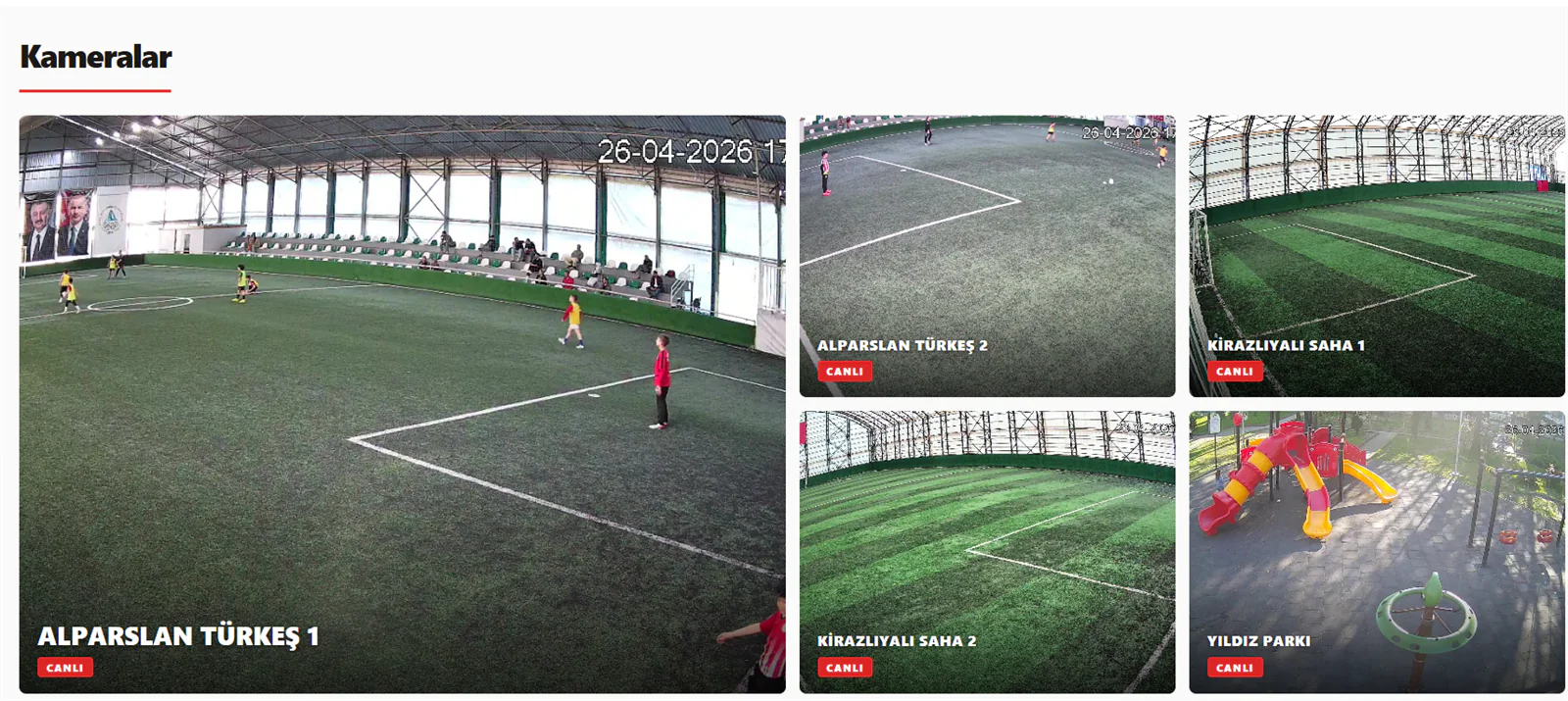
Gallery (No Player) Themes (8)
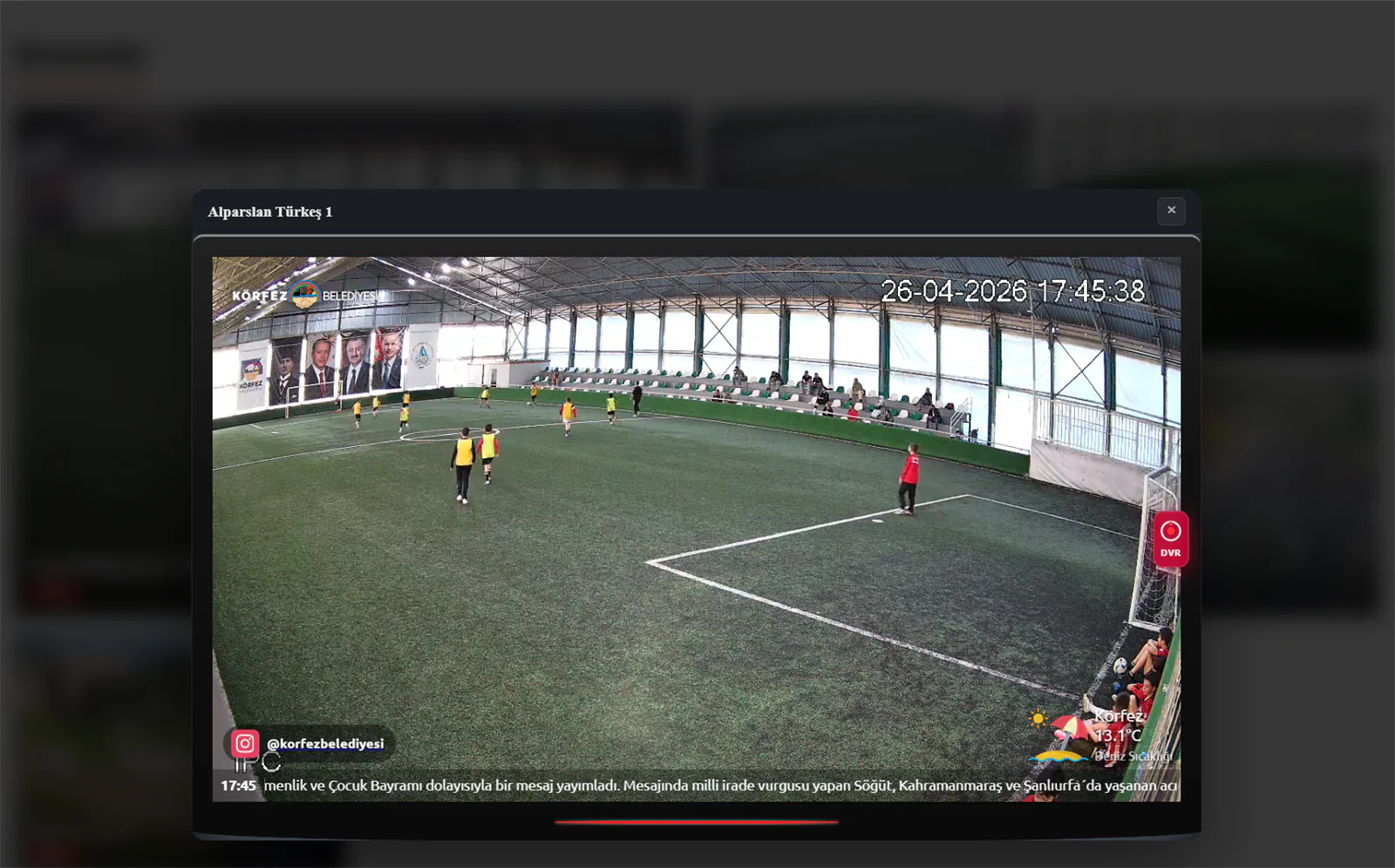
Every camera is shown as an equally sized card, with no separate player on the page. Clicking a camera opens a full-screen popup and the stream plays inside it. An ideal layout for municipal and corporate sites.
The popup that opens when a user clicks any camera:
The gallery themes are:
| Theme | Description |
|---|---|
| 🖼️ Showcase | Clean cards on a light background. A plain look with a "LIVE" label and the camera name |
| 🌙 Night | A gallery on a dark background, for night-themed sites |
| 📐 Compact | A dense, information-rich layout with small thumbnails |
| 🎬 Cinema | A cinematic gallery layout with wide cards |
| ✨ Minimal | Minimum decoration, maximum focus on the content |
| 💜 Neon Gallery | Gallery cards with neon effects |
| 📰 Magazine | A magazine/newspaper layout with an editorial feel |
| 🔮 Glass Card | Semi-transparent cards in a glassmorphism style |
Themes with a player suit visitors who want to watch one camera at a time and switch between them. Recommended for sports facilities and event streams.
Gallery themes are ideal for visitors who want to see every camera at once. Recommended for municipal sites and security camera pages.
Merge Multiple Cameras
The Merge Multiple Cameras feature is available only at yayin.com.tr and is not offered by competing platforms. It combines several cameras onto a single screen for a control-room style multi-view experience.
With it, visitors press the ⊞ Merge button on the player, choose the cameras they want, set the layout and switch to multi-view instantly. Up to 4 cameras can be watched at once.
How Do You Enable It?
While creating or editing a playlist, each camera in the "Order & Selected" section on the right has a "Merge off" button. Click it to switch merging on for that camera. Cameras with merging enabled appear among those visitors can select in the merge dialog.
The Merge Dialog
When a visitor presses the ⊞ button on the player, this dialog opens:
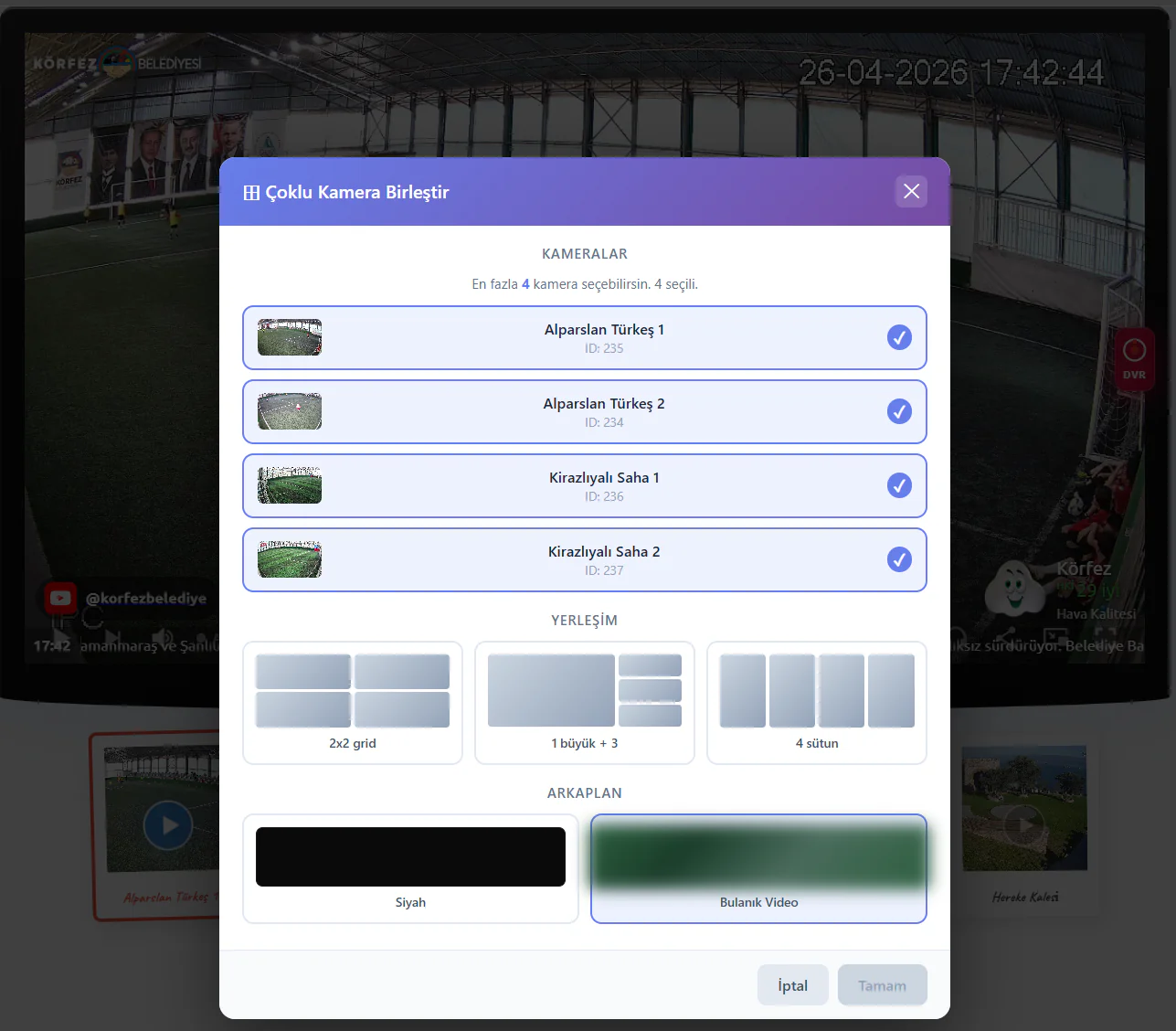
The dialog has three sections:
| Section | Description |
|---|---|
| Cameras | Lists the cameras with merging enabled. Up to 4 can be selected |
| Layout | A choice of 2x2 grid, 1 large + 3 small, and 4 columns |
| Background | Black (the classic control-room look) or Blurred Video (a blurred view of the main camera) |
Layout Options
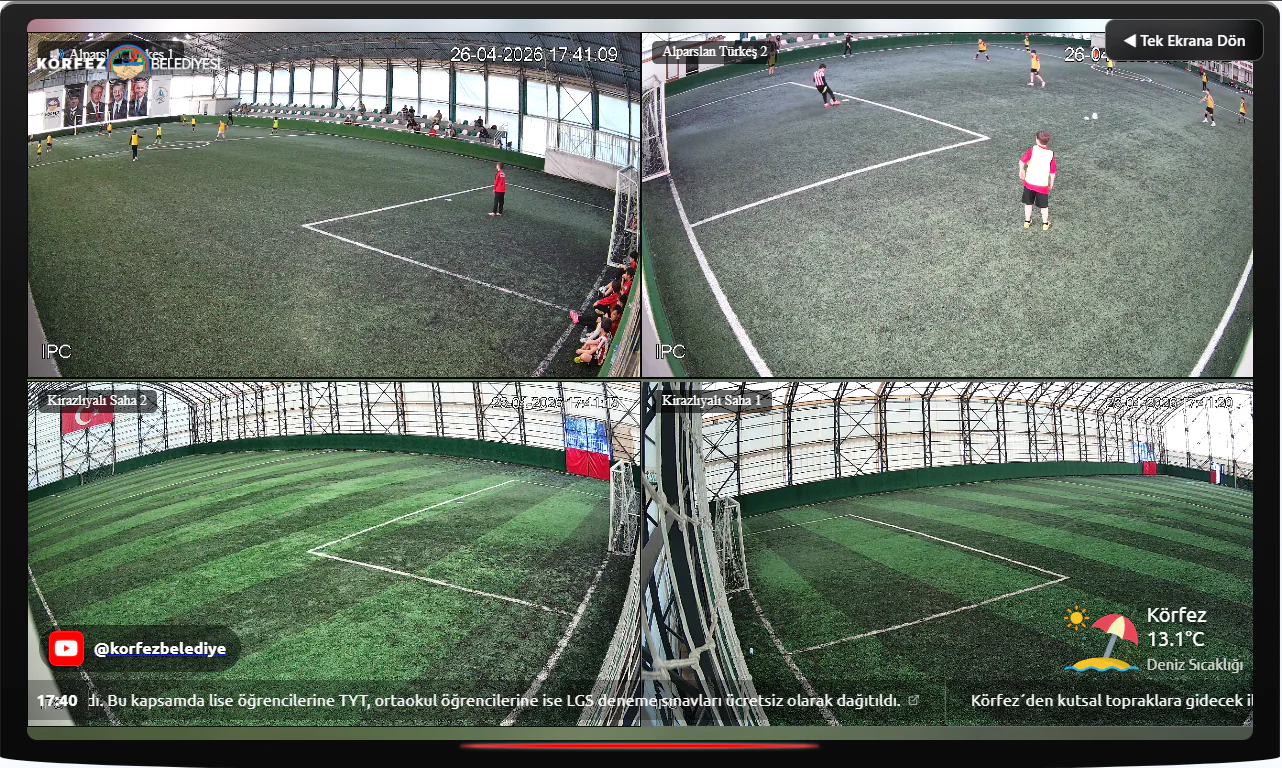
🔲 2×2 Grid — four cameras of equal size in 2 rows and 2 columns. Ideal when every camera deserves equal attention.
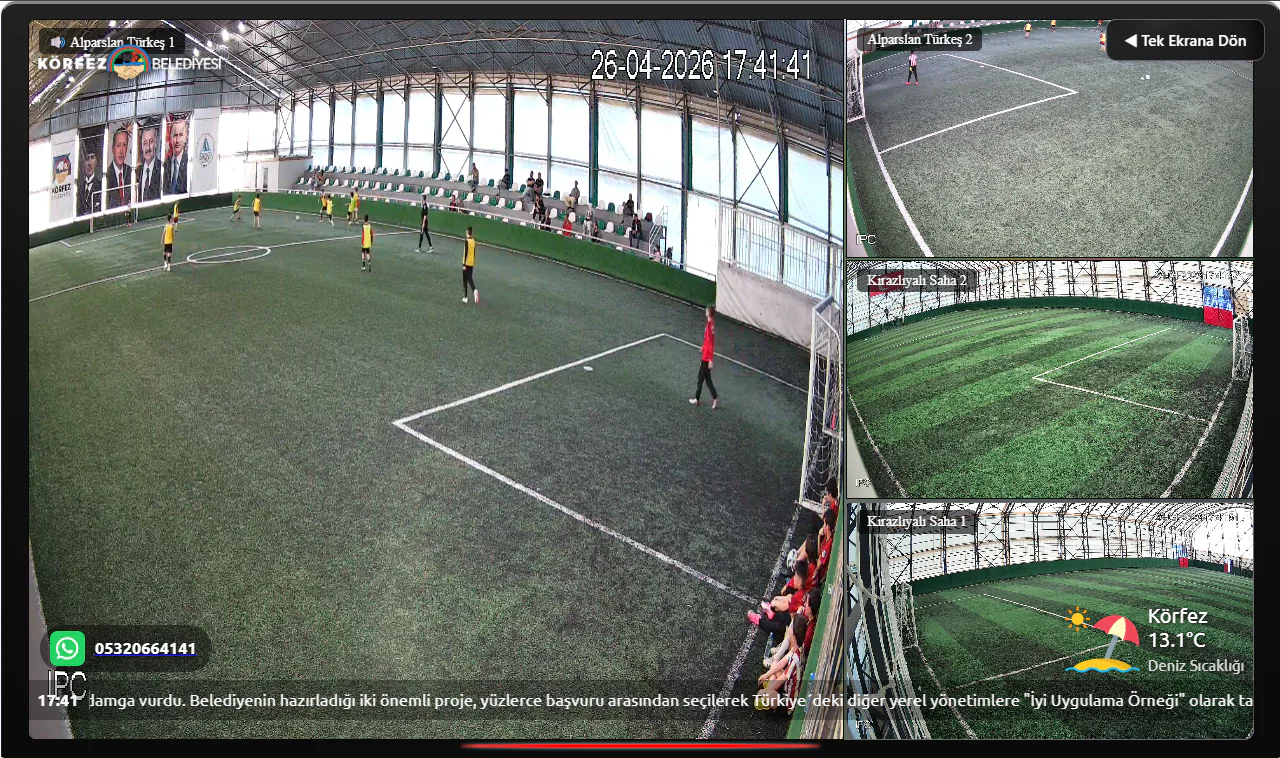
📐 1 Large + 3 Small — one large camera on the left with the other three smaller on the right. Suitable for keeping a main camera prominent while following the others.
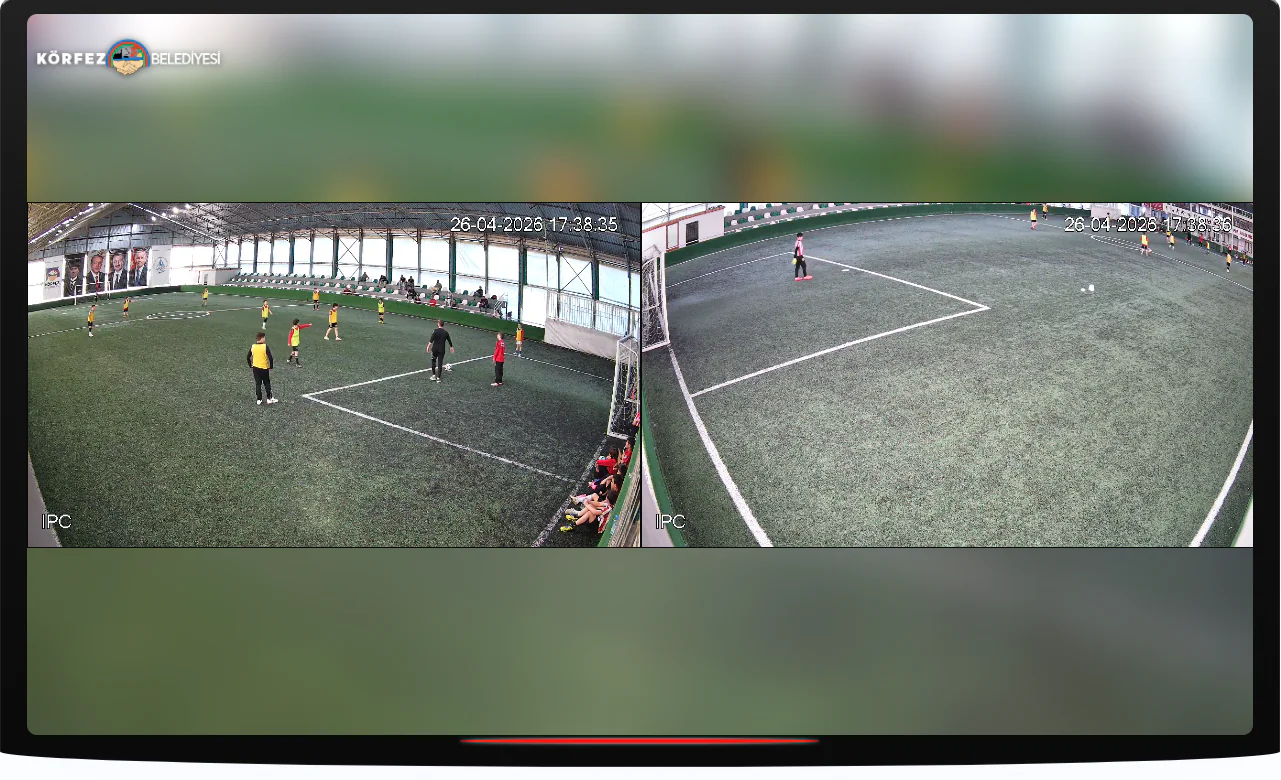
⬛ Side by Side (Blurred Background) — two cameras side by side, with the empty space filled by a blurred video background. Works best with 2 cameras selected.
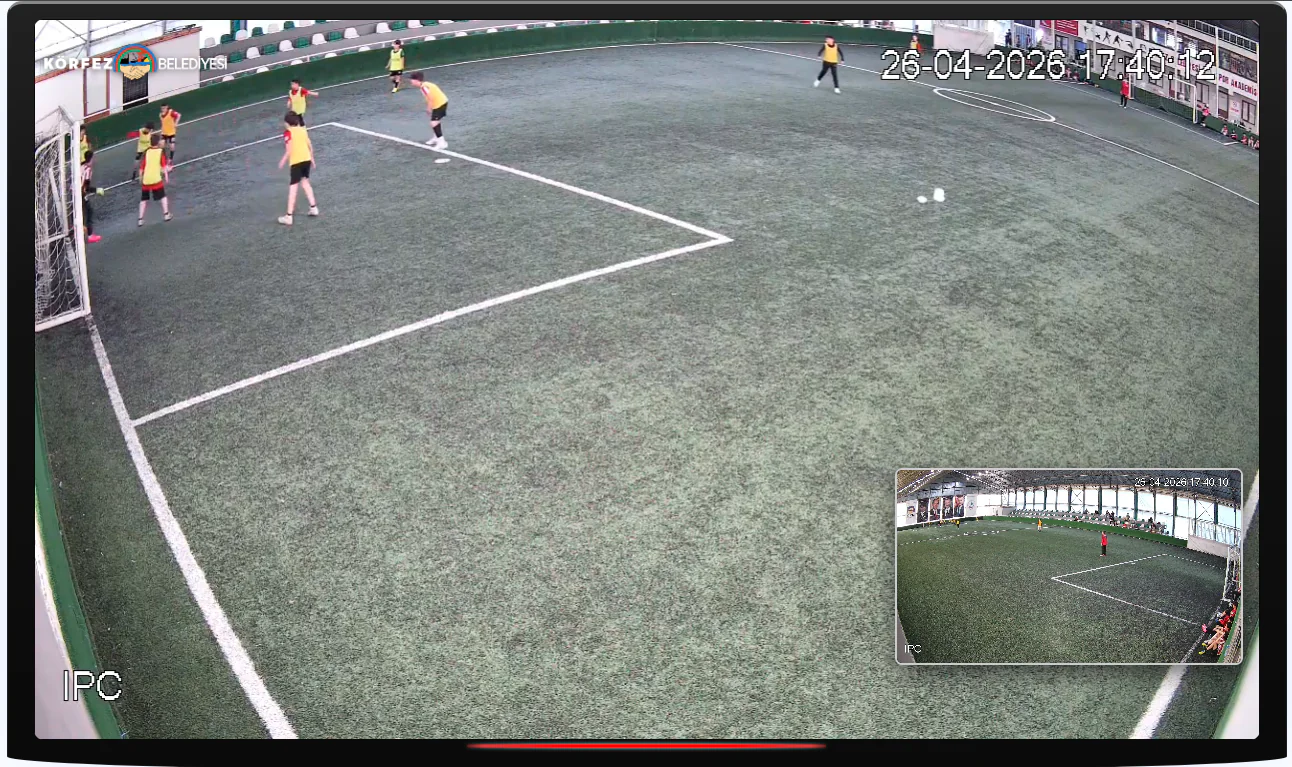
🪟 Picture-in-Picture (PiP) — the main camera fills the screen with a second in a small window in the bottom right. Ideal for watching one camera as the main view while keeping an eye on another.
While in merge mode, press ◀ Return to Single Screen in the top right corner to go straight back to normal single-camera mode. Merge mode runs in the visitor's browser and puts no additional load on the server.
Why Use It?
Sports Facilities
Watch four different angles of a five-a-side pitch on one screen and never miss a moment of the match.
Municipal Cameras
See park, square and pitch cameras at the same time for complete situational awareness.
Event Streams
Offer a multi-angle experience for concerts, festivals and ceremonies.
Player Settings
Each playlist can have its own player settings. Click ⚙ Player on the playlist card to open the settings dialog.
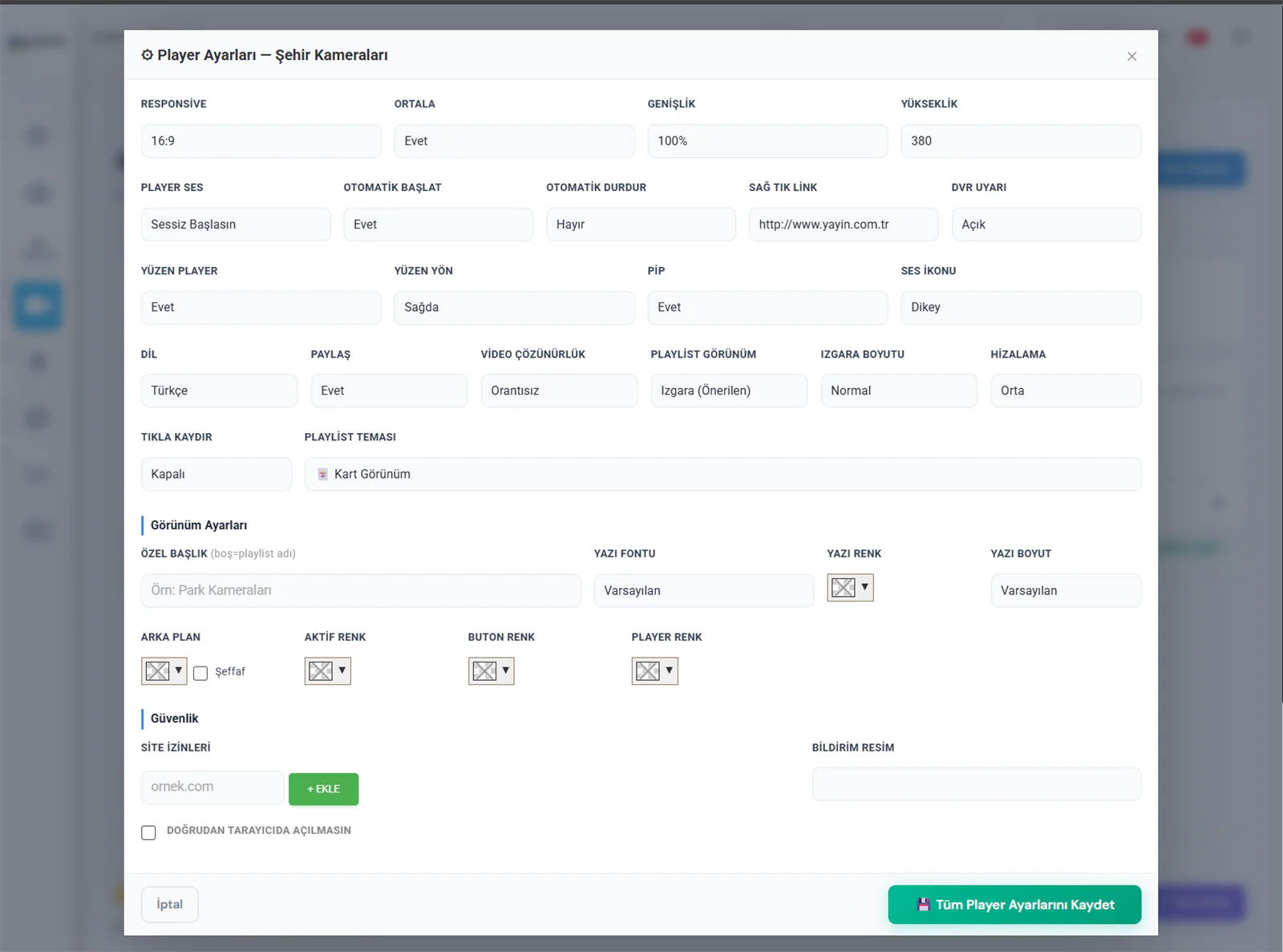
Basic Settings
| Setting | Options | Description |
|---|---|---|
| Responsive | 16:9, 4:3, 24:10, No | Sets the player aspect ratio |
| Centre | Yes, No | Determines whether the player is centred within the page |
| Width | Pixels or % | The player width (for example 100% or 640) |
| Height | Pixels | The player height (for example 380) |
| Player Audio | Sound On, Start Muted | The audio state when it first opens. "Muted" is recommended for corporate sites |
| Autoplay | Yes, No | Whether the stream starts automatically when the page loads |
| Auto Stop | Yes, No | Stops the stream when the player scrolls out of view — saving bandwidth |
| Right-Click Link | URL | The web address that opens when the custom text in the right-click menu is clicked |
| DVR Notice | On, Off | Shows the DVR button and notice on cameras with recording enabled |
Player Behaviour Settings
| Setting | Options | Description |
|---|---|---|
| Floating Player | Yes, No | The player shrinks and stays fixed in the corner as the page scrolls (sticky) |
| Floating Position | Right, Left | Which side of the screen the floating player appears on |
| PiP | Yes, No | Enables the browser picture-in-picture feature |
| Audio Icon | Vertical, Horizontal | The orientation of the volume control |
| Language | TR, EN, AR, DE, FR, RU, ES | The player interface language — 7 languages supported |
| Share | Yes, No | Shows or hides the social media share buttons |
| Video Scaling | Stretched, Original, As Is, Proportional | How the video is fitted into the player area |
| Click to Scroll | On, Off | Clicking a camera thumbnail scrolls the page to the player automatically |
Playlist Display Options
| Setting | Options | Description |
|---|---|---|
| Playlist Display | Grid, Below Player, Inside Player, Control Bar, Disabled | Where the camera list sits relative to the player |
| Playlist Theme | 15 themes | 7 with a player + 8 gallery themes |
| Grid Size | Very Small – Very Large | The size of the preview thumbnails (100px – 200px) |
| Alignment | Left, Centre, Right | How the camera grid is aligned |
Appearance Customisation
| Setting | Description |
|---|---|
| Custom Title | A custom title shown instead of the playlist name (if left blank, the playlist name is used) |
| Font | Ubuntu, Roboto, Open Sans, Poppins, Montserrat, Inter, Nunito, Lato |
| Text Colour | The colour of the camera name text |
| Text Size | Between 10px and 30px |
| Background | The gallery background colour, or transparent. Choosing transparent lets your own site background show through |
| Active Colour | The colour of the active button and progress bar on the player |
| Button Colour | The colour of the player control buttons |
| Player Colour | The player background colour |
Security Settings
| Setting | Description |
|---|---|
| Site Permissions | Add the permitted domains one by one (for example belediye.gov.tr). The embed then works only on those domains. If left blank, it works everywhere |
| Block Direct Browser Access | When ticked, the playlist URL cannot be opened directly and can only be used as an embed |
| Offline Image | The URL of the image shown when a camera is offline |
The "Copy from Camera" option at the bottom of the player settings dialog lets you carry an existing camera's player settings across to the playlist. Rather than configuring everything by hand, you clone a ready-made configuration.
Scheduling
You can decide which hours and days your playlist is active. While scheduling is inactive, visitors cannot see the stream. Click the ⏰ button on the playlist card to open the scheduling settings.
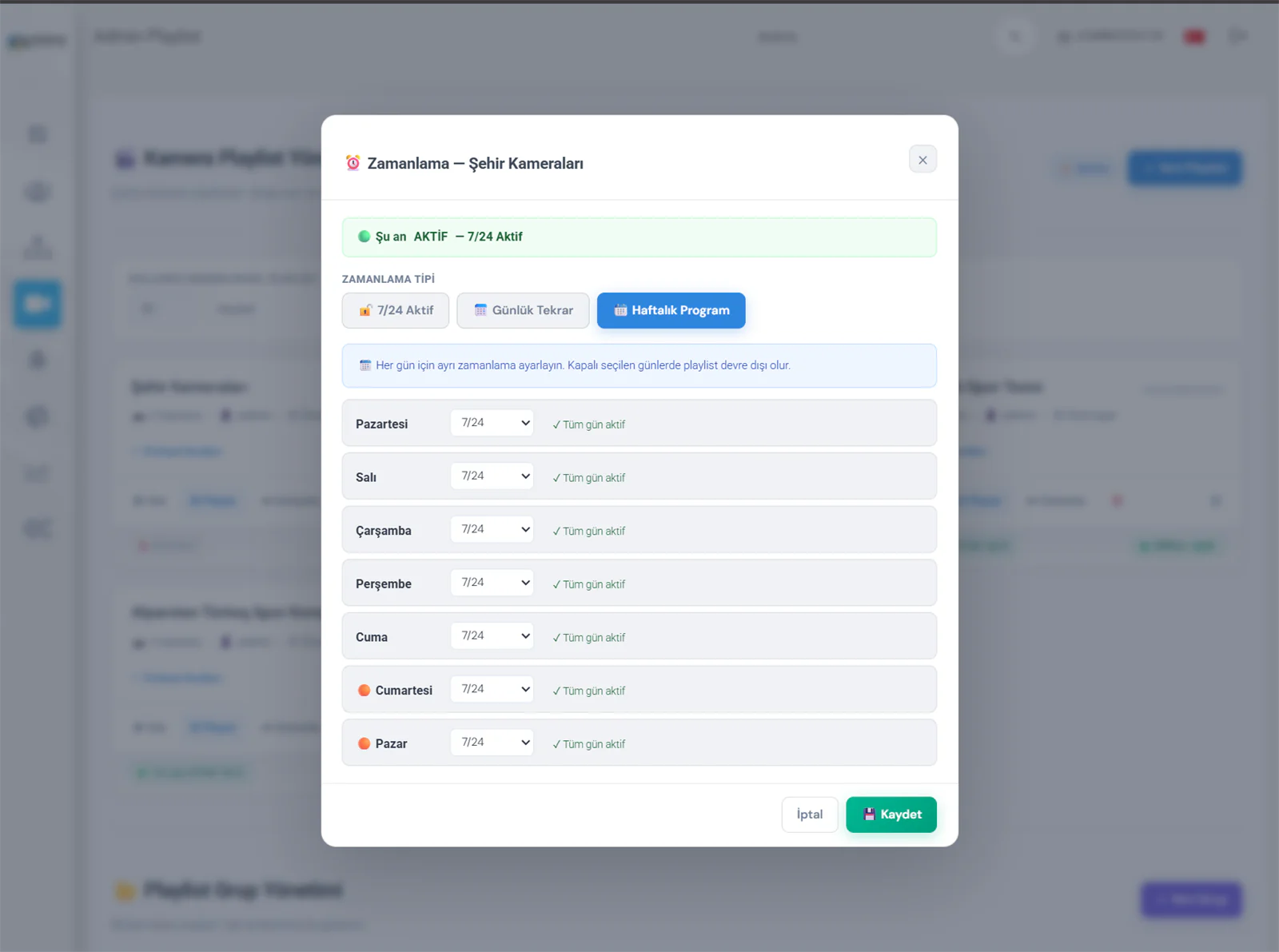
There are three scheduling modes:
| Mode | Description |
|---|---|
| 🔓 24/7 Active | The default mode. The playlist is always reachable, with no time restriction applied |
| 📅 Daily Repeat | Active at the same hours every day. You can define several time ranges (for example 08:00–12:00 and 14:00–18:00) |
| 📆 Weekly Schedule | Configured separately for each day. Every day can be set individually as "24/7 Active", "Custom Hours" or "Off" |
The scheduling status is shown at the bottom of the playlist card: a 🟢 green dot means it is currently active, a 🔴 red dot means it is currently inactive. Playlists set to "24/7 Active" show an "⏰ 24/7 Active" label.
Filtering Offline Cameras
The Offline toggle at the bottom of the playlist card automatically hides offline cameras and those using the H.265 codec.
| State | Description |
|---|---|
| Offline ON | Offline cameras and H.265 cameras (which browsers cannot play) are removed from the list automatically. Visitors see only the active cameras |
| Offline OFF | Every camera is listed regardless of its state. Offline cameras display the offline image |
If some of your cameras are switched off at certain hours, or if you have cameras with H.265 codec problems, turning on offline filtering gives visitors a clean list. A camera is added back automatically as soon as it comes online again.
DVR Playlists
You can create a playlist in DVR (recording) mode rather than live mode, giving visitors direct access to past footage.
When you select DVR as the Player Source while creating or editing a playlist, only cameras with DVR recording enabled are listed. DVR playlist cards are marked with a red line on the left edge and a DVR label.
Live playlist: the live view from your cameras is streamed, so visitors always see what is happening right now.
DVR playlist: visitors are given the DVR player. They can reach past recordings, skip forwards and backwards, and jump to a specific date and time.
All Features at a Glance
Multi-Camera
Group as many cameras as you like into a single playlist and publish them with one embed code.
15 Themes
Customise your camera page completely with 7 player themes and 8 gallery themes.
Merge
Unique in the industry — a multi-view experience with up to 4 cameras on one screen.
Scheduling
Schedule your broadcast 24/7, on a daily repeat or to a weekly programme.
Security
Site permissions, direct-access blocking and domain restrictions.
DVR Support
Create the playlist in DVR mode so visitors can reach past recordings.
Offline Filter
Offer a clean list by automatically hiding offline and H.265 cameras.
Full Customisation
Take full control of the look with font, colour, background, title and size settings.