
Bring All Your Playlists Together on One Page
Group multiple playlists under a single embed code and give your website a neatly categorised camera experience. While visitors watch the active playlist, the cards below let them switch to any other playlist with one click. Fully customise the look with 8 themes plus font, colour and background settings — and every change goes live instantly, without touching the embed code.
Say a municipality has 4 separate playlists: "Parks", "City Cameras", "Sports Facilities" and "Town Squares". With a Playlist Group you combine all 4 under a single embed code. Visitors to the municipality's website see every category on one page and click the one they want to start watching that playlist's cameras.
Playlist Group vs. Playlist
| Feature | Playlist | Playlist Group |
|---|---|---|
| Content | Groups multiple cameras | Groups multiple playlists |
| Visitor Experience | Switching between cameras | Switching between playlists (categories) |
| Purpose | Combining cameras at the same location | Presenting playlists from different locations/categories on one page |
| Embed Code | A separate embed for each playlist | One embed for all playlists |
| Example | "Yıldız Park" → 3 cameras | "All Cameras" → Parks + Sports + City playlists |
Creating a Group
In the Playlist Group Management section at the bottom of the playlist panel, click the + New Group button. In the modal that opens, follow these steps:
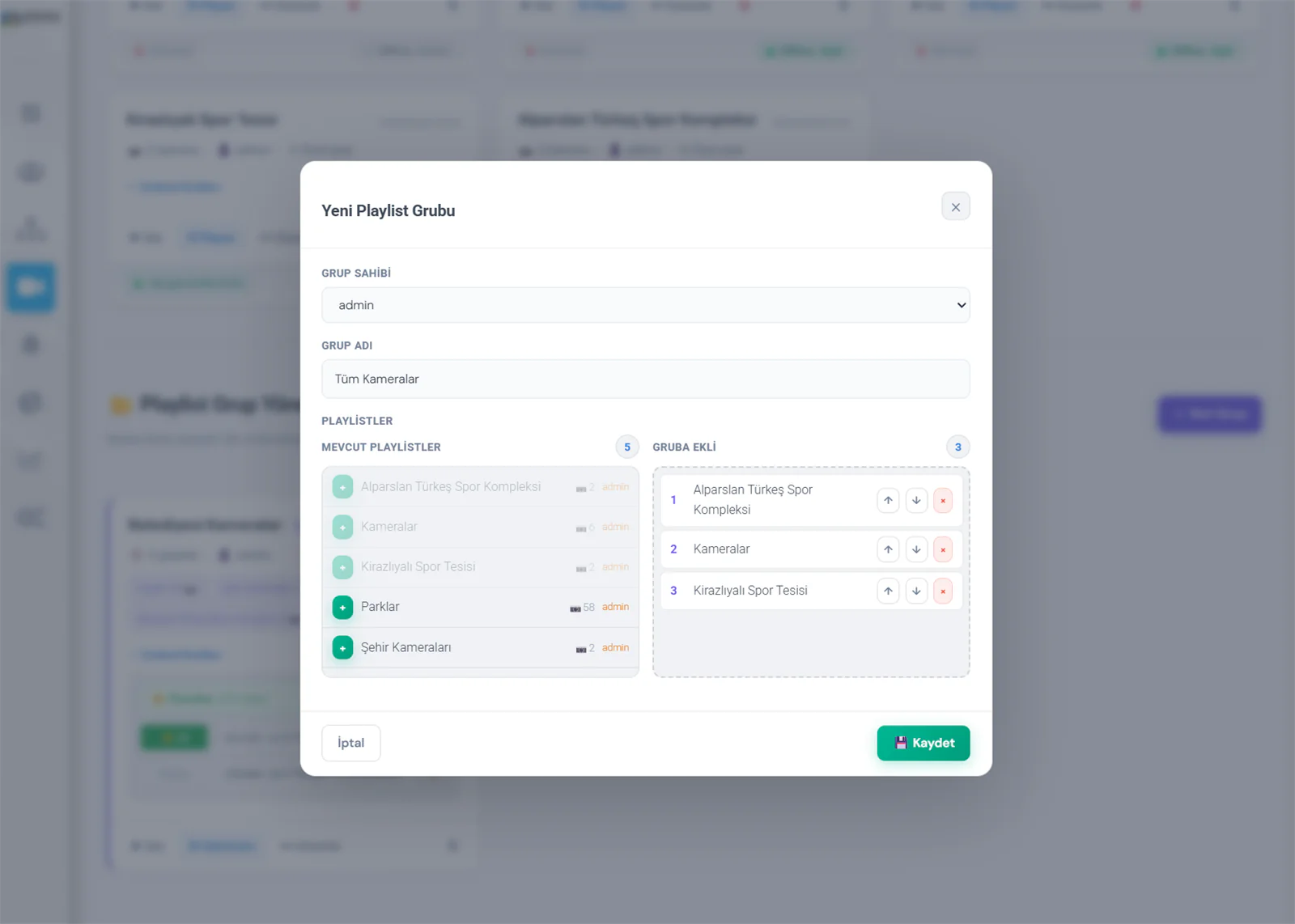
Choose the Group Owner (Admin)
Admin users can pick any user in the "Group Owner" field. Regular users only see their own playlists.
Enter a Group Name
Give the group a meaningful name (e.g. "Körfez Municipality Cameras", "All Cameras"). This name appears as the title on the embed page.
Select the Playlists
Use the + button in the "Available Playlists" list on the left to add the playlists you want. Each playlist shows its camera count and owner next to it.
Set the Order
In the "Added to Group" section on the right, arrange the playlist order with the ↑↓ arrows. The playlist in first place is featured as the large card on the page.
Save
Press the 💾 Save button. The group is created instantly and its embed codes are ready to use.
You cannot add individual cameras to a group — only playlists you have already created. First organise your cameras into playlists, then combine those playlists into a group. This two-layer structure keeps your cameras categorised and neatly presented.
Visitor Experience
Once the group is created and added to your website with the embed code, this is what visitors get:
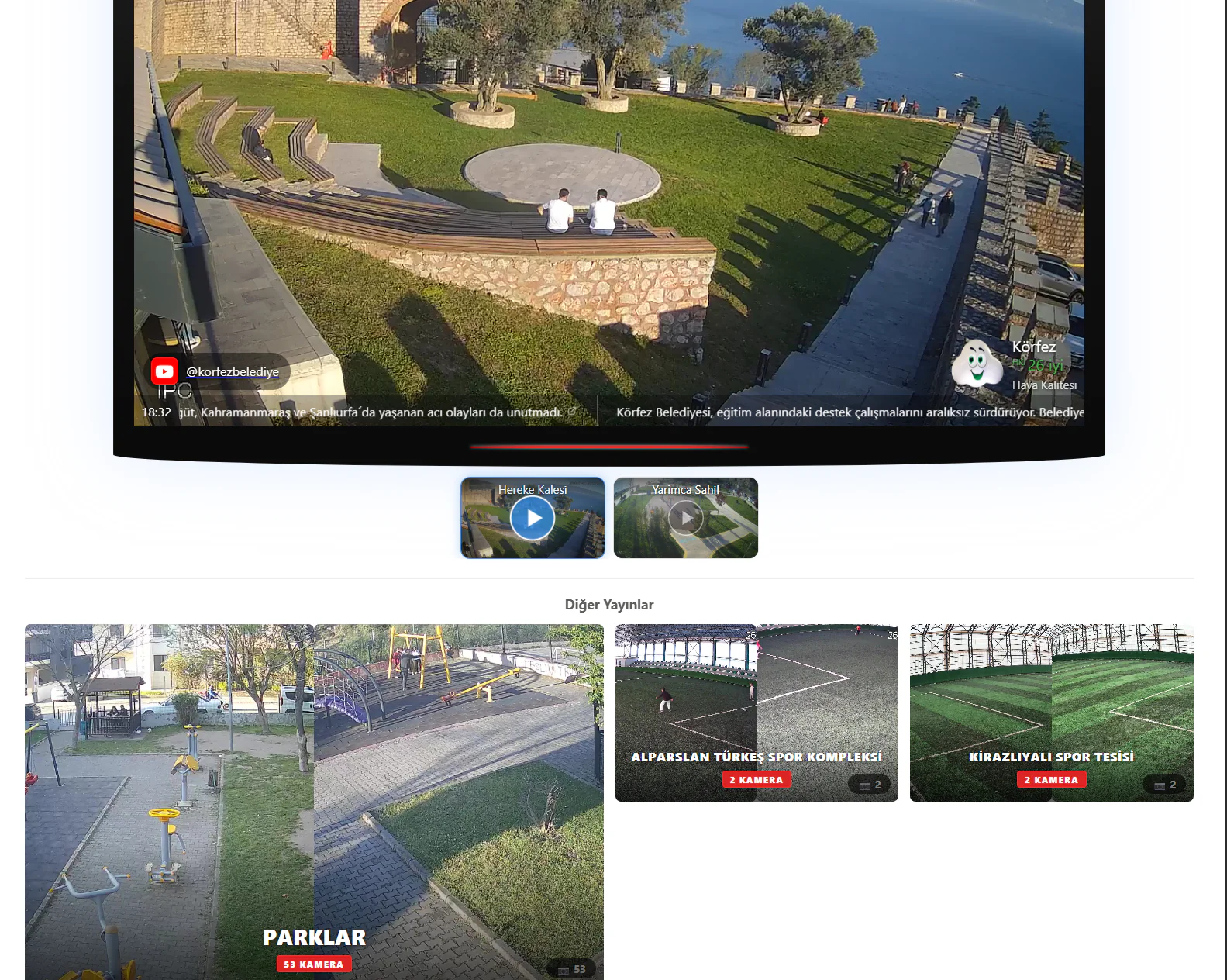
The page consists of two sections:
| Section | Description |
|---|---|
| Top: Active Playlist | Shows the selected playlist's player and camera tiles. This is where visitors switch between cameras |
| Bottom: Other Streams | The group's other playlists are listed as cards. Each card shows the playlist name, camera count and preview images. Clicking a card makes that playlist active |
Each playlist card displays its camera previews as a collage, with a camera icon and the total camera count in the bottom right. Visitors click any card to jump to that category's cameras.
Appearance Settings
Click the ⚙ Appearance button on the group card to open the appearance settings modal. This is where you configure the theme, font, colour and size.
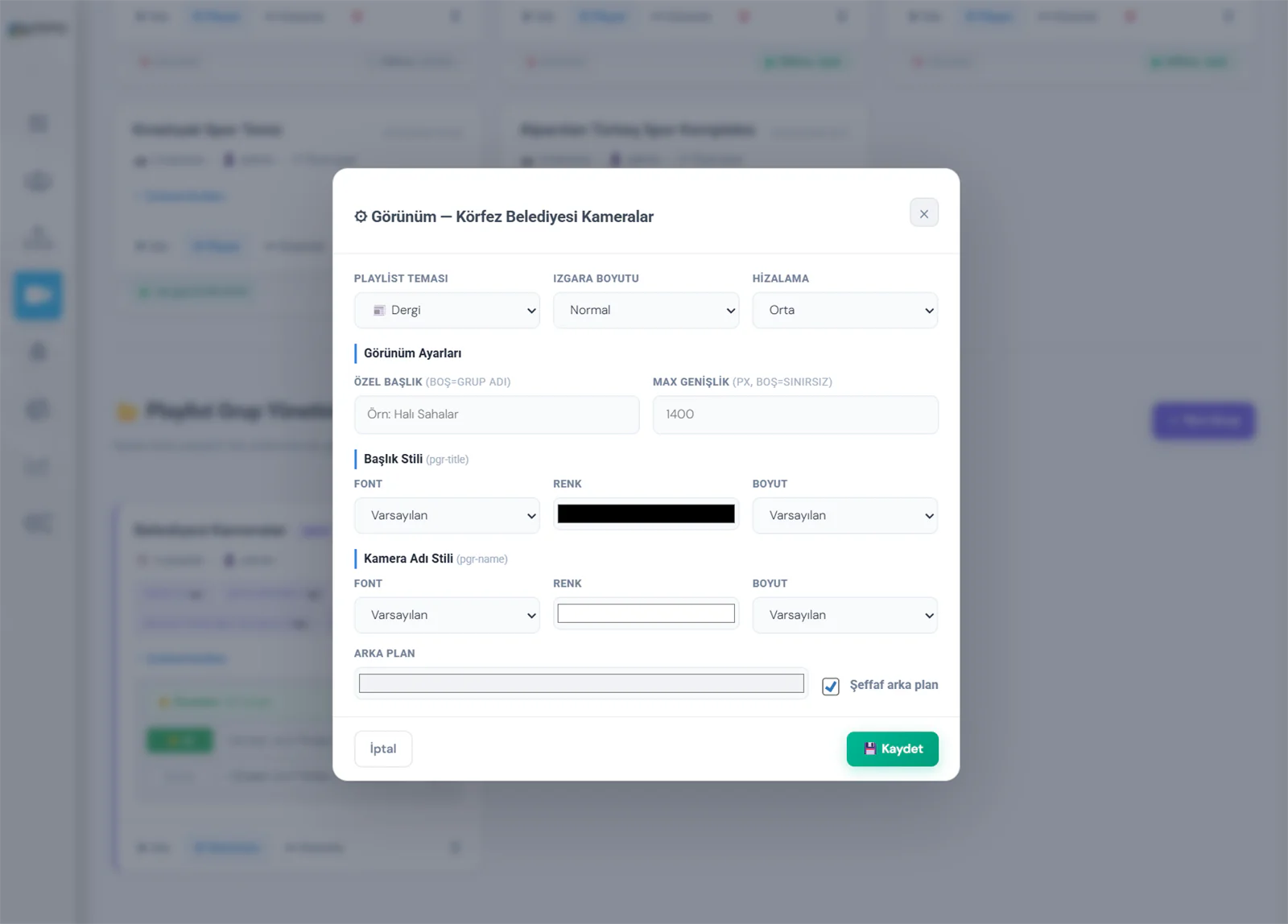
Theme and Layout
| Setting | Options | Description |
|---|---|---|
| Playlist Theme | 8 themes | Sets the visual theme of the group cards (details below) |
| Grid Size | Extra Small – Extra Large | Controls the size of the playlist cards |
| Alignment | Left, Centre, Right | How the cards are aligned on the page |
| Max Width | Pixels (empty = unlimited) | Maximum width of the group area (e.g. 1400px) |
Title Style
| Setting | Description |
|---|---|
| Custom Title | A custom title shown instead of the group name (if left empty, the group name is used) |
| Title Font | Title typeface — Default, Ubuntu, Roboto, Poppins, Montserrat and more |
| Title Colour | Title text colour |
| Title Size | Title text size (pixels) |
Camera Name Style
| Setting | Description |
|---|---|
| Font | Typeface of the playlist card names |
| Colour | Colour of the card name text |
| Size | Size of the card name text |
Background
| Setting | Description |
|---|---|
| Background Colour | Background colour of the group area |
| Transparent Background | When ticked, the background becomes transparent — your site's own background shows through |
Every change you make in the appearance settings (theme, font, colour, size, background) is applied to your website the moment you save it in the panel — without touching the embed code. There is no need to paste the JS or iframe code again. Add the embed code to your site once, and every later settings change is reflected automatically.
Group Themes
Playlist groups come with 8 different themes. Each theme changes the visual style of the playlist cards. You pick the theme in the appearance settings modal.
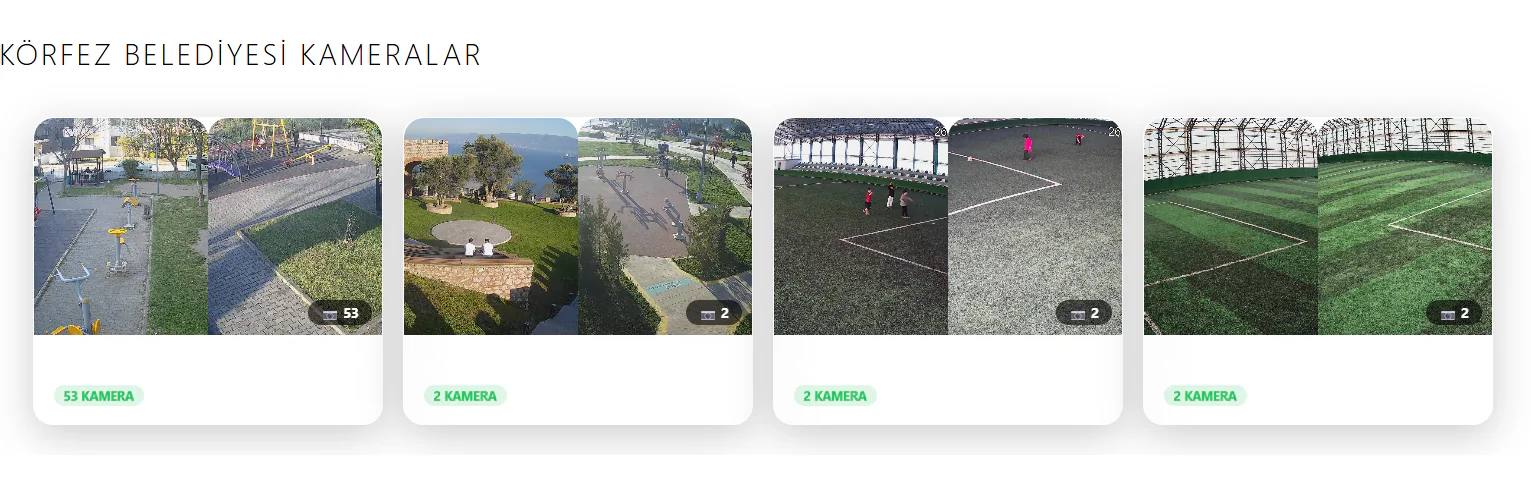
🖼️ Showcase — Light background, rounded-corner cards and green camera-count badges. A clean, corporate look.
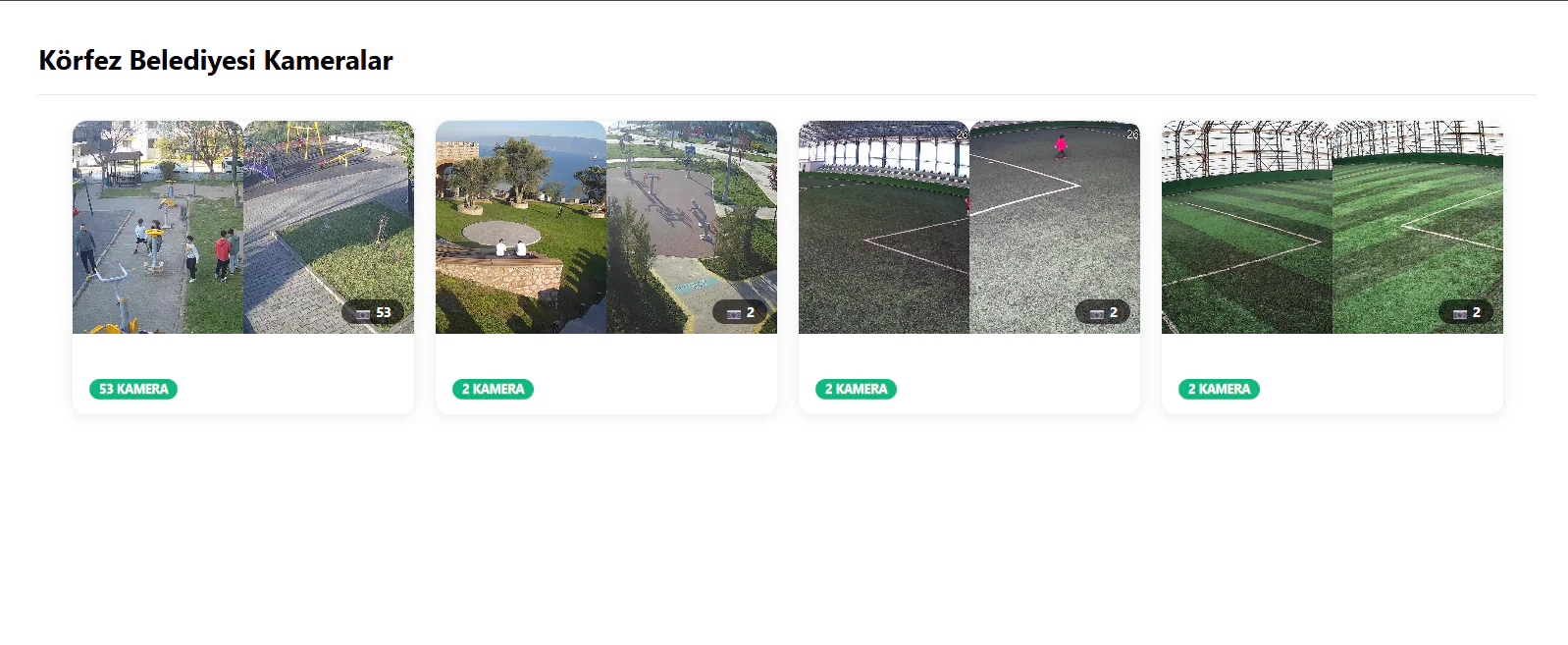
🔮 Glass Card — Semi-transparent, glassmorphism-style cards. Soft shadows and gentle borders give a modern feel.
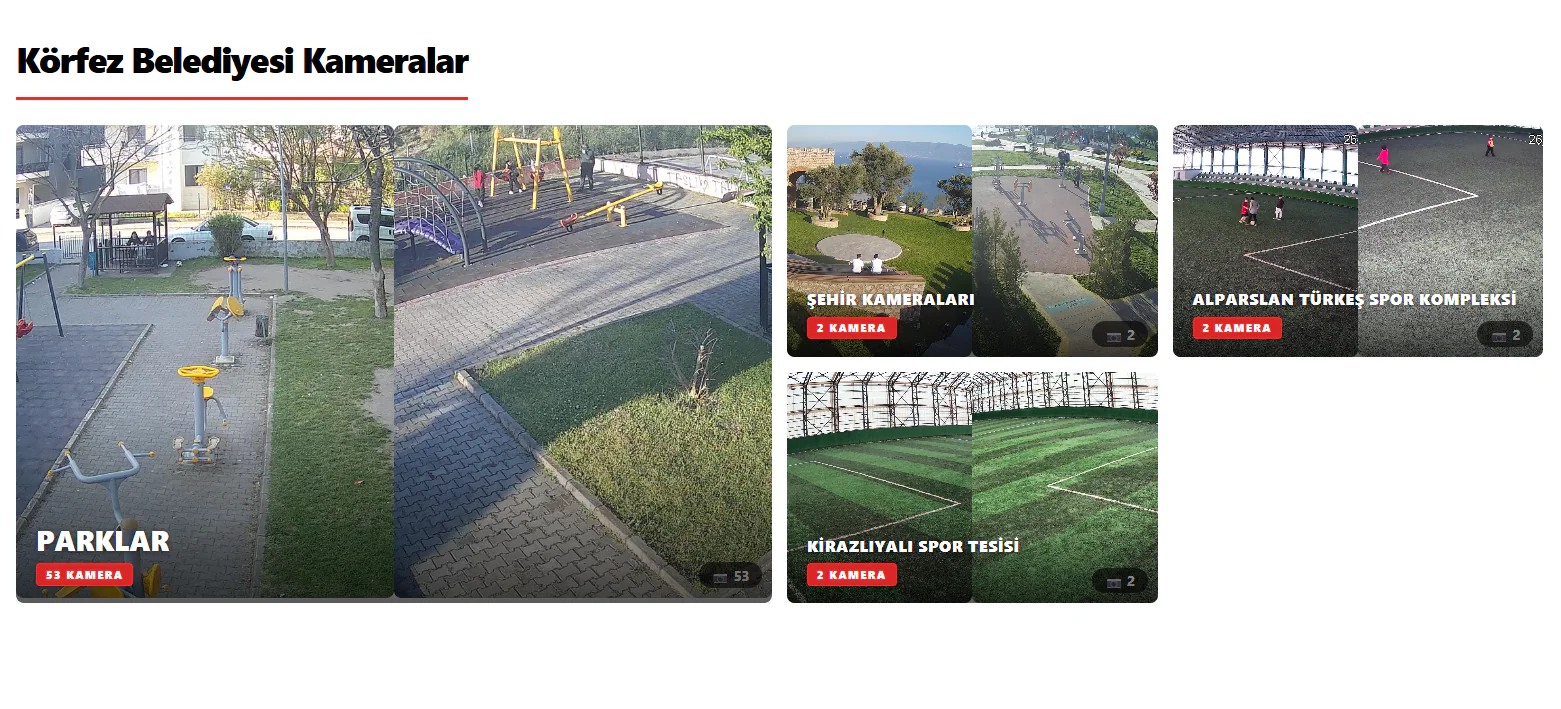
📰 Magazine — A magazine/newspaper layout. The first playlist is featured as a large card, with the others lined up as small cards on the right. Has an editorial feel.
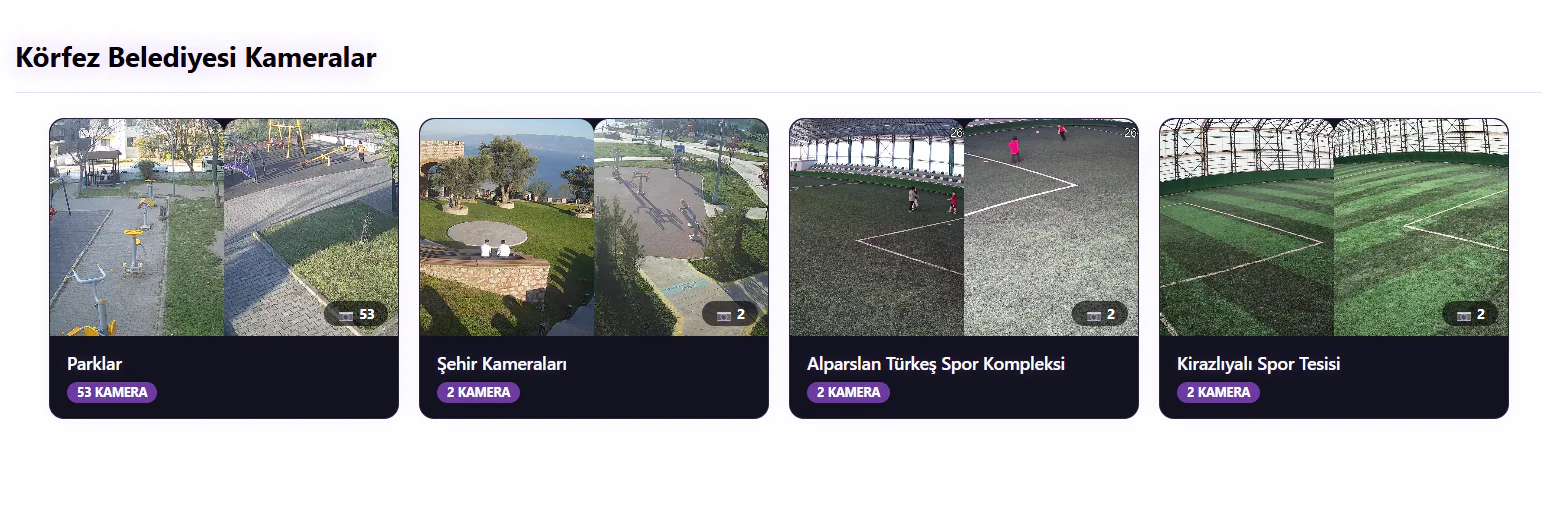
💜 Neon — Neon-coloured labels and vivid gradient cards on a dark background. Great for night-themed and entertainment sites.
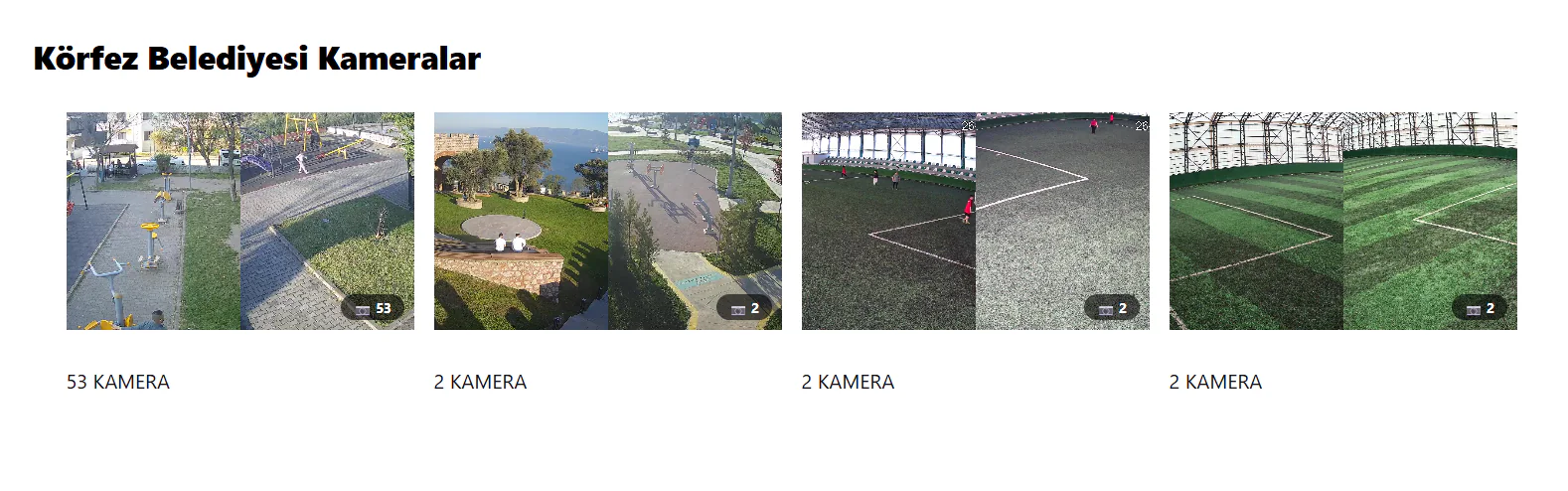
✨ Minimal — Borderless, plain cards. Only the image and camera count are shown. A no-frills design that puts the content first.
🎬 Cinematic — A dark gradient overlay places the playlist name and camera count on the card itself. Uppercase lettering gives a bold, professional look.
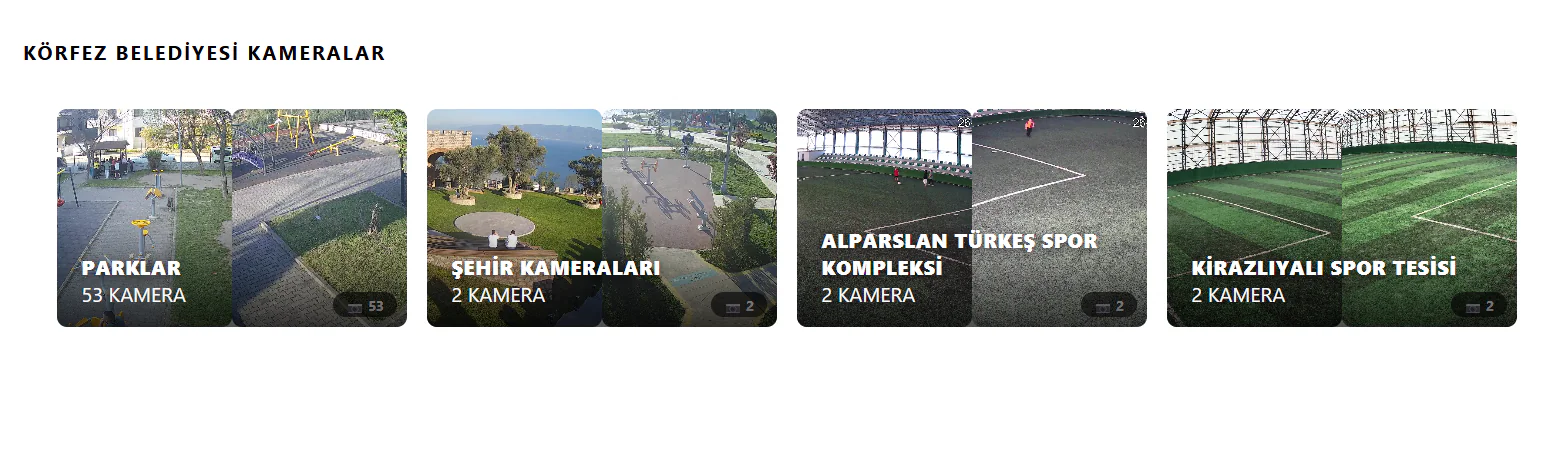
📐 Compact — A title with a thin divider line at the top, borderless cards and a camera-count badge below. An efficient layout that takes up minimal space.
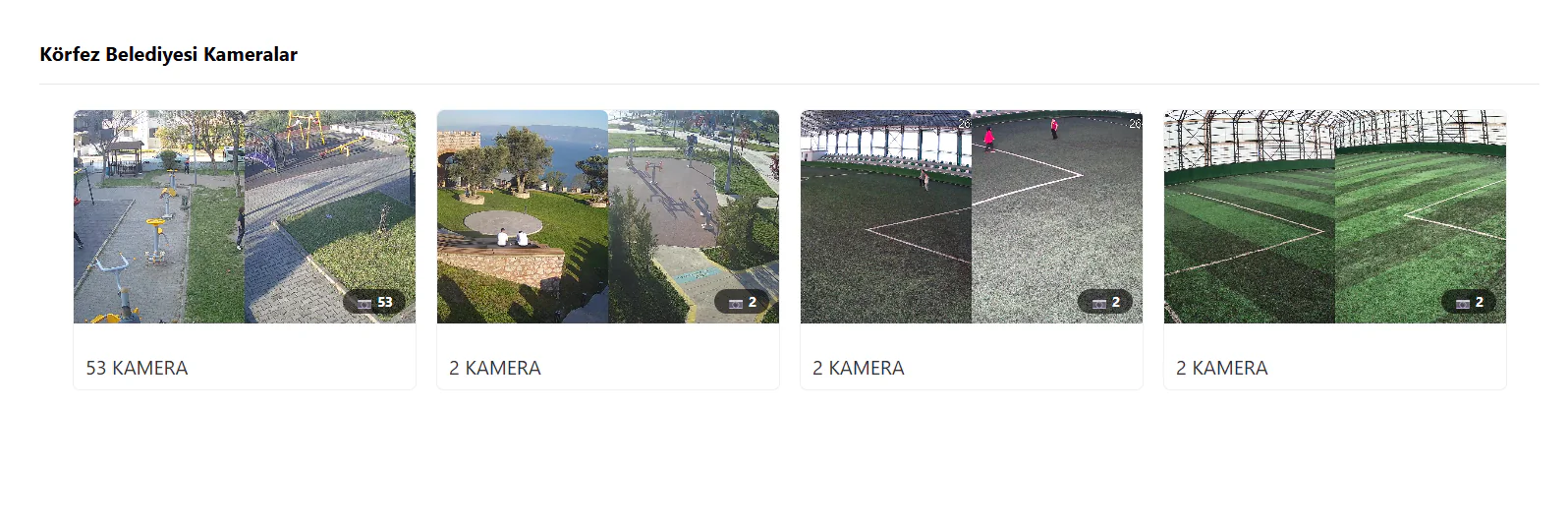
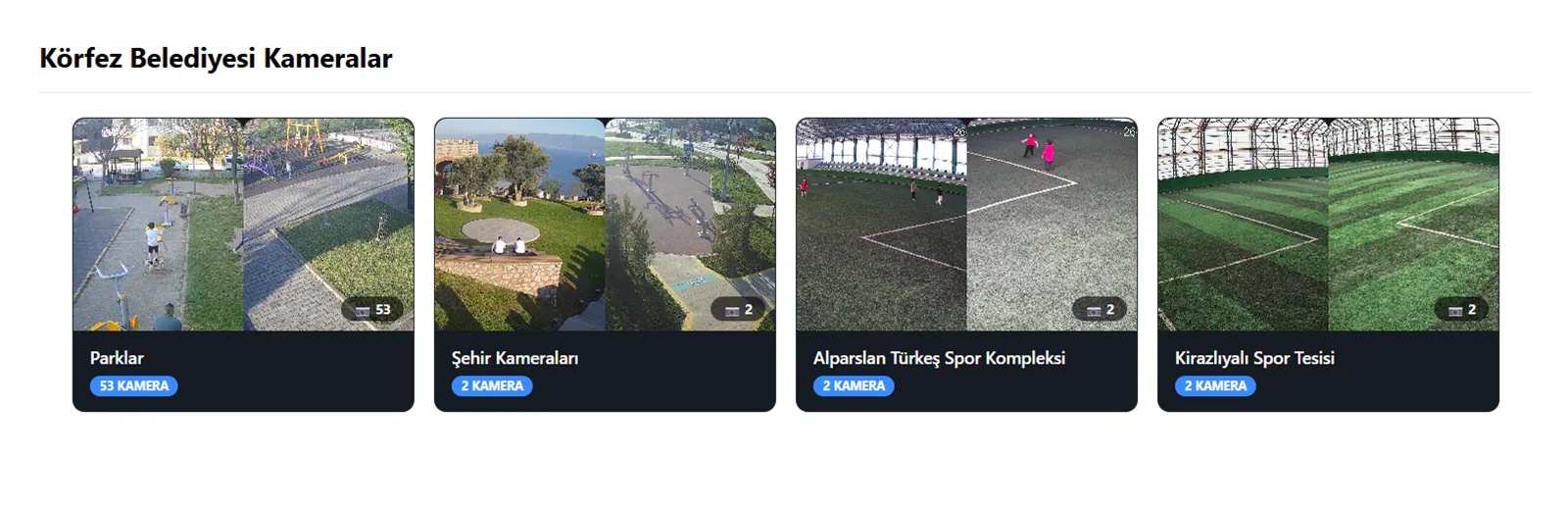
🌙 Dark — Fully dark-themed cards. The playlist name and camera count appear in a light colour at the bottom of the card. Ideal for dark-themed websites.
Corporate / municipality sites: Showcase, Glass Card or Compact — clean and professional.
News / media sites: Magazine — an editorial layout with featured content.
Dark-themed sites: Dark or Neon — blends with your site's background.
Minimal design: Minimal — no decoration, just content.
Group Card Actions
Every group you create is listed as a card in the Playlist Group Management section. Each card carries the following information and action buttons:
Card Information
| Information | Description |
|---|---|
| Group Name | The name given when the group was created |
| Playlist Count | Number of playlists added to the group |
| Playlist List | Names and camera counts of the playlists in the group |
| Creation Date | Date the group was created |
| Embed Code | JS and iframe embed codes — click to copy |
Action Buttons
| Button | Function |
|---|---|
| ▶ Watch | Opens the group in a new tab for a live preview |
| ⚙ Appearance | Opens the theme, font, colour and size settings modal |
| ✏ Edit | Changes the group name and the playlist list/order |
| 🔗 Copy Link | Copies the group URL to the clipboard |
| 🗑 Delete | Deletes the group permanently — protected by a confirmation dialog |
Embed Codes
Playlist groups come with embed codes, just like playlists:
| Method | Description |
|---|---|
| ⭐ JS Embed | The recommended method. Added to the page with a single script tag. Responsive with automatic sizing |
| iframe | The classic iframe method. You need to set the width and height manually |
Once you have added the embed code to your website, every change you make in the panel — adding a new playlist, reordering, switching themes, font/colour settings — is reflected on your site automatically. You never need to update the embed code again.
Use Cases
Municipality Camera Page
Publish your "Parks", "Sports Facilities" and "City Cameras" playlists on the municipality website with a single embed. Let citizens switch between categories.
Sports Complex
Group your "Pitch 1", "Pitch 2" and "Basketball Court" playlists to present every court on one page of the facility's website.
School / Campus
Categorise your "Garden", "Cafeteria" and "Gym" cameras and publish them on the parent information page.
Summary
1. First organise your cameras into Playlists (Parks, Courts, etc.)
2. Then combine those playlists under one embed with a Playlist Group
3. Add the embed code to your site once
4. Change the theme, font, colour and order from the panel whenever you like — your site updates instantly
5. Adding or removing playlists is also done from the panel, without touching the embed code