
A Professional Live-Streaming Experience
The yayin.com.tr player is not just a video player — it is a fully equipped live-streaming experience. Logo, captions, weather, audio source selection, casting to TV, picture-in-picture and much more. Every setting is made from the panel, and the embed code never changes.
When you change any of the player features from the panel (logo, captions, weather, social media, audio source, colours and so on), there is no need to update your embed code. Add the JS or iframe code to your site once — every change you make in the panel appears in the live player immediately.
Player Overview
Alongside the camera image, the player can display a range of information overlays. Every layer is optional and can be switched on or off from the panel.
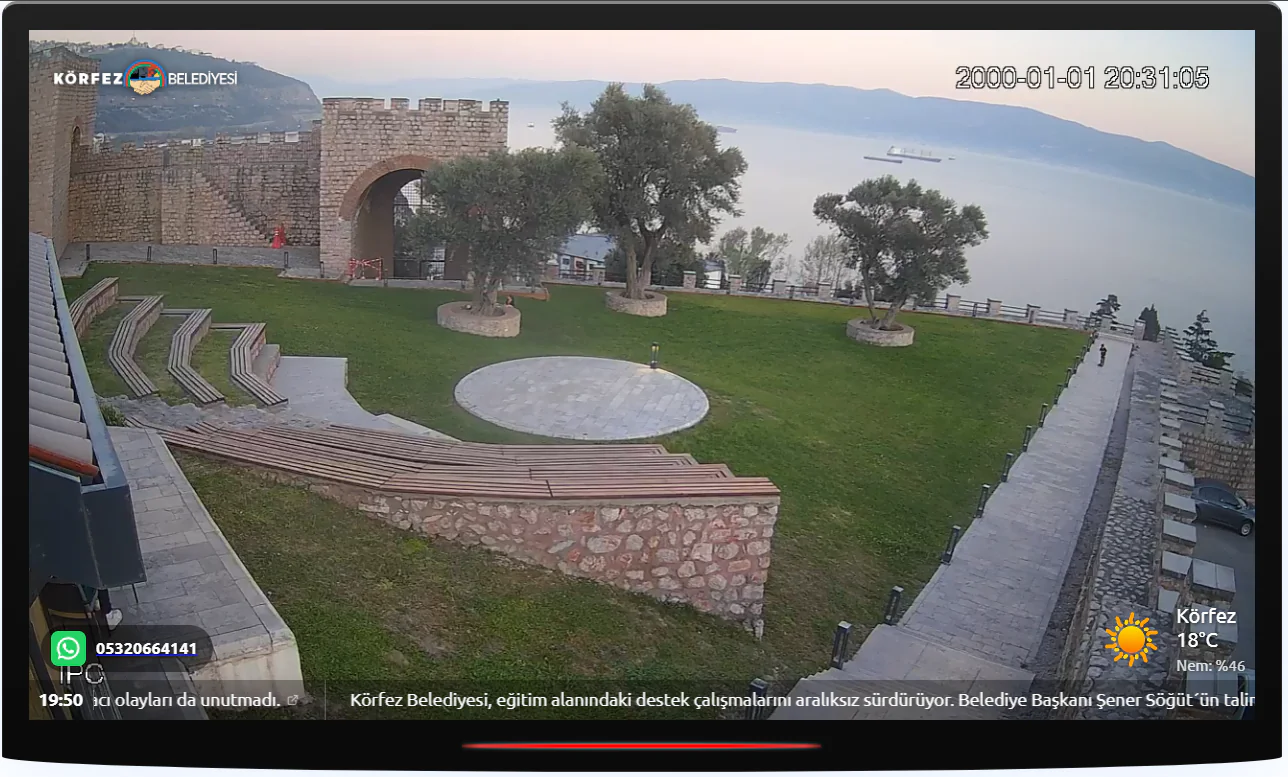
The elements shown on the player:
| Element | Position | Description |
|---|---|---|
| Logo | Top left | Your organisation or company logo. PNG, JPG and SVG formats are supported |
| Date / Time | Top right | The camera's live date and time |
| Social Media Icon | Bottom left | An Instagram, YouTube, Facebook or WhatsApp icon with the account name. Clickable |
| WhatsApp Number | Bottom left | A phone number displayed with the WhatsApp icon |
| Weather | Bottom right | Live temperature, weather icon and humidity. Clickable — opens the detail panel |
| Caption Bar | Very bottom | A scrolling text strip — news, announcements or information |
| Camera Name | Bottom bar | The name of the active camera and its on-air indicator |
| DVR Button | Right edge | A button to switch to DVR on cameras with recording enabled |
The Caption Bar
A continuously scrolling text strip is shown at the bottom of the player. It works much like the "breaking news" ticker on television and is used to pass live information to your viewers.
Each caption entry can be configured with:
| Setting | Description |
|---|---|
| Text | The text to be displayed |
| Link | A URL to open when clicked (optional) |
| Start Date/Time | When the caption starts appearing |
| End Date/Time | When the caption is removed automatically |
| Status | Active or inactive — for hiding a caption temporarily |
You can add as many captions as you like. Active ones are shown in turn on the scrolling strip, and expired captions are hidden automatically.
— Municipal announcements and event news
— Match results or fixture information at sports facilities
— Business contact details and promotional messages
— Emergency alerts and public information
Weather
Live weather information can be displayed on the player. Clicking the weather widget in the bottom right corner opens a detailed weather panel.
The Widget
The compact widget in the corner of the player shows the temperature (°C), a weather icon (sunny, cloudy, rainy and so on), the humidity level and the city name.
The Detailed Weather Panel
Clicking the weather widget opens a comprehensive information panel:
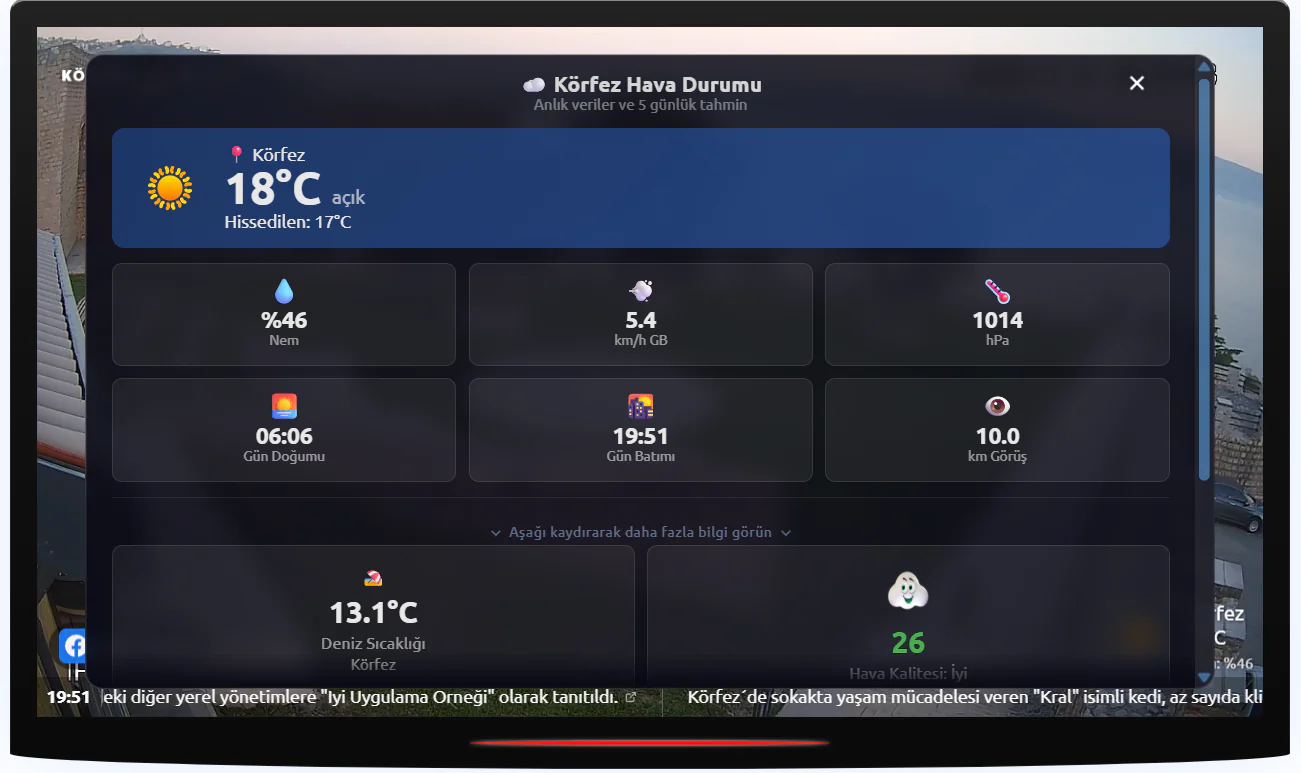
Live data:
| Data | Description |
|---|---|
| Temperature | The current air temperature and how it feels |
| Humidity | The humidity level in the air (%) |
| Wind | Wind speed (km/h) and direction |
| Pressure | Atmospheric pressure (hPa) |
| Sunrise | The time the sun rises |
| Sunset | The time the sun sets |
| Visibility | Meteorological visibility (km) |
Additional information (scroll down):
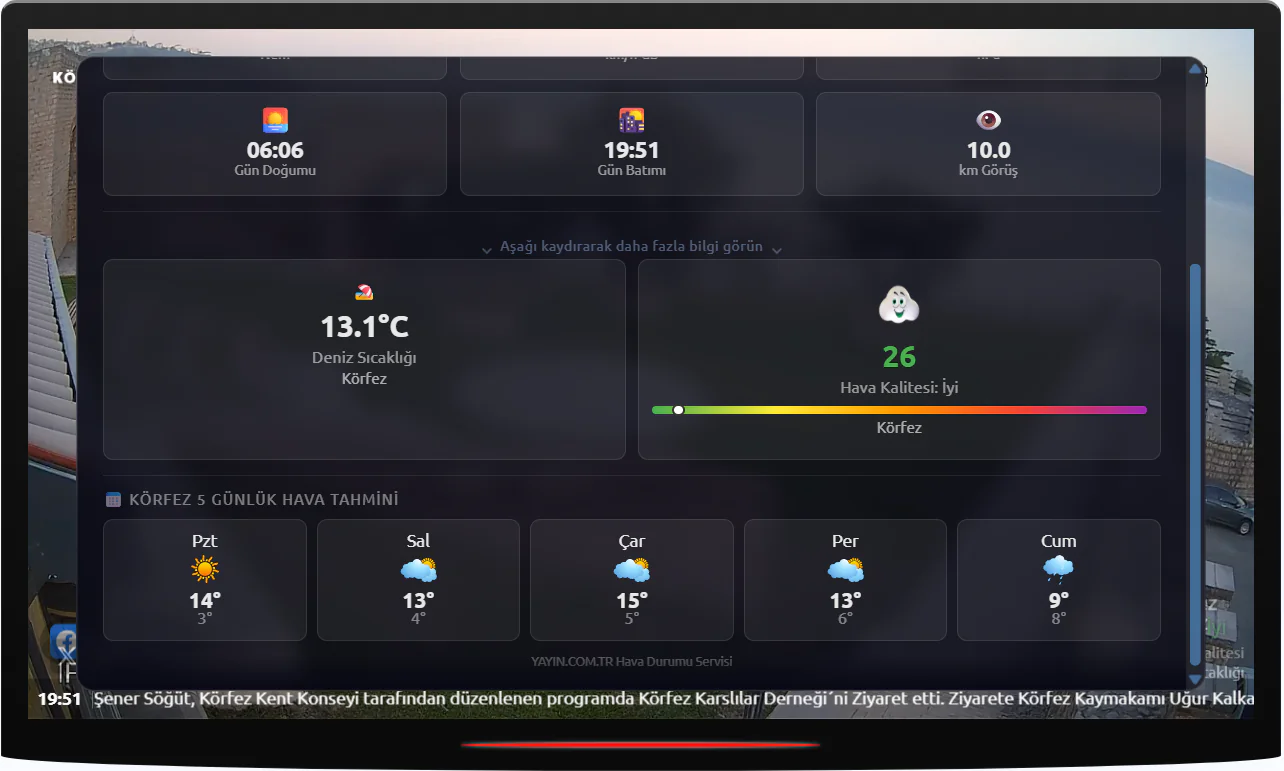
| Data | Description |
|---|---|
| Sea Temperature | The live water temperature at the nearest coastal station (°C) |
| Air Quality | The Air Quality Index value and rating (Good, Moderate, Sensitive, Unhealthy) — shown on a colour scale |
| Snow Depth | Winter data from the nearest snow measurement station |
| 5-Day Forecast | The forecast for the next 5 days — day name, icon, and high and low temperatures |
Weather data comes from the OpenWeatherMap API, sea temperature and air quality from national meteorological stations, and snow depth from the relevant measurement stations. All data is refreshed periodically. You set the weather location by searching for a city in the player settings in your panel.
Audio Source Selection
More than one audio source can be defined for a player. Viewers switch between them by clicking the headphone icon in the control bar.
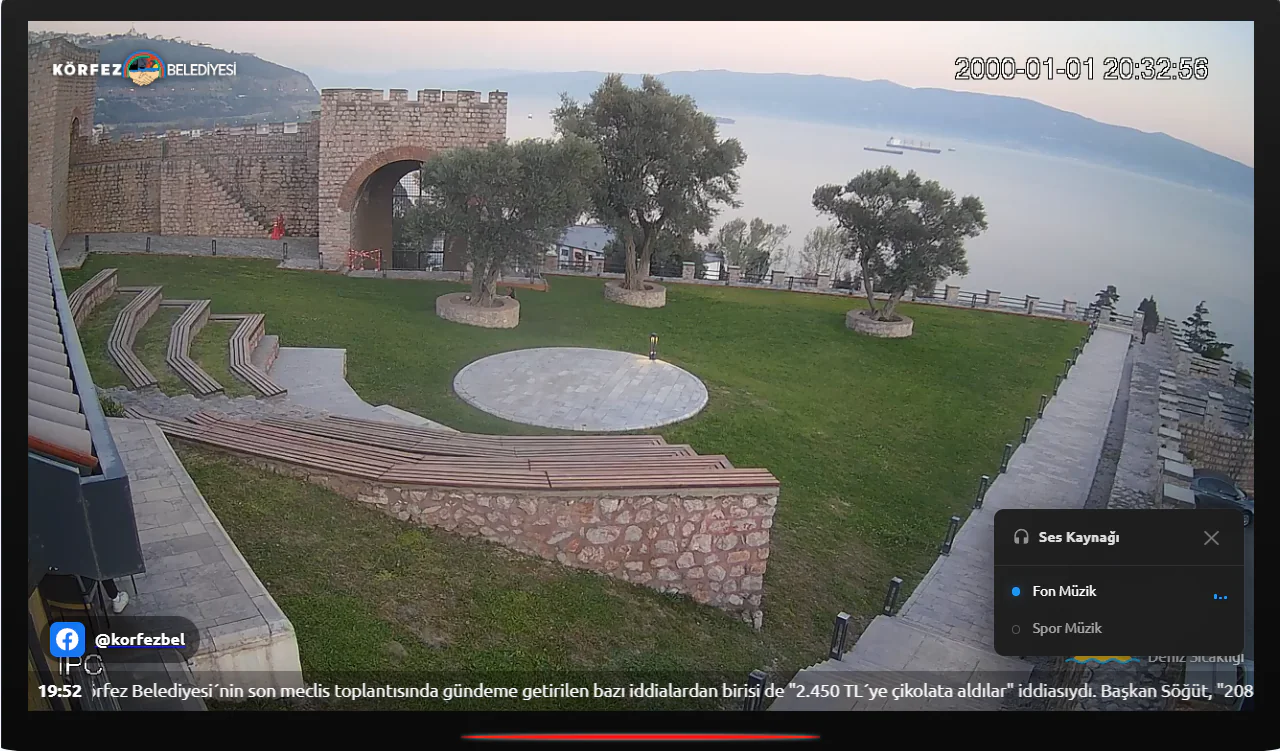
Example audio sources: the camera's own audio, background music, sports music, a radio stream or any Shoutcast/Icecast feed.
| Feature | Description |
|---|---|
| Multiple sources | Unlimited audio sources can be defined per camera |
| Viewer chooses | Viewers select whichever audio source they prefer |
| The choice is remembered | A viewer's audio source preference is stored in their browser — the same source is selected automatically even if they switch cameras and come back |
| Volume is remembered | The volume a viewer sets is also preserved when switching between cameras |
| Shoutcast/Icecast | External radio streams can be added as audio sources |
When a viewer picks an audio source and volume level, that preference is stored in their browser (localStorage). Switching between cameras in a playlist, or reopening the page, applies the same source and volume automatically — so viewers never have to set the audio again.
Picture-in-Picture (PiP)
Viewers can press the PiP button in the control bar to keep watching in a small window independent of the browser.
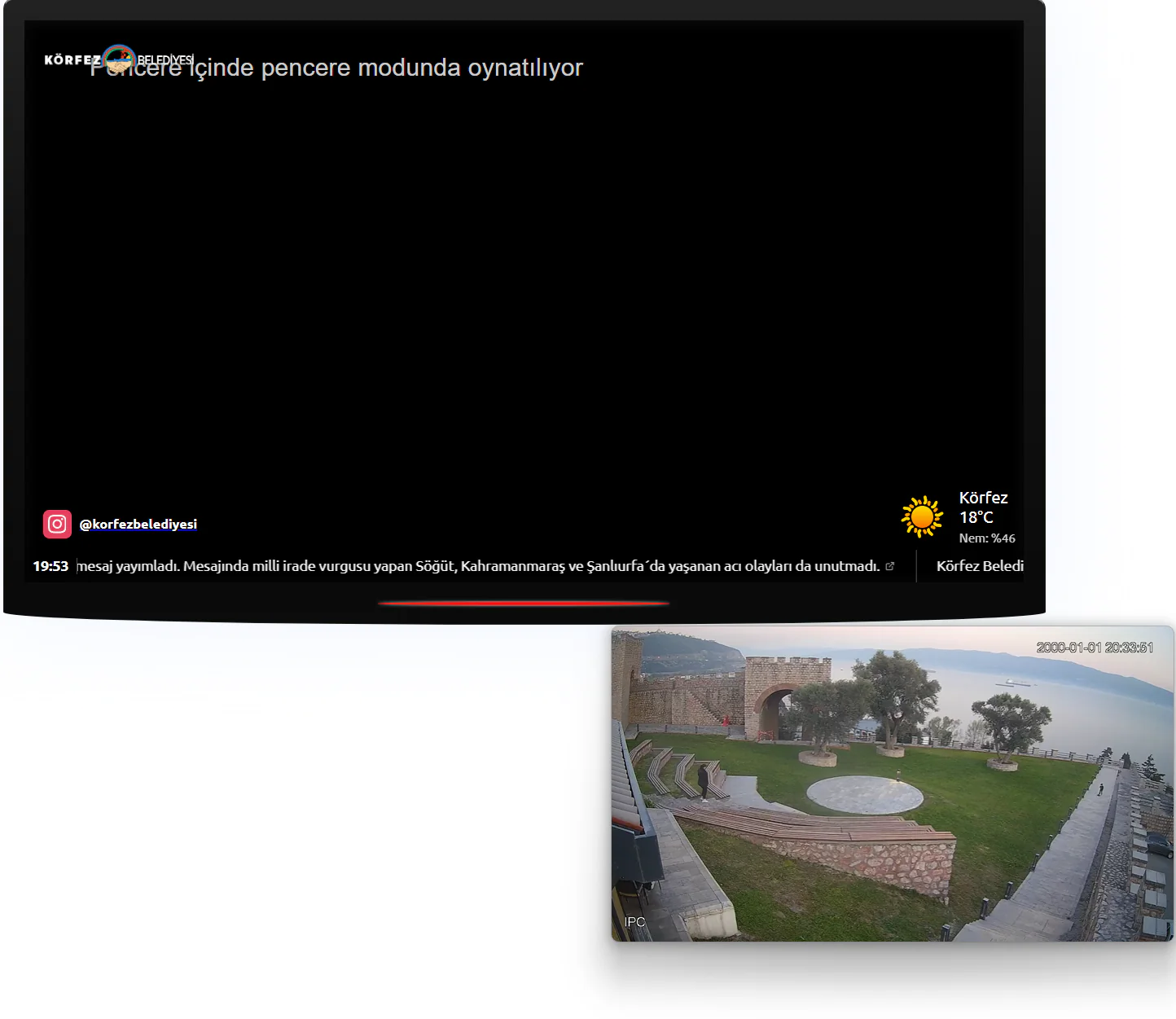
| Feature | Description |
|---|---|
| An independent window | The video plays in a small window that always stays on top |
| Independent of tabs | Viewing continues even if the viewer switches tabs or minimises the browser |
| Size and position | The window can be dragged and resized |
| Desktop and mobile | Supported in current versions of Chrome, Edge, Safari and Firefox |
PiP can be switched on or off in the panel settings.
Casting to TV (Chromecast)
Viewers can press the cast icon in the control bar to send the live stream to a Chromecast-enabled TV.
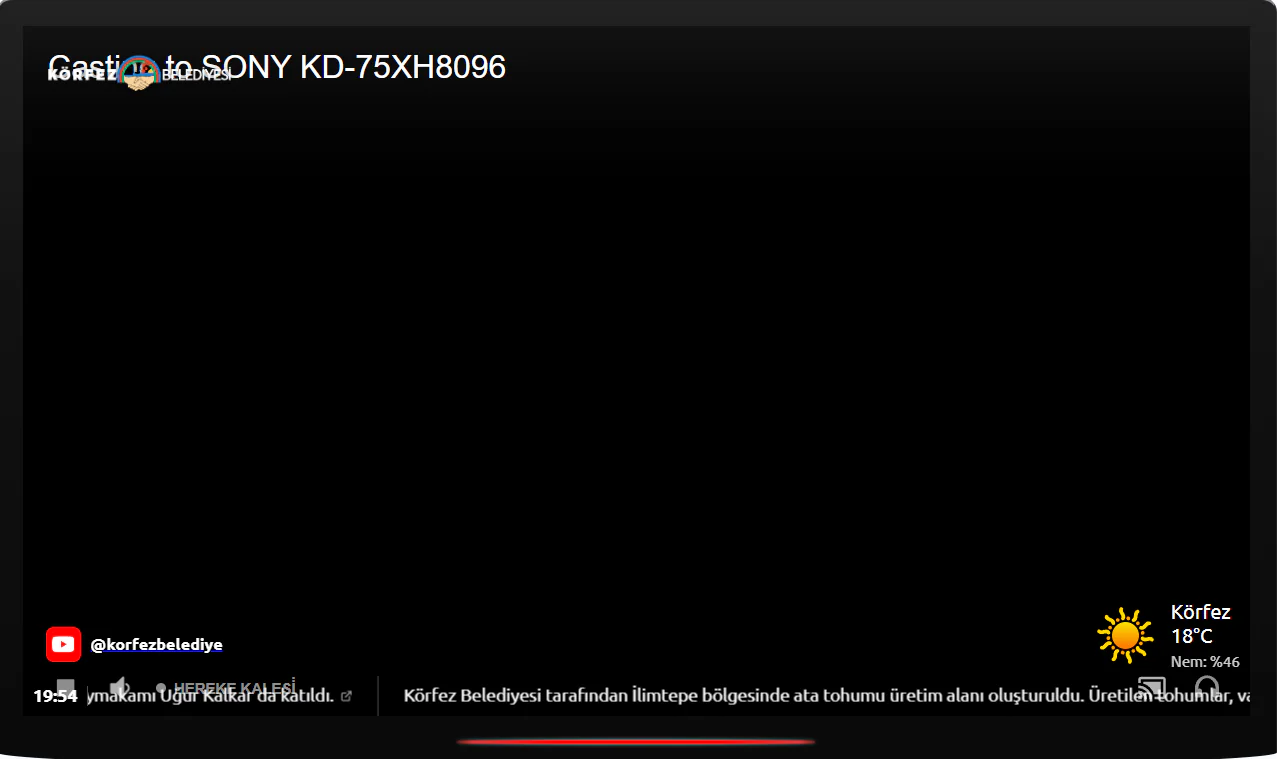
| Feature | Description |
|---|---|
| Chromecast support | Cast to a Google Chromecast or a TV with Chromecast built in |
| One-click casting | Just press the icon in the control bar and pick a device |
| Full screen on the TV | The stream fills the TV screen |
| Remote control | Volume and playback can still be controlled from the computer while casting |
Casting to a TV requires Google Chrome or Microsoft Edge and a Chromecast-enabled device on the same Wi-Fi network. For Apple TV, AirPlay can be used through Safari.
A Customisable Right-Click Menu
Right-clicking on the player shows a customised menu. You can replace the default browser menu with your own links.
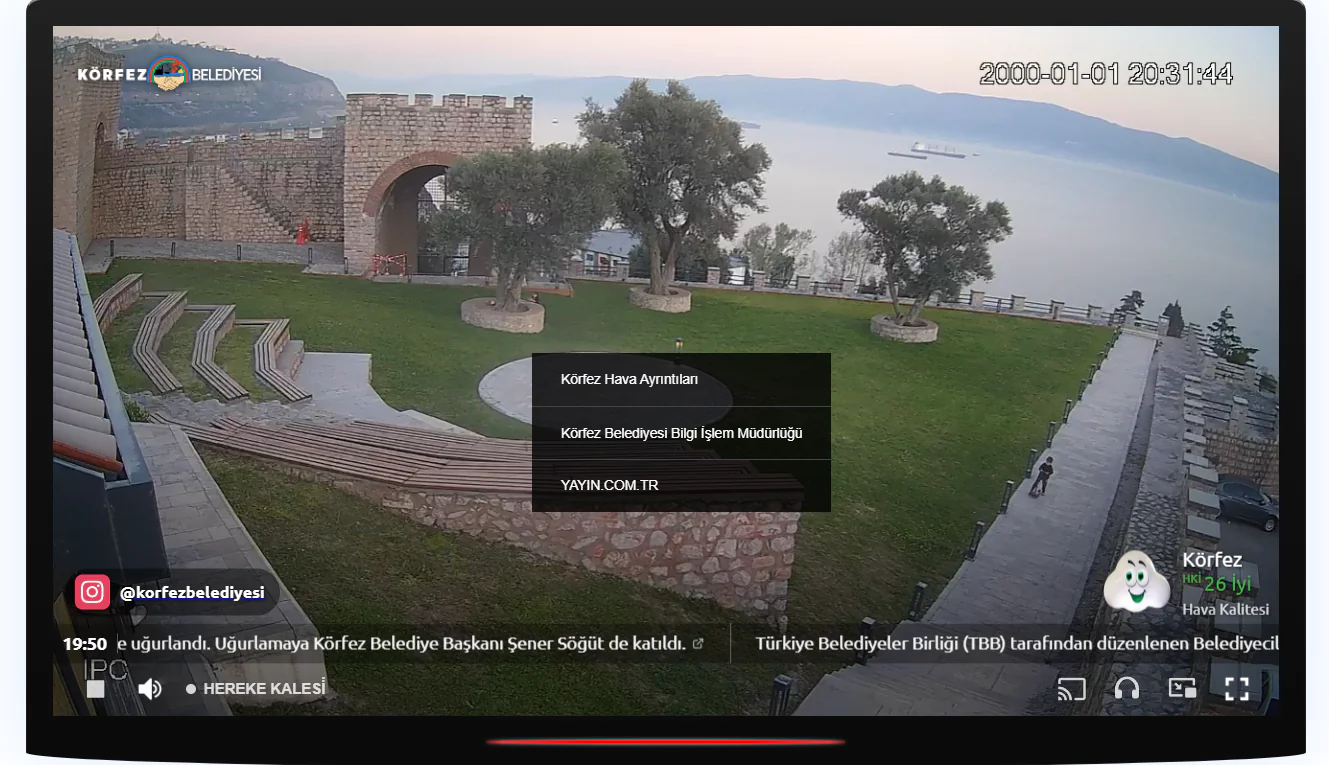
Examples of items you can add to the menu:
| Example | Description |
|---|---|
| Weather Details | Opens the detailed weather panel when clicked |
| Organisation name | Links to the organisation's website |
| YAYIN.COM.TR | A link to the platform |
The menu content and link addresses are defined in the player settings in your panel. The "Right-Click Link" setting defines the target URL.
Social Media Overlay
You can display your social media accounts on the player. Supported platforms:
| Platform | Appearance |
|---|---|
| Instagram icon + @username | |
| YouTube | YouTube icon + @channel |
| Facebook icon + @page | |
| WhatsApp icon + phone number |
Social media icons are shown in rotation in the bottom left corner of the player, each changing automatically at set intervals. You can define several accounts in the panel and adjust the rotation interval.
Mobile Compatibility
The player is fully responsive and adapts to every screen size.
Automatic Sizing
The player scales up or down to suit the screen. The 16:9, 4:3 and 24:10 ratios are supported.
Touch Controls
Volume, full screen and switching cameras all work smoothly on touch screens.
Portrait/Landscape
The player switches to landscape automatically when the phone is rotated.
Embedding Options
Three embedding methods are offered for every camera and playlist:
| Method | Advantage | Use |
|---|---|---|
| ⭐ JS Embed | Automatic sizing, the cleanest integration | The recommended method — a single <script> tag |
| iframe | Simple and universal | Width and height set manually |
| Responsive iframe | Mobile-friendly, preserves the 16:9 ratio | With a padding-bottom: 56.25% wrapper |
The JS embed method places the player naturally within your page. It is responsive, free of iframe limitations, and every player feature (PiP, Chromecast, full screen, the weather panel) works without issue. Setting changes made in the panel also appear instantly.
Site Permissions and Security
You can restrict the player so that it only works on specific websites.
| Setting | Description |
|---|---|
| Site Permissions | Add the permitted domains one by one. The player works only on those sites and is blocked elsewhere |
| Block Direct Access | Prevent the player URL from being opened directly in a browser — it can then only be used as an embed |
| Offline Image | A custom image displayed when the camera is offline |
| Block Empty Referer | Block requests with no referrer information to prevent embed theft |
Floating Player (Sticky)
As the page is scrolled down, the player shrinks and stays fixed in the corner of the screen, so viewers keep watching while they read the page.
| Setting | Options |
|---|---|
| Floating Player | On / Off |
| Floating Position | Bottom right or bottom left corner |
All Player Features
Logo Overlay
Display your organisation's logo on the player, with PNG, JPG and SVG support and positioning options.
Caption Bar
Announcements, news and information on a scrolling strip, appearing and disappearing automatically by date and time.
Weather
Live temperature, humidity, wind, pressure, sea temperature, air quality and a 5-day forecast.
Audio Source Selection
Multiple audio sources, with the viewer's choice and volume remembered across camera switches.
Cast to TV
Watch the live stream on a TV via Chromecast. One click to connect.
Picture-in-Picture
Keep watching in an independent small window — the stream continues even when switching tabs.
Social Media
Instagram, YouTube, Facebook, WhatsApp — icons shown in rotation with clickable links.
Custom Right-Click Menu
Show your own links instead of the browser menu: weather details, your website and more.
Floating Player
The player stays fixed in the corner as the page scrolls, so viewers keep watching while they read.
Site Permissions
Ensure the player only works on domains you allow, and prevent embed theft.
Full Customisation
Colours, fonts, sizes, backgrounds — the entire look is set from the panel and the embed code never changes.
Switch to DVR
One click to move to the DVR player on cameras with recording enabled, for instant access to past footage.