
<script src="player.yayin.tr/...">COPY THE CODEPlayer Settings
Customise every aspect of how your camera looks to your viewers. Logo, colours, captions, weather, social media, audio source and much more — every detail is under your control.
To reach the Player Settings page, click the Player Settings tab in the top menu of your camera management page. The page has three main sections: Live Player, DVR Player and Disk Archive.
Player Name
The Player Name field sits at the top of the page. This name appears on the player and in playlists.
If no player name is set, a "Not set — the player will not be displayed" warning appears and your camera will not work in embed codes. Make sure you enter a name.
Copy Player Settings
If you have more than one camera, you can copy all of one camera's player settings to another. Type the camera name into the Copy Player Settings field at the top and click COPY.
Tabs
Player settings are spread across 8 tabs. Each tab is explained in detail below.
Player Settings
Size, behaviour and playback settings
Logo & Appearance
Logo, TV frame and visual settings
Information & Security
Site permissions, SEO and access control
Advertising
Pre-roll advertisement settings
Captions
Scheduled scrolling caption texts
Captions & Weather
RSS, clock, weather and data layers
Social Media & Audio
Social links and audio sources
Player Code
Embed codes and stream links
1. Player Settings Tab
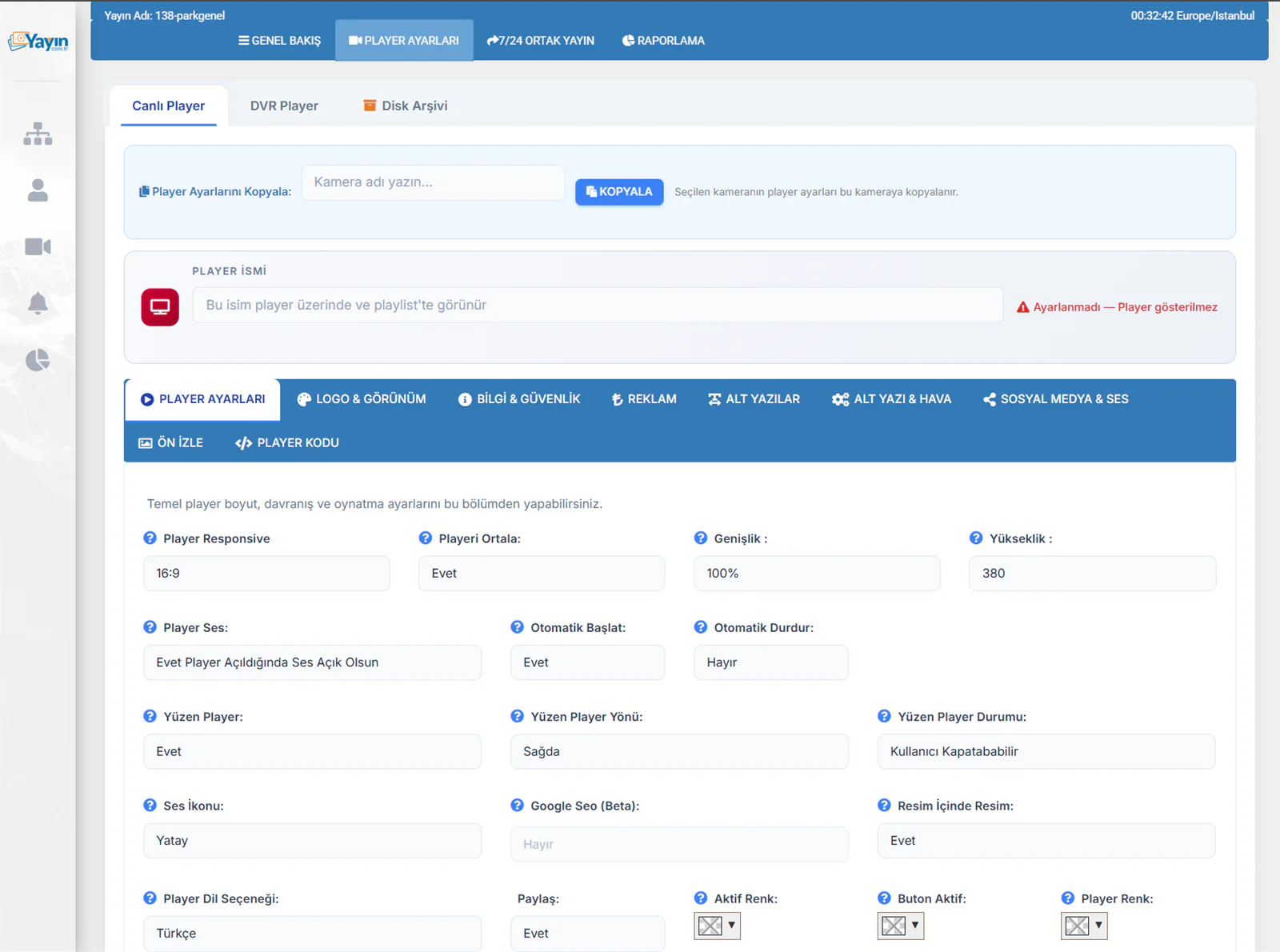
This section covers the basic player size, behaviour and playback settings.
Size and Appearance
| Setting | Description | Recommended |
|---|---|---|
| Responsive Player | The player aspect ratio. 16:9 is the standard widescreen format. | 16:9 |
| Centre the Player | Determines whether the player is centred within the page. | Yes |
| Width | The player width. 100% fills the full page width. A pixel value can also be entered. |
100% |
| Height | The player height in pixels. If responsive mode is on, this value is used as the minimum height. | 380 |
Playback Behaviour
| Setting | Description | Recommended |
|---|---|---|
| Player Audio | Whether audio is on when the player opens. If "Yes" is selected, sound starts immediately. | Yes |
| Autoplay | Whether the stream starts automatically when the page loads. | Yes |
| Auto Stop | Whether the stream stops when the user leaves the page. | No |
Floating Player
When the user scrolls down the page, the player shrinks and docks in a corner so they can keep watching.
| Setting | Description |
|---|---|
| Floating Player | Turns the feature on or off |
| Floating Player Position | Which corner the shrunken player docks to (right or left) |
| Floating Player State | Whether the user is allowed to close the floating player |
Additional Features
| Setting | Description |
|---|---|
| Audio Icon | The appearance of the mute/unmute control (horizontal or vertical) |
| Google SEO (Beta) | Structured data for search engines |
| Picture-in-Picture | Enables the browser's PiP (floating window) feature |
| Player Language | The language of the player interface |
| Share | Shows or hides the share button |
| Active Colour | The colour of the player control buttons |
| Button Highlight | The highlight colour for active buttons |
| Player Colour | The background colour of the player control bar |
2. Logo & Appearance Tab
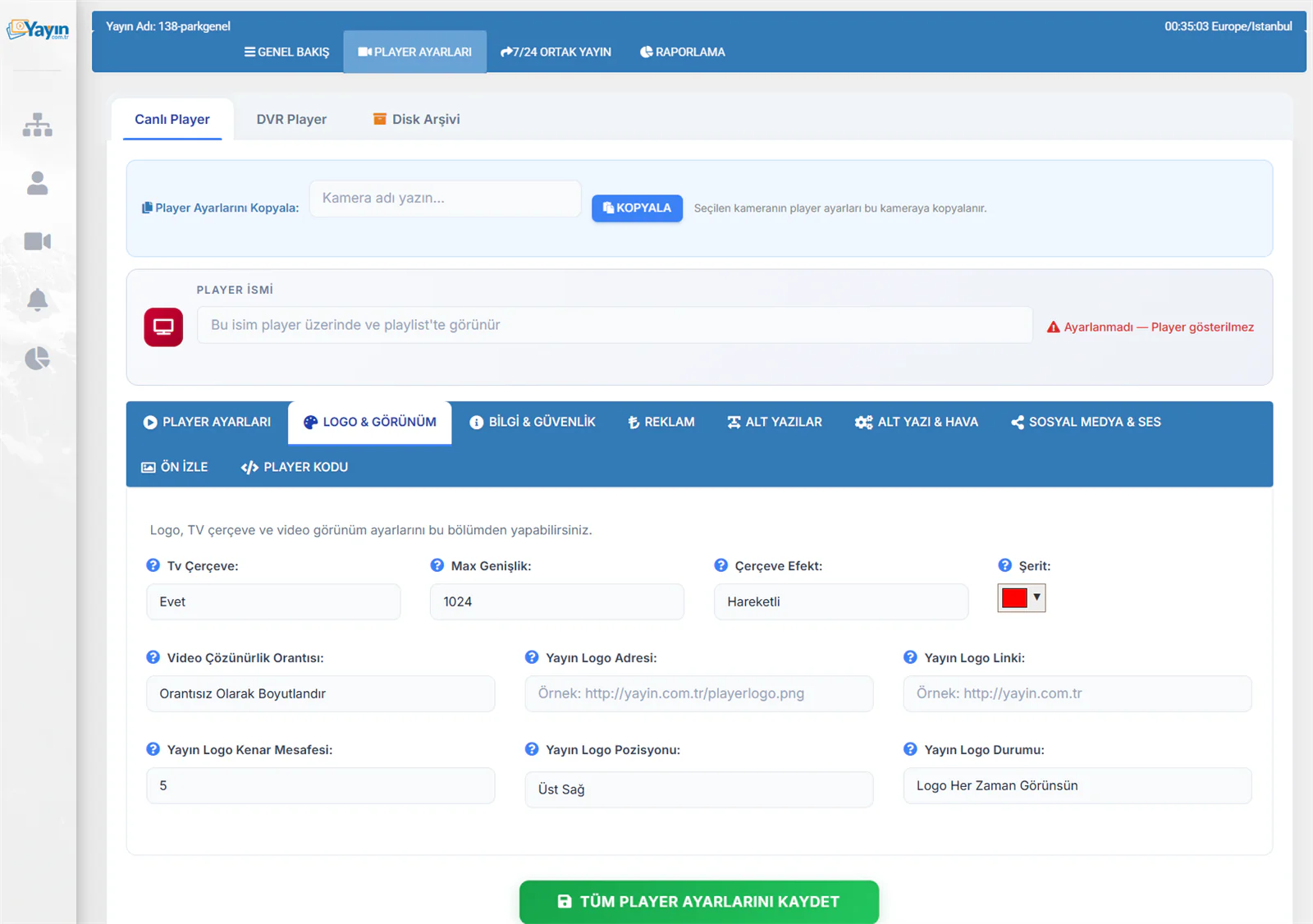
This section covers the logo, TV frame and video appearance settings.
TV Frame
Adds a decorative TV frame around the player for a professional, eye-catching look.
| Setting | Description |
|---|---|
| TV Frame | Turns the frame on or off (Yes/No) |
| Max Width | The maximum width of the framed player, in pixels |
| Frame Effect | The frame animation (animated or static) |
| Accent Strip | The colour of the strip on the frame |
Logo Settings
You can display your logo on the player.
| Setting | Description |
|---|---|
| Logo Image URL | The URL of the logo image (PNG with a transparent background is recommended) |
| Logo Link | The web address that opens when the logo is clicked |
| Logo Edge Spacing | The gap between the logo and the edge of the player, in pixels |
| Logo Position | Where the logo sits: top right, top left, bottom right or bottom left |
| Logo Visibility | Logo visibility: always visible, or only in certain states |
Video Appearance
| Setting | Description |
|---|---|
| Video Aspect Handling | How the video is scaled (stretched or proportional) |
Your logo file should be a PNG with a transparent background. Recommended size: 150-200 pixels wide. Very large logos can obscure the camera image.
3. Information & Security Tab
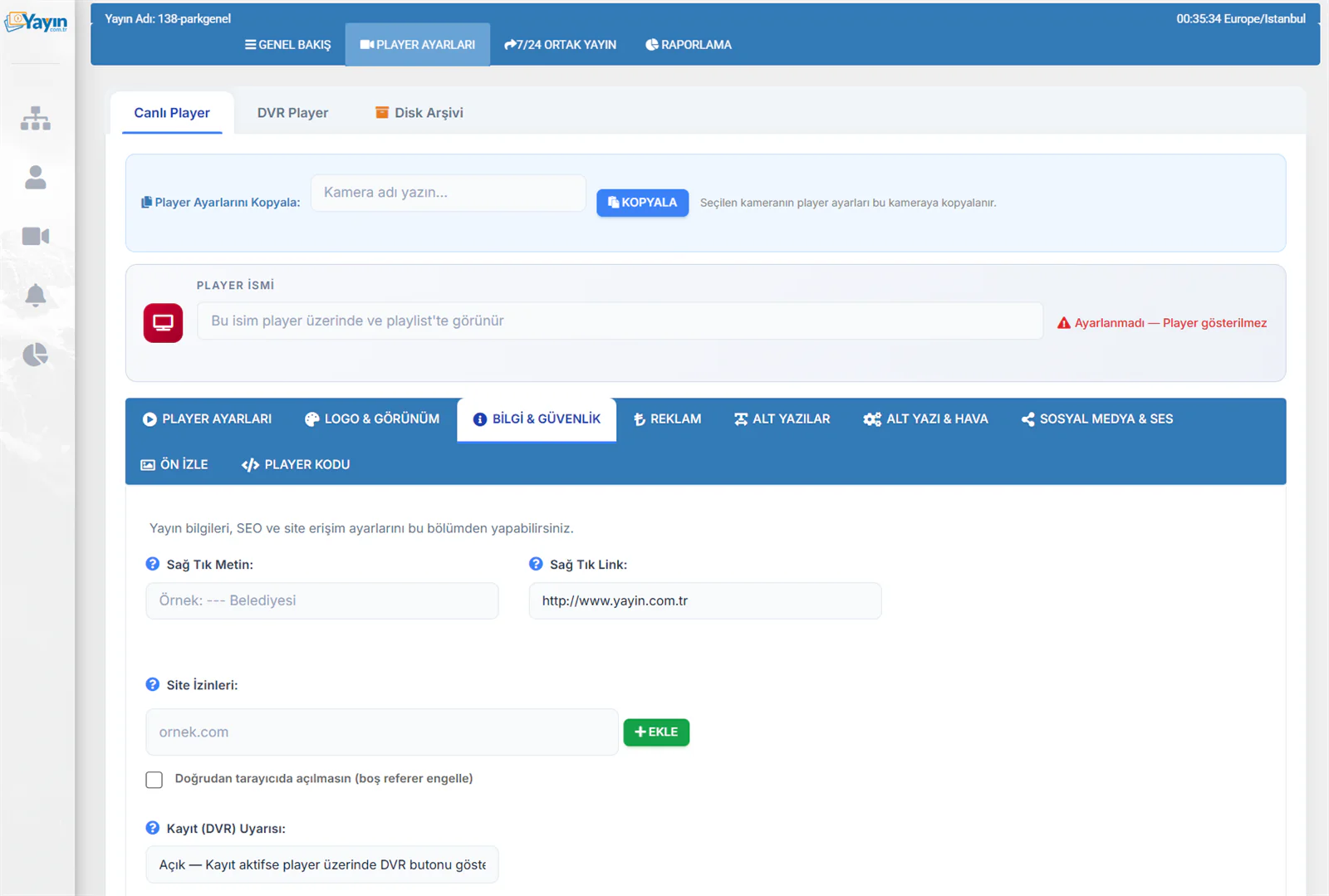
This section covers stream information, SEO and site access settings.
Right-Click Settings
Defines what appears when a viewer right-clicks on the player.
| Setting | Description |
|---|---|
| Right-Click Text | The text shown in the right-click menu (for example "Marmaris Municipality") |
| Right-Click Link | The web address that opens when the text is clicked |
Site Permissions (Domain Lock)
Ensures your stream only plays on the websites you specify. The player will not run on unauthorised sites.
| Setting | Description |
|---|---|
| Site Permissions | Enter the allowed domain addresses and add them to the list with + ADD |
| Block direct browser access | When ticked, an empty referer is blocked — the stream link cannot be watched by pasting it straight into a browser |
If you do not add any site permissions, your stream will play on any website. For security, always add the domains where your stream should appear — for example example.com, www.example.com.
DVR Notice
| Setting | Description |
|---|---|
| Recording (DVR) Notice | Determines whether the recording button is shown on the player when the DVR service is active |
DVR (retrospective recording) is a separate add-on service subject to an additional fee. DVR is off in the standard service. When DVR is enabled, viewers can watch past footage.
4. Advertising Tab
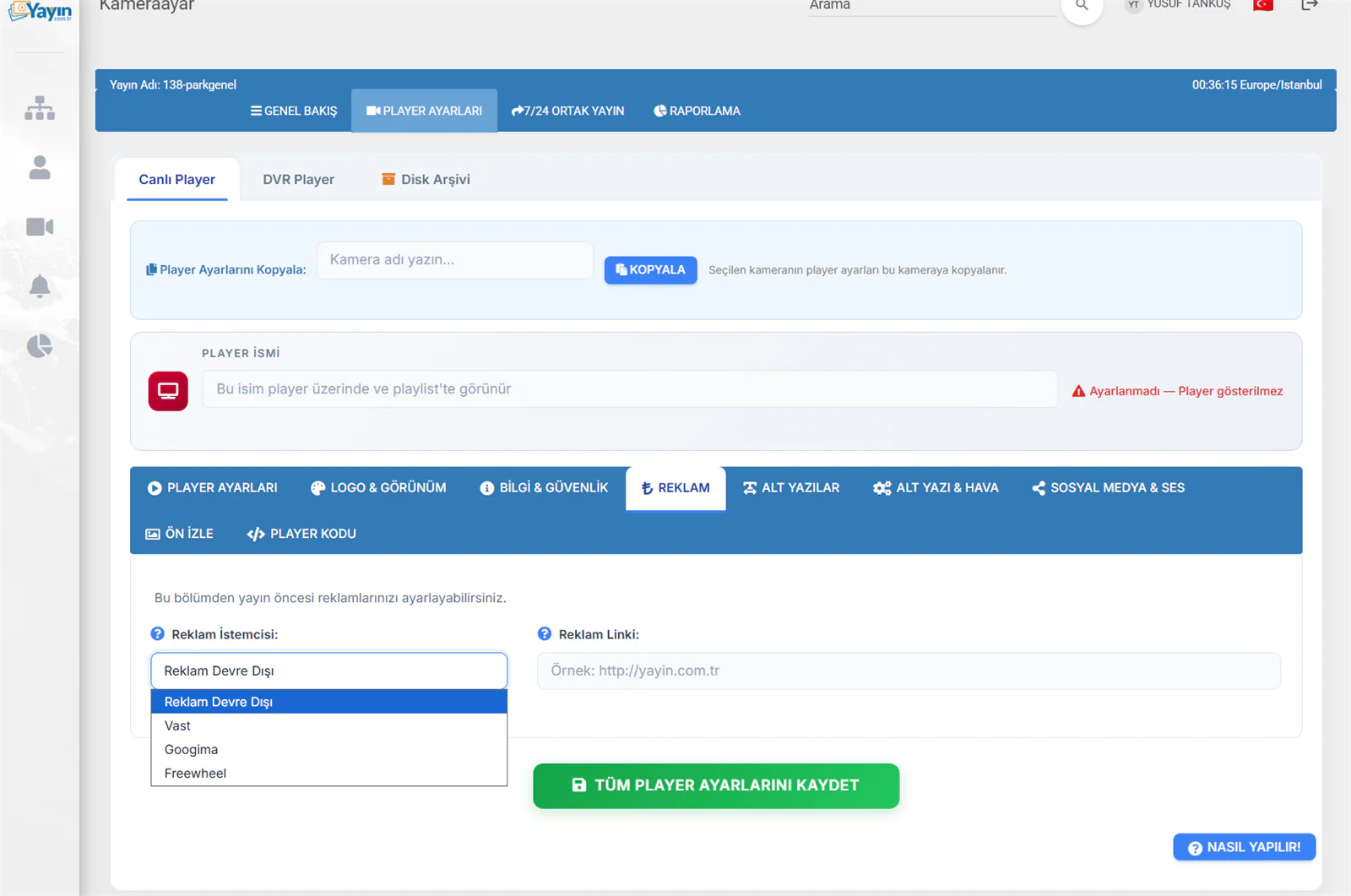
This section lets you configure your pre-roll advertisements.
| Setting | Description |
|---|---|
| Ad Client | The advertising system to use |
| Ad Tag URL | The VAST/VMAP tag URL supplied by your ad provider |
Supported Advertising Systems
| System | Description |
|---|---|
| Advertising Disabled | No advertisements are shown |
| VAST | The standard video ad format — supported by most ad networks |
| Googima | Ad delivery through the Google IMA SDK |
| Freewheel | Integration with the Freewheel advertising platform |
When advertising is enabled, a video advertisement plays before the viewer reaches the live stream. You simply paste the VAST URL supplied by your ad provider into the Ad Tag URL field.
5. Captions Tab
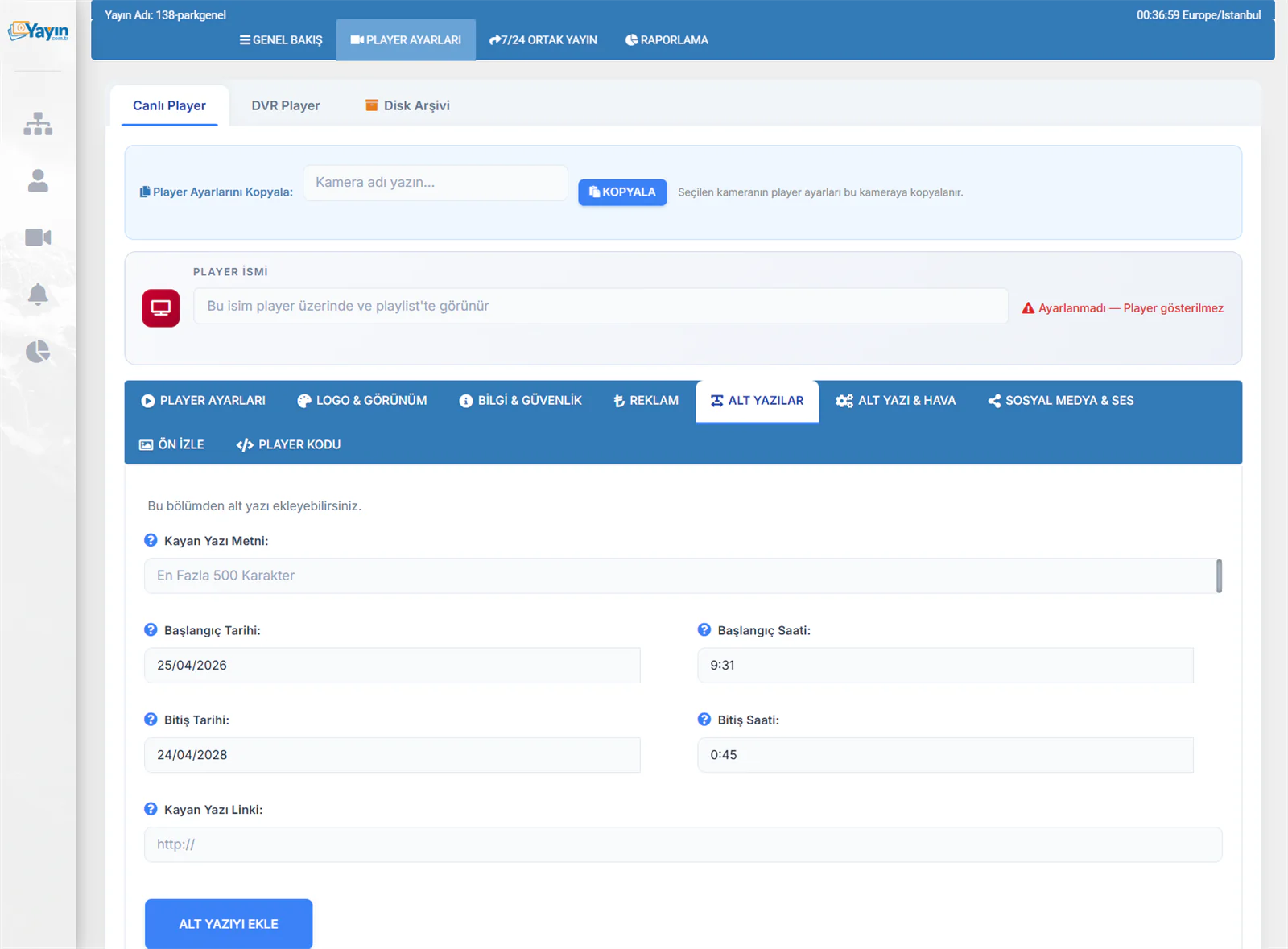
You can add scrolling caption text (a news ticker) to the player. Each caption is displayed during a specific time window.
Adding a Caption
| Field | Description |
|---|---|
| Ticker Text | The text to display (maximum 500 characters) |
| Start Date / Time | The date and time the caption starts appearing |
| End Date / Time | The date and time the caption stops appearing |
| Ticker Link | The web address that opens when the text is clicked (optional) |
Click Add Caption to save. You can add several captions — each is shown during its own time window.
You can add different captions for different time windows — a "Good night" message overnight and news headlines during the day, for example. Expired captions are hidden automatically.
6. Captions & Weather Tab
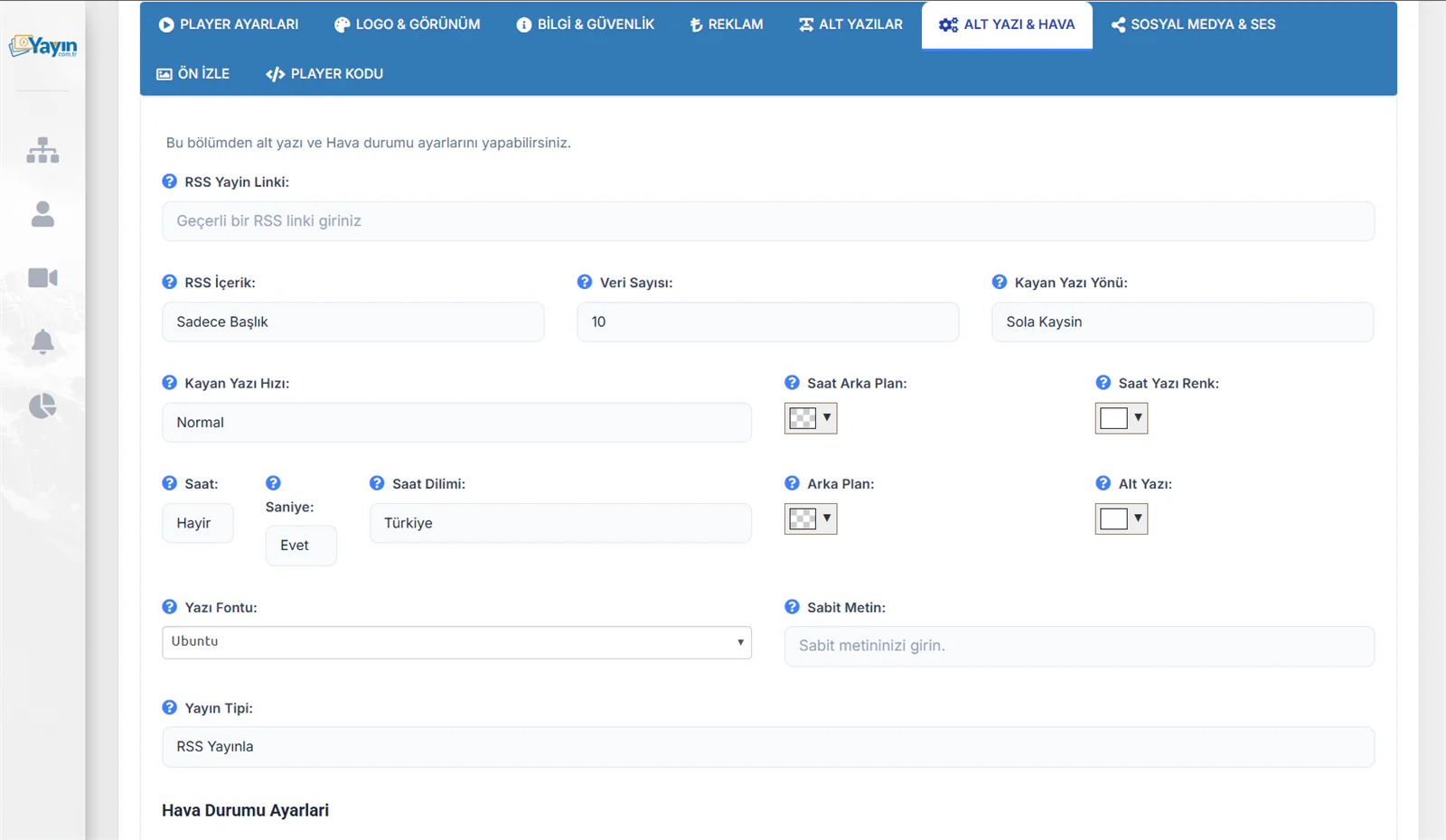
This section covers automatic captions from an RSS feed, a live clock and weather information.
RSS Captions
Connect a news site's RSS feed to display its headlines automatically as scrolling text.
| Setting | Description |
|---|---|
| RSS Feed URL | The RSS feed URL (for example a news site's RSS address) |
| RSS Content | What to display: headline only, or headline + description |
| Item Count | How many news items to show from the feed |
| Scroll Direction | The direction the text scrolls (right to left) |
| Scroll Speed | The scrolling speed (normal / slow / fast) |
Clock Settings
You can display a live clock on the player.
| Setting | Description |
|---|---|
| Clock | Turns the clock display on or off |
| Seconds | Whether seconds are displayed |
| Time Zone | Which region's time is displayed |
| Clock Background | The background colour of the clock |
| Clock Text Colour | The text colour of the clock |
Appearance Settings
| Setting | Description |
|---|---|
| Background | The background colour of the caption bar |
| Caption | The text colour of the caption |
| Font | The typeface (Ubuntu, Arial, etc.) |
| Fixed Text | Fixed text displayed continuously (optional) |
| Source Type | Publish from RSS, or use fixed text |
Weather Settings
You can display live weather information on the player. The data is pulled automatically from OpenWeatherMap and refreshed every 30 minutes.
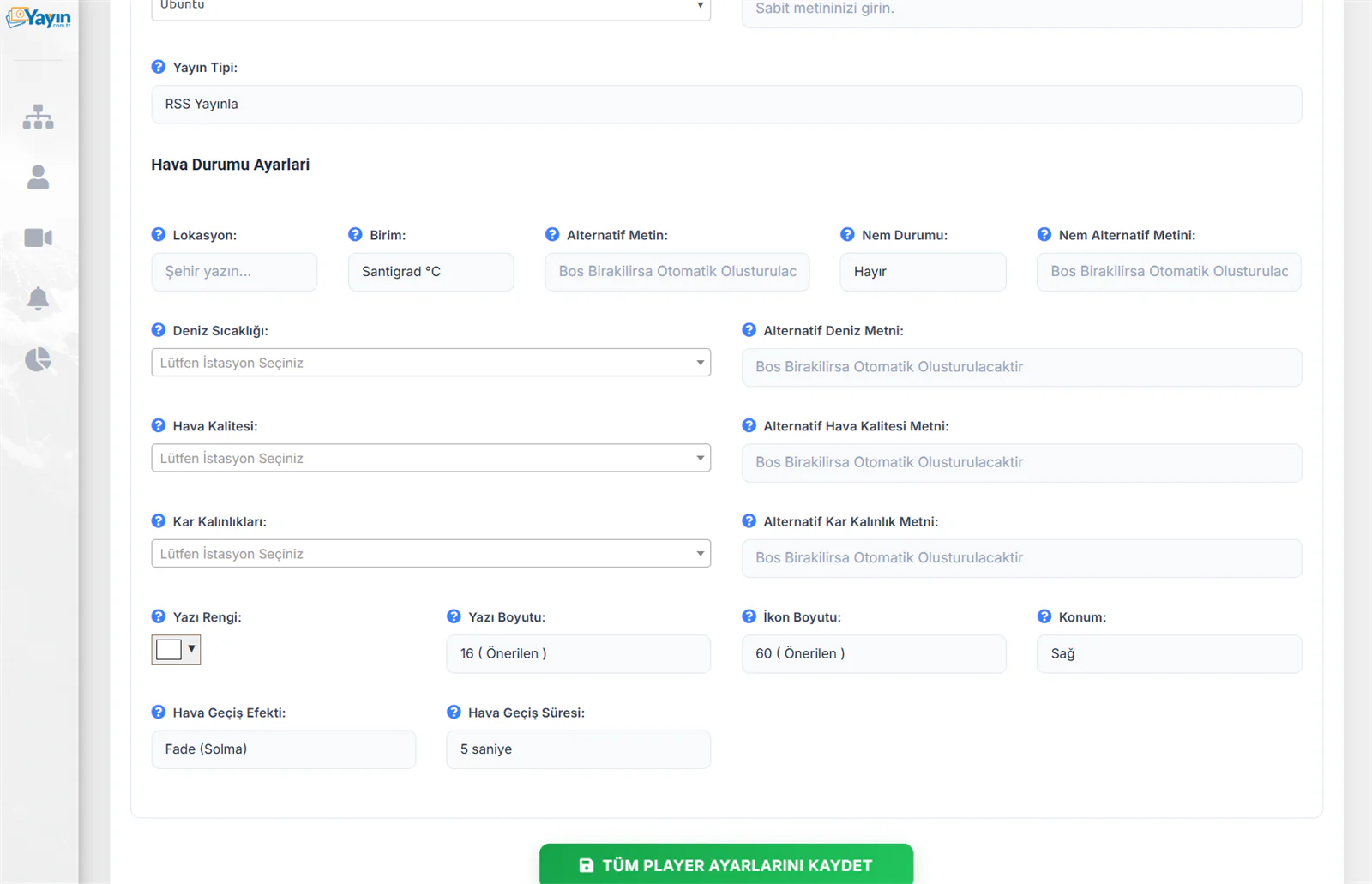
| Setting | Description |
|---|---|
| Location | The name of the city whose weather is displayed |
| Unit | The temperature unit (Celsius °C / Fahrenheit °F) |
| Alternative Text | Custom text to display instead of the location name |
| Humidity | Whether humidity information is displayed |
| Humidity Alternative Text | A custom label for the humidity reading |
Additional Data Layers
Beyond the weather, you can display other environmental data:
| Data | Description |
|---|---|
| Sea Temperature | The sea water temperature at the selected station |
| Air Quality | The air quality index at the selected station |
| Snow Depth | Snow information for the selected ski resort |
Each data type has an alternative text field — if left blank, one is generated automatically.
Weather Appearance Settings
| Setting | Description | Recommended |
|---|---|---|
| Text Colour | The colour of the weather text | White |
| Text Size | The text size in pixels | 16 |
| Icon Size | The size of the weather icon | 60 |
| Position | Where the weather information sits (right/left) | Right |
| Transition Effect | The animation used when the data changes | Fade |
| Transition Interval | How long between each data change | 5 seconds |
When several data types are enabled (weather + sea temperature + air quality), they are displayed in turn using the chosen transition effect. All data refreshes automatically every 30 minutes.
7. Social Media & Audio Tab
This section lets you display your social media links on the player and set a background audio source.
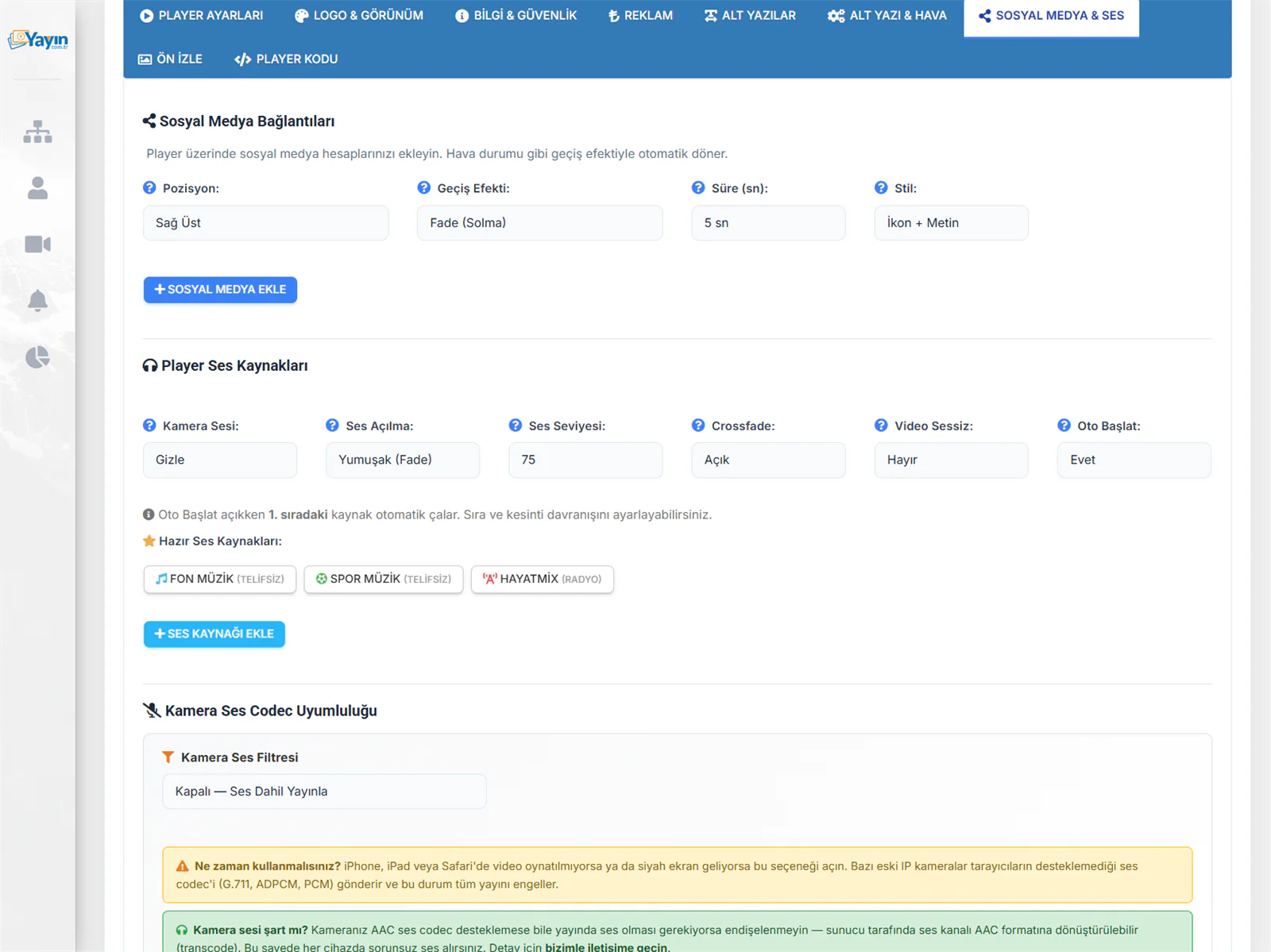
Social Media Links
You can display icons for your social media accounts on the player. The icons rotate automatically with a transition effect, just like the weather.
General Settings
| Setting | Description |
|---|---|
| Position | Where the icons sit (top right, top left, bottom right, bottom left) |
| Transition Effect | The animation between icons (fade) |
| Duration (sec) | How long each icon is displayed |
| Style | Display style: icon + text, or icon only |
Supported Platforms
Click + Add Social Media to choose from the following platforms:
| Platform | Platform | Platform |
|---|---|---|
| X (Twitter) | YouTube | TikTok |
| Telegram | Discord | |
| Twitch | Website | Phone |
Enter your address or number for each platform. You can add several platforms.
Player Audio Sources
You can add background audio or music to the camera feed.
| Setting | Description |
|---|---|
| Camera Audio | Show or hide the camera's own audio |
| Audio Fade-In | The audio transition style: smooth (fade) or immediate |
| Volume Level | The default volume level (0-100) |
| Crossfade | A smooth transition between audio sources |
| Muted Video | Whether the video starts muted |
| Autoplay | Whether the audio source starts playing automatically |
Built-In Audio Sources
The platform includes ready-made, royalty-free audio sources:
| Source | Description |
|---|---|
| Background Music | Royalty-free background music |
| Sports Music | Royalty-free sports music |
| HayatMix | Radio stream (HayatMix) |
You can also add your own Shoutcast/Icecast radio address with the + Add Audio Source button.
Camera Audio Codec Compatibility
| Setting | Description |
|---|---|
| Camera Audio Filter | If your camera's audio codec is incompatible (G.711, ADPCM, PCM and similar), this filter strips the audio out. Turn this option on if you are seeing a black screen on iPhone, iPad or Safari. |
Some older IP cameras send an audio codec browsers do not support (G.711, ADPCM, PCM), and this blocks the entire stream. In that case, turn on the Camera Audio Filter. And if you need audio on your stream even though your camera does not support the AAC codec, do not worry — the audio channel can be transcoded to AAC on the server side.
8. Player Code Tab
This section provides the embed codes you need to add the player to your website.
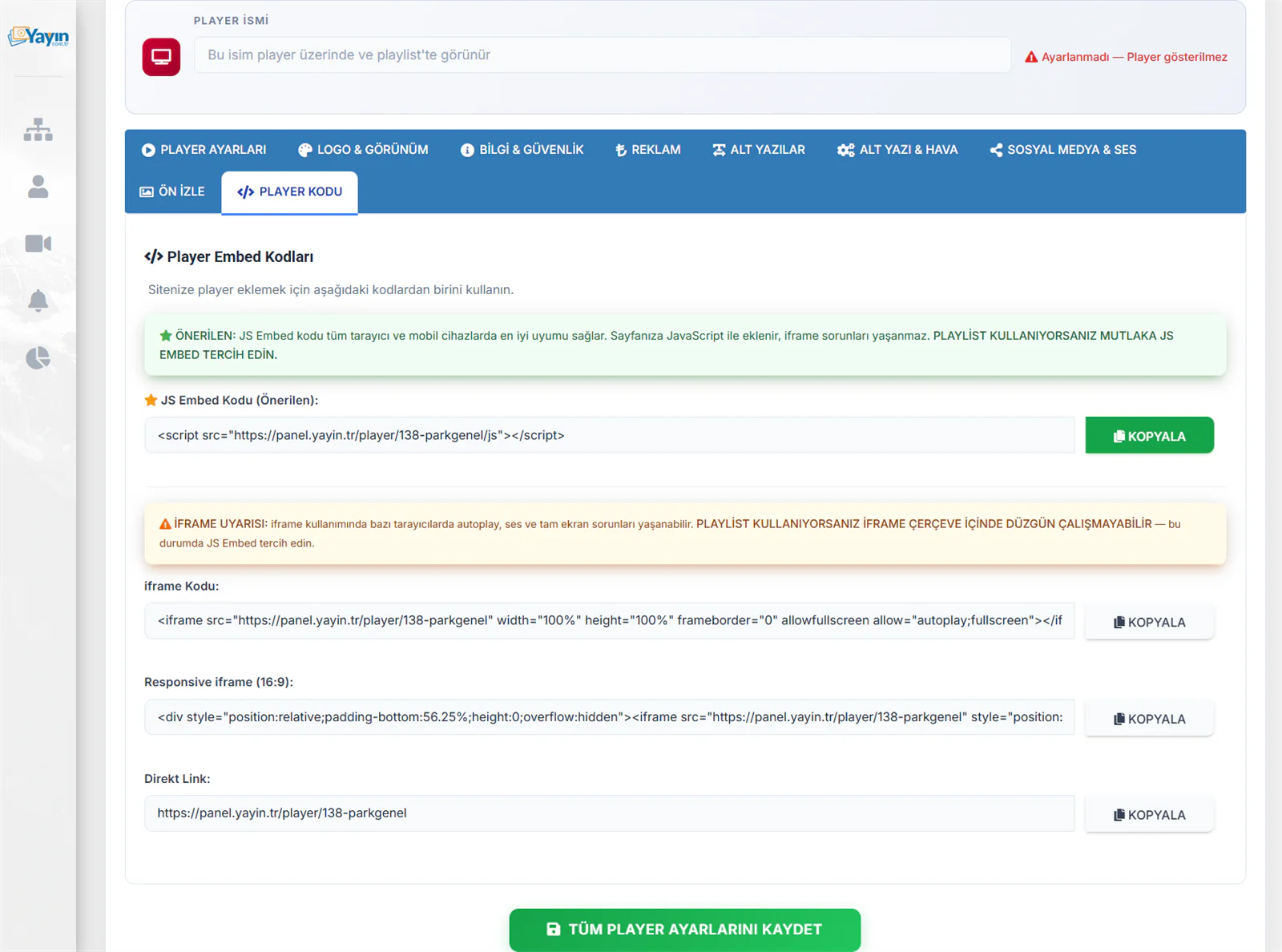
Embed Codes
| Code Type | Description | Use |
|---|---|---|
| JS Embed Code (Recommended) | Integrates directly into the page with JavaScript | The recommended method for all use cases |
| iframe Code | A standard iframe embed | For simple embedding |
| Responsive iframe (16:9) | A responsive iframe that preserves the 16:9 ratio | Adapts to different screen sizes |
| Direct Link | The player's direct access address | For sharing or testing |
Click the COPY button next to any code to copy it to your clipboard.
The JS embed code offers the best compatibility across all browsers and mobile devices. It is added to your page with JavaScript, so you avoid iframe problems. If you are using a playlist, always choose JS Embed.
With iframes, some browsers can have problems with autoplay, audio and full screen. Playlists may not work properly inside an iframe — in that case, use JS Embed instead.
Saving All Your Settings
After making changes on any tab, click the green SAVE ALL PLAYER SETTINGS button at the bottom of the page to save everything.
Switching between tabs does not save your settings. Once you have made all your changes, always click SAVE ALL PLAYER SETTINGS.
Preview
To see how your settings look, click the PREVIEW button on the lower tabs. Your player opens in preview mode with your current settings applied.