
Welcome to Your Control Panel
Manage all your cameras, stream statuses and services from a single screen. With live status tracking, quick-access menus and detailed notifications, your streams are always under your control.
Add as many cameras to your account as you like — there is no cap on the number. Whether you add 1 camera or 500, you manage them all from the same panel. Player settings, DVR, social-media streaming and reporting work independently for each camera.
The My Services Page
When you sign in to the panel, the My Services page greets you. It shows the overall status of all your cameras and provides quick access.
Status Cards
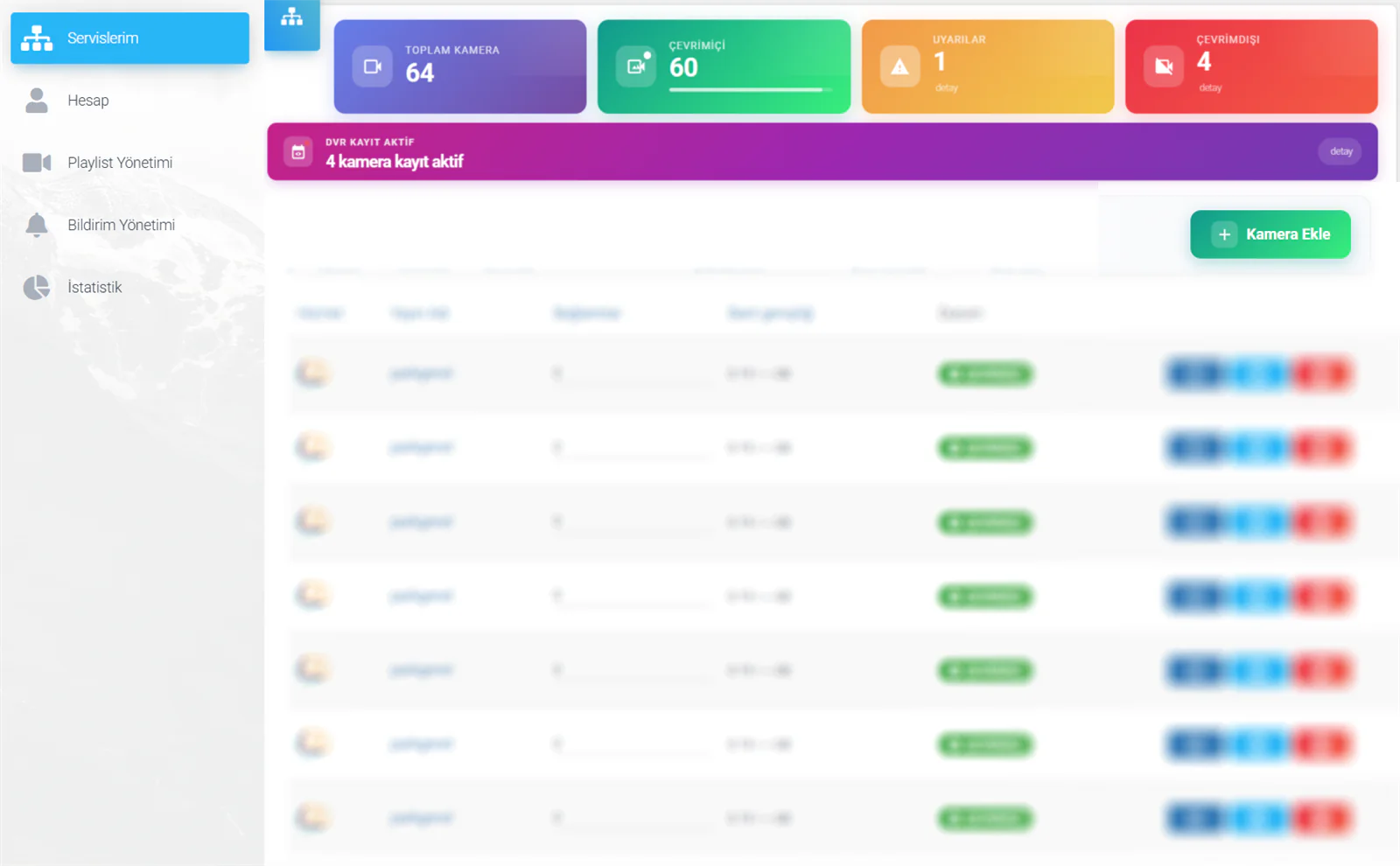
Four colour-coded status cards sit at the top of the page. Each one summarises the live overall state of your cameras:
| Card | Colour | Description |
|---|---|---|
| Total Cameras | Blue | The total number of cameras defined on your account |
| Online | Green | The number of cameras currently live |
| Warnings | Yellow | Cameras with a codec or bitrate warning — details is clickable |
| Offline | Red | Cameras that are disconnected or switched off — details is clickable |
Click the details label on the Warnings and Offline cards to see instantly which cameras have an issue, and jump to that camera's management page with a single click.
DVR Recording Status
Below the status cards you will see the purple DVR Recording Active band. It shows how many cameras on your account have the DVR (look-back recording) service enabled.
Click Details to open the list of DVR-enabled cameras:
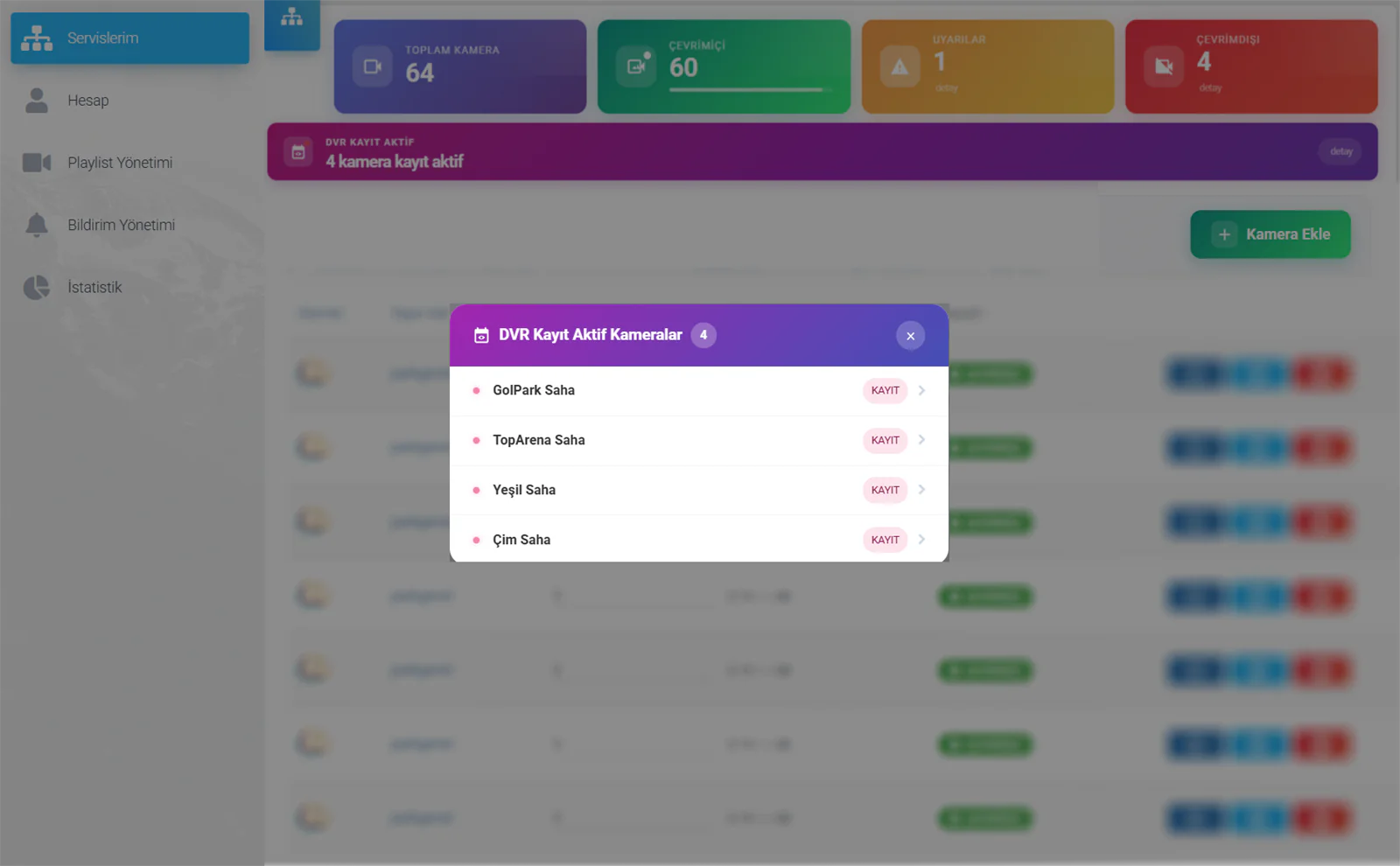
Click the RECORDING button next to any camera to go straight to its DVR recording and archive page.
Offline Camera Details
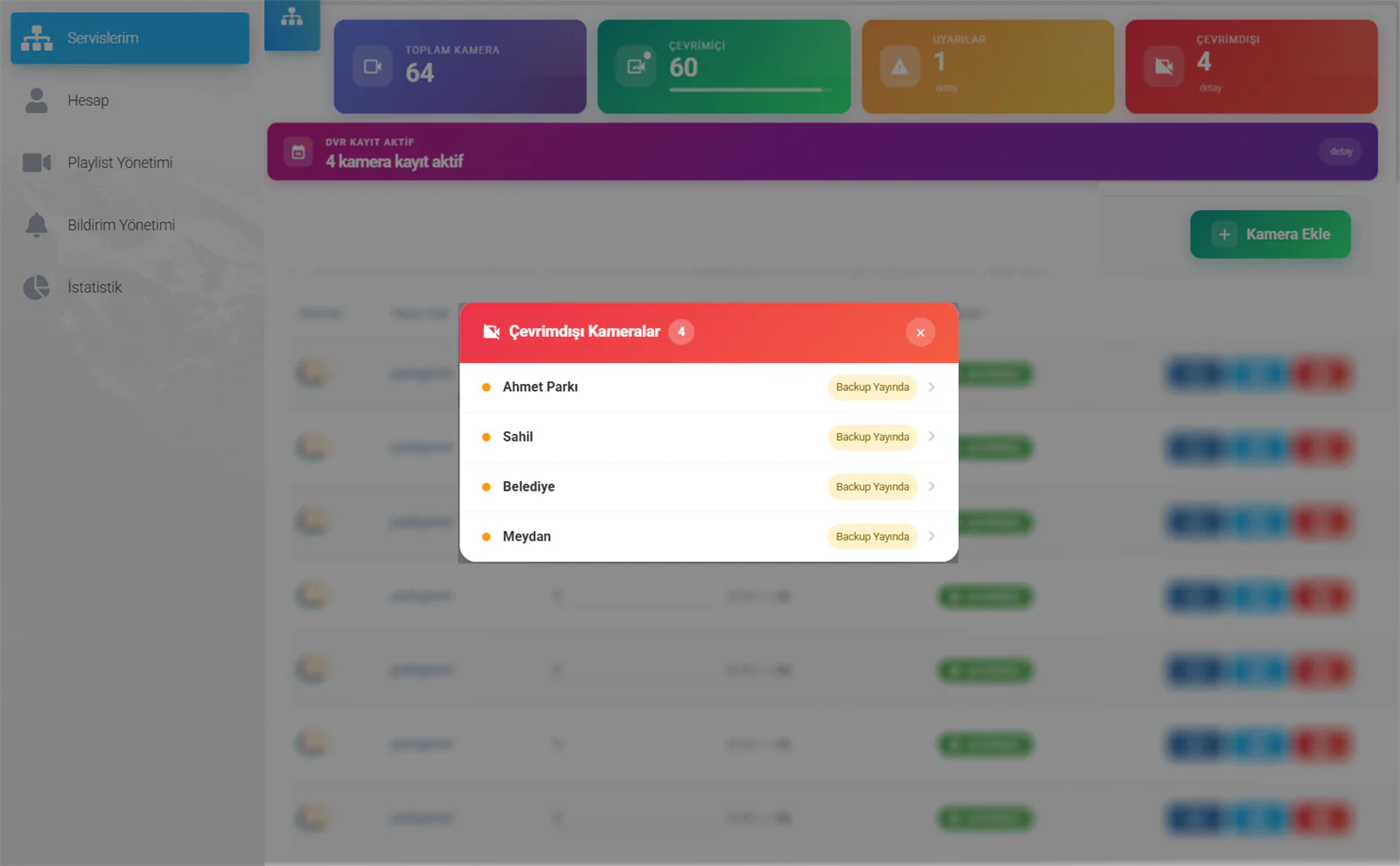
Click details on the Offline card to open the list of disconnected cameras:
| Item | Description |
|---|---|
| Camera Name | The player name of the offline camera |
| Backup On Air | Even while the camera is offline, viewers see a "no signal" image — the stream is never cut off completely |
Click the > arrow next to any camera to go straight to its management page and investigate the connection issue.
When a camera goes offline, viewers are automatically shown a "no signal" image instead of a blank screen. Your website or social-media stream is never fully interrupted, and a professional appearance is preserved. As soon as the camera comes back online, the live picture returns automatically.
Warning Details
Click details on the Warnings card to open the list of cameras reporting a warning:
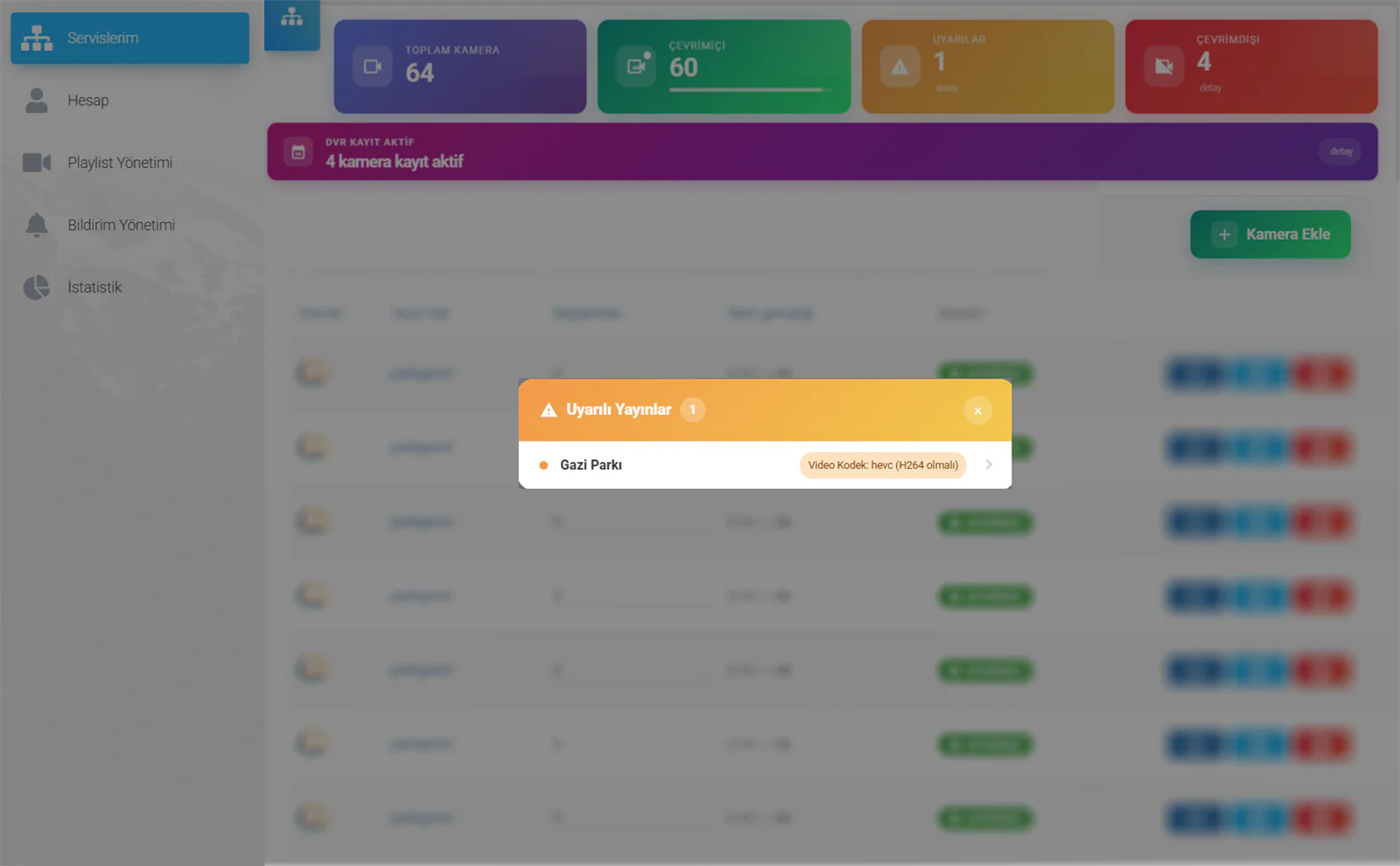
Warnings usually report codec or bitrate issues:
| Warning Type | Description | Fix |
|---|---|---|
| Video codec: hevc (should be H264) | The camera uses H.265 (HEVC) — it will not play in some browsers | Switch the camera's video codec setting to H.264 |
| Bitrate too high | The camera's bitrate is above the recommended level | Lower the bitrate below 2,500 Kbps |
| Incompatible audio codec | The camera uses an audio codec other than AAC | Set the audio codec to AAC |
Click the > arrow next to any warning to go straight to that camera's settings page.
Cameras using the H.265 codec cannot be played in some versions of Chrome, Firefox and Safari. Configure your camera with the H.264 codec so your viewers can watch smoothly on every device.
Camera List
Below the status cards, all your cameras are listed in a table:
| Column | Description |
|---|---|
| Status | The camera's live state (online/offline indicator) |
| Stream Name | The camera's unique identifier — click it to open the camera management page |
| Connections | Current number of viewers |
| Data Transfer | Current bandwidth consumption |
| Capacity | The camera's viewer-capacity status |
| Actions | Quick-access buttons (blue: management tabs, red: delete/stop) |
Use the green + Add Camera button in the top right to create a new camera.
Left Menu
The main navigation menu sits on the left side of the panel and gives you quick access to every panel feature:
My Services
The home page — the list of all your cameras, the status cards and DVR information. Adding, editing and deleting cameras all happen here.
Account
Your account details, e-mail address, password change and profile settings. You can update your contact information here.
Playlist Management
Create, edit and delete multi-camera playlists. Gallery (group) management, theme selection and scheduling.
Notification Management
E-mail notification settings for when a camera goes offline. Configure recipients, time windows and the monthly report e-mail.
Statistics
Combined reporting across all your cameras. Camera rankings, comparative charts and period-based analysis.
Camera Management Page Tabs
Click any camera in the list to open its management page. The blue bar at the top holds 4 main tabs:
| Tab | Description | Knowledge Base Page |
|---|---|---|
| Overview | Status indicators, stream-source selection (RTSP/RTMP), connection details | Adding a Camera |
| Player Settings | Live Player, DVR Player and Disk Archive — logo, colours, captions, embed code | Player Settings |
| 24/7 Multistreaming | Social-media RTMP streaming targets — YouTube, Facebook, Twitch and more | 24/7 Multistreaming |
| Reporting | Viewer statistics, sessions, geographic distribution, traffic | Reporting |
Quick Access
Add a Camera
Add a new camera with the green button in the top right, or the "Create My First Camera" button on an empty list.
Offline Tracking
Click the red card's details to check offline cameras and the backup-stream status.
Warning Resolution
Click the yellow card's details to view codec/bitrate warnings and jump to the camera settings in one click.
Terms of Use and Account Policy
Yayin.com.tr shared accounts are designed for streaming the cameras of a single operation of a single business. The rules below are not arbitrary; they exist so that server resources are shared fairly, service quality is protected and legal responsibility under the GDPR stays clear. And if you want to serve several businesses/projects or operate as a reseller, the Dedicated Server option removes every restriction — so there is a suitable path for every need.
The Basic Rule: One Account = One Operation of One Business
Every camera added to your account must belong to the account owner and to a single integrated operation, project or facility. The unlimited-camera right applies within that scope.
What matters is not the number of cameras. Several mutually independent projects, branches, locations or businesses — even under the same owner — cannot be combined in one account; each belongs in its own account (or on a Dedicated Server).
"Do these cameras belong to a single operation/project/facility of a single business, or to several mutually independent projects / branches / locations / businesses?"
If the answer is "a single operation", they all fit in one account, whatever the number. If the answer is "several independent operations", each one needs its own account.
What "Unlimited Cameras" Does and Does Not Mean
There is no upper limit on the number of cameras you can add to your account. This feature is often misunderstood, though. The unlimited-camera right applies to the cameras of a single operation — not to gathering the cameras of several independent projects, branches, locations or businesses into one account.
All cameras that belong to a single operation and are watched by the account owner — whatever their number:
— A municipality can manage its own city-wide cameras (one integrated public operation) in a single account
— A factory can add the cameras of every production line at its single site
— A construction company can gather every camera at one construction site in the account for that project
— A housing-estate / mall / facility management can gather all the cameras at its own facility
In short: as long as the cameras belong to one operation / project / facility, there is no limit on their number.
The cameras of mutually independent operations cannot be merged in one account — even under the same owner:
— A construction company's project in region A and project in region B cannot share an account; each site/project is a separate account
— A hotel chain's separate hotels (Hotel A, Hotel B, Hotel C) cannot be gathered in one account
— The cameras of an organisation's separate companies/branches in İstanbul and Ankara
— A security company managing its customers' cameras (market A, factory B, villa C)
— A middleman / reseller buying the service and selling it on to end users
— Cameras added for friends or neighbouring businesses on a "let's just use my account" basis
Each of these counts as a separate operation, or as a service to a third party, and cannot be combined on a shared account.
What decides it is not the number of cameras but how many separate operations they belong to. A municipality's hundreds of cameras form one public operation → unlimited, one account. A construction company's two projects in regions A and B are two mutually independent operations → two accounts. The same company owning both changes nothing; what separates them is the independence of the operation/project.
Common Usage Scenarios
| Scenario | Status | Why |
|---|---|---|
| A municipality's own city-wide cameras | ✅ Allowed | One institution, one integrated operation |
| All production lines at a factory's single site | ✅ Allowed | One site, one operation |
| All cameras at a construction company's single construction site | ✅ Allowed | One project, one operation |
| A housing-estate / mall management's own facility | ✅ Allowed | One facility |
| A construction company's region A + region B projects in one account | 🚫 Not allowed | Two independent projects → separate accounts |
| A hotel chain (Hotels A / B / C) in one account | 🚫 Not allowed | Each hotel is a separate business/operation |
| Separate companies/branches in different cities | 🚫 Not allowed | Independent operations → separate accounts |
| A security company managing customer cameras | 🚫 Not allowed | Service to third parties → Dedicated Server / reseller model |
| A middleman / reseller selling on to end users | 🚫 Not allowed | Classic resale → Dedicated Server |
Why Do These Rules Exist?
Fair Resource Sharing
On shared servers, CPU, bandwidth and disk are shared among all users. When one account is loaded with the cameras of dozens of unrelated operations, everyone else's service quality suffers.
Legal Clarity (GDPR)
For every camera it must be clear who the "data controller" is. When the cameras of different operations or businesses are mixed in one account, legal responsibility becomes blurred and a risk of GDPR breach arises.
Service Quality and Security
A predictable load means stable streaming and clear support. When resale or multi-operation load is pushed onto shared infrastructure, both quality and security suffer.
What Happens in Case of a Violation?
If we find that one account gathers several independent operations or third-party cameras, the following steps apply:
Notification and Warning
The account owner is informed by e-mail and given a reasonable period to put things right. Our aim is always to find a solution first.
Suspension
If the situation is not corrected within the given period, the account is suspended. Streams and DVR recordings are stopped.
Permanent Closure
If the violation continues, the account is closed permanently. These rules apply to all shared-server users.
Unrelated business or project names, source cameras in different locations or IP blocks, a large number of unrelated domains, or customer reports are all indicators of a violation. In a suspicious case we contact you first — we never prejudge.
Want to Serve Several Operations / Customers? Dedicated Server
Managing several projects (say, the construction sites in regions A and B) from one panel, offering live streaming to your own customers, managing customer cameras as a security company, or operating as a reseller are all perfectly legitimate — they simply belong in the right place: a Dedicated Server.
— Manage several independent operations/projects from one panel
— Sell camera-streaming services to third parties / customers
— Create separate sub-accounts for each project or customer
— Serve under your own brand (white-label)
— Server resources are entirely yours, shared with no other user
— Unlimited cameras, unlimited bandwidth and full administrative control
— Custom domain and SSL configuration
For details and pricing, write to destek@yayin.com.tr.
| Feature | Shared Account | Dedicated Server |
|---|---|---|
| Cameras of a single operation | ✅ Unlimited | ✅ Unlimited |
| Several independent projects/operations | 🚫 | ✅ |
| Selling the service to third parties | 🚫 | ✅ |
| Customer / project sub-accounts | 🚫 | ✅ |
| White-label / your own brand | 🚫 | ✅ |
| Reselling | 🚫 | ✅ |
| Reserved resources (CPU/bandwidth) | Shared | ✅ Yours alone |
GDPR and Legal Responsibility
Under the GDPR, the "data controller" of a camera stream is the party that installs and operates the camera. On your shared account you can only be the data controller of cameras that belong to your own operation. Gathering the cameras of independent projects or other businesses in one account creates a responsibility you cannot legitimately assume, and with it a risk of GDPR breach. That is why "one operation = one account" is both a technical and a legal requirement.