
AI-Powered GDPR Face & Plate Protection
Our advanced AI engine scans your cameras around the clock. The moment a recognisable face or a readable number plate appears, it detects it within seconds, sends you a notification and — if you choose — stops the stream automatically. All analysis runs locally on your own dedicated server; the footage is never sent anywhere, keeping you GDPR-compliant.
This capability is unique in the live-streaming industry. Competing platforms require external services or manual checks for face and plate detection. At yayin.com.tr the AI engine is built right into the platform: detection, notification, stream shutdown, evidence review and the privacy notice are all managed from a single panel. It protects you automatically, 24/7, with no human intervention.
Under the Turkish data protection board decision of 24.06.2026, the duty to inform has become central to streaming from publicly accessible spaces. A recognisable face or readable number plate appearing in a live stream constitutes the processing of personal data. This system scans your streams automatically with AI, minimising the risk of a breach and strengthening your legal compliance. The privacy notice, AI detection and automatic stream shutdown work together to form a comprehensive compliance solution.
The GDPR Control Panel
Click the GDPR tab (the person icon) in the left-hand menu to open the GDPR Face & Plate Protection panel.
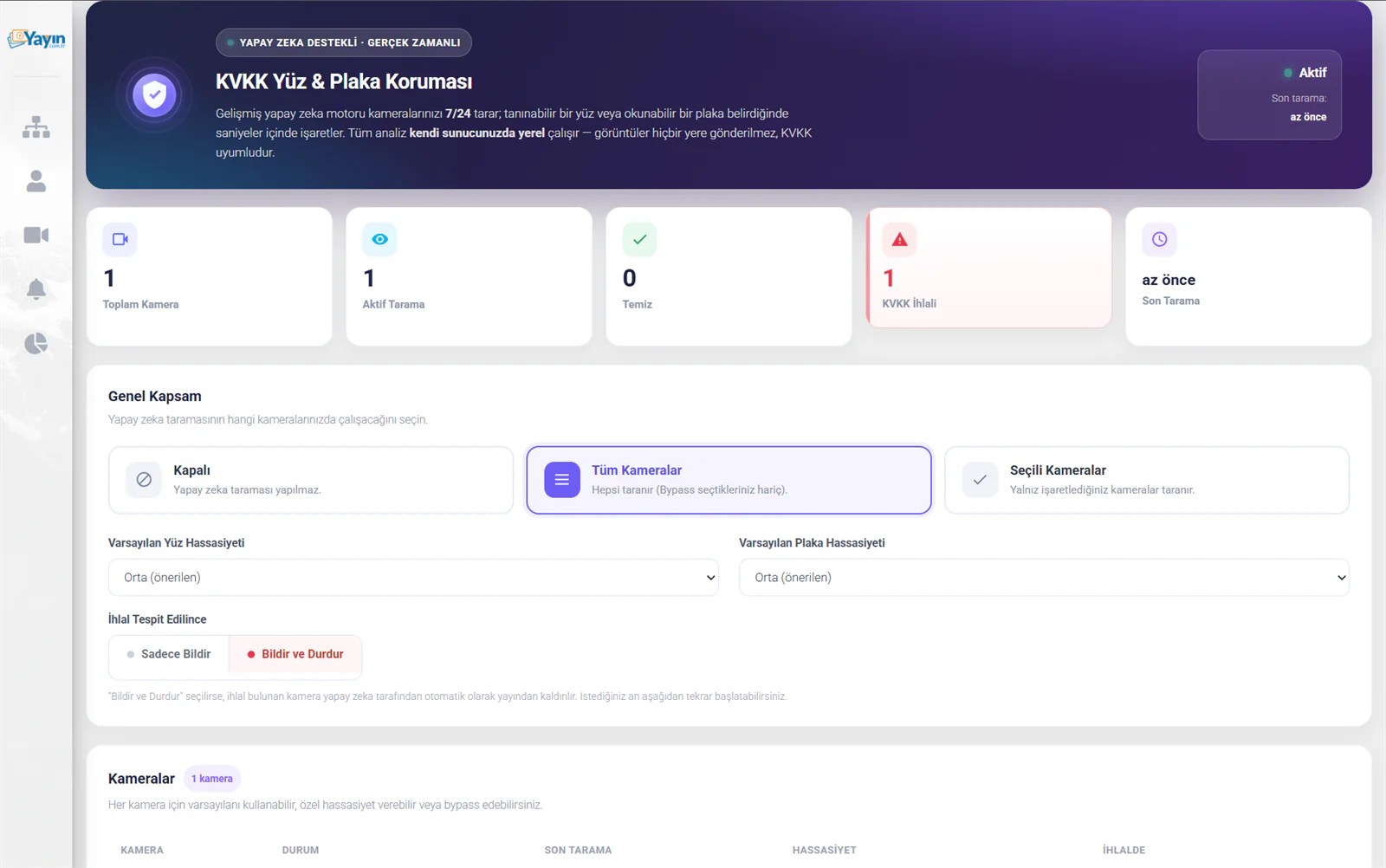
Status Cards
There are 5 status cards at the top of the page:
| Card | Description |
|---|---|
| Total Cameras | The total number of cameras on your account |
| Actively Scanned | The number of cameras currently being scanned by the AI |
| Clear | Cameras with no breach detected in the latest scan |
| GDPR Breach | The number of cameras with a detected breach — highlighted in red |
| Last Scan | When the most recent AI scan was carried out |
Overall Scope
Choose which of your cameras the AI scan runs on. There is no limit on the number of cameras — GDPR protection can be enabled for every camera on your account.
| Mode | Description |
|---|---|
| Off | No AI scanning is performed |
| All Cameras | Every camera is scanned (except any you have set to bypass) |
| Selected Cameras | Only the cameras you tick are scanned |
Default Sensitivity
Set the default sensitivity levels applied to all cameras:
| Setting | Options | Description |
|---|---|---|
| Face Sensitivity | Low, Medium (recommended), High, Very High | The threshold for face detection. Higher sensitivity catches more, but may increase false positives |
| Plate Sensitivity | Low, Medium (recommended), High, Very High | The threshold for number-plate detection |
When a Breach Is Detected
Decide what the system does when a breach is found:
| Action | Description |
|---|---|
| Notify Only | An e-mail notification is sent when a breach is detected, but the stream continues |
| Notify and Stop | An e-mail is sent and the AI takes the camera off air automatically. You can restart it manually from the panel |
With this option enabled, any camera found in breach is taken off air automatically by the AI. To bring it back you need to press the "▶ Start Camera" button in the camera list. This action can also be configured per camera.
Camera List
All your cameras are listed in a table below the overall scope settings:
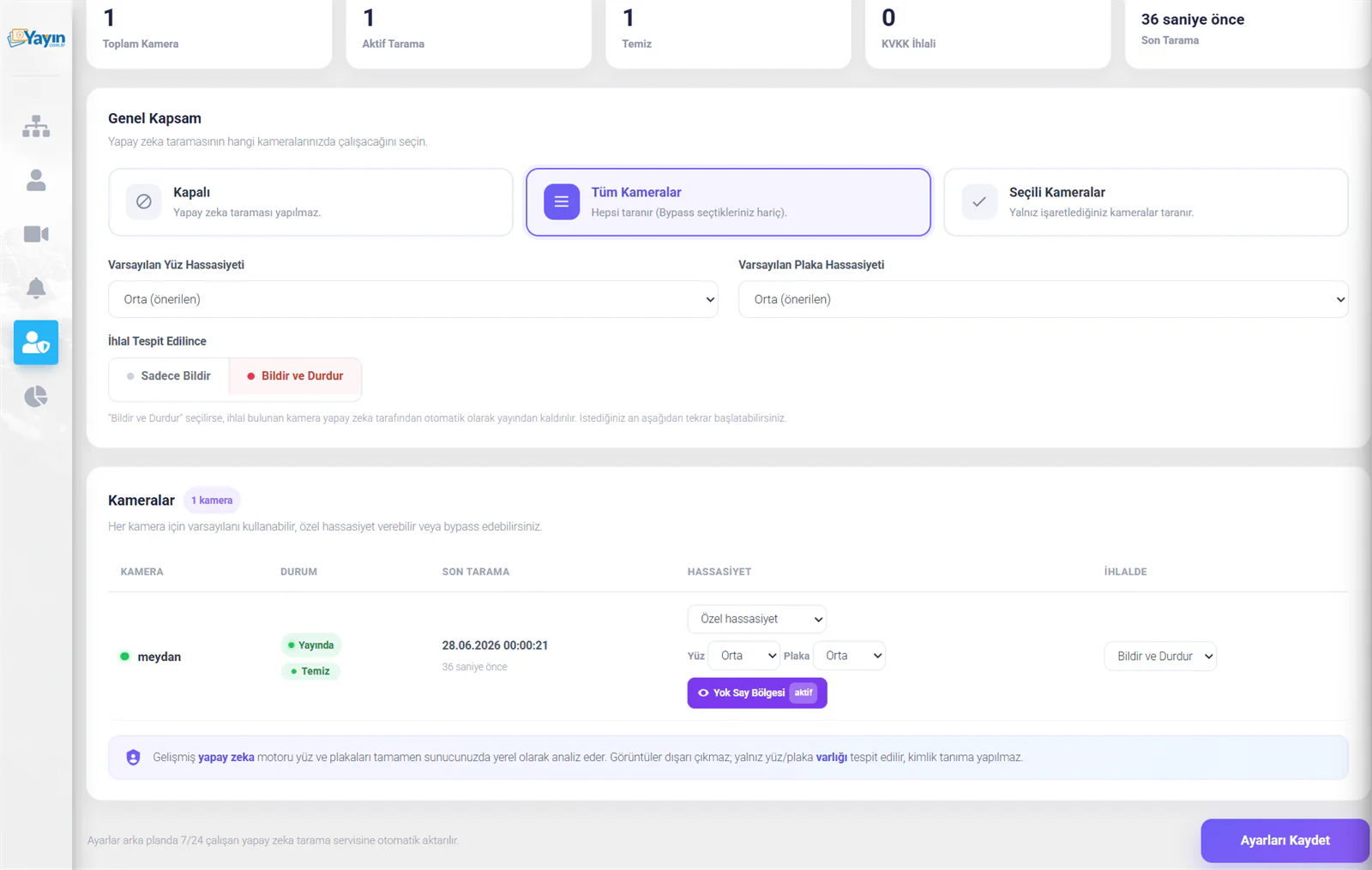
| Column | Description |
|---|---|
| Camera | The camera name and status indicator (green = on air) |
| Status | Live scan status: 🟢 On Air / 🟢 Clear / 🔴 Disabled / 🔴 Breach: face, plate |
| Last Scan | The date and time of the most recent AI scan |
| Sensitivity | Default or custom sensitivity. When custom is selected, face and plate sensitivity are set separately |
| On Breach | The per-camera breach action: Notify and Stop, or Notify Only |
You can set the sensitivity individually for each camera or simply use the default.
Breach Status
When a breach is detected on a camera, that row is highlighted with a red left-hand border:
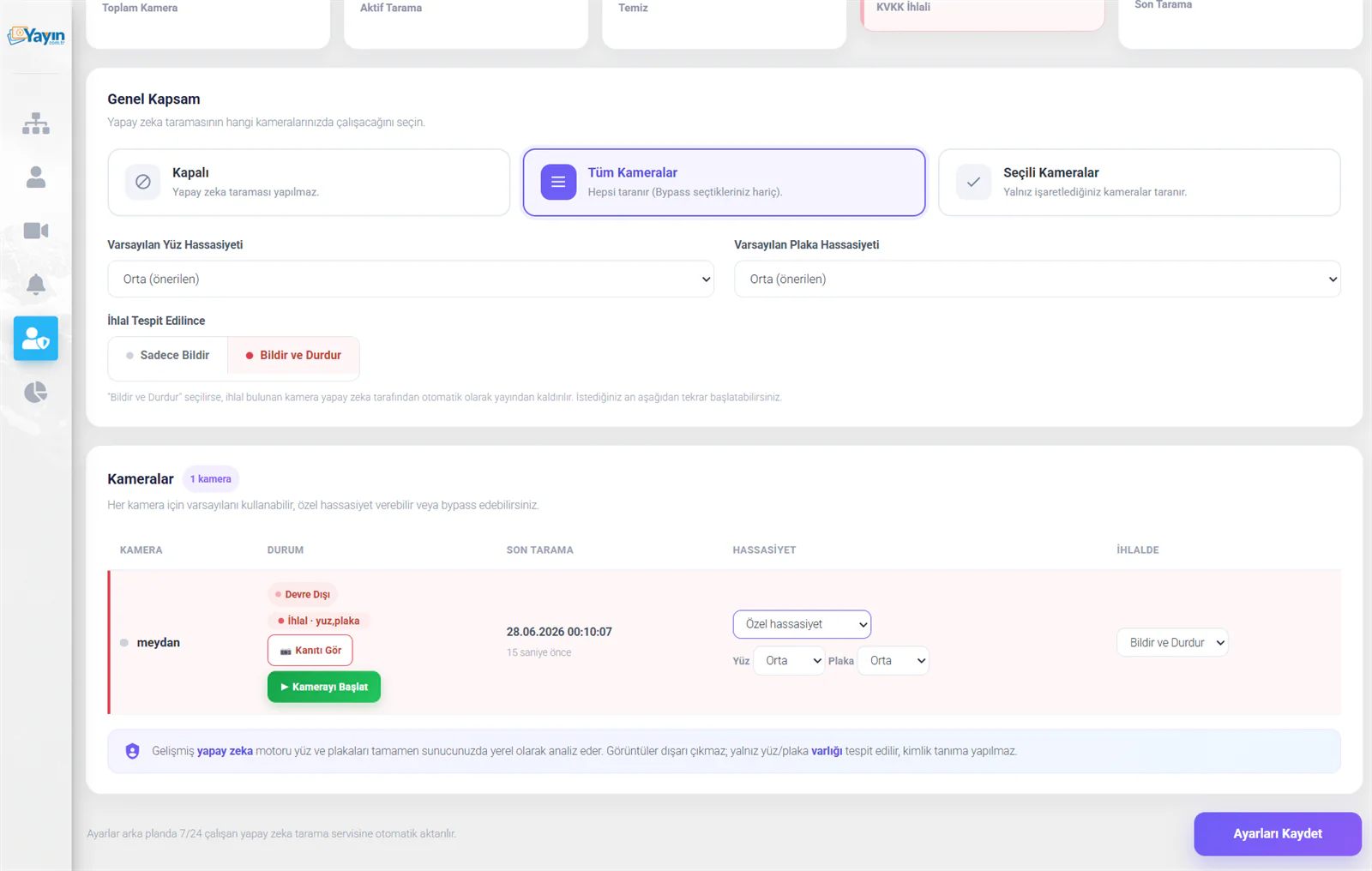
| Item | Description |
|---|---|
| 🔴 Disabled | If the camera is in "Notify and Stop" mode, this means it has been taken off air |
| 🔴 Breach: face, plate | The types of breach detected |
| 📷 View Evidence | Opens the AI-annotated image captured at the moment of the breach |
| ▶ Start Camera | Puts a camera that was taken off air back on air |
Viewing the Evidence
Clicking "📷 View Evidence" in the camera list opens the AI-analysed image from the moment of the breach in a modal window.
Face Detection
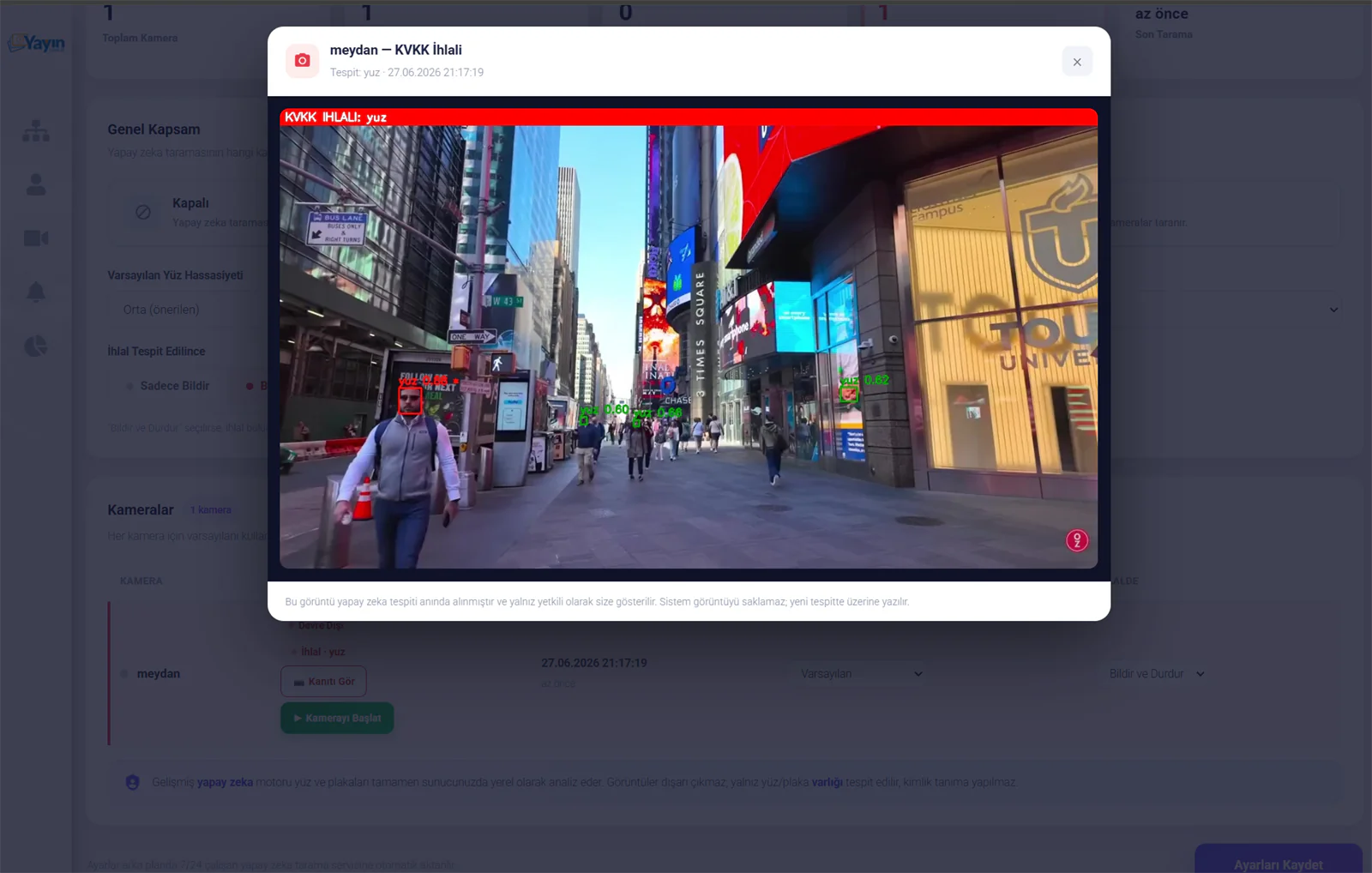
Detected faces are marked with red or green boxes. A confidence score is shown next to each box (for example face 0.77, face 0.62). The higher the score, the more certain the detection.
Face and Plate Detection
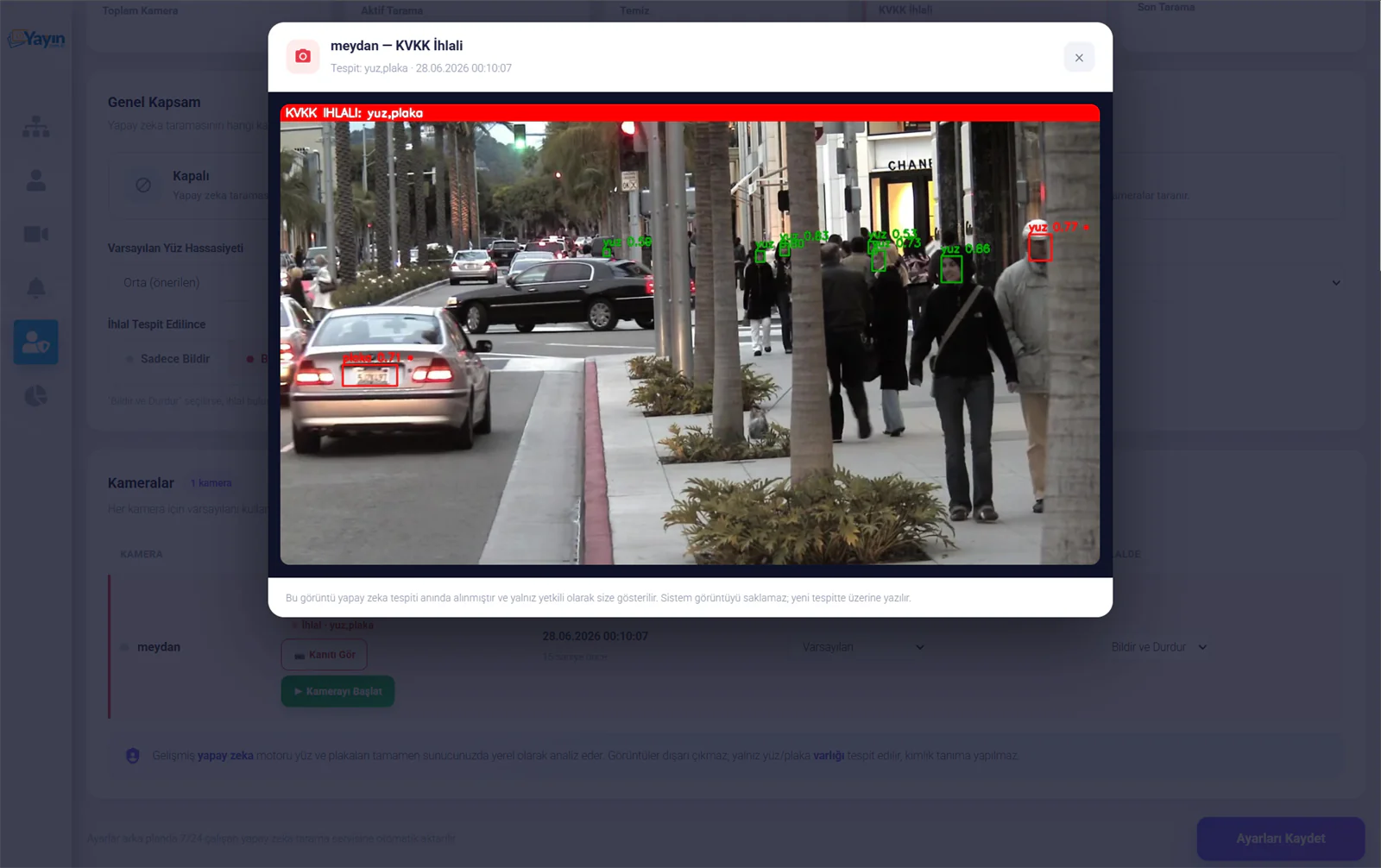
When both a face and a plate are detected in the same frame, each is marked with its own colour. The red banner at the top shows the detection types (for example "GDPR BREACH: face, plate").
The evidence image is captured at the moment of AI detection and shown only to you as the authorised account holder. The system does not store it — each new detection overwrites the previous image. The AI only detects the presence of a face or plate; it performs no identity recognition and does not read plate text.
Ignore Zones
You can exclude areas of the camera image that repeatedly cause false triggers — advertising boards, channel logos, posters and so on.
Click the "🚫 Ignore Zone" button in the camera list:
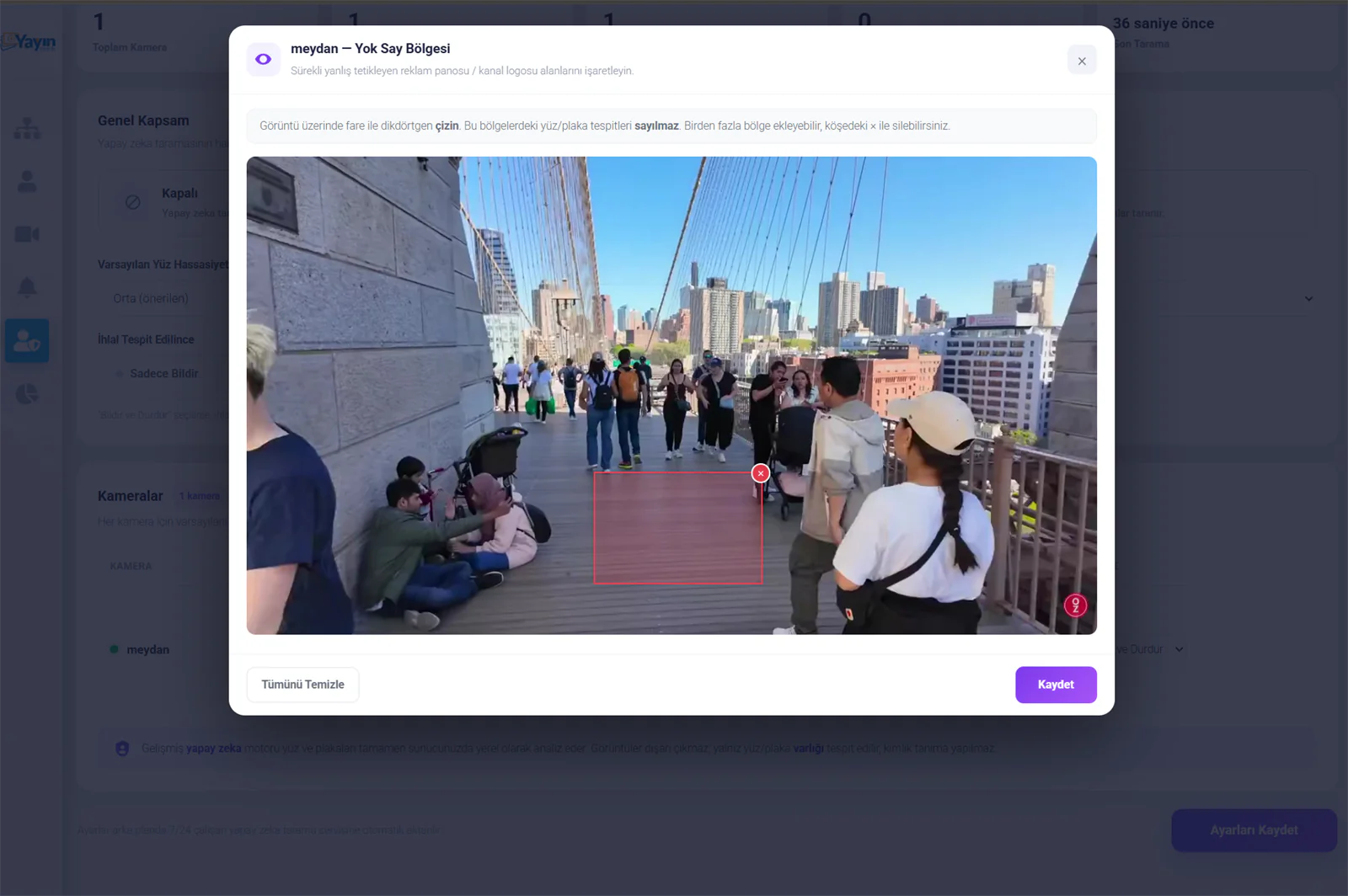
Click Select Area
The modal that opens shows a live frame from the camera. Press the "Select area" button.
Draw a Rectangle
Use your mouse to draw a rectangle over the region causing false detections. Any face or plate detected inside it will not be counted.
You Can Add Several Zones
Draw as many zones as you need. Remove them one at a time using the × in each zone's corner, or clear them all with "Clear All".
Save
Press "Save". Ignore zones take effect from the next scan onwards.
If human faces on an advertising board, channel logos, posters or fixed decorations in the camera image keep triggering false positives, mark those areas as ignore zones. Fixed elements outside the real scene are then excluded from scanning.
Breach Alert Notification
When a GDPR breach is detected, a red alert popup appears automatically on the main panel (the My Services page):
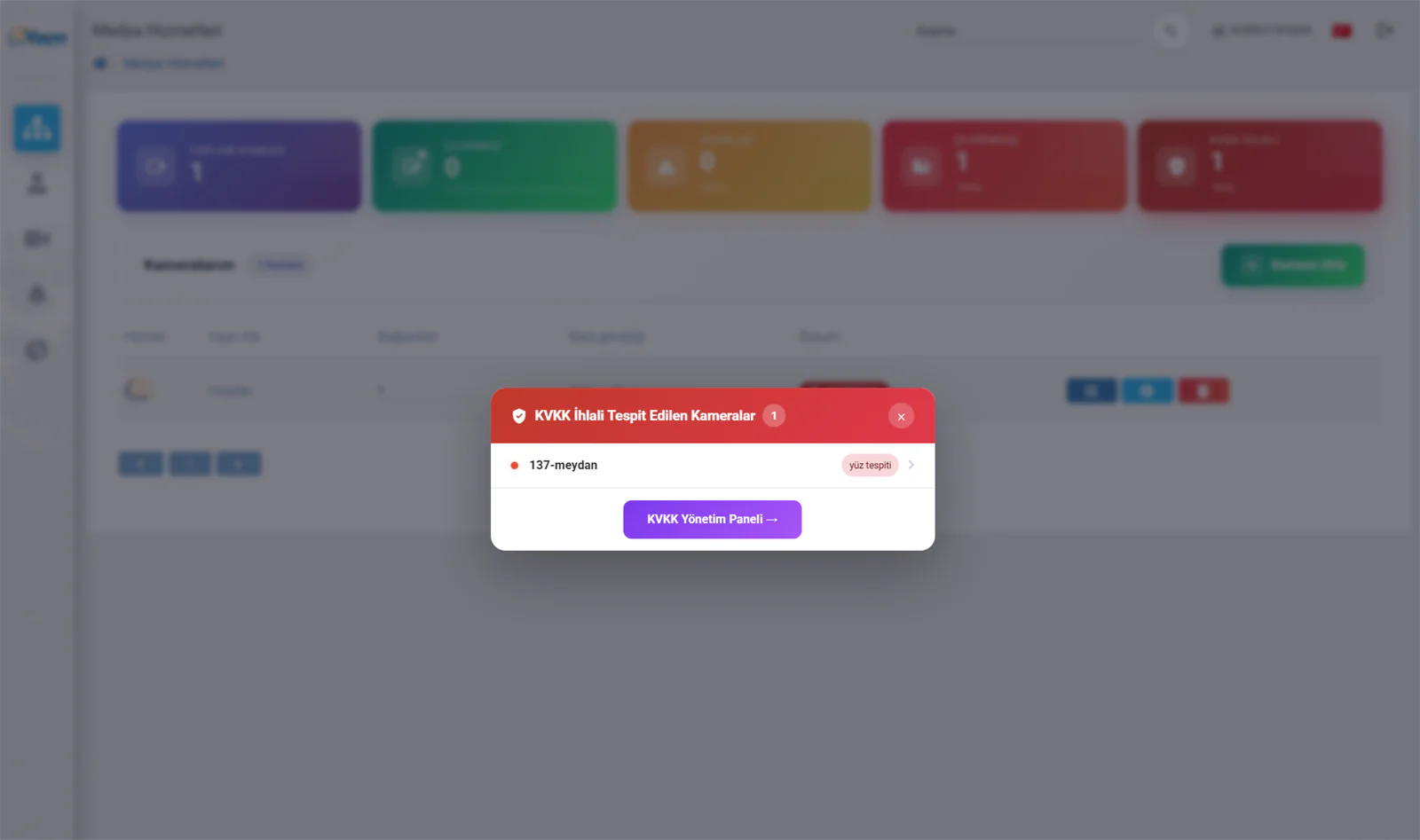
The popup lists the cameras in breach and the types of breach detected. Click "GDPR Management Panel →" to go straight to the GDPR panel.
E-mail Notification
When a breach is detected, an automatic notification is sent to your account e-mail address:
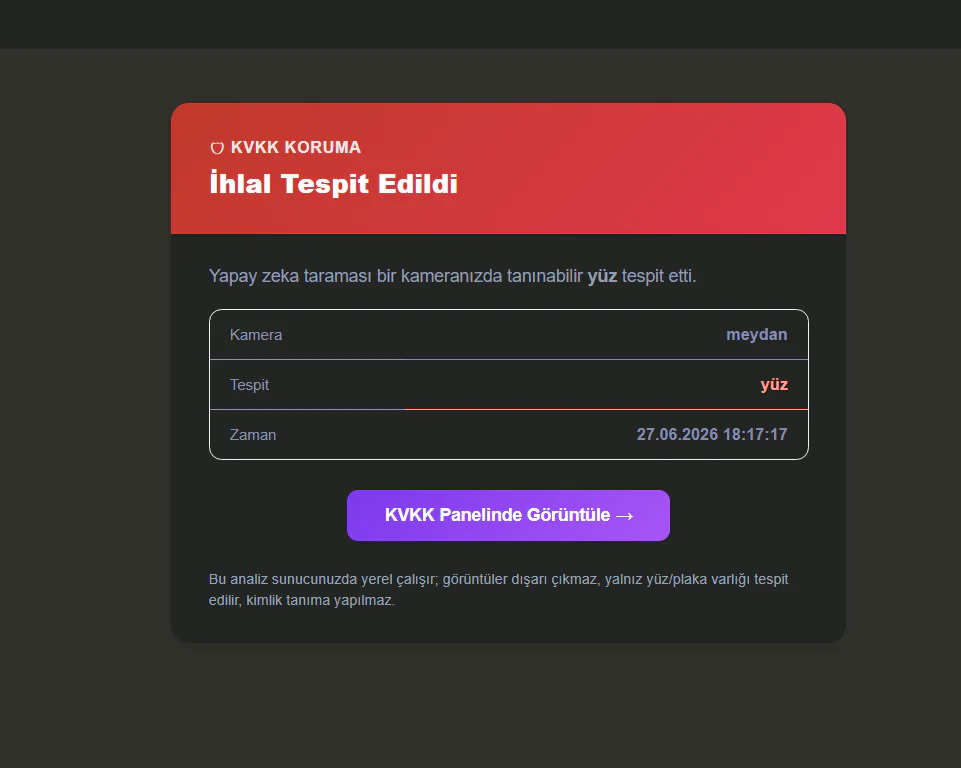
The e-mail contains:
| Detail | Description |
|---|---|
| Camera | The name of the camera where the breach was detected |
| Detection | The type of breach (face, plate or both) |
| Time | The date and time the breach was detected |
| View in the GDPR Panel | Takes you straight to the evidence image in the GDPR panel |
A privacy note appears at the foot of the e-mail: "This analysis runs locally on your server; images never leave it, only the presence of a face or plate is detected, and no identity recognition is performed."
The GDPR Privacy Notice
You can display a GDPR privacy notice to viewers in the camera player. When a viewer opens the camera, a professionally designed modal appears over the player; they read the notice, accept it and then start watching.
The Viewer Experience
When a viewer opens the camera, they are presented with a privacy notice like this:
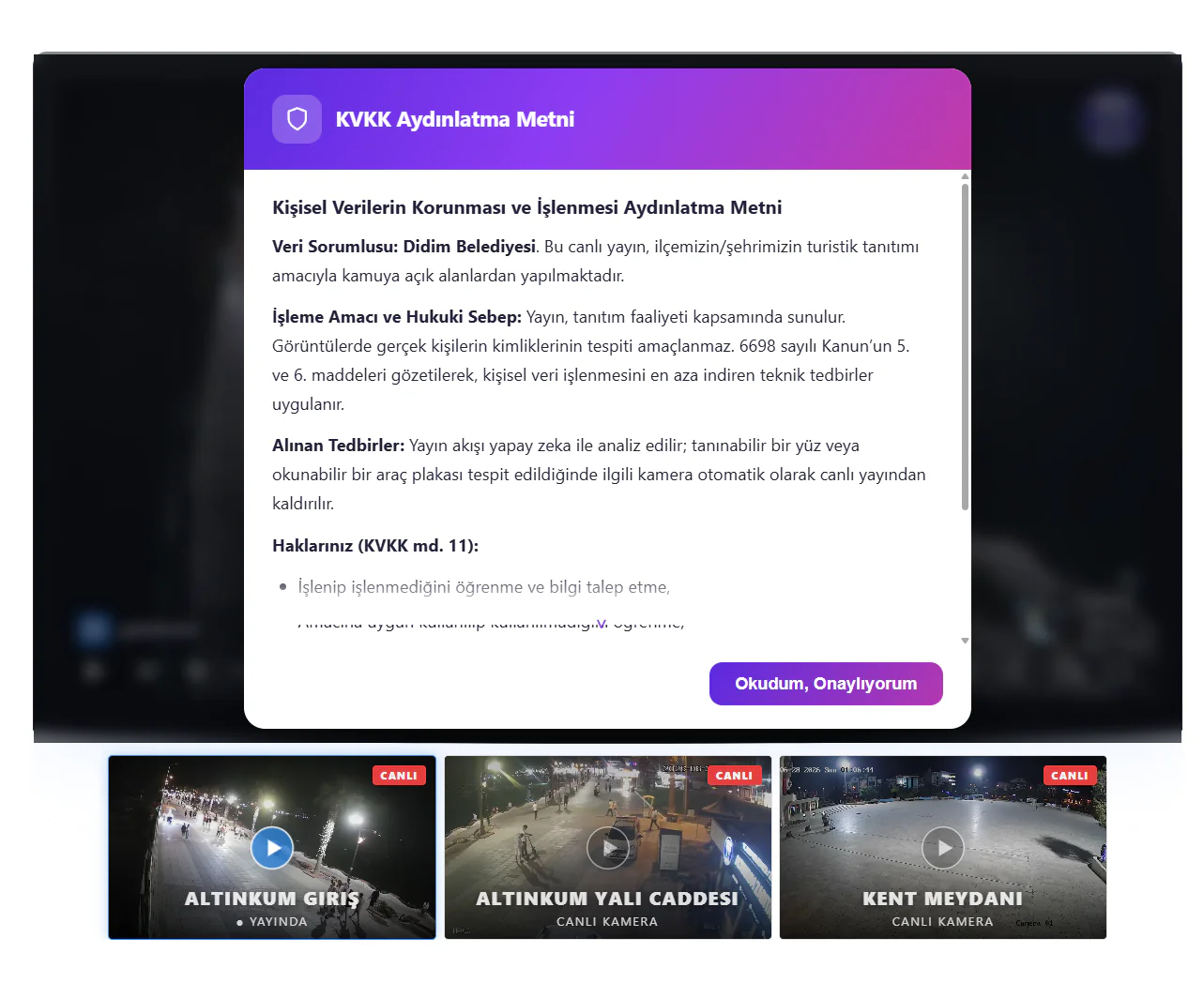
The modal sets out your organisation's name, the purpose of the stream, the purpose and legal basis for processing, the technical measures in place (AI detection) and the viewer's data-subject rights. Once the viewer clicks "I have read and accept", the stream begins.
Settings
Configured from the GDPR sub-tab within the Player Settings tab:
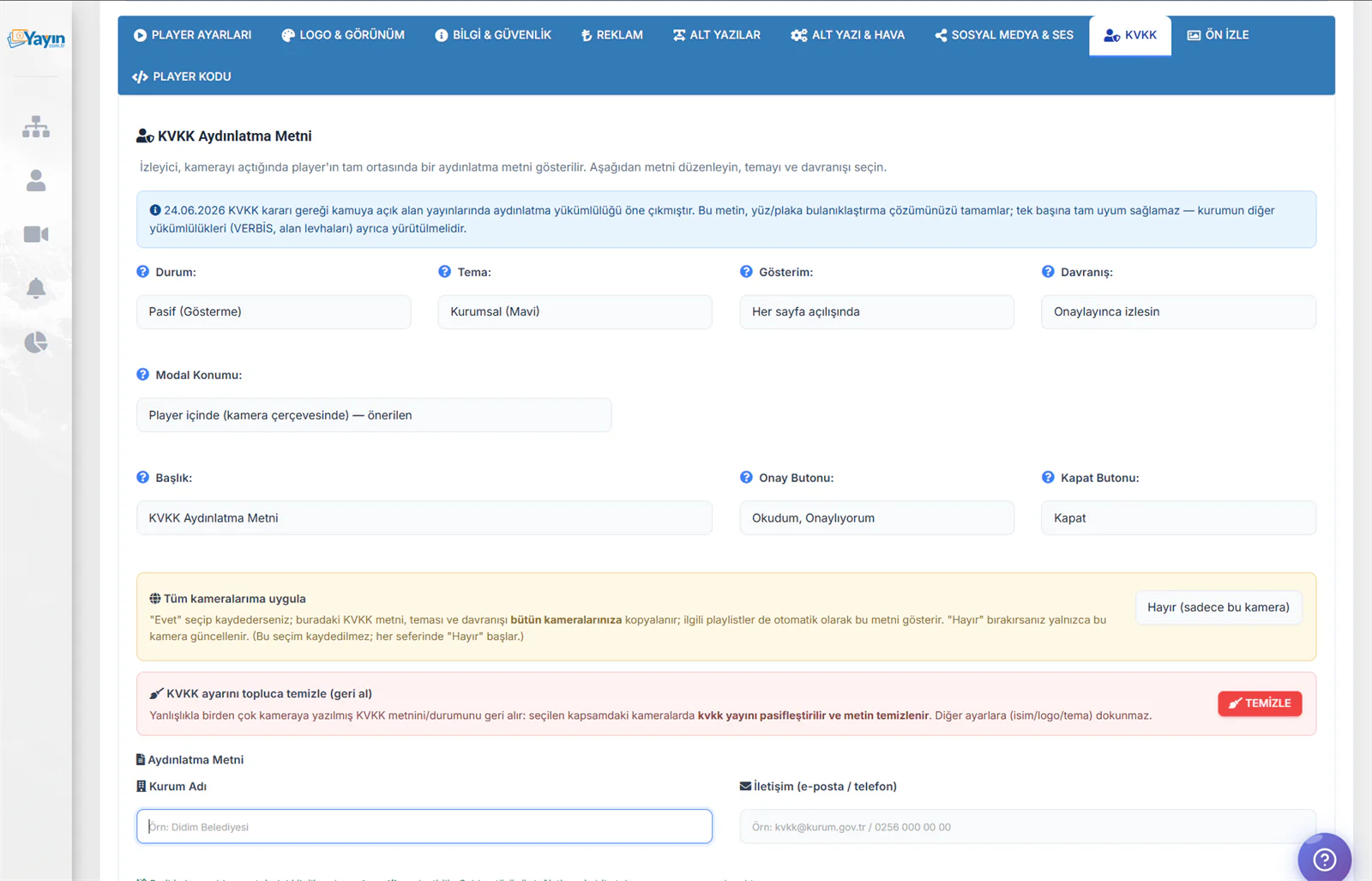
Notice Settings
| Setting | Options | Description |
|---|---|---|
| Status | Active / Inactive | Whether the privacy notice is displayed |
| Theme | Corporate (Blue), Dark, Light | The colour theme of the modal |
| Frequency | Every time the page opens / Show once | How often the notice is displayed |
| Behaviour | Watch after accepting / Play in the background | Whether acceptance is required |
| Modal Position | Inside the player (recommended) / Full screen | Where the modal is displayed |
Heading and Buttons
| Field | Default Value | Description |
|---|---|---|
| Heading | GDPR Privacy Notice | The heading at the top of the modal |
| Accept Button | I have read and accept | The button the viewer clicks to accept |
| Close Button | Close | The button the viewer clicks to decline |
Applying in Bulk
| Option | Description |
|---|---|
| Apply to all my cameras | If set to "Yes" and saved, this privacy notice, its theme and its behaviour are copied automatically to every camera and the associated playlists |
| Clear the GDPR setting in bulk | Reverses a privacy notice or status accidentally written to several cameras — GDPR is switched off and the text cleared on every camera in the selected scope |
Privacy Notice Content
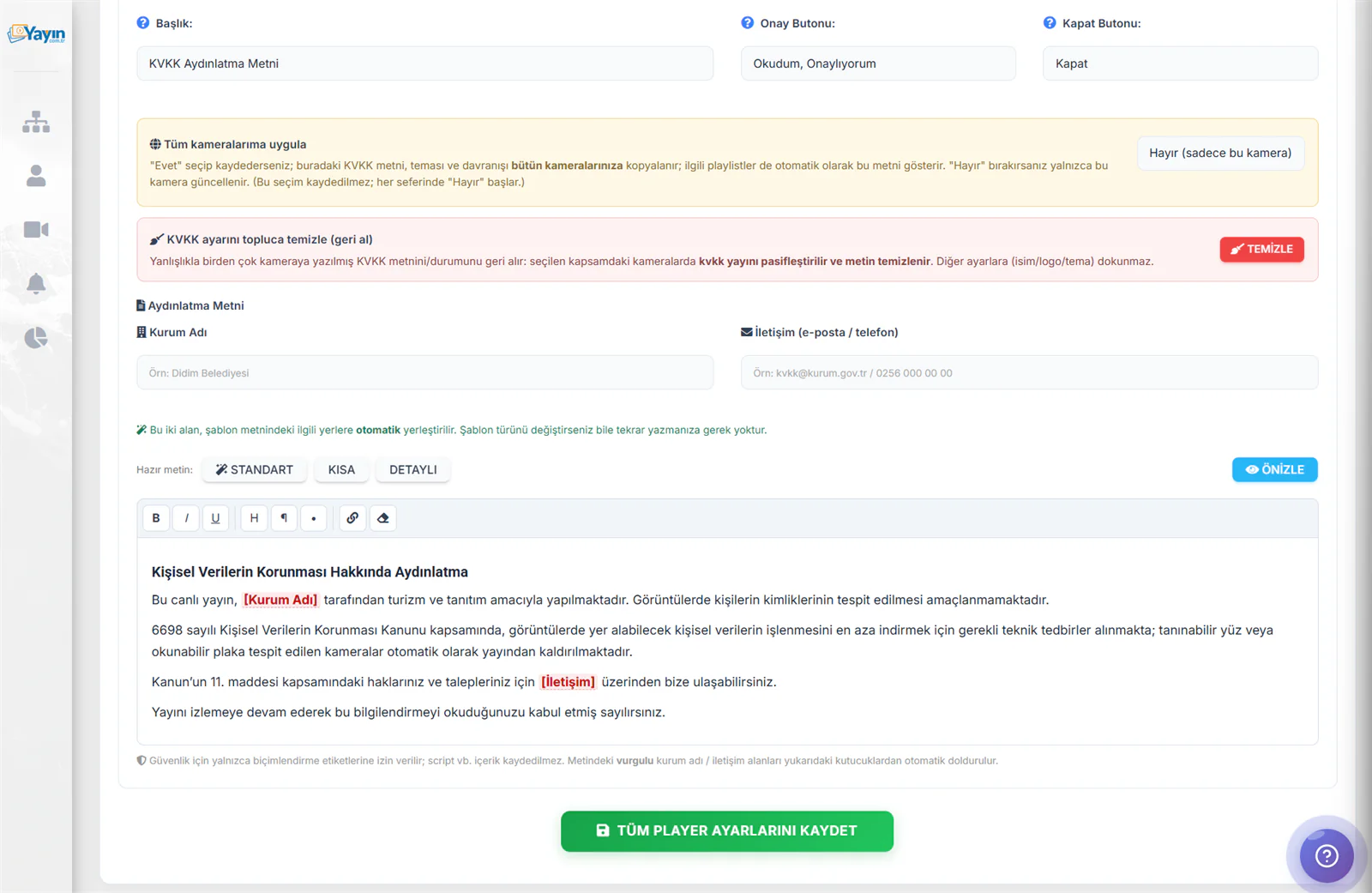
| Field | Description |
|---|---|
| Organisation Name | The name of your organisation (for example Didim Municipality). Inserted into the template automatically |
| Contact | An e-mail address or phone number. Inserted into the template automatically |
| Ready-Made Text | A choice of 3 templates: Standard, Short, Detailed |
The ready-made templates:
| Template | Description |
|---|---|
| ✏ Standard | A general-purpose privacy notice — sufficient for most uses |
| Short | A brief version — the legal minimum |
| Detailed | A comprehensive version — covering all provisions and data-subject rights |
The editor supports rich text (bold, italic, underline, headings, bullet points and links). The Organisation Name and Contact fields are inserted automatically at the highlighted points in the template — so you do not have to retype them even if you switch templates.
Only formatting tags are permitted in the text editor. Scripts and similar code are stripped automatically and never saved.
The AI Engine — Technical Detail
The yayin.com.tr GDPR protection system uses industrial-grade AI models. It runs entirely automatically, requires no human intervention and scans without interruption, 24/7.
Periodic Frame Capture
The AI engine runs in the background around the clock, periodically capturing a still frame from every camera within the active scanning scope. The scan interval is optimised by the system — more frequently at busy times, less often when traffic is low.
Local AI Analysis
Each captured frame is analysed entirely on your own dedicated server. The image is never sent to any external service, cloud platform or third-party API. This approach guarantees both compliance and low latency.
Face & Plate Detection with Deep Learning
Advanced deep-learning models detect recognisable faces and readable number plates in the image within milliseconds. A confidence score is calculated for every detection, and your sensitivity setting determines the threshold applied. The system performs no identity recognition and does not read plate text — it detects presence only.
Ignore Zone Filtering
The coordinates of each detected face or plate are compared against your defined ignore zones. Detections inside an ignore zone are filtered out automatically and are not counted as a breach.
Automatic Action
When a breach passes the filter, an evidence image is generated with the detection boxes marked, an e-mail notification is sent, and — depending on your settings — the camera is taken off air automatically. The whole process completes within seconds, without human intervention.
The AI engine analyses faces and plates entirely locally on your server. Images never leave it; only the presence of a face or plate is detected, no identity recognition is performed, and no plate text is read. Evidence images are not retained — each new detection overwrites the last. The only metadata logged is the detection type (face/plate), the time and the confidence score; no visual data is kept. This approach is fully aligned with the data-minimisation principle.
What Makes This System Different?
| Feature | yayin.com.tr GDPR Protection | External Solutions |
|---|---|---|
| Integration | ✅ Fully built into the platform | ❌ Separate software or API required |
| AI analysis | ✅ Local, on your server | ❌ Images sent to the cloud |
| Automatic stream shutdown | ✅ Automatic on detection | ❌ Manual intervention required |
| Evidence review | ✅ Annotated inside the panel | ❌ A separate tool required |
| Ignore zones | ✅ Drawn visually | ❌ Usually unavailable |
| Privacy notice | ✅ Displayed automatically in the player | ❌ A separate page required |
| E-mail notification | ✅ Automatic | ❌ Configured separately |
| Per-camera sensitivity | ✅ Face and plate set separately | ❌ One global setting |
| Setup time | ✅ Active with one click | ❌ Hours or days |
| Camera limit | ✅ Unlimited — every camera | ❌ An extra fee per camera |
| Additional cost | ✅ Included in the platform | ❌ A separate licence fee |
All Features
AI Scanning
Automatic face and plate detection 24/7 using advanced deep-learning models.
Local Analysis
Everything runs on your own dedicated server. Images are never sent anywhere — fully GDPR-compliant.
Automatic Shutdown
The camera is taken off air automatically when a breach is detected. Restarting it manually keeps you in control.
Evidence Review
Inspect the annotated image from the moment of detection, with faces and plates marked in boxes.
Ignore Zones
Exclude areas that cause false detections — advertising boards, posters and the like — simply by drawing them.
E-mail Notification
You are informed automatically by e-mail whenever a breach is detected.
Privacy Notice
Display a GDPR privacy notice in the player using one of 3 ready-made templates. Apply it to every camera with a single click.
Per-Camera Sensitivity
Set face and plate sensitivity separately for each camera — default or custom.
No Camera Limit
GDPR protection can be enabled for every camera on your account. There is no limit on camera numbers.