
Changelog
You can follow every improvement, new feature and refinement made to the IP Camera Live Streaming Control Panel on this page. Each update is listed in date order.
28.06.2026
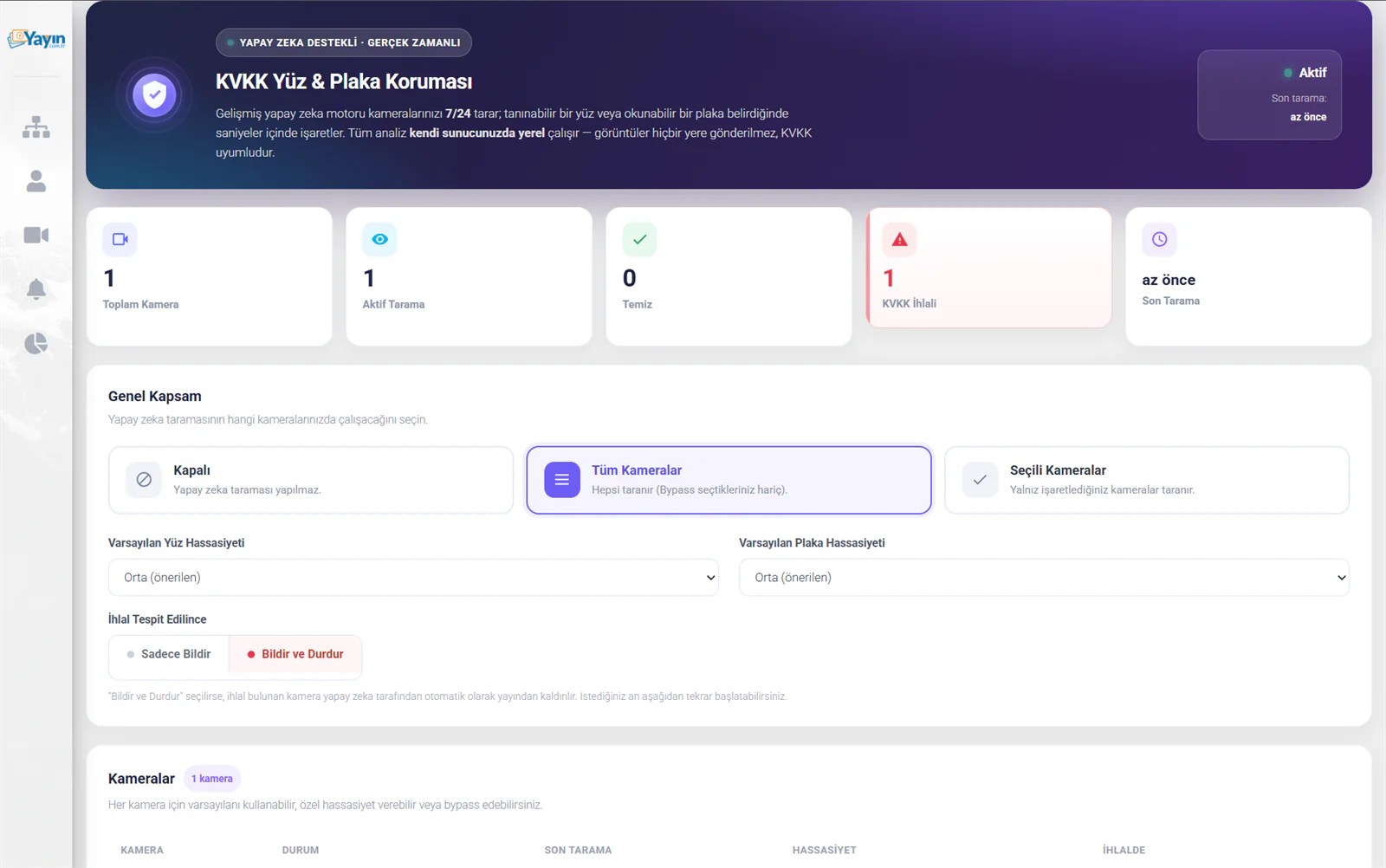
New Feature: GDPR Face & Plate Protection — AI-Powered Automatic Detection
The compliance system that scans your live streams with AI around the clock and takes automatic action when a recognisable face or readable number plate is detected is now live. All analysis runs locally on your own dedicated server — the footage is never sent anywhere.
What you can do:
- Have all your cameras, or just the ones you choose, scanned automatically by AI
- Set face and plate sensitivity separately for each camera
- Choose to be notified only, or to have the camera taken off air automatically, when a breach is detected
- Draw an "Ignore Zone" over the camera image to prevent false detections
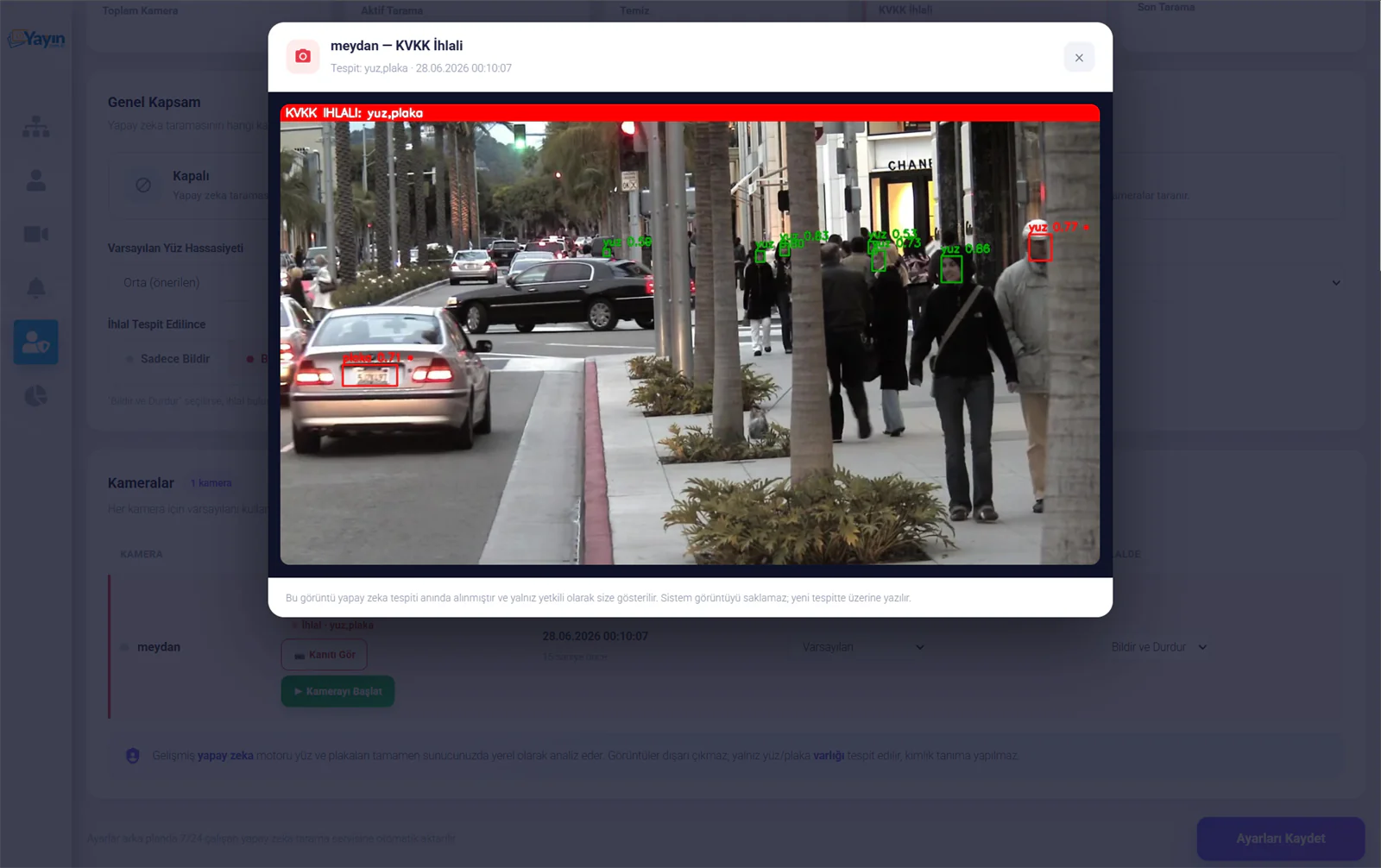
- Review the evidence for a breach as a still image — detected faces and plates are marked with boxes
- Receive automatic breach notifications by e-mail
- Display a GDPR privacy notice in the player using one of 3 ready-made templates
Privacy: The system detects only the presence of a face or plate; it performs no identity recognition. Images are not stored — each scan overwrites the previous one.
For full documentation on every setting in the GDPR Management panel — scanning options, sensitivity configuration, ignore zones, the privacy notice and e-mail notifications — see the GDPR Management page.
20.06.2026
New Feature: Camera Preview Image (Snapshot)
Add a still image of your camera to your website. The image is kept up to date automatically — the latest frame is served every time the page is refreshed, or at set intervals. You can show your camera's live view with nothing more than an <img> tag, without embedding a video player.
What Is It For?
It creates a link that serves your camera's current view as an image (JPG, PNG or WebP). Every time the link is called, a fresh frame is taken from the camera. You add it to your website as an <img> tag — and whenever the page opens or refreshes, the camera's current view is shown as an image.
Use Cases
- Municipal websites: show camera previews on the home page — visitors click through to the live stream
- Weather pages: show the camera's current view next to a weather widget
- Map integrations: show a live thumbnail at each camera point on a map
- Mobile apps: pull the image link as an API to offer a camera preview in your app
- Digital signage: display the camera view as an image on TV or screen systems
How Do You Enable It?
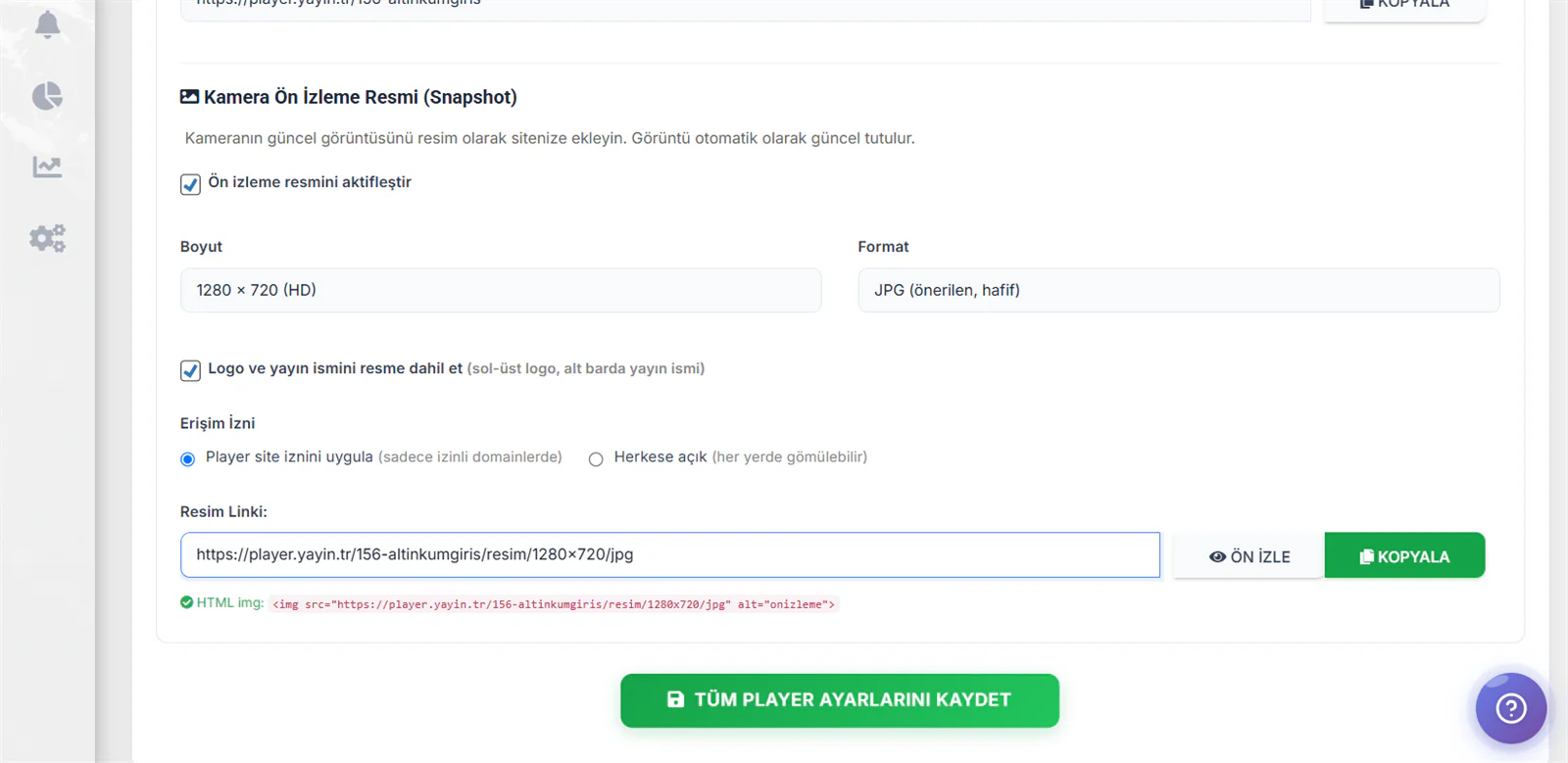
Go to the Player Settings tab on your camera management page. At the very bottom of the Player Code section you will find "📷 Camera Preview Image (Snapshot)".
- Tick the "Enable the preview image" box
- Choose the size, format and other settings
- Press "💾 Save All Player Settings"
Settings
| Ayar | Seçenekler | Açıklama |
|---|---|---|
| Boyut | 1280×720 (HD), 1920×1080 (Full HD), 854×480, 640×360, 320×180, Özel | Çıktı resminin çözünürlüğü. HD önerilir; daha küçük boyutlar daha hızlı yüklenir |
| Format | JPG (önerilen), PNG (kayıpsız), WebP (modern, en küçük) | JPG en hafif ve en uyumlu formattır. WebP en küçük dosya boyutunu sunar ancak eski tarayıcılarda desteklenmeyebilir |
| Logo ve yayın ismini dahil et | Açık / Kapalı | İşaretlendiğinde resme sol üste logo, alt barda yayın ismi eklenir. Kurumsal paylaşımlar için idealdir |
| Erişim İzni | Player site iznini uygula / Herkese açık | "Site iznini uygula" seçildiğinde resim sadece player ayarlarındaki izinli domainlerde çalışır. "Herkese açık" seçildiğinde her yerde gömülebilir |
Custom Size
When you choose "Custom", you enter the width (160–1920 px) and height (90–1080 px) yourself. If you enter a ratio different from your camera's native one, the image is cropped proportionally.
The Image Link and How to Use It
Once you have chosen your settings, the automatically generated URL appears in the Image Link field:
https://player.yayin.tr/{id}-{kameraadi}/resim/{genişlik}x{yükseklik}/{format}
You can use this link in two ways:
As a direct image link — open it in a browser, share it, or pull it as an API
As an HTML img tag — paste it into your website:
<img src="https://player.yayin.tr/156-altinkumgiris/resim/1280x720/jpg" alt="onizleme">
| Buton | İşlev |
|---|---|
| 👁 Ön İzle | Resmi büyük modal pencerede önizleyin — güncel kare anında yüklenir |
| 📋 Kopyala | Resim linkini panoya kopyalar |
Preview
When you click 👁 Preview, the camera's current view is shown in a full-screen modal window, along with the image size and format. Use the refresh button to pull the latest frame again.
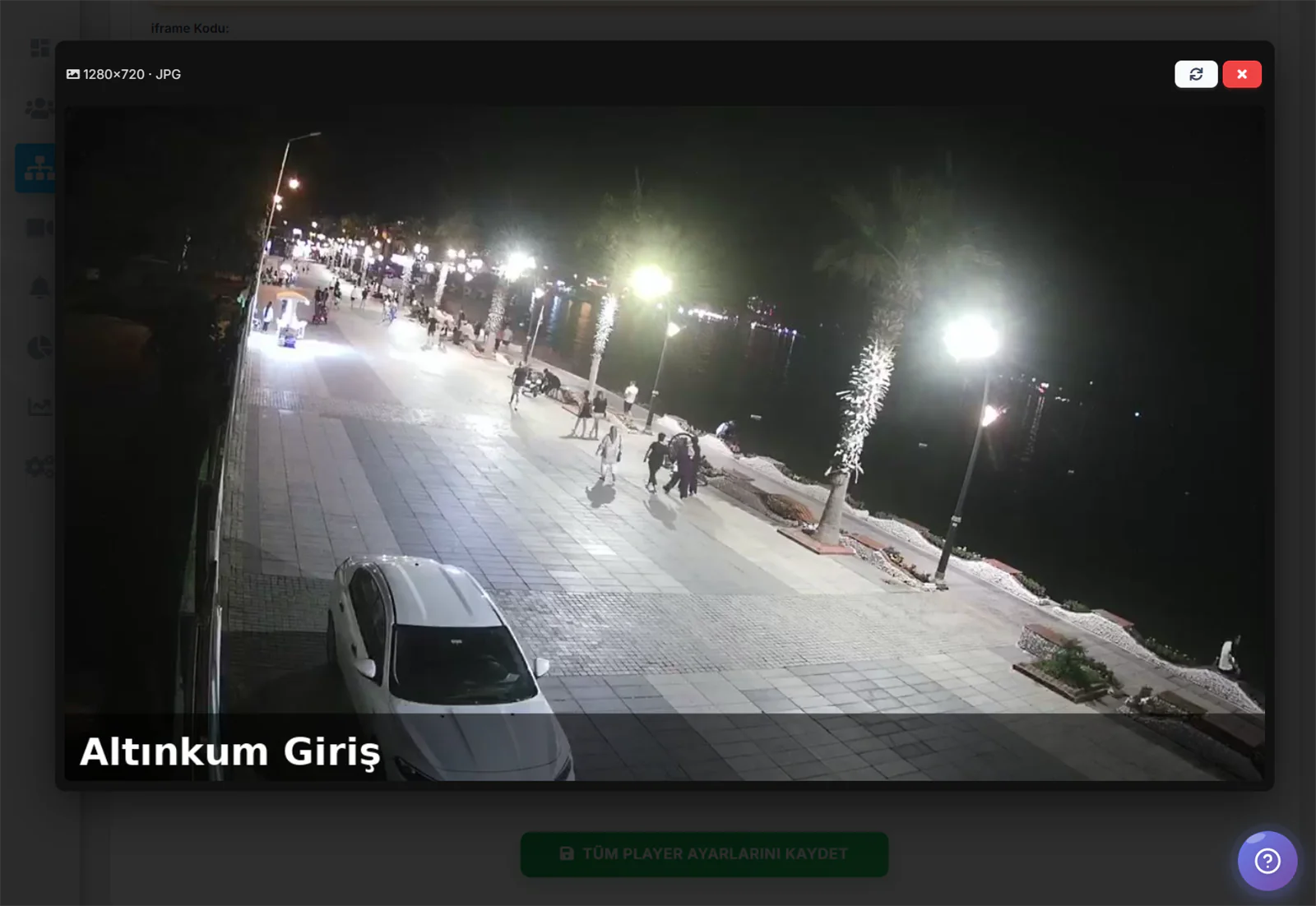
Unlike a video embed, the preview image consumes almost no bandwidth. A single JPG frame loads (typically 50–150 KB) and page performance is unaffected. This is especially useful when you want to show a large number of camera previews on your home page: using an image link instead of a video player for each one makes your page far faster. When a visitor clicks the camera they are interested in, the live player opens.
Every time the image link is called, the latest frame is taken from the camera. The cache duration is managed automatically by the system — there is nothing else to configure. The image always shows the current frame.
15.06.2026
Panel Redesigned: Player Names and Quick Camera Search
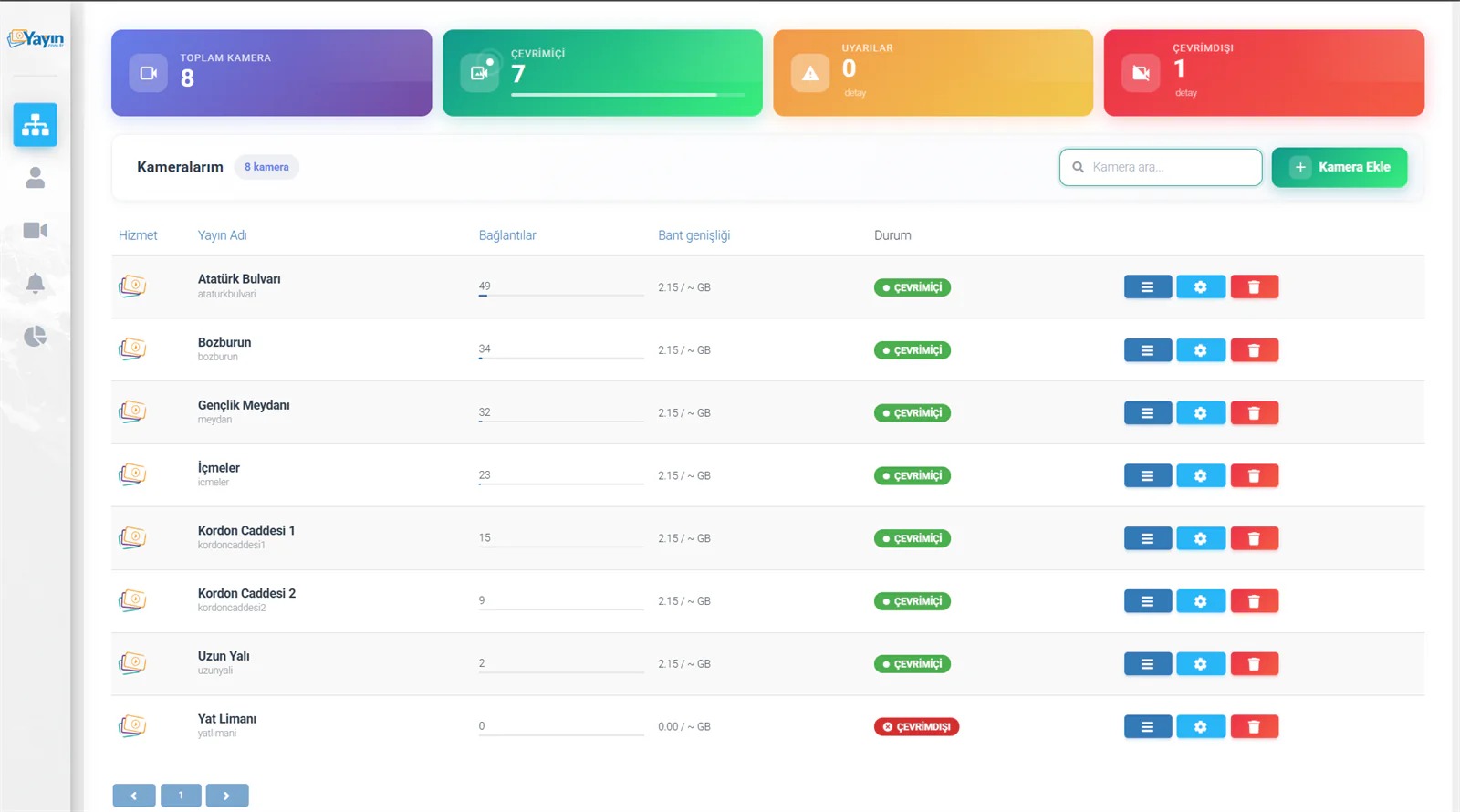
The camera management panel is now tidier and faster. You can tell your streams apart at a glance and reach the camera you are looking for within seconds.
The player name now appears alongside the stream name
In the camera list, the player name (for example ataturkbulvari) is now shown directly beneath each stream's display name (for example Atatürk Bulvarı). You can see at a glance which stream corresponds to which player, and manage your cameras far more tidily.
Quick camera search added to the main page
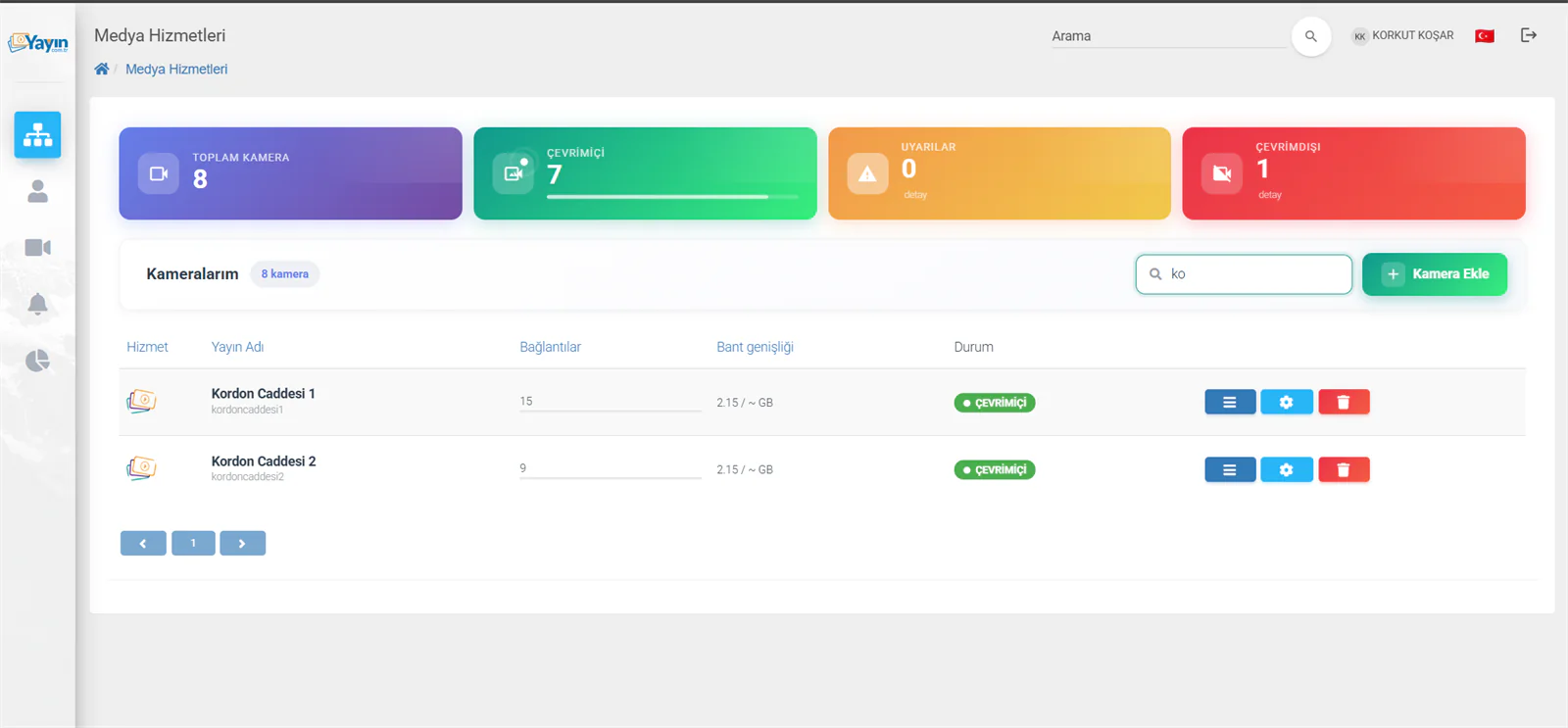
Type a few letters into the search box above the camera list and matching cameras appear instantly. You reach the stream you are after within seconds, without scrolling through long lists.
How to use it:
- Click the Search cameras... box next to the My Cameras heading
- Type a few letters of the stream name or player name (for example
ko) - Matching cameras are filtered automatically as you type — you do not even need to press Enter
Showing the player name alongside the stream name lets you tell instantly which stream is which, particularly when you have a large number of cameras. And quick search puts an end to scanning a list one entry at a time — a few letters is all it takes. The result: a much cleaner, more usable panel.
06.05.2026
HLS Stream Format: Moving from TS to MP4
An important technical update has been made to the live-streaming infrastructure. HLS (HTTP Live Streaming) segments are now delivered in the modern fMP4 (Fragmented MP4) format rather than the traditional TS (Transport Stream) format.
No action is required from users. All cameras have been moved to the new format automatically. Existing embed codes and player settings continue to work exactly as before.
What changed, and why?
TS (Transport Stream) is an older standard designed for digital television broadcasting in the 1990s. Apple has recommended fMP4 for HLS streams since 2016. With this move, our platform is aligned with current industry standards.
What this means for users:
-
🚀 Faster Stream Start-Up — because fMP4 segments are more efficient, the player starts the stream sooner. Viewers see the picture more quickly.
-
📱 Better Mobile Compatibility — more stable playback on iPhone, iPad and Android devices, with a noticeable performance gain in Safari in particular.
-
🎯 Lower Latency — with CMAF (Common Media Application Format) support, fMP4 reduces live-stream delay. Viewers see a picture closer to real time.
-
💾 Less Bandwidth Consumed — the fMP4 segment header structure is smaller than TS. The same quality of stream uses less data, saving on both the server and the viewer side.
-
🔄 Seamless Quality Switching — quality changes in adaptive bitrate (ABR) scenarios are smoother. When a viewer's connection speed changes, the switch becomes imperceptible.
-
🎬 Better Codec Support — H.265 (HEVC) and future codecs such as AV1 work better in an fMP4 container. TS offered only limited compatibility with these modern codecs.
-
🔒 Stronger Content Protection — fMP4 is fully compatible with industry-standard DRM systems (Widevine, FairPlay). Should content protection ever be needed, the infrastructure is ready.
In the TS format, every segment carries its own header information, and that repeated data consumes extra bandwidth. In fMP4, the header information (the initialization segment) is sent once and subsequent segments carry only media data. This architectural difference delivers a marked performance gain, particularly on low-bitrate streams and mobile networks.
05.05.2026
RTSP Quick Link Paste Support
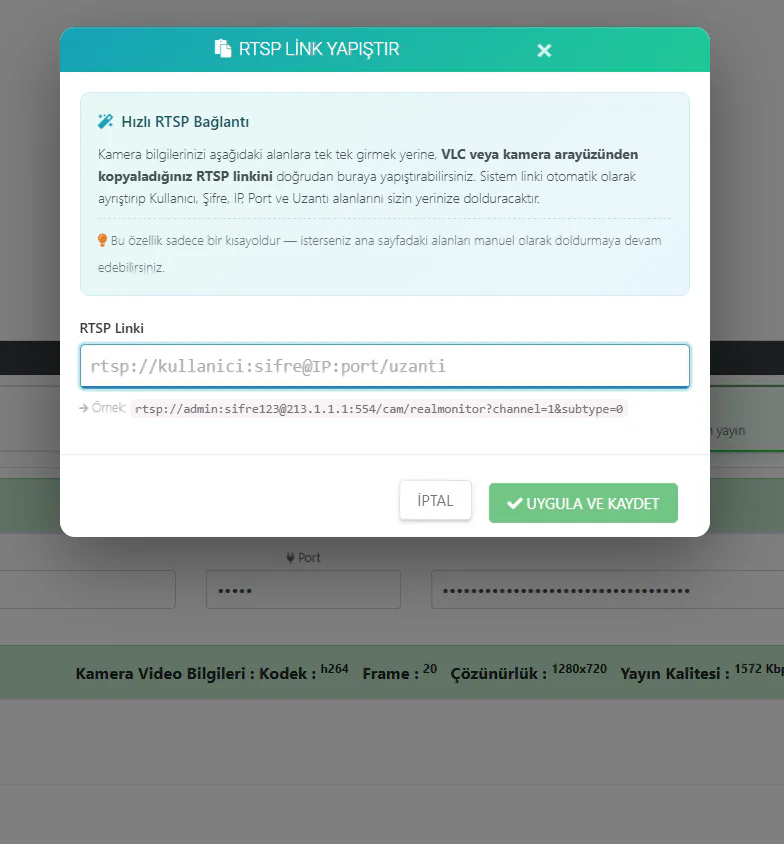
A new feature has been added to speed up adding a camera. Instead of entering your RTSP connection details one field at a time, you can now paste the RTSP link copied from your camera's interface or from VLC directly.
How it works:
- Copy the RTSP link from your camera's web interface, or the one you tested with VLC
- Click the Paste RTSP Link button on the camera management page
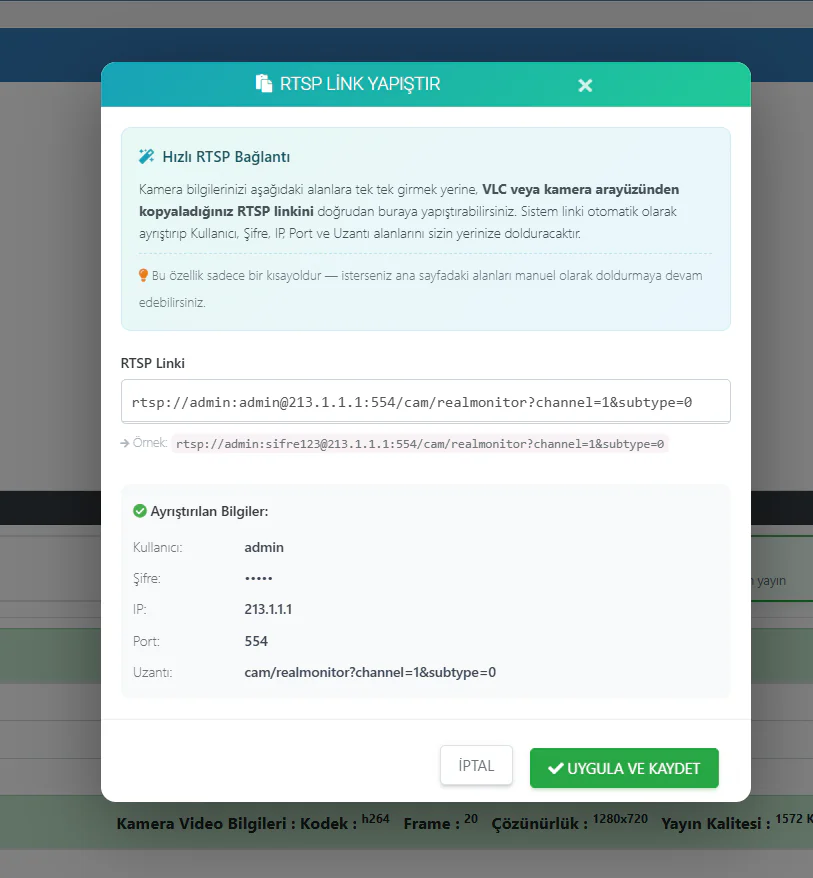
- Paste the link — the system parses it automatically:
- Username
- Password
- IP address
- Port
- Path
- Click Apply and Save — every field is filled in automatically
Previously you had to fill in the username, password, IP, port and path fields separately. Now pasting a single RTSP link is enough — the system parses all the details and places them in the right fields. Example format: rtsp://admin:sifre123@213.1.1.1:554/cam/realmonitor?channel=1&subtype=0
02.05.2026
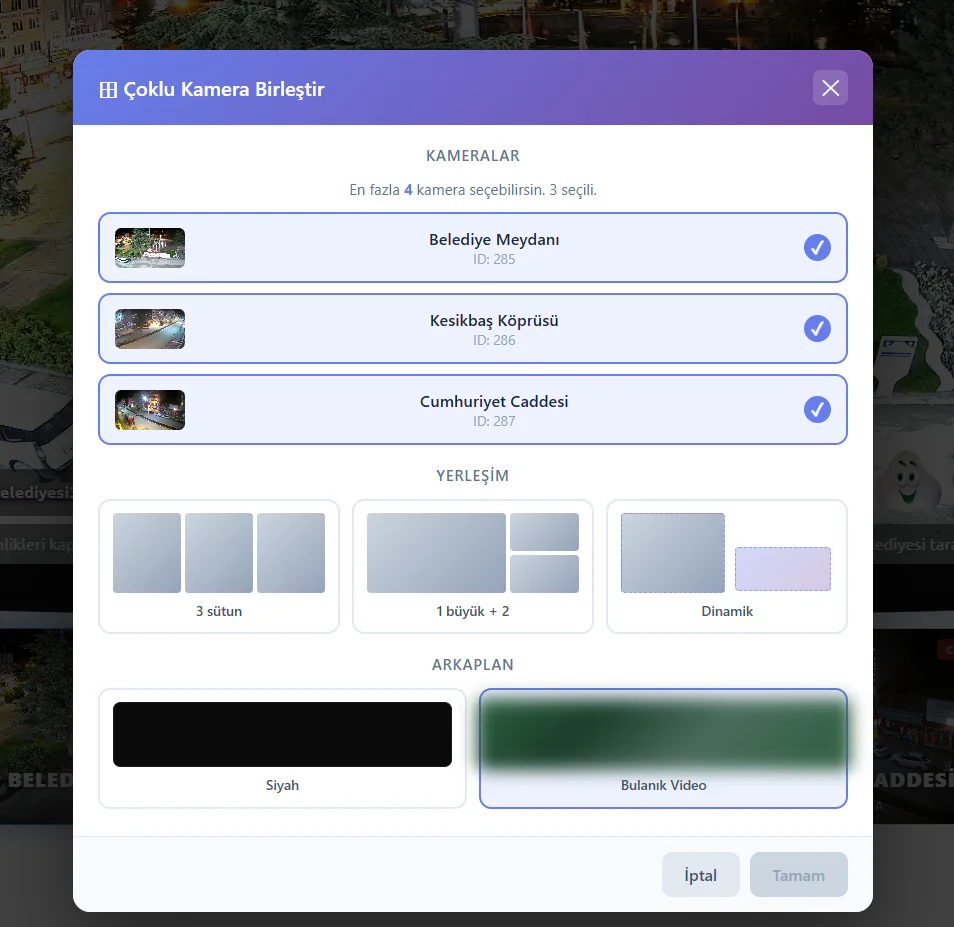
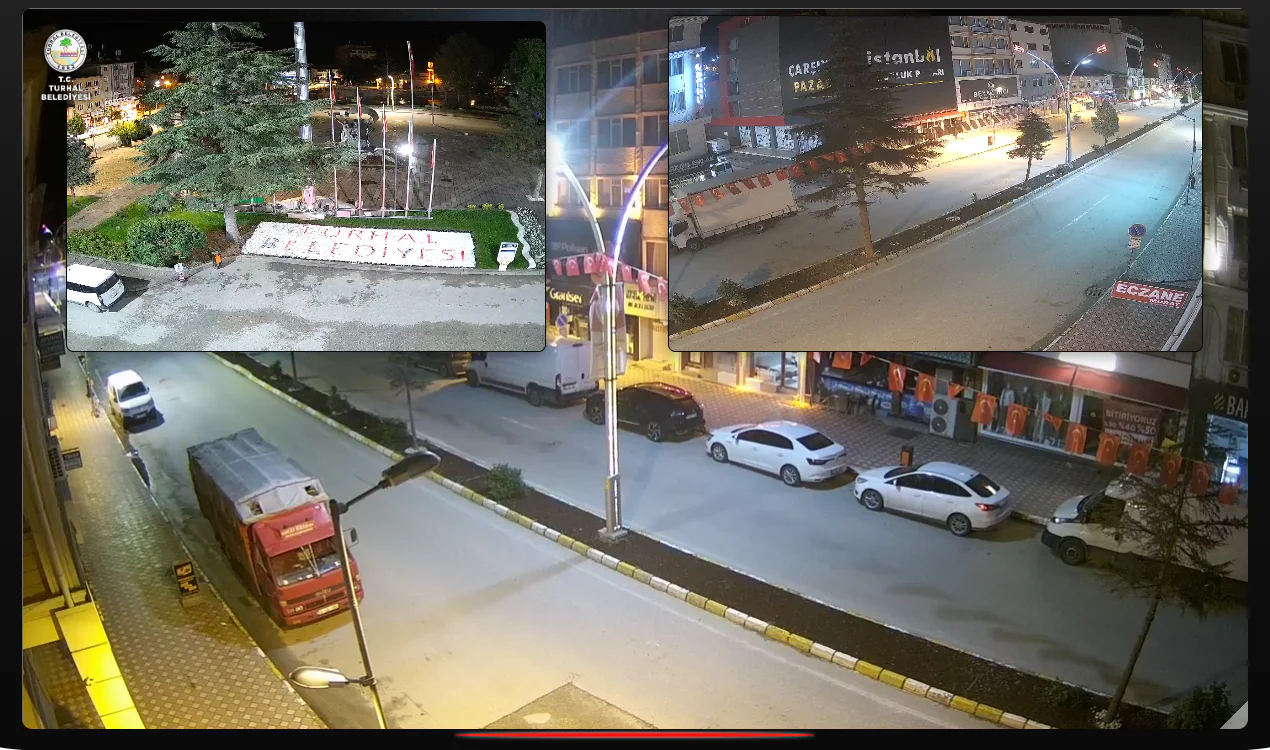
Multi-Camera Merging and Dynamic Layout
You can now merge several cameras onto a single screen in the player. Users can view up to 4 cameras at once and take full control of the layout.
New features:
- Merge Multiple Cameras — select up to 4 cameras to create a combined view in a single player
- 3 Layout Modes — different arrangements to suit your needs:
- 3 Columns: all cameras side by side at equal size
- 1 Large + 2: a large main camera with the others smaller
- Dynamic: users can drag cameras to resize and reposition them
- 2 Background Options — a black or blurred-video background
- Live Interaction — in the player, viewers can:
- click any camera to switch it to full screen
- drag cameras to make them larger or smaller
- change the camera positions
- double-click to return to single-camera mode
In traditional multi-camera systems, camera sizes and positions are fixed. With a dynamic layout, viewers can enlarge and focus on whichever camera interests them at that moment — and return with a single click when they want another. It makes for an ideal experience with municipal, five-a-side pitch, car park and security cameras in particular.
01.05.2026
The Platform Is Officially Open
The comprehensive testing process that ran from January 2026 has been completed successfully. Once every feature was verified as stable, the IP Camera Live Streaming Control Panel was officially opened to all users.
Work carried out during the testing period:
- Load and stability testing across 700+ cameras
- Player performance optimisation
- Long-term endurance testing of the DVR recording and archive system
- Verification of uninterrupted social-media RTMP streaming
- Testing the notification system across a range of scenarios
- Accuracy checks on reporting data
- Compatibility testing with a range of camera brands and models
Over three and a half months of intensive testing, the platform was examined thoroughly across all its components. It was released once the stability, performance and security criteria had been met in full.
20.01.2026
The Next-Generation Panel Goes Live
yayin.com.tr has provided live-streaming services since 2006. Drawing on the experience gathered over those years and on customer feedback, the IP Camera Live Streaming Control Panel was redesigned from scratch and released with far more advanced capabilities.
Compared with the previous infrastructure, the new panel represents a comprehensive evolution, offering tools at a professional broadcasting level.
Camera Management:
- Unlimited cameras (no cap)
- Dual RTSP and RTMP support — connect a camera even without a static IP
- Live status tracking — online, offline and warning cards
- Automatic backup video when a camera goes offline
- Codec and bitrate warning system (H.265 and high-bitrate detection)
- RTMP stream key management with instant regeneration
Player and Appearance:
- A fully customisable JW Player-based live-streaming player
- An 8-tab player settings panel (size, logo, security, advertising, captions, weather, social media, audio)
- TV frame effect and floating player support
- Logo overlay (position, size, edge spacing and visibility settings)
- Scheduled scrolling text and an RSS news ticker
- Live weather overlay (OpenWeatherMap integration)
- Sea temperature, air quality and snow depth data layers
- Icons for 13 social media platforms with transition animations
- Player colour, language and behaviour customisation
- JS and iframe embed codes
- Stream security with a domain lock (site permissions)
- Right-click menu customisation
- VAST / Google IMA / FreeWheel advertising integration
- Google SEO support
- Picture-in-picture (PiP) mode
- Player audio sources (background music, sports music, radio, camera audio)
- Camera audio codec incompatibility filter (the fix for black screens on iPhone/Safari)
- Copy all of one camera's settings to another
DVR Recording and Archive:
- NVMe SSD RAID 10 disk infrastructure — zero waiting time
- Scheduled and continuous recording options
- Support for time ranges that cross midnight
- Visual recording tracking on a daily timeline
- Instant playback of recordings — no conversion wait
- MP4 download — the whole recording or a chosen time range
- Timelapse — playback at x2, x4, x8 and x16 speed
- Pan/zoom — zoom and pan over the recording with your mouse
- Range deletion and partial deletion (removing a selected time slice)
- A separate logo, site restrictions and embed code for the DVR player
- Capture a still image from the recording player
Social Media Streaming (24/7 Multistreaming):
- 5 simultaneous RTMP destinations free — every platform with an RTMP address (TikTok, YouTube, Facebook, Instagram, X, Twitch, Kick…) or your own private server
- No time limit — 24/7 uninterrupted streaming
- Failover protection — the stream continues even if the camera drops
- Add an audio source — background or sports music when the camera has no sound
- Direct delivery when the camera has original AAC audio (no extra processing)
- Start/stop controls and live status tracking
Playlists and Multi-Camera:
- Unlimited playlists
- Drag-and-drop camera ordering
- 5 visual themes (Grid, Card, Cinematic, Glass, Mosaic)
- 3 scheduling modes (24/7, daily, weekly)
- Automatic hiding of offline and H.265 cameras
- Playlist gallery (group) mode — several playlists on one page
- Playback within the gallery via a modal player
- Separate player settings for each playlist, or shared settings
- Playlist embed codes (JS and iframe)
Reporting and Statistics:
- Summary statistics (unique viewers, session count, TVH, bandwidth)
- A viewer trend chart across the period
- A geographic distribution map by country and city
- Session analysis by hour and by day
- Session distribution by length (pie chart)
- Top viewers and user agents tables
- Daily traffic consumption (GB)
- Downloadable reports (regional performance, user agents, top viewers, daily traffic)
Notification System:
- Instant e-mail notification when a camera goes offline
- Up to 5 e-mail addresses per camera
- Notification time-window restrictions
- An automatic monthly report e-mail
- Codec warning notifications
yayin.com.tr has provided live-streaming infrastructure services since 2006. The next-generation IP Camera Control Panel is built on 20 years of live-streaming experience and thousands of pieces of customer feedback, offering capabilities unmatched in the sector.