
Watch the Past, Stream It Live, Download It Instantly
With the DVR Player you can reach past recordings within seconds, watch them live, stream them to social media, download any time range you choose as an MP4, or turn it into a sped-up timelapse video. No need to wait for the match to end — rewind and replay or download key moments even while the match is still being played.
Competing platforms make you wait at least 2 hours for post-match video and only offer footage in fixed hour-long blocks. There is no such waiting at Yayin.com.tr. Even while the match is in progress you can rewind to a play from a few seconds earlier, watch it, or download it as an MP4. A one-hour match video is roughly 500 MB and, depending on your connection speed, can download in as little as 10 seconds. You pick the exact minute — even the exact second — and download only that range.
Accessing the DVR
On cameras with recording enabled, a DVR button and a notification message appear on the right edge of the live-stream player.
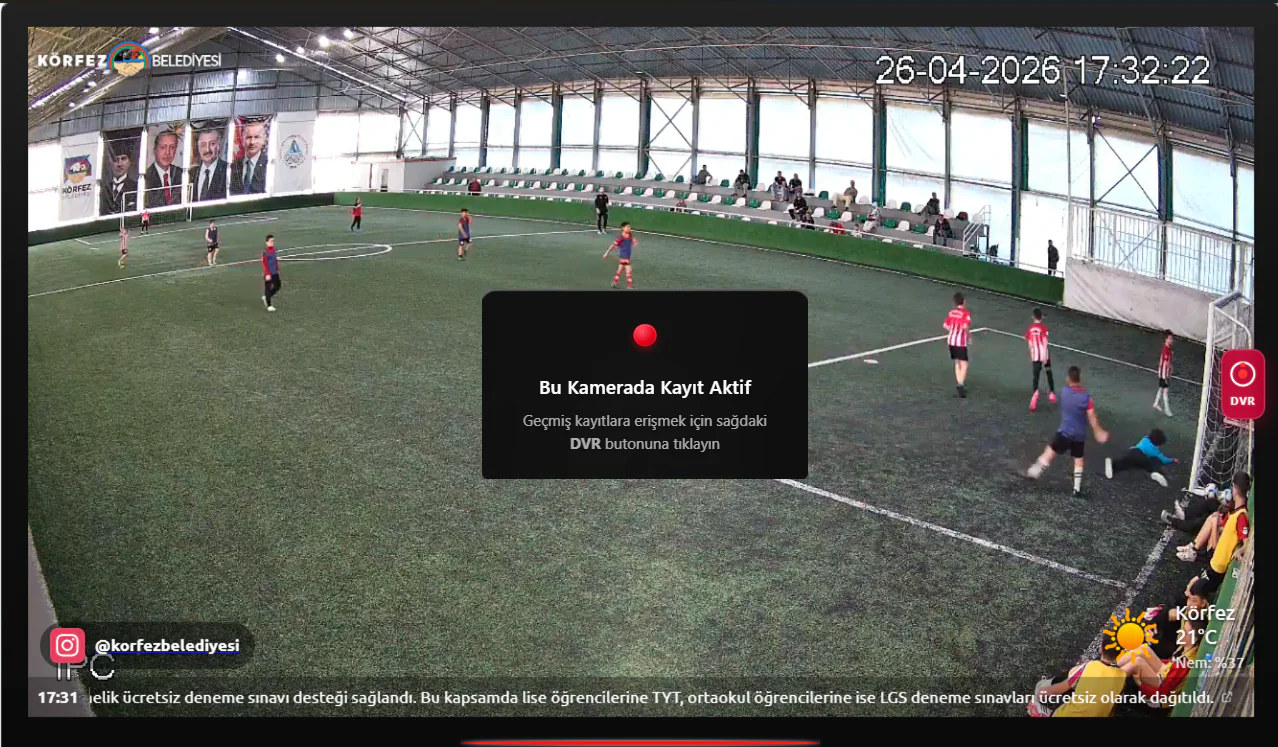
When viewers click this button, the DVR Player opens. To return to the live stream, they simply press the "◀ BACK TO LIVE" button at the top left or the "◀ Go Back" button at the bottom right.
On cameras with recording enabled, viewers automatically see the message "Recording is active on this camera — click the DVR button on the right to access past recordings". This notification can be switched on or off in the player settings in your panel.
The DVR Player Interface
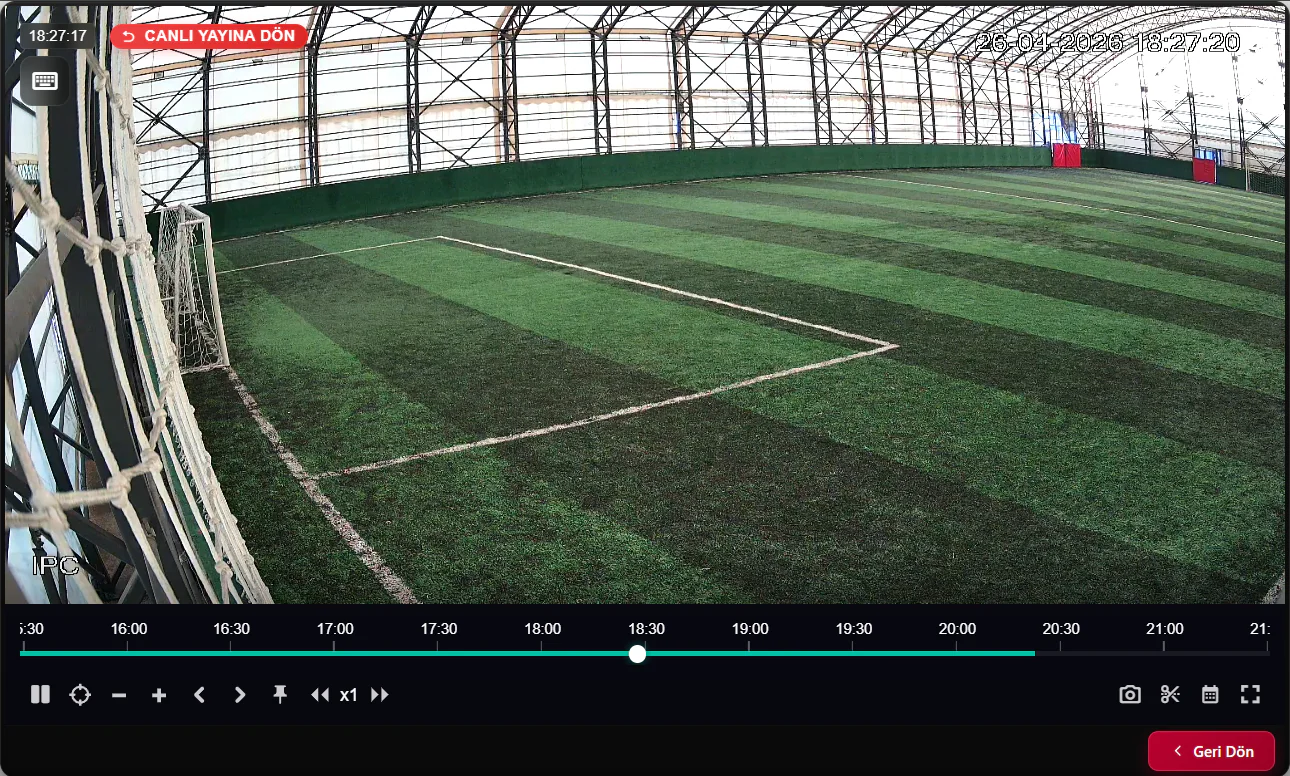
When the DVR Player opens, a full-screen recording player is displayed.
Timeline
A horizontal timeline sits at the bottom of the player. Green/turquoise areas mark the time ranges that contain recordings; empty areas have no recordings.
| Element | Description |
|---|---|
| Time labels | Hour markers at 30-minute intervals along the top (16:00, 16:30, 17:00...) |
| Recording bar | Green/turquoise — shows the times where recordings exist |
| Playhead | White dot — drag it to jump to any moment |
| Current time | Date and time of the playing recording, in the top-left corner |
Control Buttons
The playback controls sit in the bottom bar:
| Button | Function |
|---|---|
| ⏸ Pause / ▶ Play | Pause or resume the recording |
| ⊕ Zoom in | Zoom into the timeline for finer navigation |
| ⊖ Zoom out | Zoom out of the timeline to see wider ranges |
| ◀ Previous frame | Step one frame back — for analysing a play |
| ▶ Next frame | Step one frame forward |
| ◀◀ Rewind | Fast rewind |
| ▶▶ Fast-forward | Fast forward |
| x1 / x2 / x4 | Change the playback speed — 1x normal, 2x double, 4x quadruple |
| 📷 Screenshot | Save the current frame as a photo |
| ✂ Download MP4 | Download the selected time range as an MP4 |
| 📅 Calendar | Open the date-picker calendar |
| ⛶ Full screen | Expand the player to full screen |
Picking a Date from the Calendar
Clicking the calendar icon in the control bar opens the date picker.
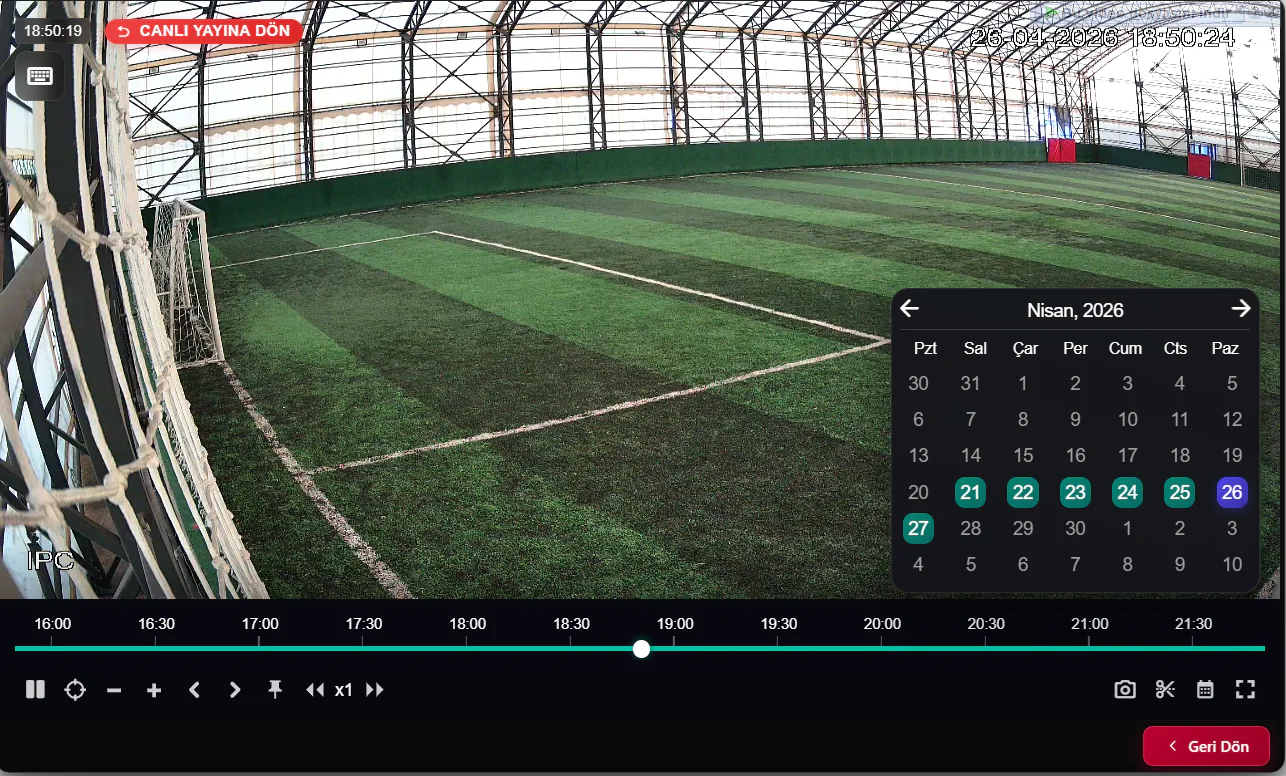
Days that contain recordings are highlighted in green on the calendar. Click any day to jump to that day's recordings. Days without recordings appear in grey and cannot be clicked.
Use the ← → arrows above the calendar to change the month. The last days of the previous month are also shown at the start of the week.
As long as DVR recording stays active, you can also reach the recordings of past days and weeks. Pick last week's match time from the calendar to watch or download that recording. The retention period depends on the server's disk space.
Selecting a Time Range
Clicking the ✂ (scissors) icon in the control bar activates range-selection mode on the timeline.
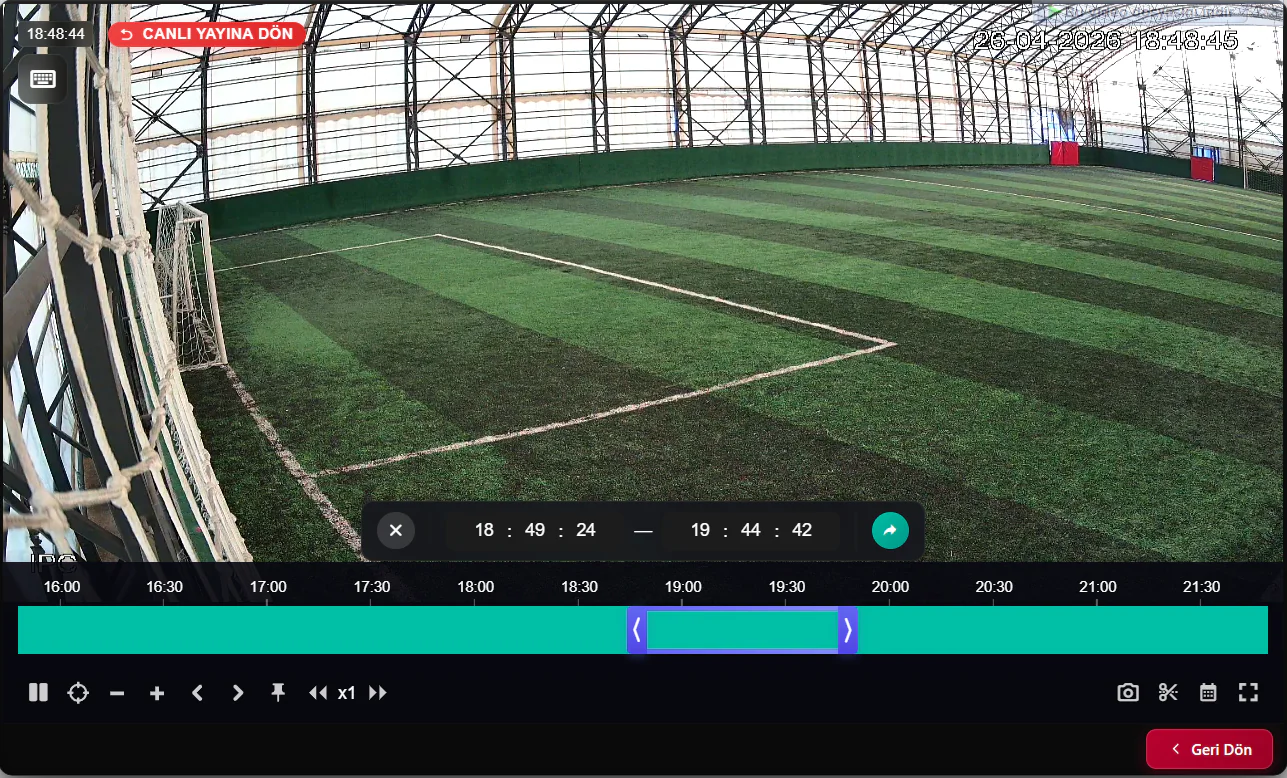
Two purple/turquoise drag handles appear. Drag these handles to set the start and end times precisely. The selected range is highlighted in a different colour.
The time indicator at the top clearly shows the selected range (e.g. 18:49:24 — 19:44:42). You can select down to the second, as precisely as you like.
There is no need to wait for the match to end. While play continues, select a moment from a few minutes earlier and download it as an MP4 right away. A goal, a penalty, a foul — grab any moment you want, instantly.
Downloading MP4
After selecting a time range, pressing the download button opens the MP4 Download modal.
Standard Download
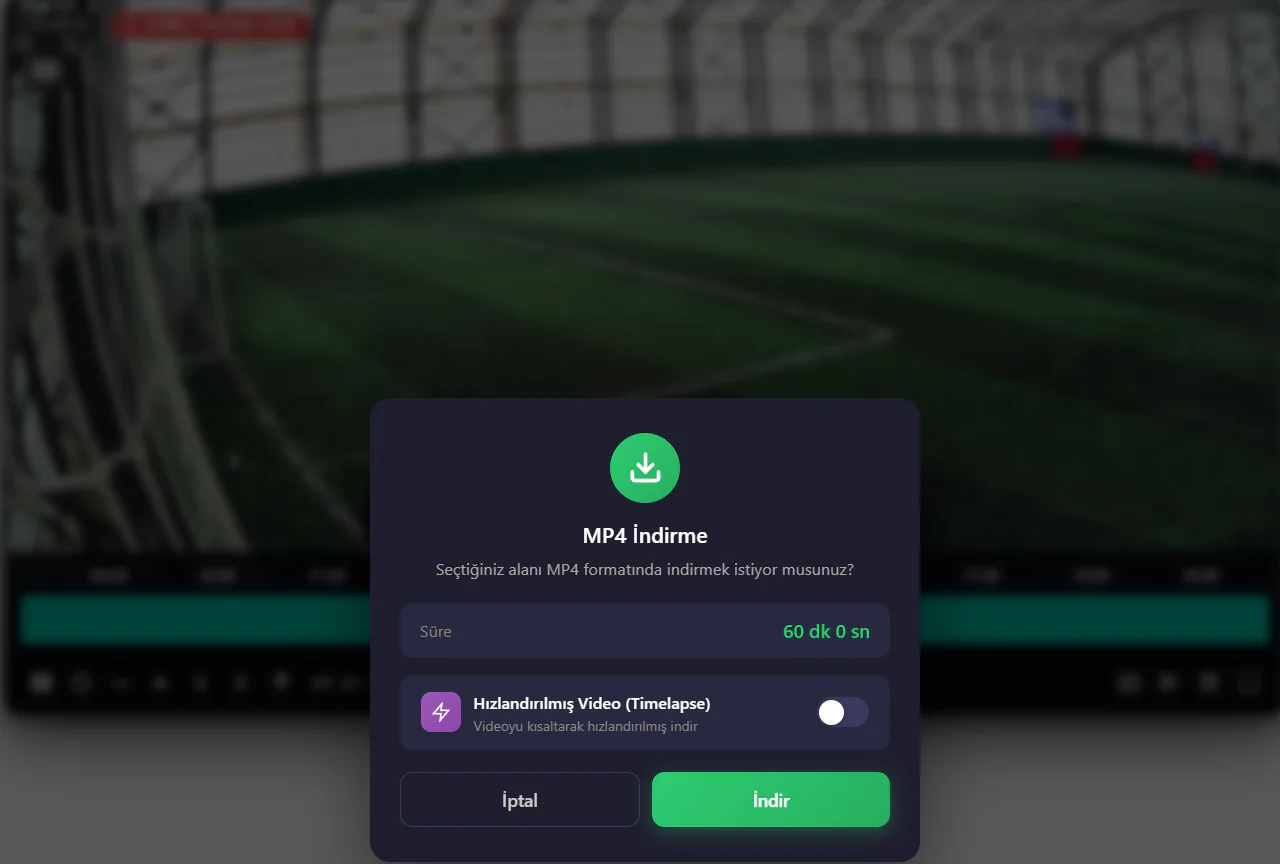
The modal shows the duration of your selected range (e.g. 60 min 0 sec). Press Download and the video starts downloading to your browser in MP4 format.
| Detail | Description |
|---|---|
| Format | MP4 (H.264) — plays on all devices |
| Duration | The length of the time range you selected |
| Size | Roughly 500 MB per hour (depends on the camera's bitrate setting) |
| Download Speed | Starts instantly — no server-side video preparation to wait for |
Competing systems first merge and compress the video on the server, then generate a download link — which is why you wait for hours. At Yayin.com.tr the video is served directly from the recording server as a stream. No extra server-side processing takes place; the file starts flowing immediately. Depending on your connection speed, a one-hour match video can download in as little as 10 seconds.
Downloading Sped-Up Video (Timelapse)
Switch on the Sped-Up Video (Timelapse) toggle in the MP4 Download modal to download a shortened version of the video.
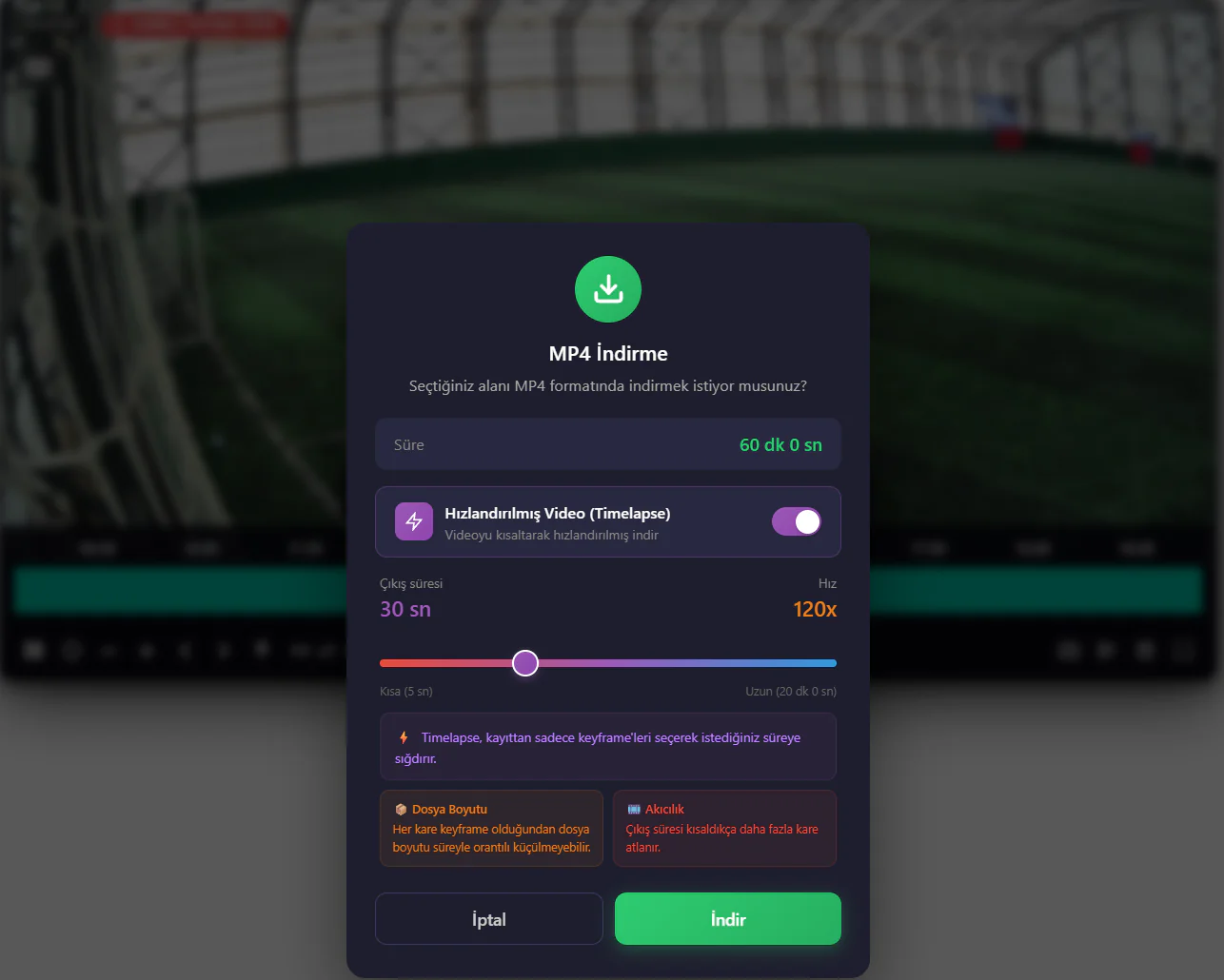
| Setting | Description |
|---|---|
| Output Duration | The total length of the downloaded video — set with the slider (from 5 sec to 20 min) |
| Speed | How many times the recording is compressed (e.g. 120x = 1 hour → 30 seconds) |
| File Size | Every frame is a keyframe, so the file size shrinks proportionally |
| Smoothness | The shorter the output, the more frames are skipped — faster but less smooth |
Drag the slider left for a shorter, faster timelapse; drag it right for a longer, smoother one.
Timelapse does not work by simply speeding up a normal video. Only the keyframes are picked from the recording and fitted into the duration you choose. That is why the download is extremely fast — no video processing happens on the server; specific frames are simply selected and joined. The result: a one-hour match becomes a 30-second highlight video.
Image Editing (Screenshot)
Click the 📷 (camera) icon in the control bar to capture the current frame as a photo. The captured image opens in the "Image editing" window.
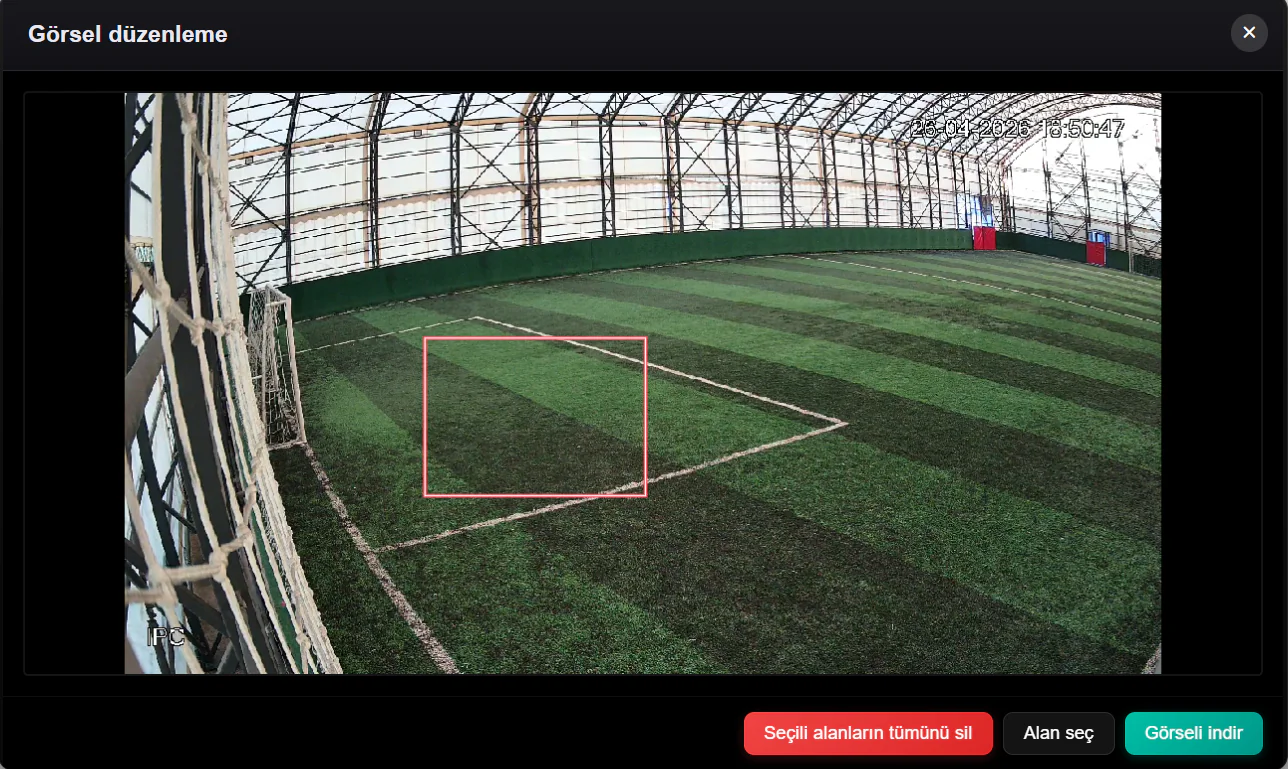
In this window you can crop the image by selecting a specific area.
| Button | Function |
|---|---|
| Select Area | Draw a rectangular area on the image to define the crop region |
| Delete all selected areas | Clear the crop regions you have drawn |
| Download Image | Download the image (or the selected area) as a PNG |
— Capture the goal from an indoor-pitch match and share it on social media
— Grab an evidence still of a specific moment from a security camera
— Take a scenic photo from a park or town-square camera
DVR for Indoor Football Pitches
The DVR Player is an unrivalled solution for indoor football pitch businesses. Here is how it compares:
| Feature | Yayin.com.tr DVR | Competing Systems |
|---|---|---|
| Video preparation time | ❌ No waiting — download instantly | ⏳ 2+ hours of waiting |
| Downloading mid-match | ✅ Download a play while the match continues | ❌ Wait for the match to end |
| Time selection | ✅ Down to the second | ❌ Hour-based blocks only |
| Rewind | ✅ Frame-by-frame back/forward | ❌ Limited or none |
| Timelapse | ✅ Adjustable with a slider | ❌ None |
| Screenshots | ✅ Crop and download | ❌ None or limited |
| Access to past weeks | ✅ Pick from the calendar | ❌ Limited archive |
| Live ↔ Playback switching | ✅ Seamless, in the same player | ❌ Separate interface or none |
| Social-media streaming | ✅ YouTube, Facebook, Twitch simultaneously | ❌ Limited or extra cost |
| File size | ~500 MB per hour | Varies — usually larger |
Picture this: the match is in progress and a great goal has just been scored. A player opens the DVR on their phone, rewinds a few seconds to the goal, watches it, and if they like it, downloads it as an MP4 in 10 seconds — without even waiting for the final whistle. Or at full time they select the whole match, turn it into a 30-second timelapse highlight and share it in the WhatsApp group. And if the same match is also streaming live on YouTube, viewers can watch it live on social media while rewinding and downloading moments through the DVR.
DVR Player Controls at a Glance
Rewind / Fast-Forward
Jump to any moment by dragging the timeline or stepping with the frame-by-frame buttons. Single-frame precision for analysing a play.
Calendar Picker
Choose any of the green recording days. Reach the recordings of past weeks instantly.
Time-Range Selection
Set a range to the exact second with the start and end handles. Download only the part you want.
Instant MP4 Download
No waiting. Your selected range starts downloading as an MP4 immediately. 1 hour ≈ 500 MB, downloads in ~10 seconds.
Timelapse Video
Turn a one-hour recording into a 30-second sped-up highlight. Adjust speed and duration with a slider.
Screenshot
Capture any frame, crop it to an area and download it as a PNG.
Zoom In / Out
Zoom into the timeline for minute-level precision. Zoom out to see the whole day.
Speed Control
Skim through recordings at x1, x2 or x4 speed. Reach the part you want in no time.
Live Viewing
The DVR Player shows the live stream too, not just the past. Viewers can rewind whenever they like while watching live.
Social-Media Streaming
Stream a DVR-enabled camera live on platforms such as YouTube, Facebook and Twitch.
Watching Live via the DVR
The DVR Player is not just for playing back past recordings — it also works as a live-viewing tool. Move to the far-right end of the timeline, or press the "◀ BACK TO LIVE" button, and you switch to the live picture.
The DVR's live-viewing advantage is this: viewers can rewind at any moment while watching live, replay a play, and then return to live with a single click. That is impossible in a classic live player — the stream is always in the moment and cannot be rewound. With the DVR, switching between live and playback is seamless.
The match is in progress and a viewer is watching live. A great goal goes in — the viewer rewinds a few seconds, watches the goal again, takes a screenshot or downloads that moment as an MP4, then returns to the live stream with one click and keeps watching. All of this happens in the same player, without changing pages, without interruption.
| Feature | Description |
|---|---|
| Live ↔ Playback switching | Switch between the live stream and past recordings with one click |
| Rewind | Rewind at any moment while watching live, watch, then return to live |
| Instant download | Download a moment from a few seconds ago as an MP4 even during the live stream |
| Frame-by-frame analysis | Rewind from the live stream and examine contested plays frame by frame |
The DVR Stream on Social Media
Cameras with active DVR recording can be watched not only in the web player but also streamed live on social-media platforms at the same time. Configured from the 24/7 Multistream tab in the panel, this feature broadcasts your camera to multiple platforms simultaneously.
Supported platforms:
| Platform | Description |
|---|---|
| YouTube Live | 24/7 live streaming on your YouTube channel |
| Facebook Live | Live streaming on your Facebook page |
| Twitch | Streaming on your Twitch channel |
| Instagram Live | Streaming via Instagram |
| Custom RTMP | Streaming to any RTMP server |
A single indoor-pitch camera can do all of the following at the same time:
— Being watched in the live player on your website
— Streaming live on YouTube
— Showing as a page broadcast on Facebook
— DVR recording running continuously in the background
— Viewers switching to the DVR from the web player to watch and download the past
All of it is managed from one camera and one panel, simultaneously.
Thanks to this feature, indoor-pitch matches can be watched live on YouTube while goal moments are downloaded and shared through the DVR at the same time. See the Social Media Streaming page for detailed configuration.
DVR Settings
The DVR Player's behaviour is configured from the Player Settings tab in the panel.
| Setting | Description |
|---|---|
| DVR Notice | Shows/hides the "Recording is active on this camera" notification |
| DVR Button | Shows/hides the DVR switch button in the live player |
| Download Permission | Allow or block viewers from downloading MP4s |
| Screenshot Permission | Allow or block viewers from taking screenshots |
For the DVR Player to work, the camera's DVR recording must be active. The DVR button does not appear on cameras without active recording. DVR recording is enabled in the "Player Settings" tab of the camera management page.