
Your Cameras Are Watched 24/7
Get an instant e-mail the moment a camera goes offline, a codec issue is detected or a playlist schedule changes. Track your cameras' performance with monthly AI-powered reports. Everything is automatic — the system keeps working even while you sleep.
Most competing platforms have no camera notification system at all. At yayin.com.tr, the system checks your cameras automatically at the interval you choose. When a camera goes offline you receive an e-mail within seconds and can fix the problem quickly. Codec and bitrate issues are also detected and reported automatically. On top of that, a monthly AI-powered viewing report keeps you on top of your cameras' performance.
Notification Panel
Click the Notifications tab (bell icon) in the left-hand menu to open the Camera Notification System panel.
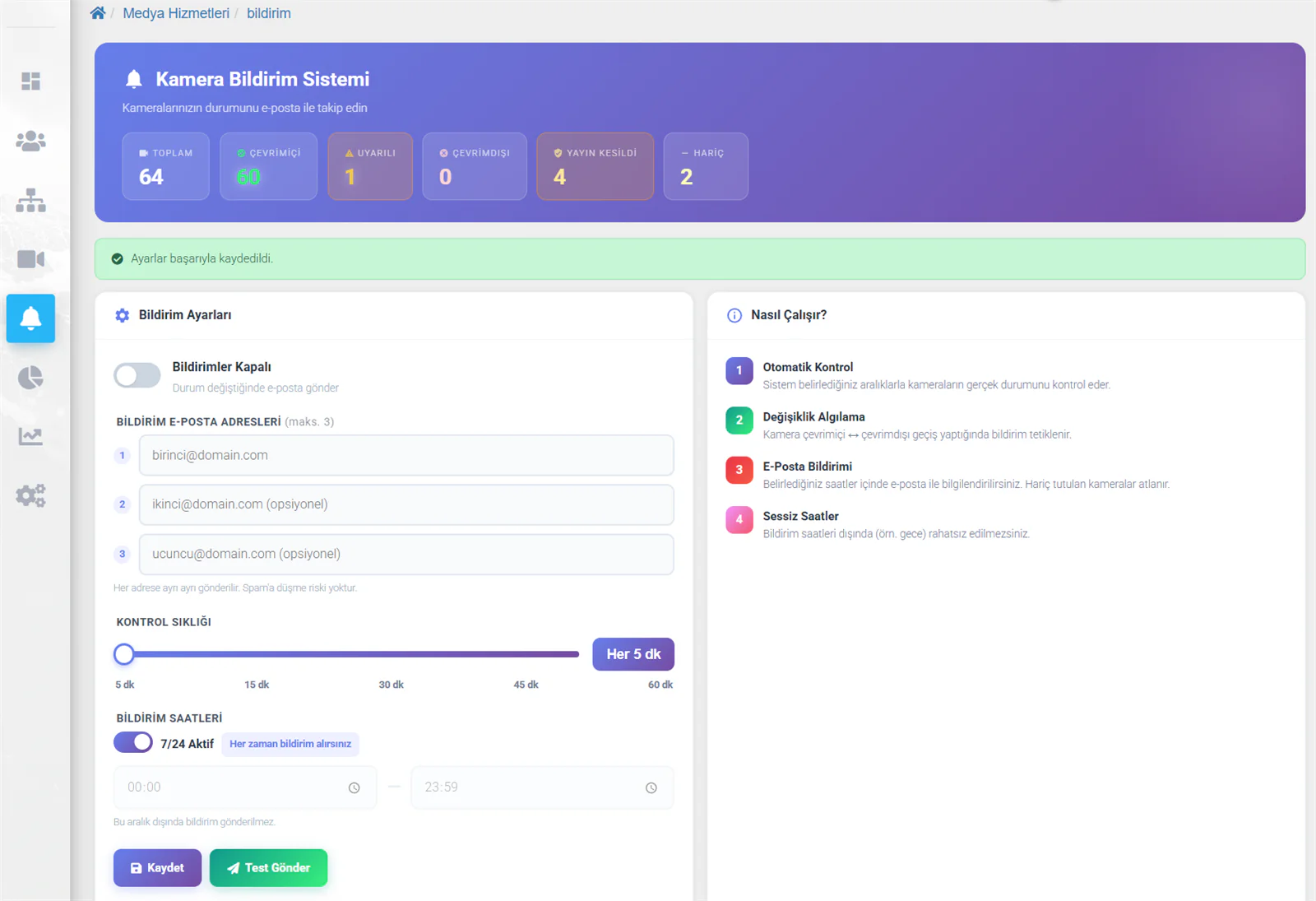
At the top of the page, colour-coded cards show the live status of your cameras:
| Card | Description |
|---|---|
| Total | Total number of cameras on your account |
| Online | Cameras currently streaming |
| Warning | Cameras with a detected codec or bitrate issue |
| Offline | Cameras whose connection has dropped completely |
| Stream Interrupted | Camera is offline but the backup stream is active — viewers see the "no signal" image |
| Excluded | Cameras excluded from notifications |
Notification Settings
Turning Notifications On/Off
The main toggle on the page switches notifications on and off. While the toggle is on, the system checks your cameras at the interval you set and sends an e-mail whenever a status changes.
E-mail Addresses
You can define up to 3 e-mail addresses. Notifications are sent to each address individually. The first address is required; the other two are optional. Because every address gets its own delivery, there is no risk of landing in spam.
Check Interval
Choose how often the system should check your cameras:
| Interval | Description |
|---|---|
| Every 5 min | Fastest response — recommended for critical cameras |
| Every 15 min | Balanced option — enough for most use cases |
| Every 30 min | Medium frequency |
| Every 45 min | Low frequency |
| Every 60 min | Lowest — for low-priority cameras |
Drag the slider to pick the interval you want.
Notification Hours
Set the hours during which notifications may be sent. Outside this window no notification goes out even if a camera drops offline — so you are never disturbed at night.
| Setting | Description |
|---|---|
| 24/7 Active | With the toggle on, you receive notifications around the clock (00:00 – 23:59) |
| Custom Time Window | Turn the toggle off and set a start and end time (e.g. 08:00 – 22:00) |
The info panel on the right explains how the system works, step by step:
1. Automatic Check: the system checks the real status of your cameras at the interval you set.
2. Change Detection: a notification is triggered whenever a camera switches between online and offline.
3. E-mail Notification: you are notified by e-mail within the hours you defined. Excluded cameras are skipped.
4. Quiet Hours: outside your notification hours (at night, for example) you are left in peace.
Camera Quality Alerts
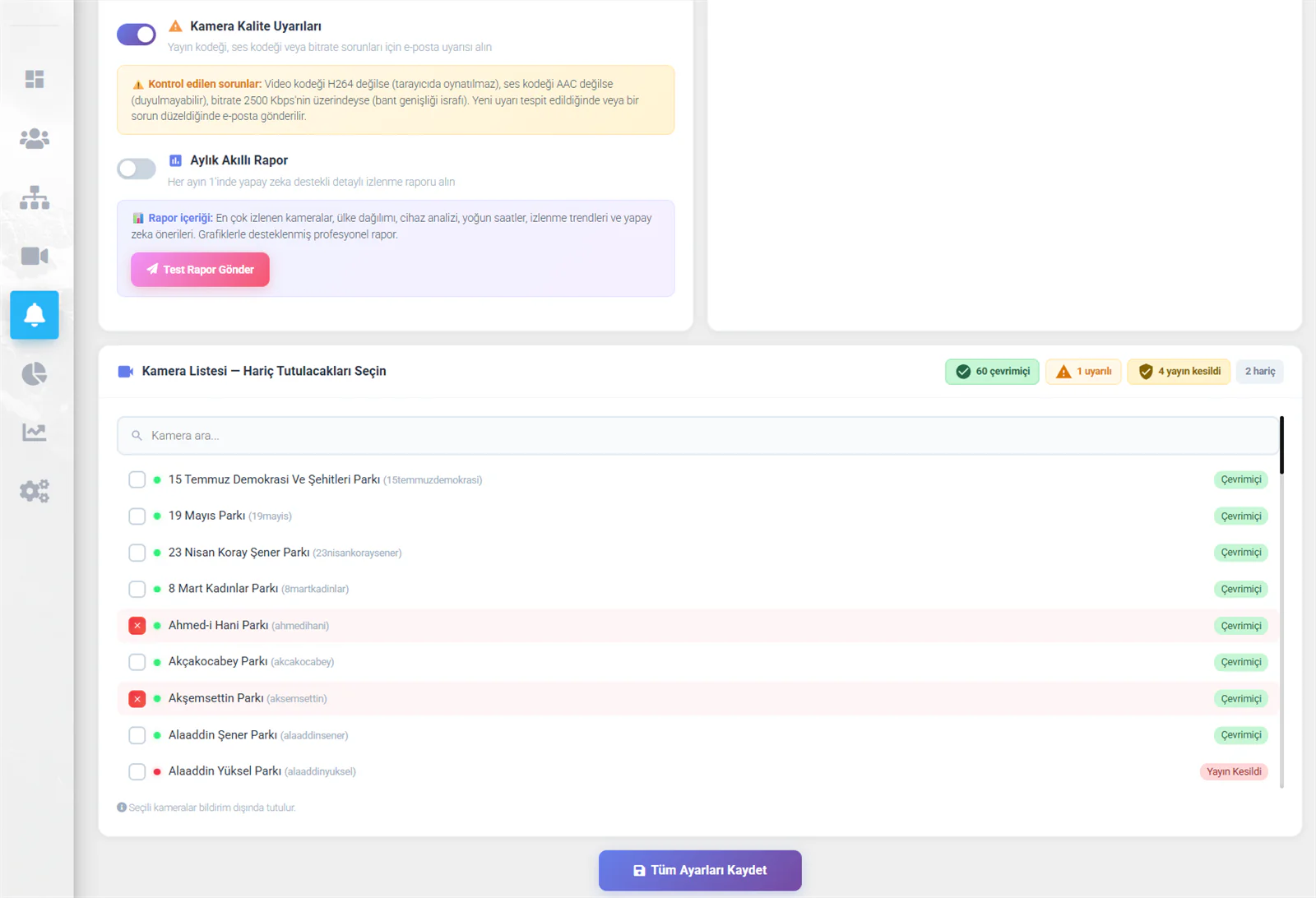
Turn on the Camera Quality Alerts toggle to receive automatic e-mail alerts for codec, audio and bitrate issues.
The issues checked:
| Issue | Detail | Fix |
|---|---|---|
| Video codec is not H.264 | The camera is using H.265 (HEVC) — browsers cannot play it | Switch the camera's video codec setting to H.264 |
| Audio codec is not AAC | Audio may not be heard in the browser | Set the audio codec to AAC |
| Bitrate above 2500 Kbps | Wastes bandwidth unnecessarily | Recommended: 1200 Kbps for static cameras, 2000 Kbps for moving ones |
An e-mail is sent automatically whenever a new alert is detected or an existing issue is resolved.
Monthly Smart Report
Turn on the Monthly Smart Report toggle to receive a detailed, AI-powered viewing report by e-mail on the 1st of every month.
What the report contains:
| Section | Description |
|---|---|
| Summary Cards | Total connections, watch time, peak concurrent viewers and data transfer |
| Detail Row | Unique viewers, daily average, number of countries, device types |
| Smart Analysis | AI-generated written summaries — most-watched camera, country breakdown, daily average, number of active cameras, most-used device, total data transfer |
| Camera Ranking | Bar chart of your most-watched cameras |
| Viewer Countries | Breakdown of viewers by country |
| Viewing Devices | Which devices and browsers were used |
Click the 🚀 Send Test Report button to receive a sample report, built from the current month's data, in your inbox right away. That way you can see what the report looks like in advance and confirm your e-mail address is working correctly.
Excluding Cameras
The Camera List — Select Cameras to Exclude section at the bottom of the page lists all your cameras, each with its live status:
| Status | Colour | Description |
|---|---|---|
| Online | Green | Camera is actively streaming |
| Stream Interrupted | Yellow | Camera offline, backup stream active |
| Offline | Red | Camera completely unreachable |
Tick the checkbox next to any camera you want to exclude. Excluded cameras are highlighted with a red background and no notifications are sent for them.
Exclude cameras that are under maintenance, temporarily switched off or added for testing. That spares you a stream of pointless notifications. When the camera is back in service, simply untick the box to turn its notifications back on.
E-mail Notifications
The system sends 5 different types of e-mail notification. Each arrives as a professionally designed HTML e-mail.
Camera Offline Notification
Sent when a camera goes offline. The e-mail shows the camera name, its previous and new status, the date/time and the Playlist Impact.
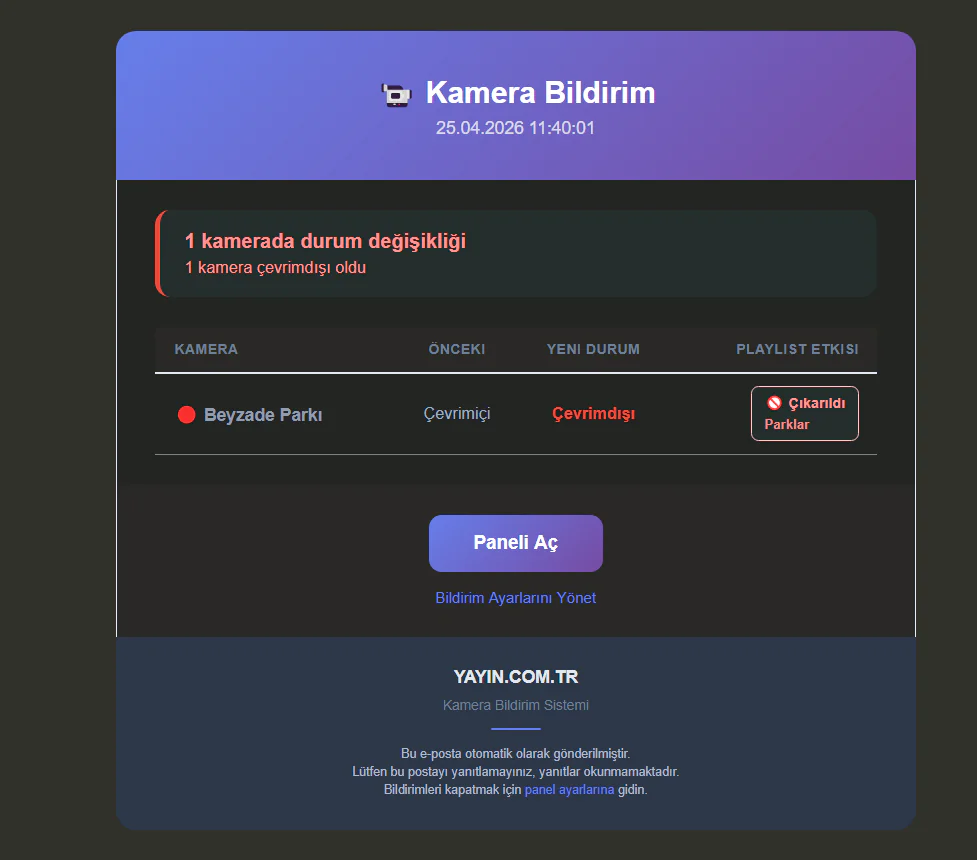
| Field | Description |
|---|---|
| Camera | Name of the camera that went offline |
| Previous | The camera's previous status (Online) |
| New Status | The camera's new status (Offline) |
| Playlist Impact | Which playlist the camera was removed from — with offline filtering enabled, the camera is taken out of the playlist automatically |
If a playlist has the "Hide Offline" feature enabled, a camera is automatically removed from that playlist the moment it goes offline. The notification e-mail shows this as "🚫 Removed — Parks". When the camera comes back online it is automatically added back to the playlist.
Camera Online Notification
Sent when a camera that was offline comes back online.
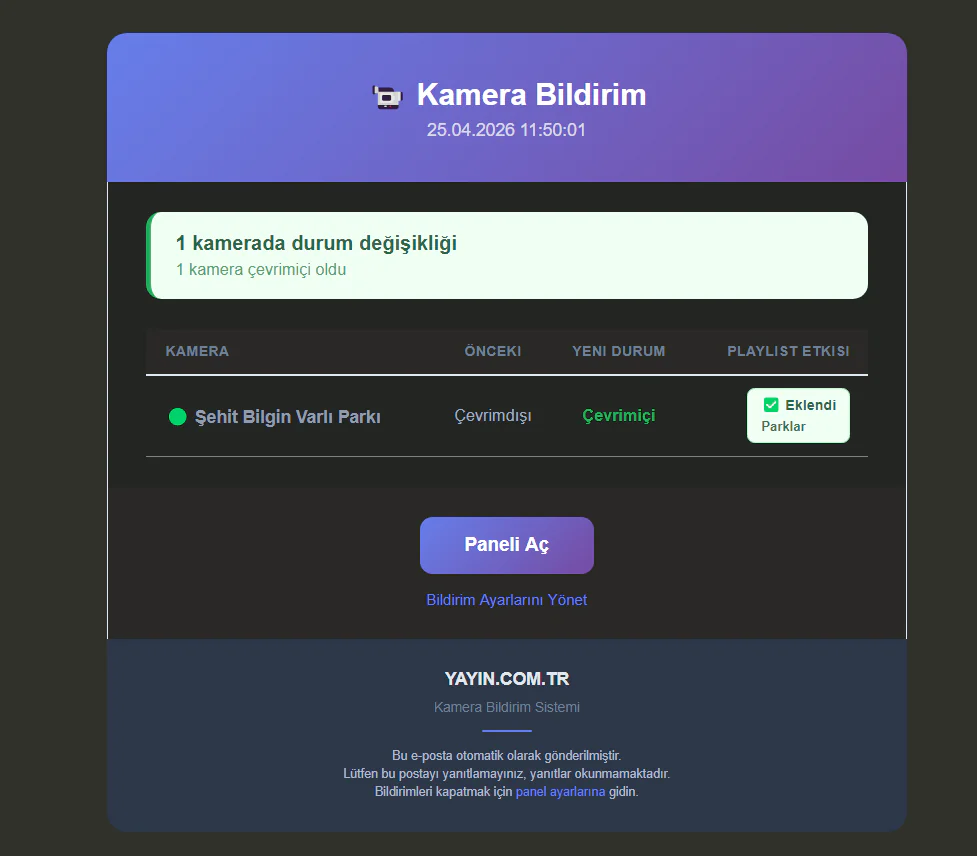
The e-mail uses a green colour theme to show the camera is active again. The playlist impact column reads "✅ Added — Parks" — the camera is automatically returned to the playlist.
Camera Quality Alert
Sent when a codec, bitrate or audio codec issue is detected.
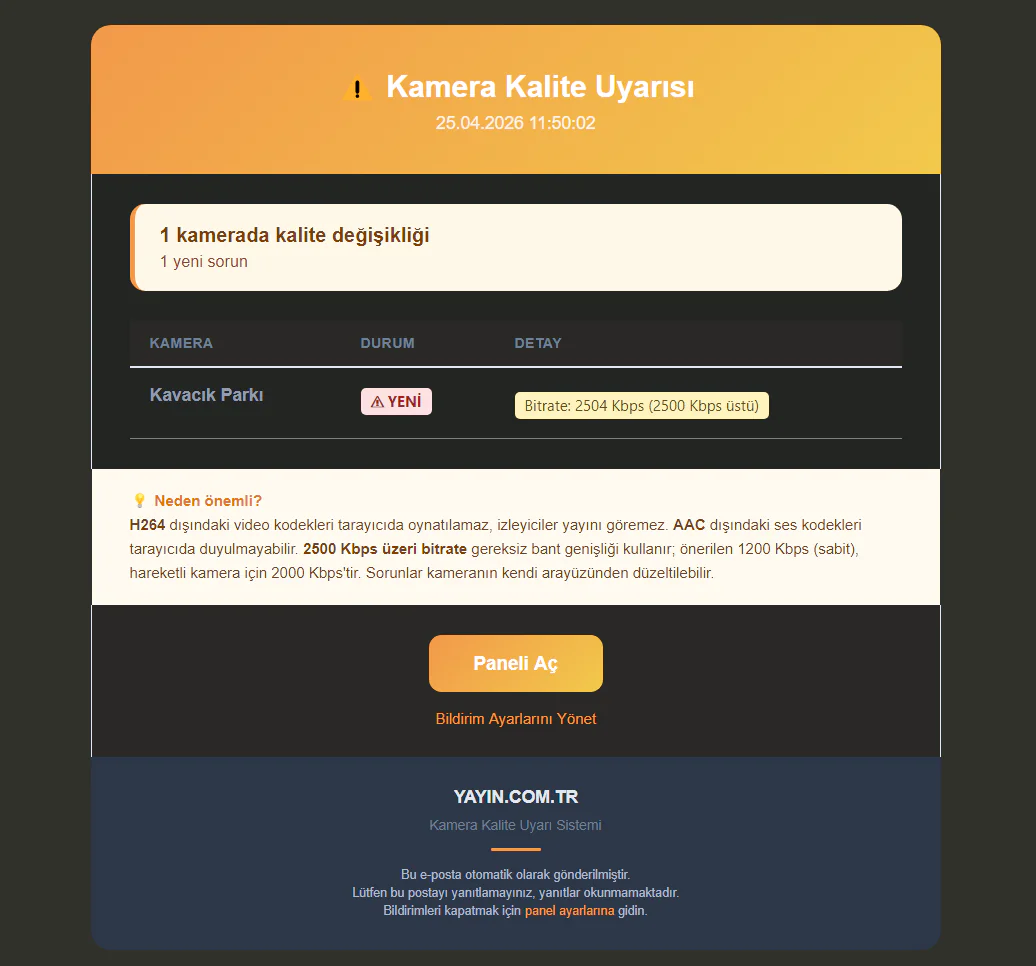
The e-mail lists the affected cameras with the alert type (NEW or RESOLVED) and its details. The "Why does it matter?" section at the bottom gives the technical explanation and the recommended fix.
| Example Details | Description |
|---|---|
| Codec: hevc | Video codec is H.265 — browsers cannot play it |
| Bitrate: 2504 Kbps (above 2500 Kbps) | Wastes bandwidth unnecessarily |
| Audio: pcm_alaw | Audio codec is not AAC — may be silent in the browser |
Playlist Schedule Activated Notification
Sent when a playlist's schedule kicks in (becomes active).
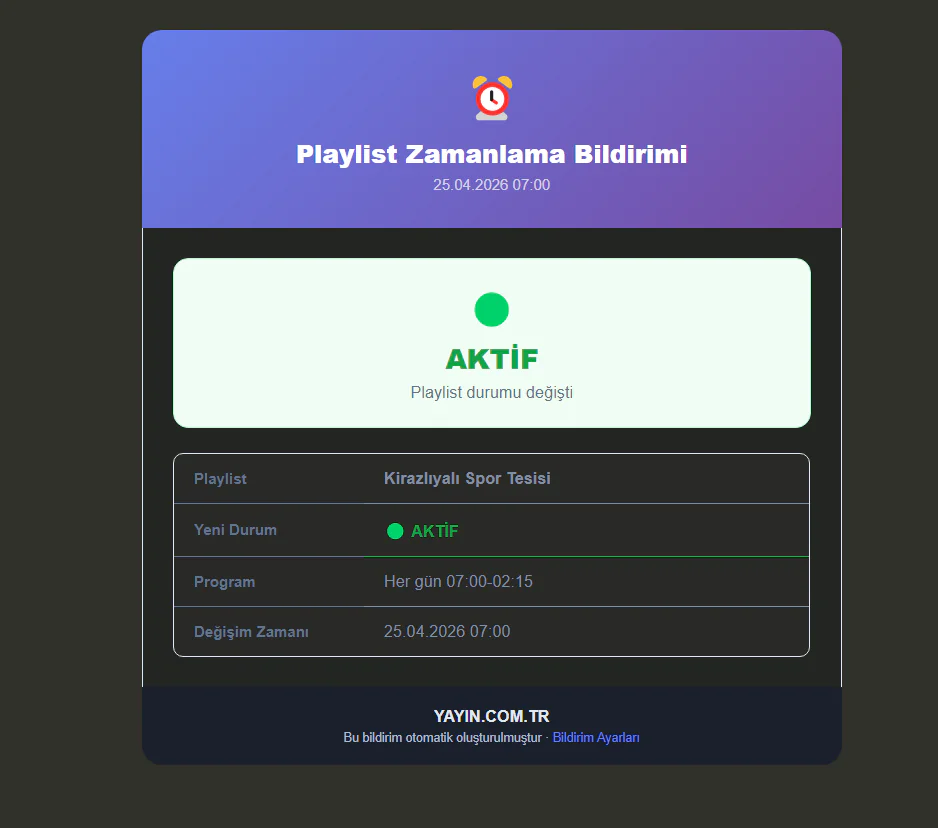
| Field | Description |
|---|---|
| Playlist | Name of the playlist whose schedule changed |
| New Status | 🟢 ACTIVE — the playlist is now live |
| Schedule | The defined schedule (e.g. Every day 07:00-02:15) |
| Time of Change | Date and time the status change took place |
Playlist Schedule Deactivated Notification
Sent when a playlist's schedule ends (becomes inactive).
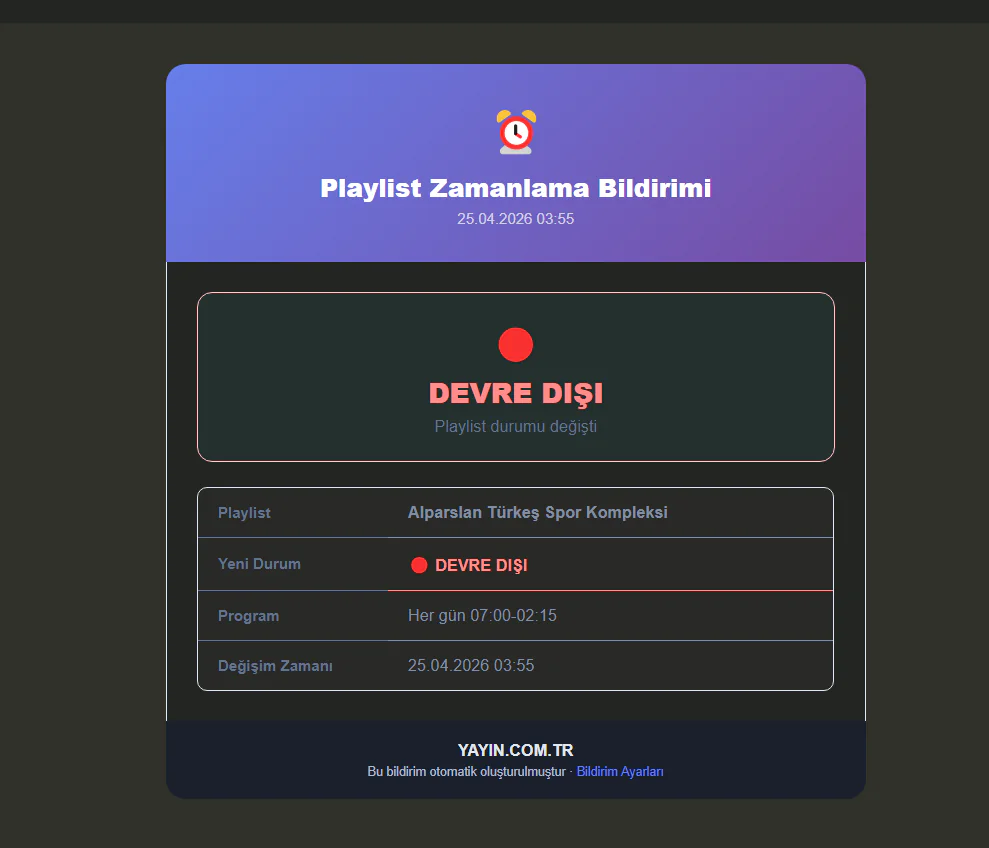
The e-mail uses a red colour theme to show the playlist has been deactivated. The schedule details and deactivation time are shown in the table.
Once you set a schedule on your playlists, you automatically get a notification whenever the schedule switches between active and inactive. That lets you follow in real time when your playlist goes on air and when it shuts down. There is no separate notification setting to configure.
Testing and Saving
The buttons at the bottom of the page:
| Button | Function |
|---|---|
| 💾 Save | Saves all settings (e-mails, interval, hours, alerts, excluded cameras) |
| 🚀 Send Test | Sends a test notification to the saved e-mail addresses — confirms the system is working |
| 🚀 Send Test Report | Sends a sample of the monthly report right away (under the monthly report toggle) |
If you have changed an e-mail address, press 💾 Save first and only then press 🚀 Send Test. Test deliveries cannot be made with unsaved changes.
All Notification Types at a Glance
Offline Notification
Instant notification when a camera goes offline, including which playlist it was removed from.
Online Notification
Notification when a camera comes back online, including confirmation it was automatically re-added to its playlist.
Quality Alert
A warning whenever H.265 codec, excessive bitrate or an incompatible audio codec is detected.
Schedule Notification
Automatic notification when a playlist schedule switches between active and inactive.
Monthly Smart Report
AI-powered viewing analysis with camera rankings, country breakdown and device details.
Test Notification
Send a test e-mail with one click to confirm your e-mail address is working correctly.